

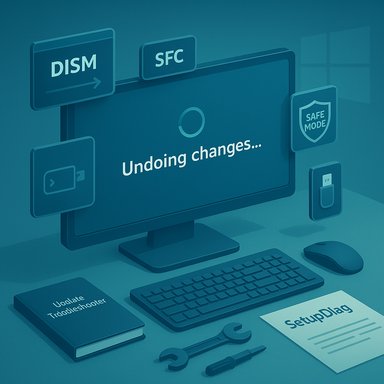
Windows updates are supposed to be invisible safety and stability workhorses, but when they repeatedly fail and display the dreaded “Undoing changes to your computer” message during reboot, that quiet maintenance becomes a recurring headache — and a sign that something deeper is wrong. This feature piece walks through how to identify whether the update itself is at fault, how to run safe, field-proven fixes, and when to escalate to recovery or reinstallation, while weighing the benefits and risks of each approach for power users and IT administrators alike.
Windows Update is a complex service that downloads, stages, and applies a chain of packages (quality updates, cumulative patches, drivers and sometimes feature upgrades). Failures during that process can produce a rollback on reboot: Windows will attempt to undo the partially applied changes and return the system to its previous state. That “undo” is intended as a safety mechanism, but when it repeats on every restart it becomes a loop that prevents the system from finishing the update. Community troubleshooting archives and field playbooks document the same pattern and common remedial steps used by support pros and enthusiasts.
Where the community and enterprise archives add value is in prioritizing actions: try the troubleshooter and non-destructive repairs first; move to component resets and SFC/DISM next; manually apply packages or perform an in-place repair only after those have failed. And always keep backups and recovery media ready — that’s what turns a potential data-loss emergency into an afternoon of maintenance.
If you’re seeing repeated “Undoing changes to your computer” reboots, start by checking the KB number and reports about that KB, run the troubleshooter and DISM/SFC, reset the update cache, and only then escalate to manual installs or repair installs. For stubborn cases, SetupDiag and the Microsoft Update Catalog give you the diagnostic precision and manual tools to break the cycle. Microsoft’s official troubleshooting pages and community playbooks provide the exact commands and recovery sequences that are used in the field.
Every paragraph above contains practical steps or analysis drawn from Microsoft’s official troubleshooting guidance and long-standing community runbooks; follow the ordered playbook, heed the risks, and you’ll break the loop in most cases. If the problem persists after these steps, escalate with logs and SetupDiag results — they’re the keys to a reproducible fix.
Source: How-To Geek Does your Windows update keep undoing itself? Here’s how to break the cycle
 Background
Windows Update is a complex service that downloads, stages, and applies a chain of packages (quality updates, cumulative patches, drivers and sometimes feature upgrades). Failures during that process can produce a rollback on reboot: Windows will attempt to undo the partially applied changes and return the system to its previous state. That “undo” is intended as a safety mechanism, but when it repeats on every restart it becomes a loop that prevents the system from finishing the update. Community troubleshooting archives and field playbooks document the same pattern and common remedial steps used by support pros and enthusiasts.Why updates roll back
- A buggy update package that conflicts with your hardware/driver stack or with an OEM-customized installation.
- Corrupted or missing system files required to commit the update.
- A blocked or misbehaving Windows Update component (service, cache, or the component store).
- Third-party interference: security software, drivers, or background services that lock files the update needs to patch.
- Insufficient free space for staging large updates or feature upgrades.
Quick triage: determine whether the update or your machine is the problem
Before you start running commands, do a quick fact-check:- Reproduce once and gather data. Let the update install and note its KB number in Update History (Settings → Windows Update → View update history). Microsoft’s Update Catalog and community threads can confirm whether other users report the same KB breaking systems. If the KB is widely reported as problematic, waiting for Microsoft’s fix or pausing updates is usually the safest first move.
- Check Windows Update history for repeated failures or driver updates installed around the same time. Driver replacement/rollback is a common culprit.
- Look for broad reports. Community forums and aggregated threads often surface patterns (e.g., a KB that causes audio, webcam, or boot loops on certain OEM platforms). Treat community reports as valuable signals but not universal proof — scope varies by hardware and installed software.
Quick, low-risk fixes to try first
Try these in order — they are safe, reversible, and often fix transient issues.1) Reboot and retry
A stubborn transient lock or temporary I/O problem can be cleared by a simple restart. If installation stalls at a percentage, wait a reasonable time (large updates can take hours on slow drives). Then reboot and retry the update. Community reports regularly show one-off successes from retrying.2) Unplug removable media
USB drives, SD cards, and some docking stations can confuse the installer (drive letters, removable storage staging). Remove non-essential external media and retry the update. This is a common, quick win.3) Free up disk space
Large cumulative or feature updates often require 15–25 GB of free staging space. Free up space or attach a temporary USB drive and try again. Microsoft's guidance lists free-space requirements as a common failure cause.4) Try Safe Mode or Clean Boot
Booting into Safe Mode and applying the update can reveal whether third-party drivers/services are causing conflicts; a clean boot (msconfig → Hide all Microsoft services → Disable all) isolates startup items and services to find the offender. If the update succeeds in clean boot, re-enable services in batches to pinpoint the conflict. This is an effective troubleshooting strategy documented by community playbooks.Diagnostic and repair toolkit (recommended order)
If the quick checks don’t resolve the loop, move to the following field-proven steps. Each step escalates in intrusiveness.1) Run the Windows Update Troubleshooter
Start with the built-in troubleshooter (Settings → System → Troubleshoot → Other troubleshooters → Windows Update). It detects common problems and can reset components automatically. Microsoft lists this as the first, safe diagnostic.2) Repair system files: SFC and DISM
Corrupted system files or a damaged component store are frequent root causes. Run these from an elevated Command Prompt:- DISM /Online /Cleanup-Image /RestoreHealth
- sfc /scannow
3) Reset Windows Update components and clear caches
When update payloads are corrupted or the component store is stuck, resetting the update stack works very reliably. The standard manual sequence (stop services, rename SoftwareDistribution and Catroot2, restart services) is widely used and endorsed by Microsoft documentation and community runbooks:- Stop services:
- net stop wuauserv
- net stop cryptSvc
- net stop bits
- net stop msiserver
- Rename folders:
- ren C:\Windows\SoftwareDistribution SoftwareDistribution.old
- ren C:\Windows\System32\catroot2 catroot2.old
- Restart services:
- net start wuauserv
- net start cryptSvc
- net start bits
- net start msiserver
4) Driver triage
After system-repair steps, check Device Manager for yellow warnings. Update drivers from the device vendor (not only the driver Windows Update offers) or roll back a suspect driver. GPU, network, storage, and USB controller drivers are frequent culprits after cumulative updates. Community reports repeatedly show vendor drivers resolving post-update failures.5) Use SetupDiag for upgrade failures
If a feature update or upgrade fails (e.g., Windows version jump), download and run SetupDiag to analyze Setup logs and produce determinative failure codes. SetupDiag is included in setup and can be run manually to extract the actionable cause. This is the recommended step before attempting in-place repair or reinstall.Manual and recovery options
When standard repairs fail or the OS won’t boot properly, more robust recovery steps are necessary.Install the specific KB manually from the Microsoft Update Catalog
If a particular KB refuses to apply through the client, download the matching .msu or .cab packages from the Microsoft Update Catalog and install manually with wusa.exe or DISM. For multi-file rollups, follow Microsoft’s order and prerequisites. This offers tighter control and reveals package-level errors. Use caution: installing the wrong architecture or version will fail.In-place repair (repair install)
An in-place repair (mount an ISO and run setup.exe → Keep personal files and apps) replays servicing components while preserving your apps and files. It’s a high-success recovery path that often resolves deep servicing stack corruption that DISM/SFC cannot. Back up first. Community playbooks and Microsoft guidance both recommend this before a full clean reinstall.System Restore or Uninstall the problematic update
If update install created immediate, reproducible regressions (e.g., certain peripherals fail after the patch), use System Restore to roll the system back to a pre-update restore point, or uninstall the update via Settings → Windows Update → Update history → Uninstall updates. Be aware that uninstalling a security update reintroduces the patched vulnerability until a corrected fix is released.Full reinstall (clean install) — last resort
If nothing cures the update loop and the system remains unstable, a fresh installation from up-to-date media is the most reliable cure. Create new installation media using the Media Creation Tool (or vendor ISOs) — always ensure your ISO contains the latest cumulative patches, because older installer media has been shown in community incidents to block future updates for some installs. Reinstalling is invasive: back up everything and prepare drivers and app installers. Community incident logs warn this can be necessary in a minority of severe cases.Practical playbook — ordered steps to break the rollback loop
- Pause updates if you haven’t installed the KB yet; research the KB number for known issues.
- Unplug USB/SD media and retry the install.
- Run Windows Update Troubleshooter.
- Run DISM then SFC (DISM /RestoreHealth, then sfc /scannow).
- Reset Windows Update components (stop services, rename SoftwareDistribution and catroot2, restart services).
- Boot to Safe Mode or clean boot and retry; if successful, identify offending driver/service.
- If upgrade-specific, run SetupDiag to get precise failure rules.
- If an individual KB still fails, download and install the .msu from Microsoft Update Catalog.
- If the system remains unfixable, perform an in-place repair from an ISO (keep files/apps) or, failing that, a fresh install from updated media.
Risks, caveats and best practices
- Back up before major changes: System Restore points, a full-image backup, or at minimum file backups to external media or cloud storage. Any remedial step that manipulates system files or the component store carries some risk.
- Temporary disablement of antivirus is sometimes necessary to rename update caches, but it opens a window of exposure — do this only briefly and on a trusted network. Community guides repeatedly warn about the security trade-off here.
- Manual KB installs from the Update Catalog are powerful but require matching architecture, edition, and servicing prerequisites. Installing the wrong package can leave the system in a worse state. Always verify the KB number and package details.
- For managed fleets, always pilot updates across a representative set of devices. The diversity of OEM customizations, third-party management agents, and specialty drivers makes large-scale rollout without piloting risky. Enterprise playbooks recommend staged deployment and having validated recovery ISOs on hand.
- Some installer-era bugs (rare) have blocked future updates for systems installed from out‑of‑date media; if you used custom USB media containing older cumulative updates, consider recreating the media with the latest cumulative patches or planning a reinstallation. Community incident threads documented such installer-media bugs and the need for fresh media to restore update eligibility. Treat these reports seriously but verify whether your device is affected before the invasive reinstall step.
Final analysis: when to wait, when to act
Windows’ update framework is resilient but not infallible. When many devices report a single KB failing, the safest option for most users is to pause updates and wait for Microsoft’s fix. For professionals, IT admins, and power users who must keep systems patched, the diagnostic playbook above resolves the majority of device-specific failures without reinstalling.Where the community and enterprise archives add value is in prioritizing actions: try the troubleshooter and non-destructive repairs first; move to component resets and SFC/DISM next; manually apply packages or perform an in-place repair only after those have failed. And always keep backups and recovery media ready — that’s what turns a potential data-loss emergency into an afternoon of maintenance.
If you’re seeing repeated “Undoing changes to your computer” reboots, start by checking the KB number and reports about that KB, run the troubleshooter and DISM/SFC, reset the update cache, and only then escalate to manual installs or repair installs. For stubborn cases, SetupDiag and the Microsoft Update Catalog give you the diagnostic precision and manual tools to break the cycle. Microsoft’s official troubleshooting pages and community playbooks provide the exact commands and recovery sequences that are used in the field.
Every paragraph above contains practical steps or analysis drawn from Microsoft’s official troubleshooting guidance and long-standing community runbooks; follow the ordered playbook, heed the risks, and you’ll break the loop in most cases. If the problem persists after these steps, escalate with logs and SetupDiag results — they’re the keys to a reproducible fix.
Source: How-To Geek Does your Windows update keep undoing itself? Here’s how to break the cycle
