

Windows 11 gives you multiple fast, reliable ways to bridge File Explorer and the command line so you can open a terminal in the folder you’re browsing, launch files from a shell, or open Explorer from an active terminal session. The built‑in “Open in Terminal” context menu and the File Explorer address‑bar shortcuts cover most daily workflows, and when those aren’t present you can add, remove, or customize the same behavior with a small registry edit. Practical knowledge of these techniques saves time, avoids repetitive cd commands, and reduces friction for scripting, development, and admin tasks.
Windows historically shipped separate context‑menu shortcuts for Command Prompt and PowerShell. Windows 11 standardizes and modernizes that experience by including Windows Terminal (an app that hosts PowerShell, CMD, WSL, and other shells) and exposing Open in Terminal in File Explorer’s context menu. Windows Terminal is controlled via the
Windows Registry Editor Version 5.00
[HKEY_CLASSES_ROOT\Directory\shell\OpenWTHere]
@="Open in Windows Terminal"
"Icon"="wt.exe"
[HKEY_CLASSES_ROOT\Directory\shell\OpenWTHere\command]
@="wt.exe -d \"%1\""
Using a .reg file is fewer steps and less error‑prone than manually editing keys in regedit. After merging, sign out and back in or restart Explorer to ensure the change appears. Community and vendor writeups show this exact key structure as the common practice for adding the menu.
Windows Registry Editor Version 5.00
[-HKEY_CLASSES_ROOT\Directory\shell\OpenWTHere]
Always back up the registry before making edits. Registry changes can break Explorer behavior if applied incorrectly.
Source: WinBuzzer How to Open a File or Folder in Terminal in Windows 11 - WinBuzzer
 Background
Windows historically shipped separate context‑menu shortcuts for Command Prompt and PowerShell. Windows 11 standardizes and modernizes that experience by including Windows Terminal (an app that hosts PowerShell, CMD, WSL, and other shells) and exposing Open in Terminal in File Explorer’s context menu. Windows Terminal is controlled via the wt execution alias; it accepts command‑line flags such as -d to set a starting directory. The start command, built into CMD, remains the canonical way to open files or launch applications from a classic shell. Microsoft’s own command‑line documentation details both the wt argument set and the start command semantics used throughout this guide. How the pieces fit together: quick overview
- The modern, graphical way: right‑click in File Explorer and choose Open in Terminal to open Windows Terminal at the folder you’re viewing. This uses the Terminal app’s execution alias and respects profile settings.
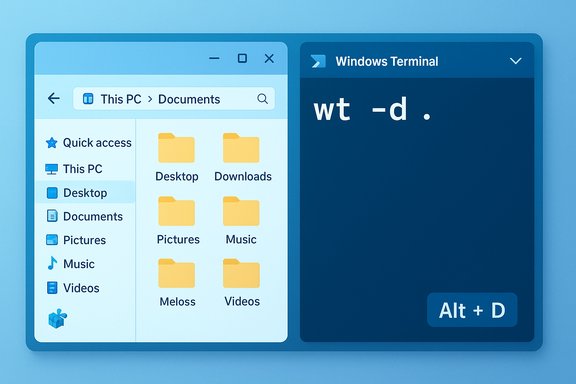
- Keyboard / address bar shortcut: focus the File Explorer address bar (Alt + D) and type
wt -d .(or simplywtfollowed by-d <path>). The-doption is the reliable way to ensure Terminal starts in the current folder. - From Terminal: open files with the
startcommand (CMD/PowerShell) or useexplorer.exe ./start .to jump back to File Explorer showing your current directory. - Customize: if the context‑menu option is missing, you can add it by creating a small registry key that calls
wt -d "%1". If you prefer a minimal menu, delete that registry key or uninstall Terminal.
Open a terminal to a specific folder: Context menu (fastest, most discoverable)
What it does and why use it
Right‑clicking an empty area of a folder and choosing Open in Terminal launches Windows Terminal with a tab using your default profile and a working directory set to that folder. It’s the single quickest way to get a shell in the right place without typing paths. This is the method most users will prefer for speed and discoverability.Step‑by‑step (Beginner, < 1 minute)
- Open File Explorer (Win + E).
- Navigate to the folder you want.
- Right‑click an empty area inside the folder.
- Choose Open in Terminal.
Notes and gotchas
- If you right‑click a file instead of empty space you might see a different menu; right‑click blank space in the folder view.
- If Open in Terminal is missing, try holding Shift while right‑clicking (shows classic menu on certain builds) or use the address‑bar method below. If the option is persistently absent, the Terminal app may be uninstalled or corrupted. Repair/Reset Terminal from Settings → Apps → Installed apps. Community troubleshooting and Microsoft forum threads document cases where updates or third‑party shell extensions remove or hide the menu; resetting Terminal often restores it.
Open Windows Terminal from the File Explorer address bar (keyboard fast‑lane)
Why use the address bar
If you prefer keyboard-only workflows, the address bar shortcut is the fastest method: focus the address bar (Alt + D, Ctrl + L, or click it), type a command and press Enter. This avoids moving the mouse and gives immediate access to a terminal opened at the folder.Two useful address‑bar commands
cmd— opens Command Prompt in the current folderpowershellorpwsh— opens PowerShell in the current folderwt -d .— opens Windows Terminal in the current folder (important: the-d .ensures Terminal inherits Explorer’s current directory)
wt by itself will open Terminal, but it often opens to the profile’s configured starting directory rather than the Explorer folder. To guarantee the correct starting path always use the -d option, e.g., wt -d .. The Windows Terminal team and documentation explicitly recommend wt -d . as the reliable workaround when launching from Explorer’s address bar. Quick tip
Use Alt + D (or F4/Ctrl + L) then typewt -d . and press Enter — one hand on the keyboard, one short keystroke sequence.Open a file from within Windows Terminal
When you’d do this
You’ve already navigated to a project folder inside Terminal and want to open a document, image, or script in its associated GUI application (editor, image viewer, etc. without switching to Explorer.How (CMD and PowerShell)
- From Command Prompt (CMD): use
start: - Example: start "myfile.txt"
- From PowerShell:
startis available as an alias (Start-Process) and is generally more reliable with paths: - Example: Start-Process "c:\path\to\cafe.jpg"
start from CMD and the first parameter is quoted, start interprets that first quoted argument as the window title. To avoid that, either supply an explicit empty title (start "" "C:\Program Files\Notepad++\notepad++.exe" "file.txt") or use PowerShell’s Start‑Process which accepts the file and application cleanly. The core Microsoft documentation for start explains these semantics and examples. Example (PowerShell)
- cd to folder: cd "C:\Users\You\Documents\project"
- Open file: Start-Process "README.md"
Example (CMD with program)
- start "" "C:\Program Files\Notepad++\notepad++.exe" "myfile.txt"
Open a folder in File Explorer from Terminal
Sometimes you locate the folder in a shell and want to switch to a GUI view for drag‑and‑drop or graphics preview.- From CMD or PowerShell: start .
- From PowerShell: ii . (alias for Invoke‑Item) opens Explorer on the current folder
- From WSL: explorer.exe . opens the current WSL directory in Windows File Explorer (this maps to \wsl$ internals safely)
start . and explorer.exe . are longstanding, reliable options. Microsoft’s command documentation makes start the canonical way to open files and directories from CMD. If the current path is a UNC path or network share, start . works for mapped drives; for UNC paths pushd \server\share can temporarily map the share to a drive letter before cd/start operations. Add or remove “Open in Windows Terminal” from the File Explorer context menu (advanced)
Why you might do this
- The menu is missing and you want it back.
- You prefer a minimal context menu and want to remove custom items.
- You manage multiple machines and need to deploy the behavior consistently for your users.
Safe approach: use a .reg file (recommended)
Create a text file named AddTerminal.reg with the following contents (ensure extension is .reg), then double‑click to merge. This is the pattern used in many community guides; the-d "%1" part is what tells Terminal to start in the directory you right‑clicked:Windows Registry Editor Version 5.00
[HKEY_CLASSES_ROOT\Directory\shell\OpenWTHere]
@="Open in Windows Terminal"
"Icon"="wt.exe"
[HKEY_CLASSES_ROOT\Directory\shell\OpenWTHere\command]
@="wt.exe -d \"%1\""
Using a .reg file is fewer steps and less error‑prone than manually editing keys in regedit. After merging, sign out and back in or restart Explorer to ensure the change appears. Community and vendor writeups show this exact key structure as the common practice for adding the menu.
Manual registry steps (advanced)
- Win + R → regedit (requires admin privileges).
- Navigate to HKEY_CLASSES_ROOT\Directory\shell.
- Create a new key named OpenWTHere.
- Set (Default) = Open in Windows Terminal and create a String value Icon = wt.exe.
- Under OpenWTHere create a command key and set its (Default) value to: wt -d "%1".
- Restart or sign out/in.
To remove the entry
Either delete the OpenWTHere key manually in regedit, or merge a .reg file containing:Windows Registry Editor Version 5.00
[-HKEY_CLASSES_ROOT\Directory\shell\OpenWTHere]
Always back up the registry before making edits. Registry changes can break Explorer behavior if applied incorrectly.
Troubleshooting common issues
“Open in Terminal” missing
- Confirm Windows Terminal is installed and not corrupted: Settings → Apps → Installed apps → Windows Terminal → Advanced options → Repair / Reset. Community posts and Microsoft community threads demonstrate Repair/Reset often restores the entry. If Terminal isn’t installed, install from the Microsoft Store or use the package method your organization allows.
Terminal opens, but the working directory is your user folder
- If
Open in Terminalopens Terminal but not at the folder path you clicked, confirm the registry command uses-d "%1"(the%1is the placeholder for the clicked directory). If you launch from the File Explorer address bar, preferwt -d .rather thanwt—wtwithout-dmay open at the Terminal profile’s forced starting directory. The Terminal docs and GitHub FAQ call out this exact behavior and the-dfix.
Permissions / “Access Denied” when performing operations from a terminal
- Some actions require elevated privileges. Use Windows Terminal (Admin) from the Start menu to run an elevated session, or set your default profile to run as Administrator if you always need elevation (Terminal Settings → Profile → General → Run this profile as Administrator). When configuring context menu items that should elevate every time, avoid creating registry entries that attempt to bypass UAC — use built‑in profile elevation or explicit “Run as administrator” steps.
Paths with spaces or special characters
- Always quote paths containing spaces. When scripting
startfrom CMD, remember the first quoted string tostartis treated as the window title; use an empty title""if your command or path is quoted. This detail is documented in thestartcommand docs and reinforced across community help pages.
Practical tips and recommended workflows
- For keyboard fans: Alt + D → type
wt -d .→ Enter. Fast, consistent, and guaranteed to start in the folder you’re viewing. - If you use Terminal constantly, set your default Terminal profile to your preferred shell so context menu launches open the environment you expect (Terminal Settings → Startup → Default profile).
- For WSL users: use
explorer.exe .inside WSL to open the current Linux folder in File Explorer. Avoid manually poking at distro VHD files under AppData — use the supported\wsl$provider to avoid corruption. - Want a single keybinding to open a Terminal for the Explorer window? Create a small PowerShell script or install a community helper that maps a hotkey to
wt -d "%CD%"(many community scripts exist; test carefully and vet code before using in production). - If you support an enterprise environment, deploy the registry
.regentry via Group Policy preferences to ensure every machine has consistent behavior.
Security and administrative considerations
- Registry edits require admin rights. Do not deploy a registry change to production without testing.
- Be cautious setting Terminal profiles to always run as Administrator — that increases attack surface and may lead to accidental privilege escalations in scripts.
- When creating custom context menu entries that call executables, ensure paths reference properly signed and maintained binaries to avoid supply‑chain and integrity risks.
- For managed devices, prefer installing and configuring Terminal through company provisioning tools rather than editing keys manually to maintain updateability.
Conclusion
Windows 11’s File Explorer ↔ Terminal integration is well thought out: the built‑in context menu gives a one‑click entry point, the File Explorer address bar can be a lightning‑fast keyboard method (usewt -d . for consistent results), and the start command remains the flexible way to open files and Explorer windows from a shell. When the UI option is missing, a small registry key (or a .reg file) restores the behavior; when you need to open files with a specific program from a terminal, start or PowerShell’s Start‑Process is the safe approach — remember to quote paths and supply an empty title when using start from CMD. The official Windows Terminal command‑line documentation documents -d and the available arguments, and Microsoft’s start docs explain file‑launch semantics; community guidance fills in practical tips such as using wt -d . in Explorer’s address bar. Use these methods to eliminate repetitive navigation, speed up script testing, and make command‑line workflows feel as natural and immediate as the GUI.Source: WinBuzzer How to Open a File or Folder in Terminal in Windows 11 - WinBuzzer
