

If you want Google Photos content to appear in the Windows 11 Photos app, there’s no single “one-click” bridge — but you can make the two ecosystems behave as one by exporting or mirroring Google Photos into a Drive folder on your PC and pointing Photos at that folder.
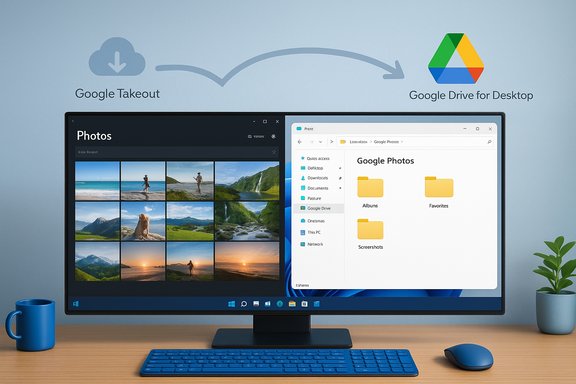
Google Photos and the Windows 11 Photos app are both excellent at organizing and displaying images, but they operate in different ecosystems. Google Photos is primarily a cloud-first service; Windows Photos is a local app that indexes folders on your PC. Because Photos reads any local or synced folder, the practical route to “sync” Google Photos with Windows 11 is to get your Google Photos content into a Google Drive folder on the PC (or otherwise make the files locally available) and then add that folder to Photos’ sources. The user-friendly method walked through below uses Google Takeout + Google Drive (via Drive for desktop) and then tells Windows Photos to watch the mirrored Drive folder.
However, the method is not without trade‑offs: disk usage, sync semantics, metadata shifts, and vendor roadmap changes all matter. Treat the process as an integration workflow rather than a permanent “sync” bridge — verify each stage with small tests and maintain independent backups before making large structural changes to your photo library. Community discussions and troubleshooting threads reinforce that a cautious, staged rollout is the safest path.
Syncing Google Photos with the Windows 11 Photos app demands one more step than a direct cloud-to-app handshake, but with Google Takeout, Drive for desktop and a mindful configuration you can create a robust, local‑friendly experience that brings the convenience of Google Photos into Windows’ native photo tools — provided you manage storage, double‑check deletion behavior, and test before applying changes to your whole library.
Source: Guiding Tech How to Sync Google Photos With the Windows 11 Photos App via Google Drive
 Overview
Google Photos and the Windows 11 Photos app are both excellent at organizing and displaying images, but they operate in different ecosystems. Google Photos is primarily a cloud-first service; Windows Photos is a local app that indexes folders on your PC. Because Photos reads any local or synced folder, the practical route to “sync” Google Photos with Windows 11 is to get your Google Photos content into a Google Drive folder on the PC (or otherwise make the files locally available) and then add that folder to Photos’ sources. The user-friendly method walked through below uses Google Takeout + Google Drive (via Drive for desktop) and then tells Windows Photos to watch the mirrored Drive folder.Background: Why there’s no direct integration
The platform gap
Google Photos is designed as a cloud-backed gallery; it exposes content through a web UI and mobile apps but does not currently offer a direct connector that makes its live streaming library available to third‑party desktop gallery apps as a filesystem. Windows Photos, by contrast, indexes and displays image files it can see on a disk or in a synced folder. That mismatch — cloud-first API versus local-file indexer — is the core reason for the extra steps. Community and how‑to coverage shows the same conclusion: there’s no direct Photos ↔ Google Photos integration built into Windows 11 today.Alternatives Microsoft and Google are pursuing
Both companies are evolving how cloud photos and local apps interoperate. Microsoft has emphasized OneDrive-first workflows and File Explorer mounting for mobile photos, which can change how users expect cross-device galleries to behave. Google has been exploring Windows-focused software bundles that may simplify access in future releases. These ecosystem shifts mean the steps in this guide are current best practice, but they could change if either vendor ships deeper platform integrations. Treat the present workflow as reliable today but subject to future product evolution.How the sync method works — high level
- Use Google Takeout or Google Photos’ export options to place your Photos library (or selected albums) into Google Drive.
- Install Google Drive for desktop on your Windows 11 PC and configure it to mirror files locally (or selectively sync the folder you want).
- Point Windows Photos at the mirrored Google Photos folder so Photos indexes and displays the images like any other local gallery.
Step‑by‑step: Export Google Photos into Google Drive
1. Export with Google Takeout (recommended for large or full-library moves)
Google Takeout allows controlled exports of Google account data into Drive. For Google Photos you can export everything or select albums. The Takeout export can be configured to add the result directly to Google Drive, which simplifies the next step because the photos will already be in Drive rather than sitting as a ZIP on your desktop. Key steps:- Open Google Takeout in a browser and sign in.
- Deselect all products, then tick Google Photos only.
- Click Next step, set Transfer Destination to Add to Drive, choose export frequency and file format, and click Create export.
- Wait for the export job to complete; when Drive receives the archive you may need to unzip inside Drive or use Drive for desktop to access the files.
- Large exports may take time to prepare and may arrive as zipped archives; unzipping inside Drive or locally is required to expose individual image files.
- If you selected compressed or “high quality” uploads historically, some exported images may be reduced in resolution unless you had originals stored. Verify your Google Photos upload quality before exporting. This depends on your prior Google Photos settings and storage allowances.
Step‑by‑step: Install and configure Google Drive for desktop
Why Drive for desktop?
Drive for desktop exposes Google Drive content to Windows as a local drive letter or a mirrored folder, letting Windows see files as if they were native. This is the simplest way to make Google Photos files (now in Drive) visible to local apps like Photos without manual downloads.Installation and critical settings
- Download and install Google Drive for desktop on your Windows 11 PC.
- Sign in with the Google account that holds the exported Google Photos.
- Open the Drive settings → Preferences.
- Under Google Drive, choose Mirror files to keep local copies available on disk (or use Stream files if disk space is tight and you prefer on-demand placeholders).
- Optionally assign a drive letter for easier navigation and later reference from the Photos app.
- Allow initial sync to finish; large photo collections will need time and bandwidth.
- Mirror: Keeps full file copies locally — best when you want fast indexing, offline access, and full compatibility with editor tools.
- Stream: Keeps placeholders locally and downloads files on access — saves disk space but can introduce delays when Photos needs to render or index many images. Choose based on local disk capacity and expected usage.
Step‑by‑step: Add the Google Photos folder to Windows 11 Photos
- Open the Windows Photos app (search “Photos” in the Start menu).
- In the left pane, locate Gallery and click the Add folder icon next to it (Photos → Settings → Sources on some builds).
- Use File Explorer to navigate to the Google Drive folder or the drive letter where Drive for desktop mirrored your files, locate the exported Google Photos folder and select Add this folder to Pictures or add as a source.
- Allow Photos to index and build its collection — initial indexing of a large library can take minutes to hours depending on size and system resources.
Troubleshooting and common pitfalls
Sync and indexing delays
Large libraries and network latency can cause Google Drive sync or Photos indexing to lag. Monitor Drive for desktop’s status and give Photos time to build thumbnails and metadata. If thumbnails stall, restart the Photos app and allow background indexing to resume. Community reports show varied performance depending on Drive settings and network quality.Storage quotas and unexpected compression
Google account storage limits apply. If your library previously used Google’s older “unlimited / high quality” compression options, originals might be compressed in Drive exports. Confirm your storage tier and upload quality—archives pulled from Google may reflect those choices. If you’re near quota, exports and new uploads can fail or be incomplete.Duplicate files and deletion semantics
Be cautious when deleting files: deleting a file locally that’s mirrored to Drive can remove it from the cloud if Drive sync policy is active. Photos editing or removing items inside a watched folder will propagate to Drive. Make a verified backup before bulk deletes. Community troubleshooting threads repeatedly warn about accidental cloud deletions when local and cloud sync are active.File-format compatibility (HEIC/HEVC, Motion Photos)
Some images (HEIC from iPhones, HEVC videos, Motion Photos) need codecs or special handling in Windows. Install HEIF/HEVC extensions from Microsoft Store if required, or convert files before export. Motion Photos can appear as short videos in Photos if transferred correctly. Test a handful of files before committing a full export.Phone Link and alternate workflows
If you were previously using Microsoft Phone Link for quick gallery grabs, Microsoft’s move to mount phones via File Explorer has changed that workflow; Phone Link’s gallery may redirect to File Explorer in many builds. That’s independent of this Drive-based approach but worth knowing if you rely on fast wireless grabs rather than full sync.Strengths of the Drive‑mirror approach
- Works within Windows’ native model: Because Photos indexes local folders, mirroring Drive turns cloud-hosted images into local files that the Photos app can fully use. This preserves Windows Photos features like albums, editing, and facial grouping (where applicable).
- Cross‑app compatibility: Once mirrored, images are available to any Windows program (Lightroom, Photoshop, third‑party galleries), not just Photos.
- Selective control: With Drive for desktop you can choose which folders to mirror or stream, keeping disk usage aligned to your needs.
- Offline access (if mirrored): You get local copies for editing and archiving without relying on online availability.
Risks and downsides — what to watch for
- Disk usage: Mirroring a full Google Photos library to a local drive consumes significant disk space. Use Stream mode if local storage is limited, but expect slower performance for mass operations.
- Sync side‑effects: Deleting or renaming files in a mirrored folder can propagate to Google Drive (and thus the cloud). Accidental deletes can remove cloud originals unless you have separate backups. Always verify retention policies and Recycle Bin behavior in Drive before bulk edits.
- Metadata fidelity: Some users report differences in EXIF metadata or file timestamps across transfer methods (Takeout export vs direct download). If date/time metadata is critical to your workflow, run a small test set first.
- Changing vendor features: Future updates (for example, a Google Essentials app or deeper OneDrive swap-ins) could change the ideal workflow. Keep an eye on vendor announcements and re-evaluate periodically.
- Performance inconsistency: Community reports indicate Drive for desktop and Windows indexing performance vary with system specs, NPU presence for AI features, and OEM differences. Large archives may produce slow indexing or temporary “syncing” states visible in File Explorer.
Practical recommendations and best practices
- Test with a small album first. Export 100–500 images and run them through the full pipeline so you can confirm performance, metadata fidelity, and deletion behavior before moving your entire library.
- Use Mirror only if you have enough disk space; otherwise use Stream for on‑demand access and reserve Mirror for priority albums you edit often.
- Keep at least one independent backup outside of Google Drive (external SSD or another cloud provider) before performing large deletes or reorganizations. Sync is great but not a substitute for a verified backup.
- Verify HEIC/HEVC playback requirements and install the Microsoft Store extensions if needed to avoid surprises when editing or viewing iPhone‑origin files.
- Watch account storage quotas in Google; exports and ongoing uploads consume Google account space. Confirm quota and, if necessary, upgrade or free space before exporting large archives.
Advanced workflows and alternatives
Partial sync and selective exports
Rather than exporting everything, export only albums or date ranges you actively use. Google Takeout supports more granular selections through album choices and export frequency settings. This reduces sync load and local disk usage.OneDrive-first approach
If you primarily work in the Windows ecosystem and want smoother, built‑in behavior, consider backing up from mobile directly to OneDrive instead of Google Photos. OneDrive integrates tightly with Windows Photos and File Explorer, often simplifying the end‑to‑end experience. However, that moves you away from Google Photos’ cloud features. Evaluate the trade‑offs.Third‑party sync tools
Power users sometimes use tools that mount Google Photos directly or create scripted exports. These can automate frequent exports but require more technical setup and careful handling of API quotas and authentication. Community guides exist but validate any third‑party tool before granting broad account access.When this method may not be right for you
- If you need instant, live search across Google Photos’ cloud-only AI features (face recognition, cloud-only semantic search), a Drive export won’t replicate Google’s cloud indexing.
- If you have extremely limited local disk space and want the entire library available offline, mirroring is impractical. Streaming saves space but sacrifices speed.
- If you are in a tightly managed corporate environment with MDM rules, admin policies might block Drive for desktop or the required permissions. Confirm policies before deploying this workflow widely.
Final analysis — when to use this and what to expect
This Google Drive → Drive for desktop → Windows Photos approach is a pragmatic, reliable way to surface Google Photos files inside the Windows Photos app without manual downloads for each item. It leverages existing, supported tools and maps cleanly into Windows’ folder-index model. For users who want offline editing, cross‑app access, or a single desktop library that includes cloud images, it works well when paired with careful configuration and backups.However, the method is not without trade‑offs: disk usage, sync semantics, metadata shifts, and vendor roadmap changes all matter. Treat the process as an integration workflow rather than a permanent “sync” bridge — verify each stage with small tests and maintain independent backups before making large structural changes to your photo library. Community discussions and troubleshooting threads reinforce that a cautious, staged rollout is the safest path.
Quick checklist before you start
- Confirm Google account and Drive have enough storage space.
- Decide Mirror vs Stream in Drive for desktop based on local disk.
- Export a small album with Google Takeout → Add to Drive and test unzipping.
- Install HEIF/HEVC codecs if you use iPhone HEIC files.
- Add the mirrored Google Photos folder as a source in Windows Photos.
- Back up the original library outside Google before bulk changes.
Syncing Google Photos with the Windows 11 Photos app demands one more step than a direct cloud-to-app handshake, but with Google Takeout, Drive for desktop and a mindful configuration you can create a robust, local‑friendly experience that brings the convenience of Google Photos into Windows’ native photo tools — provided you manage storage, double‑check deletion behavior, and test before applying changes to your whole library.
Source: Guiding Tech How to Sync Google Photos With the Windows 11 Photos App via Google Drive
