

Bringing the macOS "Quick Look" experience to Windows has quietly become one of the most useful productivity upgrades power users can add — it converts a routine file-browsing chore into an instant, keyboard-driven glimpse that saves time and mental context switching.
macOS’s Quick Look has long been a simple, elegant solution: select a file, press the Spacebar, and a lightweight preview appears without launching a full application. Windows has historically offered similar functionality in fragments — the File Explorer Preview Pane, thumbnail views, and occasional context-menu previews — but none matched the immediacy and keyboard-first flow of Quick Look.
In recent years the Windows ecosystem has matured around this gap. Open-source utilities and third-party apps now recreate — and in some ways extend — the Quick Look experience on Windows. These tools bring the same spacebar-to-preview interaction, plugin-driven format support, and fast navigation between files. Among them, a lightweight open-source app commonly called QuickLook stands out for its simplicity, plugin ecosystem, and faithful replication of the macOS behavior.
This article examines how that parity was achieved on Windows, what the modern file-preview landscape looks like, the technical trade-offs involved, and how IT managers and everyday users should evaluate, install, and secure these tools.
This model preserves responsiveness because the app avoids launching heavyweight editors and uses optimized rendering paths for common types.
This modular approach keeps the core app small and lets specialized maintainers provide optimized renderers for particular formats.
However, the risks are real and should be managed. Parsing complex file formats creates attack surfaces. Community plugins vary in quality and maintenance. Deploying an unmanaged previewer across an organization without vetting can introduce supply-chain and data-exposure risks.
Recommended approach:
Bringing macOS ideas to Windows has never been about imitation alone but about borrowing the best interaction models and making them fit the Windows way. The Quick Look pattern — instant, transient previews controlled by a single keystroke — is one such idea that pays dividends immediately. With careful plugin management and sensible security practices, it is an accessible upgrade that rewards both individual users and teams with consistently faster, less disruptive file work.
Source: MakeUseOf I couldn't give up this macOS feature, so I brought it to Windows
 Background
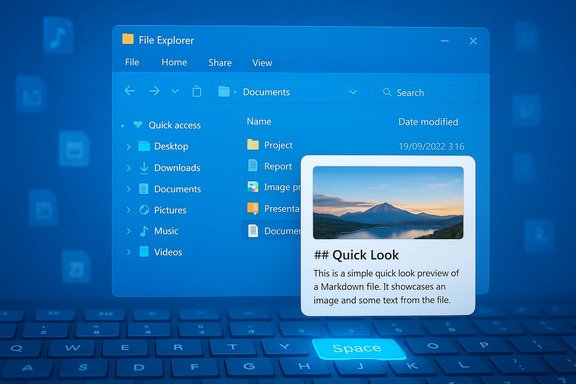
macOS’s Quick Look has long been a simple, elegant solution: select a file, press the Spacebar, and a lightweight preview appears without launching a full application. Windows has historically offered similar functionality in fragments — the File Explorer Preview Pane, thumbnail views, and occasional context-menu previews — but none matched the immediacy and keyboard-first flow of Quick Look.In recent years the Windows ecosystem has matured around this gap. Open-source utilities and third-party apps now recreate — and in some ways extend — the Quick Look experience on Windows. These tools bring the same spacebar-to-preview interaction, plugin-driven format support, and fast navigation between files. Among them, a lightweight open-source app commonly called QuickLook stands out for its simplicity, plugin ecosystem, and faithful replication of the macOS behavior.
This article examines how that parity was achieved on Windows, what the modern file-preview landscape looks like, the technical trade-offs involved, and how IT managers and everyday users should evaluate, install, and secure these tools.
Overview: Why Quick-look-like previews matter
Instant previews accelerate common workflows without committing system resources to opening full applications. The biggest value lies in:- Rapid identification of the correct file among many (screenshots, scans, drafts).
- Context-preserving inspection — view content without losing your current window layout.
- Minimizing cognitive load by avoiding app switching for simple inspections.
- Increased efficiency in tasks like content curation, triage, and archival review.
How QuickLook on Windows works: basic mechanics
The Windows implementations of Quick Look replicate the core interaction model:- Select a file in File Explorer or on the Desktop.
- Press the Spacebar to open a transient preview window.
- Press Spacebar again, press Escape, or click outside to close the preview.
- Use the arrow keys to step to adjacent files in the current folder without closing the preview.
- Hold the Spacebar to keep the preview visible only while the key is depressed (an optional, lower-friction mode).
This model preserves responsiveness because the app avoids launching heavyweight editors and uses optimized rendering paths for common types.
Installing and configuring QuickLook-style tools
Installing a Windows Quick Look clone is usually straightforward:- Acquire the app from a trusted distribution channel — typically the Microsoft Store for one-click install or the project's official releases (MSI/EXE) published on its repository.
- Run installation with administrative privileges when requested. The app usually registers a global hotkey behavior tied to File Explorer selection.
- Optional: add the app to startup so it runs in the background and the Spacebar preview is immediately available after logging in.
- Configure preferences for theme, scaling (HiDPI support), and which file types to preview.
- Verify the download origin: prefer Microsoft Store or the official project release page.
- Check digital signatures on installers where available.
- Use standard endpoint protection/AV to scan the installer.
- If deploying across many machines, test the installer in a controlled environment and consider packaging via enterprise software distribution tools that respect company policy.
Plugin ecosystems: extending format coverage
A major strength of modern Quick Look implementations on Windows is their plugin architecture. The base app commonly supports images, common video containers, PDFs, and plain text. Plugins extend that to:- Office documents (Word, Excel, PowerPoint) without requiring Microsoft Office installed.
- Markdown renderers that present Markdown as formatted HTML rather than raw text.
- Enhanced video codec support so unusual containers or codecs play inside the preview.
- Archive inspectors that allow peeking into ZIP/RAR/7z contents without extracting.
- CSV table renderers that display columns cleanly instead of raw comma-separated text.
- CAD format viewers for .dwg/.dxf files in niche workflows.
This modular approach keeps the core app small and lets specialized maintainers provide optimized renderers for particular formats.
Notable plugins and what they add
- Office viewers: Allow previewing DOCX, XLSX, PPTX files without Office. Useful for quick content checks and avoiding heavy COM/interop overhead.
- Markdown renderers: Convert .md files to styled HTML for instant readable previews. This is especially helpful in documentation-heavy workflows.
- Video extension plugins: Add codec/container support beyond system codecs, making the preview window capable of playing obscure or high-efficiency video files.
- Archive explorers: Present archive contents in a tree or list view with file previews inside archives.
- CSV/table renderers: Convert CSV to a grid view, enabling quick data scans without launching spreadsheet software.
Alternatives and comparisons
While the QuickLook clones are compelling, they’re not the only option.- File Explorer Preview Pane: Built into Windows. It is safe, low-friction, and requires no third-party software. However, it consumes persistent UI space, supports fewer formats, and lacks the keyboard-first interaction that makes Quick Look so fast.
- Microsoft PowerToys (Peek): Adds richer previews and thumbnail enhancements to the Preview Pane, introducing support for SVG, Markdown, and extended PDF thumbnails. PowerToys integrates well with Windows tooling and is actively maintained by Microsoft contributors.
- Raycast, PowerToys Run, Flow Launcher: These act more like Spotlight equivalents (quick command/search palettes). They find files fast and can open them in their default apps but don't always provide the same transient visual preview.
- Seer / Seer Pro (commercial): Marketed as a performance-oriented previewer that handles very large files (multi-GB text, massive PDFs) and provides copy/paste from preview windows. It’s a paid product and can be preferable where enterprise-level reliability on huge files is required. Trials may limit functionality or prompt for a license.
Security, privacy, and trust considerations
Introducing any file-rendering extension into the OS raises security questions because previewers process potentially untrusted content. Key considerations:- Attack surface: Previewers must parse complex file formats. Vulnerabilities in the parser or third-party libraries can be exploited through crafted files. Favor projects with an active community, regular security updates, and a clear vulnerability reporting policy.
- Plugin provenance: Download plugins only from official repositories or trusted maintainers. Treat third-party binary plugins like any other executable — scan them and, in an enterprise context, vet through your software approval process before deployment.
- Data leakage: Some previewers cache rendered content or generate temporary files. Review privacy or configuration options to control cache locations and retention. For sensitive environments, prefer solutions that support disk encryption or in-memory rendering.
- Digital signing: Where possible, choose installers and plugins that are digitally signed. This adds verification that the binaries come from the claimed publisher and haven’t been tampered with.
- Least privilege: Run preview processes with the least privileges necessary. Avoid elevating the previewer to administrative privileges unless explicitly required.
- Telemetry and opt-outs: Check whether the app collects usage telemetry. Many open-source projects are privacy-friendly by default, but some packages or store-distributed versions might include optional telemetry — confirm and opt out as needed.
Performance and compatibility
Preview performance depends on several factors:- Rendering strategy: Native system codecs are usually faster for common images and video, while plugin-based or embedded renderers can be optimized for specific formats.
- Resource footprint: Lightweight previewers keep memory and CPU usage low; some commercial tools aggressively optimize for very large files at the cost of a larger install footprint.
- HiDPI and Fluent integration: Modern Windows previewers often adopt Fluent design language and HiDPI scaling so previews look crisp on high-resolution displays. Verify that the preview window respects system scaling and DPI settings to avoid blurry text or incorrectly sized UI.
- Multi-monitor setups: Expect the preview window to appear on the primary monitor or near File Explorer — behavior varies. Check app preferences for settings that control where previews appear.
- Accessibility: Keyboard navigation is a core advantage; ensure the previewer integrates with screen readers and supports high-contrast themes if accessibility is a requirement.
Practical tips, workflows, and power-user tricks
- Use Spacebar previews to triage daily screenshots and mark the ones you actually need to edit or upload — it’s faster than opening each in an editor.
- Enable plugin support for Markdown if documentation reviews are frequent; rendering Markdown inline saves time and preserves context.
- If you preview many Office documents but don’t want full Office installed, add the Office viewer plugin and consider file-type associations to avoid accidental editor launches.
- Customize keyboard behavior: some previewers allow remapping the activation key if the Spacebar conflicts with other global hotkeys.
- Combine a Spotlight-like launcher (Raycast, PowerToys Run, Flow Launcher) with a Quick Look previewer for fast file discovery and quick inspection in a single flow.
- For archives, use previewers that let you open single files directly from archives without full extraction to temporary directories — this minimizes disk IO and reduces clutter.
- Keep the preview app in startup for immediate availability. If you prefer to conserve RAM, start it on demand and close when not needed.
Troubleshooting common issues
- Preview not opening: Ensure the app is running in the background and that the active File Explorer window has focus. Restarting the preview service or the app often resolves transient hooks to Explorer.
- Unsupported file type: Install the appropriate plugin or enable the “open with default app” fallback. If a particular plugin refuses to load, check permissions for the plugin folder and whether the plugin is compatible with the installed version of the previewer.
- Crashes on large files: Switch to a more robust previewer for very large files or use a dedicated viewer designed for huge data sets. Monitor memory usage during preview and increase system RAM if your workflow routinely involves massive assets.
- Video playback stutters: Install system-level codecs or plugin-specific decoders to handle non-native containers. Verify GPU acceleration settings in the previewer if available.
- Privacy/cache concerns: Configure temporary file locations to a protected directory and clear cached preview files using the app’s settings or by periodic housekeeping scripts.
Deployment and enterprise considerations
Deploying a Quick Look-style utility in a managed environment requires additional oversight:- Create a vetted installer package and sign it with your organization’s code-signing certificate if possible.
- Deploy via Microsoft Endpoint Configuration Manager or equivalent, and configure auto-update behavior through your update infrastructure to avoid uncontrolled updates.
- Maintain an approved plugins list. Block or restrict plugin installation folders via file system ACLs and only allow plugins signed by vetted authors.
- Update vulnerability scanning signatures to include the previewer and its plugins; treat plugin changes as software changes requiring the same patching cadence.
- Document fallback procedures in case the previewer fails, and ensure training materials explain privacy and data-leakage risks to users.
Where the experience still falls short of macOS Quick Look
The Windows ecosystem has largely caught up, but some differences remain:- Deep system integration: macOS Quick Look is tightly integrated with system APIs and app sandboxes. Windows third-party previewers must operate across a varied family of Shell versions and user configurations, which can introduce edge cases.
- Universal renderer consistency: On macOS Quick Look renderers are often provided by OS or widely used third parties. On Windows, plugin quality varies more significantly, leading to inconsistency across file types.
- Annotation and quick edits: Native macOS Quick Look has convenient options for quick annotations and Markup on certain file types. On Windows, many previewers intentionally avoid editing to stay lightweight; annotations typically require opening a dedicated editor.
- Enterprise-approved, signed plugins: macOS benefits from centralized vendor ecosystems; Windows users must be more vigilant about plugin provenance and enterprise deployment practices.
Final analysis: strengths, risks, and recommendations
The strengths of bringing macOS-like Quick Look to Windows are evident: instant, keyboard-driven previews, broad extensibility through plugins, and improved productivity for anyone who frequently triages many files. The user experience is typically superior to the aged File Explorer Preview Pane and blends well with modern Windows design.However, the risks are real and should be managed. Parsing complex file formats creates attack surfaces. Community plugins vary in quality and maintenance. Deploying an unmanaged previewer across an organization without vetting can introduce supply-chain and data-exposure risks.
Recommended approach:
- For individuals: Install the previewer from the Microsoft Store or the official project release, enable only the plugins you need, and keep the app updated. Use endpoint protection and be cautious with plugins from unknown authors.
- For teams and enterprises: Conduct an approval process that tests plugin behavior, signs or packages approved installers, restricts plugin installation, and integrates the tool into your patch management cycle.
- For power users and creators: Combine a Spotlight-style launcher with a Quick Look-style previewer to create a fast discovery + inspection workflow that minimizes app switching.
Bringing macOS ideas to Windows has never been about imitation alone but about borrowing the best interaction models and making them fit the Windows way. The Quick Look pattern — instant, transient previews controlled by a single keystroke — is one such idea that pays dividends immediately. With careful plugin management and sensible security practices, it is an accessible upgrade that rewards both individual users and teams with consistently faster, less disruptive file work.
Source: MakeUseOf I couldn't give up this macOS feature, so I brought it to Windows
