

Files 4.1, released on May 11, 2026, updates the open-source Windows file manager with a customizable toolbar, rebuilt settings interface, better tag editing, theme shortcuts, terminal integration, media tooltips, and a slate of fixes for previews, thumbnails, focus, search, and protected-folder operations. The release is not a revolution, and that is precisely why it matters. Files is now competing less by being flashy and more by being adjustable in the places Microsoft’s own File Explorer still treats as settled law. For Windows users who live in file management all day, that distinction is no longer cosmetic.
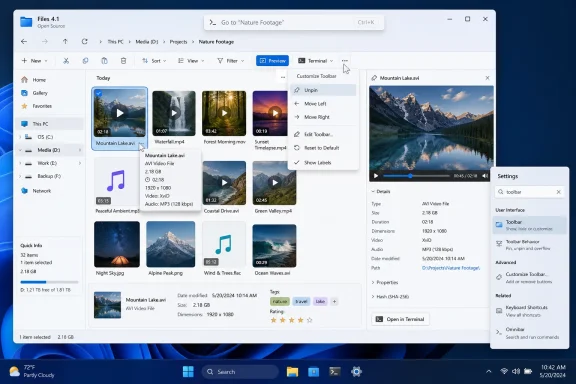
The headline feature in Files 4.1 is the redesigned customizable toolbar, and it lands at a revealing moment for Windows. Microsoft has spent years sanding File Explorer into something cleaner, flatter, and more aligned with Windows 11’s visual language, but the command surface remains mostly Microsoft’s idea of what users should need. Files 4.1 pushes in the opposite direction: the toolbar becomes a workspace, not a decree.
Users can right-click toolbar items, decide which buttons and actions appear, rearrange them with drag and drop, and quickly hide items through an “Unpin” option. Different toolbar modes can be customized independently, which matters because file management is not one workflow. A photographer sorting media, a developer navigating repositories, and an administrator moving files through protected paths are not doing the same job.
That sounds like a small UI preference until you remember how often Windows power users complain about the same thing: Microsoft gives them design consistency, then makes them fight for control. Files 4.1 is not merely adding buttons. It is making the case that a file manager should behave more like an editor or an IDE, where the interface bends around repeated work.
The useful part is not that every user will spend an hour perfecting a toolbar. Most will not. The useful part is that the app no longer assumes the default arrangement is sacred.
But Files has carved out a position in the missing middle between nostalgic power-user utilities and Microsoft’s default experience. It looks native enough for Windows 11, uses modern design cues, and still courts the sort of user who wants dual-pane browsing, stronger customization, tags, column views, and more intentional keyboard workflows. That is not a niche defined by aesthetics; it is a niche defined by friction.
The Files 4.1 update reinforces that strategy. It does not try to replace every system integration File Explorer owns. Instead, it improves the parts of the daily experience that are easiest to notice and hardest to justify as “enterprise complexity”: toolbars, tags, settings, shortcuts, tooltips, previews, and shell menu behavior.
That is why the update stings a little for Microsoft. A small open-source project can move quickly on features that Windows users have been requesting for years because it does not have to defend every change against decades of compatibility assumptions, telemetry targets, and support obligations.
Files 4.1’s right-click customization model lowers the ceremony. Instead of burying toolbar management in a distant preferences screen, it starts where the user’s irritation starts: on the toolbar itself. That is good design because it treats customization as a response to use, not as a separate configuration project.
The drag-and-drop model is also important. Power-user tools often confuse configurability with complexity, turning every preference into a modal dialog with checkboxes and ambiguous labels. Files appears to be aiming for something more approachable: move the thing where you want it, remove the thing you do not want, and keep separate modes tuned for separate contexts.
This is the sort of feature that will likely be invisible to casual users after the first five minutes. That is the point. The best productivity customization disappears once it has removed the repeated annoyance.
Folders force users to choose one primary location for an item. Tags let the same file participate in multiple contexts: a project, a client, a status, a topic, a priority. That model is familiar from email, note apps, photo libraries, and issue trackers, but Windows file management still largely revolves around directory trees.
Files has been trying to make tags feel like a normal part of the file manager rather than an extra database bolted onto the side. By adding more direct editing access, the app is reducing the gap between “this would be useful” and “I will actually keep using it.” That gap is where most organizational features die.
There is also a broader lesson here for Microsoft. Search is not a complete substitute for organization. AI-powered recall and semantic discovery may eventually change how users retrieve files, but people still need visible, controllable systems for grouping work. Tags are not glamorous, but they are one of the few organizational concepts that scale beyond the folder tree without abandoning it.
Files 4.1’s settings redesign gives the project space to become more configurable without turning into a junk drawer. More importantly, settings can now be searched directly through the Omnibar. That matters because modern apps increasingly live or die by whether users can find features they already suspect exist.
The Omnibar itself, introduced as part of the broader Files 4 generation, is doing more than replacing an address bar. It is becoming the app’s command and discovery layer. If settings search works well there, Files gains a path toward the kind of keyboard-driven control that advanced users expect from modern productivity software.
This is where Files’ ambitions become clearer. The app is not just building a prettier Explorer. It is building a file manager with a command surface, configurable behavior, and enough internal architecture to support power features without scattering them across old-fashioned dialogs.
For some users, the default Windows UI font is fine. For others, especially those who spend long days scanning filenames, timestamps, extensions, and nested directories, the shape and spacing of text affect fatigue. A file manager is not a poster; it is an information surface. The more time users spend in it, the more typography matters.
This is also another example of Files choosing user preference where Windows often chooses platform consistency. Microsoft has good reasons to keep system apps visually coherent. But third-party tools win loyalty by letting users decide when coherence is less important than comfort.
The danger, of course, is that too many visual controls can make an app feel fiddly. Files 4.1 seems to avoid that by tying font selection to a straightforward system source: installed fonts. That keeps the feature understandable while still giving users meaningful control.
For developers, administrators, and anyone who lives between GUI folders and command-line sessions, terminal behavior is not incidental. Opening the right shell in the right directory is one of those small transitions that can either feel seamless or irritating. If a user has chosen Windows Terminal, PowerShell, Command Prompt, or another configured default, the file manager should follow that choice.
This also reflects a more mature relationship with Windows itself. Files is an alternative to File Explorer, but it cannot succeed by pretending the rest of the operating system does not exist. The best third-party Windows tools are opinionated where Microsoft is rigid and cooperative where Windows already provides a standard.
That distinction matters for enterprise and professional users. They may tolerate a third-party tool with extra features, but they are less forgiving when it breaks platform expectations. Respecting the configured terminal is a small but meaningful sign that Files is trying to fit into Windows rather than simply decorate itself like Windows.
Theme switching may sound like personalization fluff, but display modes are increasingly contextual. Users move between bright offices and dim rooms, docked monitors and laptop screens, daytime productivity and late-night maintenance. The system theme may not always match the moment, especially for people who keep specific apps in different modes for contrast or focus.
The key is that Files makes theme switching an action, not just a setting. Actions can be placed in workflows, assigned shortcuts, and eventually discovered through command interfaces. Settings are where preferences go to sit still. Actions are where behavior becomes fluid.
That is an important product distinction. Files 4.1 is gradually turning more of the file manager into something users can operate, not merely configure.
Media duration in tooltips is particularly practical. Users should not have to open a video or audio file just to learn whether it is a 15-second clip or a two-hour recording. For creators, editors, students, and anyone managing captured media, that little bit of metadata saves repeated context switching.
AVI preview support is also a reminder that Windows file management is full of old formats that refuse to disappear. Modern software often optimizes for the newest codecs and workflows, but real user folders contain legacy files, half-forgotten archives, exported clips, and inherited project directories. A file manager earns trust when it handles the messy pile people actually have.
The snappier tooltip behavior in grid layout belongs in the same category. Responsiveness is a feature, even when it cannot be easily marketed. If a file manager feels delayed while simply exposing information, users begin to distrust the whole interface.
This is the unglamorous work of making an alternative file manager credible. It is one thing to build a beautiful interface for browsing a downloads folder. It is another to survive contact with protected directories, shell extensions, third-party utilities, keyboard launch habits, and users who expect the app to behave consistently across edge cases.
The Win+E focus fix is especially symbolic. Files users often want the app to behave as the file manager, not just another optional utility. If launching with the canonical Windows file-management shortcut does not focus the window correctly, the illusion breaks. Fixing that kind of issue makes the app feel less like a demo and more like infrastructure.
The protected-folder operation status fix matters for administrators and advanced users. File operations involving elevated locations are exactly where accuracy matters. A file manager that reports status incorrectly during moves from administrator-protected folders is not merely annoying; it can cause users to misread whether work completed.
These fixes do not mean Files is suddenly risk-free or enterprise-ready in every environment. They do mean the project is dealing with the kinds of problems that appear only when software is used seriously.
File Explorer benefits from deep integration with decades of shell extensions, context menu handlers, cloud sync providers, archive tools, security products, developer utilities, and enterprise add-ons. Any replacement has to decide how much of that ecosystem to support and how much complexity to avoid. There is no clean answer.
If Files supports too little, users fall back to Explorer the moment a needed right-click action is missing. If it supports too much, it inherits the instability and clutter that third-party shell extensions can bring. Showing access keys is a small usability improvement, but it sits inside that larger compatibility challenge.
This is why File Explorer remains difficult to dislodge even when third-party apps are more imaginative. Microsoft’s file manager is not beloved because it is the most elegant option. It is entrenched because the shell is where Windows software expects to meet the user.
Files can win daily-use converts by being better for ordinary navigation and organization. But replacing Explorer completely requires surviving the strange, old, heavily extended parts of Windows that most users only notice when they break.
The paid Store version is best understood as a convenience-and-support route. Users get Microsoft Store delivery and updates, while the project gets direct financial backing. Those who prefer the classic installer can still use it, and those who value the project can choose to pay.
This arrangement also exposes a long-running Windows ecosystem problem. Users have been trained to expect small utilities either to be free, ad-supported, abandoned, or suspicious. Sustainable open-source desktop software does not fit neatly into that expectation. If an app is useful enough to replace part of the operating system experience, it is also useful enough to need maintenance funding.
For WindowsForum readers, the practical advice is simple: get the app only from official distribution points, and understand what the Store purchase is for. It is not proof that the software is proprietary. It is a funding channel for a project that is trying to do more than ship a hobby build.
The first question is support. File Explorer is part of Windows, covered by Microsoft’s servicing model, and deeply understood by help desks. A third-party file manager introduces another support surface, another update cadence, and another place where shell behavior can differ from baseline Windows documentation.
The second question is compatibility. File managers touch sensitive workflows: network shares, OneDrive and SharePoint sync roots, long paths, permissions, archive tools, endpoint security hooks, mapped drives, admin locations, and custom shell extensions. A feature-rich alternative may perform beautifully for local browsing and still reveal surprises under enterprise policy.
The third question is governance. If users can heavily customize toolbars, fonts, shortcuts, and behavior, support teams may face more variation between machines. That does not make customization bad. It means managed environments need clear defaults, documentation, and probably a pilot group before broader rollout.
Still, Files is exactly the kind of app IT pros should track. Not because every organization should deploy it, but because it shows where Microsoft’s default file manager is leaving demand unmet.
Files succeeds when it makes users feel that switching is less risky than staying annoyed. A customizable toolbar removes one annoyance. Better tags remove another. Searchable settings, terminal respect, theme shortcuts, improved previews, and accurate operation reporting each shave off a small piece of resistance.
That is how alternative tools win in mature platforms. Rarely all at once, and rarely by matching every default feature. They win by being better in the repeated moments users care about most.
Microsoft should pay attention because these are not exotic requests. They are grounded, practical, and easy to explain. Let users customize the toolbar. Make settings searchable. Respect the terminal choice. Improve previews. Surface metadata faster. None of that requires reimagining computing.
To be fair, Microsoft carries burdens Files does not. Explorer has to serve hundreds of millions of users, ancient workflows, enterprise images, assistive technology, shell extensions, and support contracts. It cannot move with the same freedom as an open-source app aimed at enthusiasts and power users.
But that explanation only goes so far. Windows 11 has repeatedly shown that Microsoft is willing to redesign familiar surfaces when it wants to. The question is not whether Explorer can change. The question is whether Microsoft prioritizes the kind of user-controlled productivity improvements that enthusiasts notice immediately.
Files 4.1 answers that question from the outside. It says the demand exists, the implementation is possible, and the Windows file manager does not have to remain a mostly fixed surface.
Source: Neowin Unofficial Windows 11 file manager Files gets new useful features and settings
 Files Turns Customization Into Its Main Argument
The headline feature in Files 4.1 is the redesigned customizable toolbar, and it lands at a revealing moment for Windows. Microsoft has spent years sanding File Explorer into something cleaner, flatter, and more aligned with Windows 11’s visual language, but the command surface remains mostly Microsoft’s idea of what users should need. Files 4.1 pushes in the opposite direction: the toolbar becomes a workspace, not a decree.Users can right-click toolbar items, decide which buttons and actions appear, rearrange them with drag and drop, and quickly hide items through an “Unpin” option. Different toolbar modes can be customized independently, which matters because file management is not one workflow. A photographer sorting media, a developer navigating repositories, and an administrator moving files through protected paths are not doing the same job.
That sounds like a small UI preference until you remember how often Windows power users complain about the same thing: Microsoft gives them design consistency, then makes them fight for control. Files 4.1 is not merely adding buttons. It is making the case that a file manager should behave more like an editor or an IDE, where the interface bends around repeated work.
The useful part is not that every user will spend an hour perfecting a toolbar. Most will not. The useful part is that the app no longer assumes the default arrangement is sacred.
Microsoft Modernized Explorer, But Files Is Chasing the Missing Middle
File Explorer in Windows 11 has improved, and pretending otherwise would be lazy. Tabs are now standard, the interface is less visually chaotic than the Windows 10 era, and Microsoft has kept refining performance and integration with cloud, search, and shell features. The built-in file manager is better than it was.But Files has carved out a position in the missing middle between nostalgic power-user utilities and Microsoft’s default experience. It looks native enough for Windows 11, uses modern design cues, and still courts the sort of user who wants dual-pane browsing, stronger customization, tags, column views, and more intentional keyboard workflows. That is not a niche defined by aesthetics; it is a niche defined by friction.
The Files 4.1 update reinforces that strategy. It does not try to replace every system integration File Explorer owns. Instead, it improves the parts of the daily experience that are easiest to notice and hardest to justify as “enterprise complexity”: toolbars, tags, settings, shortcuts, tooltips, previews, and shell menu behavior.
That is why the update stings a little for Microsoft. A small open-source project can move quickly on features that Windows users have been requesting for years because it does not have to defend every change against decades of compatibility assumptions, telemetry targets, and support obligations.
The Toolbar Is a Workflow Feature, Not a Decoration
The toolbar redesign is the most visible change, but its importance is practical. File managers are repetitive tools. Users copy, paste, rename, compress, tag, preview, open terminals, switch views, and navigate folders dozens or hundreds of times a day. If those actions sit in the wrong place, require extra clicks, or disappear behind overflow menus, the interface taxes every operation.Files 4.1’s right-click customization model lowers the ceremony. Instead of burying toolbar management in a distant preferences screen, it starts where the user’s irritation starts: on the toolbar itself. That is good design because it treats customization as a response to use, not as a separate configuration project.
The drag-and-drop model is also important. Power-user tools often confuse configurability with complexity, turning every preference into a modal dialog with checkboxes and ambiguous labels. Files appears to be aiming for something more approachable: move the thing where you want it, remove the thing you do not want, and keep separate modes tuned for separate contexts.
This is the sort of feature that will likely be invisible to casual users after the first five minutes. That is the point. The best productivity customization disappears once it has removed the repeated annoyance.
Tags Keep Nudging Windows Toward Organization Beyond Folders
Files 4.1 also improves tag management with a new Edit Tags option. That addition is easy to underplay because file tagging has never become a mainstream Windows habit in the way folders, shortcuts, and search have. Still, tagging remains one of the clearest examples of how traditional file management is bumping into modern work.Folders force users to choose one primary location for an item. Tags let the same file participate in multiple contexts: a project, a client, a status, a topic, a priority. That model is familiar from email, note apps, photo libraries, and issue trackers, but Windows file management still largely revolves around directory trees.
Files has been trying to make tags feel like a normal part of the file manager rather than an extra database bolted onto the side. By adding more direct editing access, the app is reducing the gap between “this would be useful” and “I will actually keep using it.” That gap is where most organizational features die.
There is also a broader lesson here for Microsoft. Search is not a complete substitute for organization. AI-powered recall and semantic discovery may eventually change how users retrieve files, but people still need visible, controllable systems for grouping work. Tags are not glamorous, but they are one of the few organizational concepts that scale beyond the folder tree without abandoning it.
A Real Settings Page Signals the App Is Growing Up
The new dedicated Settings page replaces the older dialog interface, and that kind of change usually says more about an app’s future than its present. Dialogs are fine when there are only a handful of options. They become cramped and brittle once an application grows enough preferences to need structure, search, and room for expansion.Files 4.1’s settings redesign gives the project space to become more configurable without turning into a junk drawer. More importantly, settings can now be searched directly through the Omnibar. That matters because modern apps increasingly live or die by whether users can find features they already suspect exist.
The Omnibar itself, introduced as part of the broader Files 4 generation, is doing more than replacing an address bar. It is becoming the app’s command and discovery layer. If settings search works well there, Files gains a path toward the kind of keyboard-driven control that advanced users expect from modern productivity software.
This is where Files’ ambitions become clearer. The app is not just building a prettier Explorer. It is building a file manager with a command surface, configurable behavior, and enough internal architecture to support power features without scattering them across old-fashioned dialogs.
Font Choice Is Small, Except When It Isn’t
Files 4.1 now lets users change the display font across the application by selecting from fonts installed on the system. On paper, that is a minor personalization feature. In practice, font choice sits at the intersection of taste, readability, accessibility, and density.For some users, the default Windows UI font is fine. For others, especially those who spend long days scanning filenames, timestamps, extensions, and nested directories, the shape and spacing of text affect fatigue. A file manager is not a poster; it is an information surface. The more time users spend in it, the more typography matters.
This is also another example of Files choosing user preference where Windows often chooses platform consistency. Microsoft has good reasons to keep system apps visually coherent. But third-party tools win loyalty by letting users decide when coherence is less important than comfort.
The danger, of course, is that too many visual controls can make an app feel fiddly. Files 4.1 seems to avoid that by tying font selection to a straightforward system source: installed fonts. That keeps the feature understandable while still giving users meaningful control.
Respecting the Default Terminal Is the Kind of Integration Power Users Notice
Files 4.1 now respects the default terminal configured in Windows Settings when users choose “Open in Terminal.” This is exactly the kind of integration that separates a pleasant Windows app from one that merely runs on Windows. It acknowledges that the operating system already has a user preference and that a file manager should not second-guess it.For developers, administrators, and anyone who lives between GUI folders and command-line sessions, terminal behavior is not incidental. Opening the right shell in the right directory is one of those small transitions that can either feel seamless or irritating. If a user has chosen Windows Terminal, PowerShell, Command Prompt, or another configured default, the file manager should follow that choice.
This also reflects a more mature relationship with Windows itself. Files is an alternative to File Explorer, but it cannot succeed by pretending the rest of the operating system does not exist. The best third-party Windows tools are opinionated where Microsoft is rigid and cooperative where Windows already provides a standard.
That distinction matters for enterprise and professional users. They may tolerate a third-party tool with extra features, but they are less forgiving when it breaks platform expectations. Respecting the configured terminal is a small but meaningful sign that Files is trying to fit into Windows rather than simply decorate itself like Windows.
Theme Switching Becomes a Keyboard Habit
Theme management also gets attention in Files 4.1, with new actions that allow users to assign keyboard shortcuts for switching themes. The built-in Ctrl + Alt + T shortcut toggles between light and dark modes. Again, the change is small, but it aligns with the broader direction of the release: reduce the distance between intention and action.Theme switching may sound like personalization fluff, but display modes are increasingly contextual. Users move between bright offices and dim rooms, docked monitors and laptop screens, daytime productivity and late-night maintenance. The system theme may not always match the moment, especially for people who keep specific apps in different modes for contrast or focus.
The key is that Files makes theme switching an action, not just a setting. Actions can be placed in workflows, assigned shortcuts, and eventually discovered through command interfaces. Settings are where preferences go to sit still. Actions are where behavior becomes fluid.
That is an important product distinction. Files 4.1 is gradually turning more of the file manager into something users can operate, not merely configure.
Tooltips and Previews Show the Value of Boring Polish
Beyond the headline features, Files 4.1 adds duration information for video and audio files in tooltips, makes grid-layout tooltips feel snappier, and adds AVI preview support in the Preview Pane. These are not features that generate much excitement in isolation. They are the texture of a file manager becoming more useful in place.Media duration in tooltips is particularly practical. Users should not have to open a video or audio file just to learn whether it is a 15-second clip or a two-hour recording. For creators, editors, students, and anyone managing captured media, that little bit of metadata saves repeated context switching.
AVI preview support is also a reminder that Windows file management is full of old formats that refuse to disappear. Modern software often optimizes for the newest codecs and workflows, but real user folders contain legacy files, half-forgotten archives, exported clips, and inherited project directories. A file manager earns trust when it handles the messy pile people actually have.
The snappier tooltip behavior in grid layout belongs in the same category. Responsiveness is a feature, even when it cannot be easily marketed. If a file manager feels delayed while simply exposing information, users begin to distrust the whole interface.
The Bug Fixes Tell the Story of an App Users Actually Depend On
The fixes in Files 4.1 are just as revealing as the new features. Thumbnails now refresh properly when a file is updated. PowerToys Peek detection has been fixed for custom install locations. Importing settings, opening programs from search results, duplicate tag widgets, protected-folder move status, Win+E focus behavior, and CSS previewing all receive attention.This is the unglamorous work of making an alternative file manager credible. It is one thing to build a beautiful interface for browsing a downloads folder. It is another to survive contact with protected directories, shell extensions, third-party utilities, keyboard launch habits, and users who expect the app to behave consistently across edge cases.
The Win+E focus fix is especially symbolic. Files users often want the app to behave as the file manager, not just another optional utility. If launching with the canonical Windows file-management shortcut does not focus the window correctly, the illusion breaks. Fixing that kind of issue makes the app feel less like a demo and more like infrastructure.
The protected-folder operation status fix matters for administrators and advanced users. File operations involving elevated locations are exactly where accuracy matters. A file manager that reports status incorrectly during moves from administrator-protected folders is not merely annoying; it can cause users to misread whether work completed.
These fixes do not mean Files is suddenly risk-free or enterprise-ready in every environment. They do mean the project is dealing with the kinds of problems that appear only when software is used seriously.
Shell Extensions Remain the Hard Part of Replacing Explorer
Files 4.1 now displays access keys provided by shell extensions in the right-click menu. That is a narrow change, but it points toward one of the hardest problems for any Explorer alternative: the Windows shell is not just a file browser. It is a platform.File Explorer benefits from deep integration with decades of shell extensions, context menu handlers, cloud sync providers, archive tools, security products, developer utilities, and enterprise add-ons. Any replacement has to decide how much of that ecosystem to support and how much complexity to avoid. There is no clean answer.
If Files supports too little, users fall back to Explorer the moment a needed right-click action is missing. If it supports too much, it inherits the instability and clutter that third-party shell extensions can bring. Showing access keys is a small usability improvement, but it sits inside that larger compatibility challenge.
This is why File Explorer remains difficult to dislodge even when third-party apps are more imaginative. Microsoft’s file manager is not beloved because it is the most elegant option. It is entrenched because the shell is where Windows software expects to meet the user.
Files can win daily-use converts by being better for ordinary navigation and organization. But replacing Explorer completely requires surviving the strange, old, heavily extended parts of Windows that most users only notice when they break.
The Microsoft Store Price Is Support, Not a Paywall
Files 4.1 is available from the project’s official website and through the Microsoft Store. The Store listing is paid, while the app remains available through other official channels. That model can confuse casual users, but it is increasingly common among open-source Windows apps that need funding without closing the code.The paid Store version is best understood as a convenience-and-support route. Users get Microsoft Store delivery and updates, while the project gets direct financial backing. Those who prefer the classic installer can still use it, and those who value the project can choose to pay.
This arrangement also exposes a long-running Windows ecosystem problem. Users have been trained to expect small utilities either to be free, ad-supported, abandoned, or suspicious. Sustainable open-source desktop software does not fit neatly into that expectation. If an app is useful enough to replace part of the operating system experience, it is also useful enough to need maintenance funding.
For WindowsForum readers, the practical advice is simple: get the app only from official distribution points, and understand what the Store purchase is for. It is not proof that the software is proprietary. It is a funding channel for a project that is trying to do more than ship a hobby build.
Enterprise IT Will Like the Direction and Still Ask the Boring Questions
For sysadmins and IT teams, Files 4.1 is interesting but not automatically deployable. The update improves usability, respects Windows terminal settings, fixes protected-folder status reporting, and continues the project’s pattern of adding power-user features that Microsoft has been slow to deliver. But enterprise adoption is not decided by enthusiasm.The first question is support. File Explorer is part of Windows, covered by Microsoft’s servicing model, and deeply understood by help desks. A third-party file manager introduces another support surface, another update cadence, and another place where shell behavior can differ from baseline Windows documentation.
The second question is compatibility. File managers touch sensitive workflows: network shares, OneDrive and SharePoint sync roots, long paths, permissions, archive tools, endpoint security hooks, mapped drives, admin locations, and custom shell extensions. A feature-rich alternative may perform beautifully for local browsing and still reveal surprises under enterprise policy.
The third question is governance. If users can heavily customize toolbars, fonts, shortcuts, and behavior, support teams may face more variation between machines. That does not make customization bad. It means managed environments need clear defaults, documentation, and probably a pilot group before broader rollout.
Still, Files is exactly the kind of app IT pros should track. Not because every organization should deploy it, but because it shows where Microsoft’s default file manager is leaving demand unmet.
The Real Competition Is Not Explorer, But User Patience
It is tempting to frame every Files release as a fight with File Explorer. That is partly true, but the deeper competition is against user patience. Windows users tolerate friction for a long time, especially in core system tools, because switching carries risk and habit is powerful.Files succeeds when it makes users feel that switching is less risky than staying annoyed. A customizable toolbar removes one annoyance. Better tags remove another. Searchable settings, terminal respect, theme shortcuts, improved previews, and accurate operation reporting each shave off a small piece of resistance.
That is how alternative tools win in mature platforms. Rarely all at once, and rarely by matching every default feature. They win by being better in the repeated moments users care about most.
Microsoft should pay attention because these are not exotic requests. They are grounded, practical, and easy to explain. Let users customize the toolbar. Make settings searchable. Respect the terminal choice. Improve previews. Surface metadata faster. None of that requires reimagining computing.
Files 4.1 Shows Where Explorer Should Be Embarrassed
The uncomfortable truth for Microsoft is that Files 4.1’s most compelling ideas are not beyond the reach of a trillion-dollar platform company. They are the kind of refinements that a default Windows app should be able to absorb. If a community-driven alternative can make toolbar customization feel obvious, the absence of similar flexibility in File Explorer becomes harder to defend.To be fair, Microsoft carries burdens Files does not. Explorer has to serve hundreds of millions of users, ancient workflows, enterprise images, assistive technology, shell extensions, and support contracts. It cannot move with the same freedom as an open-source app aimed at enthusiasts and power users.
But that explanation only goes so far. Windows 11 has repeatedly shown that Microsoft is willing to redesign familiar surfaces when it wants to. The question is not whether Explorer can change. The question is whether Microsoft prioritizes the kind of user-controlled productivity improvements that enthusiasts notice immediately.
Files 4.1 answers that question from the outside. It says the demand exists, the implementation is possible, and the Windows file manager does not have to remain a mostly fixed surface.
The Useful Details Are the Ones That Survive the First Week
The most concrete story in Files 4.1 is not that the app has more features. It is that the new features cluster around repeated actions rather than novelty. That gives the release a better chance of mattering after the initial update glow fades.- The customizable toolbar lets users add, remove, reorder, and unpin commands where the work actually happens.
- The new settings page and Omnibar search make a growing app easier to navigate without turning preferences into a maze.
- The improved tag workflow gives users another way to organize files beyond folder hierarchy and search.
- The app now follows the Windows default terminal setting when opening a command-line session from a folder.
- Media durations, AVI preview support, faster tooltips, and thumbnail fixes improve the everyday confidence of browsing real-world folders.
- The bug fixes around Win+E focus, protected-folder move status, PowerToys Peek, search results, settings import, duplicate tags, and CSS previews show an app maturing under actual user pressure.
Source: Neowin Unofficial Windows 11 file manager Files gets new useful features and settings
