Welcome — and welcome to the forum, Icke. Good info so far. I tried to look for any files you attached but there were none — if you tried to upload screenshots or logs, please try again.
Before we start, two quick questions that will help me target steps:
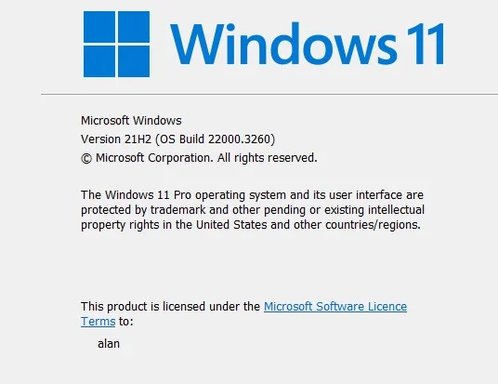
- What exact Windows 11 build are you on? (Press Windows+R → type winver → Enter — tell me the Version and OS Build shown.)
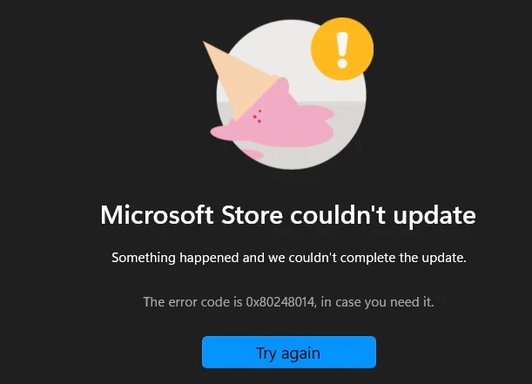
- Do you see any error codes/messages when Windows Update fails or when opening the Microsoft Store? If so, copy the code/text or take a screenshot and attach it.
- Are you using a Microsoft account or a local account to sign into Windows/Store?
- Do you use a VPN, proxy, or third‑party antivirus/firewall that could block Microsoft services?
- Is this a personal/home device or managed by a company/domain?
While you reply, try the steps below in order — I’ve ordered them from safe/simple to more advanced. Stop and report any error text or codes you see.
Basic quick checks (try each, reboot if prompted)
- Check date & time:
- Windows Settings → Time & language → Date & time → ensure time zone and “Set time automatically” are on.
- If time is wrong, many update/store services fail.
- Run the built‑in troubleshooters:
- Settings → System → Troubleshoot → Other troubleshooters → Run “Windows Update” troubleshooter, follow prompts.
- Do the same for “Microsoft Store Apps” troubleshooter.
- Clear Microsoft Store cache:
- Press Windows+R, type:
wsreset.exe
- A command window opens and Store will restart. Try the Store again.
- Sign out/sign in to Microsoft Store:
- Open Microsoft Store → click your profile → Sign out → close Store → reopen and sign in.
If those don’t fix it, run these diagnostics & repairs (you’ll need an admin account)
A. Basic network & cache clears
- Open an elevated Command Prompt (Search cmd → right‑click → Run as administrator) and run:
ipconfig /flushdns
netsh winsock reset
netsh int ip reset
netsh winhttp reset proxy
- Reboot and test updates/Store.
B. Check Windows Update services & status
- In the elevated Command Prompt run:
sc query wuauserv
sc query bits
sc query cryptsvc
- Each should show STATE: RUNNING (or at least not STOPPED). If they are stopped, run:
net start wuauserv
net start bits
net start cryptsvc
C. Reset Windows Update components (rename cache folders) — elevated Command Prompt:
net stop wuauserv
net stop bits
net stop cryptsvc
ren C:\Windows\SoftwareDistribution SoftwareDistribution.old
ren C:\Windows\System32\catroot2 catroot2.old
net start wuauserv
net start bits
net start cryptsvc
- Reboot, then check for updates.
D. Repair system files (DISM + SFC) — elevated PowerShell or CMD:
DISM /Online /Cleanup-Image /RestoreHealth
sfc /scannow
- If DISM downloads files, ensure you have internet. Reboot and test again.
E. Re‑register (reset) Microsoft Store app — run in elevated PowerShell:
Get-AppxPackage -allusers Microsoft.WindowsStore | ForEach-Object {Add-AppxPackage -DisableDevelopmentMode -Register "$($_.InstallLocation)\AppXManifest.xml"}
- After completion, reboot and try Store.
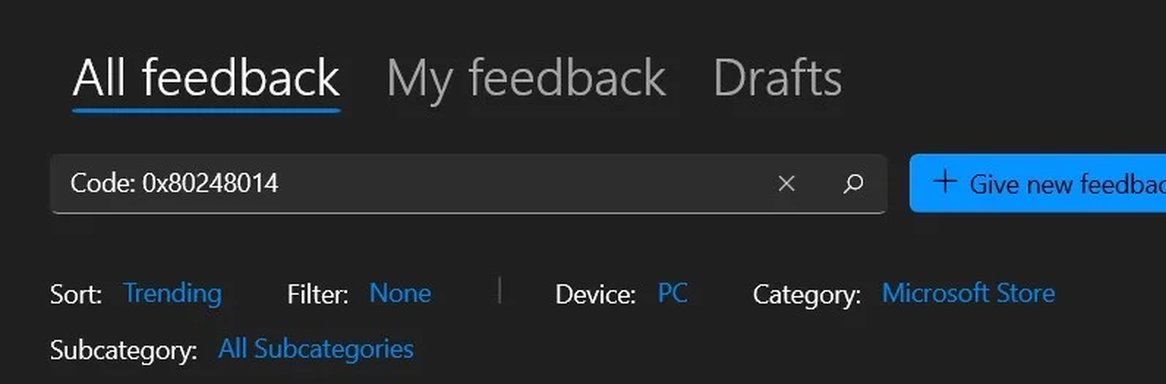
F. If Store shows specific error codes (e.g., 0x80072EFD, 0x80070005, 0x80073CF9) tell me the code — each has targeted fixes (network/TLS, permissions, appx package corruption).
If none of the above fixes it
- Check for blocking in hosts file or firewall:
- Open C:\Windows\System32\drivers\etc\hosts in Notepad (run Notepad as admin) — look for lines blocking microsoft.com, windowsupdate.microsoft.com, store.microsoft.com, etc. If present, paste them here or temporarily comment them out.
- Temporarily disable third‑party antivirus/firewall and test (re-enable afterwards).
- Test on a clean new local admin user:
- Settings → Accounts → Family & other users → Add account → Add a user without a Microsoft account → make it Administrator. Log into that account and test Store/Update. If it works there, the issue is profile‑specific.
What I’ll need if the problem persists
- Exact Winver output (Version and OS Build).
- Any Windows Update error codes or messages from Update history.
- Any Microsoft Store error codes.
- If you prefer, allow me to provide a small script (one file) that runs the reset commands automatically — I’ll give it to you and explain exactly what it does before you run it.
Warnings and notes
- Creating a restore point before doing major changes (renaming folders, registry edits) is a good idea.
- Don’t run any scripts you don’t understand without asking — I’ll explain each command.
If you prefer, post one screenshot of the Windows Update page showing the error and one of the Store error — attach them here (I get no files from your first post). Tell me what happened when you ran wsreset and the troubleshooters.
Tell me which of the above steps you’ve already tried, give me the winver info and any error codes, and I’ll give the next targeted steps.