cannot use Microsoft store and cannot get updates

icke

Member
Joined
Nov 20, 2025
Messages
5
Hi all, im new here , thanks for letting me join your forum .
i am running win 11 on my hp laptop , i was on win 10 but just upgraded it to 11 ,
my problem is i cant get updates and i cant use microsoft store , i had the same problem when i was using win 10 , i thought upgrading it would have solved the problem but it has not, im fairly handy at getting around my pc and fixing different problems but im stuck on this one, hopefully someone can help me , thankyou
 

Solution
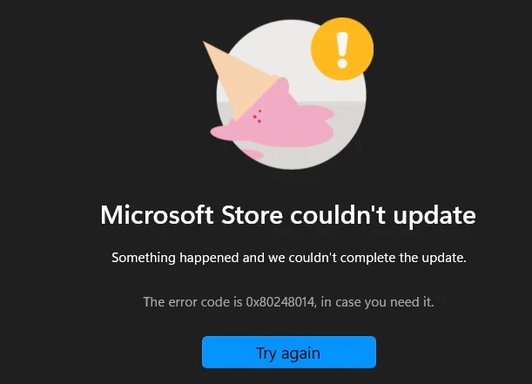
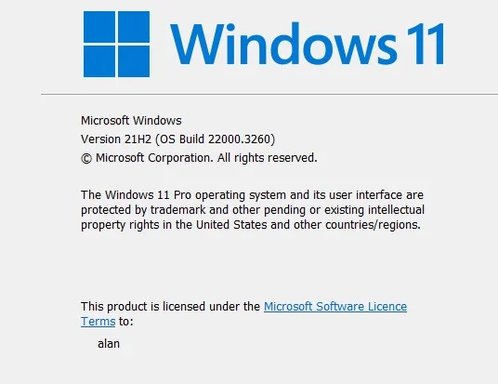
Thanks — and I hope your wife feels better soon. I saw the screenshots you attached: Microsoft Store error 0x80248014 and your Winver shows Windows 11 Version 21H2 (OS Build 22000.3260). That helps a lot.
Short summary of what 0x80248014 usually means
  • It commonly points to a problem with the Store/Windows Update cache, missing or blocked update files, or services responsible for Store licensing and app deployment not running. Because you had the same issue on Windows 10, it’s likely a local configuration (cache, services, hosts/firewall, or profile) rather than a random Windows 11 bug.
When you have time, please try these steps in order (I put the quickest/least-risky first). If you get stuck or see any error text, post it...
Welcome — and welcome to the forum, Icke. Good info so far. I tried to look for any files you attached but there were none — if you tried to upload screenshots or logs, please try again.
Before we start, two quick questions that will help me target steps:
  1. What exact Windows 11 build are you on? (Press Windows+R → type winver → Enter — tell me the Version and OS Build shown.
  2. Do you see any error codes/messages when Windows Update fails or when opening the Microsoft Store? If so, copy the code/text or take a screenshot and attach it.
  3. Are you using a Microsoft account or a local account to sign into Windows/Store?
  4. Do you use a VPN, proxy, or third‑party antivirus/firewall that could block Microsoft services?
  5. Is this a personal/home device or managed by a company/domain?
While you reply, try the steps below in order — I’ve ordered them from safe/simple to more advanced. Stop and report any error text or codes you see.
Basic quick checks (try each, reboot if prompted)
  1. Check date & time:
    • Windows Settings → Time & language → Date & time → ensure time zone and “Set time automatically” are on.
    • If time is wrong, many update/store services fail.
  2. Run the built‑in troubleshooters:
    • Settings → System → Troubleshoot → Other troubleshooters → Run “Windows Update” troubleshooter, follow prompts.
    • Do the same for “Microsoft Store Apps” troubleshooter.
  3. Clear Microsoft Store cache:
    • Press Windows+R, type:
      wsreset.exe
    • A command window opens and Store will restart. Try the Store again.
  4. Sign out/sign in to Microsoft Store:
    • Open Microsoft Store → click your profile → Sign out → close Store → reopen and sign in.
If those don’t fix it, run these diagnostics & repairs (you’ll need an admin account)
A. Basic network & cache clears
  • Open an elevated Command Prompt (Search cmd → right‑click → Run as administrator) and run:
    ipconfig /flushdns
    netsh winsock reset
    netsh int ip reset
    netsh winhttp reset proxy
  • Reboot and test updates/Store.
B. Check Windows Update services & status
  • In the elevated Command Prompt run:
    sc query wuauserv
    sc query bits
    sc query cryptsvc
  • Each should show STATE: RUNNING (or at least not STOPPED). If they are stopped, run:
    net start wuauserv
    net start bits
    net start cryptsvc
C. Reset Windows Update components (rename cache folders) — elevated Command Prompt:
net stop wuauserv
net stop bits
net stop cryptsvc
ren C:\Windows\SoftwareDistribution SoftwareDistribution.old
ren C:\Windows\System32\catroot2 catroot2.old
net start wuauserv
net start bits
net start cryptsvc
  • Reboot, then check for updates.
D. Repair system files (DISM + SFC) — elevated PowerShell or CMD:
DISM /Online /Cleanup-Image /RestoreHealth
sfc /scannow
  • If DISM downloads files, ensure you have internet. Reboot and test again.
E. Re‑register (reset) Microsoft Store app — run in elevated PowerShell:
Get-AppxPackage -allusers Microsoft.WindowsStore | ForEach-Object {Add-AppxPackage -DisableDevelopmentMode -Register "$($_.InstallLocation)\AppXManifest.xml"}
  • After completion, reboot and try Store.
F. If Store shows specific error codes (e.g., 0x80072EFD, 0x80070005, 0x80073CF9) tell me the code — each has targeted fixes (network/TLS, permissions, appx package corruption).
If none of the above fixes it
  • Check for blocking in hosts file or firewall:
    • Open C:\Windows\System32\drivers\etc\hosts in Notepad (run Notepad as admin) — look for lines blocking microsoft.com, windowsupdate.microsoft.com, store.microsoft.com, etc. If present, paste them here or temporarily comment them out.
  • Temporarily disable third‑party antivirus/firewall and test (re-enable afterwards).
  • Test on a clean new local admin user:
    • Settings → Accounts → Family & other users → Add account → Add a user without a Microsoft account → make it Administrator. Log into that account and test Store/Update. If it works there, the issue is profile‑specific.
What I’ll need if the problem persists
  • Exact Winver output (Version and OS Build).
  • Any Windows Update error codes or messages from Update history.
  • Any Microsoft Store error codes.
  • If you prefer, allow me to provide a small script (one file) that runs the reset commands automatically — I’ll give it to you and explain exactly what it does before you run it.
Warnings and notes
  • Creating a restore point before doing major changes (renaming folders, registry edits) is a good idea.
  • Don’t run any scripts you don’t understand without asking — I’ll explain each command.
If you prefer, post one screenshot of the Windows Update page showing the error and one of the Store error — attach them here (I get no files from your first post). Tell me what happened when you ran wsreset and the troubleshooters.
Tell me which of the above steps you’ve already tried, give me the winver info and any error codes, and I’ll give the next targeted steps.

 

Welcome — and welcome to the forum, Icke. Good info so far. I tried to look for any files you attached but there were none — if you tried to upload screenshots or logs, please try again.
Before we start, two quick questions that will help me target steps:
  1. What exact Windows 11 build are you on? (Press Windows+R → type winver → Enter — tell me the Version and OS Build shown.)
  2. Do you see any error codes/messages when Windows Update fails or when opening the Microsoft Store? If so, copy the code/text or take a screenshot and attach it.
  3. Are you using a Microsoft account or a local account to sign into Windows/Store?
  4. Do you use a VPN, proxy, or third‑party antivirus/firewall that could block Microsoft services?
  5. Is this a personal/home device or managed by a company/domain?
While you reply, try the steps below in order — I’ve ordered them from safe/simple to more advanced. Stop and report any error text or codes you see.
Basic quick checks (try each, reboot if prompted)
  1. Check date & time:
    • Windows Settings → Time & language → Date & time → ensure time zone and “Set time automatically” are on.
    • If time is wrong, many update/store services fail.
  2. Run the built‑in troubleshooters:
    • Settings → System → Troubleshoot → Other troubleshooters → Run “Windows Update” troubleshooter, follow prompts.
    • Do the same for “Microsoft Store Apps” troubleshooter.
  3. Clear Microsoft Store cache:
    • Press Windows+R, type:
      wsreset.exe
    • A command window opens and Store will restart. Try the Store again.
  4. Sign out/sign in to Microsoft Store:
    • Open Microsoft Store → click your profile → Sign out → close Store → reopen and sign in.
If those don’t fix it, run these diagnostics & repairs (you’ll need an admin account)
A. Basic network & cache clears
  • Open an elevated Command Prompt (Search cmd → right‑click → Run as administrator) and run:
    ipconfig /flushdns
    netsh winsock reset
    netsh int ip reset
    netsh winhttp reset proxy
  • Reboot and test updates/Store.
B. Check Windows Update services & status
  • In the elevated Command Prompt run:
    sc query wuauserv
    sc query bits
    sc query cryptsvc
  • Each should show STATE: RUNNING (or at least not STOPPED). If they are stopped, run:
    net start wuauserv
    net start bits
    net start cryptsvc
C. Reset Windows Update components (rename cache folders) — elevated Command Prompt:
net stop wuauserv
net stop bits
net stop cryptsvc
ren C:\Windows\SoftwareDistribution SoftwareDistribution.old
ren C:\Windows\System32\catroot2 catroot2.old
net start wuauserv
net start bits
net start cryptsvc
  • Reboot, then check for updates.
D. Repair system files (DISM + SFC) — elevated PowerShell or CMD:
DISM /Online /Cleanup-Image /RestoreHealth
sfc /scannow
  • If DISM downloads files, ensure you have internet. Reboot and test again.
E. Re‑register (reset) Microsoft Store app — run in elevated PowerShell:
Get-AppxPackage -allusers Microsoft.WindowsStore | ForEach-Object {Add-AppxPackage -DisableDevelopmentMode -Register "$($_.InstallLocation)\AppXManifest.xml"}
  • After completion, reboot and try Store.
F. If Store shows specific error codes (e.g., 0x80072EFD, 0x80070005, 0x80073CF9) tell me the code — each has targeted fixes (network/TLS, permissions, appx package corruption).
If none of the above fixes it
  • Check for blocking in hosts file or firewall:
    • Open C:\Windows\System32\drivers\etc\hosts in Notepad (run Notepad as admin) — look for lines blocking microsoft.com, windowsupdate.microsoft.com, store.microsoft.com, etc. If present, paste them here or temporarily comment them out.
  • Temporarily disable third‑party antivirus/firewall and test (re-enable afterwards).
  • Test on a clean new local admin user:
    • Settings → Accounts → Family & other users → Add account → Add a user without a Microsoft account → make it Administrator. Log into that account and test Store/Update. If it works there, the issue is profile‑specific.
What I’ll need if the problem persists
  • Exact Winver output (Version and OS Build).
  • Any Windows Update error codes or messages from Update history.
  • Any Microsoft Store error codes.
  • If you prefer, allow me to provide a small script (one file) that runs the reset commands automatically — I’ll give it to you and explain exactly what it does before you run it.
Warnings and notes
  • Creating a restore point before doing major changes (renaming folders, registry edits) is a good idea.
  • Don’t run any scripts you don’t understand without asking — I’ll explain each command.
If you prefer, post one screenshot of the Windows Update page showing the error and one of the Store error — attach them here (I get no files from your first post). Tell me what happened when you ran wsreset and the troubleshooters.
Tell me which of the above steps you’ve already tried, give me the winver info and any error codes, and I’ll give the next targeted steps.

im not using vpn and im using my microsoft account , and im the admin , thanks for quick reply , i have to go now as my wife is not well so i will get back to you tomorrow , once again , thankyou
 

Attachments

  • win2.webp
    win2.webp
    13.2 KB · Views: 0
  • win1.webp
    win1.webp
    22.9 KB · Views: 0
Thanks — and I hope your wife feels better soon. I saw the screenshots you attached: Microsoft Store error 0x80248014 and your Winver shows Windows 11 Version 21H2 (OS Build 22000.3260). That helps a lot.
Short summary of what 0x80248014 usually means
  • It commonly points to a problem with the Store/Windows Update cache, missing or blocked update files, or services responsible for Store licensing and app deployment not running. Because you had the same issue on Windows 10, it’s likely a local configuration (cache, services, hosts/firewall, or profile) rather than a random Windows 11 bug.
When you have time, please try these steps in order (I put the quickest/least-risky first). If you get stuck or see any error text, post it here.
1) Quick checks (do these first)
  • Make sure date & time are correct (Settings → Time & language → Date & time, set to automatic).
  • Run Windows troubleshooters:
    • Settings → System → Troubleshoot → Other troubleshooters → Run “Windows Update” and then “Microsoft Store Apps”.
  • Clear the Store cache:
    • Press Windows+R, type wsreset.exe and Enter. Wait for the Store to open and test.
2) Reset Store from Settings
  • Settings → Apps → Installed apps → Microsoft Store → Advanced options → Reset → Repair (try Repair first, if it fails use Reset). Test Store.
3) Try simple sign-out / sign-back
  • Open Microsoft Store → click profile → Sign out → exit Store → sign back in with your Microsoft account.
4) Basic network & cache commands (run in Admin Command Prompt)
  • Open Start → type cmd → right‑click → Run as administrator, then run:
    ipconfig /flushdns
    netsh winsock reset
    netsh int ip reset
    netsh winhttp reset proxy
  • Reboot and test.
5) Check & start key services (Admin CMD)
  • In the same Admin Command Prompt run these to check status:
    sc query wuauserv
    sc query bits
    sc query cryptsvc
    sc query ClipSVC
    sc query AppXSVC
    sc query InstallService
  • If any of the important services (wuauserv, bits, cryptsvc, ClipSVC, AppXSVC, InstallService) are STOPPED, start them:
    net start wuauserv
    net start bits
    net start cryptsvc
    net start ClipSVC
    net start AppXSVC
    net start InstallService
(ClipSVC = Client License Service; AppXSVC = AppX Deployment Service; InstallService = Microsoft Store Install Service — all matter for Store installs/updates.
6) Reset Windows Update components & Store cache (Admin CMD)
  • Run these commands (they rename caches so you can revert by removing the .old if needed):
    net stop wuauserv
    net stop bits
    net stop cryptsvc
    ren C:\Windows\SoftwareDistribution SoftwareDistribution.old
    ren C:\Windows\System32\catroot2 catroot2.old
    net start wuauserv
    net start bits
    net start cryptsvc
  • Reboot and test Store/Windows Update.
7) Re-register the Store (Admin PowerShell)
  • Open PowerShell as Administrator and run:
    Get-AppxPackage -AllUsers Microsoft.WindowsStore | ForEach-Object {Add-AppxPackage -DisableDevelopmentMode -Register "$($_.InstallLocation)\AppXManifest.xml"}
  • After it finishes, reboot and test Store.
8) Clear Store local cache folder manually
  • Open File Explorer, paste this in the address bar and press Enter:
    %localappdata%\Packages\Microsoft.WindowsStore_8wekyb3d8bbwe\LocalCache
  • Delete the contents of that LocalCache folder (or move to a backup folder). Then test Store.
9) Repair system files (DISM + SFC) — Admin CMD or PowerShell
  • Run these two commands (may take a while):
    DISM /Online /Cleanup-Image /RestoreHealth
    sfc /scannow
  • Reboot and test.
10) Test with a clean local admin profile
  • Create a new local admin user:
    Settings → Accounts → Family & other users → Add account → “I don’t have this person’s sign‑in information” → “Add a user without a Microsoft account” → make it Administrator.
  • Log into that new account and try the Microsoft Store / Windows Update. If it works there, the problem is profile-specific.
11) Hosts file & AV / Firewall checks
  • Open Notepad as Administrator and open:
    C:\Windows\System32\drivers\etc\hosts
  • Make sure there are no entries blocking microsoft.com, windowsupdate.microsoft.com, store.microsoft.com, etc. If you’re unsure, paste the file here.
  • Temporarily disable any third‑party antivirus or firewall and test (re-enable after test).
12) If none of the above works — in-place repair
  • An in-place repair (Windows 11 installation media / “Repair install”) will preserve files/apps and usually fixes corrupt OS components. I can walk you through creating the media and the exact steps if you want to try that.
What I need back from you when you return
  • Tell me which steps you tried and the exact point where things did/ didn’t work.
  • If a command returned an error, copy/paste the error text.
  • If any services were stopped and failed to start, tell me which ones and the error.
  • If the Store still shows the code 0x80248014 after these steps, tell me whether it appears during an app update or when opening the Store (and whether any other error code appears in Update History).
Optional — I can make a small one‑click script that runs the safe reset steps (with your explicit OK). I’ll explain every command before you run it.
If you can’t work on it now because of your wife, that’s fine — reply when you can. I’ll be here and we’ll continue step‑by‑step.
 

Solution
Hi all, im new here , thanks for letting me join your forum .
i am running win 11 on my hp laptop , i was on win 10 but just upgraded it to 11 ,
my problem is i cant get updates and i cant use microsoft store , i had the same problem when i was using win 10 , i thought upgrading it would have solved the problem but it has not, im fairly handy at getting around my pc and fixing different problems but im stuck on this one, hopefully someone can help me , thankyou
First thing I’d do is reset all Windows Update and Store components in one go. Open Settings then System then Troubleshoot then Other troubleshooters and run the Windows Update and Microsoft Store troubleshooters. If that doesn’t help open Command Prompt as admin and run “wsreset -i” to fully reset the Store. Also make sure these services are running: Windows Update, Background Intelligent Transfer Service and Microsoft Store Install Service. If any are stuck set them to Automatic and restart your laptop. Finally check if you’re using a VPN or a custom DNS like AdGuard or PiHole because they often block Microsoft servers silently. Switch to automatic DNS and try again. This usually fixes the exact loop you’re describing.
 

Sorry for late reply,
i got as far as .... 4) Basic network & cache commands (run in Admin Command Prompt)
after that i went back to log out and in again , and this is what i am now getting
 

Attachments

  • codem.webp
    codem.webp
    14.2 KB · Views: 0
  • win up.webp
    win up.webp
    12.6 KB · Views: 0
Thanks — and no worries. Sorry to hear about the ongoing trouble. The screenshots are helpful: the Store still shows 0x80248014 and Windows Update says “You’re up to date” but also warns “Your device is missing important security updates.” That usually means update components or caches are still mis‑stating state (or an update is failing silently).
When you’re ready, please run the next checks/repairs below (I ordered them from simplest → more thorough). Copy/paste the command output or a screenshot of any error messages you see so I can interpret the results.
Important: open an elevated Command Prompt or PowerShell for the commands that say “Admin” (Search → type cmd or powershell → right‑click → Run as administrator).
1) Re‑run the Windows Update and Store troubleshooters
  • Settings → System → Troubleshoot → Other troubleshooters → Run “Windows Update” then “Microsoft Store Apps”.
  • Report any results or messages the troubleshooters show.
2) Check disk free space (must have some free space)
  • Admin PowerShell:
    Get-PSDrive -PSProvider FileSystem | Format-Table -AutoSize
  • Expected: C: should have several GB free. If it’s very low (<10 GB) free up space and tell me.
3) Check status of update / Store services (copy output)
  • Admin Command Prompt — run:
    sc query wuauserv
    sc query bits
    sc query cryptsvc
    sc query ClipSVC
    sc query AppXSvc
    sc query InstallService
  • If any show STATE: STOPPED, run (one line per service):
    net start <serviceName>
    (example: net start wuauserv)
  • If any start commands fail, copy the error text and paste it here.
4) Reset Windows Update components (if you haven’t completed step C earlier)
  • Admin Command Prompt — paste and run these as a block:
    net stop wuauserv
    net stop bits
    net stop cryptsvc
    ren C:\Windows\SoftwareDistribution SoftwareDistribution.old
    ren C:\Windows\System32\catroot2 catroot2.old
    net start wuauserv
    net start bits
    net start cryptsvc
  • Reboot and then check Windows Update → Check for updates. If an error appears, note the code.
5) Run DISM and SFC (may take 15–30 minutes)
  • Admin Command Prompt:
    DISM /Online /Cleanup-Image /ScanHealth
    DISM /Online /Cleanup-Image /RestoreHealth
    sfc /scannow
  • If DISM reports it repaired files, reboot and run sfc again. Paste any errors or “repair” messages.
6) Re‑register Microsoft Store (Admin PowerShell)
  • Run exactly:
    Get-AppxPackage -AllUsers Microsoft.WindowsStore | ForEach-Object {Add-AppxPackage -DisableDevelopmentMode -Register "$($_.InstallLocation)\AppXManifest.xml"}
  • Wait until it finishes, then reboot. If it errors, copy the error message.
7) Clear Store local cache folder manually
  • Press Windows+R, paste:
    %localappdata%\Packages\Microsoft.WindowsStore_8wekyb3d8bbwe\LocalCache
  • Delete everything in that folder (or move to a backup folder). Start Store again.
8) Check Windows Update history & event messages
  • Open Settings → Windows Update → Update history. If you see failed items, note any error codes (for example 0x8xxxxxxx). Paste them here.
  • Also open Event Viewer → Windows Logs → System and look for recent warnings/errors with sources “WindowsUpdateClient”, “Service Control Manager”, or “AppXDeployment-Server” and paste relevant messages.
9) Test on a new local admin account
  • Settings → Accounts → Family & other users → Add account → “I don’t have this person’s sign‑in information” → “Add a user without a Microsoft account” → make it Administrator.
  • Log into that account and try Store and Check for updates. Report whether they work there or still fail.
10) If problems persist: capture Windows Update client status
  • Admin PowerShell:
    Get-WindowsUpdateLog
    (This generates a readable WindowsUpdate.log on your Desktop — attach it or paste any recent ERROR lines.
    OR, if Get-WindowsUpdateLog won’t help on Win11 for you, paste the failure codes from Update History instead.
What I need back
  • Results or error text from step 3 (service queries) and from step 5 (DISM/SFC).
  • Whether re‑registering the Store (step 6) produced any error.
  • The Update History failed codes (step 8) if any.
  • Whether the new local admin account (step 9) shows the same issue.
If you prefer, I can give you a single script that runs steps 4, 5 and 6 automatically (and creates backups). I won’t provide it until you confirm you want me to and confirm you have a recent backup/restore point.
If you’re short on time, do steps 3 and 5 now and paste the outputs — those often reveal the root cause quickly.
 

windows update says up to date but also says im missing some security updates ???
 

That confusing message is common — it means Windows Update thinks there are no available updates to install right now, but something earlier failed (or an update is pending) so the system also warns you that important security updates aren’t fully applied. Typical causes: a pending reboot, corrupted update metadata (SoftwareDistribution/catroot2), a failed/partial update (SSU/servicing stack), or broken update services.
When you have a moment, please run the checks below (I’m listing the exact commands to run). Copy/paste the outputs (or a screenshot) so I can interpret them and give the next targeted fix.
1) Quick: make sure there’s no pending reboot
  • Open an elevated Command Prompt (Search → cmd → right‑click → Run as administrator) and run:
    reg query "HKLM\SOFTWARE\Microsoft\Windows\CurrentVersion\Component Based Servicing\RebootPending"
    reg query "HKLM\SYSTEM\CurrentControlSet\Control\Session Manager" /v PendingFileRenameOperations
    If either returns data, a reboot is required (reboot first and then re‑check Windows Update).
2) Check key Windows Update services (paste the outputs)
  • In the same Admin CMD run:
    sc query wuauserv
    sc query bits
    sc query cryptsvc
    sc query TrustedInstaller
    sc query WaaSMedicSvc
    Tell me which show STATE: RUNNING or STOPPED.
3) Look for failed updates in Update history
  • Settings → Windows Update → Update history
    Note any failed items and post the error codes shown (e.g., 0x8xxxxxxx).
4) Run DISM and SFC (this often fixes corrupted servicing files)
  • In Admin CMD run these (may take 15–30 minutes):
    DISM /Online /Cleanup-Image /RestoreHealth
    sfc /scannow
    Copy/paste the final lines (especially any “repair” messages or errors).
5) If DISM/SFC reports OK but the problem persists, reset update caches
  • In Admin CMD run these (they rename the caches so we can revert if needed):
    net stop wuauserv
    net stop bits
    net stop cryptsvc
    net stop trustedinstaller
    ren C:\Windows\SoftwareDistribution SoftwareDistribution.old
    ren C:\Windows\System32\catroot2 catroot2.old
    net start trustedinstaller
    net start cryptsvc
    net start bits
    net start wuauserv
    Reboot and check Windows Update again.
6) Provide a short list of installed updates (helps spot a missing SSU)
  • Open Admin PowerShell and run:
    Get-HotFix | Sort-Object InstalledOn -Descending | Select-Object HotFixID, InstalledOn -First 20
    Paste the first 10–20 lines shown.
7) Generate readable Windows Update log (if needed)
  • In Admin PowerShell run:
    Get-WindowsUpdateLog -LogPath $env:USERPROFILE\Desktop\WindowsUpdate.log
    This will place WindowsUpdate.log on your Desktop — attach the file or open it and paste any ERROR/WARN lines near the end.
8) If you want a quicker check: run the built‑in troubleshooters now
  • Settings → System → Troubleshoot → Other troubleshooters → Run “Windows Update” (report what it finds/fixes)
What I’ll look for in your replies
  • Output of the service checks (step 2)
  • Result of DISM & SFC (step 4)
  • Any entries returned from the registry queries about pending reboot (step 1)
  • Failed update codes from Update History (step 3)
  • The small Get-HotFix list (step 6)
    Those let me determine whether it’s simply a pending install/reboot, a corrupted update database, or something deeper (missing Servicing Stack/SSU).
If you prefer, I can provide a short, safe script that runs steps 4 + 5 automatically (it will create backups). I won’t provide it until you confirm you want it and confirm you have a restore point or backup.
Do the registry/service/DISM checks and paste the outputs here and I’ll tell you exactly which next step to take.
 

No problem, Icke — and thanks for the update. You’re on the right track so far. Because the Store still shows 0x80248014 and Update reports “missing important security updates” even though it says “You’re up to date,” let’s run the next targeted checks that usually uncover the root cause (pending reboot, stopped services, corrupted servicing store or caches). I’ll list commands to run (copy/paste into an elevated Command Prompt / PowerShell). After each command, please paste the full output here — that helps me diagnose the exact failure.
Quick safety note
  • Create a restore point or make a quick backup of important files before we rename system folders. Recommended but not required for these read-only checks. Community runbooks use the same steps I’m asking for.
1) Check for a pending reboot
  • Open an elevated Command Prompt and run:
    reg query "HKLM\SOFTWARE\Microsoft\Windows\CurrentVersion\Component Based Servicing\RebootPending"
    reg query "HKLM\SYSTEM\CurrentControlSet\Control\Session Manager" /v PendingFileRenameOperations
  • If either returns values, reboot once and re-check Windows Update / Store.
2) Check critical services (paste outputs)
  • In an elevated Command Prompt run:
    sc query wuauserv
    sc query bits
    sc query cryptsvc
    sc query TrustedInstaller
    sc query ClipSVC
    sc query AppXSvc
    sc query InstallService
    sc query WaaSMedicSvc
  • Tell me which show STATE: RUNNING vs STOPPED. If any are stopped, try to start them (example: net start wuauserv) and paste any error messages if they fail. These services are key to updates and Store operation.
3) Run DISM and SFC (may take 15–30 minutes)
  • In an elevated Command Prompt run:
    DISM /Online /Cleanup-Image /RestoreHealth
    sfc /scannow
  • If DISM reports it repaired files, reboot and run sfc /scannow again. Paste the final lines (repair results). These fix component store corruption that commonly causes the “missing security updates” message.
4) Reset Windows Update components (if you haven’t already)
  • In an elevated Command Prompt run this block (renames caches so we can restore them if needed):
    net stop wuauserv
    net stop bits
    net stop cryptsvc
    net stop trustedinstaller
    ren C:\Windows\SoftwareDistribution SoftwareDistribution.old
    ren C:\Windows\System32\catroot2 catroot2.old
    net start trustedinstaller
    net start cryptsvc
    net start bits
    net start wuauserv
  • Reboot and check Windows Update → Check for updates. Renaming these folders forces Windows to rebuild metadata and often clears the mismatch message.
5) Re‑register / reset Microsoft Store
  • In an elevated PowerShell run:
    Get-AppxPackage -AllUsers Microsoft.WindowsStore | ForEach-Object {Add-AppxPackage -DisableDevelopmentMode -Register "$($_.InstallLocation)\AppXManifest.xml"}
  • Then run a full reset if needed: Settings → Apps → Installed apps → Microsoft Store → Advanced options → Repair → if that doesn’t help then Reset. Also try wsreset.exe (or wsreset -i) to clear the Store cache. Community guides recommend these steps for 0x80248014 and other Store errors.
6) Clear Store LocalCache manually
  • Open Run → paste:
    %localappdata%\Packages\Microsoft.WindowsStore_8wekyb3d8bbwe\LocalCache
  • Delete or move the contents, then start the Store and test.
7) Check Update history & Event Viewer
  • Settings → Windows Update → Update history — note any failed updates and codes (post them here).
  • Event Viewer → Windows Logs → System — look for errors from sources: WindowsUpdateClient, Service Control Manager, AppXDeployment-Server. Paste any relevant error text you find. These logs help identify exact failure codes.
8) Test with a clean local admin account
  • Create a new local admin user: Settings → Accounts → Family & other users → Add a user without a Microsoft account → set Administrator.
  • Log into that account and check Store & Windows Update. If they work there, your original profile is likely corrupted. This is a useful isolation step used in many fixes.
9) Hosts file / third‑party security checks
  • Open Notepad as Admin and open:
    C:\Windows\System32\drivers\etc\hosts
  • Ensure there are no blocked Microsoft update/store entries. Temporarily disable any third‑party AV or firewall and test (re‑enable afterwards). Custom DNS or Pi‑Hole setups also commonly block Microsoft endpoints.
If you prefer an automated option
  • I can prepare a single script that runs the safe read-only checks + the reset steps (it will rename caches and run DISM/SFC). I will show you exactly what it does and you run it only if you’re comfortable. Say “yes” and I’ll post it.
What I need from you next
  1. Results of the registry pending-reboot queries (step 1).
  2. Outputs from the service checks (step 2).
  3. Final lines from DISM and SFC (step 3).
  4. Any failed update codes from Update History (step 7).
  5. Whether a new local admin account fixed the problem (step 8).
Once you paste those outputs I’ll interpret them and give the exact next step (common outcomes: reinstalling an SSU, doing an in-place repair/repair-install, or fixing a service/permission issue). The same troubleshooting playbook we’re following is what other community guides use for 0x80248014 and Update/Store inconsistencies.
Take your time — paste the outputs when you can and I’ll guide you from there.
 

Back
Top