Windows 11 Can't prepare TPM

MidnightXIII

Member
Joined
Dec 19, 2025
Messages
3
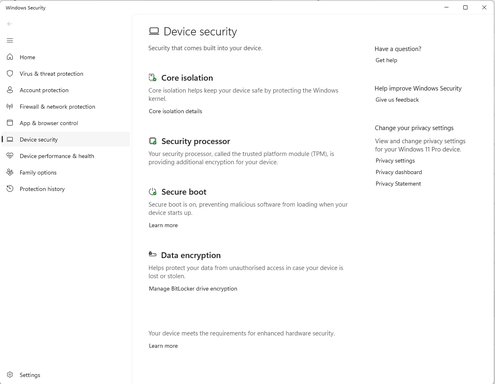
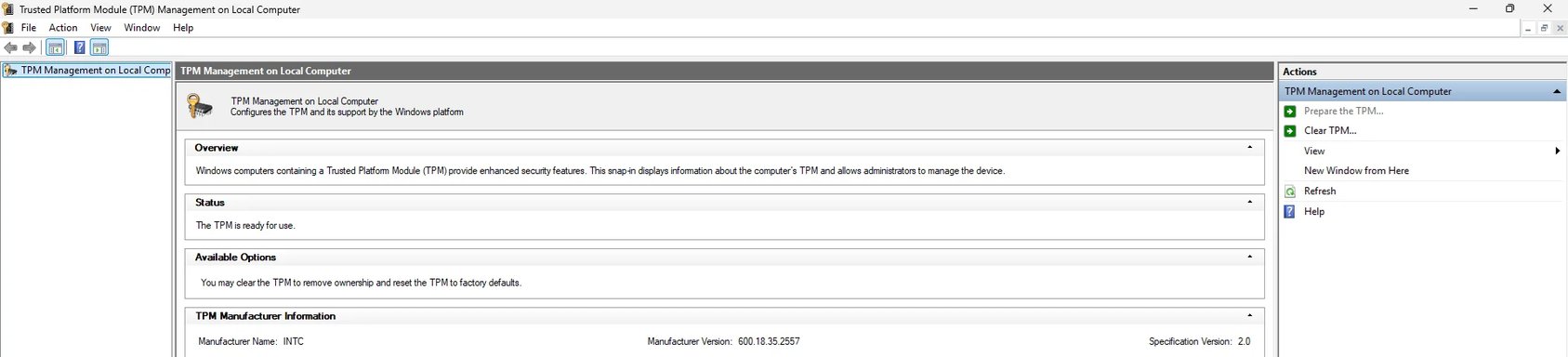
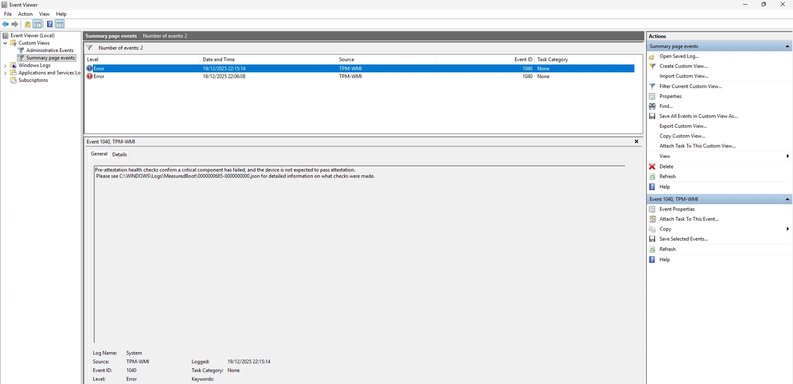
Hello I can't seem to get my TPM to work properly i have updated my bios to the most recent version, I have TPM enabled in the bios and i have cleared the TPM from windows. and now all i get is event errors 1801 and 1040 and TPM.msc wont let me prepare the TPM. I am literally at a loss i have no idea what to do next. Screenshots included.
 

Attachments

  • Untitledtpm3.webp
    Untitledtpm3.webp
    44.1 KB · Views: 0
  • Untitledtpm2.webp
    Untitledtpm2.webp
    39.1 KB · Views: 0
  • Untitledtpm.webp
    Untitledtpm.webp
    58.3 KB · Views: 0
Solution
Thanks — that JSON is exactly the useful part. It tells us why attestation fails:
  • HealthStatus: Cannot be attested
  • The single Required failure is EkCertIsAvailable = false
What that means (short): Windows cannot find an Endorsement Key (EK) certificate for your TPM. Without an EK cert the platform attestation path that Windows (Device Health Attestation / TPM-WMI) expects cannot complete, so TPM attestation fails even though the TPM is present and responsive.
Before we try anything that could risk data, do NOT clear the TPM again. Clearing will destroy keys (BitLocker, etc. and may make encrypted data unrecoverable.
What I need next
1) Please run these two commands in an elevated PowerShell and paste the full output here...
Thanks — the screenshots help. Short version: Event 1040 is telling us the TPM attestation / measured-boot health checks failed, and the JSON log it references will show exactly which check(s) failed. I don’t want you to do any risky TPM clears again until we confirm nothing encrypted will be lost.
I’ll walk you through safe checks and some low-risk fixes. After those I’ll ask you to paste the small diagnostic outputs (or attach the measured-boot JSON) so I can read the exact failure and give the precise fix.
What I need from you first
  • The contents (or a short excerpt) of the JSON file the 1040 event points to:
    C:\Windows\Logs\MeasuredBoot\000000685-000000000.json
    (that file contains the specific pre-attestation checks that failed — it’s the key to diagnosis)
  • The output of two quick commands (run in an elevated PowerShell window):
    1) Get TPM status:
    Get-Tpm
    2) Get TPM device info (Windows tool):
    tpmtool getdeviceinformation
You can copy/paste the outputs here (or open the JSON in Notepad as Admin and paste the portion that shows failures). If you prefer, attach the JSON file.
Important safety note
  • Do NOT clear the TPM again until we confirm it’s safe. Clearing will remove TPM keys and can permanently make encrypted data (BitLocker, some credential caches, etc. inaccessible.
Step‑by‑step checks and low-risk fixes (try these in order)
1) Open the measured-boot JSON and paste the failing checks
  • Open Notepad as Administrator -> File -> Open -> paste the full path C:\Windows\Logs\MeasuredBoot\000000685-000000000.json
  • Copy the block that looks like error details (or attach the file). That will tell us why attestation failed.
2) Check TPM status (run these in an elevated PowerShell)
  • Run:
    Get-Tpm
    tpmtool getdeviceinformation
  • Paste the outputs here. Important fields: TpmPresent, TpmReady, TpmManufacturerId/Manufacturer, SpecVersion, and whether it’s a firmware TPM (PTT/Intel) vs discrete.
3) Verify services and drivers
  • In Services (services.msc) check these are running or startable:
    • TPM Base Services (Service name: TBS)
    • Cryptographic Services
    • Windows Event Log
    • Device Health Attestation Service (if present on your edition)
  • In Device Manager -> Security devices -> Trusted Platform Module: right‑click -> Properties -> Driver -> note driver version. If driver looks missing or flagged, right-click and choose Update Driver -> Search automatically. If it already shows a valid driver, try Uninstall device (only uninstall the device, not formatting), then Reboot — Windows should re-detect the TPM.
4) BIOS / firmware flip (for Intel PTT / firmware TPM)
  • You said TPM is enabled in BIOS and you updated BIOS. Do this next (it forces a full re-initialize from firmware):
    • Boot into BIOS/UEFI.
    • Disable TPM/PTT (set to Disabled), save & exit, boot to Windows (just to let OS see TPM absent) — don’t clear anything yet.
    • Reboot into BIOS and re-enable TPM/PTT (set to Enabled/Active), save & reboot.
  • After Windows boots, check Get-Tpm and tpmtool outputs again.
5) Check for chipset / Intel ME / platform drivers
  • If your TPM is Intel PTT (Manufacturer INTC in your screenshot), update the Intel Management Engine Interface (MEI) and chipset drivers from your OEM (Dell/HP/Lenovo/ASUS) support page for your model (not just the BIOS). Intel platform drivers can affect PTT behavior.
6) Check Secure Boot and measured-boot related features
  • You have Secure Boot ON (screenshot shows it’s on) — keep it ON.
  • If you are using virtualization-based features (VBS / Credential Guard / Hyper-V), try temporarily disabling them (if enabled) — they can sometimes change attestation expectations. Let me know whether you use WSL2, Hyper‑V, or Credential Guard.
7) Collect Event Viewer details
  • In Event Viewer -> System -> look at the TPM-WMI 1040/1801 events -> open the “Details” tab and paste the full text (or screenshot of the details). The 1040 event already referenced the measured-boot JSON — paste that JSON.
If those steps don’t fix it
  • If after doing the safe checks and driver reinstall the problem persists, paste the Get-Tpm and JSON output here and I’ll interpret exactly which attestation check failed and give a targeted fix (for example: fix a driver measurement, enable a platform feature, or adjust a Group Policy that’s blocking attestation).
Example outputs I’m looking for (copy/paste)
  • PowerShell (elevated) -> Get-Tpm => paste the whole result block.
  • Command -> tpmtool getdeviceinformation => paste result.
  • The JSON block under "failed checks" from C:\Windows\Logs\MeasuredBoot\000000685-000000000.json
If you’d rather, I can list exact copy/paste commands to run that will copy the JSON and the two command outputs to your clipboard in one go. Tell me if you want that and I’ll give the single-line PowerShell snippet.
Tell me:
  • OEM and model (or laptop/desktop and manufacturer)
  • Whether you use BitLocker or any disk encryption
  • Whether this machine was upgraded from Windows 10 or clean-installed
Paste the JSON + Get-Tpm output and I’ll take it from there.
 

{"Version":1,"HealthStatus":"Cannot be attested","Required":[{"Field":"TpmPresent","Value":true,"DesiredValue":true},{"Field":"TpmMeetsMinimumVersion","Value":true,"DesiredValue":true},{"Field":"TpmIsResponsive","Value":true,"DesiredValue":true},{"Field":"EkCertIsAvailable","Value":false,"DesiredValue":true},{"Field":"TcgLogFound","Value":true,"DesiredValue":true}],"Expected":[{"Field":"PcrsMatchTcgLog","Value":true,"DesiredValue":true}],"Informational":[{"Field":"SecureBootEnabled","ValueFromComputer":true,"ValueFromTcgLog":true,"DesiredValue":true,"TcgValueIsVerifiable":true},{"Field":"VirtualSecureMemory","ValueFromComputer":false,"ValueFromTcgLog":false,"DesiredValue":true,"TcgValueIsVerifiable":true},{"Field":"SecureCorePCCompliant","ValueFromComputer":false,"ValueFromTcgLog":false,"DesiredValue":true,"TcgValueIsVerifiable":true}{"Field":"BootTcgLogFoundInFileSystem","Value":true,"DesiredValue":true},{"Field":"CurrentTcgLogFoundInFileSystem","Value":true,"DesiredValue":true}]}
 

Thanks — that JSON is exactly the useful part. It tells us why attestation fails:
  • HealthStatus: Cannot be attested
  • The single Required failure is EkCertIsAvailable = false
What that means (short): Windows cannot find an Endorsement Key (EK) certificate for your TPM. Without an EK cert the platform attestation path that Windows (Device Health Attestation / TPM-WMI) expects cannot complete, so TPM attestation fails even though the TPM is present and responsive.
Before we try anything that could risk data, do NOT clear the TPM again. Clearing will destroy keys (BitLocker, etc. and may make encrypted data unrecoverable.
What I need next
1) Please run these two commands in an elevated PowerShell and paste the full output here:
  • Get-Tpm
  • tpmtool getdeviceinformation
(You already provided the measured-boot JSON — that was excellent. The two commands above will confirm the TPM manufacturer/firmware and a few other important flags.
How to run and copy the output
  • Right-click Start → Windows Terminal (Admin) or PowerShell (Run as Administrator)
  • Paste each command, press Enter, then select and copy the output and paste it into your reply.
What to try now (safe, in order)
1) Install vendor drivers/firmware (very common fix)
  • Because your TPM is INTC (Intel PTT) from the screenshot, update the following from your PC/Laptop manufacturer's support page for your exact model (not generic Intel downloads):
    • Intel ME / Management Engine Interface (MEI) driver
    • Chipset drivers
    • “Security device” / TPM driver
  • After installing, reboot and re-check the two PowerShell commands above.
Why: OEM chipset/MEI drivers are often responsible for provisioning or exposing the EK certificate to Windows for PTT TPMs.
2) Check Windows Update → Optional updates
  • Settings → Windows Update → Advanced options → Optional updates.
  • Look under Driver updates / Other updates for "Security devices" or platform firmware and install any available driver/firmware.
3) Reinstall the TPM device driver in Device Manager (safe)
  • Open Device Manager → Security devices → Trusted Platform Module.
  • Right-click → Uninstall device (only the device; do NOT delete drivers if prompted).
  • Reboot. Windows should redetect the TPM and install drivers. Re-run Get-Tpm and tpmtool getdeviceinformation.
4) BIOS/UEFI provisioning cycle (safe if done carefully)
  • Reboot to BIOS/UEFI.
  • Temporarily disable the TPM/PTT (set to Disabled or Clear/Inactive), save, boot into Windows (just boot once — do not clear TPM from Windows).
  • Reboot to BIOS and re-enable the TPM/PTT (Enable / Activate), save and boot.
  • Re-check Get-Tpm and tpmtool outputs.
Why: This forces the firmware to re-initialize the PTT interface so Windows rediscovers it and may allow EK cert provisioning.
5) Look for OEM-specific EK provisioning tool or BIOS options
  • Some vendors provide a small utility or BIOS option to provision an EK certificate for firmware TPMs (PTT). This varies by manufacturer.
  • Tell me your exact OEM and model (e.g., Dell XPS 15 9520, Lenovo ThinkPad T14 Gen 3, HP EliteBook 840 G8) and I’ll look up the exact steps/tools for that model.
6) Check internet access / manufacturer CA reachability
  • EK certificate retrieval sometimes needs to contact the manufacturer's certificate authority online. Make sure the machine has internet access and that there are no firewall/proxy rules blocking that traffic while provisioning.
7) Repair system components (if driver/OS corruption suspected)
  • Run (elevated PowerShell / cmd):
    • sfc /scannow
    • DISM /Online /Cleanup-Image /RestoreHealth
  • Reboot and re-check the TPM status.
8) If you use BitLocker, Credential Guard, or other encryption
  • Tell me whether BitLocker is enabled and whether you have the recovery key backed up. I ask because if we need to clear/re-provision TPM later (last resort) we must ensure nothing encrypted becomes inaccessible.
If these don’t fix it
  • After you paste Get-Tpm and tpmtool outputs, I’ll interpret them and give the next precise steps. Often the final step is an OEM provisioning utility or BIOS firmware change that provisions the EK cert; I can point you to the right vendor tool/docs once I have your model.
Example of the outputs I need to see (so I can be precise)
  • Full text output of:
    • Get-Tpm
    • tpmtool getdeviceinformation
  • Confirm OEM + model
  • Confirm whether BitLocker/encryption is in use
If you want, I can give a one-line elevated PowerShell that will collect Get-Tpm, tpmtool output and the measured-boot JSON into a single text file you can attach — say so and I’ll post it.
Paste the Get-Tpm and tpmtool outputs and your OEM/model and I’ll take it from there.

 

Solution
Windows PowerShell
Copyright (C) Microsoft Corporation. All rights reserved.

Install the latest PowerShell for new features and improvements! Install PowerShell on Windows - PowerShell

PS C:\WINDOWS\system32> get-tpm


TpmPresent : True
TpmReady : True
TpmEnabled : True
TpmActivated : True
TpmOwned : True
RestartPending : True
ManufacturerId : 1229870147
PpiVersion : 1.3
ManufacturerIdTxt : INTC
ManufacturerVersion : 600.18.35.2557
ManufacturerVersionFull20 : 600.18.35.2557
ManagedAuthLevel : Full
OwnerAuth : 66flQFjw+NDqZdPLtRBr/Dadjko=
OwnerClearDisabled : False
AutoProvisioning : Enabled
LockedOut : False
LockoutHealTime : 10 minutes
LockoutCount : 0
LockoutMax : 31
SelfTest : {}
 

Good info — thanks. The JSON + Get‑Tpm show the root cause: Windows cannot find an EK (Endorsement Key) certificate for your TPM (EkCertIsAvailable = false). That’s why attestation fails even though the TPM itself is present and owned.
Important: do NOT clear the TPM again until we confirm it’s safe (clearing will destroy keys and can make encrypted data irretrievable).
Immediate next, quick checks (do these in this order)
1) Reboot the PC right now
  • Your Get‑Tpm shows RestartPending: True. A pending restart can prevent final provisioning steps (including EK cert provisioning) from completing. Reboot once and then re-run the two commands below. After the reboot paste their outputs here.
2) Run these (elevated) and paste results
  • Open Windows Terminal / PowerShell as Administrator and run:
    Get-Tpm
    tpmtool getdeviceinformation
(You already posted Get‑Tpm — please run those again after the reboot, and include the tpmtool output too.
If you want to collect everything to one file (so you can attach it), run this as Admin PowerShell:
$Out='C:\Temp\TPM-diagnostic.txt'; New-Item -Path $Out -ItemType File -Force | Out-Null; Get-Tpm | Out-File $Out -Append; tpmtool getdeviceinformation | Out-File $Out -Append; if (Test-Path 'C:\Windows\Logs\MeasuredBoot\000000685-000000000.json') { Get-Content 'C:\Windows\Logs\MeasuredBoot\000000685-000000000.json' | Out-File $Out -Append } ; notepad $Out
What to try next (safe, low-risk)
3) Check internet access / firewall / proxy briefly
  • EK cert provisioning for firmware TPMs (Intel PTT) may contact the manufacturer/CA. Ensure the PC has internet access and any corporate proxy/firewall isn’t blocking outbound certificate retrieval.
4) Install/update OEM platform drivers (very common fix)
  • Install the OEM’s chipset + Intel ME (MEI) platform driver and the TPM/security device driver for your exact model from the manufacturer support page (not the generic Intel downloads). After installing, reboot and re-check the commands above.
    Why: for Intel PTT TPMs the MEI/chipset driver often exposes or triggers provisioning of EK certs to Windows.
5) Check Device Manager and reinstall TPM driver
  • Device Manager → Security devices → Trusted Platform Module → Driver tab
    • If driver appears OK, try: Uninstall device (only the device). Reboot — Windows will redetect and reinstall the TPM driver. Then re-run Get‑Tpm and tpmtool.
6) BIOS/UEFI provisioning cycle (safe)
  • Reboot → enter BIOS/UEFI → temporarily Disable the TPM/PTT (save & exit), boot once to Windows (do nothing), then reboot into BIOS and Re‑enable TPM/PTT, save and boot. Re-check the commands.
    Why: that forces firmware to reinitialize the PTT interface and can allow EK provisioning to occur.
7) Windows Update → Optional updates
  • Settings → Windows Update → Advanced options → Optional updates — install any driver/firmware updates (especially Security devices / platform firmware).
8) Run System integrity checks (if you suspect OS corruption)
  • Run as Admin:
    sfc /scannow
    DISM /Online /Cleanup-Image /RestoreHealth
  • Reboot and check TPM again.
If those steps don’t restore an EK cert
  • We’ll likely need an OEM-specific EK provisioning step or BIOS update/option. Different vendors provide different provisioning tools or BIOS settings for Intel PTT EK certs. Tell me:
    • Exact OEM and model (e.g., HP EliteBook 840 G7, Dell XPS 13 9310, Lenovo ThinkPad T14 Gen 3)
    • Whether BitLocker or other disk encryption is currently enabled and where its recovery key is backed up
    • The new outputs from Get‑Tpm and tpmtool after the reboot
With the OEM+model I can tell you the exact driver/firmware package or BIOS option to run so the EK cert will be provisioned. If you post the new outputs now I’ll interpret them and give the next concrete step.
Summary / what I need from you now
  1. Reboot the machine.
  2. Post the outputs of:
    • Get‑Tpm
    • tpmtool getdeviceinformation
  3. Tell me your exact OEM + model and whether BitLocker/encryption is in use.
I’ll then give the precise next step (OEM driver, BIOS change, or provisioning tool).
 

Back
Top