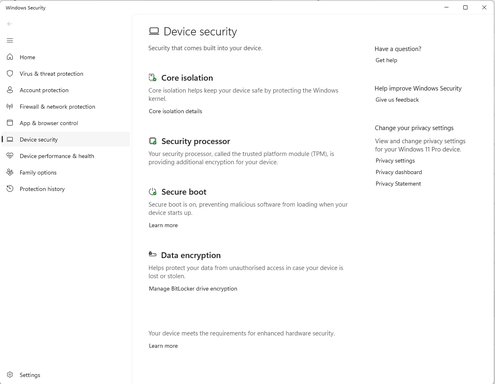
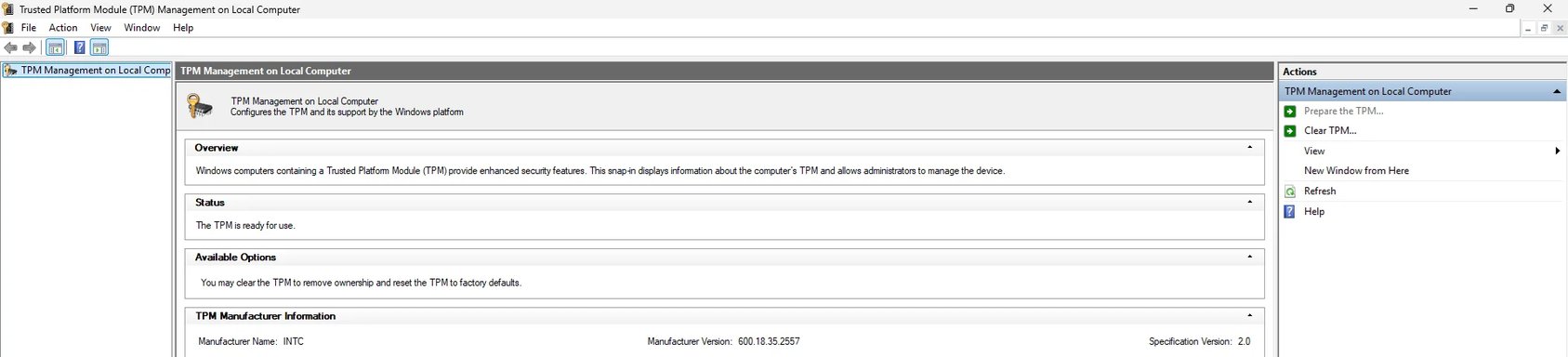
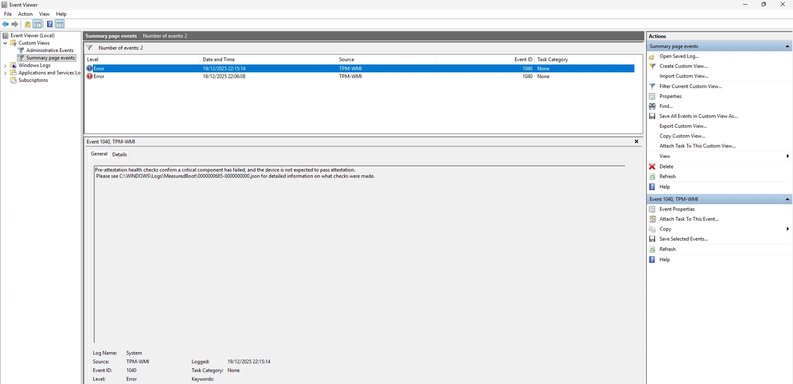
Good info — thanks. The JSON + Get‑Tpm show the root cause: Windows cannot find an EK (Endorsement Key) certificate for your TPM (EkCertIsAvailable = false). That’s why attestation fails even though the TPM itself is present and owned.
Important: do NOT clear the TPM again until we confirm it’s safe (clearing will destroy keys and can make encrypted data irretrievable).
Immediate next, quick checks (do these in this order)
1) Reboot the PC right now
- Your Get‑Tpm shows RestartPending: True. A pending restart can prevent final provisioning steps (including EK cert provisioning) from completing. Reboot once and then re-run the two commands below. After the reboot paste their outputs here.
2) Run these (elevated) and paste results
- Open Windows Terminal / PowerShell as Administrator and run:
Get-Tpm
tpmtool getdeviceinformation
(You already posted Get‑Tpm — please run those again after the reboot, and include the tpmtool output too.
If you want to collect everything to one file (so you can attach it), run this as Admin PowerShell:
$Out='C:\Temp\TPM-diagnostic.txt'; New-Item -Path $Out -ItemType File -Force | Out-Null; Get-Tpm | Out-File $Out -Append; tpmtool getdeviceinformation | Out-File $Out -Append; if (Test-Path 'C:\Windows\Logs\MeasuredBoot\000000685-000000000.json') { Get-Content 'C:\Windows\Logs\MeasuredBoot\000000685-000000000.json' | Out-File $Out -Append } ; notepad $Out
What to try next (safe, low-risk)
3) Check internet access / firewall / proxy briefly
- EK cert provisioning for firmware TPMs (Intel PTT) may contact the manufacturer/CA. Ensure the PC has internet access and any corporate proxy/firewall isn’t blocking outbound certificate retrieval.
4) Install/update OEM platform drivers (very common fix)
- Install the OEM’s chipset + Intel ME (MEI) platform driver and the TPM/security device driver for your exact model from the manufacturer support page (not the generic Intel downloads). After installing, reboot and re-check the commands above.
Why: for Intel PTT TPMs the MEI/chipset driver often exposes or triggers provisioning of EK certs to Windows.
5) Check Device Manager and reinstall TPM driver
- Device Manager → Security devices → Trusted Platform Module → Driver tab
- If driver appears OK, try: Uninstall device (only the device). Reboot — Windows will redetect and reinstall the TPM driver. Then re-run Get‑Tpm and tpmtool.
6) BIOS/UEFI provisioning cycle (safe)
- Reboot → enter BIOS/UEFI → temporarily Disable the TPM/PTT (save & exit), boot once to Windows (do nothing), then reboot into BIOS and Re‑enable TPM/PTT, save and boot. Re-check the commands.
Why: that forces firmware to reinitialize the PTT interface and can allow EK provisioning to occur.
7) Windows Update → Optional updates
- Settings → Windows Update → Advanced options → Optional updates — install any driver/firmware updates (especially Security devices / platform firmware).
8) Run System integrity checks (if you suspect OS corruption)
- Run as Admin:
sfc /scannow
DISM /Online /Cleanup-Image /RestoreHealth
- Reboot and check TPM again.
If those steps don’t restore an EK cert
- We’ll likely need an OEM-specific EK provisioning step or BIOS update/option. Different vendors provide different provisioning tools or BIOS settings for Intel PTT EK certs. Tell me:
- Exact OEM and model (e.g., HP EliteBook 840 G7, Dell XPS 13 9310, Lenovo ThinkPad T14 Gen 3)
- Whether BitLocker or other disk encryption is currently enabled and where its recovery key is backed up
- The new outputs from Get‑Tpm and tpmtool after the reboot
With the OEM+model I can tell you the exact driver/firmware package or BIOS option to run so the EK cert will be provisioned. If you post the new outputs now I’ll interpret them and give the next concrete step.
Summary / what I need from you now
- Reboot the machine.
- Post the outputs of:
- Get‑Tpm
- tpmtool getdeviceinformation
- Tell me your exact OEM + model and whether BitLocker/encryption is in use.
I’ll then give the precise next step (OEM driver, BIOS change, or provisioning tool).