

The Windows 11 Installation Assistant is Microsoft’s upgrade tool for moving an existing Windows PC to Windows 11, but it succeeds only when the machine passes Microsoft’s compatibility checks, including x64 processor support, TPM 2.0, Secure Boot capability, licensing, storage, and setup prerequisites. The practical path is simple: back up first, confirm the PC is x64 rather than Arm, verify TPM 2.0 and Secure Boot readiness, run Microsoft’s compatibility check if prompted, then launch the Assistant as an administrator and follow the upgrade flow. The installer is not the hard part; the preflight is.
Microsoft’s Windows 11 Installation Assistant has an appealing name because it sounds like the thing that does the work. In practice, the tool is better understood as the gatekeeper at the end of a decision tree. If the machine is eligible, the Assistant can carry the user through the upgrade; if the machine is not eligible, it becomes a messenger for requirements that should have been checked before anyone clicked Download.
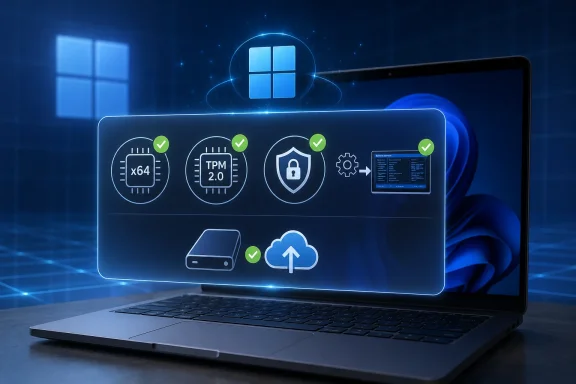
The short procedure is this: open Windows Settings, go to System > About, and confirm the device is running on an x64 processor rather than Arm. Then open Windows Security > Device security to look for security processor information, and check firmware settings if TPM or Secure Boot is disabled or unclear. Back up important files to external storage or a cloud location before starting, then download and run the Installation Assistant as an administrator on the PC being upgraded.
Once the tool runs, the workflow is straightforward. If the device passes the compatibility check, accept the license terms, allow the Assistant to download and prepare Windows 11, and restart when prompted. The machine may restart more than once, and the right user behavior during that phase is boring but important: leave it alone, keep it powered, and do not interrupt the process.
That is the answer readers came for, but it is not the whole story. For sysadmins, repair techs, and power users, the Installation Assistant is less interesting than the checklist behind it. The same tool that looks like a consumer-friendly upgrade button is really a compact expression of Microsoft’s Windows 11 hardware line in the sand.
The core requirements that matter most in the field are not mysterious. Windows 11 requires TPM 2.0 and Secure Boot capability, and the Installation Assistant itself does not run on Arm-based PCs because it is only supported on x64 processors. Windows 11 Home also requires an internet connection and a Microsoft account to complete setup on first use, which means a technically successful install can still strand a user at the account stage if that detail was not planned.
That combination creates the classic Windows 11 upgrade trap. A device can feel modern enough, run existing applications acceptably, and still fail the official upgrade path because the platform security baseline is not where Windows 11 expects it to be. Conversely, a machine may have the necessary hardware but fail preflight because TPM or Secure Boot is not enabled in firmware.
For readers following WindowsForum’s earlier guide, “How to Upgrade to Windows 11 Using the Installation Assistant: A Complete Guide,” this is the layer worth emphasizing. The click path matters, but the pre-click inventory matters more. In a home environment, that inventory prevents wasted time; in an IT environment, it prevents a support queue full of half-upgraded machines and confused users.
The important operational distinction is that TPM support and TPM readiness are not always the same thing. A PC may include TPM 2.0 capability but have it disabled in firmware. Another may expose a firmware TPM under a vendor-specific label, leaving the user unsure whether the requirement is actually satisfied.
That is why the best first move is not to run the Assistant and hope. It is to inspect the system first. In Windows, Settings and Windows Security can provide clues about device security, while firmware setup may be needed if the TPM is disabled. On managed fleets, the same principle scales into inventory: identify which machines already comply, which need firmware changes, and which are simply out of scope.
The hidden gotcha is psychological as much as technical. Users see the Installation Assistant as an installer, so they expect it to fix upgrade blockers. It does not turn an unsupported platform into a supported one. It tells you whether Microsoft’s official path is open.
In the simplest case, Secure Boot is already available and enabled. In the messier case, it is disabled, hidden behind vendor-specific firmware menus, or entangled with older boot configurations. The Installation Assistant will not turn this into a guided firmware remediation session. It will simply participate in the broader compatibility judgment.
This is where power users should slow down. Firmware settings are not the place for improvisation, especially on machines with important data or unusual boot arrangements. Before changing anything, users should back up, document the current state where possible, and understand that a Windows upgrade is not the right moment to casually experiment with boot policy.
For sysadmins, Secure Boot is not just a checkbox. It is a marker of whether the organization’s hardware estate is aligned with the assumptions built into Windows 11. If the answer is “sometimes,” then the Installation Assistant should be treated as a single-device convenience, not a deployment strategy.
This matters because the Windows ecosystem is no longer synonymous with one processor family in the way it once was. Arm-based Windows devices exist, and they may be perfectly legitimate Windows PCs. They are simply not candidates for this particular upgrade path.
For users, the practical check is in Settings > System > About, where Windows reports device and system information. If the machine is Arm-based, the Installation Assistant is the wrong tool. The correct conclusion is not that the PC is broken, but that Microsoft has drawn the Assistant’s support line around x64 hardware.
For support desks, this is a script-worthy point. Before asking a user to download anything, confirm the processor architecture. It is a small check that prevents a large amount of confusion, especially when the user’s real question is not “What processor architecture do I have?” but “Why won’t Microsoft’s upgrade tool run?”
WindowsForum has already seen the human version of this problem in threads where users get stuck at sign-in or account screens during Windows 11 setup. The pattern is familiar: the installer appears to have worked, but the user cannot get past a setup page because the account expectation does not match their situation. In those moments, the failure feels like an installation failure even when the underlying issue is first-use configuration.
This is a particularly sharp gotcha for anyone preparing a PC for someone else. A family member, a small business employee, or a lab user may not have the Microsoft account details ready at the moment setup asks for them. If the edition is Windows 11 Home, that is not a minor afterthought; it is part of the successful setup path.
IT pros will notice the policy implication. The upgrade process does not end when the OS bits land on disk. It ends when the user can sign in and work. Any preflight checklist that stops at TPM, Secure Boot, and CPU architecture is incomplete if it ignores the account and internet requirement for Windows 11 Home.
This is the part users often resist because it sounds like boilerplate. It is not. An in-place OS upgrade touches the operating system, drivers, boot behavior, installed software state, and user profile assumptions. When it works, it feels routine; when it fails, the lack of a backup becomes the only fact that matters.
The WindowsForum user asking whether installing Windows 11 means reinstalling Office, Photoshop, FTP tools, and HTML editors is asking the right practical question. In many upgrade scenarios, the expectation is continuity rather than a clean rebuild. But the right answer still starts with a backup, because application continuity is a goal, not a substitute for recovery planning.
For administrators, the backup issue becomes even less negotiable. A failed upgrade on one enthusiast’s machine is an evening lost. A failed upgrade across a department is an incident. The Installation Assistant should never be the first time an organization discovers whether its endpoint recovery story works.
That checklist sounds basic, but it changes the upgrade from a gamble into a controlled operation. It also explains why two users with superficially similar PCs can have very different experiences. The one who passes silently calls the Assistant easy; the one blocked by firmware, architecture, or account setup calls Windows 11 confusing.
The Assistant’s own behavior reinforces this framing. When it determines a device is compatible, it can proceed. When it needs more compatibility information, Microsoft points users toward a health check flow. When the device does not meet the minimum requirements, the answer is not hidden in a secret switch inside the Assistant.
This is also where existing WindowsForum coverage fits into a larger story. A procedural guide can show where to click, while the forum’s support threads reveal where users actually stumble: account screens, uncertainty about app preservation, ISO requests, and the general confusion that appears when Windows setup language meets real-world machines. The recurring lesson is that Windows 11 upgrades are not hard only because of the installer; they are hard because the installer arrives after several assumptions have already been made.
For a fleet, the same qualities become limitations. A tool optimized for one interactive upgrade does not answer the broader questions: which devices are eligible, which require firmware changes, which users are on Windows 11 Home, which machines are Arm-based, and which endpoints have reliable backups. The Assistant can confirm a result on a machine; it does not replace planning.
This is the split between consumer convenience and administrative discipline. A power user can run the checklist mentally and proceed. A sysadmin needs inventory, communication, staged rollout, and rollback assumptions. The same compatibility facts matter in both cases, but the cost of discovering them late is very different.
The sharper view is that the Installation Assistant should be trusted within its lane. It is not a migration platform, not a hardware audit system, and not a magic bypass for Windows 11 requirements. It is a supported on-ramp for eligible x64 PCs whose owners have already done the boring work.
That assumption is only half true. The Assistant can tell you when it cannot proceed, but it cannot make the surrounding context painless. It cannot know whether the user has account credentials ready, whether a business-critical app has been tested, or whether a family photo archive exists only on the local disk.
The hidden gotchas are therefore not hidden in the sense of being secret. They are hidden in the sense that they live outside the shiny upgrade button. Microsoft publishes the requirements, but the operational burden lands on the person doing the upgrade.
That is why the most useful Windows 11 Installation Assistant advice is not “download it and click through.” It is “prove the machine is ready before the Assistant gets a vote.”
 The Assistant Is the Last Step, Not the First One
Microsoft’s Windows 11 Installation Assistant has an appealing name because it sounds like the thing that does the work. In practice, the tool is better understood as the gatekeeper at the end of a decision tree. If the machine is eligible, the Assistant can carry the user through the upgrade; if the machine is not eligible, it becomes a messenger for requirements that should have been checked before anyone clicked Download.The short procedure is this: open Windows Settings, go to System > About, and confirm the device is running on an x64 processor rather than Arm. Then open Windows Security > Device security to look for security processor information, and check firmware settings if TPM or Secure Boot is disabled or unclear. Back up important files to external storage or a cloud location before starting, then download and run the Installation Assistant as an administrator on the PC being upgraded.
Once the tool runs, the workflow is straightforward. If the device passes the compatibility check, accept the license terms, allow the Assistant to download and prepare Windows 11, and restart when prompted. The machine may restart more than once, and the right user behavior during that phase is boring but important: leave it alone, keep it powered, and do not interrupt the process.
That is the answer readers came for, but it is not the whole story. For sysadmins, repair techs, and power users, the Installation Assistant is less interesting than the checklist behind it. The same tool that looks like a consumer-friendly upgrade button is really a compact expression of Microsoft’s Windows 11 hardware line in the sand.
Microsoft Hid the Real Upgrade Story in the Compatibility Gate
Windows users tend to think about upgrades as downloads. Microsoft thinks about Windows 11 upgrades as eligibility events. The Assistant sits between those two views, which is why it can feel inconsistent to users who have a perfectly functional Windows 10 PC but still cannot proceed.The core requirements that matter most in the field are not mysterious. Windows 11 requires TPM 2.0 and Secure Boot capability, and the Installation Assistant itself does not run on Arm-based PCs because it is only supported on x64 processors. Windows 11 Home also requires an internet connection and a Microsoft account to complete setup on first use, which means a technically successful install can still strand a user at the account stage if that detail was not planned.
That combination creates the classic Windows 11 upgrade trap. A device can feel modern enough, run existing applications acceptably, and still fail the official upgrade path because the platform security baseline is not where Windows 11 expects it to be. Conversely, a machine may have the necessary hardware but fail preflight because TPM or Secure Boot is not enabled in firmware.
For readers following WindowsForum’s earlier guide, “How to Upgrade to Windows 11 Using the Installation Assistant: A Complete Guide,” this is the layer worth emphasizing. The click path matters, but the pre-click inventory matters more. In a home environment, that inventory prevents wasted time; in an IT environment, it prevents a support queue full of half-upgraded machines and confused users.
TPM 2.0 Is the Requirement That Turns a PC Into a Case File
TPM 2.0 is one of those requirements that became famous without becoming widely understood. To many users, it is just the acronym that blocked a Windows 11 upgrade. To administrators, it is a hardware-rooted security requirement that turns a casual upgrade into a device validation exercise.The important operational distinction is that TPM support and TPM readiness are not always the same thing. A PC may include TPM 2.0 capability but have it disabled in firmware. Another may expose a firmware TPM under a vendor-specific label, leaving the user unsure whether the requirement is actually satisfied.
That is why the best first move is not to run the Assistant and hope. It is to inspect the system first. In Windows, Settings and Windows Security can provide clues about device security, while firmware setup may be needed if the TPM is disabled. On managed fleets, the same principle scales into inventory: identify which machines already comply, which need firmware changes, and which are simply out of scope.
The hidden gotcha is psychological as much as technical. Users see the Installation Assistant as an installer, so they expect it to fix upgrade blockers. It does not turn an unsupported platform into a supported one. It tells you whether Microsoft’s official path is open.
Secure Boot Is Where Firmware Policy Meets User Friction
Secure Boot capability is the other compatibility point that frequently separates “the PC works fine” from “the PC is ready for Windows 11.” It lives below Windows, which makes it awkward for ordinary users and operationally sensitive for administrators. Any requirement that may send someone into firmware settings deserves respect.In the simplest case, Secure Boot is already available and enabled. In the messier case, it is disabled, hidden behind vendor-specific firmware menus, or entangled with older boot configurations. The Installation Assistant will not turn this into a guided firmware remediation session. It will simply participate in the broader compatibility judgment.
This is where power users should slow down. Firmware settings are not the place for improvisation, especially on machines with important data or unusual boot arrangements. Before changing anything, users should back up, document the current state where possible, and understand that a Windows upgrade is not the right moment to casually experiment with boot policy.
For sysadmins, Secure Boot is not just a checkbox. It is a marker of whether the organization’s hardware estate is aligned with the assumptions built into Windows 11. If the answer is “sometimes,” then the Installation Assistant should be treated as a single-device convenience, not a deployment strategy.
The x64 Rule Quietly Excludes an Entire Class of PCs
One of the easiest requirements to miss is also one of the most absolute: Microsoft says the Windows 11 Installation Assistant does not run on Arm-based PCs and works only on x64 processors. That is not a tweakable firmware setting or a missing account detail. It is a hard boundary for this tool.This matters because the Windows ecosystem is no longer synonymous with one processor family in the way it once was. Arm-based Windows devices exist, and they may be perfectly legitimate Windows PCs. They are simply not candidates for this particular upgrade path.
For users, the practical check is in Settings > System > About, where Windows reports device and system information. If the machine is Arm-based, the Installation Assistant is the wrong tool. The correct conclusion is not that the PC is broken, but that Microsoft has drawn the Assistant’s support line around x64 hardware.
For support desks, this is a script-worthy point. Before asking a user to download anything, confirm the processor architecture. It is a small check that prevents a large amount of confusion, especially when the user’s real question is not “What processor architecture do I have?” but “Why won’t Microsoft’s upgrade tool run?”
The Microsoft Account Requirement Is a Setup Problem Masquerading as an Install Problem
Compatibility is not only about silicon and firmware. Microsoft notes that Windows 11 Home requires an internet connection and a Microsoft account to complete setup on first use. That means a user can clear the hardware hurdle and still get stuck at the point where Windows wants identity, connectivity, or both.WindowsForum has already seen the human version of this problem in threads where users get stuck at sign-in or account screens during Windows 11 setup. The pattern is familiar: the installer appears to have worked, but the user cannot get past a setup page because the account expectation does not match their situation. In those moments, the failure feels like an installation failure even when the underlying issue is first-use configuration.
This is a particularly sharp gotcha for anyone preparing a PC for someone else. A family member, a small business employee, or a lab user may not have the Microsoft account details ready at the moment setup asks for them. If the edition is Windows 11 Home, that is not a minor afterthought; it is part of the successful setup path.
IT pros will notice the policy implication. The upgrade process does not end when the OS bits land on disk. It ends when the user can sign in and work. Any preflight checklist that stops at TPM, Secure Boot, and CPU architecture is incomplete if it ignores the account and internet requirement for Windows 11 Home.
Backups Are Not Optional Just Because the Assistant Sounds Friendly
Microsoft recommends backing up before upgrading because the process can still fail or require remediation. That recommendation deserves to be read literally. The Installation Assistant may be designed to preserve files, apps, and settings during an upgrade, but “designed to” is not the same as “guaranteed to.”This is the part users often resist because it sounds like boilerplate. It is not. An in-place OS upgrade touches the operating system, drivers, boot behavior, installed software state, and user profile assumptions. When it works, it feels routine; when it fails, the lack of a backup becomes the only fact that matters.
The WindowsForum user asking whether installing Windows 11 means reinstalling Office, Photoshop, FTP tools, and HTML editors is asking the right practical question. In many upgrade scenarios, the expectation is continuity rather than a clean rebuild. But the right answer still starts with a backup, because application continuity is a goal, not a substitute for recovery planning.
For administrators, the backup issue becomes even less negotiable. A failed upgrade on one enthusiast’s machine is an evening lost. A failed upgrade across a department is an incident. The Installation Assistant should never be the first time an organization discovers whether its endpoint recovery story works.
The Field Checklist Beats the Download Button
The cleanest way to approach the Windows 11 Installation Assistant is to treat it as the final validation step after a short field checklist. First, confirm the processor architecture is x64. Second, verify that the PC satisfies Windows 11’s TPM 2.0 and Secure Boot capability expectations. Third, plan for the Windows 11 Home account and internet requirement if that edition is involved. Fourth, back up before beginning.That checklist sounds basic, but it changes the upgrade from a gamble into a controlled operation. It also explains why two users with superficially similar PCs can have very different experiences. The one who passes silently calls the Assistant easy; the one blocked by firmware, architecture, or account setup calls Windows 11 confusing.
The Assistant’s own behavior reinforces this framing. When it determines a device is compatible, it can proceed. When it needs more compatibility information, Microsoft points users toward a health check flow. When the device does not meet the minimum requirements, the answer is not hidden in a secret switch inside the Assistant.
This is also where existing WindowsForum coverage fits into a larger story. A procedural guide can show where to click, while the forum’s support threads reveal where users actually stumble: account screens, uncertainty about app preservation, ISO requests, and the general confusion that appears when Windows setup language meets real-world machines. The recurring lesson is that Windows 11 upgrades are not hard only because of the installer; they are hard because the installer arrives after several assumptions have already been made.
The Assistant Is Fine for One PC and Awkward as a Fleet Strategy
For a single enthusiast PC, the Installation Assistant is a reasonable tool when the machine is eligible and the user wants to move forward without waiting for Windows Update. It is direct, official, and designed for the computer currently in front of the user. That is its strength.For a fleet, the same qualities become limitations. A tool optimized for one interactive upgrade does not answer the broader questions: which devices are eligible, which require firmware changes, which users are on Windows 11 Home, which machines are Arm-based, and which endpoints have reliable backups. The Assistant can confirm a result on a machine; it does not replace planning.
This is the split between consumer convenience and administrative discipline. A power user can run the checklist mentally and proceed. A sysadmin needs inventory, communication, staged rollout, and rollback assumptions. The same compatibility facts matter in both cases, but the cost of discovering them late is very different.
The sharper view is that the Installation Assistant should be trusted within its lane. It is not a migration platform, not a hardware audit system, and not a magic bypass for Windows 11 requirements. It is a supported on-ramp for eligible x64 PCs whose owners have already done the boring work.
The Gotchas Are Boring, Which Is Why They Bite
None of the major blockers here are dramatic. TPM 2.0, Secure Boot capability, x64 support, internet access, Microsoft account setup, and backups are not exotic. They are precisely the kind of ordinary prerequisites that get skipped because users assume the installer will surface everything at the right time.That assumption is only half true. The Assistant can tell you when it cannot proceed, but it cannot make the surrounding context painless. It cannot know whether the user has account credentials ready, whether a business-critical app has been tested, or whether a family photo archive exists only on the local disk.
The hidden gotchas are therefore not hidden in the sense of being secret. They are hidden in the sense that they live outside the shiny upgrade button. Microsoft publishes the requirements, but the operational burden lands on the person doing the upgrade.
That is why the most useful Windows 11 Installation Assistant advice is not “download it and click through.” It is “prove the machine is ready before the Assistant gets a vote.”
The Upgrade Succeeds When These Checks Stop Being Surprises
Before running the Windows 11 Installation Assistant, readers should treat the preflight as the real upgrade work. The installer is the easy part if the machine is eligible, backed up, and ready for first-use setup.- Confirm that the PC uses an x64 processor, because Microsoft says the Installation Assistant does not run on Arm-based PCs.
- Verify TPM 2.0 and Secure Boot capability before starting, especially if the PC is older or firmware settings have been changed.
- Back up important files before upgrading, because Microsoft warns that the process can still fail or require remediation.
- Prepare for Windows 11 Home setup by ensuring internet access and a Microsoft account are available for first use.
- Use the Installation Assistant as a supported path for an eligible single PC, not as a substitute for fleet inventory or deployment planning.
- Treat account screens, firmware blockers, and app-continuity worries as part of the upgrade plan rather than as surprises after the download completes.
References
- Primary source: learn.microsoft.com
Download the Windows 11 Installation Assistant - Microsoft Q&A
How do I Download the Windows 11 Installation Assistantlearn.microsoft.com - Independent coverage: support.microsoft.com
Ways to install Windows 11 | Microsoft Support
Learn how to install Windows 11, including the recommended option of using the Windows Update page in Settings.support.microsoft.com - Independent coverage: microsoft.com
Download Windows 11
www.microsoft.com
- Independent coverage: windowscentral.com
Enable secure boot & convert MBR to GPT for Windows 10 games | Windows Central
Learn how to convert MBR to GPT, switch BIOS to UEFI, and enable TPM 2.0 and Secure Boot on Windows 10 to run modern games like Battlefield 6.www.windowscentral.com - Independent coverage: makeuseof.com
How to Use the Windows 11 Installation Assistant
Microsoft has made it really easy to update to Windows 11, and the Installation Assistant makes the process a breeze. www.makeuseof.com
- Independent coverage: tomshardware.com
How to Bypass Windows 11's TPM, CPU and RAM Requirements | Tom's Hardware
Use simple utilities to install Windows 11 on any PC.www.tomshardware.com
