

Windows 11 quietly ships with a powerful certificate-management console that every power user and administrator should know: certmgr.msc — the Certificates Microsoft Management Console (MMC) snap‑in that exposes the current user’s certificate stores and the basic tools to view, import, export, and delete certificates used for TLS, code signing, EFS, smartcards and more. This article explains exactly what certmgr.msc does, how to open and use it safely, advanced workflows and pitfalls, and practical admin checklists to turn a hidden Windows tool into a reliable part of your security toolkit.
Certificates are a foundational building block of modern security on Windows: they bind public keys to identities (websites, services, users, machines) and enable TLS, code signing, EFS, S/MIME and other trust-dependent features. Windows exposes certificate stores to users and administrators via the Microsoft Management Console (MMC) Certificates snap‑in. There are two common entry points:
Why certmgr.msc deserves attention:
Conservative, security‑minded usage is essential: always back up keys before removing certificates, never import unfamiliar roots into the Trusted Root store without authorization, and verify thumbprints with command‑line tools when automation or scripts consume them. For many common problems — missing CA certificates, expired intermediates, or private key ACLs — certmgr.msc is the first diagnostic tool to use and often the quickest way to restore trust and functionality.
This practical overview turns certmgr.msc from a hidden Windows console into a repeatable, safe procedure you can trust when managing certificates on Windows 11 and other supported editions.
Source: Windows Report Unlock Hidden Certificate Tools With Certmgr.msc
 Background
Certificates are a foundational building block of modern security on Windows: they bind public keys to identities (websites, services, users, machines) and enable TLS, code signing, EFS, S/MIME and other trust-dependent features. Windows exposes certificate stores to users and administrators via the Microsoft Management Console (MMC) Certificates snap‑in. There are two common entry points:- certmgr.msc — opens the Certificates – Current User snap‑in (the certificate stores for the signed‑in user).
- certlm.msc or the Certificates snap‑in added as a Local Computer account in MMC — opens the Certificates – Local Computer stores (machine-wide).
What is certmgr.msc and why it matters
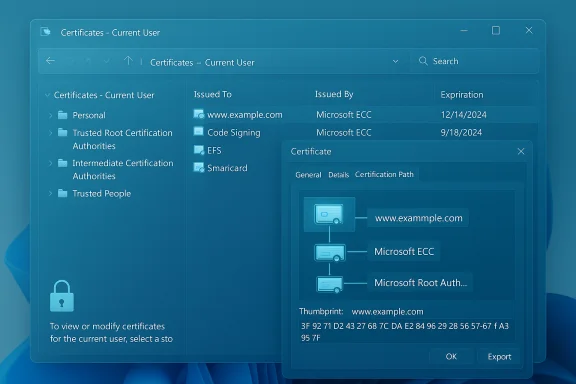
certmgr.msc is the MMC shortcut for the Certificates snap‑in targeted at the current user. It provides a simple GUI for operations that are otherwise possible from the command line (certutil, certmgr.exe) or programmatically, but far easier to perform interactively.Why certmgr.msc deserves attention:
- Direct visibility into the certificate chain and store locations (Personal, Trusted Root Certification Authorities, Intermediate Certification Authorities, Trusted People, etc..
- Built‑in import/export wizards for .cer, .crt, .pfx and other certificate formats — including the option to include or exclude private keys during export.
- Troubleshooting: certificate validity, chain problems, and missing CA certificates are frequent causes of TLS and Windows authentication failures; certmgr.msc lets you inspect and remediate quickly.
- Low friction for support and for non‑server administrators who need to manage per‑user certificates without elevating to local computer context.
How to open certmgr.msc in Windows 11
There are three quick, reliable ways to launch the Certificates (Current User) snap‑in. Each method is short and useful in different contexts.1. Using the Run dialog (fastest)
- Press Windows + R.
- Type certmgr.msc and press Enter.
The Certificates window for the current user will open immediately. This is the single fastest route to the GUI.
2. From Start / Search
- Press Windows or Windows + S and type certmgr.msc.
- Select the certmgr.msc result (it usually appears as “Certificates - Current User” or the MMC icon).
- If UAC prompts appear when you try to manage machine certificates, use an elevated console instead.
3. From Terminal / PowerShell / Command Prompt
- Open Terminal (or PowerShell / cmd). If you need to manage machine stores, open Terminal as administrator.
- Type certmgr.msc and press Enter.
This quickly launches the snap‑in from the command line and is ideal for scripted troubleshooting sessions.
Basic workflows inside certmgr.msc
The Certificates snap‑in groups certs into logical stores (Personal, Trusted Root Certification Authorities, Intermediate CAs, etc.. The interface supports the four core actions you’ll use repeatedly.Viewing certificates
- Expand a store (for example, Personal → Certificates). Click any certificate to display summary columns (Issued To, Issued By, Expiration date).
- Double‑click a certificate to open its properties and examine the certificate chain, validity period, usage fields, and thumbprint. The UI also exposes the entire chain and the option to view more details.
Importing a certificate
- Right‑click the target store (for example, Personal).
- Choose All Tasks → Import.
- Follow the Certificate Import Wizard, select the file (.cer, .crt, .pfx, .p7b), and decide whether the private key is included or should be made exportable.
- Finish the wizard; the certificate appears in the selected store.
The wizard is the same friendly GUI used by the command‑line certmgr utilities.
Exporting a certificate
- Right‑click the certificate → All Tasks → Export to launch the Certificate Export Wizard.
- Choose whether to export the private key (only possible if the key is present and exportable).
- Pick the format (DER, Base64, PFX), secure the export with a password if the private key is included, and save the file.
Exporting is a common step when migrating EFS keys, sharing client certs, or backing up important keys.
Deleting a certificate
- Right‑click the certificate and choose Delete. Confirm the action. Use caution: deleting a certificate that’s used for EFS, S/MIME, or authentication can immediately break access for the account. Where possible, export a backup before deleting.
Advanced operations and important UI details
Current user vs Local computer
- certmgr.msc targets the current user store; certlm.msc or adding the Certificates snap‑in as Local Computer in MMC is required to manage machine certificates (IIS, services, scheduled tasks). Confusion between the two is a frequent cause of misconfiguration.
Certificate thumbprints and copy/paste caveats
- Thumbprints presented in the MMC UI can include an invisible character in some versions of the control, which can break automation if pasted directly into scripts. Use certutil -store to reliably retrieve thumbprints from a command line without hidden characters.
Assigning or recovering private keys
- When a certificate in the Local Computer store is bound to IIS or another service, the private key must be present and accessible. Deleting the certificate from the store does not always delete the private key file — recovering or reassigning keys may require certutil or server tools. Microsoft documents procedures to reassign a private key and recover bindings in IIS scenarios.
GUI vs command line
- certmgr.msc (the snap‑in) is the GUI. There is also a command‑line tool called certmgr.exe (distributed with the Windows SDK) and certutil (built into Windows). Running certmgr.exe without options may launch the MMC snap‑in; certmgr.exe and certutil are useful for scripted automation where GUI steps are impractical.
Troubleshooting common problems
certmgr.msc won’t open
If certmgr.msc fails to open or the snap‑in errors:- Check for missing or corrupt system files and run sfc /scannow. If system file corruption prevents MMC from loading snap‑ins, SFC may repair the problem.
- Ensure Group Policy or local policy hasn’t disabled MMC snap‑ins for non‑administrators — enterprise environments sometimes restrict these consoles for security reasons.
- If the tool opens but the store is empty, confirm you opened the current user store vs local computer context. The wrong context is a very common user error.
Certificates missing in browsers or apps
- Antivirus products can install their own TLS interception/root certificates; those certificates must be present in the appropriate store for the browser or service to trust them. If a third‑party product (for example, an endpoint proxy) inserts a CA and a browser rejects it, verify the certificate’s store and chain in certmgr.msc and compare with a working machine. Community troubleshooting threads repeatedly point to store placement and duplicate certificates as common causes.
Permissions and private key access
- Services and IIS require the private key to be accessible by the service account. If bindings fail, check Manage Private Keys from the certificate’s right‑click menu in the Local Computer store (MMC) and confirm correct ACLs. For many service issues, the fix is to grant Read access to the service account for the certificate’s private key.
Thumbprint copy errors break scripting
- If you copy a thumbprint from MMC and automation fails, use certutil -store or PowerShell’s Get‑ChildItem Cert: to fetch thumbprints without hidden characters. This avoids subtle copy/paste artifacts.
Security considerations and best practices
Certificates are trust anchors — mishandling them creates systemic risk. Follow these baseline rules every time you open certmgr.msc:- Never import an unknown root CA into Trusted Root Certification Authorities. Adding an untrusted root expands trust to everything it signs. Only import roots from verified sources and after organizational approval. This is the most dangerous user error in certificate management.
- Treat private keys as sensitive. Export only with a password and store PFX backups securely. Limit exportable private keys to exceptional cases.
- Use Local Computer stores for system services, Current User stores for user-only certificates. Mixing contexts leads to broken bindings and troubleshooting complexity.
- Rotate and revoke certificates on schedule. Expired or revoked certificates remain a source of outages and security gaps. Automate certificate lifecycle management at scale with enterprise PKI tools; use certmgr.msc for ad‑hoc or troubleshooting tasks only.
- Audit before deleting. Export and save certificate backups before removing them, especially for EFS and smartcard keys. Deleting a certificate without verifying dependencies can cause permanent data loss.
Practical admin recipes and examples
Quick: import a client certificate for testing
- Run certmgr.msc (current user).
- Select Personal → Certificates → All Tasks → Import.
- Choose the client .pfx, provide the export password, and allow the private key to be marked exportable only if you truly need it.
- Confirm the certificate appears in Personal and check its Enhanced Key Usage to confirm client auth or EFS appropriate usage.
Quick: export an EFS recovery certificate
- In certmgr.msc locate the certificate used for EFS under Personal.
- Right‑click → All Tasks → Export → include private key (if required) → PFX with a strong password. Store the PFX in a secure vault.
- Keep at least one additional backup in an isolated protected store for disaster recovery.
Scriptable alternative: find certificate by thumbprint using PowerShell
- Open PowerShell.
- Use Get‑ChildItem Cert:\CurrentUser\My | Where‑Object { $_.Thumbprint -eq 'THUMBPRINT' } to locate the cert. This avoids MMC thumbprint copy issues.
Enterprise notes: when to use certmgr.msc and when not to
certmgr.msc is perfect for:- Desktop troubleshooting and single‑machine fixes.
- Quick imports/exports during development or client configuration.
- Verifying certificate details and chains interactively.
- Large‑scale certificate lifecycle automation. Use enterprise PKI tools, certificate managers or Intune/SCCM for mass deployments.
- Permanent provisioning of machine certificates in production service images — prefer scripted or image‑based provisioning to avoid human error.
Step‑by‑step checklist for safe use of certmgr.msc
- Confirm the store you need: Current User (certmgr.msc) or Local Computer (certlm.msc / MMC with Computer account).
- Back up (export) any certificate and its private key before deleting or replacing it.
- Use the import wizard and choose the correct file format (.cer/.crt for public certs, .pfx for cert+private key).
- When exporting private keys, use a strong password and store the file in an encrypted vault.
- Check ACLs on private key files for services that require access (IIS, service accounts). Use “Manage Private Keys” where available.
- If scripts will consume thumbprints, verify thumbprints with certutil or PowerShell to avoid hidden characters.
- Avoid trusting unknown CAs — escalate to your security or PKI team first for new root CA additions.
- If certmgr.msc won’t open, run sfc /scannow, check Group Policy restrictions, and ensure MMC and snap‑ins are allowed in your environment.
Notable strengths — what certmgr.msc gets right
- Simplicity: a compact, discoverable GUI that exposes core certificate features without complex tooling.
- Interoperability: supports the files and formats admins expect (.cer, .crt, .pfx, PKCS#7), and integrates with other Windows tools such as certutil and PowerShell.
- Diagnostic clarity: easy view of issuance chain, expiration, and usage flags — invaluable for fast root cause analysis of TLS and authentication failures.
Potential risks and failure modes
- Accidental trust expansion: importing a root into the Trusted Root store creates broad trust consequences; this is the highest‑impact user mistake.
- Private key exposure: exporting private keys without passwords or storing PFX files insecurely can leak credentials.
- Context confusion: users manage the wrong store (user vs machine), producing invisible misconfigurations that are time‑consuming to diagnose.
- Hidden UI quirks: clipboard artifacts from the MMC UI (thumbprint copy issues) and occasional control bugs can foil automation; use certutil/PowerShell to avoid surprises.
Final thoughts and practical recommendation
certmgr.msc is a small, dependable tool that removes much of the mystery around Windows certificate stores. For IT professionals and savvy power users it is the fastest path to understanding certificate chains, resolving TLS errors, and managing import/export tasks. Use certmgr.msc for interactive troubleshooting and small‑scale certificate operations, but pair it with scripted tools and enterprise PKI solutions for lifecycle management at scale.Conservative, security‑minded usage is essential: always back up keys before removing certificates, never import unfamiliar roots into the Trusted Root store without authorization, and verify thumbprints with command‑line tools when automation or scripts consume them. For many common problems — missing CA certificates, expired intermediates, or private key ACLs — certmgr.msc is the first diagnostic tool to use and often the quickest way to restore trust and functionality.
This practical overview turns certmgr.msc from a hidden Windows console into a repeatable, safe procedure you can trust when managing certificates on Windows 11 and other supported editions.
Source: Windows Report Unlock Hidden Certificate Tools With Certmgr.msc
