

Windows 10’s certificate stores are the silent infrastructure that makes HTTPS, code signing, VPNs, EFS, and many Windows authentication features work—so when a website, mail server, or internal service shows a certificate error, the root cause is often a missing or mis‑placed certificate in the Trusted Root Certification Authorities store. This feature article walks through why root certificates matter, the safe ways to add a root certificate to Windows 10, step‑by‑step methods (GUI and command line), verification and troubleshooting techniques, and the security and enterprise considerations every admin should know before expanding the system trust anchors.
Root certificates are the trust anchors used by Windows to validate certificate chains. When a certificate is presented by a website, device, or service, Windows (and applications that use the OS store) walks the chain back to a root certificate; if that root is in the Trusted Root Certification Authorities store and the chain is valid, the certificate is trusted. If the root is missing or untrusted, clients will display warnings such as “There is a problem with this website’s security certificate,” and connections may be blocked or degraded. Practical guidance for desktop and server administrators on how to view and manage those stores is exposed through the Microsoft Management Console (MMC) Certificates snap‑in as well as helper tools like certmgr.msc and certutil. Windows 10 normally receives root updates automatically from Microsoft’s root program, but there are common scenarios where you must add a root manually:
Key use cases:
Command syntax:
Source: Windows Report How to add Certificate to Trusted Root on Windows 10
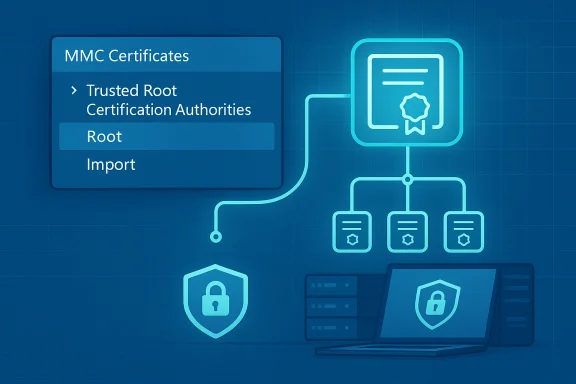 Background / Overview
Root certificates are the trust anchors used by Windows to validate certificate chains. When a certificate is presented by a website, device, or service, Windows (and applications that use the OS store) walks the chain back to a root certificate; if that root is in the Trusted Root Certification Authorities store and the chain is valid, the certificate is trusted. If the root is missing or untrusted, clients will display warnings such as “There is a problem with this website’s security certificate,” and connections may be blocked or degraded. Practical guidance for desktop and server administrators on how to view and manage those stores is exposed through the Microsoft Management Console (MMC) Certificates snap‑in as well as helper tools like certmgr.msc and certutil. Windows 10 normally receives root updates automatically from Microsoft’s root program, but there are common scenarios where you must add a root manually:- Internal or private Certificate Authority (CA) used inside a company.
- Self‑signed server certificates used for testing or lab environments.
- TLS interception appliances or endpoint security products that inject their own CA.
- Migration and offline installs where automatic update paths are unavailable.
Why adding a root certificate is sometimes necessary
Many real‑world problems that users report (TLS warnings in browsers, Outlook certificate errors, failed LDAPS binds, device authentication failures) stem from missing root or intermediate certificates. The Windows Report walkthrough that inspired this article highlights typical user steps—downloading a CA root, enabling certificate path validation policies, and importing the certificate via certmgr.msc or MMC—so the process we cover below matches typical desktop guidance while adding the enterprise‑grade precautions and alternate methods required by IT teams.Key use cases:
- Short‑term: trusting a self‑signed cert for development or lab access.
- Long‑term: enrolling an internal CA's root into domain machines (should be done via Group Policy or AD publish).
- Remediation: when AV / TLS inspection changes a chain and the intercepting CA is missing or incorrectly installed.
The Trusted Root store: where it lives and how Windows uses it
- The OS name for the Trusted Root Certification Authorities store is Root at the certificate store level. The system stores are available in two common contexts:
- Current User (per-user stores; certmgr.msc opens this by default)
- Local Computer (machine‑wide stores; MMC → Certificates → Computer account exposes this)
- Driver and code signature validation often requires machine (Local Computer) roots; user browsing and some user‑auth flows rely on Current User stores. Managing the correct context is a frequent source of misconfiguration.
Safe, step‑by‑step methods to add a certificate to Trusted Root on Windows 10
Below are four proven methods—GUI and CLI—ranked by typical use (easy → scriptable). Each method includes the exact steps, pitfalls, and verification checks.Method 1 — Import a root using certmgr.msc (current user) (quick, per‑user)
This is the fastest route when you only need the signed‑in user to trust a certificate.- Press Windows + R, type:
certmgr.msc
and press Enter. - In the left pane expand: Trusted Root Certification Authorities → Certificates.
- Right‑click on Certificates → All Tasks → Import.
- Follow the Certificate Import Wizard:
- Browse to the .cer/.crt file you downloaded/exported.
- Choose “Place all certificates in the following store” and confirm Trusted Root Certification Authorities (the wizard usually chooses this automatically if the file is a root).
- Finish the wizard and accept any UAC/confirmation dialogs.
- Verify the new certificate appears in the list; double‑click it to inspect Issued To / Issued By / Thumbprint / Validity.
- certmgr.msc targets the current user store; if you need the machine to trust the root (for services or system components), use the MMC Certificates snap‑in for the Local Computer account (see method 2) or run the appropriate PowerShell command.
Method 2 — Add to Local Computer Trusted Root with MMC (recommended for machine‑wide trust)
Use this when a service, IIS, or the OS itself needs to trust the certificate.- Press Windows + R, type:
mmc
and press Enter. - From the File menu choose Add/Remove Snap‑in.
- Select Certificates, click Add.
- Choose Computer account → Next → Local computer → Finish → OK.
- Expand Certificates (Local Computer) → Trusted Root Certification Authorities → Certificates.
- Right‑click Certificates → All Tasks → Import and follow the wizard to import the root .cer. Finish the wizard.
- Confirm the certificate now appears under the Local Computer → Trusted Root list.
- MMC lets you manage the machine store and to export or change ACLs for private keys. It’s the correct choice for adding roots that impact services, IIS bindings, and driver signing validation.
Method 3 — Command line: certutil (quick, scriptable, auditable)
certutil is built into Windows and ideal for automation or remote installs.Command syntax:
- Open an elevated Command Prompt (Win + R → cmd → Ctrl+Shift+Enter).
- Run:
certutil -addstore root "C:\Path\To\mycertificate.cer"
- Use quotes around paths with spaces.
- Add the -f flag to force overwrite if needed:
certutil -addstore -f root "C:\Path\To\mycertificate.cer" - To verify installation:
certutil -store root - To remove a certificate by thumbprint:
certutil -delstore root [thumbprint]
Method 4 — PowerShell: Import‑Certificate / Import‑PfxCertificate (scriptable, modern)
PowerShell is the preferred option when you need PowerShell remoting or want to use a cleaner script surface.- Example (import a .cer into the LocalMachine root store):
Import‑Certificate -FilePath "C:\Path\root.cer" -CertStoreLocation "Cert:\LocalMachine\Root" - Example (import a .pfx with private key):
Import‑PfxCertificate -FilePath "C:\Path\cert.pfx" -CertStoreLocation Cert:\LocalMachine\My -Password (ConvertTo‑SecureString -String 'P@ssw0rd' -AsPlainText -Force)
Verifying the installation
After importing, perform these checks:- Using MMC / certlm.msc or certmgr.msc, inspect the certificate chain and ensure the root appears under the correct store (Local Machine vs Current User).
- Check validity dates and thumbprint in the certificate details.
- Use certutil:
- certutil -store root
- certutil -verifystore root [Thumbprint] — to make sure chain verification succeeds.
- Use PowerShell:
- Get‑ChildItem Cert:\LocalMachine\Root | Where‑Object {$_.Thumbprint -eq 'THUMBPRINT'}
- Load the target service or website in a browser or test client to confirm the warning is gone. If the service is IIS or a Windows service, restart the service (or the server) to ensure the new machine root is picked up.
Troubleshooting common problems
- Wrong store context (Current User vs Local Computer)
- Symptoms: certificate installed but applications still warn. Fix: reinstall into the Local Machine / Trusted Root store via MMC or certutil. Many users erroneously install into their Personal store or Current User store; services rarely consult those.
- Antivirus / TLS inspection appliances
- Some endpoint products insert their own CA for HTTPS inspection. If the product’s CA is missing from Windows, browsers and apps will show warnings. Either re‑install the AV’s root into the correct store or disable TLS scanning.
- Invisible characters in thumbprints when copying from MMC
- MMC UI sometimes includes hidden characters that break automated scripts. Use certutil -store or PowerShell to fetch thumbprints reliably.
- UAC / elevation
- Importing into the Local Machine store requires admin privileges. If a GUI operation fails, re‑run mmc/certlm/cmd as Administrator.
- Duplicate certificates or mismatched chains
- If the certificate chain is incomplete (missing intermediate) you may still see warnings. Install chain certificates starting from root → intermediate → end‑entity, or provide the full chain to the importing wizard. Use certutil -dump "file.cer" to inspect the certificate.
- Domain‑wide trust: don’t manually import one machine
- For domain environments, publish the root with Group Policy or use certutil -dspublish / GPO distribution so all domain clients receive the CA in a consistent, auditable way. The correct enterprise steps involve PKI/AD publishing; ad‑hoc local installs are error‑prone and don't scale.
Security considerations — what could go wrong
Adding a root certificate is equivalent to saying “I trust every signature that stems from this CA.” That can be abused:- Adversaries install malicious roots to intercept HTTPS traffic, sign malicious code, or persist access. Modern threat detection flags certutil usage that adds roots (a behavior often used in post‑compromise persistence or interception). Monitor and approve any script or tool that modifies the Root store.
- Private keys in PFX files are sensitive. When exporting or importing PFX files, always protect them with strong passphrases and treat the file as a secret.
- Avoid importing roots from unknown/unverified origins. If you must import a root, verify the CA’s thumbprint via an independent channel (vendor portal, PKI admin, or known good machine) before import.
- Enterprise rule: require change management and logging for Trusted Root changes; use GPO to distribute approved roots rather than ad‑hoc local imports when possible.
Enterprise deployment best practices
- Use Active Directory Group Policy to publish a root CA to domain‑joined machines (auto distribution and revocation). This is auditable and scalable. Prefer certutil -dspublish when publishing into AD for enterprise PKI tasks.
- If you need to add roots to many non‑domain machines, use configuration management (SCCM/ConfigMgr/Intune) or secure scripting with signed PS scripts and logging.
- Maintain a certificate inventory with issuance dates, expiration dates, purpose (TLS, code sign, EFS), and owners.
- Plan for rotation and revocation: when a CA is compromised or replaced, a coordinated remediation plan should be in place to revoke and remove the root and to redeploy new trusted roots.
- For cloud and hybrid scenarios: ensure any TLS bridges or load balancers present full chain certificates; mismatches here mean clients will not validate even with the right root present.
Audit, monitoring and detection
- Log and monitor certutil, PowerShell Import‑Certificate, and any tool that writes to Cert:\ or calls CryptoAPI functions. Unusual additions to the Root store are high‑risk events.
- Endpoint detection rules should flag ad‑hoc or repeated root additions from user contexts (non‑admin, unusual paths like %TEMP%) as suspicious. Maintain allowlists for legitimate management tools and automation.
Practical examples & quick reference
- GUI (Local Machine):
- mmc → File → Add/Remove Snap‑in → Certificates → Computer account → Local computer → OK
- Certificates (Local Computer) → Trusted Root Certification Authorities → Certificates → All Tasks → Import → follow wizard.
- Command line (elevated cmd):
certutil -addstore root "C:\Downloads\MyRoot.cer" - PowerShell (elevated):
Import-Certificate -FilePath "C:\Downloads\MyRoot.cer" -CertStoreLocation "Cert:\LocalMachine\Root" - Verify (PowerShell):
Get‑ChildItem Cert:\LocalMachine\Root | Where‑Object {$_.Subject -like "MyRootCA"} - Remove by thumbprint (certutil):
certutil -delstore root [thumbprint]
Final checklist — safe root import in five steps
- Validate origin: confirm the CA root file and thumbprint via a trusted channel. Do not trust a random download.
- Choose correct store: Current User for individual users; Local Machine for services and system‑wide needs.
- Use the right tool: MMC for interactive machine installs; certutil / PowerShell for automation and scripting.
- Verify installation: check the chain, thumbprint, and that apps no longer report TLS errors.
- Audit & record: document the change in change control and use centralized deployment for anything broader than one device.
Conclusion
Installing a root certificate into Windows 10’s Trusted Root Certification Authorities store is a straightforward technical task—but it’s also a security decision. Whether you use the GUI (certmgr.msc or MMC), the command line (certutil), or PowerShell, the mechanics are well supported and documented by Microsoft. The hard part is judging when to expand trust and doing so in a controlled, auditable way that protects users and services from accidental exposure or attacker abuse. Follow the step‑by‑step methods above for safe installations, use automation only when properly authenticated and logged, and rely on Group Policy or enterprise PKI processes for wide‑scale trust changes. The Windows Report how‑to is a solid starting point for typical desktop scenarios, but larger deployments require the policies, automation, and auditing described here to keep trust boundaries intact. If you need a concise printable checklist to hand an admin or vendor before they deliver a root certificate, use the Final checklist above as a policy template for review and approval.Source: Windows Report How to add Certificate to Trusted Root on Windows 10
