

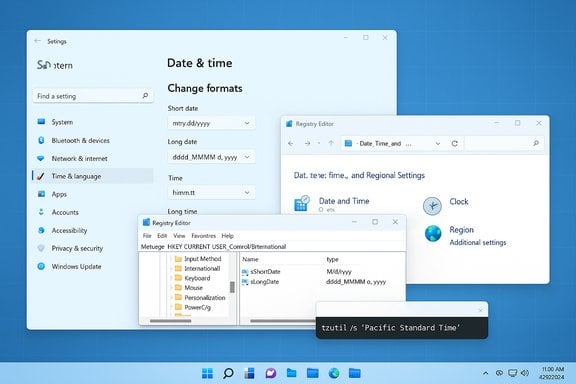
Windows makes it surprisingly easy to adjust how dates and times appear, but the path you take matters: the modern Settings app is the quickest route, the Control Panel still offers the most precise customization, and the Registry or Group Policy are for power users and admins who need to enforce or script formats across systems.
Background / Overview
Date and time formats affect everything from how calendar entries display to whether security certificates validate correctly. Windows 10 and Windows 11 let you change formats in multiple places: the Settings app (the recommended, user-friendly method), the legacy Control Panel (more granular controls), and the Registry or Group Policy (for advanced, automated or locked-down scenarios). Microsoft documents the Settings controls for setting time, date and time zone directly in Windows, and administrators have command-line tools and registry options available for scripted or enterprise deployments. This feature article explains the practical steps for each method, compares where Windows 10 and Windows 11 differ, shows how to restore the classic taskbar date/time display (including how to show seconds), and highlights the risks and troubleshooting steps every Windows user and admin should know.Why format settings matter
Changing the date and time format is more than cosmetic:- Clarity: International date ambiguity (e.g., 01/02/2025) can cause missed meetings or legal errors.
- Interoperability: Some apps (calendar clients, backup tools, logging/forensics) rely on consistent formats and time synchronization.
- Security: Certificate and authentication systems depend on accurate, synchronized clocks; an incorrect system time can break TLS handshakes and Kerberos authentication.
- Usability: Taskbar layout and compact displays in Windows 11 may hide year or AM/PM markers unless adjusted.
How to change date and time format in Windows 11 (Settings — the quick way)
What you’ll accomplish
- Change regional format.
- Customize short and long date formats, and short/long time formats.
- Toggle between 12-hour and 24-hour clocks.
Steps (Settings — Windows 11)
- Open Settings (Press Windows + I).
- Go to Time & language > Date & time.
- Under Language & region, expand Regional format (or click Language & region and then Regional format).
- Click Change formats to open the drop-downs for Short date, Long date, Short time, and Long time.
- Pick the formats you want from the lists; changes apply immediately to the UI and most apps that use OS regional settings.
Tips and quick variations
- To switch to a 24-hour clock, select a Short time that uses HH (instead of hh).
- Use Language & region to switch the entire regional format set (for example, to swap from U.S. styles to European formats).
How to change date and time format in Windows 10 (Settings and Control Panel)
Windows 10 includes Settings but retains the classic Control Panel path that still offers deeper format edits.Using Settings (Windows 10)
- Open Settings (Windows + I).
- Choose Time & language > Date & time.
- Expand Region or open Region > Additional date, time & regional settings for more options.
Control Panel — the more flexible method (Windows 10 and Windows 11)
- Open Control Panel (type “Control Panel” into Start).
- Select Clock and Region > Change date, time, or number formats.
- In the Region dialog, on the Formats tab, click Additional settings….
- Use the Date and Time tabs to edit Short date, Long date, Short time, and Long time. Some fields allow manual entry for custom formats such as
dd-MMMM-yyyyoryyyy.MM.dd. - Click Apply then OK.
Common format tokens (what the strings mean)
When entering custom formats in Control Panel or registry values, these tokens are commonly used:d= day (1–31)dd= day with leading zero (01–31)ddd= abbreviated weekday (Mon)dddd= full weekday (Monday)M= month (1–12)MM= month with leading zero (01–12)MMM= abbreviated month (Jan)MMMM= full month (January)yy= two-digit year (23)yyyy= four-digit year (2023)h/hh= hour (12-hour clock)H/HH= hour (24-hour clock)m/mm= minutes/ss= secondtt= AM/PM designator
Restore full taskbar date/time (and how to show seconds)
Windows 11 introduced a compact “shortened” taskbar date/time display on some builds, which hides the year and AM/PM by default. You can restore the traditional full display or enable seconds.Restore full date/time (Settings)
- Right-click the taskbar clock and choose Adjust date and time, or open Settings > Time & language > Date & time.
- Find Show time and date in the System tray, expand it, and uncheck Show abbreviated time and date.
- The change is immediate.
Show seconds in the taskbar (Windows 11)
Windows 11 now includes an option to display seconds in the taskbar clock (note: it consumes a tiny bit more power).- Open Settings > Personalization > Taskbar > Taskbar behaviors and check Show seconds in the system tray clock.
Registry method (when Settings option is missing or for automation)
If the setting is not present in Settings on older or staged builds, there is a registry key you can create or modify:- Open Registry Editor (regedit) and navigate to:
HKEY_CURRENT_USER\Software\Microsoft\Windows\CurrentVersion\Explorer\Advanced - Look for or create a DWORD (32-bit) value named
ShowShortenedDateTime(name sometimes varies between builds; you may seeShowShortenedDateTimeFormator similar). - Set the value to:
0= show full date and time1= show abbreviated date and time
- Sign out or restart Explorer to apply.
Advanced methods: Registry, Group Policy, Command-line and scripting
Registry (custom formats and automation)
Advanced users can control Windows’ date/time formats by editing values under:HKEY_CURRENT_USER\Control Panel\International
Key strings:
sShortDate— short date formatsLongDate— long date formatsShortTimeandsTimeFormat— time formats for short/long displays
Group Policy (Pro / Enterprise)
If you need to enforce a format across many systems, Group Policy can lock in settings for users or machines. For example, taskbar display behavior can be controlled with the policy Turn off abbreviated time and date format under:User Configuration > Administrative Templates > Start Menu and Taskbar
Enabling this policy forces the full date/time and prevents the user toggle in Settings. Group Policy is preferable to registry hacks for enterprise standardization because it’s auditable and reversible.
Command-line: tzutil and PowerShell for time zone management
Changing the time zone (not the display format) is frequently necessary when setting up systems:- Use
tzutil /lto list available time zone IDs. - Use
tzutil /gto show current time zone. - Use
tzutil /s "Pacific Standard Time"to set the system time zone.
tzutil as a supported command-line tool on Windows 10 and Windows 11, and PowerShell’s Get-TimeZone / Set-TimeZone cmdlets provide scriptable control. These methods change the system time zone, which affects how local time is calculated from UTC, but do not change the textual format tokens (dd/MM/yyyy etc.. Troubleshooting: When changes don’t "stick"
If your date/time format or display doesn’t update as expected, consider these checks:- Is the system using a domain policy? Domain Group Policy can override user settings.
- Are you editing the right account? Some settings are per-user and won’t affect other sign-ins.
- Did you restart Explorer or sign out/in after a Registry change? Explorer restart or logout often applies format changes.
- Is the machine set to a different regional format or language? A locale change can re-apply default format strings.
- For time synchronization issues (not display formats): ensure
Set time automaticallyis on and that UDP port 123 (NTP) is allowed — an NTP failure won’t change format, but it can cause incorrect system time. Microsoft documents using Sync now and the Windows Time service for synchronization diagnostics.
- Switching time servers (Control Panel > Date and Time > Internet Time).
- Running
w32tm /query /statusor using the Event Viewer to inspect Windows Time service errors. - Checking BIOS/UEFI clock — if RTC is wrong, Windows may receive the wrong base time at boot.
Risks and caveats (what can go wrong)
- Registry edits: Mistyping or deleting values can corrupt locale settings or user profiles. Always back up keys before editing.
- Group Policy enforcement: Policies will override user changes. Changing user settings on a managed machine is often futile if the policy is enforced.
- Build differences: Windows 11 feature rollouts have sometimes moved Settings toggles around or implemented registry names differently across Insider builds and stable releases. This means a registry name that works on one machine may not exist on another; scripts should include detection logic and caution.
- Power/performance tradeoff: Displaying seconds in the taskbar is convenient, but Microsoft and Windows press materials caution it consumes marginally more CPU/power — relevant for laptops and battery-sensitive devices.
- Security/time sync: Directing devices to untrusted NTP servers or misconfiguring time zones in domain environments can break authentication (Kerberos) and security certificates.
Recommended workflows by user type
- Casual user who just wants a different look:
- Use Settings (Time & language > Date & time > Change formats). Safe, immediate, reversible.
- Power user who wants a custom string:
- Use Control Panel > Change date, time or number formats > Additional settings. Enter
dd-MMMM-yyyyor another custom token in Short/Long date.
- Use Control Panel > Change date, time or number formats > Additional settings. Enter
- Admin or sysadmin who needs to enforce a format across users:
- Use Group Policy where possible to lock taskbar behavior or regional defaults.
- For scripted deployments, use registry keys in a login script or configuration management tool; include safety checks and backups.
- Use
tzutiland PowerShell (Set-TimeZone) for consistent time zone configuration across servers.
Quick reference: step-by-step cheat-sheet
- Change date/time display (Settings — Windows 11):
- Settings > Time & language > Date & time > Language & region > Change formats. Choose Short date / Long date / Short time / Long time.
- Works for cross-app consistency and is Microsoft’s supported approach.
- Custom date string (Control Panel — Windows 10 & 11):
- Control Panel > Clock and Region > Change date, time, or number formats > Additional settings > Date/Time tabs. Enter
dd-MMMM-yyyyoryyyy.MM.dd.
- Control Panel > Clock and Region > Change date, time, or number formats > Additional settings > Date/Time tabs. Enter
- Restore full taskbar date/time:
- Settings > Time & language > Date & time > Show time and date in the System tray > uncheck Show abbreviated time and date.
- Show seconds:
- Settings > Personalization > Taskbar > Taskbar behaviors > check Show seconds in the system tray clock (may require a recent update).
- Force time zone via command line (scriptable):
tzutil /s "Pacific Standard Time"or use PowerShellSet-TimeZone -Id "Pacific Standard Time".
- Registry toggle for abbreviated vs full display:
- HKCU\Software\Microsoft\Windows\CurrentVersion\Explorer\Advanced :
ShowShortenedDateTime= 0 (full) or 1 (short). Test on a single machine first — the registry name may vary by build.
- HKCU\Software\Microsoft\Windows\CurrentVersion\Explorer\Advanced :
Final analysis and recommendations
Changing date and time formats in Windows is a small administrative task with outsized implications. For day-to-day needs, the Settings app is the correct starting point: it’s safe, reversible, and supported by Microsoft’s documentation. If you need non-standard formats or want to script or lock settings across devices, the Control Panel and Group Policy are the proper tools — but they require care.Power users should treat registry edits as a last resort or an automation instrument for controlled environments: verify the registry keys on a sample device and back up keys before deploying. Be mindful that Windows 11’s staged feature rollouts and varying Insider builds have sometimes changed setting names and registry keys, so automation scripts must detect and adapt to the local environment to avoid brittle deployments. Finally, keep clocks accurate by using Windows’ built-in sync tools and validated NTP servers; a correct display format is only useful if the underlying system time is correct. Microsoft’s official guidance for setting time, syncing, and troubleshooting is the authoritative reference for synchronization and time-zone management.
By following the steps above, users can confidently change the date and time format on Windows 10 and Windows 11, restore the classic taskbar display, and apply consistent settings across single machines or entire fleets — while avoiding the common pitfalls associated with registry changes, divided policy controls, and synchronization failures.
Source: VOI.ID How To Change Date And Time Format In Windows 10 And 11
