

Windows 11 users can still create a so-called God Mode folder in 2026 by naming a folder
The funny thing about God Mode is that the name promises omnipotence while the feature delivers something more mundane and more damning: findability. It does not unlock forbidden toggles or bypass permissions. It simply gathers a large collection of Windows tasks into a single Explorer view, mostly drawing from the long-lived Control Panel architecture that Microsoft has spent years trying to bury without fully replacing.
That distinction matters. A dangerous hidden mode would be a security story. God Mode is a usability story, and perhaps an indictment. If one folder full of old-style shortcuts can make Windows feel more coherent than the official Settings app, the problem is not that users are nostalgic for Control Panel chrome. The problem is that Microsoft’s modern settings strategy still asks people to remember where the company happened to move a feature this year.
Windows 11 has improved since its launch, but the Settings app remains uneven. Some panels are elegant and modern. Others are thin wrappers around older dialogs. Some searches return the expected page, while others lead to a page that describes the setting but still requires another click into a legacy window. In daily use, the result is not catastrophic; it is just friction, repeated enough times to become part of the operating system’s personality.
That is why MakeUseOf’s shortcut-focused twist is more interesting than the basic God Mode setup. The folder itself is a library. Turning individual entries into one-click shortcuts is a personal workflow. It changes God Mode from a novelty into a small act of desktop infrastructure.
But Control Panel has one underrated strength: it is task-oriented. It was never beautiful, but it often put the actual administrative action close to the surface. Change adapter settings, open Power Options, manage devices, adjust visual effects, configure indexing, inspect credentials, uninstall programs, manage certificates — these are not lifestyle preferences. They are jobs.
The modern Settings app, by contrast, often feels designed around categories before tasks. That approach works well for obvious consumer adjustments such as wallpaper, Bluetooth pairing, and display brightness. It works less well when the user knows the exact administrative thing they want to do and merely needs Windows to stop hiding it behind a new taxonomy.
God Mode benefits from that mismatch. It presents Windows as a long list of verbs rather than a curated hierarchy. The interface is old-fashioned, but the mental model is refreshingly direct: find the task, open the task, get out. For enthusiasts and administrators, that is often preferable to clicking through a clean interface that keeps deciding which legacy tool to summon.
There is also a deeper reason the old model persists. Windows is not one product so much as a federation of eras. Windows 11 contains modern Settings pages, Control Panel applets, Microsoft Management Console snap-ins, shell folders, legacy dialogs, PowerShell-accessible configuration, Group Policy surfaces, registry-backed switches, and vendor utilities. No single interface has ever truly contained all of it. God Mode works because it does not pretend otherwise.
That sounds almost too small to matter, but small navigational savings compound. If you switch power plans regularly, a direct shortcut to the power plan dialog is faster than opening Settings, searching for power, discovering that the modern page does not expose every classic plan, and then detouring into Control Panel. If you test software or hardware, direct links to Devices and Printers, user account tools, network adapters, indexing options, or visual effects can shave minutes off repetitive work.
The most useful part is not speed alone. It is reducing cognitive context switching. When you are troubleshooting a driver issue, benchmarking a laptop, comparing display scaling, cleaning up a test machine, or checking system restore behavior, the operating system’s navigation should not become part of the workload. A shortcut moves the administrative action to the place where the work is happening.
That is why desktop shortcuts, for all their old-school messiness, remain effective. They are spatial. They can be grouped by project, machine role, or maintenance routine. They can sit next to notes, scripts, installers, diagnostic tools, and remote-access clients. A settings page buried in a search result is abstract; a shortcut named “Power Plans” sitting in a testing folder is part of the bench.
The risk, as MakeUseOf correctly notes, is shortcut sprawl. A desktop with 40 administrative links is not a productivity system. It is a junk drawer with icons. The best use of God Mode shortcuts is selective: a handful of repeat actions, chosen because they remove real friction.
Yet the persistence of God Mode reflects a truth Microsoft has never fully escaped: Windows serves too many audiences to be governed by one simplified settings surface. Consumer laptops, gaming desktops, domain-joined workstations, kiosk systems, developer machines, virtual desktops, and lab PCs all present different configuration needs. A page that feels clean to a casual user can feel evasive to an admin.
Microsoft’s modernization effort is therefore trapped between two risks. Move too slowly, and Windows keeps dragging along ancient dialogs that look increasingly absurd beside the rest of the interface. Move too aggressively, and the company breaks workflows that IT departments, support technicians, and advanced users have relied on for years. The compromise is the current hybrid system, where Settings expands while Control Panel remains half-present, half-haunted.
That hybrid state is precisely where God Mode thrives. It does not solve the underlying design problem, but it flattens some of its consequences. It lets the user treat Windows configuration as a searchable task catalog rather than a scavenger hunt across two eras of UI.
This is not merely a matter of aesthetics. When settings are hard to find, users stop changing them, postpone maintenance, or rely on third-party tweaking tools they may not fully understand. When important administrative surfaces are easy to reach, the machine becomes more legible. For WindowsForum readers, that legibility is not cosmetic. It is the difference between owning the machine and merely operating inside Microsoft’s preferred route map.
Disk Cleanup is another practical target, even in an era where Storage Sense exists. The old cleanup utility remains familiar, direct, and useful for clearing temporary files and old Windows update leftovers. A visible shortcut can also act as a behavioral nudge, which is not a trivial thing on machines used for testing, gaming, development, or media work where storage can disappear quickly.
The “Adjust the appearance and performance of Windows” dialog is a third good example because it exposes a cluster of visual effects that matter most on older or lower-end systems. Windows 11’s animations, shadows, and transparency effects are part of the platform’s polish, but polish has a cost. On a weak GPU, an old laptop, or a heavily loaded VM, turning off visual effects can still make the system feel more responsive.
The larger principle is to shortcut rituals, not possibilities. A link to an obscure setting you might use once a year does not deserve desktop real estate. A link to something you touch every week does. If God Mode gives you hundreds of entries, the productivity move is not to preserve them all; it is to extract the five that match your actual behavior.
That is also where this method beats many all-in-one tweaking utilities. Tools like Wintoys, PowerToys, vendor control centers, and registry-tweak front ends can be useful, but they necessarily impose another author’s idea of what belongs together. God Mode shortcuts let the user build a tiny control panel out of Windows’ own components. It is less glamorous, but it is also less dependent on a third-party abstraction staying current.
That should reassure security-minded readers, but it should not invite carelessness. A desktop full of administrative shortcuts can make powerful tools easier to launch by accident or easier for an untrained user to stumble into on a shared machine. On a family PC, a lab workstation, or a support bench, convenience should be balanced against who actually uses the desktop.
In managed environments, the feature is usually less alarming than it looks. God Mode is best understood as another way to enumerate existing Control Panel tasks. If an organization has already locked down access to specific administrative functions through policy, permissions, or endpoint management, the folder should not magically undo that work. Still, IT teams may not want users encouraged to create ad hoc control panels on machines where the support model depends on standardization.
There is also a supportability angle. Shortcuts to legacy dialogs may survive for years, but Microsoft can move, replace, or deprecate individual settings surfaces over time. A shortcut that works today may behave differently after a feature update. That is not a reason to avoid the technique, but it is a reason not to treat a God Mode shortcut collection as an enterprise configuration strategy.
For personal machines and test systems, the calculus is different. The user who built the shortcut likely understands why it exists. The cost of occasional breakage is low. The benefit of faster access is immediate. That is the sweet spot for this trick: local, intentional, and modest.
But the desktop remains powerful because it is visible. Windows Search is transient. The Start menu is mediated. Settings is hierarchical. The desktop is persistent space. A shortcut sitting there does not merely provide access; it reminds the user to do a thing.
That makes it especially useful for maintenance tasks. Disk cleanup, backup checks, restore point creation, device management, and performance tuning are chores people forget until something breaks. A small, deliberate cluster of shortcuts can turn those chores into visible routines. That is not just faster navigation; it is operational hygiene.
The better pattern is to avoid scattering icons across the wallpaper and instead create a dedicated folder: “Admin Tools,” “Maintenance,” “Bench,” “Laptop Tuning,” or whatever matches the machine’s role. Put the God Mode folder there if you still want the full index. Put only the extracted shortcuts beside it. The result is a personal mini-console without the visual entropy of a 2003 family PC.
This is where Windows’ old flexibility still shines. Microsoft may not design the perfect settings workflow for every user, but Explorer still lets users assemble their own. That kind of local customization is unfashionable in a cloud-managed, app-store-shaped era, yet it remains one of the reasons Windows endures among people who do real maintenance work on real machines.
The problem is that search is not structure. Search depends on vocabulary, indexing, ranking, redirects, and the user’s memory of what Microsoft calls a thing. Is it “Power mode,” “Power plan,” “Battery,” “Energy recommendations,” or “Choose what closing the lid does”? Is the relevant tool a Settings page, a Control Panel applet, an MMC snap-in, or an executable? The user may know the task but not the approved phrase.
God Mode avoids part of that problem by presenting tasks in one large namespace. It is not perfect, and its old Explorer view can feel crowded. But it gives users a stable browsing surface where related administrative actions are visible in a way that search results often are not. When you do not know the exact term, browsing still matters.
This is why the feature feels oddly modern despite its age. We live in a software world that keeps promising that search, recommendations, and AI assistants will remove the need for navigable interfaces. Then users keep discovering that predictable lists, saved shortcuts, and named folders are still faster for repeated work. Automation helps with the unfamiliar. Structure helps with the familiar.
Microsoft’s next challenge is not simply to move more Control Panel items into Settings. It is to preserve the task density and predictability that made people keep reaching for Control Panel in the first place. If the modern app becomes prettier but less direct, users will continue building their own back doors through Explorer.
God Mode sits in an interesting middle ground. It is not a third-party app, and it does not attempt to redesign Windows. It merely reveals what is already there. That makes it safer and more conservative than many tweak tools, but also less polished and less explanatory.
A tool like Wintoys can present curated recommendations, toggles, health checks, and cleanup options in a modern interface. That is valuable, especially for users who want guidance. But curation has limits. It may omit a niche setting, abstract away a detail an admin cares about, or lag behind changes in Windows. God Mode is ugly, but it is broad.
The right answer for many enthusiasts is not either-or. Use modern utilities where they add clarity. Use God Mode shortcuts where they remove friction. Use Settings when it gets the job done. Use PowerShell, Group Policy, or endpoint management when repeatability matters more than clicking. Windows has always rewarded users who treat it as a toolkit rather than a single polished appliance.
That toolkit mentality is precisely what the MakeUseOf piece captures. The point is not that everyone should enable God Mode. The point is that Windows still contains low-tech affordances that can dramatically improve daily use when combined thoughtfully.
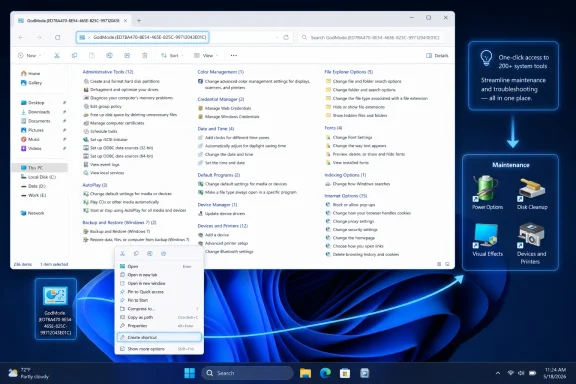
GodMode.{ED7BA470-8E54-465E-825C-99712043E01C}, then use it to expose hundreds of Control Panel tasks and turn frequently used settings into desktop shortcuts. MakeUseOf’s latest tip is less about discovering a secret feature than rediscovering an old truth: Windows remains at its most useful when users can route around Microsoft’s own navigation choices. The trick works because God Mode is not a hack, not a privilege escalation, and not a hidden admin console. It is a brutally practical index of Windows’ scattered control surfaces, and that is exactly why it still matters.
 God Mode Survives Because Windows Settings Still Has a Map Problem
The funny thing about God Mode is that the name promises omnipotence while the feature delivers something more mundane and more damning: findability. It does not unlock forbidden toggles or bypass permissions. It simply gathers a large collection of Windows tasks into a single Explorer view, mostly drawing from the long-lived Control Panel architecture that Microsoft has spent years trying to bury without fully replacing.That distinction matters. A dangerous hidden mode would be a security story. God Mode is a usability story, and perhaps an indictment. If one folder full of old-style shortcuts can make Windows feel more coherent than the official Settings app, the problem is not that users are nostalgic for Control Panel chrome. The problem is that Microsoft’s modern settings strategy still asks people to remember where the company happened to move a feature this year.
Windows 11 has improved since its launch, but the Settings app remains uneven. Some panels are elegant and modern. Others are thin wrappers around older dialogs. Some searches return the expected page, while others lead to a page that describes the setting but still requires another click into a legacy window. In daily use, the result is not catastrophic; it is just friction, repeated enough times to become part of the operating system’s personality.
That is why MakeUseOf’s shortcut-focused twist is more interesting than the basic God Mode setup. The folder itself is a library. Turning individual entries into one-click shortcuts is a personal workflow. It changes God Mode from a novelty into a small act of desktop infrastructure.
The Old Control Panel Keeps Winning the Muscle-Memory War
Microsoft has been trying to modernize Windows configuration for more than a decade. The company’s direction is understandable. Control Panel is dense, inconsistent, and visually out of step with the rest of Windows 11. It also reflects an older era of PC administration, when users were expected to tolerate nested property sheets, terse labels, and dialog boxes that looked like they had been preserved in amber.But Control Panel has one underrated strength: it is task-oriented. It was never beautiful, but it often put the actual administrative action close to the surface. Change adapter settings, open Power Options, manage devices, adjust visual effects, configure indexing, inspect credentials, uninstall programs, manage certificates — these are not lifestyle preferences. They are jobs.
The modern Settings app, by contrast, often feels designed around categories before tasks. That approach works well for obvious consumer adjustments such as wallpaper, Bluetooth pairing, and display brightness. It works less well when the user knows the exact administrative thing they want to do and merely needs Windows to stop hiding it behind a new taxonomy.
God Mode benefits from that mismatch. It presents Windows as a long list of verbs rather than a curated hierarchy. The interface is old-fashioned, but the mental model is refreshingly direct: find the task, open the task, get out. For enthusiasts and administrators, that is often preferable to clicking through a clean interface that keeps deciding which legacy tool to summon.
There is also a deeper reason the old model persists. Windows is not one product so much as a federation of eras. Windows 11 contains modern Settings pages, Control Panel applets, Microsoft Management Console snap-ins, shell folders, legacy dialogs, PowerShell-accessible configuration, Group Policy surfaces, registry-backed switches, and vendor utilities. No single interface has ever truly contained all of it. God Mode works because it does not pretend otherwise.
The Shortcut Trick Turns a Curiosity Into a Workbench
The MakeUseOf workflow is simple: create the God Mode folder, open it, find a setting, right-click it, and create a shortcut. Windows may place that shortcut on the desktop after a confirmation prompt. From there, the user can rename it, move it into a folder, pin it indirectly through other launchers, or treat it as a visible reminder that the setting exists.That sounds almost too small to matter, but small navigational savings compound. If you switch power plans regularly, a direct shortcut to the power plan dialog is faster than opening Settings, searching for power, discovering that the modern page does not expose every classic plan, and then detouring into Control Panel. If you test software or hardware, direct links to Devices and Printers, user account tools, network adapters, indexing options, or visual effects can shave minutes off repetitive work.
The most useful part is not speed alone. It is reducing cognitive context switching. When you are troubleshooting a driver issue, benchmarking a laptop, comparing display scaling, cleaning up a test machine, or checking system restore behavior, the operating system’s navigation should not become part of the workload. A shortcut moves the administrative action to the place where the work is happening.
That is why desktop shortcuts, for all their old-school messiness, remain effective. They are spatial. They can be grouped by project, machine role, or maintenance routine. They can sit next to notes, scripts, installers, diagnostic tools, and remote-access clients. A settings page buried in a search result is abstract; a shortcut named “Power Plans” sitting in a testing folder is part of the bench.
The risk, as MakeUseOf correctly notes, is shortcut sprawl. A desktop with 40 administrative links is not a productivity system. It is a junk drawer with icons. The best use of God Mode shortcuts is selective: a handful of repeat actions, chosen because they remove real friction.
Microsoft’s Fragmented Settings Story Is the Real Power User Feature
There is an irony in calling this setup a power-user trick. The underlying desire is not exotic. Users want a reliable way to find settings. Administrators want predictable routes to tools. Testers want repeatable workflows. None of that should require a GUID-named folder with a meme label from the Windows 7 era.Yet the persistence of God Mode reflects a truth Microsoft has never fully escaped: Windows serves too many audiences to be governed by one simplified settings surface. Consumer laptops, gaming desktops, domain-joined workstations, kiosk systems, developer machines, virtual desktops, and lab PCs all present different configuration needs. A page that feels clean to a casual user can feel evasive to an admin.
Microsoft’s modernization effort is therefore trapped between two risks. Move too slowly, and Windows keeps dragging along ancient dialogs that look increasingly absurd beside the rest of the interface. Move too aggressively, and the company breaks workflows that IT departments, support technicians, and advanced users have relied on for years. The compromise is the current hybrid system, where Settings expands while Control Panel remains half-present, half-haunted.
That hybrid state is precisely where God Mode thrives. It does not solve the underlying design problem, but it flattens some of its consequences. It lets the user treat Windows configuration as a searchable task catalog rather than a scavenger hunt across two eras of UI.
This is not merely a matter of aesthetics. When settings are hard to find, users stop changing them, postpone maintenance, or rely on third-party tweaking tools they may not fully understand. When important administrative surfaces are easy to reach, the machine becomes more legible. For WindowsForum readers, that legibility is not cosmetic. It is the difference between owning the machine and merely operating inside Microsoft’s preferred route map.
The Best Shortcuts Are the Ones That Replace Rituals
The obvious candidates for God Mode shortcuts are the settings you open repeatedly but never remember how to reach quickly. Power Options is a classic example because Windows 11’s modern power controls and the legacy power plan system do not always expose the same level of detail. Anyone who toggles between balanced, high-performance, custom, or hidden plans will recognize the appeal of bypassing the modern page entirely.Disk Cleanup is another practical target, even in an era where Storage Sense exists. The old cleanup utility remains familiar, direct, and useful for clearing temporary files and old Windows update leftovers. A visible shortcut can also act as a behavioral nudge, which is not a trivial thing on machines used for testing, gaming, development, or media work where storage can disappear quickly.
The “Adjust the appearance and performance of Windows” dialog is a third good example because it exposes a cluster of visual effects that matter most on older or lower-end systems. Windows 11’s animations, shadows, and transparency effects are part of the platform’s polish, but polish has a cost. On a weak GPU, an old laptop, or a heavily loaded VM, turning off visual effects can still make the system feel more responsive.
The larger principle is to shortcut rituals, not possibilities. A link to an obscure setting you might use once a year does not deserve desktop real estate. A link to something you touch every week does. If God Mode gives you hundreds of entries, the productivity move is not to preserve them all; it is to extract the five that match your actual behavior.
That is also where this method beats many all-in-one tweaking utilities. Tools like Wintoys, PowerToys, vendor control centers, and registry-tweak front ends can be useful, but they necessarily impose another author’s idea of what belongs together. God Mode shortcuts let the user build a tiny control panel out of Windows’ own components. It is less glamorous, but it is also less dependent on a third-party abstraction staying current.
This Is Not a Security Bypass, but It Still Deserves Discipline
The phrase “God Mode” has always been a little unfortunate because it implies capabilities the feature does not have. A standard user does not become an administrator by creating the folder. Restricted settings remain restricted. User Account Control still applies where elevation is required. Enterprise policy can still block or govern actions underneath the shortcut.That should reassure security-minded readers, but it should not invite carelessness. A desktop full of administrative shortcuts can make powerful tools easier to launch by accident or easier for an untrained user to stumble into on a shared machine. On a family PC, a lab workstation, or a support bench, convenience should be balanced against who actually uses the desktop.
In managed environments, the feature is usually less alarming than it looks. God Mode is best understood as another way to enumerate existing Control Panel tasks. If an organization has already locked down access to specific administrative functions through policy, permissions, or endpoint management, the folder should not magically undo that work. Still, IT teams may not want users encouraged to create ad hoc control panels on machines where the support model depends on standardization.
There is also a supportability angle. Shortcuts to legacy dialogs may survive for years, but Microsoft can move, replace, or deprecate individual settings surfaces over time. A shortcut that works today may behave differently after a feature update. That is not a reason to avoid the technique, but it is a reason not to treat a God Mode shortcut collection as an enterprise configuration strategy.
For personal machines and test systems, the calculus is different. The user who built the shortcut likely understands why it exists. The cost of occasional breakage is low. The benefit of faster access is immediate. That is the sweet spot for this trick: local, intentional, and modest.
The Desktop Is the Wrong Place for Everything and the Right Place for Something
Modern UI fashion has spent years trying to rescue users from the cluttered desktop. In principle, that is a good instinct. The Windows desktop can become a graveyard of installers, screenshots, PDFs, old ZIP files, and unlabeled shortcuts. Adding administrative links to that pile is not automatically progress.But the desktop remains powerful because it is visible. Windows Search is transient. The Start menu is mediated. Settings is hierarchical. The desktop is persistent space. A shortcut sitting there does not merely provide access; it reminds the user to do a thing.
That makes it especially useful for maintenance tasks. Disk cleanup, backup checks, restore point creation, device management, and performance tuning are chores people forget until something breaks. A small, deliberate cluster of shortcuts can turn those chores into visible routines. That is not just faster navigation; it is operational hygiene.
The better pattern is to avoid scattering icons across the wallpaper and instead create a dedicated folder: “Admin Tools,” “Maintenance,” “Bench,” “Laptop Tuning,” or whatever matches the machine’s role. Put the God Mode folder there if you still want the full index. Put only the extracted shortcuts beside it. The result is a personal mini-console without the visual entropy of a 2003 family PC.
This is where Windows’ old flexibility still shines. Microsoft may not design the perfect settings workflow for every user, but Explorer still lets users assemble their own. That kind of local customization is unfashionable in a cloud-managed, app-store-shaped era, yet it remains one of the reasons Windows endures among people who do real maintenance work on real machines.
The Real Lesson Is That Search Has Not Replaced Structure
Windows Search should have made God Mode unnecessary. In theory, a user should type “power plan,” “disk cleanup,” or “visual effects” and land directly on the right surface. Sometimes that works. Often it works just well enough to remind you how good it would be if it worked every time.The problem is that search is not structure. Search depends on vocabulary, indexing, ranking, redirects, and the user’s memory of what Microsoft calls a thing. Is it “Power mode,” “Power plan,” “Battery,” “Energy recommendations,” or “Choose what closing the lid does”? Is the relevant tool a Settings page, a Control Panel applet, an MMC snap-in, or an executable? The user may know the task but not the approved phrase.
God Mode avoids part of that problem by presenting tasks in one large namespace. It is not perfect, and its old Explorer view can feel crowded. But it gives users a stable browsing surface where related administrative actions are visible in a way that search results often are not. When you do not know the exact term, browsing still matters.
This is why the feature feels oddly modern despite its age. We live in a software world that keeps promising that search, recommendations, and AI assistants will remove the need for navigable interfaces. Then users keep discovering that predictable lists, saved shortcuts, and named folders are still faster for repeated work. Automation helps with the unfamiliar. Structure helps with the familiar.
Microsoft’s next challenge is not simply to move more Control Panel items into Settings. It is to preserve the task density and predictability that made people keep reaching for Control Panel in the first place. If the modern app becomes prettier but less direct, users will continue building their own back doors through Explorer.
PowerToys, Wintoys, and the Temptation of the Better Control Panel
The popularity of third-party Windows tuning tools says something Microsoft should not ignore. Users are not merely asking for more switches. They are asking for a coherent place to understand the machine. Wintoys, PowerToys, O&O utilities, vendor dashboards, and countless small scripts exist because Windows exposes enormous capability but does not always package it into a satisfying control experience.God Mode sits in an interesting middle ground. It is not a third-party app, and it does not attempt to redesign Windows. It merely reveals what is already there. That makes it safer and more conservative than many tweak tools, but also less polished and less explanatory.
A tool like Wintoys can present curated recommendations, toggles, health checks, and cleanup options in a modern interface. That is valuable, especially for users who want guidance. But curation has limits. It may omit a niche setting, abstract away a detail an admin cares about, or lag behind changes in Windows. God Mode is ugly, but it is broad.
The right answer for many enthusiasts is not either-or. Use modern utilities where they add clarity. Use God Mode shortcuts where they remove friction. Use Settings when it gets the job done. Use PowerShell, Group Policy, or endpoint management when repeatability matters more than clicking. Windows has always rewarded users who treat it as a toolkit rather than a single polished appliance.
That toolkit mentality is precisely what the MakeUseOf piece captures. The point is not that everyone should enable God Mode. The point is that Windows still contains low-tech affordances that can dramatically improve daily use when combined thoughtfully.
The Five Shortcuts That Tell the Whole Windows Story
The practical lesson from this trick is not to worship God Mode, but to be ruthless about the handful of tasks that deserve instant access. A short, intentional set of shortcuts can turn Windows’ fragmented settings model into something closer to a personal operations panel.- Create the God Mode folder only if you actually need faster access to legacy and administrative settings.
- Turn individual God Mode entries into shortcuts for tasks you perform repeatedly, not for every interesting setting you discover.
- Keep shortcuts grouped in a dedicated folder or small desktop area so convenience does not become clutter.
- Remember that God Mode does not grant extra permissions, bypass UAC, or override enterprise policy.
- Expect some shortcuts to change or break over time as Microsoft continues migrating settings away from older Control Panel surfaces.
- Treat this as a personal workflow improvement, not a substitute for scripted configuration, Group Policy, or endpoint management on managed fleets.
References
- Primary source: MakeUseOf
Published: Fri, 22 May 2026 14:00:18 GMT
I set up Windows 11's God Mode and then made it even faster with these shortcuts
I finally fixed my biggest frustration with Windows 11 settings. www.makeuseof.com
- Related coverage: guidingtech.com
How to Enable “God Mode” in Windows 11 for All Settings - Guiding Tech
Access all Windows 11 settings instantly with God Mode, a hidden feature that puts over 200 system controls in one convenient folder.www.guidingtech.com
- Related coverage: pcworld.com
Did you know Windows 11 has a God Mode? Here's what it can do | PCWorld
God Mode is a hidden feature that makes it way easier to tweak various Windows settings.www.pcworld.com - Related coverage: techadvisor.com
Windows 11 God Mode: What It Is and How To Use It – Tech Advisor
The so-called ‘God Mode’ provides easy access to all the classic Control Panel settings, and it’s simple to enable on Windows 11.www.techadvisor.com
- Related coverage: techspot.com
How to Activate God Mode in Windows 10 and Windows 11 | TechSpot
Many of you may be familiar with Windows God Mode. It does not make your PC immortal, but puts an icon on your desktop that gives quick...www.techspot.com - Related coverage: ulvbjornsson.com
Creating a Windows Master Control Panel shortcut .{ED7BA470-8E54-465E-825C-99712043E01C} – musings of a consultant
The Windows Master Control Panel, also known as Windows God Mode, or the All Tasks folder is a shortcut to access a variety of control settings found in any operating system later then Windows Vist…ulvbjornsson.com
- Related coverage: techrepublic.com
How to enable access to god-mode in Microsoft Windows 11 - TechRepublic
In certain circumstances, power users need to access more than the basic Windows 11 settings. Enabling god-mode will allow access to just about every setting available.www.techrepublic.com
- Related coverage: technastic.com
How to Enable God Mode Folder in Windows 11 & 10 - Technastic
To enable the God Mode folder in Windows 11 and 10, create a new folder and use the code "GodMode.{ED7BA470-8E54-465E-825C-99712043E01C}".technastic.com - Related coverage: howtogeek.com
How to Enable the God Folder on Windows 11
A one-stop destination for all your Windows settings. www.howtogeek.com
- Related coverage: maketecheasier.com
Windows 11 Has a Settings Problem — God Mode Is Still the Best Fix in 2026 - Make Tech Easier
Windows 11 God Mode puts every system setting in one place, cutting through menus and saving time on advanced tasks.www.maketecheasier.com - Related coverage: tomsguide.com
15 top Windows 11 tips everyone needs to know | Tom's Guide
I reviewed Windows 11 and have used it for years—here are my top 25 tips for making the most of it.www.tomsguide.com
