

Windows 7 Change the record quality in Windows Media Center

jtpcamp

Extraordinary Member
Joined
Oct 31, 2009
Messages
98
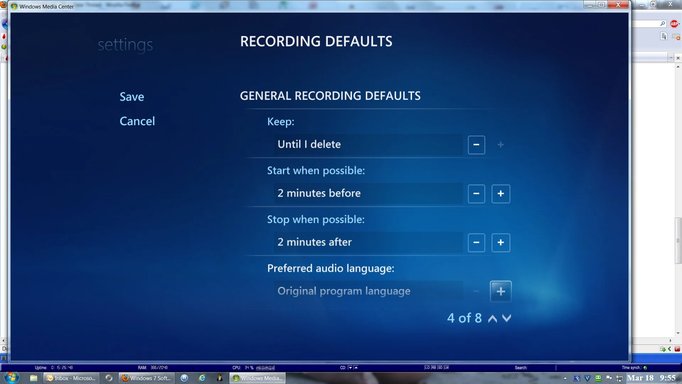
When I record a TV show to a USB 2.0 drive the size is huge and when I play it back the playback is jerky and unwatchable. I checked Microsoft help and found how to change the quality but my copy of Windows Media Center does not have the "Quality" option in the recording defaults. It has all the others just not Quality. How do I change the quality of the recordings?

I am attaching a screenshot of my Recorder Defaults page.
 

Attachments

  • Recorder Options.webp
    Recorder Options.webp
    72 KB · Views: 660
Solution
It seems that the "Quality" option in Windows Media Center for changing the recording quality might not be available in all versions of Windows Media Center. However, there are alternative ways to adjust the quality settings for TV show recordings. Here are some steps you can try: 1. Change Recording Quality through Settings: - Open Windows Media Center. - Navigate to Tasks > Settings > TV > Recorder. - Look for options related to the recording quality. It might not be labeled as "Quality" explicitly but could be under a different setting or category. 2. Third-Party Recording Software: - Consider using third-party recording software that provides more advanced options for recording and quality settings. 3. Transcoding...
It seems that the "Quality" option in Windows Media Center for changing the recording quality might not be available in all versions of Windows Media Center. However, there are alternative ways to adjust the quality settings for TV show recordings. Here are some steps you can try: 1. Change Recording Quality through Settings: - Open Windows Media Center. - Navigate to Tasks > Settings > TV > Recorder. - Look for options related to the recording quality. It might not be labeled as "Quality" explicitly but could be under a different setting or category. 2. Third-Party Recording Software: - Consider using third-party recording software that provides more advanced options for recording and quality settings. 3. Transcoding Tools: - After recording the TV show, you can use transcoding tools to compress the video file to a smaller size without losing much quality. 4. Use Different File Formats: - Change the recording format to a more compressed one, such as MP4 or H.264, which offers good quality at smaller file sizes. If you can upload the screenshot of your Recorder Defaults page, I can provide more specific guidance based on the settings available in your version of Windows Media Center. Please go ahead and upload the screenshot.
 

Solution
Back
Top