

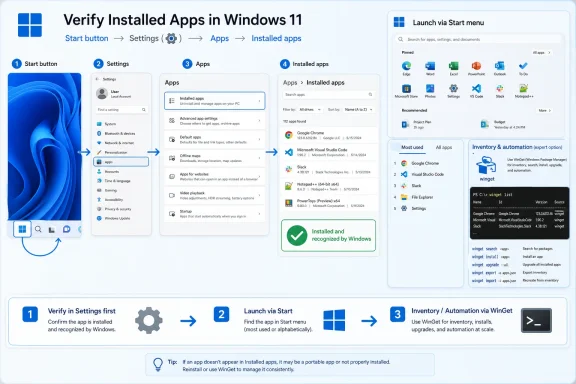
Microsoft’s current support guidance tells Windows users to check whether an app is installed by opening Start > Settings > Apps > Installed apps, while also noting that apps may appear in the Start menu, with frequently used apps surfaced first and the full list arranged alphabetically. That tiny instruction is more than a help-page convenience; it is Microsoft’s clearest statement of where Windows now wants software inventory to live. For ordinary users, it turns a once-messy hunt through Control Panel, shortcuts, folders, and Store pages into a Settings-first answer. For administrators and power users, it exposes the larger problem: Windows still has several definitions of “installed,” and Settings is only the front door.
There was a time when the canonical answer to “is this program installed?” was “check Programs and Features.” That Control Panel view became muscle memory for generations of Windows users, especially in offices where the difference between installed, shortcuted, packaged, deployed, and merely copied could matter. Microsoft’s newer instruction instead points users to Settings, specifically the Apps area and the Installed apps page.
That shift is not cosmetic. Settings has become the consumer-facing inventory surface for modern Windows, absorbing work that used to be split between Control Panel, the Start menu, the Microsoft Store, and scattered shell views. If a user wants the plain-English answer, Microsoft now wants them to begin there.
The wording also matters because Microsoft says “apps and programs,” not just apps. Windows still carries the historical split between Store-style apps and traditional desktop programs, but the support guidance collapses that distinction for users who simply want to know whether something is present on the device. In 2026, that is the right instinct: nobody should need a taxonomy lesson before finding out whether Zoom, PowerToys, Adobe Reader, Python, Teams, or a printer utility exists on their PC.
But the simplicity is also a negotiation. Settings is clean because it hides complexity. The more Windows absorbs MSIX packages, Win32 installers, Store apps, user-scope installs, enterprise-deployed software, portable tools, and web apps, the more the Installed apps page becomes an interpretation layer rather than a perfect census.
But the Start menu has never been the same thing as an installation database. It is a launch surface. It can show apps that are installed, apps that are provisioned, apps that have shortcuts, apps that were recently added, and sometimes entries that behave more like suggestions than traditional installed software.
That distinction matters because many Windows troubleshooting sessions begin with the wrong assumption. A user says an app is missing because it is not in Start. An administrator says it is installed because it appears in inventory. A vendor says it is present because an updater service exists. All three may be seeing different parts of the same elephant.
The Start menu is best understood as the human view of software presence. If the goal is to open an app, Start is often the fastest route. If the goal is to verify installation, version, publisher, package source, repair options, or uninstall state, Settings is the safer first stop.
This is why Microsoft’s phrasing subtly ranks the methods. Settings comes first. Start comes second. That order reflects the current Windows design philosophy: search and launch from Start, manage from Settings.
A Microsoft Store app may be packaged, sandboxed, and updated differently from a classic installer. A Win32 program may install per-machine or per-user. A portable utility may run perfectly from Downloads without registering itself anywhere. A corporate agent may run as a service but barely expose itself in the Start menu. A browser-installed web app may look like an app to the user while remaining tied to Edge or Chrome.
Settings has the unenviable job of making those differences feel boring. That is generally good design. Users should not have to know whether something came through MSIX, MSI, EXE, Store, WinGet, or an enterprise deployment pipeline before they can manage it.
Still, the abstraction leaks. Some components appear under Installed apps but do not behave like normal programs. Some tools appear in WinGet but are awkward in graphical inventory. Some driver utilities and vendor updaters blur the line between application and system component. Some “apps” are really stubs, preload entries, or shell integrations.
The Microsoft Support page gives the correct simple answer. The professional answer is that Settings is the first layer of truth, not the whole truth.
Microsoft has spent years moving Windows administration and configuration into Settings, sometimes gracefully and sometimes with the awkward duplication that longtime users know too well. Apps followed the same migration. The Installed apps view is the modern successor to Apps & Features and, before that, Programs and Features.
The advantage is consistency. Settings can expose sorting, search, uninstall actions, advanced options for some apps, storage impact, reset and repair hooks, and links into other Windows management surfaces. It also fits Windows 11’s design language in a way that Control Panel never will.
The cost is trust. Many power users still instinctively verify with old tools because Settings sometimes feels curated rather than exhaustive. That perception is not entirely unfair. Windows has accumulated enough installation paths that no single GUI can make every edge case obvious.
Yet Microsoft is right to make Settings the default answer. The average user does not benefit from being sent to Registry keys, file paths, shell folders, or package commands. The first answer should be stable, visible, and reversible. Settings meets that bar better than the older patchwork.
That behavior has changed the role of the alphabetical app list. It is still there, but it is often a fallback for people who cannot remember exactly what an app is called or who want to visually scan what exists. The Start menu’s “most used” area is a behavioral shortcut, not an inventory guarantee.
Search-first computing is convenient until naming gets messy. Microsoft Teams alone has taught users that an app name may refer to a personal version, a work or school version, a classic client, a new client, a web app, or an updater component. Developer tools can be worse: “Python” may mean the Store alias, a python.org install, an Anaconda distribution, a Visual Studio component, or a PATH entry.
That is where Installed apps becomes important. It anchors the search experience to a management surface. If Start finds something but Settings does not, the user has learned something. If Settings shows something that Start does not, the user has learned something else.
Windows needs both views because users ask two different questions. Start answers “can I run it?” Settings answers “does Windows recognize it as installed software I can manage?”
That matters because the Installed apps page is fundamentally a local, interactive tool. It is designed for a person sitting at a PC. WinGet is designed for repeatable inspection, package identification, upgrades, and scripts. In practice, the two complement each other.
A user trying to confirm whether VLC is installed can use Settings. An admin trying to compare fifty machines, detect out-of-date developer tools, or prepare a rebuild script needs something more structured. WinGet’s ability to display package names, IDs, versions, sources, and available updates makes it a better fit for that job.
But WinGet is not magic either. It still has to reconcile multiple installer technologies and metadata quality varies across the Windows ecosystem. Traditional software was not always built with modern package identity in mind. The package manager can illuminate the mess, but it cannot fully erase it.
The larger direction is clear. Microsoft wants Windows software management to look less like archaeology and more like package state. Settings is the friendly face of that ambition. WinGet is the operational spine.
That is why the Settings answer is necessary but insufficient for managed environments. An IT department cannot rely on a user opening Installed apps and reading off a list. It needs inventory from endpoint management, security tooling, package management, and sometimes direct inspection of the device.
The stakes rise because modern software is increasingly self-updating. Browsers, collaboration clients, developer tools, cloud storage agents, printer suites, and VPN clients may all carry their own update logic. Some integrate with Windows Update, some use vendor services, some rely on Store mechanisms, and some update only when launched.
From a security perspective, knowing that an app is installed is only the first question. The next questions are which version, which channel, which architecture, which user scope, which update source, which plug-ins, which services, and which permissions. Settings does not attempt to answer all of that, and it should not.
Still, Microsoft’s support guidance reflects a useful baseline. If an end user can verify installation without opening a ticket, the help desk wins. If the user and technician are both looking at the same Settings page, the conversation starts with shared reality.
But the Store did not replace the old Windows software universe. It sits beside it. That coexistence is why Microsoft’s page carefully says “app or program.” Windows users still install software from vendor websites, GitHub releases, enterprise portals, package managers, removable media, and the Store.
The result is a system where two apps may appear identical to the user but behave differently underneath. One may support reset and repair options in Settings. Another may only offer uninstall. One may update through the Store. Another may update through a vendor service. One may be installed for every user. Another may exist only under a single profile.
That complexity is not a Windows failure so much as the price of backward compatibility. Microsoft cannot break the enormous Win32 software base just to create a tidier inventory story. Nor can it ignore the modern app model. So the operating system must bridge the two.
The Installed apps page is the bridge Microsoft wants users to walk across. It is not perfect, but it is less fragmented than the alternatives.
This is where the support-page answer runs into the real machine. Settings can show what Windows recognizes as an installed app. It cannot prove that no executable with that name exists somewhere on disk. It cannot guarantee that a browser extension, service component, scheduled task, or shell integration has vanished. It cannot always distinguish between a fully functional app and a broken remnant.
The reverse is also true. An app may not appear where a user expects but still be present. It may be installed under another account, hidden by policy, deployed as part of a suite, or represented by a different package name. Start may omit it because there is no shortcut. Search may fail because indexing is confused.
For most users, these edge cases are rare enough not to matter. For troubleshooters, they are Tuesday. The practical workflow is therefore layered: check Settings first, search Start second, use WinGet or management tools third, and inspect processes, services, file paths, and uninstall keys only when the easy answers disagree.
That hierarchy keeps ordinary tasks simple while preserving deeper methods for cases where Windows’ friendly surfaces do not tell the whole story.
The page has improved over time, but the trust problem remains visible. Users still encounter cryptic package names, components that look like apps but should probably be treated as dependencies, and vendor entries that provide little clue about what they do. Storage sizes can be inconsistent. Install dates are not always meaningful. Uninstall behavior can vary wildly.
Some of that is Microsoft’s problem. Some of it belongs to software vendors. Windows can only display metadata that installers and packages provide or that the system can infer. If developers ship sloppy names, confusing publishers, or incomplete uninstall information, the inventory experience suffers.
That is why the industry’s slow move toward package identity matters. A package with a stable ID, version, source, and update channel is easier to manage than a vague desktop installer that leaves breadcrumbs across the Registry. Settings benefits when the underlying software ecosystem behaves more predictably.
For users, the ideal is simple: if it is installed, it should appear in one obvious place; if it appears there, Windows should offer a clear action; if Windows cannot manage it, Windows should say why. That is the standard Microsoft’s own support language invites users to expect.
That is exactly the right first move. It avoids the common mistake of treating File Explorer as the software inventory tool. Program Files can be useful, but it is not definitive. Many apps install elsewhere, many folders remain after uninstall, and many components under Program Files are not meant to be launched directly.
It also avoids overusing the Microsoft Store as an inventory tool. The Store can show Store-managed apps and updates, but it is not the universal ledger for everything on a Windows PC. A Windows machine remains far more open than a phone, and the management surface must reflect that.
For a typical user, the practical sequence is straightforward. If you want to know whether an app is installed, check Installed apps. If you want to open it, search Start. If you want to remove it, use the uninstall option from Settings when available. If the app is missing from Settings but still seems to run, then you are probably dealing with a portable app, a web app, a different user account, or a broken leftover.
That last sentence is the sort of thing Microsoft’s support article understandably does not say. But it is what support technicians know: the simple path solves most cases, and the exceptions tell you where to look next.
That normalization matters because Windows users have long carried old instructions forward. Many still go to Control Panel first. Many still search the file system. Many still expect Start menu presence to prove installation. None of those habits is irrational; they were learned from real Windows behavior over decades.
But Windows 11 increasingly rewards a different habit. Settings is the place to look first. Start is the place to launch. Terminal tools are for verification, automation, and cases where the GUI is too blunt.
That division of labor is healthier than the old sprawl, provided Microsoft keeps tightening the experience. If Installed apps becomes more comprehensive, if app metadata improves, if update channels become clearer, and if package management keeps maturing, Windows software inventory can become less of a detective story.
The remaining obstacle is not one button or one page. It is the Windows ecosystem itself: vast, backward-compatible, vendor-diverse, and full of software that predates Microsoft’s modern management ideals.
 Microsoft Has Moved the Software Ledger Into Settings
There was a time when the canonical answer to “is this program installed?” was “check Programs and Features.” That Control Panel view became muscle memory for generations of Windows users, especially in offices where the difference between installed, shortcuted, packaged, deployed, and merely copied could matter. Microsoft’s newer instruction instead points users to Settings, specifically the Apps area and the Installed apps page.That shift is not cosmetic. Settings has become the consumer-facing inventory surface for modern Windows, absorbing work that used to be split between Control Panel, the Start menu, the Microsoft Store, and scattered shell views. If a user wants the plain-English answer, Microsoft now wants them to begin there.
The wording also matters because Microsoft says “apps and programs,” not just apps. Windows still carries the historical split between Store-style apps and traditional desktop programs, but the support guidance collapses that distinction for users who simply want to know whether something is present on the device. In 2026, that is the right instinct: nobody should need a taxonomy lesson before finding out whether Zoom, PowerToys, Adobe Reader, Python, Teams, or a printer utility exists on their PC.
But the simplicity is also a negotiation. Settings is clean because it hides complexity. The more Windows absorbs MSIX packages, Win32 installers, Store apps, user-scope installs, enterprise-deployed software, portable tools, and web apps, the more the Installed apps page becomes an interpretation layer rather than a perfect census.
The Start Menu Is Still a Clue, Not a Source of Truth
Microsoft’s secondary suggestion is to look in Start. Apps can be found there, with the most-used apps at the top and the rest available alphabetically. That is useful advice for a home user who just wants to launch Word, Photos, Spotify, or Notepad.But the Start menu has never been the same thing as an installation database. It is a launch surface. It can show apps that are installed, apps that are provisioned, apps that have shortcuts, apps that were recently added, and sometimes entries that behave more like suggestions than traditional installed software.
That distinction matters because many Windows troubleshooting sessions begin with the wrong assumption. A user says an app is missing because it is not in Start. An administrator says it is installed because it appears in inventory. A vendor says it is present because an updater service exists. All three may be seeing different parts of the same elephant.
The Start menu is best understood as the human view of software presence. If the goal is to open an app, Start is often the fastest route. If the goal is to verify installation, version, publisher, package source, repair options, or uninstall state, Settings is the safer first stop.
This is why Microsoft’s phrasing subtly ranks the methods. Settings comes first. Start comes second. That order reflects the current Windows design philosophy: search and launch from Start, manage from Settings.
“Installed” No Longer Means One Thing
The old Windows mental model was simple enough: programs installed into Program Files, wrote uninstall entries to the Registry, created Start menu shortcuts, and appeared in Control Panel. That model still exists, but it is no longer sufficient. Windows now hosts multiple software ecosystems, each with its own footprint.A Microsoft Store app may be packaged, sandboxed, and updated differently from a classic installer. A Win32 program may install per-machine or per-user. A portable utility may run perfectly from Downloads without registering itself anywhere. A corporate agent may run as a service but barely expose itself in the Start menu. A browser-installed web app may look like an app to the user while remaining tied to Edge or Chrome.
Settings has the unenviable job of making those differences feel boring. That is generally good design. Users should not have to know whether something came through MSIX, MSI, EXE, Store, WinGet, or an enterprise deployment pipeline before they can manage it.
Still, the abstraction leaks. Some components appear under Installed apps but do not behave like normal programs. Some tools appear in WinGet but are awkward in graphical inventory. Some driver utilities and vendor updaters blur the line between application and system component. Some “apps” are really stubs, preload entries, or shell integrations.
The Microsoft Support page gives the correct simple answer. The professional answer is that Settings is the first layer of truth, not the whole truth.
Settings Wins Because Control Panel Could Not Carry the Future
The Control Panel era was built around a different software world. It worked well enough for desktop applications that registered uninstallers in predictable places. It was less natural for Store apps, packaged frameworks, inbox Windows components, and cloud-tethered app experiences.Microsoft has spent years moving Windows administration and configuration into Settings, sometimes gracefully and sometimes with the awkward duplication that longtime users know too well. Apps followed the same migration. The Installed apps view is the modern successor to Apps & Features and, before that, Programs and Features.
The advantage is consistency. Settings can expose sorting, search, uninstall actions, advanced options for some apps, storage impact, reset and repair hooks, and links into other Windows management surfaces. It also fits Windows 11’s design language in a way that Control Panel never will.
The cost is trust. Many power users still instinctively verify with old tools because Settings sometimes feels curated rather than exhaustive. That perception is not entirely unfair. Windows has accumulated enough installation paths that no single GUI can make every edge case obvious.
Yet Microsoft is right to make Settings the default answer. The average user does not benefit from being sent to Registry keys, file paths, shell folders, or package commands. The first answer should be stable, visible, and reversible. Settings meets that bar better than the older patchwork.
The Real Search Box Is Becoming the Operating System
There is another quiet truth behind Microsoft’s guidance: users increasingly do not browse for apps at all. They search. Press Start, type the name, and let Windows surface the likely result.That behavior has changed the role of the alphabetical app list. It is still there, but it is often a fallback for people who cannot remember exactly what an app is called or who want to visually scan what exists. The Start menu’s “most used” area is a behavioral shortcut, not an inventory guarantee.
Search-first computing is convenient until naming gets messy. Microsoft Teams alone has taught users that an app name may refer to a personal version, a work or school version, a classic client, a new client, a web app, or an updater component. Developer tools can be worse: “Python” may mean the Store alias, a python.org install, an Anaconda distribution, a Visual Studio component, or a PATH entry.
That is where Installed apps becomes important. It anchors the search experience to a management surface. If Start finds something but Settings does not, the user has learned something. If Settings shows something that Start does not, the user has learned something else.
Windows needs both views because users ask two different questions. Start answers “can I run it?” Settings answers “does Windows recognize it as installed software I can manage?”
WinGet Gives Power Users the Inventory Microsoft Cannot Fit Into a Pane
For enthusiasts and IT pros, the natural companion to Settings is WinGet. Microsoft’s Windows Package Manager can list installed applications, including apps installed through WinGet and apps installed by other means. Itswinget list command is not merely a convenience; it is Microsoft’s command-line admission that software inventory belongs in automation as much as in a GUI.That matters because the Installed apps page is fundamentally a local, interactive tool. It is designed for a person sitting at a PC. WinGet is designed for repeatable inspection, package identification, upgrades, and scripts. In practice, the two complement each other.
A user trying to confirm whether VLC is installed can use Settings. An admin trying to compare fifty machines, detect out-of-date developer tools, or prepare a rebuild script needs something more structured. WinGet’s ability to display package names, IDs, versions, sources, and available updates makes it a better fit for that job.
But WinGet is not magic either. It still has to reconcile multiple installer technologies and metadata quality varies across the Windows ecosystem. Traditional software was not always built with modern package identity in mind. The package manager can illuminate the mess, but it cannot fully erase it.
The larger direction is clear. Microsoft wants Windows software management to look less like archaeology and more like package state. Settings is the friendly face of that ambition. WinGet is the operational spine.
The Enterprise Version of This Question Is About Risk
At home, “is this app installed?” is often a convenience question. At work, it is a risk question. Installed software can mean licensing exposure, vulnerability exposure, data access, persistence, user productivity, compliance state, or attack surface.That is why the Settings answer is necessary but insufficient for managed environments. An IT department cannot rely on a user opening Installed apps and reading off a list. It needs inventory from endpoint management, security tooling, package management, and sometimes direct inspection of the device.
The stakes rise because modern software is increasingly self-updating. Browsers, collaboration clients, developer tools, cloud storage agents, printer suites, and VPN clients may all carry their own update logic. Some integrate with Windows Update, some use vendor services, some rely on Store mechanisms, and some update only when launched.
From a security perspective, knowing that an app is installed is only the first question. The next questions are which version, which channel, which architecture, which user scope, which update source, which plug-ins, which services, and which permissions. Settings does not attempt to answer all of that, and it should not.
Still, Microsoft’s support guidance reflects a useful baseline. If an end user can verify installation without opening a ticket, the help desk wins. If the user and technician are both looking at the same Settings page, the conversation starts with shared reality.
The Store Complicates the Word “Program”
The Microsoft Store was supposed to make software installation cleaner. In some ways it did. Store apps can be easier to discover, install, update, reset, and remove than many traditional Windows programs. They also fit naturally into Settings.But the Store did not replace the old Windows software universe. It sits beside it. That coexistence is why Microsoft’s page carefully says “app or program.” Windows users still install software from vendor websites, GitHub releases, enterprise portals, package managers, removable media, and the Store.
The result is a system where two apps may appear identical to the user but behave differently underneath. One may support reset and repair options in Settings. Another may only offer uninstall. One may update through the Store. Another may update through a vendor service. One may be installed for every user. Another may exist only under a single profile.
That complexity is not a Windows failure so much as the price of backward compatibility. Microsoft cannot break the enormous Win32 software base just to create a tidier inventory story. Nor can it ignore the modern app model. So the operating system must bridge the two.
The Installed apps page is the bridge Microsoft wants users to walk across. It is not perfect, but it is less fragmented than the alternatives.
Shortcuts Lie, Services Whisper, Portable Apps Vanish
Anyone who has cleaned up a Windows PC knows the strange afterlife of software. A program may be gone but its shortcut remains. A vendor service may keep running after the main app is removed. A portable executable may be used daily and never appear in Installed apps at all.This is where the support-page answer runs into the real machine. Settings can show what Windows recognizes as an installed app. It cannot prove that no executable with that name exists somewhere on disk. It cannot guarantee that a browser extension, service component, scheduled task, or shell integration has vanished. It cannot always distinguish between a fully functional app and a broken remnant.
The reverse is also true. An app may not appear where a user expects but still be present. It may be installed under another account, hidden by policy, deployed as part of a suite, or represented by a different package name. Start may omit it because there is no shortcut. Search may fail because indexing is confused.
For most users, these edge cases are rare enough not to matter. For troubleshooters, they are Tuesday. The practical workflow is therefore layered: check Settings first, search Start second, use WinGet or management tools third, and inspect processes, services, file paths, and uninstall keys only when the easy answers disagree.
That hierarchy keeps ordinary tasks simple while preserving deeper methods for cases where Windows’ friendly surfaces do not tell the whole story.
The Settings App Is Becoming a Contract With the User
Microsoft’s guidance is not just an instruction; it is a contract. If Windows tells users that Installed apps is where they should check, then that page must be fast, searchable, legible, and trustworthy. Every missing entry, vague name, duplicate component, or unhelpful publisher field weakens that contract.The page has improved over time, but the trust problem remains visible. Users still encounter cryptic package names, components that look like apps but should probably be treated as dependencies, and vendor entries that provide little clue about what they do. Storage sizes can be inconsistent. Install dates are not always meaningful. Uninstall behavior can vary wildly.
Some of that is Microsoft’s problem. Some of it belongs to software vendors. Windows can only display metadata that installers and packages provide or that the system can infer. If developers ship sloppy names, confusing publishers, or incomplete uninstall information, the inventory experience suffers.
That is why the industry’s slow move toward package identity matters. A package with a stable ID, version, source, and update channel is easier to manage than a vague desktop installer that leaves breadcrumbs across the Registry. Settings benefits when the underlying software ecosystem behaves more predictably.
For users, the ideal is simple: if it is installed, it should appear in one obvious place; if it appears there, Windows should offer a clear action; if Windows cannot manage it, Windows should say why. That is the standard Microsoft’s own support language invites users to expect.
The Best Consumer Advice Is Also the Best Troubleshooting Baseline
The elegance of Microsoft’s page is that it strips the task down to one path. Select Start, open Settings, choose Apps, then Installed apps. If the app is there, Windows recognizes it as installed. If it is not, check Start’s app list and search.That is exactly the right first move. It avoids the common mistake of treating File Explorer as the software inventory tool. Program Files can be useful, but it is not definitive. Many apps install elsewhere, many folders remain after uninstall, and many components under Program Files are not meant to be launched directly.
It also avoids overusing the Microsoft Store as an inventory tool. The Store can show Store-managed apps and updates, but it is not the universal ledger for everything on a Windows PC. A Windows machine remains far more open than a phone, and the management surface must reflect that.
For a typical user, the practical sequence is straightforward. If you want to know whether an app is installed, check Installed apps. If you want to open it, search Start. If you want to remove it, use the uninstall option from Settings when available. If the app is missing from Settings but still seems to run, then you are probably dealing with a portable app, a web app, a different user account, or a broken leftover.
That last sentence is the sort of thing Microsoft’s support article understandably does not say. But it is what support technicians know: the simple path solves most cases, and the exceptions tell you where to look next.
The Small Help Page Points to a Larger Windows Strategy
The support article is brief because the task is brief. Yet it sits inside a much larger Windows strategy: centralize common management in Settings, make Start the launch-and-search layer, and gradually expose package-aware management through tools like WinGet. Microsoft is not announcing that strategy here. It is normalizing it.That normalization matters because Windows users have long carried old instructions forward. Many still go to Control Panel first. Many still search the file system. Many still expect Start menu presence to prove installation. None of those habits is irrational; they were learned from real Windows behavior over decades.
But Windows 11 increasingly rewards a different habit. Settings is the place to look first. Start is the place to launch. Terminal tools are for verification, automation, and cases where the GUI is too blunt.
That division of labor is healthier than the old sprawl, provided Microsoft keeps tightening the experience. If Installed apps becomes more comprehensive, if app metadata improves, if update channels become clearer, and if package management keeps maturing, Windows software inventory can become less of a detective story.
The remaining obstacle is not one button or one page. It is the Windows ecosystem itself: vast, backward-compatible, vendor-diverse, and full of software that predates Microsoft’s modern management ideals.
The Practical Lesson Hidden in Microsoft’s One-Line Answer
Microsoft’s advice is short, but the user behavior it encourages is concrete. Start with the operating system’s management surface, not with guesses, shortcuts, or random folders. Then escalate only when the answer is ambiguous.- Open Settings > Apps > Installed apps when you need to confirm whether Windows recognizes an app or program as installed.
- Use the Start menu when your goal is to launch an app, but do not treat Start menu visibility as proof that software is or is not installed.
- Use search inside Settings or Start when the alphabetical list is noisy, especially on PCs with vendor utilities and Microsoft components preloaded.
- Use WinGet or enterprise inventory tools when you need versions, package identity, update status, repeatable reporting, or fleet-wide answers.
- Treat missing or duplicate entries as a clue that the software may be portable, per-user, Store-managed, vendor-managed, partially removed, or installed under a different identity.
References
- Primary source: Microsoft Support
Published: Wed, 20 May 2026 11:05:34 Z
How to check if an app or program is installed in Windows | Microsoft Support
To find out if an app or program is installed in Windows, select Start > Settings > Apps.support.microsoft.com - Official source: cus.prod.support.services.microsoft.com
- Official source: learn.microsoft.com
some apps are not showing in start menu - Microsoft Q&A
where are the installed apps? why are the installed apps not showing in start menu?learn.microsoft.com - Related coverage: windowsforum.com
How to Check If an App Is Installed in Windows (Settings vs Start) | Windows Forum
Microsoft’s current guidance for checking whether an app is installed in Windows is simple: open Start, go to Settings, choose Apps, and review Installed...windowsforum.com - Related coverage: windowscentral.com
Microsoft adds new "app updates" page to Windows 11's Settings app for updating certain apps using Windows Update | Windows Central
A new "app updates" page has appeared in the Windows Settings app on Windows 11 in the latest preview builds, providing the ability to update apps using Windows Update.www.windowscentral.com - Related coverage: makeuseof.com
How to Get a List of All Installed Programs in Windows: 6 Ways
Generating a list of installed programs in Windows is useful. Here are multiple ways to get this list in Windows 10 and Windows 11. www.makeuseof.com
- Related coverage: geekchamp.com
How to Find Where a Program Is Installed in Windows 11/10 - GeekChamp
×AIChipps - Easy Way to Repair your PC Issues + AI AssistantFix My PC with AI →⚙️PC Running Slow or... geekchamp.com
