

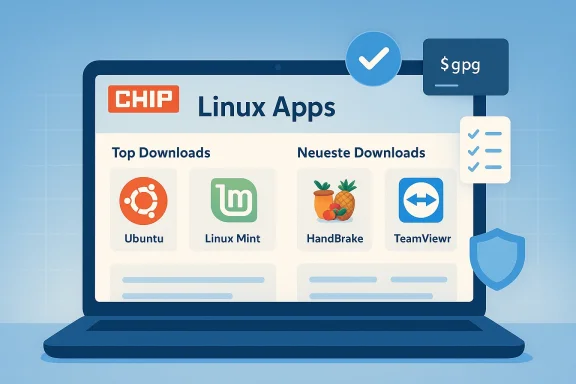
CHIP’s “Linux‑Apps” download hub is a practical, German‑language gateway to Linux distributions, desktop tools, and one‑click installers — a one‑stop download index that mixes curated picks, user ratings and charts with direct links to ISO images and packaged applications. The page reads like a mainstream downloads portal rather than a developer forum: it surfaces the week’s top Linux downloads (from full distributions to productivity tools), highlights recent uploads, and groups offerings into familiar categories such as “Betriebssysteme & Distributionen,” “Multimedia,” and “System & Tuning.” This makes CHIP’s Linux‑Apps section useful for readers who want an easy entry point to obtain Linux ISOs and common desktop applications, but it also raises important questions about provenance, package format, and update strategy that every Windows and Linux user should consider before clicking “Download.” (chip.de)
CHIP is a large mainstream technology publisher whose downloads area serves a broad audience. The Linux‑Apps page aggregates:
Two central tradeoffs:
For Windows users curious about Linux, CHIP’s hub is a sensible starting point — but treat it as an index, not an authority. Cross‑reference downloads with upstream release pages (for example, Canonical’s Ubuntu release site for Ubuntu ISOs), adopt modern packaging models where they fit your workflow (Flatpak, AppImage), and keep a verification and recovery plan in place. Those small habits close the gap between convenience and security and make the transition from curiosity to confident Linux use both safer and more productive. (chip.de)
Source: CHIP https://www.chip.de/download/linux-apps,38916/
 Background / Overview
CHIP is a large mainstream technology publisher whose downloads area serves a broad audience. The Linux‑Apps page aggregates:- distribution ISOs (Ubuntu, Linux Mint, KDE neon, Garuda and others),
- popular Linux tools (HandBrake, TeamViewer, Dropbox),
- weekly “Top 5” charts and ratings,
- and topical news/feature content that is surfaced alongside the downloads.
That mixture positions CHIP as a convenience layer: it reduces discovery friction for newcomers who want “Linux downloads” in German and who appreciate editorial curation and one‑click access. The page explicitly lists current popular entries (for example, Ubuntu 25.10 and Linux Mint 22.3 appear in the weekly charts) and shows recency metadata for the newest uploads. (chip.de)
What the CHIP page actually delivers
- A categorized downloads index for Linux‑related software and distributions. (chip.de)
- Short blurbs, rating counts and “Top Downloads of the Week” entries — convenient but not a substitute for the project’s own release notes. (chip.de)
- Quick access to ISOs and installer packages that are otherwise available from project servers, packaged here for faster access by CHIP readers. (chip.de)
Why this matters: convenience vs. provenance
CHIP’s hub provides clear benefits for mainstream users:- Convenience: single page to find current Linux distributions (e.g., Ubuntu and Linux Mint) and tools such as HandBrake or TeamViewer. The portal is designed to lower friction for Windows users migrating or trying Linux temporarily. (chip.de)
- Curation and ratings: editorial picks and user ratings help prioritize options for newcomers who may be overwhelmed by the variety of distributions and package formats. (chip.de)
- Provenance and verification. When downloading an ISO or binary from a third‑party site, you should still verify the cryptographic checksums and signatures against the official project’s release artifacts. Canonical’s Ubuntu release pages, for example, publish official hashes and Release files that are intended to be used to validate downloads — and the official release record is the authoritative source for what a given ISO contains. Relying solely on a downloads portal for trust without verification increases risk.
- Packaging and sandboxing differences. Modern Linux distribution and app packaging is not monolithic: DEB/RPM, Flatpak/Flathub, AppImage, and Snap each have different trade‑offs for portability, security sandboxing and update mechanisms. Users who want consistent, sandboxed application updates should understand the differences rather than assuming a downloaded binary is safe by default. Independent coverage of Flathub/Flatpak and AppImage is useful context when deciding what to install.
The technical landscape: packaging, distribution channels, and what to choose
Distribution ISOs vs. portable apps
- Full ISOs (Ubuntu, Linux Mint, KDE neon) install an entire operating system and are the correct choice for replacing or running an OS from USB/VM. CHIP surfaces current ISOs in its charts (e.g., Ubuntu 25.10, Linux Mint 22.3), but the canonical release pages and the distribution maintainers should be consulted for precise release notes and checksums. (chip.de)
- Portable formats like AppImage and universal app stores like Flathub (Flatpak) offer distribution‑agnostic application installation without changing the host OS. AppImage packages run without root and are portable; Flatpak/Flathub provides sandboxing and centralized discovery. If CHIP lists a portable app, decide whether you want the portability of AppImage or the sandbox/updater features of Flatpak.
Quick guide to common formats
- DEB / RPM: native to Debian/Ubuntu and Fedora/Red Hat ecosystems. Best used for core system packages and when you want distro‑tight integration.
- Flatpak (Flathub): distribution‑agnostic, offers sandboxing and centralized discovery; good for desktop apps where you want isolation and automatic updates. Flathub has become the de facto “Linux app store” for Flatpak packages.
- AppImage: single executable file, runs without installation or root; excellent for portable usage but requires manual updating unless the developer integrates an update mechanism.
- Snap: canonical format with built‑in update behavior and confinement; works well on Ubuntu but remains less popular among some distributions and users who dislike vendor centralization.
- Source / tarballs: classic method for compiling from source — flexible but requires expertise.
Security and trust: recommended verification steps
Downloading from CHIP is convenient, but follow a short hygiene checklist whenever you grab an ISO or package from any third‑party aggregator:- Always cross‑check the download against the official project release page and its published checksums and signatures. Canonical’s Ubuntu release pages, for instance, publish Release files and checksums for each ISO; these are the authoritative artifacts to compare against.
- Verify cryptographic signatures where available (GPG/PGP). A signed Release/manifest is much more trustworthy than an unsigned hash printed on a web page.
- Prefer distribution repositories and official app stores for updates. For desktop apps, Flatpak via Flathub or the distro’s official repos reduce the chance of stale or tampered packages.
- Use sandboxing for untrusted binaries. If you must run a downloaded AppImage, consider running it in a disposable container, or prefer Flatpak which offers well‑understood sandbox boundaries.
- When in doubt, run new ISOs or unknown apps inside a virtual machine or ephemeral environment before installing on your main device. Virtualization is explicitly a top download option on CHIP’s hub, acknowledging that many users will test distros inside VMs first. (chip.de)
Real‑world examples and context
Ubuntu 25.10 (Questing Quokka)
CHIP’s download charts list Ubuntu 25.10 as a popular entry; Ubuntu’s own release announcements, archive pages and community documentation are the right places to verify release content and support windows. Canonical’s published release materials confirm Ubuntu 25.10 (“Questing Quokka”) and include the official artifacts that you should check after downloading any ISOs. If CHIP lists a distribution like Ubuntu 25.10, use the distribution’s release notes to confirm kernel version, GNOME/desktop details, and the official support window. (chip.de)Linux Mint 22.3 “Zena”
CHIP lists Linux Mint in its Top Downloads; independent coverage confirms Linux Mint 22.3 “Zena” is a recent stable release and is widely distributed via the project’s official channels. For users who prefer a Windows‑like experience or want to avoid Snap by default, Mint remains a common recommendation, but again — use the Mint project’s published ISOs and verify them after downloading. (chip.de)Legacy and alternative approaches: running Linux apps on Windows
Historically, projects like andLinux and coLinux attempted to run Linux userland inside Windows without a full VM; they are interesting technical footnotes and demonstrate demand for running Linux applications on Windows machines. Community threads preserved in archives describe andLinux as a coLinux‑based way to run Ubuntu/KDE apps inside Windows (32‑bit era), but these projects are dated and not recommended for modern systems. For users who want to run Linux apps on Windows today, modern, supported approaches are:- Use a lightweight VM (VMware, VirtualBox) — common downloads on CHIP’s pages reflect this practice.
- Use Windows Subsystem for Linux (WSL) on Windows 10/11 for command‑line and, with WSLg, GUI apps.
- Use remote app solutions or containers.
Strengths of CHIP’s Linux‑Apps hub
- Discoverability: For German speakers or mainstream users, CHIP bundles the most commonly sought distributions and desktop apps into a single, searchable interface. This reduces discovery time compared with hunting through multiple project sites. (chip.de)
- Up‑to‑date charts: The “Top Downloads” and “Neueste Downloads” sections surface current ISOs and tools with time‑stamps — helpful to spot recent builds and to see which distros/tools are trending. (chip.de)
- Editorial content: Short feature blurbs and video recommendations complement the downloads, offering context for newcomers about distributions and when to choose them. (chip.de)
Risks, limitations, and practical pitfalls
- Third‑party mirror risk. Downloads aggregated by a portal are convenient, but the portal is not the project maintainer. Malicious or compromised mirrors are a risk if you do not verify checksums and signatures. CHIP does not replace the need to validate artifacts against project repositories. (chip.de)
- Package model. A static download portal can only reflect snapshots; long‑term updates require package managers or app store mechanisms. For desktop apps, Flatpak/Flathub’s update model is preferable to manual AppImage downloads when automatic updates and sandboxing matter.
- Lack of packaging details. The portal is not a package inspector. Important metadata — such as whether a download is packaged as DEB, Snap, Flatpak, or AppImage, or what exact dependencies or confinement level it has — may not be visible at first glance. Users should always consult upstream documentation. (chip.de)
- Legacy compatibility claims. Some archived community notes (for example, older projects like andLinux using coLinux) describe approaches that no longer reflect modern hardware and 64‑bit ecosystems. Be cautious about following old forum threads as authoritative guidance on installing modern Linux apps.
Practical step‑by‑step: safely using CHIP’s Linux‑Apps downloads
- Identify the item on CHIP you want to download (ISO, app, tool). Note the exact name and version shown on CHIP’s page. (chip.de)
- Visit the official project page for that distribution or app (Canonical for Ubuntu, Linux Mint project page for Mint, developer pages for apps) and locate the same release’s checksums and signatures. Compare cryptographic hashes. If signatures are provided, verify them with the developer’s GPG keys.
- Prefer Flatpak/Flathub or distro repositories for desktop apps that require updates and sandboxing. If CHIP points to a Flatpak/Flathub package, use your distribution’s Flatpak tooling to install from Flathub instead of downloading a raw binary.
- If you must run an AppImage, scan it with a local AV/antimalware product (for hybrid Windows users), and run it first inside a disposable VM or container if you are unsure. Remember AppImage files are portable and require manual update checks.
- Keep system backups and create a restore point or snapshot (Timeshift / system images) before making major changes. CHIP’s hub includes rescue and system tools — use them wisely and keep a recovery plan. (chip.de)
How CHIP fits into the broader Linux app ecosystem
CHIP’s Linux‑Apps hub occupies the same conceptual space as other download aggregators, but the modern Linux ecosystem increasingly favors distribution‑agnostic app stores and package managers that address reproducible builds, sandboxing and centralized update flows. Flathub has emerged as a mainstream discovery and distribution point for Flatpak applications; AppImage provides portability without installation. Both approaches reduce the friction of “Which Linux app format should I pick?” but they are not panaceas: Flathub provides sandboxing and centralized updates, while AppImages prioritize portability and minimal system impact. CHIP remains useful for discovery; pairing it with Flathub/AppImage knowledge helps users get the best of both worlds.Critical analysis: editorial value vs. technical completeness
CHIP’s downloads portal excels at editorial curation — it makes “download Linux” straightforward for mainstream users and provides a friendly UX in German that helps with initial adoption. However, editorial convenience cannot subsume technical rigor. For readers who are serious about security, reproducibility and long‑term maintenance, relying on a downloads portal without following the distribution’s official verification and update channels is insufficient.Two central tradeoffs:
- Speed of discovery vs. verifiable authenticity. CHIP reduces search time but adds an extra verification step for users who care about authenticity. The correct posture is “download here, verify there.” (chip.de)
- Simplicity vs. modern packaging benefits. CHIP provides DEB/RPM/ISO links and binaries—but modern packaging (Flatpak, AppImage) brings security and portability that a raw download cannot match by itself. Users should prefer sandboxed and centrally updated channels when possible.
Recommendations for readers (practical checklist)
- Use CHIP for discovery and convenience, not blind trust. Always cross‑verify downloads with official project pages and signatures. (chip.de)
- Prefer Flatpak/Flathub for desktop apps where sandboxing and automatic updates matter, and prefer distro repos for system packages.
- Use AppImage for portable needs (single‑file apps), but establish your own update routine or use tools that check for new releases.
- If you’re experimenting from Windows, use virtualization (VMware, VirtualBox) or WSL (for command‑line tools) instead of deprecated bridging projects. Historical experiments like andLinux show the attraction of running Linux apps inside Windows, but they are largely out of date; modern virtualization and containerization are safer and better supported.
- When installing an OS ISO, check the distribution’s Release files and GPG signatures before installation: that’s the single most effective protection against corrupted or tampered images.
Conclusion
CHIP’s Linux‑Apps page is a valuable, user‑friendly entry point for German‑speaking users who want to download distributions and desktop tools quickly. Its editorial curation, charts and category structure lower the barrier to discovery and make “download Linux” approachable. However, convenience should not replace due diligence: always verify ISOs and packages against the official project artifacts, prefer sandboxed/centrally updated formats such as Flatpak when appropriate, and use virtualization or containers when testing unfamiliar software.For Windows users curious about Linux, CHIP’s hub is a sensible starting point — but treat it as an index, not an authority. Cross‑reference downloads with upstream release pages (for example, Canonical’s Ubuntu release site for Ubuntu ISOs), adopt modern packaging models where they fit your workflow (Flatpak, AppImage), and keep a verification and recovery plan in place. Those small habits close the gap between convenience and security and make the transition from curiosity to confident Linux use both safer and more productive. (chip.de)
Source: CHIP https://www.chip.de/download/linux-apps,38916/
