

Google Chrome can now be used to stream Netflix in 4K Ultra HD on compatible Windows 11 PCs, removing one of the more stubborn quality limitations that pushed many Windows users toward Microsoft Edge or the Netflix app. The change is significant not because it magically makes every Chrome installation a 4K Netflix client, but because Netflix now officially lists Chrome 117 or later as capable of reaching up to 2160p on qualifying Windows hardware.
For Windows enthusiasts, this is a meaningful shift. Chrome remains the default browser for a substantial number of PC users, yet streaming quality has long depended on a complicated mix of browser support, DRM protection, codecs, graphics hardware, operating-system features, display connections, and account settings. A modern 4K monitor alone has never been enough.
The practical result is straightforward: users with an up-to-date Windows 11 system, an eligible Netflix subscription, supported hardware, and a properly configured 4K display can now use Chrome without automatically being limited to 1080p or below. The less obvious result is that Netflix 4K playback on Windows remains one of the clearest examples of how protected premium video can expose weaknesses in an otherwise capable PC setup.
Netflix’s updated support information places Google Chrome 117 and newer alongside Microsoft Edge and the Netflix app for Windows as supported paths to Ultra HD playback on eligible Windows machines. Chrome had already been a fully capable Netflix browser in most everyday respects, but the resolution ceiling mattered to viewers who pay for a premium plan and own a 4K television, monitor, or laptop display.
Until now, Microsoft Edge was widely viewed as the safer choice for Netflix in 4K on Windows. That was not necessarily because Edge was a superior browser for general use. Instead, it was because protected-streaming support, media pipelines, and hardware compatibility were more consistently aligned with Netflix’s highest-quality Windows playback requirements.
Chrome’s inclusion changes that equation. It gives users a genuine browser choice and means they no longer have to maintain a separate streaming workflow just to access the picture quality their hardware and subscription already support.
That said, the word “supports” deserves careful interpretation. Chrome 117 or newer is a necessary condition for Netflix 4K playback on Windows, but it is far from the only condition. Netflix’s requirements make it clear that the browser is simply one piece of a larger eligibility chain.
A 4K Netflix stream is not equivalent to opening a high-resolution video file in a local media player. The service checks the environment before offering its highest bitrate and resolution tiers. If the PC, browser, display, driver, or connection fails part of that check, Netflix can fall back to Full HD, HD, or even lower quality.
This approach can be frustrating for consumers because a system may be powerful enough to play demanding games at 4K yet still fail to receive a 4K Netflix stream. The issue is not necessarily performance. It is often the protected playback chain.
This complexity is partly unavoidable. Premium studios and distributors place strict content-protection requirements on 4K streams, and streaming services must meet those obligations. Still, the experience highlights how consumer-friendly labels such as “4K ready” can conceal important technical caveats.
Chrome must be version 117 or later. Most users on Chrome’s stable release channel will already exceed that version number, but verifying the installed build is still worthwhile. Type
The version requirement is not a promise that 4K will immediately appear. It merely ensures that the browser itself is eligible to participate in Netflix’s supported 4K configuration.
The account’s playback-data setting also needs to be configured to Auto or High. If the account is set to a lower data-use option, Netflix may deliberately limit picture quality even when the system meets every technical requirement.
This detail matters especially for shared accounts. One person may have reduced playback settings to conserve data on a mobile connection, then later wonder why a desktop PC is not receiving 4K video.
A speed test that occasionally hits 15 Mbps is not the same as a sustained connection that can deliver 15 Mbps without disruption. Wi-Fi congestion, VPN routing, background downloads, cloud backups, game updates, and household streaming traffic can all reduce the consistency of the connection.
For the most predictable result, a wired Ethernet connection remains preferable. Strong Wi-Fi can work well, particularly with modern Wi-Fi 6 or Wi-Fi 7 hardware, but wired networking eliminates a number of variables when diagnosing unexpected quality drops.
At first glance, these requirements may look modest. Many PCs built in the last several years exceed them comfortably. However, compatibility is not exclusively about whether a GPU is powerful enough.
Laptop users face a similar complication. Many notebooks use hybrid graphics designs, where the integrated GPU controls the display output even when a dedicated GPU handles demanding workloads. In that situation, the relevant capability may be determined by the integrated graphics path, firmware configuration, display connection, and driver state—not simply by the dedicated GPU listed in Device Manager.
This is why “I have an RTX card” is not always a complete answer to a 4K streaming problem. Netflix playback depends on the active video path from protected stream to display panel.
GPU drivers include media decode components, content-protection fixes, display compatibility updates, and support improvements for modern operating systems. A PC with otherwise supported hardware may lose features or fail protected-playback checks if it uses an old driver supplied by Windows Update, an outdated manufacturer package, or a problematic beta build.
For troubleshooting, the most sensible approach is to install a current stable driver from the PC maker or GPU vendor, then restart the system. Laptop owners should consider starting with their manufacturer’s validated driver if a newer generic driver introduces display, brightness, sleep, or docking problems.
Some Windows 11 devices do not include the HEVC codec required for Netflix Ultra HD playback. In those cases, users may need the HEVC Video Extensions package from the Microsoft Store.
This is a notable friction point because HEVC support is not always obvious from a PC’s specifications. A computer can have a 4K screen, an eligible processor, Chrome 117 or newer, and fast internet access, yet still fail a prerequisite because the codec component is missing.
That reality can create inconsistent experiences. Two laptops with nearly identical processors may not have identical media capabilities out of the box, particularly if one manufacturer bundles additional codec support and another does not.
The important point is that users should not assume Chrome itself provides everything necessary for Netflix 4K. The browser operates within Windows’ broader media and protected-playback environment.
A panel advertised as 4K but set to 30Hz may not qualify. This can occur with older HDMI ports, low-bandwidth adapters, dock limitations, cable problems, or display settings that default to a reduced refresh rate.
Windows users should check the active display mode in Settings > System > Display > Advanced display. The selected resolution should be 3840 × 2160, and the refresh rate should be 60Hz where the display supports it.
The entire chain must support it:
HDMI cables are a common source of confusion. A cable is not “HDCP 2.2” in isolation; compatibility depends on the devices and connection path. Still, a poor-quality, damaged, or older cable can prevent the link from negotiating the necessary 4K 60Hz mode reliably.
Even if Netflix is playing on the 4K screen, an active secondary monitor that lacks the necessary protected-playback compatibility can be enough to affect Ultra HD eligibility. The most practical troubleshooting step is to disconnect or disable secondary displays temporarily, then test playback again.
That is not an ideal user experience, but it reflects the strict security model surrounding protected 4K video. It is also a reminder that multi-monitor workstations sometimes behave very differently from single-screen living-room PCs.
That matters more than it may sound. Media playback is often part of a broader desktop routine. A person may move from reading, researching, working, or browsing directly into a streaming session, and browser switching can be disruptive when profiles, extensions, and saved sign-ins are involved.
Chrome support also reduces the perception that Windows users must rely on a Microsoft browser for premium streaming quality. Edge remains an excellent option, particularly for users who value its Windows integration and established 4K Netflix support, but it is no longer the only mainstream browser route for compatible Windows hardware.
Resolution is not the only difference between these options. HDR support, audio capabilities, system integration, extension behavior, privacy preferences, and device-specific compatibility can also influence which choice works best.
Still, for viewers focused specifically on Netflix 4K in Chrome on Windows 11, the key limitation has been removed at the browser level.
First, make sure the chosen movie or episode carries a 4K or Ultra HD label. Not all Netflix content is available at the maximum resolution, and some titles may be offered in different formats depending on region, plan, or device.
Then allow playback to stabilize. Netflix may begin at a lower bitrate and scale upward after measuring the connection. Repeatedly pausing, skipping, or switching windows during the first moments of playback can delay that process.
In practical terms, users should view Chrome 4K support as expanded eligibility rather than an unconditional feature switch. Installing Chrome on a Windows 11 PC with a 1080p monitor does not create a 4K stream, nor does it override the limitations of old ports or unsupported display equipment.
A user might successfully receive Netflix in 4K without HDR, or encounter different requirements when attempting HDR playback. This distinction is worth making because marketing often bundles 4K and HDR together as if they were a single feature.
For many viewers, HDR can produce a more noticeable visual improvement than resolution alone, particularly on large modern televisions. But it requires compatible content, display hardware, system settings, and a playback path that supports it.
That flexibility is one of Windows’ greatest strengths. It is also why protected video playback can become unpredictable. A compact streaming device connected directly to a television may be simpler to validate than a multi-monitor PC routed through a USB-C dock and an AV receiver.
Chrome gaining Netflix 4K support improves the software side of the equation. It does not erase the complexity of the underlying Windows hardware ecosystem.
These differences are not a simple measure of browser quality. They reflect the particular media frameworks, DRM systems, codecs, hardware acceleration paths, and content-protection rules available on each operating system.
For users who move between Windows PCs and Macs, the takeaway is simple: do not assume the same browser delivers the same Netflix quality on every platform. Browser version alone does not define the result.
The more nuanced reality is that Netflix 4K streaming still depends on a demanding technical checklist. A current version of Chrome is essential, but so are Windows 11 updates, an eligible plan, a stable 15 Mbps or faster connection, supported graphics hardware, compatible drivers, HEVC support where needed, a 4K 60Hz display, and an HDCP 2.2-compliant external display chain.
For well-configured modern PCs, the change should be largely invisible: open Chrome, select a 4K Netflix title, and stream at the service’s highest available resolution. For systems that fall short, Chrome’s new capability provides a clearer target—but also makes it easier to identify that the real limitation lies elsewhere in the Windows 11 media stack.
For Windows enthusiasts, this is a meaningful shift. Chrome remains the default browser for a substantial number of PC users, yet streaming quality has long depended on a complicated mix of browser support, DRM protection, codecs, graphics hardware, operating-system features, display connections, and account settings. A modern 4K monitor alone has never been enough.
The practical result is straightforward: users with an up-to-date Windows 11 system, an eligible Netflix subscription, supported hardware, and a properly configured 4K display can now use Chrome without automatically being limited to 1080p or below. The less obvious result is that Netflix 4K playback on Windows remains one of the clearest examples of how protected premium video can expose weaknesses in an otherwise capable PC setup.
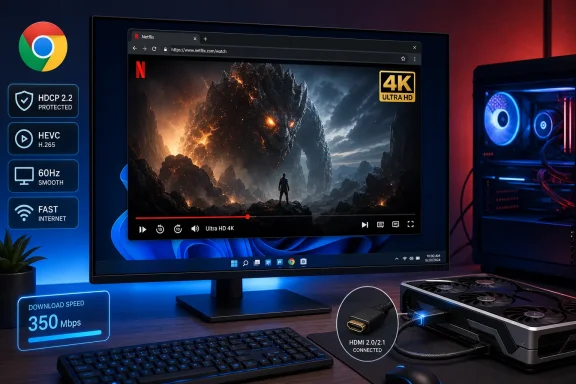 Overview: Chrome Finally Joins the 4K Netflix List on Windows
Netflix’s updated support information places Google Chrome 117 and newer alongside Microsoft Edge and the Netflix app for Windows as supported paths to Ultra HD playback on eligible Windows machines. Chrome had already been a fully capable Netflix browser in most everyday respects, but the resolution ceiling mattered to viewers who pay for a premium plan and own a 4K television, monitor, or laptop display.Until now, Microsoft Edge was widely viewed as the safer choice for Netflix in 4K on Windows. That was not necessarily because Edge was a superior browser for general use. Instead, it was because protected-streaming support, media pipelines, and hardware compatibility were more consistently aligned with Netflix’s highest-quality Windows playback requirements.
Chrome’s inclusion changes that equation. It gives users a genuine browser choice and means they no longer have to maintain a separate streaming workflow just to access the picture quality their hardware and subscription already support.
That said, the word “supports” deserves careful interpretation. Chrome 117 or newer is a necessary condition for Netflix 4K playback on Windows, but it is far from the only condition. Netflix’s requirements make it clear that the browser is simply one piece of a larger eligibility chain.
Why Netflix 4K Has Been So Restrictive on PCs
Streaming video quality is governed by much more than raw internet speed. Netflix must also protect licensed content from being captured or copied in high quality, which is why 4K playback is tied to protected video playback technologies and compatible hardware.A 4K Netflix stream is not equivalent to opening a high-resolution video file in a local media player. The service checks the environment before offering its highest bitrate and resolution tiers. If the PC, browser, display, driver, or connection fails part of that check, Netflix can fall back to Full HD, HD, or even lower quality.
This approach can be frustrating for consumers because a system may be powerful enough to play demanding games at 4K yet still fail to receive a 4K Netflix stream. The issue is not necessarily performance. It is often the protected playback chain.
The protected playback chain
For Netflix Ultra HD to work reliably, several pieces must cooperate:- A qualifying Netflix plan
- Windows 11 with current updates
- Google Chrome 117 or later
- Supported graphics hardware or processor graphics
- Current graphics drivers
- HEVC decoding support where required
- A 4K display operating at 60Hz
- HDCP 2.2 compatibility for external displays
- A stable internet connection of at least 15 Mbps
- A Netflix title actually available in 4K
- Playback quality set to Auto or High
This complexity is partly unavoidable. Premium studios and distributors place strict content-protection requirements on 4K streams, and streaming services must meet those obligations. Still, the experience highlights how consumer-friendly labels such as “4K ready” can conceal important technical caveats.
The Official Windows 11 Requirements for Netflix Ultra HD
Netflix’s requirements for Ultra HD playback on a Windows computer go beyond the browser version. Users should treat the following checklist as the baseline for 4K Netflix in Chrome.Operating system and browser
The PC needs to run Windows 11 with the latest updates installed. While Netflix supports general playback on both Windows 10 and Windows 11, the stated Ultra HD requirements for the Windows experience center on Windows 11.Chrome must be version 117 or later. Most users on Chrome’s stable release channel will already exceed that version number, but verifying the installed build is still worthwhile. Type
chrome://settings/help into Chrome’s address bar to see the version and initiate an update check.The version requirement is not a promise that 4K will immediately appear. It merely ensures that the browser itself is eligible to participate in Netflix’s supported 4K configuration.
Netflix plan and playback setting
Users need a Netflix plan that includes Ultra HD streaming. Netflix does not make 4K available to every subscription tier, so no browser, GPU, or display upgrade can bypass the plan requirement.The account’s playback-data setting also needs to be configured to Auto or High. If the account is set to a lower data-use option, Netflix may deliberately limit picture quality even when the system meets every technical requirement.
This detail matters especially for shared accounts. One person may have reduced playback settings to conserve data on a mobile connection, then later wonder why a desktop PC is not receiving 4K video.
Internet connection
Netflix specifies a steady connection of 15 Mbps or faster for Ultra HD. That number should be viewed as a minimum threshold rather than a performance guarantee.A speed test that occasionally hits 15 Mbps is not the same as a sustained connection that can deliver 15 Mbps without disruption. Wi-Fi congestion, VPN routing, background downloads, cloud backups, game updates, and household streaming traffic can all reduce the consistency of the connection.
For the most predictable result, a wired Ethernet connection remains preferable. Strong Wi-Fi can work well, particularly with modern Wi-Fi 6 or Wi-Fi 7 hardware, but wired networking eliminates a number of variables when diagnosing unexpected quality drops.
Hardware Compatibility Is More Important Than Many Users Expect
Netflix identifies specific categories of supported graphics hardware for Ultra HD playback on Windows. The list includes Nvidia GeForce GTX 1050-class hardware or newer, AMD Radeon RX 400-series graphics or newer, and systems using Intel 7th-generation Core processors or later or AMD Ryzen processors.At first glance, these requirements may look modest. Many PCs built in the last several years exceed them comfortably. However, compatibility is not exclusively about whether a GPU is powerful enough.
Dedicated GPUs and integrated graphics
A desktop PC might contain a compatible Nvidia or AMD graphics card but still fail to deliver Netflix 4K if the display is physically connected to an unsupported port, routed through an incompatible dock, or driven by a different graphics adapter.Laptop users face a similar complication. Many notebooks use hybrid graphics designs, where the integrated GPU controls the display output even when a dedicated GPU handles demanding workloads. In that situation, the relevant capability may be determined by the integrated graphics path, firmware configuration, display connection, and driver state—not simply by the dedicated GPU listed in Device Manager.
This is why “I have an RTX card” is not always a complete answer to a 4K streaming problem. Netflix playback depends on the active video path from protected stream to display panel.
Driver updates still matter
Netflix specifically notes that some systems may require the latest graphics drivers. This is not merely generic maintenance advice.GPU drivers include media decode components, content-protection fixes, display compatibility updates, and support improvements for modern operating systems. A PC with otherwise supported hardware may lose features or fail protected-playback checks if it uses an old driver supplied by Windows Update, an outdated manufacturer package, or a problematic beta build.
For troubleshooting, the most sensible approach is to install a current stable driver from the PC maker or GPU vendor, then restart the system. Laptop owners should consider starting with their manufacturer’s validated driver if a newer generic driver introduces display, brightness, sleep, or docking problems.
HEVC: The Codec Requirement That Can Catch Windows Users Off Guard
One of the more easily overlooked parts of Netflix 4K playback is HEVC, also known as H.265. The codec is designed to deliver high-quality video more efficiently than older formats, making it well suited to 4K streaming.Some Windows 11 devices do not include the HEVC codec required for Netflix Ultra HD playback. In those cases, users may need the HEVC Video Extensions package from the Microsoft Store.
This is a notable friction point because HEVC support is not always obvious from a PC’s specifications. A computer can have a 4K screen, an eligible processor, Chrome 117 or newer, and fast internet access, yet still fail a prerequisite because the codec component is missing.
Why codec support is not automatic
Codec licensing has long been complicated across consumer platforms. Hardware manufacturers, operating-system vendors, and application providers do not always package every licensed codec in every device configuration.That reality can create inconsistent experiences. Two laptops with nearly identical processors may not have identical media capabilities out of the box, particularly if one manufacturer bundles additional codec support and another does not.
The important point is that users should not assume Chrome itself provides everything necessary for Netflix 4K. The browser operates within Windows’ broader media and protected-playback environment.
Display Requirements: 4K Resolution Is Only Half the Story
Netflix requires a 4K display running at 60Hz for Ultra HD playback. The requirement applies whether the display is built into a laptop or connected externally.A panel advertised as 4K but set to 30Hz may not qualify. This can occur with older HDMI ports, low-bandwidth adapters, dock limitations, cable problems, or display settings that default to a reduced refresh rate.
Windows users should check the active display mode in Settings > System > Display > Advanced display. The selected resolution should be 3840 × 2160, and the refresh rate should be 60Hz where the display supports it.
HDCP 2.2 remains essential for external displays
For televisions and external monitors, the connection must be HDCP 2.2 compatible. HDCP, or High-bandwidth Digital Content Protection, is the protection mechanism used to secure video traveling between the PC and the display.The entire chain must support it:
- The GPU output
- The display port on the PC
- The cable
- Any adapter
- Any dock
- Any AV receiver, splitter, switch, or capture device
- The display input itself
HDMI cables are a common source of confusion. A cable is not “HDCP 2.2” in isolation; compatibility depends on the devices and connection path. Still, a poor-quality, damaged, or older cable can prevent the link from negotiating the necessary 4K 60Hz mode reliably.
Multiple displays can complicate everything
Netflix also requires every active display to meet the relevant requirements when multiple monitors are connected. This is likely to surprise desktop users who keep an older 1080p monitor beside a newer 4K display.Even if Netflix is playing on the 4K screen, an active secondary monitor that lacks the necessary protected-playback compatibility can be enough to affect Ultra HD eligibility. The most practical troubleshooting step is to disconnect or disable secondary displays temporarily, then test playback again.
That is not an ideal user experience, but it reflects the strict security model surrounding protected 4K video. It is also a reminder that multi-monitor workstations sometimes behave very differently from single-screen living-room PCs.
What This Means for Chrome Users
The biggest advantage is convenience. Users who already rely on Chrome for passwords, profiles, extensions, bookmarks, tab groups, and everyday web work no longer need to switch browsers purely for Netflix Ultra HD.That matters more than it may sound. Media playback is often part of a broader desktop routine. A person may move from reading, researching, working, or browsing directly into a streaming session, and browser switching can be disruptive when profiles, extensions, and saved sign-ins are involved.
Chrome support also reduces the perception that Windows users must rely on a Microsoft browser for premium streaming quality. Edge remains an excellent option, particularly for users who value its Windows integration and established 4K Netflix support, but it is no longer the only mainstream browser route for compatible Windows hardware.
A more level browser landscape
Netflix’s current Windows browser picture is relatively clear:| Browser or app | Maximum stated resolution on eligible Windows hardware |
|---|---|
| Google Chrome 117 or later | Up to Ultra HD 4K |
| Microsoft Edge 118 or later | Up to Ultra HD 4K |
| Netflix app for Windows | Up to Ultra HD 4K |
| Mozilla Firefox 111 or later | Up to Full HD 1080p |
| Opera 92 or later | Up to Full HD 1080p |
Still, for viewers focused specifically on Netflix 4K in Chrome on Windows 11, the key limitation has been removed at the browser level.
How to Check Whether Netflix Is Actually Playing in 4K
A compatible configuration does not necessarily mean every title will start at 2160p immediately. Netflix uses adaptive streaming, meaning playback quality can adjust based on available bandwidth and the service’s assessment of the device environment.First, make sure the chosen movie or episode carries a 4K or Ultra HD label. Not all Netflix content is available at the maximum resolution, and some titles may be offered in different formats depending on region, plan, or device.
Then allow playback to stabilize. Netflix may begin at a lower bitrate and scale upward after measuring the connection. Repeatedly pausing, skipping, or switching windows during the first moments of playback can delay that process.
A practical Windows 11 checklist
For users troubleshooting Chrome Netflix 4K, the following sequence is the most efficient:- Update Chrome and confirm it is version 117 or newer.
- Install current Windows 11 updates and restart the PC.
- Confirm the Netflix plan includes Ultra HD.
- Set Netflix playback usage to Auto or High.
- Choose a title marked 4K or Ultra HD.
- Verify the display is set to 3840 × 2160 at 60Hz.
- Connect directly to the display where possible.
- Remove adapters, splitters, receivers, and docks temporarily for testing.
- Disconnect or disable secondary displays that may not meet HDCP requirements.
- Update graphics drivers from the PC maker or GPU vendor.
- Check HEVC support if the PC otherwise appears compliant.
- Test the connection without a VPN and pause bandwidth-heavy downloads.
Important Limitations and Potential Frustrations
Chrome’s new standing is unquestionably positive for Windows users, but it does not eliminate Netflix’s broader limitations.“Up to 4K” is not a guarantee
Netflix describes Chrome playback as up to Ultra HD. That wording is important. The service can lower resolution based on title availability, connection stability, account settings, display hardware, and content-protection validation.In practical terms, users should view Chrome 4K support as expanded eligibility rather than an unconditional feature switch. Installing Chrome on a Windows 11 PC with a 1080p monitor does not create a 4K stream, nor does it override the limitations of old ports or unsupported display equipment.
4K is not the same as HDR
Ultra HD resolution and high dynamic range are related but separate capabilities. A 4K image has more pixels than 1080p; HDR expands the range of brightness and color that compatible content and displays can reproduce.A user might successfully receive Netflix in 4K without HDR, or encounter different requirements when attempting HDR playback. This distinction is worth making because marketing often bundles 4K and HDR together as if they were a single feature.
For many viewers, HDR can produce a more noticeable visual improvement than resolution alone, particularly on large modern televisions. But it requires compatible content, display hardware, system settings, and a playback path that supports it.
Windows PCs remain more variable than streaming boxes
Dedicated streaming devices usually have a smaller set of known hardware configurations. Windows PCs, by comparison, can include countless combinations of GPUs, displays, ports, drivers, cables, docking stations, capture hardware, and monitor arrangements.That flexibility is one of Windows’ greatest strengths. It is also why protected video playback can become unpredictable. A compact streaming device connected directly to a television may be simpler to validate than a multi-monitor PC routed through a USB-C dock and an AV receiver.
Chrome gaining Netflix 4K support improves the software side of the equation. It does not erase the complexity of the underlying Windows hardware ecosystem.
Chrome on Windows Gains Ground, but Platform Differences Remain
The new Windows support also underscores how Netflix capabilities vary by platform. Chrome on Windows can reach up to 4K on systems that meet the Ultra HD requirements, while Chrome on macOS remains capped at Full HD. Safari, meanwhile, can offer 4K playback on compatible Mac hardware and supported versions of macOS.These differences are not a simple measure of browser quality. They reflect the particular media frameworks, DRM systems, codecs, hardware acceleration paths, and content-protection rules available on each operating system.
For users who move between Windows PCs and Macs, the takeaway is simple: do not assume the same browser delivers the same Netflix quality on every platform. Browser version alone does not define the result.
The Bottom Line for Windows 11 Streaming
Chrome support for Netflix 4K is a welcome quality-of-life improvement for Windows 11 users. It removes a long-standing reason to favor Edge or the Netflix app and allows Chrome users to access Ultra HD without changing their established browser habits.The more nuanced reality is that Netflix 4K streaming still depends on a demanding technical checklist. A current version of Chrome is essential, but so are Windows 11 updates, an eligible plan, a stable 15 Mbps or faster connection, supported graphics hardware, compatible drivers, HEVC support where needed, a 4K 60Hz display, and an HDCP 2.2-compliant external display chain.
For well-configured modern PCs, the change should be largely invisible: open Chrome, select a 4K Netflix title, and stream at the service’s highest available resolution. For systems that fall short, Chrome’s new capability provides a clearer target—but also makes it easier to identify that the real limitation lies elsewhere in the Windows 11 media stack.
References
- Primary source: The Mac Observer
Published: 2026-07-23T15:55:57+00:00
Chrome Now Supports Netflix Streaming in 4K on Windows 11
Chrome now supports Netflix 4K streaming on Windows 11. Check the requirements, compatible hardware, and how to watch Ultra HD content.www.macobserver.com