

Google’s long-running experiment with tab groups has taken another practical step: Chrome Canary now lists closed saved tab groups inside the “Add tab to group” context menu, and will — in reported builds — move selected tabs into those closed groups and close them from the active window automatically to reduce clutter. This small but consequential change, visible in the latest Canary builds, joins a broader set of experiments that tie Chrome more tightly to Google’s Gemini AI stack (new NTP “chips” like Nano Banana and a “Deep Search” shortcut) and a layout rework that prepares Chrome’s UI for richer assistant-style features. The behavior is currently experimental, visible to Canary users behind flags, and has limited independent confirmation beyond hands-on reporting and community testing.
Tab Groups started as a lightweight productivity feature to let users cluster related tabs for projects, research, or long-running workflows. Over time Google added ways to collapse groups, save them, and expose labels on the bookmarks bar so groups could be restored later. Those improvements turned tab groups from a visual convenience into a persistence and cross-device convenience when users are signed into Chrome. The overall goal has been to help users keep the tab strip manageable while preserving sets of pages they need to return to. Chrome’s experimentation in Canary and Beta channels has increasingly focused on two parallel directions: (1) deeper, UX-level improvements to tab management, and (2) embedding Gemini-powered, multimodal features directly into the New Tab Page (NTP) and Omnibox. The closed-group context-menu change sits at the intersection of those efforts — a quality-of-life improvement for power users that also signals Chrome’s broader focus on flow and context preservation.
These features are promising, but they’re still experimental. Canary builds and chrome://flags are useful for testing, but they are also volatile and incomplete. Users and organizations should proceed cautiously: back up data, test in isolated profiles, and wait for official documentation and admin controls before adopting AI-enabled Omnibox features in production. The direction is clear — fewer clicks to file tabs away and one-click AI starters in the browser — but the details, privacy controls, and performance trade-offs will determine whether these experiments become broadly useful enhancements or just promising prototypes.
Source: Windows Report Chrome Will Soon Let You Add Tabs to Closed Tab Groups
 Background
Tab Groups started as a lightweight productivity feature to let users cluster related tabs for projects, research, or long-running workflows. Over time Google added ways to collapse groups, save them, and expose labels on the bookmarks bar so groups could be restored later. Those improvements turned tab groups from a visual convenience into a persistence and cross-device convenience when users are signed into Chrome. The overall goal has been to help users keep the tab strip manageable while preserving sets of pages they need to return to. Chrome’s experimentation in Canary and Beta channels has increasingly focused on two parallel directions: (1) deeper, UX-level improvements to tab management, and (2) embedding Gemini-powered, multimodal features directly into the New Tab Page (NTP) and Omnibox. The closed-group context-menu change sits at the intersection of those efforts — a quality-of-life improvement for power users that also signals Chrome’s broader focus on flow and context preservation. What’s changing with Saved Tab Groups
Closed saved tab groups show up in the tab context menu
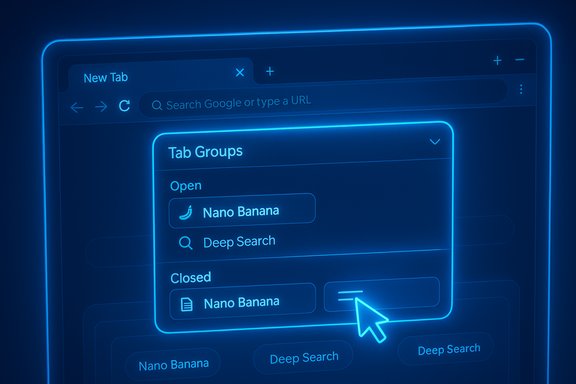
Previously, Chrome’s “Add tab to group” context menu showed only open groups. If a saved group had been collapsed or saved and closed, you had to reopen it (or restore it via the bookmarks bar or the Tab Groups submenu) before adding new tabs. The Canary experiment changes that: closed saved tab groups are listed directly in the tab context menu’s Tab Groups submenu, separated visually from open groups to avoid confusion. This reduces friction when filing tabs away into an existing saved collection.- The closed groups appear below a separator that distinguishes them from open groups.
- The menu supports selecting any closed saved group and adding (or moving) the current tab to it without first expanding or reopening that group.
Tabs are moved and closed automatically when added to a closed group
A key behavioral change reported in Canary is that when you add a tab to a closed saved group, Chrome will move that tab into the saved group and close the tab from the current window. In effect, the tab is archived directly into the saved group rather than remaining visible. This aligns with Tab Groups’ stated purpose: reduce clutter while preserving the ability to revisit the grouped pages later. The reported behavior also applies to multi-tab selection: several tabs can be moved into a closed group in one action.- If the action closes every tab in a window, Chrome will open a new blank tab to keep the window active rather than leaving it empty.
- If the user selects all tabs from one or more open saved groups, Canary reportedly prompts a confirmation dialog to prevent accidental mass closure. That dialog is an important safety valve for power actions.
Why this matters for workflow and tab hygiene
This behavior lets Chrome users triage tabs without interrupting the current workspace. Instead of switching to a saved group, reopening the group, moving tabs, and then re-collapsing it, users can right‑click and “file” tabs away. For workflows that spawn many temporary tabs (comparisons, research, shopping), this is a quick way to archive in-progress work without losing the ability to return later. The multi-tab support and automatic closure are obvious ergonomics wins for users who regularly manage dozens of tabs.The mechanics: how to try it and what to expect
How to surface the feature (Canary + flags)
These changes are visible in Chrome Canary — the experimental channel where Google tests early UI work. Users who want to try the feature typically need to:- Install Chrome Canary on their platform (Windows/macOS/Linux).
- Open chrome://flags and enable one or more experimental flags tied to Saved Tab Groups or NTP/Omnibox experiments (flag names can change across builds).
- Relaunch Canary and check the right‑click menu on tabs for the Tab Groups submenu and the presence of closed saved groups.
Edge cases and safety features
Canary reportedly includes safeguards to prevent data loss during bulk operations:- A confirmation dialog appears when the action would close all tabs of a window or when users select entire open saved groups. That prevents accidental mass closure from a single click.
- When a window would be left empty, Chrome automatically opens a new tab to maintain a usable window.
Broader context: saved tab groups, persistence, and synchronization
Saved Tab Groups evolved beyond the simple UI affordance into a persistence feature over the last couple of years. Chrome’s implementation now saves groups automatically and surfaces them via the Tab Groups submenu and bookmark bar labels when the user is signed in. That means groups can act like a cross-device project folder rather than a single-window hack. The new context-menu behavior builds directly on that capability. Because saved groups can be converted into bookmark folders and synced to your account, the new ability to add tabs to closed saved groups becomes a way to construct bookmark-folder-like archives without touching the bookmark manager. This is a meaningful shift: tab groups now sit between ephemeral tabs and permanent bookmarks, offering a middle ground for temporary-but-returnable content.Chrome’s AI experiments: Nano Banana, Deep Search, and the Omnibox + panel
Nano Banana and Deep Search chips on the New Tab Page
Concurrently with the tab-group experiments, Chrome Canary has been showing small action chips on the New Tab Page labeled Nano Banana (an image-creation prompt) and Deep Search (a research starter). Clicking these chips pre-fills the NTP search box with a starter prompt such as “Create an image of…” or “Help me research…,” reducing friction to begin creative or research tasks. These chips are experimental and are behind flags in Canary builds.A “+” panel in the Omnibox turns it into a lightweight AI workspace
Hands‑on testing in Canary also shows a small “+” inside the Omnibox (address bar). Clicking it opens a compact panel that contains shortcuts for:- Deep Search
- Create Images
- Add File
- Add Image
- Most recent Tabs
Why Chrome is building these shortcuts
Embedding generation and deep-research shortcuts into the NTP and Omnibox reduces context switching and makes the browser a hub for multimodal productivity tasks. Rather than copying links to a separate AI app, users can ask for synthesis or images in-context, with Chrome collecting open tabs and files as input. This is an explicit pivot to make the browser an “assistant surface” anchored to your browsing session.Privacy, security, and enterprise considerations
Data surface increases with multimodal prompts
Allowing users to attach files, images, and open tabs to an AI request can yield powerful results — but it also expands the browser’s data surface. When a browser collects and packages local files or tab content for cloud-based inference, enterprises and privacy-conscious users need to understand:- What data is sent to Google’s servers (if anything) versus what is processed locally.
- How long request data is retained, and whether it is logged for model improvement.
- Whether opt-outs, admin controls, or per-profile restrictions exist for enterprise deployments.
Local vs. cloud inference tradeoffs
Google’s Gemini stack uses different model sizes (for example, Gemini Nano for on-device tasks and larger cloud-hosted models for heavy generation). The Omnibox shortcuts likely use hybrid execution — small checks or previews might run locally while full generation calls go to the cloud. That split impacts latency, battery, and privacy. There are also potential cost and quota implications when generation uses cloud compute. Currently, Canary reporting does not document quotas or pricing for these in‑browser workflows, so those remain unverified and subject to change.UI and engineering groundwork: the Chrome layout rework
What the layout changes enable
Chrome engineers are testing a layout rework that allows side panels (Bookmarks, Reading List, Assistant panes) to extend up to the toolbar rather than being constrained to the content area. This is a foundational UI change that permits assistant-style overlays and panels to anchor to the top of the window and interact with toolbar-level chrome (icons, Omnibox) more naturally. The change affects z-ordering, focus management, and animation timing — nontrivial technical work to get right.Practical outcomes for users
- Panels can slide out from the side and visually align with the toolbar for a cohesive assistant surface.
- New UI surfaces like the Omnibox + panel can be implemented without awkward layering or accessibility regressions.
- The plumbing makes it easier to test assistant-related features across platforms with consistent behavior.
Critical analysis: benefits, trade-offs, and potential risks
Strengths and user benefits
- Reduced friction for tab triage. Filing tabs into saved groups directly from the context menu streamlines the act of organizing and archiving.
- Cleaner workspaces. By closing tabs when moved to saved groups, users maintain a shallower tab bar without losing the ability to reopen grouped work later.
- Multi-tab workflows supported. Moving multiple tabs in one action is a meaningful time-saver for power users.
- Tighter AI integration for productivity. Omnibox and NTP AI shortcuts reduce context switching for research and content generation tasks.
Trade-offs and risks
- Accidental closure risk. Moving and closing tabs in bulk could lead to surprising loss of an active browsing page if users misunderstand the action. The reported confirmation dialog helps, but the UX must be crystal clear before broad deployment.
- Privacy surface expansion. Attaching local files, open tabs, and images to AI requests logically requires clearer privacy controls and transparency around data flows, retention, and admin controls for organizations. Canary builds rarely ship full privacy controls, so enterprises should be cautious.
- Performance and battery implications. New UI panels and on-device model usage can affect rendering and responsiveness, particularly on lower-end hardware. Canary testers have reported instability and jank when experimental chips or panels are active.
- Ecosystem lock-in concerns. Deeply integrating Google’s AI services into Chrome may raise switching costs for users who adopt those workflows; search and assistant features that live in the browser can make it more costly to migrate to another ecosystem.
Areas that need verification or are currently under-documented
- The exact Chrome builds and flag names for each experiment change rapidly; publicly documented flags may lag hands-on reports.
- Details about where generation is executed (local vs. cloud) and any associated quotas or pricing are not documented in Canary-level reporting and remain unverified.
- The closed-group behavior, while documented by hands-on coverage, has limited independent corroboration in official Chromium commits at the time of reporting. Until upstream commits or a Chromium bug/feature entry are visible, treat the behavior as a Canary experiment rather than a guaranteed forthcoming feature.
Recommendations for users and IT admins
For everyday users who want the feature
- Test in a disposable profile on Chrome Canary only; do not use your main profile because Canary changes can be destructive and flags may reset.
- Back up important tabs or export bookmarks before experimenting.
- If you plan to rely on saved groups as an archive, ensure you are signed into a Google account so groups sync across devices and survive profile resets.
For power users and productivity enthusiasts
- Use the multi-select functionality to group sets of tabs quickly, but pay attention to the confirmation dialog when large closures occur.
- Consider converting very long-term groups into bookmarks if you need a durable, exportable archive beyond Chrome’s saved groups.
For IT and security teams
- Treat Omnibox AI + file attachment experiments as an increased data risk surface until Google publishes enterprise admin controls and data handling documentation.
- Run controlled pilots if testing in corporate contexts, and evaluate any changes against corporate data governance policies.
- Monitor Chromium public logs and the Chrome Enterprise release notes for formal rollout and admin policy options.
Conclusion
Chrome’s Canary channel continues to be a laboratory for iterative features that blend classic productivity work (tab management) with modern AI-driven workflows. The reported ability to add tabs to closed saved tab groups — and have Chrome close those tabs automatically — is a small but meaningful improvement for users who juggle many projects and need a fast way to archive active pages into saved collections. At the same time, Chrome’s NTP and Omnibox AI experiments (Nano Banana, Deep Search, and the Omnibox “+” panel) show Google’s clear intent to make the browser a multimodal productivity surface built around Gemini.These features are promising, but they’re still experimental. Canary builds and chrome://flags are useful for testing, but they are also volatile and incomplete. Users and organizations should proceed cautiously: back up data, test in isolated profiles, and wait for official documentation and admin controls before adopting AI-enabled Omnibox features in production. The direction is clear — fewer clicks to file tabs away and one-click AI starters in the browser — but the details, privacy controls, and performance trade-offs will determine whether these experiments become broadly useful enhancements or just promising prototypes.
Source: Windows Report Chrome Will Soon Let You Add Tabs to Closed Tab Groups
