

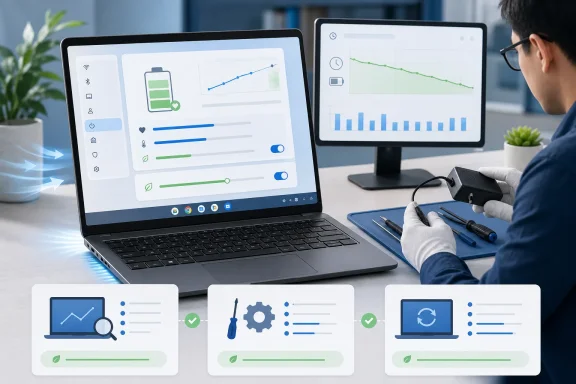
ChromeOS Finally Makes Battery Aging Legible
For most of the Chromebook era, the battery icon primarily answered an immediate question: how much charge is left right now? That figure does not tell the user how much capacity the battery has lost with age or whether shortened runtime reflects battery wear, an unusually demanding workload, or a hardware problem.
HP’s 10 Best Chromebook Battery Care Tips (Complete 2026 Guide) identifies three built-in routes for checking a Chromebook battery. According to HP, ChromeOS 141 or later places battery health under Settings > Device > Power. HP also points users toward the Diagnostics app on compatible versions and describes a technical test available through Crosh after opening the shell with Ctrl + Alt + T.
The essential distinction is between charge level and battery health. A Chromebook can show a full charge even though its aging battery no longer holds as much energy as it did when new. Conversely, a Chromebook at 40 percent charge can still have a healthy battery and simply need to be plugged in.
The most useful decision rule is concise:
Treat battery health as a screening signal. Make the final decision from health, usable runtime, shutdown behavior, charging reliability, physical condition, and the user’s mobility requirements.
That rule prevents both extremes. It avoids replacing a battery merely because its health has fallen below an arbitrary percentage, and it avoids ignoring a machine that reports an acceptable figure but shuts down unexpectedly or cannot complete its assigned work.
| What you observe | Likely next step |
|---|---|
| High reported health and acceptable runtime | Continue normal use and record a baseline |
| High reported health but poor runtime | Review brightness, open applications, tabs, extensions, radios, and usage conditions |
| Lower health but acceptable runtime | Continue using the device and monitor the trend |
| Lower health and inadequate runtime | Plan repair, reassignment, or battery replacement |
| Unexpected shutdowns or unreliable charging | Repeat the built-in checks and arrange technical inspection if the problem persists |
| Swelling, chassis separation, or a raised keyboard or trackpad | Stop using the Chromebook and seek qualified service immediately |
Choosing a built-in battery check
The available method depends on the Chromebook and its ChromeOS version. Unsupported details should not be inferred from screenshots or procedures written for a different model.
| Method | Supported starting point in HP’s guide | Best use | Important limitation |
|---|---|---|---|
| Settings | Settings > Device > Power on ChromeOS 141 or later | Quick routine health check | The displayed information may vary by device and release |
| Diagnostics | Open the built-in Diagnostics app on a compatible Chromebook | Guided examination when runtime or charging seems abnormal | Do not assume that every model shows the same measurements or test options |
| Crosh | Press Ctrl + Alt + T, enter battery_test, and press Enter | Technical confirmation and repeat testing | Command output may vary, so record only what the Chromebook actually reports |
The Settings route is the simplest place to begin because it puts battery information near the power controls that users already understand. Diagnostics is useful when the complaint is broader than normal aging. Crosh can provide another reading when a user or technician wants to repeat a test under controlled conditions.
None of the three routes should be treated as a laboratory measurement or an automatic replacement order. Their purpose is to make battery condition easier to observe and compare with the Chromebook’s real behavior.
HP’s Health Ranges Are Illustrative, Not Universal
HP divides battery health into four broad bands: 90 to 100 percent is described as excellent, 80 to 90 percent as minor degradation, 70 to 80 percent as noticeable degradation, and below 70 percent as significant degradation.
Those are HP’s illustrative estimates, not universal fleet standards, warranty limits, or guarantees for every Chromebook. They are useful as a vocabulary for discussing wear, but they should not become automatic pass-or-fail boundaries.
A Chromebook at 88 percent health may still provide enough runtime for a school day or normal shift. A machine at 75 percent may remain entirely serviceable on a desk near an outlet while being unsuitable for travel or field work. A user who needs three unplugged hours has a different replacement threshold from one who needs ten.
HP also provides illustrative year-by-year ranges. Its guide places devices around 95 to 100 percent health in the first year, 85 to 95 percent during Years 1 to 2, approximately 80 to 82 percent by Year 3, and roughly 60 to 75 percent by Years 4 to 5. HP says batteries more than five years old may fall below 60 percent.
Again, these are HP’s planning examples. They do not predict the result for a particular model or fleet. Real devices can age faster or slower, and administrators should replace these generalized ranges with measurements from their own Chromebooks as soon as enough fleet data is available.
HP similarly estimates that a typical Chromebook battery may reach approximately 80 percent health after roughly 300 to 500 charge cycles, often over three to five years. That estimate should also be treated as illustrative. Cycle count supplies context, but it does not establish a universal replacement date.
HP explains that partial battery use can accumulate into a cycle rather than requiring a single uninterrupted trip from full to empty. The practical implication is that administrators should consider both elapsed time and usage instead of assuming that one recharge always equals one complete cycle.
The strongest replacement case is a combination of evidence: reduced health, inadequate runtime, unexpected shutdowns, poor charge retention, persistent charging trouble, or physical damage. HP includes health below 60 percent among its replacement indicators, but the guide also emphasizes symptoms rather than relying on the percentage alone.
Swelling belongs in a separate safety category. A battery that merely provides less runtime can be evaluated and scheduled for service. A device with visible swelling, a raised trackpad or keyboard, a separating enclosure, or other physical distortion should be removed from use and handled by qualified service personnel.
Exactly 10 Chromebook Battery-Care Steps
The following procedure turns HP’s recommendations into a user-facing sequence. Complete the applicable steps in order, and document what the Chromebook actually displays rather than assuming that every model exposes identical options.
1. Check battery health in Settings
On ChromeOS 141 or later, open:
Settings > Device > Power
Record the battery-health figure shown there. Also record the current charge level and the approximate runtime the user normally receives.
Do not interpret the health figure in isolation. If the Chromebook reports reduced health but still completes its required work reliably, immediate replacement may not be necessary. If it reports a relatively strong figure but lasts far less time than expected, continue through the remaining steps.
2. Turn on the 80 percent limit where available and appropriate
On ChromeOS 134 or later, return to:
Settings > Device > Power
If the Chromebook presents an option that limits charging to 80 percent, enable it when the device spends much of its time connected to power and the user does not routinely need a full charge.
The option may not appear on every Chromebook, and managed devices may have controls determined by an administrator. Do not assume that its absence indicates a fault.
An 80 percent limit is a workload choice, not a universal rule. A desk-bound or shared Chromebook may give up little practical mobility by using the limit. A traveler, field worker, or student who needs the longest possible unplugged runtime may reasonably require a full charge before a long day.
3. Use Diagnostics when the symptoms do not match the percentage
Open the Chromebook’s Launcher, search for Diagnostics, and open the built-in app if it is present.
Review the battery information and any battery-related test options that the device actually provides. Labels and available measurements can differ, so a support procedure should not promise fields that have not been verified on the relevant model and ChromeOS release.
Diagnostics is most useful when the complaint is sudden, inconsistent, or broader than ordinary capacity loss. Record the displayed result, the Chromebook’s charge level, whether it was connected to power, and what applications were running.
4. Run a Crosh battery test when technical confirmation is needed
Press:
Ctrl + Alt + T
At the Crosh prompt, enter:
battery_test
Press Enter and let the command finish. Save or write down the output that appears.
Do not promise that Crosh will expose a particular list of battery fields on every Chromebook. The output can vary. The defensible procedure is to use the supported command, document the actual result, and compare that result with Settings, Diagnostics, and real runtime.
For a meaningful comparison, repeat the command under similar conditions. Keep brightness, open applications, network use, and power connection as consistent as practical.
5. Compare reported health with measured runtime
Charge the Chromebook as normally used, disconnect it, and note the starting time and charge level. Use the machine for a representative workload rather than an artificial idle test.
Record how long it remains useful and whether it reaches the runtime required for its role. A device assigned to a desk may remain serviceable with modest runtime. A device used for travel, examinations, field work, or an entire school day may need considerably more.
This comparison is more useful than chasing a perfect health percentage. A lower-health battery that still meets the user’s needs can remain in service. A battery that cannot support the assigned workload deserves further investigation even if the reported figure does not look alarming.
6. Reduce avoidable power use before blaming the battery
Lower display brightness to a comfortable level. Close unused browser tabs and applications. Remove extensions that are no longer needed, and close Android applications that are not being used. Turn off Bluetooth or other optional connectivity only when it serves no current purpose.
Do not use an unverified Task Manager shortcut in a published support procedure. In particular, Ctrl + Shift + T should not be presented as the Chromebook Task Manager command; in Chrome, it commonly reopens a recently closed tab. Users should instead inspect and close unnecessary applications and tabs through the visible ChromeOS and browser interfaces available on their device.
After simplifying the workload, repeat the runtime observation. If runtime improves materially while reported battery health remains unchanged, consumption was at least part of the problem. If runtime remains poor under a modest workload and health is also low, battery wear becomes a stronger explanation.
7. Keep the Chromebook cool and its ventilation unobstructed
Use the Chromebook on a firm, stable surface. Do not leave it in direct sunlight, in a hot vehicle, near a heating vent, or in another obviously hot location. Avoid covering ventilation openings, and do not charge or operate the device on bedding, cushions, or other surfaces that can trap heat.
HP places strong emphasis on avoiding excessive heat. The user does not need to diagnose battery chemistry to act on that advice. If the Chromebook feels unusually hot, move it to a cooler environment, close unnecessary work, and allow it to cool.
Do not assume that heat alone proves permanent battery damage. Instead, treat recurring excessive heat as a condition that deserves correction and, if it persists during light use, technical examination.
8. Avoid making complete discharge a routine
Do not deliberately run the Chromebook to zero as a daily battery-care ritual. HP recommends plugging in at approximately 20 to 30 percent when practical and stopping around 80 percent when the charging limit and the user’s runtime needs make that reasonable.
These figures are practical targets from HP’s guide, not emergency boundaries. A user does not need to interrupt important work merely because the charge passed below 20 percent, and occasionally charging to 100 percent is reasonable when full runtime is required.
The objective is sustainable daily use, not constant supervision. Built-in charging controls are preferable to a routine that requires someone to watch the battery indicator and unplug the Chromebook at an exact moment.
9. Inspect the charger, enclosure, keyboard, and trackpad
Look for a charger that does not remain securely connected, a cable with visible damage, an enclosure that is beginning to separate, or a keyboard or trackpad that appears raised.
Charging trouble does not identify its own cause. A failed or intermittent charge can involve the battery, charger, cable, connector, port, or another component. Do not diagnose the charging port from a battery reading alone.
Physical distortion is more urgent. If the Chromebook appears swollen or its enclosure is separating, stop using and charging it. Do not press the chassis back into place, puncture the battery, or continue operating it until a convenient maintenance window. Arrange qualified service.
10. Decide whether to monitor, reassign, repair, or replace
Combine all of the evidence:
- Reported battery health
- Actual runtime
- Unexpected shutdowns
- Charge retention
- Charging reliability
- Physical condition
- The user’s required mobility
- Repair cost and difficulty
- The Chromebook’s remaining useful software-support period
HP identifies health below 60 percent, a large reduction in runtime, unexpected shutdowns, failure to retain charge, and swelling as replacement indicators. Its percentage and lifespan ranges remain illustrative, so the final decision should reflect the actual device and assignment.
A Chromebook at 78 percent health may remain fully deployable if it completes its workday. A machine at 68 percent may need monitoring, reassignment to a fixed location, or planned battery service. A unit near 55 percent that lasts only a few hours is a stronger replacement candidate. Any visibly swollen device requires immediate removal from service regardless of the displayed health figure.
Eighty Percent Is a Practical Option, Not a Moral Rule
The 80 percent charging limit is the most visible preventive measure in HP’s guide, but it should not overshadow the user’s actual needs.
A Chromebook that remains connected to power for most of the day may be a good candidate for limited charging. The owner receives enough capacity for brief unplugged use without keeping the battery full whenever the computer is connected.
The calculation changes for a mobile Chromebook. A user preparing for a long trip, a full day of classes, field work, or an extended meeting may need every available hour. In that situation, charging to 100 percent is a functional requirement rather than a maintenance failure.
Organizations should therefore apply charging behavior by use case:
| Device role | Sensible starting policy |
|---|---|
| Reception desk, kiosk, or mostly stationary workstation | Consider the 80 percent limit where available |
| Shared device normally used near outlets | Consider the limit, then confirm that users still receive enough runtime |
| Classroom or mobile workforce device | Test daily runtime before imposing a limit |
| Travel or field device | Preserve access to a full charge when the work requires it |
| Older Chromebook with already-short runtime | Investigate health and replacement needs before sacrificing additional usable charge |
The important improvement is not that one percentage has become mandatory. It is that ChromeOS can automate a practical charging boundary on compatible devices, reducing the need for manual routines.
Software Support and Battery Life Follow Different Timelines
Modern Chromebooks have automatic updates for up to 10 years. That supported statement should not be expanded into a guarantee that every Chromebook, battery, keyboard, charger, hinge, or display will remain serviceable for the same period.
Battery life and software support are separate planning timelines. A Chromebook may remain eligible for updates after its original battery no longer supplies acceptable mobile runtime. Conversely, a battery may remain adequate on a device that is no longer economically suitable for an organization’s needs.
HP suggests that many Chromebook batteries reach approximately 80 percent health after three to five years and also discusses possible device use over a longer period. These remain HP’s illustrative estimates. They should not be treated as evidence that every battery will need replacement in Year 5 or survive until Year 10.
A longer automatic-update period makes repair planning more important. If a Chromebook still has useful support and otherwise meets performance requirements, replacing a worn battery may extend its service life economically. If the device has little useful support remaining, is difficult to repair, or has several failing components, a battery replacement may not be the best investment.
Illustrative planning timeline
| Stage | User action | Administrative action |
|---|---|---|
| New deployment | Establish normal runtime and enable suitable charging controls | Record model, ChromeOS version, assignment, and baseline condition |
| Routine use | Keep the Chromebook cool and report major runtime changes | Sample battery condition periodically rather than waiting for failures |
| Noticeable decline | Compare Settings, Diagnostics, Crosh, and actual runtime | Test against the device’s assigned runtime requirement |
| Inadequate mobility | Ask whether the machine still fits the role | Reassign, repair, or replace based on cost and remaining useful support |
| Physical swelling or distortion | Stop using and charging the Chromebook | Isolate the device and route it to qualified service immediately |
Enterprise-Policy Sidebar: A Short WindowsForum Checklist
The WindowsForum angle is less about enforcing one battery percentage and more about creating a repeatable support policy. Fleet administrators can keep that policy short:
- Record a baseline. Capture the device model, ChromeOS version, normal runtime, battery-health reading where available, and assignment.
- Group by workload. Separate stationary systems from devices that genuinely need all-day mobility.
- Use the 80 percent limit selectively. Apply it where available and where reduced maximum charge will not interfere with work.
- Test complaints consistently. Use similar brightness, applications, connectivity, charge level, and test duration when comparing machines.
- Inspect before escalating. Check the enclosure, keyboard, trackpad, charger, and cable while avoiding unsupported conclusions about the failed component.
- Define local service thresholds. Use HP’s ranges only as illustrative starting points, then base policy on the organization’s runtime requirements and repair economics.
- Escalate swelling immediately. Physical distortion overrides normal scheduling and percentage-based rules.
- Compare repair with remaining useful support. Do not replace a battery without considering whether the Chromebook remains a sensible platform for its assigned role.
Fleet reporting should include only data the organization has verified it can collect. Administrators should not assume that every Chromebook, management environment, Settings screen, Diagnostics version, or Crosh session exposes identical telemetry.
HP’s Guide Works Best as a Framework
HP’s guide is most useful when it connects several tasks that are often handled separately: checking battery condition, controlling charging, reducing avoidable power use, preventing excessive heat, measuring runtime, recognizing physical danger, and deciding when replacement makes economic sense.
Its health bands, cycle estimates, annual ranges, and replacement windows should remain labeled as HP’s illustrative estimates whenever they are used. They can help readers organize a maintenance discussion, but they cannot predict an individual battery’s future or substitute for fleet measurements.
The strongest part of the framework is its emphasis on built-in tools. Users no longer need to begin with an unknown extension or utility. They can check Settings > Device > Power on ChromeOS 141 or later, use the 80 percent limit where available on ChromeOS 134 or later, open Diagnostics when symptoms require more investigation, and run battery_test through Crosh when a technical comparison is useful.
The next step is disciplined interpretation. A percentage establishes context, not a verdict. Runtime shows whether the Chromebook can still perform its job. Reliability shows whether the battery can be trusted. Physical inspection identifies problems that should not wait. Repair cost, mobility requirements, and remaining useful software support determine whether the right response is continued monitoring, reassignment, battery service, or full device replacement.
That approach matters more as Chromebooks remain supported for longer periods. The central maintenance question is no longer whether an aging battery can be kept perfect. It is whether each Chromebook can remain safe, reliable, economical, and suitable for its owner’s actual work—and whether administrators have enough evidence to act before a predictable decline becomes an avoidable disruption.
References
- 10 Best Chromebook Battery Care Tips (Complete 2026 Guide) HP · 2026-07-11T02:20:08.787381