

Chromium vulnerabilities showing up in Microsoft’s Security Update Guide can be confusing at first glance, but the short explanation is straightforward: Microsoft documents Chromium-assigned CVEs so Edge administrators and users know when the upstream Chromium fix has been ingested into a downstream Microsoft Edge build and therefore when Edge is no longer vulnerable. e open-source browser engine that powers Google Chrome and is consumed by several other browsers, most notably Microsoft Edge (Chromium-based). When a security issue is discovered and assigned a CVE by the Chromium/Chrome project, that CVE is tracked upstream (Chrome/Chromium) and downstream (Edge, Brave, Opera, etc.) until each vendor ships a patched build. Microsoft’s Security Update Guide (SUG) includes entries for Chromium-origin CVEs not because Microsoft introduced the bug, but to record the downstream remediation status for Edge customers — essentially the operational signal: “this CVE was fixed upstream in Chromium, and here’s whether (and when) Microsoft has shipped the corresponding fix in Edge.”
This approach helps administrators and sa core question fast: “Is my browser build vulnerable, or has Microsoft already ingested the upstream patch into an Edge release?” The SUG entry is the canonical downstream status for Microsoft-managed customers.
At the same time, Chrome’s published CVE list also contains CVE-2026-3939, but in Chrome release notes that CVE is described with a different short title (for example, “insufficient policy enforcement in PDF”). That mismatch strongly suggests a typographical or transcription error in the original citation — an easy mistake because CVE numbers in the same range were published around the same set of Chrome/Chromium updates. Treat the original CVE label with caution: verify the exact CVE number on the Microsoft SUG entry and on the Chromium/Chrome release notes before you act.
If you’re tracking a CVE that MSRC lists for Chromium OSS, the safe operational path is:
If you or your team saw “CVE-2026-3939: Use after free in WebView” in one place but the Chrome release notes show WebView use-aft-3936, treat that as a likely transcription or indexing error. Reconcile the CVE against the Chrome release notes and the NVD (or the Microsoft SUG entry) before you act. Once you’ve confirmed the correct CVE and the Microsoft “fixed in” build, the rest — version checking and patching — is straightforward and well-supported by common endpoint management tools.
If you want, use the commands above to pull msedge.exe file versions across your estate and export them to a spreadsheet or inventory tool; then compare those values to the “fixed in” build Microsoft lists in SUG. That is the fastest, least ambiguous route to knowing whether your machines re it’s the exact operational signal Microsoft intends to provide with the SUG entry.
Conclusion: verify the CVE number (watch out for 3936 vs 3939), consult the Chrome/Chromium release notes and the NVD, check Microsoft’s Security Update Guide for the downstream Edge status, and then confirm your installed Edge/Chrome build versions — updating immediately where they fall below the fixed build.
Source: MSRC Security Update Guide - Microsoft Security Response Center
This approach helps administrators and sa core question fast: “Is my browser build vulnerable, or has Microsoft already ingested the upstream patch into an Edge release?” The SUG entry is the canonical downstream status for Microsoft-managed customers.
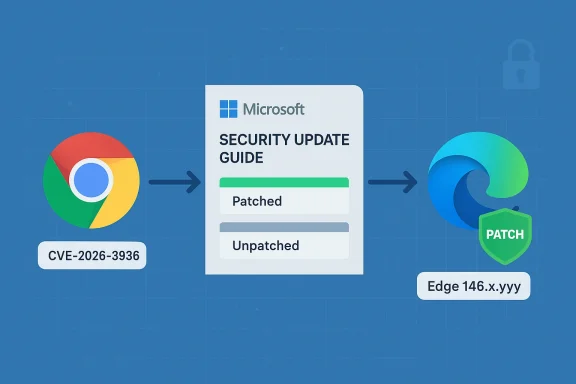 What’s going on with CVE-2026-3939 (and similarly numwe go further, it’s important to call out a likely source of confusion: CVE numbers that are one or two digits off, or that are reported in different places with inconsistent short descriptions, frequently cause mix-ups. In this case the user referenced “CVE-2026-3939 Use after free in WebView.” Authoritative Chrome release notes and public vulnerability databases indicate that the WebView use-after-free issue appears under a different CVE number (for example, CVE-2026-3936 has been listed as a WebView use-after-free in Chrome updates). The Chrome team’s release notes for recent stable updates list WebView-related fixes under CVE-2026-3936, and third-party vulnerability catalogues mirror that finding.
At the same time, Chrome’s published CVE list also contains CVE-2026-3939, but in Chrome release notes that CVE is described with a different short title (for example, “insufficient policy enforcement in PDF”). That mismatch strongly suggests a typographical or transcription error in the original citation — an easy mistake because CVE numbers in the same range were published around the same set of Chrome/Chromium updates. Treat the original CVE label with caution: verify the exact CVE number on the Microsoft SUG entry and on the Chromium/Chrome release notes before you act.If you’re tracking a CVE that MSRC lists for Chromium OSS, the safe operational path is:
- Verify the CVE identifier and short description against Chrome/Chromium release notes and the NVD (or another trusted CVE database).
- Use Microsoft’s Security Update Guide entry for that CVE to find the Edge-specific status (patched/unpatched and which Edge build contains the ingestion).
- Confirm locally by checking the browser’s version string on each device and comparing it to the Edge build number listed by Microsoft.
Why Microsoft includes Chromium CVEs in the Security Update Guide — a technical explanation
- Chromium is upstream open-source code. Microsoft Edge ships a downstream product built on that same code base. When the Chromium project fixes a vulnerability, Edge’s maintainers must merge or “ingest” that upstream patch into Edge’s source tree and produce a new Edge build.
- The Security Update Guide entry documents the CVE as it relates to Microsoft’s product posture: it records whether Microsoft Edge is vulnerable, which Edge build contains the fix, and any Microsoft-specific details or mitigations.
- This is an operational signal for teams relying on Microsoft tooling and che ambiguity that would otherwise force admins to infer whether Edge lagging behind Chrome is still vulnerable.
How to confirm whether your browser is vulnerable — practical checks
To verify whether a device is vulnerable to the specific Chromium CVE that MSRC lists, follow a two-step process: (1) check which Chrome/Chromium build contains the fix upstream, and (2) check that your local Edge or Chromium-based build is at or newer than the patched downstream build Microsoft lists. Below are step-by-step checks for end users and administrators.Quick checks for consumers (Edge and Chrome desktop)
- Microsoft Edge (Windows / macOS)
- Open Edge → Settings and more (three dots) → Help and feedback → About Microsoft Edge.
- Or type edge://settings/help in the address bar, or edge://version for a more detailed view.
- The About page shows the full product version (for example, “Microsoft Edge 146.0.xxxx.yyy”) and automatically triggers an update check.
- Google Chrome (Windows / macOS)
- Open Chrome → Settings → About Chrome, or type chrome://settings/help.
- Use chrome://version for a detailed breakdown including the underlying Chromium revision and command-line flags.
Quick checks for mobile (Android / iOS)
- Android: Open the Play Store, search for Chrome or Edge, or use Settings → Apps → Chrome/Edge → App details to see the installed version. Alternatively, open the browser and go to Settings → About (some builds surface version information inside the app).
- iOS: Open the App Store and view the app’s version or open the browser app and check Settings → About.
Command-line and programmatic checks (helpful for admins)
- Windows (PowerShell, local check)
- Get the file version of the Edge executable:
1.) (Get-Item "C:\Program Files (x86)\Microsoft\Edge\Application\msedge.exe").VersionInfo.ProductVersion - Alternative (Edge may be in Program Files on 64-bit systems):
1.) (Get-Item "C:\Program Files\Microsoft\Edge\Application\msedge.exe").VersionInfo.ProductVersion - macOS (Terminal)
- Use the plist or executable inspection depending on install location. For example:
1.) mdls -name kMDItemVersion /Applications/Microsoft\ Edge.app - Linux (if using Chrome/Chromium)
- google-chrome --version or chromium --version
- WMI / Inventory for enterprise
- Use a standard inventory query (WMI, SCCM/ConfigMgr, Intune) to collect the msedge.exe file version or the registry entry for installed programs. The product version returned in inventory should match the version shown in the About screen.
Comparing versions against the fix
- Look up the CVE’s SUG entry and note the “Mitigations / Fixes” or “Affected products” section — Microsoft usually reports which Edge builds are affected and which builds contain the fix.
- If the SUG lists an Edge build number (for example, “Microsoft Edge version X.Y.Z” or “Fixed in Edge version X.Y.Z”), compare that to the version string you retrieved locally.
- If the SUG does not show an Edge build, Microsoft may have used a textual explanation such as “The vulnerability is in Chromium OSS and has been fixed in upstream Chromium; no Microsoft Edge stable build is currently vulnerable.” In those cases, verifying that your Edge build is at or above the version Microsoft lists as containing the Chromium ingestion is still the right approach.
Tools and commands admins can use at scale
For enterprise environments you rarely check machines one-by-one. Here are scalable techniques.- Inventory and Reporting
- Use your endpoint management system (SCCM/ConfigMgr, Intune, JAMF, or any MDM/EMM) to report the msedge.exe ProductVersion field centrally.
- Create a query or compliance rule that flags devices where the Edge version is less than the minimum patched build recorded in SUG.
- PowerShell example (remote / scriptable)
- Use PowerShell Remoting or a configuration management tool to run:
1.) $edgePath = "C:\Program Files (x86)\Microsoft\Edge\Application\msedge.exe"
2.) if (Test-Path $edgePath) { (Get-Item $edgePath).VersionInfo.ProductVersion } else { "Not installed" } - Collate those values in inventory and compare to the “fixed” version.
- File version vs. User-visible version
- The msedge.exe ProductVersion is authoritative for scripted checks. It may include Chromium build metadata depending on the release channel.
- Mapping Chromium revision to Edge build
- For deeper forensic checks you can map Chromium revision numbers to the Edge build, but Microsoft’s SUG entry and the Edge About page are generally the simpler, authoritative references for remediation status.
Practical examples and what to look for
- If Chrome release notes or NVD list “Use after free in WebView — fixed in Chrome 146.0.7680.71” and Microsoft’s SUG shows the Edge ingestion as “fixed in Microsoft Edge 146.xxxx,” then any Edge installation reporting a version number equal to or newer than the Microsoft-listed fixed Edge build is not vulnerable.
- If you see a mismatch between the CVE description and the SUG entry (for example, the SUG entry lists CVE-2026-3939 but describes “insufficient policy enforcement in PDF”), double-check the CVE number. Adjacent CVEs (3936, 3937, 3938, 3939 etc.) were published in the same Chrome update window and are easy to conflate. Authoritative Chrome release notes and the NVD can be used to resolve which CVE corresponds to the WebView use-after-free.
Defense-in-depth: immediate mitigations while you verify/update
While the recommended long-term solution is to update the browser to a patched build, the following mitigations reduce risk while you manage updates:- Enforce extension policy: restrict which extensions can be installed (enterprise policies) and block untrusted stores in managed environments.
- Enable site isolation and strict sandboxing where available to limit exploit impact.
- Block or restrict embedded WebView usage in internal apps where possible, or ensure internal WebView hosts are updated to the latest WebView runtime.
- Use safer browsing defaults (disable vulnerable features if practical), and tighten content security policies on web platforms you control.
- For Windows servers or kiosks, consider temporarily removing access to less-trusted sites or using application control rules to restrict browser usage while updates are applied.
Analysis: strengths of Microsoft’s approach and potential risks
Strengths
- Clarity for downstream customers: Microsoft’s SUG entries remove ambiguity by explicitly stating the downstream ingest status for Chromium-origin CVEs. That helps IT teams avoid guesswork and reduces the operational overhead of deciding whether Edge is safe.
- Centralized remediation signals: The SUG is integrated with Microsoft’s enterprise tooling, enabling administrators to tie CVE trackingand compliance workflows.
- Transparency about vendor-of-origin: Microsoft doesn’t hide the fact that the bug originated in Chromium OSS; it documents it and provides the downstream context IT teams need.
Risks and gaps
- CVE-number confusion: When multiple CVEs are published together (and when CVE numbers are close), users may misread the wrong CVE number or confuse descriptions. This leads to mistaken triage or missed patches. The recent WebView/Chrome CVE grouping is an example where numbers in the 3930s were published almost simultaneously, creating risk for transcription errors.
- Timing lag between upstream and downstream: Microsoft Edge’s ingestion cadence doesn’t always match Chrome’s; there can be a lag between the upstream fix and the Edge build that contains it. That lag is precisely the reason Microsoft publishes SUG entries, but it also means administrators must be vigilant: seeing a Chrome patch doesn’t imply Edge is patched until SUG or an Edge release confirms ingestion.
- Opaque SUG pages: Some SUG pages render via JavaScript and can be harder to scrape or integrate into scripted workflows without using the Microsoft APIs or official feeds, which raises friction for automated tooling. (If you rely on programmatic checks, use Microsoft’s published vulnerability API or the SUG feeds where available.)
Quick checklist you can use right now
- Confirm the CVE identifier and shorusted source (Chrome release notes and NVD are good starting points).
- Open the Microsoft Security Update Guide entry for that CVE and note the Edge-specific status (fixed/unfixed and the Edge build number if provided).
- On each device, open the browser’s About page or use a scripted file-version check to get the exact product version.
- Compare device versions against the “fixed in” Edge build listed by Microsoft. If devices are older, schedule updates immediately.
- If you cannot update immediately, apply short-term mitigations (restrict extensions, enable site isolation, block risky content) while prioritizing patch rollout.
Closing assessment and adaptive guidance
Microsoft’s practice of listing Chromium CVEs in the Security Update Guide is a practical, operationally focused choice designed to reduce uncertainty for Edge customers: it’s the downstream record that administrators need to confirm whether their installation is protected. The most common pitfalls are not conceptual — they are procedural: transposed CVE digits, misread release notes, or failing to check the downstream Edge build number. Those are all avoidable with a repeatable version-check workflow and centralized inventory reporting.If you or your team saw “CVE-2026-3939: Use after free in WebView” in one place but the Chrome release notes show WebView use-aft-3936, treat that as a likely transcription or indexing error. Reconcile the CVE against the Chrome release notes and the NVD (or the Microsoft SUG entry) before you act. Once you’ve confirmed the correct CVE and the Microsoft “fixed in” build, the rest — version checking and patching — is straightforward and well-supported by common endpoint management tools.
If you want, use the commands above to pull msedge.exe file versions across your estate and export them to a spreadsheet or inventory tool; then compare those values to the “fixed in” build Microsoft lists in SUG. That is the fastest, least ambiguous route to knowing whether your machines re it’s the exact operational signal Microsoft intends to provide with the SUG entry.
Conclusion: verify the CVE number (watch out for 3936 vs 3939), consult the Chrome/Chromium release notes and the NVD, check Microsoft’s Security Update Guide for the downstream Edge status, and then confirm your installed Edge/Chrome build versions — updating immediately where they fall below the fixed build.
Source: MSRC Security Update Guide - Microsoft Security Response Center
