A quiet but consequential Outlook update has left some Windows users unable to open messages protected with Microsoft’s “Encrypt Only” setting, turning sensitive emails into unreadable attachments and forcing administrators and senders into an urgent triage mode until a permanent fix ships.
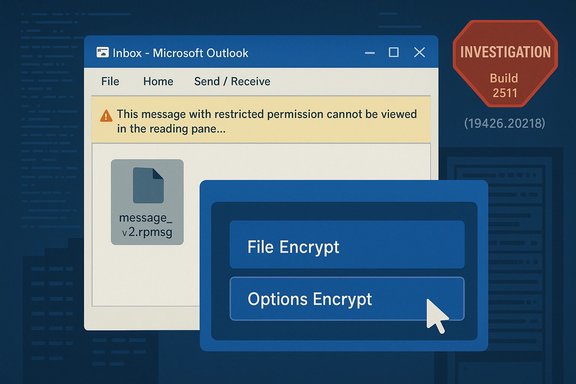
On January 5, 2026 Microsoft acknowledged a regression in the Classic Outlook (Win32) client delivered via the Current Channel update Version 2511 (Build 19426.20218). After that build rolled out, recipients of messages protected with the Encrypt Only option sometimes saw the Reading Pane refuse to render the message body. Instead, the client displayed a prompt instructing users to verify credentials and — after opening the item — presented an opaque attachment named message_v2.rpmsg rather than the readable contents. Microsoft marked the advisory “STATUS: INVESTIGATING” and published immediate workarounds for senders and admins.
Two broader trends make this class of bug more likely:
This incident is a reminder that even small client regressions can ripple into outsized business risk when they touch protected communications. The path forward is straightforward: follow Microsoft’s temporary guidance, prioritize high‑risk mailflows for remediation, and validate any subsequent patch in a staged, measurable way before widescale deployment.
Source: Pocket-lint A new Microsoft bug is preventing certain Outlook users from accessing encrypted emails
 Background: what landed and where it hit
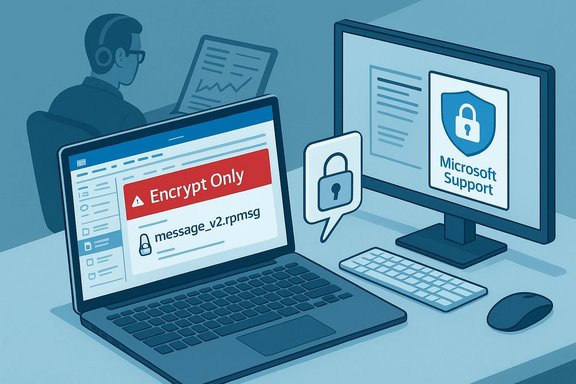
On January 5, 2026 Microsoft acknowledged a regression in the Classic Outlook (Win32) client delivered via the Current Channel update Version 2511 (Build 19426.20218). After that build rolled out, recipients of messages protected with the Encrypt Only option sometimes saw the Reading Pane refuse to render the message body. Instead, the client displayed a prompt instructing users to verify credentials and — after opening the item — presented an opaque attachment named message_v2.rpmsg rather than the readable contents. Microsoft marked the advisory “STATUS: INVESTIGATING” and published immediate workarounds for senders and admins. Overview: why this is more than a nuisance
Encrypt Only (also surfaced in some UI labels as Encrypt) is a commonly used Microsoft 365 protection option that applies message-level encryption without imposing heavy usage restrictions like blocking printing or copying. Organizations use it daily to protect PII, contracts, legal notices, and other regulated communications. When a widely deployed desktop client fails to decrypt or render those messages, operational continuity and compliance posture can be affected: recipients are blocked from reading protected content, helpdesks get flooded, and people may resort to insecure fallbacks (unprotected email, consumer file‑sharing) that increase data leakage risk.What users are seeing (symptoms and immediate evidence)
- In the Reading Pane, Classic Outlook shows: "This message with restricted permission cannot be viewed in the reading pane until you verify your credentials. Open the item to read its contents and verify your credentials." After opening the message, recipients frequently find a single attachment named message_v2.rpmsg and no inline message body or rendered attachments.
- The problem is reliably associated with messages encrypted by the File > Encrypt path in the compose window. Messages encrypted via Options > Encrypt (the ribbon) appear to be less likely to reproduce the failure, which is why Microsoft and multiple outlets immediately recommended changing the sender workflow as a stopgap.
- The regression is scoped to the Classic Outlook desktop client’s rendering/licensing path; web clients or the New Outlook often render these messages correctly because they use different server-side or new rendering stacks. That difference provides a practical recipient fallback in many environments.
Technical anatomy (what likely went wrong — clearly flagged as analysis, not confirmed root cause)
Classic Outlook handles rights-protected messages by recognizing the rpmsg container, contacting Microsoft’s licensing/IRM services to obtain a use license, and then decrypting and rendering the content inline. The observed behavior — an rpmsg attachment presented instead of decoded content — indicates a regression in one of these areas:- A packaging or metadata variant produced by the File > Encrypt path might not be recognized by the rendering logic introduced in build 19426.20218.
- The client may be failing to trigger license acquisition or to map the rpmsg container into the rendering pipeline, leaving the content as an opaque file.
- Alternatively, a UI or state change incorrectly marks the item “changed” and prevents the standard rights-handling code from running. Past Outlook regressions demonstrate that seemingly small control-flow or MIME-handling changes can break complex protection interactions.
Verified facts and cross‑reference
- Microsoft’s official known-issues advisory explicitly names Current Channel Version 2511 (Build 19426.20218) as the build that introduced the problem and confirms its investigation status. The advisory also lists the symptomatic Reading Pane message and the message_v2.rpmsg behavior.
- Independent reporting from outlets including BleepingComputer and TechRadar corroborated the Microsoft advisory, reproduced the symptoms, and relayed the same two practical mitigations (use the Options ribbon Encrypt or roll back to a prior build). Those reports add community testing observations and underscore the production impact for organizations that rely on classic Outlook.
- Community threads and forum reporting (collected on enterprise community sites) confirm the issue’s reproducibility across multiple tenants and client installations, reinforcing that this is a client regression, not a single-tenant configuration problem.
Immediate mitigations and step‑by‑step workarounds
Until Microsoft ships a permanent fix, there are three practical stopgaps available — ordered from least to most disruptive.1) Sender-side: use Options > Encrypt (ribbon) instead of File > Encrypt
- Change sender behavior when applying message encryption: in the message compose window, select Options → Encrypt, then choose Encrypt or Do Not Forward. Messages encrypted this way have been widely reported to render correctly for recipients. This is the least intrusive, fastest mitigation for most organizations.
2) Sender-side: save the message after applying File > Encrypt, then send
- If your workflow requires the File dialog encryption, Microsoft documents that saving the draft after applying encryption and before sending can produce a message form that recipients can open. This workaround is trivial to implement for occasional senders but impractical as a blanket enforcement mechanism without training and policy changes.
3) Roll back Classic Outlook to the prior working build (managed rollback)
Revert to the last known-good Click‑to‑Run build: 16.0.19426.20186. This is intrusive and should be reserved for critical senders or pilot groups.- Save all work and close all Office applications.
- Open an elevated Command Prompt (Administrator).
- Run:
"%programfiles%\Common Files\Microsoft Shared\ClickToRun\officec2rclient.exe" /update user updatetoversion=16.0.19426.20186 - Restart and verify behavior on a pilot machine before broad roll‑out.
Recipient-side fallbacks
- Use Outlook on the web (OWA) or the New Outlook when possible; web rendering often bypasses the Classic client's local decryption path and will display the content correctly for authenticated recipients.
- If an S/MIME signature is involved and a misleading dialog appears (seen in some related regressions), instruct users to decline any prompt that warns about removing a signature — accepting it can strip signature metadata. Treat any message that lost a signature as a possible integrity event requiring re‑requesting the signed content.
Operational guidance for IT teams and security/compliance owners
- Inventory dependencies: identify users, groups, and mailboxes that send or receive Encrypt‑Only or OME‑protected messages frequently (legal, HR, finance, external partner channels).
- Communicate clearly: issue a time‑boxed guidance note telling senders to use Options > Encrypt and to save drafts if they must use the File dialog. Provide specific screenshots and steps your helpdesk can share.
- Pilot and stage any rollback: if you must revert builds, pilot on a small set of users, evaluate side effects, and coordinate with change control.
- Prepare compliance evidence: log impacted messages and mitigation steps in case of audits or eDiscovery needs. For messages that lost S/MIME signatures or were opened via alternate channels, maintain documentation of timelines and user actions.
- Monitor Microsoft channels: subscribe to message center and the Microsoft support advisory for status updates; validate fixes in a controlled environment before broad deployment.
Security, compliance, and user behavior risks
This regression is not purely a usability bug; it has measurable security and compliance implications.- Data availability risk: recipients can’t access encrypted content, potentially blocking time‑sensitive legal or regulatory communications.
- Behavioral risk: frustrated users may choose insecure alternate channels (personal cloud storage, unencrypted emails, SMS), which increases data leakage and compliance exposure.
- Integrity risk: related client regressions have surfaced confusing dialogs that can remove S/MIME signatures if users accept prompts — a problem for non‑repudiation in legal contexts. Avoid instructing users to accept ambiguous prompts.
- Patch cadence tradeoffs: Microsoft’s multi‑channel servicing model (Beta → Current → Monthly Enterprise → Semi‑Annual) means the fix will reach different customer cohorts at different times. Organizations must weigh the operational cost of accelerating updates versus the exposure window.
Microsoft’s response and expected timeline
Microsoft published a support article documenting the issue, the symptomatic text, and the two immediate workarounds (save-after-encrypt and rollback to build 19426.20186). The post was dated and maintained in early January 2026 and labeled “Investigating.” At time of writing Microsoft had not posted a detailed root-cause analysis or a committed fix date in the public advisory; administrators should treat the published workarounds as the official short-term guidance.Deeper analysis: how this fits into Outlook’s stability story
Classic Outlook is a mature Win32 client with a long history of supporting layered protections (S/MIME, Azure/Microsoft Information Protection, Office Message Encryption). That maturity brings fragility: multiple protection and rendering paths interact, and a small change in packaging, MIME ordering, or UI state handling can cause cross-cutting failures.Two broader trends make this class of bug more likely:
- Layered protection complexity: combining S/MIME signing, OME/labels, and client-side rights handling touches different teams (client, Purview/IRM, identity), increasing integration engineering risk.
- Fast servicing cadence: frequent updates benefit security and feature delivery but reduce the time for exhaustive cross-scenario regression testing across niche flows like File‑dialog encryption packaging. The tradeoff is faster fixes overall but a higher chance that one build briefly disrupts a specific production workflow.
Recommended checklist for enterprises (quick, actionable)
- Notify high‑risk teams (legal, HR, finance) and instruct senders to use Options > Encrypt immediately.
- Provide recipients instructions to use OWA/New Outlook for urgent encrypted messages.
- Pilot a rollback for a small set of critical senders if the Options‑ribbon mitigation is not viable.
- Update helpdesk scripts with the Reading Pane error message text and the message_v2.rpmsg symptom so first‑line support can route tickets correctly.
- Keep a running list of any messages that lost a signature or could not be decrypted for compliance reporting.
- Validate the fix in a test ring before mass deployment when Microsoft announces a patched build.
What to watch for next (signals that the issue is resolved)
- Microsoft updates the support advisory from “Investigating” to “Fixed” and lists the patched build(s).
- Update history for Microsoft 365 Apps shows a release note describing the regression fix and the exact build numbers.
- Pilot users on the patched build can open previously failing Encrypt‑Only messages without encountering the rpmsg attachment behavior.
- Community reports and independent media confirm the fix across diverse tenant configurations.
Final assessment: strengths, weaknesses, and risk mitigation
Strengths- Microsoft promptly documented the issue, published official workarounds, and made the advisory publicly available so administrators could act without blind guessing. That transparency short‑circuits much of the uncertainty administrators face in incident triage.
- Practical, low-friction mitigations exist (Options ribbon and saving drafts), which reduce the scope of any emergency rollback.
- The bug touches encryption and signature handling — areas where UI semantics, not cryptography, become the weak link. That creates a silent integrity and compliance hazard if users click the wrong dialog.
- Staggered patching increases the window where some users remain vulnerable to the regression; organizations must decide whether to absorb rollback cost or accept the mitigation mix.
- Immediately communicate the sender-side change to Options > Encrypt.
- Use OWA/New Outlook as recipient fallback where policy allows.
- Reserve rollbacks for critical workflows and pilot them first.
- Document incidents for legal/compliance purposes.
This incident is a reminder that even small client regressions can ripple into outsized business risk when they touch protected communications. The path forward is straightforward: follow Microsoft’s temporary guidance, prioritize high‑risk mailflows for remediation, and validate any subsequent patch in a staged, measurable way before widescale deployment.
Source: Pocket-lint A new Microsoft bug is preventing certain Outlook users from accessing encrypted emails