

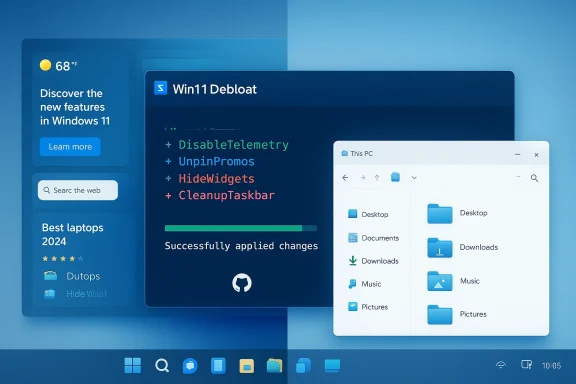
I ran a single PowerShell script and, within minutes, the noisy pieces of Windows 11 that had nagged me for months—telemetry pings, pinned promotional apps, taskbar widgets and search that insisted on web results—were pared back to a clean, usable desktop that felt like mine again.
Windows 11 ships in 2024–2026 with a modern shell and a raft of built-in services and consumer-focused apps. For many users a fresh install is fast and stable, but the out-of-the-box experience often arrives with extra apps, promoted content in the Start menu and taskbar, numerous background services, and tightly integrated Microsoft online search features. That combination can make the system feel cluttered and noisy, even if CPU, RAM and drivers behave well.
The open-source ecosystem around “debloating” Windows has grown to address those complaints: lightweight scripts and community-driven builders let you remove preinstalled apps, harden privacy settings, and apply consistent UI and File Explorer tweaks. One of the more popular and actively maintained projects in this space is Win11Debloat, a PowerShell script that automates many of those changes for Windows 10 and Windows 11. The script’s source, usage and options are documented on its official GitHub repository.
Before we dig in, note the practical reality: there are multiple, overlapping approaches to “debloating” Windows—single-shot scripts, GUI wrappers and full custom ISOs like Tiny11. Each approach trades simplicity, scope and risk differently. Community tools such as Talon or Tiny11 are discussed widely in forums and threads alongside Win11Debloat, showing this is a maturihan a single-solution landscape.
At the same time, treat it with the same respect you would any system-level tool: back up first, inspect the script before running, and test in a controlled environment. The tool will not magically accelerate every machine, nor will it absolve you of post-update maintenance—but it will, more often than not, make Windows 11 feel quieter and more like a personal workspace rather than a storefront.
If you want a low-risk start: run the script in Lite mode, verify the experience for a couple of days, then selectively remove apps or broaden the changes once you’re comfortable.
Source: MakeUseOf I used this open-source tool to strip the bloatware out of Windows 11 in minutes
 Background / Overview
Windows 11 ships in 2024–2026 with a modern shell and a raft of built-in services and consumer-focused apps. For many users a fresh install is fast and stable, but the out-of-the-box experience often arrives with extra apps, promoted content in the Start menu and taskbar, numerous background services, and tightly integrated Microsoft online search features. That combination can make the system feel cluttered and noisy, even if CPU, RAM and drivers behave well.The open-source ecosystem around “debloating” Windows has grown to address those complaints: lightweight scripts and community-driven builders let you remove preinstalled apps, harden privacy settings, and apply consistent UI and File Explorer tweaks. One of the more popular and actively maintained projects in this space is Win11Debloat, a PowerShell script that automates many of those changes for Windows 10 and Windows 11. The script’s source, usage and options are documented on its official GitHub repository.
Before we dig in, note the practical reality: there are multiple, overlapping approaches to “debloating” Windows—single-shot scripts, GUI wrappers and full custom ISOs like Tiny11. Each approach trades simplicity, scope and risk differently. Community tools such as Talon or Tiny11 are discussed widely in forums and threads alongside Win11Debloat, showing this is a maturihan a single-solution landscape.
What Win11Debloat actually does
A quick summary of the script’s capabilities
Win11Debloat is a lightweight PowerShell-based tool designed to:- Remove a curated list of preinstalled apps (the script provides a default selection but allows customization).
- Disable telemetry and diagnostic uploads, activity history and app-launch tracking.
- Remove or disable integrated web search (Bing) and related AI features such as Copilot where present.
- Tweak user-facing UI elements: hide widgets, clean up the Start menu, restore classic context menus, show file extensions.
- Apply File Explorer defaults many power users prefer (This PC folders, extensions, hidden files).
- Provide advanced deployment features: apply settings to other user accounts, run in Sysprep/default-user mode for imaging, or operate in a “lite” safe mode that avoids app removals.
Why it feels immediate and thorough
Two aspects make the script feel efficient:- It consolidates scattered privacy and UI toggles into a single run, so you aren’t hunting through nested Settings pages to turn off diagnostic reporting, activity history and targeted ads.
- It combines app removal with consistent system-wide changes—such as disabling tips/promotional surfaces or locking widget services—so the reduction in visual noise is noticeable right away. This is more than uninstalling a few apps; it enforces a cleaner UX state across users.
How to use Win11Debloat (practical steps)
Quick, safe workflow (recommended for most users)
- Create a full backup or at minimum a system restore point. The script can create one for you, but explicit backups or disk images are safest.
- Run PowerShell as Administrator.
- Run the quick-download command supplied in the repo to fetch and launch the script, then choose either the default or lite preset:
- Default: applies recommended changes and removes the default set of apps.
- Lite: applies system and privacy tweaks but keeps installed apps in place.
- Review the script’s interactive menu and use the conservative default if you want a lighter touch. If you manage multiple PCs or craft images, consider the sysprep and user-target options.
Advanced / automated usage
- The script supports parameterized runs (for example -RunDefaults -Silent -CreateRestorePoint) for automated deployments and imaging scenarios.
- For imaging or large deployments, use the -Sysprep or -User options so the default user profile and newly created accounts inherit the desired settings.
Reversibility and safety: what you need to know
Win11Debloat was explicitly designed to avoid deep, irreversible OS surgery. The project provides multiple rollback paths:- A folder of “undo” reg files to restore many registry-based changes.
- Guidance to reinstall removed apps via the Microsoft Store or winget; a few items (some core store components or certain overlays) are harder to re-add and require specific reinstall steps.
- A created system restore point (if chosen) that allows rolling back across a wider range of changes.
Critical analysis — notable strengths
1) Focused, transparent and scriptable
Win11Debloat’s PowerShell approach is inherently auditable and reproducible. You can inspect what it does in plain text before running it, unlike a closed binary. This transparency attracts sysadmins and privacy-minded users who need clear, scriptable hooks into machine configuration. The GitHub repository, wiki and parameter options support both single-machine tweaks and broader automation.2) Reasonable defaults and a conservative “lite” option
Instead of forcing an extreme stance, Win11Debloat defaults to sensible privacy/UI cleanup and offers a Lite preset that refuses to delete apps. That staged approach reduces the likelihood of breaking a workflow unexpectedly, which matters when you maintain multiple workstations or hand machines to less technical users later.3) Reversibility is baked in
The script ships undo registry files and explicit reinstallation guidance for removed apps. That’s not perfect, but it’s a mature approach compared with tools that perform opaque, untracked changes. The presence of documented rollback steps is a clear plus for cautious adopters.Critical analysis — risks, caveats and real-world frictions
1) Not all removals are equally reversible
While most app removals are simple to reverse through the Microsoft Store or winget, some components (notably certain store packaging elements or specialized overlays) can be harder to restore. The repo lists a few exceptions and extra steps are sometimes needed. Test before mass deployment.2) Windows updates can reintroduce items
Microsoft occasionally reprovisions or reinstalls built-in apps during feature updates. That means debloating is often a maintenance step you may need to re-run after major updates—Win11Debloat can be used as part of a repeatable post-update workflow, but it’s not a one-and-done forever solution. Community reports and tests show this behavior is common across debloaters.3) AV flags and the trust question
Powerful system tools that modify services, registry entries and app packages sometimes trigger antivirus heuristics. The community has seen similar tools flagged when shipped as binaries (some GUI wrappers bundle other scripts and third-party utilities). Win11Debloat itself is distributed as a PowerShell script (plain text), reducing the risk of black-box behavior, but you should still validate the downloaded copy against the GitHub repo and run it in a controlled environment first. Community debates about other debloat tools underscore the importance of source verification and caution.4) Enterprise compliance and support concerns
For regulated environments, using community scripts to change system behavior has licensing, support and audit implications. The script is MIT licensed and open-source, but Microsoft support lines will not troubleshoot customized environments you create with third-party scripts. If you’re in an enterprise or managed environment, treat this as an image customization step aligned with IT policy rather than an ad-hoc user action.How Win11Debloat compares to other options
- Talon / GUI bundlers: GUI tools bundle multiple debloating scripts and other utilities into a single binary and can be attractive for less technical users. However, bundled executables sometimes trigger AV warnings or hide intermediate steps; their convenience comes with an additional layer of trust. Community discussions recommend inspecting bundles and prefer direct Win11Debloat or ChrisTitus tools when possible.
- Tiny11 and custom ISOs: Tiny11-style approaches build a custom Windows ISO that removes components before installation. This yields the cleanest fresh-install experience and can reduce footprint significantly, but it’s a heavier, more invasive approach that affects updateability and supportability. Win11Debloat is lighter—applied after installation—so it’s better for iterative, reversible tweaks.
- O&O ShutUp10++ / GUI privacy tools: Those focus narrowly on privacy toggles and avoid app removals. Win11Debloat combines privacy hardening with UI and app removals, making it broader in scope but correspondingly riskier if you remove things you later need.
Troubleshooting and common pitfalls
- If Defender or other AV warns about the script, confirm you downloaded the script from the official GitHub and inspect the content. Running PowerShell with the script’s plain text is less risky than running unsigned EXEs.
- If apps reappear after a feature update, re-run the script or automate a post-update task to reapply desired settings. Plan a maintenance window for major OS feature updates.
- If something critical breaks (e.g., Store or gaming overlays), follow the repo’s “Reverting Changes” guide and, if needed, reinstall the missing components using the Microsoft Store or the Microsoft Gaming Services repair tool.
Best-practice checklist before you run anything
- Back up: take a disk image, a VM snapshot, or at least a manual file backup.
- Create a restore point (Win11Debloat can create one for you).
- Run in Lite mode first to apply cosmetic and privacy tweaks while leaving apps intact.
- Test on one machine for 48–72 hours to ensure no essential features are affected.
- Keep the script’s undo registry files and the generated logs of removed apps; they simplify restoration.
- For fleets, integrate the script into your imaging process using -Sysprep or -User flags rather than running it ad hoc on each device.
Real-world results: what to expect
Users who adopt Win11Debloat typically report:- A visibly cleaner Start menu and taskbar, with widgets and promotional pins removed.
- Fewer system notifications and promotional pop-ups (tips, suggestions) once disabled.
- A feeling of regained privacy because telemetry and tracking toggles are consolidated and disabled.
- Only marginal raw performance boosts in most real-world desktop workloads—debloating reduces background noise more than it dramatically changes FPS or benchmark numbers—so the most noticeable gains are in usability and reduced distraction rather than in large speed improvements.
Conclusion
Win11Debloat is an effective, transparent tool for users who want a quieter, more private and less promotional Windows 11 without wholesale replacement of the OS. It strikes a sensible balance between capability and reversibility: the defaults are conservative, a Lite mode exists for cautious users, and the repository supplies undo files and restore guidance for rollback. For home users who reinstall often, power users who manage multiple machines, and administrators who want a scriptable post-install hook, Win11Debloat is a practical, well-documented option.At the same time, treat it with the same respect you would any system-level tool: back up first, inspect the script before running, and test in a controlled environment. The tool will not magically accelerate every machine, nor will it absolve you of post-update maintenance—but it will, more often than not, make Windows 11 feel quieter and more like a personal workspace rather than a storefront.
If you want a low-risk start: run the script in Lite mode, verify the experience for a couple of days, then selectively remove apps or broaden the changes once you’re comfortable.
Source: MakeUseOf I used this open-source tool to strip the bloatware out of Windows 11 in minutes
