

If you have a Microsoft account you no longer use, closing it is straightforward — but it’s not just a click; it requires planning, backups, and an understanding of what you’ll lose (and what you can recover). This article walks through the official, safe way to permanently delete an unused Microsoft account, explains how removing an account on a PC differs from closing the account with Microsoft, highlights important risks (BitLocker keys, subscriptions, purchases, and data), and shows how to recover a mistakenly closed account within the reopen window.
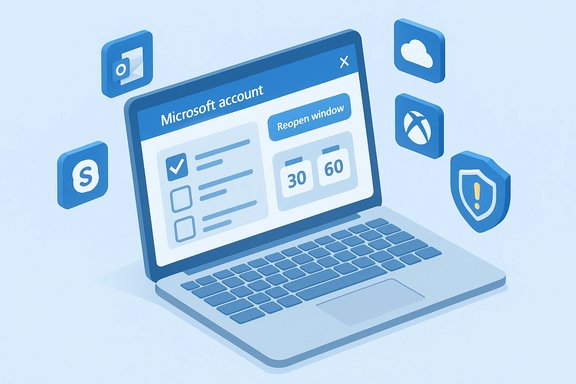
Microsoft lets you close a personal Microsoft account through its account management site and gives you a short reopen window before permanent deletion. During that window you can sign back in to cancel the closure and reclaim everything. The official closure flow also insists you acknowledge the services and data you’ll lose — Outlook/Hotmail email, OneDrive files, Xbox/Xbox Live data, Skype IDs, Microsoft Store purchases, and any BitLocker recovery keys stored to the account. The retention period when you mark an account for closure can be set to either 30 days or 60 days, depending on your selection and recent account activity.
For users who prefer consolidated how‑to guides, independent tech outlets confirm the same steps and the 30/60 day reopen window as the practical flow used by most people.
Deleting an unused Microsoft account is simple to execute but complex in consequences. Follow the pre-closure checklist, verify BitLocker and subscription ownership, and use the official closure page to mark the account for deletion — you retain a safety net during the 30/60-day reopen window, but after that period the deletion is irreversible. The safest approach is methodical: back up, confirm, remove locally if you must, and then close the account through Microsoft’s official tool with eyes wide open.
Source: VOI.id How to Easily Delete a Microsoft Account That You Don't Use
 Overview
Microsoft lets you close a personal Microsoft account through its account management site and gives you a short reopen window before permanent deletion. During that window you can sign back in to cancel the closure and reclaim everything. The official closure flow also insists you acknowledge the services and data you’ll lose — Outlook/Hotmail email, OneDrive files, Xbox/Xbox Live data, Skype IDs, Microsoft Store purchases, and any BitLocker recovery keys stored to the account. The retention period when you mark an account for closure can be set to either 30 days or 60 days, depending on your selection and recent account activity. Background: What “closing” a Microsoft account actually does
When you “close” a Microsoft account you are telling Microsoft to disable that digital identity and (after the chosen retention period) permanently delete the account and the content associated with it. This is different from removing an account from a Windows device or from an app — deleting a local copy on a PC or removing an email profile from Outlook does not close the Microsoft account at Microsoft’s servers.- Closing the account prevents you from signing in to Microsoft services (Outlook.com, OneDrive, Xbox, Skype, Microsoft 365, etc..
- Microsoft explicitly warns that saved BitLocker recovery keys tied to an account will also be lost when the account is removed. If your device depends on a key stored in the account, you could risk losing access to encrypted drives. Confirm where recovery keys are stored before you act.
- If you change your mind during the reopen window, signing in reactivates the account and cancels the closure. After the window passes, Microsoft deletes the account and associated content according to its data-deletion policies.
Why you might want to close a Microsoft account
People close accounts for many reasons, from cleaning up unused credentials and reducing the attack surface, to freeing up an email alias or ditching an old Xbox identity. Common motivations include:- No longer using the email/MSA and wanting fewer online identities.
- Privacy or data-minimization preferences.
- Moving store purchases and subscriptions to a different account and retiring an old one.
- Security concerns following compromise or phishing.
Essential pre-closure checklist (do this first)
Take the following steps before you start the official closure flow. Skipping any of them increases the risk of losing access to saved data or payments.- Back up OneDrive files and any local files that sync to the account. Copy critical data to an external drive or another cloud account.
- Cancel or transfer active subscriptions (Microsoft 365, Xbox Game Pass, Azure credits, etc. and redeem or spend any remaining balances or gift card credit. Purchases and subscriptions remain tied to the account owner.
- Check whether BitLocker recovery keys are backed up to the account. If so, export or save those keys elsewhere (print, file, or USB) because closing the account removes those keys from your Microsoft dashboard. Use the Microsoft recovery-key page to verify what’s stored.
- Remove the account from devices where it’s used as a secondary profile or app credential (Mail, Outlook, Xbox consoles, Windows device sign-ins) to avoid residual confusion on shared hardware. Note: removing from a device does not close the account.
- Export or archive email, contacts, calendars, Teams data, and any content from services such as Microsoft Teams or OneDrive you might need. Some services offer export tools; Teams Free and other apps let you export local data.
- If the account is used by family members (child accounts or shared services), migrate or reassign necessary access before closure. Family-safety and parental controls are affected when the parent account is closed.
How to permanently delete (close) a Microsoft account — official website method
This is the Microsoft-recommended method and the only reliable way to mark an account for permanent deletion on Microsoft’s servers.- Sign in to the Microsoft account you want to close at Microsoft’s account management site. You must be able to sign in to proceed.
- From the account dashboard click your profile and select “My Microsoft account” (or navigate directly to the Close your account / Close account page). The UI will walk you through identity verification and checks.
- Carefully read Microsoft’s checklist of consequences and acknowledge each item. This list highlights lost access to services, deletion of email and cloud data, the removal of BitLocker keys, and other important effects.
- Microsoft will give you an option to set a reopen window (typically 30 or 60 days). Choose the retention window you prefer (if you recently reset security info, you may be forced to wait 60 days before closure is allowed).
- Optionally select your reason for closing the account, then click Mark account for closure. The account will be scheduled for deletion at the end of the chosen window.
For users who prefer consolidated how‑to guides, independent tech outlets confirm the same steps and the 30/60 day reopen window as the practical flow used by most people.
Deleting or removing an account from your PC — Windows 10 and Windows 11 explained
It’s common to conflate “delete account from Windows” with “close Microsoft account.” Windows exposes two related but different operations: removing an account from the local device (unlinking a profile) and closing the Microsoft account with Microsoft (server-side deletion).Windows 10: remove an account from the device (not the same as closing the account)
- Open Settings → Accounts. Choose Email & accounts.
- Under the list of accounts, select the account you want to remove and click Manage → Delete account from this device. Confirm the deletion to remove the account’s Mail and Calendar access on that PC. This only removes the profile data from the device; the Microsoft account itself remains active online.
Windows 11: remove an account from the device (and switch to local if needed)
- Open Settings → Accounts → Email & accounts.
- Select the account and click Manage, then choose Delete account from this device and confirm. This removes the account’s data from the device but does not close the Microsoft account at Microsoft’s servers.
Mobile (Android/iOS) — what you can and cannot do from the apps
You can start or initiate account closure from some mobile apps or a mobile browser, but behaviors vary by app:- Microsoft’s Teams app explicitly allows mobile users to start the account closure process from within the app (Profile → Settings → Delete account), which leads you through the same web-based closure steps. That means you can initiate closure from a phone when Teams is installed.
- A number of third-party tutorials and guides show the closure workflow can be completed by visiting Microsoft’s Close account page from a mobile browser or through the Microsoft Office mobile app’s links to account.microsoft.com. This again routes to Microsoft’s official web flow where you verify identity and confirm the closure.
- Removing an Outlook account from the Outlook mobile app only deletes it from the app (it does not delete the Microsoft account). The Outlook app provides a “Delete Account” (remove) option that wipes the profile from the app; it does not perform a server-side account closure. If your goal is closure, use the Microsoft account closure page rather than the Outlook app’s local remove.
What you lose when you delete a Microsoft account (be sure you understand this)
Closing an account removes or disables access to many services and data types — review this list and make arrangements for each item before deleting the account:- Outlook/Hotmail email and contacts — deletion removes server-stored email and cannot be recovered after the reopen window ends.
- OneDrive files and sync — cloud-stored files are deleted. Back up anything you need locally before closure.
- Microsoft 365 subscriptions and entitlements — subscriptions stop working; cancel subscriptions or transfer where possible.
- Xbox Live data, digital games, GamerTag — purchases and achievements may be lost or inaccessible.
- Skype ID and contacts, Teams data — chat histories or data tied only to the account may be deleted. Export what you need.
- Microsoft Store purchases — licenses are linked to the account; games and apps may no longer be available to you on new accounts.
- BitLocker recovery keys that were backed up to the account — losing these keys may lock you out of encrypted drives. Save or relocate keys before closing.
Step-by-step recovery if you closed an account by mistake
Microsoft provides a reopen window (the 30/60-day period you selected) during which you can cancel the closure and reclaim the account:- Before the reopen window expires, sign in to the Microsoft account with the same credentials you used to close it. Microsoft will detect the pending closure and offer to reopen the account.
- After you reopen, verify services (email, OneDrive, Xbox) and re-enable any subscriptions or payment options you had previously. Some settings may need reconfiguration.
Practical tips and troubleshooting (common pitfalls)
- Create a temporary local Windows administrator account before removing a Microsoft sign-in from a PC to avoid lockout. Community and Microsoft guidance both recommend having an alternate admin account available.
- Confirm BitLocker keys at account.microsoft.com/devices/recoverykey and export them if they’re stored to the account; otherwise you risk being asked for a key you no longer can fetch.
- If an account was recently used to reset security information, expect forced waiting periods (Microsoft sometimes sets a 60-day cooldown after security-info changes before closure is permitted).
- For work/school (Azure AD / Entra ID) accounts, you can’t permanently delete them from Microsoft’s consumer account closure tool — contact your IT admin because those accounts are managed by organizations.
- If email or device entries persist in Windows Settings after closure, remove them manually from Settings → Accounts → Email & accounts and from Mail/Outlook app account settings. Removing devices and cached credentials helps avoid confusing leftover entries.
A practical, prioritized pre-closure checklist you can run through right now
- Back up OneDrive and any cloud‑only files to an external drive.
- Export email and contacts (Outlook/Exchange export or Mail app archive).
- Cancel or transfer subscriptions and spend any account credit.
- Confirm BitLocker recovery keys and export or print them.
- Remove the account from shared devices, consoles, or family groups.
- Verify you can sign in to the account now (you’ll need credentials to start closure).
- Use the Microsoft closure page to mark the account for closure and choose 30 or 60 days.
Critical analysis: strengths, weaknesses, and risks of Microsoft’s closure flow
Strengths
- The closure flow is centralized and intentional: Microsoft forces a verification checklist and a reopen window (30/60 days), reducing accidental permanent deletion. That provides a meaningful safety net.
- Microsoft’s approach ties together purchase, subscription, and encryption metadata, which helps prevent silent data loss from naïve account removal. The explicit BitLocker-key warning is an example of this safety-first behavior.
- Removing an account from a device without deleting it server-side remains easy, enabling users to declutter devices quickly while keeping server-side options intact.
Weaknesses and risks
- The tight coupling between device encryption (BitLocker) and a Microsoft account poses an outsized risk. If users don’t explicitly export the recovery key, closing the account can remove the only stored key for decryption. Many community threads and official guidance warn about BitLocker fallout, and it remains one of the biggest real-world pitfalls.
- Purchases, subscriptions, and licenses are account-bound. Users who fail to migrate or reassign purchases will lose access to paid content, which can be costly and irreversible.
- Confusion between “remove from device” and “close account” continues to trap users. Windows still exposes easy device-level removals that do not equate to closure, and many users expect the simpler action to fully retire the account. Clearer UI language or in‑app prompting during the device removal process would help reduce mistakes. Community guidance repeatedly flags this point.
Final checklist and recommended safe sequence (one‑page plan)
- Verify you can sign in to the Microsoft account and note the email and recovery options.
- Back up OneDrive and export email/contacts.
- Cancel or migrate subscriptions and spend/transfer account credit.
- Confirm and export BitLocker recovery keys (aka.ms/myrecoverykey / account.microsoft.com/devices/recoverykey).
- Remove the account from any devices where you simply want the profile gone (Settings → Accounts → Email & accounts), if needed. This does not close the account.
- When ready to permanently close, use Microsoft’s Close account flow and select 30 or 60 days. Keep a calendar reminder before the window expires in case you change your mind.
Deleting an unused Microsoft account is simple to execute but complex in consequences. Follow the pre-closure checklist, verify BitLocker and subscription ownership, and use the official closure page to mark the account for deletion — you retain a safety net during the 30/60-day reopen window, but after that period the deletion is irreversible. The safest approach is methodical: back up, confirm, remove locally if you must, and then close the account through Microsoft’s official tool with eyes wide open.
Source: VOI.id How to Easily Delete a Microsoft Account That You Don't Use

