

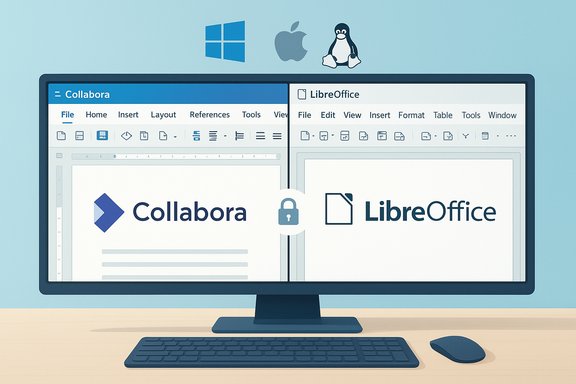
Collabora Productivity has shipped a new, standalone desktop edition of its open‑source office suite that brings the same clean, tabbed interface used in Collabora Online to Windows, macOS and Linux — designed to run entirely on the device without a cloud dependency. The release introduces a refreshed, web‑style front end layered on top of the LibreOffice engine, pairs that modern UI with a smaller install footprint (notably dropping legacy Java dependencies), and is positioned alongside a long‑term supported “Classic” edition that preserves the traditional LibreOffice desktop experience for power users and enterprise deployments.
Collabora has long been a leading contributor to LibreOffice and the developer of Collabora Online, a browser‑based collaborative editor deployed by education institutions, public bodies and businesses seeking open standards and data sovereignty. The company’s new desktop release unifies that web UI experience with local file handling, aiming to give offline users the same discoverable, streamlined tool layout they see in the browser while keeping files processed on the device.
This strategy formalizes a two‑track product approach: a modern, web‑derived desktop client for everyday productivity and simplified workflows, and Collabora Office Classic for users who require the deeper configuration, macro editing and database tools found in traditional LibreOffice‑style installations. The release also reflects a broader trend in the open‑source office space toward parity between web and desktop experiences, reducing surprises when documents move between environments.
The product targets three core use cases:
These design choices mean that while the modern edition is a fit for the majority of typical office tasks — writing, spreadsheets, presentations, and drawings — specialist workflows that rely on embedded Base databases, complex macros, or deep UNO integration will either require Classic or careful validation before migration.
Advantages of this separation:
Key design choices:
That said, the new UI is built using web technologies, which places different performance demands on graphics and sandboxing layers — especially on older hardware. In early tests the application runs responsively on modern commodity hardware, but organizations with large fleets of low‑powered devices should pilot the client before mass deployment.
That said, security is not automatic: organizations must still treat the client like any other desktop software — apply updates, configure access controls, and manage extensions and macros carefully. The absence of Java lowers some risk, but macro execution remains possible and needs governance. Administrators should leverage available policy templates and centralized management to enforce safe macro behavior and file handling.
For IT leaders and administrators, the new release is an invitation to reassess desktop productivity strategies: it offers real benefits for mainstream productivity and parity with browser workflows, but it also requires careful planning for macro‑heavy and legacy database scenarios. With a measured pilot, clear migration criteria and governance for macros and extensions, Collabora Office can be a practical, open‑source alternative that balances modern usability with the control organizations need.
Source: BetaNews Collabora Office is an open source desktop suite for Windows, macOS and Linux
 Background
Collabora has long been a leading contributor to LibreOffice and the developer of Collabora Online, a browser‑based collaborative editor deployed by education institutions, public bodies and businesses seeking open standards and data sovereignty. The company’s new desktop release unifies that web UI experience with local file handling, aiming to give offline users the same discoverable, streamlined tool layout they see in the browser while keeping files processed on the device.This strategy formalizes a two‑track product approach: a modern, web‑derived desktop client for everyday productivity and simplified workflows, and Collabora Office Classic for users who require the deeper configuration, macro editing and database tools found in traditional LibreOffice‑style installations. The release also reflects a broader trend in the open‑source office space toward parity between web and desktop experiences, reducing surprises when documents move between environments.
What Collabora Office is — and what it isn’t
A desktop sibling to Collabora Online
Collabora Office is not a ground‑up fork of LibreOffice. Under the hood it uses the same document engine and compatibility work that powers LibreOffice and Collabora Online, but replaces the VCL‑based desktop UI with a web‑stack interface written in JavaScript, CSS and modern rendering technologies. The goal is to present a tabbed, ribbon‑style layout that exposes frequently used functions without burying them in nested menus.The product targets three core use cases:
- Offline editing where cloud access is unavailable or undesired.
- A unified experience for users who already work with Collabora Online in the browser.
- Organizations that want an open, auditable office client aligned with digital sovereignty and GDPR principles.
What’s intentionally excluded from the new edition
To keep the runtime compact and the UX focused, Collabora Office drops several legacy components. The new edition omits the Base database application and removes Java as a build and runtime dependency, which trims installer size and reduces dependency management complexity on Windows and Linux. Macro editing tooling and some advanced developer features are scaled back: macros may still execute, but full IDE‑style macro editing and database integration remain the domain of Collabora Office Classic.These design choices mean that while the modern edition is a fit for the majority of typical office tasks — writing, spreadsheets, presentations, and drawings — specialist workflows that rely on embedded Base databases, complex macros, or deep UNO integration will either require Classic or careful validation before migration.
Technical architecture and packaging
Engine and UI separation
At its core, Collabora Office continues to leverage the mature LibreOffice document engine for parsing, rendering and file interoperability. The headline change is the presentation layer: the Collabora Online UI — the same toolbar and tabbed approach that made the browser product approachable — is layered as a desktop interface. This creates a clean separation between the document processing backend and the interface, simplifying future feature parity across web and desktop.Advantages of this separation:
- Faster UI iteration via web technologies.
- More consistent cross‑platform visuals and behavior.
- Easier reuse of web components between Collabora Online and the desktop client.
- Visual fidelity between the new UI and legacy desktop widgets may differ for certain dialogs or platform integrations.
- Extensions, toolbars and integrations written for the classic VCL UI will require porting.
Build and distribution formats
The desktop release is available across mainstream platforms:- Windows (installer targeted at modern Windows installations).
- macOS (native builds targeting the current generation of macOS).
- Linux (distributed as x86_64 Flatpak and through Collabora’s enterprise channels).
File format support and compatibility
Because the release uses the established LibreOffice engine, support for Open Document Format (ODF) and Microsoft Office Open XML (DOCX, XLSX, PPTX) is preserved. The company emphasizes interoperability with Microsoft formats, and the desktop client includes the same conversion and compatibility work that ships in Collabora Online. That said, complex layout edge cases, embedded objects, or documents that rely on platform‑specific fonts and macros can still present fidelity differences; organizations migrating mission‑critical document flows should perform targeted compatibility testing before wide rollout.User experience: a modernized interface with familiar workflows
The tabbed, task‑focused UI
Collabora Office adopts a ribbon‑like, tabbed interface that places the most common actions in reach. The design favors discoverability and fewer nested settings. For end users this reduces the learning curve when coming from Collabora Online or modern cloud suites, and it aims to minimize distractions for typical document work.Key design choices:
- Tabbed toolbars with contextual options.
- Cleaner defaults and fewer obscure configuration options out of the box.
- Consistent look across platforms to lower cross‑device cognitive load.
Performance and offline responsiveness
Running the rendering and document operations locally reduces latency and enables smooth offline editing. For users who frequently travel or work in network‑constrained environments, this offline‑first approach is a tangible advantage: a spreadsheet or presentation edits quickly, without the upload/download cycles and sync delays that sometimes accompany web‑first suites.That said, the new UI is built using web technologies, which places different performance demands on graphics and sandboxing layers — especially on older hardware. In early tests the application runs responsively on modern commodity hardware, but organizations with large fleets of low‑powered devices should pilot the client before mass deployment.
Collabora Office vs Collabora Office Classic — two editions, different promises
Collabora has explicitly preserved a dual‑track strategy. The new Collabora Office targets contemporary, streamlined workflows; Classic remains the enterprise‑grade option for users who need depth and legacy compatibility.Collabora Office (modern)
- Web‑stack UI: JavaScript/CSS front end.
- Compact install: no Java, no Base database, fewer system dependencies.
- Focused feature set for standard document tasks.
- Emphasis on parity with Collabora Online UI.
Collabora Office Classic (LTS)
- Traditional LibreOffice VCL UI and architecture.
- Full macro editing (BASIC, Python) and UNO accessibility.
- Includes Base database and broader configuration options.
- Intended for complex, enterprise workflows and long‑term support cycles.
Security, privacy and compliance: offline by design
A cornerstone of Collabora’s messaging is data sovereignty: by processing documents locally unless users intentionally share them, the desktop client helps organizations limit exposure to cloud‑based scanning or third‑party services. This makes the product attractive to:- Education institutions protecting student data.
- Public sector bodies subject to procurement and data‑residency rules.
- Enterprises prioritizing offline workflows for regulatory or security reasons.
That said, security is not automatic: organizations must still treat the client like any other desktop software — apply updates, configure access controls, and manage extensions and macros carefully. The absence of Java lowers some risk, but macro execution remains possible and needs governance. Administrators should leverage available policy templates and centralized management to enforce safe macro behavior and file handling.
Limitations, risks and migration considerations
Macro and automation workflows
The new edition can execute macros but reduces or removes in‑product macro editing and database tooling. For environments that rely on complex macro automation — financial spreadsheets, mail‑merge setups with Base, or scripts integrated with other back‑office systems — this is a key limitation. Migration strategies should include:- Inventory macros and database dependencies.
- Identify workflows needing full macro editing or Base.
- Map those users to Collabora Office Classic or plan rewrites using supported automation paths.
Format fidelity and edge cases
While Collabora invests heavily in Microsoft format interoperability, perfect fidelity is not guaranteed for every complex document. Common pain points include:- Documents with heavy, non‑standard layout constructs (advanced WordArt, SmartArt).
- Embedded OLE objects or proprietary add‑ins.
- Fonts and layout that depend on vendor‑specific rendering.
Extension ecosystem and compatibility
Extensions or third‑party integrations built for the classic VCL framework may not work with the new web UI without porting. Organizations should:- Catalogue needed extensions.
- Check vendor support for the modern client.
- Consider Classic where legacy integrations are essential.
Platform support nuance
Public reporting indicates Collabora Office is available for Windows 11, macOS 15 (Sequoia) and Linux x86_64 via Flatpak. The company’s official communications broadly list Windows and macOS as supported platforms; exact minimum OS versions and enterprise deployment guidance should be confirmed on Collabora’s distribution channels. IT teams should validate supported OS versions, system requirements and packaging options before mass rollout to avoid incompatible endpoint configurations.Deployment and management recommendations for IT teams
- Start with a pilot: select representative user groups (administration, teaching staff, knowledge workers) and run a two‑week pilot using the modern client and Collabora Office Classic where needed.
- Inventory critical documents: prioritize documents that use macros, databases or add‑ins; validate these in Classic or plan remediation.
- Test file interchange: exchange files between the modern desktop client, Collabora Online and Microsoft 365 to observe practical differences and sync behavior.
- Centralize policy: leverage available management templates and Group Policy/MDM controls to restrict macro execution and enforce secure file paths.
- Plan updates: adopt an update cadence that fits the organization’s patching policies; treat Collabora Office as a security‑sensitive endpoint application.
- Train users: short, focused training on the tabbed UI will accelerate adoption; highlight differences from classic menus and where to find legacy features in Classic.
Who benefits most — and who should wait
Beneficiaries:- Schools and universities that need an easy‑to‑use offline editor with good format compatibility.
- Public sector teams seeking open, auditable software that reduces cloud exposure.
- Small and medium businesses that want a modern desktop experience without vendor lock‑in.
- Organizations with heavy investment in LibreOffice Base, complex macros, or legacy integrations.
- Enterprises requiring long‑term, certifiable stability for mission‑critical macros and automation without a migration plan.
- Administrators who depend on third‑party extensions that haven’t yet been ported to the web‑stack interface.
The strategic move: why Collabora’s dual path matters
Collabora’s decision to maintain both a modern desktop client and a Classic edition is strategically sound. It allows the company to:- Innovate UI and UX rapidly using web technologies.
- Preserve the deep, enterprise features customers still need.
- Offer clearer choices to customers based on use case, rather than a one‑size‑fits‑all compromise.
Practical checklist for evaluating Collabora Office today
- Confirm platform compatibility and minimum OS versions for your fleet.
- Identify documents that depend on macros, Base, or complex formats.
- Pilot both Collabora Office and Collabora Office Classic with representative users.
- Test document round‑trips between local files, Collabora Online, and Microsoft 365.
- Define a governance policy for macro execution and extension installations.
- Ensure update and patch management processes are in place before enterprise rollout.
Conclusion
Collabora Office brings the benefits of a unified web‑style interface to the desktop while keeping the document processing power of the LibreOffice engine. The product’s offline‑first design, smaller runtime, and modern tabbed UI will appeal to a broad range of users who want a straightforward, privacy‑respecting office suite without cloud lock‑in. At the same time, Collabora’s decision to continue shipping Collabora Office Classic preserves the enterprise functionality that many organizations still require.For IT leaders and administrators, the new release is an invitation to reassess desktop productivity strategies: it offers real benefits for mainstream productivity and parity with browser workflows, but it also requires careful planning for macro‑heavy and legacy database scenarios. With a measured pilot, clear migration criteria and governance for macros and extensions, Collabora Office can be a practical, open‑source alternative that balances modern usability with the control organizations need.
Source: BetaNews Collabora Office is an open source desktop suite for Windows, macOS and Linux
