

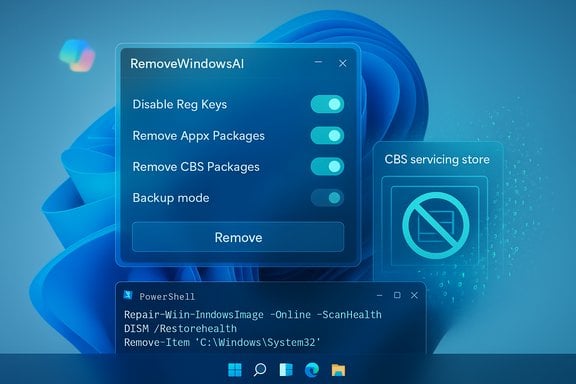
A new open-source PowerShell project promises to do what many Windows power users have long wished for: surgically and (according to its author) completely remove Microsoft’s growing fleet of AI features from Windows 11 — including Copilot, Recall, AI hooks in Paint/Notepad/Edge, and the hidden servicing artifacts that normally let those components reappear after updates. The tool, published under the GitHub handle zoicware as RemoveWindowsAI, bundles registry and policy edits, Appx/MSIX removals, scheduled-task cleanup, and a controversial servicing‑store “blocker” package into a single GUI + command-line workflow that aims to make removals durable. The project’s README and multiple hands‑on writeups confirm the script’s scope and intent.
Microsoft has steadily repositioned Windows 11 as an “AI PC” platform: branded systems like Copilot (conversational assistant), Recall (local timeline and snapshot indexing), AI Actions, and numerous first‑party AI enhancements now appear throughout the shell and bundled apps. These features range from UI elements (Copilot button, AI Components settings) to services and provisioned packages stored in Windows’ Component‑Based Servicing (CBS) inventory. Microsoft frames many of these as productivity and accessibility improvements and, in some cases, emphasizes local processing and Windows Hello safeguards — but the integration is deep and, for a vocal subset of users, unwelcome. RemoveWindowsAI arrived in that context as a community‑driven, defensive response: consolidate months of community removal techniques into an easy-to-run script and GUI that targets both visible app packages and the hidden servicing metadata that causes features to come back after updates. The repository states it targets stable Windows 11 releases (25H2 and later) and provides explicit options, a backup mode, and a “revert” mode intended to restore removed items when possible. Independent publications tested parts of the tool and observed the advertised behavior on their test machines.
Vendor recommendations:
Conclusion: RemoveWindowsAI crystallizes the tension between platform evolution and user agency. It is an articulate, well‑documented community response to a real need. But the durability techniques that make it effective are also what make it dangerous outside of tightly controlled testing environments. The responsible path — whether you’re an individual or an IT manager — is measured experimentation, comprehensive backups, and a clear plan for recovery before touching the servicing store.
Source: TechSpot This PowerShell script promises to remove every AI feature from Windows
 Background / Overview
Microsoft has steadily repositioned Windows 11 as an “AI PC” platform: branded systems like Copilot (conversational assistant), Recall (local timeline and snapshot indexing), AI Actions, and numerous first‑party AI enhancements now appear throughout the shell and bundled apps. These features range from UI elements (Copilot button, AI Components settings) to services and provisioned packages stored in Windows’ Component‑Based Servicing (CBS) inventory. Microsoft frames many of these as productivity and accessibility improvements and, in some cases, emphasizes local processing and Windows Hello safeguards — but the integration is deep and, for a vocal subset of users, unwelcome. RemoveWindowsAI arrived in that context as a community‑driven, defensive response: consolidate months of community removal techniques into an easy-to-run script and GUI that targets both visible app packages and the hidden servicing metadata that causes features to come back after updates. The repository states it targets stable Windows 11 releases (25H2 and later) and provides explicit options, a backup mode, and a “revert” mode intended to restore removed items when possible. Independent publications tested parts of the tool and observed the advertised behavior on their test machines. What RemoveWindowsAI claims to do
At a high level, the script advertises a layered approach that includes:- Registry and policy edits to hide or disable UI toggles (Copilot button, Recall activation, Input Insights, AI Actions).
- Appx/MSIX removals: Remove‑AppxPackage for user installs and Remove‑AppxProvisionedPackage for provisioned copies that reappear for new accounts.
- Component‑Based Servicing (CBS) operations: attempt to purge or neutralize hidden servicing packages and optionally install a custom “blocker” package in the servicing store to prevent re‑provisioning.
- Scheduled‑task and data cleanup: delete Recall tasks and local snapshot indices to remove stored timeline data.
- UI hardening: hide the AI Components settings page and flip feature gating keys.
- Backup and revert capability to allow partial restoration when feasible.
- A GUI for interactive use and a non‑interactive mode for scripted runs.
Technical breakdown — how the script works (and why it matters)
Understanding what the script changes is essential before running it. The operations fall into five technical buckets:1. Registry and policy edits (low‑risk layer)
The script flips registry keys and CSP/Group Policy equivalents that hide UI elements and block activation paths for features such as Copilot and Recall. These edits are often reversible and are the least invasive part of the workflow, but some keys gate deeper service behaviors that other components may assume exist. Misapplied keys can produce inconsistent or confusing states for dependent components.2. Appx / MSIX removals (user and provisioned)
Remove‑AppxPackage removes packages for the current user; Remove‑AppxProvisionedPackage removes provisioned manifests that are installed for new accounts or during re‑provisioning. Removing provisioned packages is more invasive because it affects install behavior for new accounts and may impact features that reuse the same package families. On consumer devices this often removes visible Copilot and AI app manifests; on OEM images with vendor customizations results can vary.3. CBS (Component‑Based Servicing) manipulations (the high‑risk layer)
This is the script’s most contentious element. Windows’ CBS store is the authoritative inventory for modular components, servicing, and repair. RemoveWindowsAI attempts to purge or neutralize hidden CBS packages and can also install a custom blocker package that makes Windows Update treat the component as intentionally blocked. That makes removals persistent, but it also intentionally diverges the device from Microsoft’s expected servicing inventory — opening a real and demonstrable fragility vector for future cumulative updates and feature upgrades. Community experts repeatedly call CBS edits the single largest upgrade‑risk.4. Scheduled tasks and data cleanup (destructive, but private)
Recall relies on scheduled tasks and local snapshot indices to build a local timeline of user activity. The script deletes those scheduled tasks and removes snapshot data to make the visible timeline disappear. This is effective at removing traces but is destructive: captured history is permanently lost unless a prior backup was taken.5. Blocker packages and update hardening (intentional divergence)
To stop automatic re‑provisioning, the tool can insert a blocking package into the servicing store. This is a community technique used to preserve customized OS states, but it creates a mismatch the OS vendor did not expect. Future servicing logic or repair operations could restore the original packages, ignore the blocker, or trigger update errors; complex servicing mismatches sometimes require manual repair or a reimage to fix.Independent verification and community testing
Multiple outlets and community testers ran parts of the script and confirmed that it removes or hides Copilot and Recall UI elements and unprovisions many Appx packages on tested configurations. Tom’s Hardware reported hands‑on testing and described the GUI controls and revert capability; TechSpot ran through the project’s claims and compared it to other community debloat utilities. Forbes and other outlets covered the viral spread and the conversation around the script’s safety vs. users’ desire for agency. Those independent checks corroborate the tool’s core behavior while also emphasizing variability by build, OEM image, and servicing state. A few important verification notes:- The repository explicitly documents some operations as irreversible without a pre‑run backup (Recall data removal, for example).
- Several outlets confirmed that the script’s GUI and “revert mode” exist and can restore many — but not all — removed artifacts; full restoration is not always guaranteed.
Strengths — why users find RemoveWindowsAI compelling
- Consolidation of complex steps: RemoveWindowsAI packages months of community techniques into a single, repeatable workflow. Manual hunts for registry keys, provisioned packages, and servicing artifacts are error‑prone; a scripted approach reduces that friction.
- Durability when configured: The blocking‑package technique can make removals persist across ordinary provisioning and some update flows — useful for users who want a stable, AI‑free environment.
- Backup and revert tooling: Including a backup mode and revert path is a pragmatic concession that reduces the chance of permanently breaking a device, compared to throwaway one‑off scripts.
- Transparency and open source: The project’s GitHub presence, issue tracker, and documentation let power users audit, fork, and adapt the script for their needs, and community input helps catch regressions and additions.
Risks and operational downsides — what can go wrong
RemoveWindowsAI is powerful, and that power brings material downsides. The largest and most immediate risks are:- Servicing fragility and update failures: Modifying CBS and installing blocker packages intentionally diverges the system’s servicing inventory. That can cause cumulative-updates to fail, leave security fixes partially applied, or require complex manual recovery or full reimage. This is repeatedly flagged by community experts and the script author warns about it.
- Broken dependencies and shell regressions: Windows UI and shell components are modular; removing packages they depend on can cause regressions in Start, Explorer, or system dialogs. OEM images with preinstalled vendor packages increase this risk.
- Loss of data: Removing Recall indices and scheduled tasks permanently deletes locally captured timeline data unless a backup was made first. The tool offers backup mode, but the responsibility to use it remains with the user.
- Support and warranty implications: Modifying servicing metadata may complicate vendor or Microsoft support. Organizations should not run this on managed production endpoints without formal testing and change control.
- Security and supply‑chain concerns: Running an arbitrary admin‑level PowerShell script that purges system packages is a risk vector. While the project is open source and widely discussed, any third‑party code must be audited before large‑scale deployment.
Practical guidance — safe ways to evaluate and (if desired) use the script
For individuals who value privacy and control, and who accept the maintenance tradeoffs, the following conservative approach minimizes risk:- Create a full disk image (not just file backup) and verify the image boots in a recovery environment.
- Test RemoveWindowsAI on a spare machine or a virtual machine that mirrors your target hardware and OEM image.
- Use the script’s backupMode and verify that the backup artifacts are valid and restorable before proceeding. The README documents backup and revert invocation.
- Run in non‑interactive mode only after you’ve validated the option set that does what you expect (start with DisableRegKeys and RemoveAppxPackages before attempting RemoveCBSPackages).
- Avoid running CBS manipulations on production endpoints or machines under vendor/support contracts without explicit change control.
- If you must deploy at scale in an enterprise, press for official enterprise controls or management policies that achieve the same opt‑out without servicing inventory divergence. Community tools are not a substitute for supported management workflows.
Alternatives and complements
- Use standard Group Policy/MDM controls where Microsoft provides explicit management surfaces for Copilot and related features.
- Apply per‑app uninstall and provisioning controls for user accounts rather than servicing‑store surgery.
- Use community “debloat” scripts that only remove visible Appx packages and flip registry keys — these carry fewer servicing risks but are less durable.
- For strict privacy demands, consider controlled Linux‑based alternatives on devices where Windows feature sets are unnecessary. Public discussion around RemoveWindowsAI shows many users view full migration as an acceptable option in extreme cases.
What Microsoft and platform maintainers should hear
The RemoveWindowsAI episode is a clear signal that a nontrivial segment of the Windows community feels the platform lacks durable, visible opt‑out controls for agentic features. When platform features are tightly integrated into the servicing stack, the absence of supported enterprise controls drives users to community solutions that create technical debt and risk.Vendor recommendations:
- Provide documented, supported management controls for removing or blocking agentic features at scale.
- Offer a durable opt‑out path that survives provisioning and updates without requiring users to alter the servicing store.
- Improve the discoverability of privacy controls and supply official guidance for admins who need to manage AI features in large fleets.
Verdict and final appraisal
RemoveWindowsAI is an impressive piece of community engineering: it automates a broad set of techniques that power users have been using piecemeal, and it adds pragmatic features such as a GUI, backup mode, and a documented revert path. Independent hands‑on coverage confirms the script often does what it promises on tested builds, and the project is transparently maintained on GitHub. That said, the script’s most effective mechanisms — purging CBS entries and installing a blocker package — are deliberately invasive and carry verifiable long‑term maintenance costs. The claim that it “removes every AI feature” is aspirational: the project itself documents manual disablement steps for some features and warns that Insider preview additions are not immediately covered. In practice, RemoveWindowsAI removes a very large surface area of AI‑related components on many stable builds, but it is not a zero‑risk panacea. Treat any such tool with the same caution you’d apply to any low‑level servicing change: back up, test in isolated environments, and prefer supported management paths where available. For enthusiasts and privacy‑minded users who accept the upgrade and support tradeoffs, RemoveWindowsAI offers a concrete and powerful way to reclaim control over what runs on their machines. For businesses, help desks, and less technical consumers, the prudent choice remains staged testing, use of official management controls, and urging platform vendors to offer supported opt‑outs so the community no longer needs to go searching under the servicing hood.Conclusion: RemoveWindowsAI crystallizes the tension between platform evolution and user agency. It is an articulate, well‑documented community response to a real need. But the durability techniques that make it effective are also what make it dangerous outside of tightly controlled testing environments. The responsible path — whether you’re an individual or an IT manager — is measured experimentation, comprehensive backups, and a clear plan for recovery before touching the servicing store.
Source: TechSpot This PowerShell script promises to remove every AI feature from Windows
