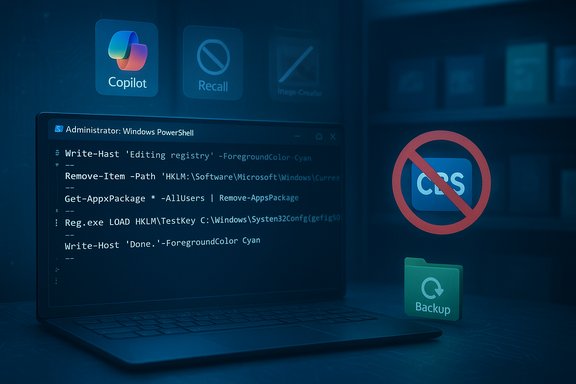
A compact, open‑source PowerShell project now circulating on GitHub promises to strip most of Windows 11’s newly embedded AI features — including Copilot and Recall — out of a PC with a single command and an optional GUI, and the reaction is a textbook mix of relief, alarm and operational caution from power users and IT professionals alike.
Microsoft has pushed Windows 11 toward a vision of an “AI PC,” folding Copilot, Recall, on‑device models, and AI‑driven app integrations into the platform. These features are positioned as productivity and accessibility enhancements, but their breadth and deep system integration have made opt‑out nontrivial for some users. Independent coverage and product documentation show Recall stores device snapshots locally (with encryption and Windows Hello protections in many configurations) and that Copilot surfaces appear across the taskbar, Edge, and first‑party apps. The script at the center of this story — published under the GitHub handle “zoicware” and titled RemoveWindowsAI — surfaced because a segment of the Windows community wants durable, automated ways to remove or hide these AI surfaces rather than toggling scattered Settings pages. The repository explicitly targets the stable Windows 11 25H2 channel and bundles registry flips, package removals, servicing‑store edits and a custom blocker update to try to make removals persist across future Windows Updates.
This tension has three practical consequences:
For experienced users who accept the operational tradeoffs, the project provides useful automation and explicit backup/revert options that reduce but do not eliminate risk. For casual users or managed fleets, the recommended path remains supported settings, enterprise controls and staged testing; third‑party servicing surgery should be a last resort, executed only with full backups and recovery plans in place.
Removing unwanted features is a legitimate user choice — but making that choice safely requires humility about system complexity, careful testing, and the operational discipline to recover when servicing and upgrade chains do what they were designed to do: evolve the platform.
Source: PC Gamer This tool combs through Windows 11 to remove all its AI components
 Background
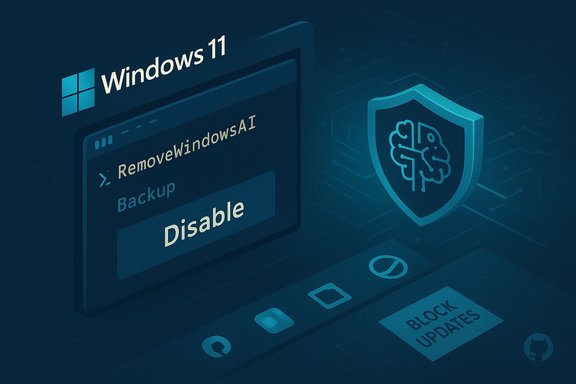
Microsoft has pushed Windows 11 toward a vision of an “AI PC,” folding Copilot, Recall, on‑device models, and AI‑driven app integrations into the platform. These features are positioned as productivity and accessibility enhancements, but their breadth and deep system integration have made opt‑out nontrivial for some users. Independent coverage and product documentation show Recall stores device snapshots locally (with encryption and Windows Hello protections in many configurations) and that Copilot surfaces appear across the taskbar, Edge, and first‑party apps. The script at the center of this story — published under the GitHub handle “zoicware” and titled RemoveWindowsAI — surfaced because a segment of the Windows community wants durable, automated ways to remove or hide these AI surfaces rather than toggling scattered Settings pages. The repository explicitly targets the stable Windows 11 25H2 channel and bundles registry flips, package removals, servicing‑store edits and a custom blocker update to try to make removals persist across future Windows Updates. What RemoveWindowsAI claims to do
RemoveWindowsAI consolidates many of the de‑bloating techniques community power users have applied one‑by‑one into a single orchestrated workflow. Its README lists a comprehensive set of targets and tactics:- Disable a set of registry keys and policies to hide or turn off Copilot, Recall, Input Insights (typing data harvesting), Voice Access and other UI surfaces.
- Uninstall Appx/MSIX packages for AI features (user and provisioned packages).
- Remove or neutralize hidden Component‑Based Servicing (CBS) packages that normally resist user‑level uninstalls.
- Install a custom Windows Update package intended to prevent re‑provisioning of those AI packages by Windows Update.
- Delete Recall scheduled tasks, wipe local snapshot indices and hide the “AI Components” settings page.
How the script works — a technical breakdown
Registry and policy edits
At the least invasive layer the script applies registry and Group Policy changes to hide UI elements and block activation paths for Copilot, Recall and related surfaces. These are reversible and comparable to the supported toggles Microsoft exposes — but when combined with lower‑level removals they can lead to inconsistent states if not coordinated carefully.Appx / MSIX removal
RemoveWindowsAI issues Remove‑AppxPackage and Remove‑AppxProvisionedPackage calls to uninstall first‑party AI packages and to remove their provisioned manifests, preventing new user profiles from re‑receiving them. Removing provisioned packages is more invasive because provisioning metadata normally governs future account behavior and OEM customizations.Component‑Based Servicing (CBS) surgery
The project’s most notable (and riskiest) layer operates on the CBS store: it attempts to remove hidden servicing packages and optionally inject a blocker package that makes Windows Update treat those components as intentionally blocked. This is how the project attempts to make removals durable, but it also diverges the system’s servicing inventory from Microsoft’s expected state — a known fragility vector for upgrades and updates.Local data and scheduled tasks
Recall depends on scheduled tasks and snapshot indices. The script forcibly removes those scheduled tasks and deletes the local snapshot data that Recall uses to populate its timeline and search index. Microsoft’s own documentation and coverage confirm that Recall stores snapshots locally and offers user controls, but community tooling shows those indices can be targeted and erased by third‑party code.Blocking reinstall via an update package
RemoveWindowsAI includes an option to install a custom MSU‑style update that aims to block Windows Update from re‑installing removed AI packages from the servicing store. When it works this provides durability — but it is precisely that durability which increases the chance of conflicts during future feature upgrades or servicing changes.Limitations and what the script does not (fully) remove
The repository and independent reviews are explicit: not every AI surface can be automatically disabled by script on every device. Some notable limitations include:- Gaming Copilot and certain OneDrive AI integrations are handled by separate settings or on‑device services and often require manual toggles. The project supplies guides for manual disablement where automation isn’t reliable.
- Insider build features are not targeted until they reach the stable channel; the script only attempts to cover features present in stable releases.
- Removing UI elements and packages does not necessarily eliminate every telemetry or diagnostics pathway in Windows; some telemetry and OEM agents can still operate independently.
Strengths: why this tool matters
- Centralizes expertise. RemoveWindowsAI aggregates dozens of community‑documented steps into a single, documented workflow and exposes backup and revert modes for safer testing. That lowers the bar for power users who previously had to stitch together multiple techniques.
- Durability tactics. The custom blocking update and CBS manipulations can persistently prevent re‑provisioning by Windows Update in many tested configurations, addressing a common frustration that simple Settings toggles are re‑enabled by future updates. For users whose risk model values persistent opt‑out, that matters.
- Transparency and community review. The project is open source, documented and rapidly reviewed by multiple outlets and community forums — meaning its actions can be audited by anyone with the skills and time to read PowerShell. That transparency is preferable to opaque binary installers when you are altering system servicing state.
Risks and realistic downsides
- Servicing and upgrade fragility. The single greatest technical risk is breaking Windows Update, feature upgrades or in‑place servicing. Editing or removing CBS packages and installing a blocking package can confuse the update stack and produce failed updates or unexpected system states. Multiple community analyses explicitly call out this as the primary hazard.
- Supportability and warranty implications. Heavily modifying system packages or the servicing inventory can void vendor support or make troubleshooting with OEMs and Microsoft more complex. Enterprises and IT departments should rely on sanctioned controls (MDM, Group Policy, supported images) rather than ad‑hoc servicing surgery.
- Security considerations of running elevated scripts. The script runs with administrative privileges and may be flagged as malicious by some anti‑virus engines. The GitHub repo itself warns of false positives and advises testing in VMs; the combination of downloading and executing elevated scripts always increases risk and must be treated with appropriate supply‑chain hygiene.
- False sense of privacy. Removing visible AI surfaces does not automatically remove other telemetry channels or third‑party services. Users who believe the script is a privacy panacea may be disappointed; a broader telemetry audit may still be required.
- Incomplete or non‑reversible changes in some device configurations. Although the tool provides a revert mode and a backup option, differences in OEM customization, prior servicing state or build‑specific package names can make full reversion difficult or require a reimage. Test results vary by hardware and preexisting software state.
Practical checklist before you consider running RemoveWindowsAI
- Create a full disk image or reliable system backup stored off the device.
- Test the script in a virtual machine that mirrors your production hardware and Windows build.
- Run the script first in backup mode and verify backup integrity off‑device.
- Read every line of any script you will execute with administrator privileges; confirm URLs and downloaded artifacts.
- Disable network access or snapshot the VM before running blocking‑update options so you can easily restore.
- After changes, validate Windows Update behavior and rehearse upgrade scenarios before deploying to essential machines.
Alternatives and less risky approaches
- Use Microsoft’s official toggles and optional feature controls where possible: Recall is exposed as an optional feature and can be disabled via the “Turn Windows features on or off” dialog or Settings > Privacy & security > Recall & snapshots; Copilot controls can often be managed in Settings and Edge. These supported methods minimize servicing risk at the expense of persistence against re‑provisioning.
- For organizations, rely on MDM, Group Policy, AppLocker, and supported targeting controls rather than third‑party servicing surgery. Enterprise management provides sanctioned, reversible mechanisms and reporting for compliance.
- Use reputable debloat utilities that focus on user‑level app removal and privacy tweaks without touching servicing metadata. Tools such as Chris Titus Tech’s Windows Utility (winutil) and other community debloat scripts offer modular, tested tweaks — but they too require caution and backups. These tools are useful for removing Store apps and telemetry toggles without CBS surgery.
The broader picture: agency, platform design and user choice
RemoveWindowsAI is more than a utility; it’s a community response to a platform design choice. When an operating system increasingly surfaces AI experiences across the UI and system services, motivated users naturally demand durable opt‑outs. The existence and popularity of a tool that surgically removes those features signals a mismatch between how some users want control and how the platform exposes it.This tension has three practical consequences:
- Platform vendors need to provide clearer, durable, and documented opt‑outs for users who do not want embedded AI.
- Community tooling will continue to fill gaps when vendor controls are perceived as inadequate.
- The tradeoffs between durability (persistence across updates) and system integrity (safe servicing/upgrades) must be respected; durability by rewriting servicing metadata is powerful but dangerous.
Quick forensic note on claims you’ll read elsewhere
Headlines that claim “one click removes all AI from Windows 11” are shorthand. The tool removes many first‑party AI packages and UI surfaces on targeted stable builds, and it includes manual guidance for remaining features, but the complexity of modern servicing and the number of dependent components mean absolute removal across every build and device can’t be guaranteed. Independent reviewers who tested the tool confirm effectiveness on many configurations while also documenting limits and the need for manual steps or different approaches for Gaming Copilot and OneDrive AI. Treat bold absolutes with skepticism and prefer the documented checklist and testing approach.Final verdict for Windows power users and IT pros
RemoveWindowsAI is a capable, well‑documented community project that answers a clear user demand: durable control over AI surfaces in Windows 11. Its strengths are real — clear documentation, open source code, a GUI, and techniques that have practical effect. At the same time, the tool deliberately operates at the servicing boundary where Windows Update and feature upgrades live, and that is where it can cause the most harm if used without proper safeguards.For experienced users who accept the operational tradeoffs, the project provides useful automation and explicit backup/revert options that reduce but do not eliminate risk. For casual users or managed fleets, the recommended path remains supported settings, enterprise controls and staged testing; third‑party servicing surgery should be a last resort, executed only with full backups and recovery plans in place.
Removing unwanted features is a legitimate user choice — but making that choice safely requires humility about system complexity, careful testing, and the operational discipline to recover when servicing and upgrade chains do what they were designed to do: evolve the platform.
Source: PC Gamer This tool combs through Windows 11 to remove all its AI components