

If you ran the PC Health Check app only to be told “This PC can’t run Windows 11,” don’t panic — your machine may be perfectly capable of running Windows 11 after a single, fixable configuration change: converting your system disk from the legacy MBR partition style to GPT and switching your firmware to UEFI. This isn’t about the age of your CPU or the speed of your SSD in most cases; it’s about how your firmware and disk talk to each other. Below I walk through why the message appears, the Microsoft-approved non-destructive route, the command-line and destructive options you should avoid unless you have backups, what third‑party partition managers promise (and the risks), and a practical, step‑by‑step checklist so you can make an informed, low‑risk decision.
Windows 11 mandates modern platform security and firmware features: UEFI boot, Secure Boot, and TPM 2.0. Those requirements mean the OS expects the system disk to be formatted as GPT so it can host an EFI system partition and UEFI-compatible bootloader. Microsoft’s official Windows 11 system requirements list System firmware: UEFI, Secure Boot capable and TPM: Trusted Platform Module (TPM) version 2.0 as mandatory.
Separately, the older Master Boot Record (MBR) partition style has architectural limits (notably the 2 TB addressing cap and a maximum of four primary partitions) and was designed for legacy BIOS booting, not modern UEFI security models. Community troubleshooting threads show this mismatch is a very common rfuses to proceed — the installer is simply expecting a GPT/UEFI environment.
Converting MBR to GPT can feel technical, but with careful preparation — a full backup, Microsoft’s validation tool, and a measured upgrade sequence — you can clear the most common blocker that causes Windows 11 to say “This PC can’t run Windows 11” without buying new hardware. Community troubleshooting threads show the approach works for many users, but they also highlight the simple truth: don’t skip the backup and validation steps.
Source: openPR.com Windows 11 Says "This PC Can't Run Windows 11"? It Might Just Be Your Partition Style. Here's the Fix
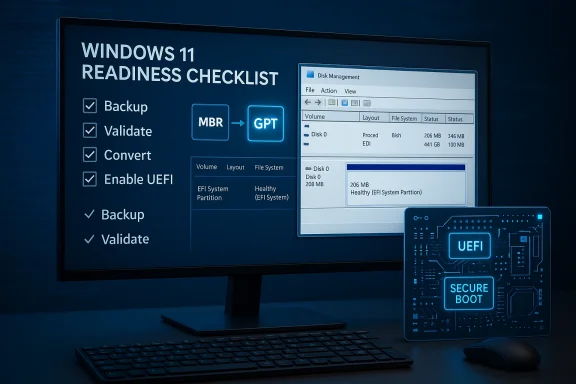 Background / Overview
Windows 11 mandates modern platform security and firmware features: UEFI boot, Secure Boot, and TPM 2.0. Those requirements mean the OS expects the system disk to be formatted as GPT so it can host an EFI system partition and UEFI-compatible bootloader. Microsoft’s official Windows 11 system requirements list System firmware: UEFI, Secure Boot capable and TPM: Trusted Platform Module (TPM) version 2.0 as mandatory.Separately, the older Master Boot Record (MBR) partition style has architectural limits (notably the 2 TB addressing cap and a maximum of four primary partitions) and was designed for legacy BIOS booting, not modern UEFI security models. Community troubleshooting threads show this mismatch is a very common rfuses to proceed — the installer is simply expecting a GPT/UEFI environment.
Why MBR vs GPT still matters in 2026
What MBR is and its practical limits
- MBR (Master Boot Record) stores partition information in a single table at the start of the disk.
- It supports up to 2 TB per disk (with 512‑byte sectors) and a maximum of four primary partitions without hacks. These are design limits that matter on modern drives.
What GPT is and why Windows 11 requires it
- GPT (GUID Partition Table) is the modern partition scheme used with UEFI. It supports very large disks (far beyond TBs), many partitions (Windows allows up to 128), and stores redundant partition metadata for greater resilience.
- UEFI platforms require an EFI System Partition (ESP) where the bootloader and platform firmware handoffs live. Windows’ UEFI/boot requirements make GPT the expected on‑disk format for the system volume.
How to check whether your disk is MBR or GPT
- Press Win + X and choose Disk Management (or type diskmgmt.msc).
- Right‑click the disk (Disk 0) in the bottom pane → Properties → Volumes tab.
- Look at Partition style: it will say *Master Boot Record (MBR) Table (GPT)**.
Three ways to convert MBR to GPT — and who they’re for
There are three pragmatic approaches: (A) Microsoft’s destructive diskpart clean route, (B) Microsoft’s non‑destructive MBR2GPT tool, and (C) third‑party non‑destructive partition managers. Each has tradeoffs.A. DiskPart + clean (destructive) — the blunt instrument
- Commands: open elevated Command Prompt → diskpart → list disk → select disk X → clean → convert gpt.
- Effect: the clean command wipes the partition table and all data. Use only if you plan a fresh install and have backups.
- Who it’s for: IT pros preparing fresh machines, or anyone backup and willingness to reinstall everything.
B. MBR2GPT (Microsoft’s supported non‑destructive tool)
- Microsoft provides mbr2gpt.exe as part of current Windows releases; it can convert the system disk from MBR to GPT without deleting user data if the disk layout meets constraints. The tool validates the disk before making changes.
- Key prerequisites and constraints (validated by the tool):
- Disk is MBR and is the system/boot disk.
- At most 3 primary partitions (no extended/logical partitions).
- Sufficient free sectors near start/end to store GPT headers.
- A valid BCD entry that points to the OS partition.
- If BitLocker is used, suspend protection before converting.
- How to use (example safe workflow):
- From an elevated command prompt, run:
mbr2gpt.exe /validate /disk:0 /allowFullOS— to validate without changing anything.- If validation passes:
mbr2gpt.exe /convert /disk:0 /allowFullOSto perform conversion. - After conversion, reboot into firmware and switch boot mode from Legacy/CSM to UEFI, then enable Secure Boot and TPM as needed.
- Advantages: Microsoft‑supported, non‑destructive when prerequisites are met, logs available, and reversible only by restoring a backup.
- Limitations: Only for system disks (not general data disks) and only when layout is acceptable. If validation fails, yyout (e.g., remove extended partitions or shrink partitions) or use a different approach.
C. Third‑party partition managers (non‑destructive, GUI)
- Tools from partition-software vendors (for example, several popular vendors advertise an “MBR to GPT without data loss” feature) perform an in-place conversion by rewriting the partition table and creating an EFI system partition, often via a reboot into a preinstallation environment. These claim to preserve files, programs, and settings. Vendors market a user‑friendly interface and backup/repair utilities as part of the bundle.
- Advantages:
- GUI, easier for non‑technical users.
- Additional utilities (disk clone, WinPE boot‑disk, repair boot) bundled.
- Often support conversion on data disks as well as system disks.
- Risks and caveats:
- Not all third‑party tools are created equally. A conversion modifies the partition table — any interruption (power loss, hardware fault) can jeopardize bootability.
- Some vendors claim simple "one‑click bypass" of Windows 11 checks; that wording can be misleading. Converting to GPT and enabling UEFI does not magically make TPM‑absent machines into TPM‑2.0 machines. Avoid the assumption that conversion alone removes all compatibility checks.
- You are relying on a third party to modify low‑level disk structures. Always research vendor reputation and reviews, and prefer well‑known names or the built‑in Microsoft tool when possible.
- Community experiences show many users successfully used third‑party converters, but others encountereded recovery utilities to rebuild the EFI partition or BCD. Keep that in mind.
The practical, safe playbook — recommended order of operations
Follow this plan to reduce risk and give yourself an easy rollback path.1) Confirm the real problem
- Run the PC Health Check or check Windows 11 system requirements (TPM, Secure Boot, CPU).
- Use Disk Management to confirm Partition style: MBR. If the partition style is GPT, something else is blocking the upgrade (TPM or Secure Boot) — check firmware settings.
2) Back up — full system image + user files
- Create a full disk image (system image) to an external drive or cloud backup, not just copy your Documents folder. Imaging tools let you restore bootability if conversion fails.
- Even “non‑destructive” conversions carry a small but real risk. Community threads and Microsoft docs both advise backups before modifying partition schemes.
3) Try Microsoft’s MBR2GPT first (if the disk is the system disk and meets prerequisites)
- From an elevated PowerShell/Command Prompt:
mbr2gpt.exe /validate /disk:0 /allowFullOS— addresses whether the disk meets conversion rules. If validation fails, read the log to understand why.- If validate passes:
mbr2gpt.exe /convert /disk:0 /allowFullOS - After conversion, immediately reboot into firmware and switch to UEFI and enable Secure Boot/TPM as needed. If your firmware does not expose TPM, look for options labeled PTT (Intel) or fTPM (AMD) — vendors often use those names.
4) If MBR2GPT can’t run because of layout constraints
- Option A: Reorganize partitions so the disk meets MBR2GPT rules (delete or merge a partition after backing up).
- Option B: Use a reputable third‑party converter with a strong track record, but only after backing up and verifying vendor documentation.
- Option C: As a last resort, prepare to do a clean install:
diskpart → clean → convert gptthen reinstall Windows and restore data from backups.
5) Post-conversion: enable UEFI, Secure Boot, and validate Windows 11 readiness
- Reboot into BIOS/UEFI setup (keys vary by vendor — Del, F2, F12, Esc).
- Change Boot Mode: Legacy/CSM → UEFI.
- Enable Secure Boot and ensure TPM 2.0/fTPM/PTT is enabled.
- Boot to Windows and rerun PC Health Check or the Windows 11 Installation Assistant; the “This PC can’t run Windows 11” block should disappear if hardware is supported. Guides and community experience both show this sequence works for the vast majority of compatible machines.
Step‑by‑step: Using MBR2GPT (concise commands and what they do)
- Full backup first. Don’t skip this.
- Open an elevated command prompt (right‑click Start → Windows Terminal (Admin) or Command Prompt (Admin)).
- Validate the disk:
mbr2gpt.exe /validate /disk:0 /allowFullOS- If validation fails, read
%windir%\system32\logfiles\mbr2gptor the console output to find the specific reason (extended partitions, insufficient free sectors, etc.). - Convert:
mbr2gpt.exe /convert /disk:0 /allowFullOS- Reboot, enter firmware, switch to UEFI boot (if necessary), enable TPM/Secure Boot.
- Boot into Windows and verify everything works.
About “one‑click” converters and claims that conversion bypasses TPM
Several commercial partition tools (including the product marketing you may have seen) advertise an easy GUI and claim to “convert MBR to GPT without data loss” or even to “bypass Windows 11 requirements in one click.” That messaging needs careful reading.- Converting to GPT and enabling UEFI addresses the partition/boot mode requirement. It does not make TPM‑less hardware into TPM 2.0 hardware. If your PC lacks TPM 2.0, Windows 11’s security requirement is still unsatisfied. Some tools and scripts will patch the installer or modify setup checks to bypass TPM detection — these are unsupported workarounds and can expose you to security, stability, and update‑compatibility risks. Microsoft has been explicit that TPM 2.0 is non‑negotiable for supported Windows 11 scenarios, and the company has reiterated that broadly.
- Vendor claims of “bypass in one click” may refer to bypassing the partition/UEFI check, not TPM. Read vendor feature lists carefully and assume any reference to bypassing Windows checks is a potential red flag. Community posts and news coverage have documented that bypass tools are sometimes repackaged with malware, so download only from reputable sources and understand the specific technical steps the vendor performs.
Troubleshooting and the safety net
- If boot fails after conversion, you’ll generally need to repair the EFI System Partition and/or rebuild the BCD.
- Typical recovery steps (from a recovery or Windows install USB): open Command Prompt and run:
bootrec /fixboot,bcdboot C:\Windows /l en-us /s S: /f UEFI(where S: is the ESP). Community posts include these commonly used fixes after conversions or failed installs. - If a third‑party tool offers a WinPE boot disk and “Repair Boot” utility, that can be useful — but don’t rely on it as a substitute for backups. The presence of a repair tool is helpful but not a guarantee.
- In the worst case, restore your system image to roll back cleanly.
Recommendations — what I’d do if this were my PC
- Backup everything with a full disk image and an independent copy of irreplaceable files.
- Run
mbr2gptvalidation. If it passes, run the conversion and switch to UEFI. - If validation fails, review the reasons: remove or merge small partitions if possible, or clone the disk to a larger drive, convert the clone, and swap it in.
- Use third‑party tools only if you need a GUI or if
mbr2gptcan’t handle your layout — and only after researching the vendor, reading independent reviews, and confirming the tool has been updated recently and supports your Windows version. - Don’t rely on any tool’s marketing claim that it “bypasses TPM.” If you lack TPM, consider purchasing a compatible firmware module (where supported), updating motherboard firmware, or evaluating whether staying on Windows 10 (with extended support options) or switching to another OS is more appropriate for your risk tolerance. Microsoft’s position on TPM is firm; unsupported bypasses may compromise security and update delivery.
Strengths, risks, and final verdict
Strengths
- Converting MBR → GPT is often the single missing step to enable a perfectly fine PC to accept Windows 11.
- Microsoft provides a built‑in, non‑destructive tool (MBR2GPT) that’s safer than ad‑hoc diskpart wipes when the disk meets constraints.
- Third‑party tools provide user‑friendly GUIs and recovery utilities for less technical users and can handle some layouts MBR2GPT cannot.
Risks
- Any change to the partition table and boot configuration is inherently risky. Unexpected power loss, hardware faults, or validation oversights can leave a system unbootable.
- Third‑party tools vary in quality; marketing messages can exaggerate the ease or the scope of what they fix (especially around TPM).
- Destructive commands like
diskpart cleanare final and will erase everything without a recovery path unless you have a full image. Forum threads are full of users who learned this the hard way.
Final verdict
If your machine otherwise qualifies for Windows 11, converting MBR to GPT and enabling UEFI is a safe and effective path — if you follow the right sequence, validate first, and keep a full backup. Use Microsoft’s MBR2GPT when possible, read any third‑party tool’s documentation thoroughly, and treat “bypass” claims with skepticism. Community experience confirms that this approach resolves the “This PC can’t run Windows 11” message far more often than replacing hardware.Quick reference checklist (copy/paste)
- Backup: full disk image + file copy.
- Confirm partition style: Disk Management → Volumes → Partition style = MBR?
- Run
mbr2gpt.exe /validate /disk:0 /allowFullOS. - If validate OK: run
mbr2gpt.exe /convert /disk:0 /allowFullOS. - Reboot → firmware → set Boot Mode to UEFI, enable TPM (PTT/fTPM) and Secure Boot.
- Boot Windows → recheck PC Health Check. If it still fails, re-check TPM and CPU compatibility.
Converting MBR to GPT can feel technical, but with careful preparation — a full backup, Microsoft’s validation tool, and a measured upgrade sequence — you can clear the most common blocker that causes Windows 11 to say “This PC can’t run Windows 11” without buying new hardware. Community troubleshooting threads show the approach works for many users, but they also highlight the simple truth: don’t skip the backup and validation steps.
Source: openPR.com Windows 11 Says "This PC Can't Run Windows 11"? It Might Just Be Your Partition Style. Here's the Fix
