

I pulled the power plug on Windows 11, flashed a Linux USB, and turned a pocket-sized Minix ER937‑AI into a surprisingly capable Linux workstation and local‑AI testbed — and the results were more impressive (and more practical) than I expected.
The Minix ER937‑AI arrived as a compact, Windows‑shipped mini PC built around AMD’s new Strix‑Point “Ryzen AI” silicon and marketed as an AI‑ready small form factor. Out of the box it includes a high‑end configuration — a Ryzen AI 9 HX 370 APU, an integrated Radeon 890M GPU, an on‑package NPU, 32 GB DDR5 RAM and a 1 TB PCIe 4.0 NVMe SSD in the review unit — a spec set that places it between a typical mini PC and a purpose‑built local‑AI appliance. What followed was a fast swap to Linux (the reviewer used Ultramarine in the initial test) and a sequence of local‑AI experiments using Ollama and Qwen‑style models. The machine felt snappy for everyday desktop work and capable for local LLM inference — with the expected tradeoffs: sustained workloads drove the fans into audible territory and NPU support on Linux still requires careful setup and specific runtime stacks.
Converting the ER937‑AI isn’t just a hobby project — it’s a practical way to get a compact workstation that runs a modern desktop and a capable local‑AI stack. The machine’s hardware is well matched to Linux’s strengths, and with a bit of preparation (backups, distro selection, and driver work), the payoff is a small, powerful box that’s ready for productive daily use and meaningful local inference experiments.
Source: ZDNET I got tired of Windows 11, so I converted this Mini PC into a Linux powerhouse - here's how
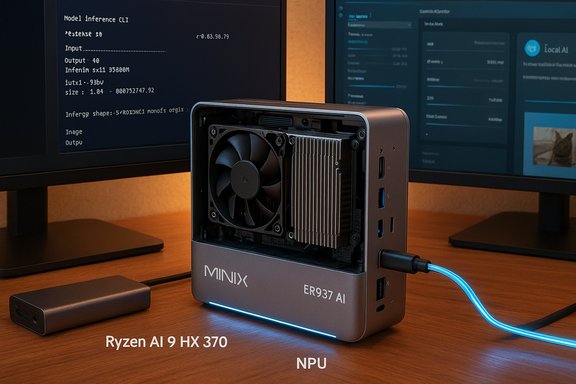 Background / Overview
The Minix ER937‑AI arrived as a compact, Windows‑shipped mini PC built around AMD’s new Strix‑Point “Ryzen AI” silicon and marketed as an AI‑ready small form factor. Out of the box it includes a high‑end configuration — a Ryzen AI 9 HX 370 APU, an integrated Radeon 890M GPU, an on‑package NPU, 32 GB DDR5 RAM and a 1 TB PCIe 4.0 NVMe SSD in the review unit — a spec set that places it between a typical mini PC and a purpose‑built local‑AI appliance. What followed was a fast swap to Linux (the reviewer used Ultramarine in the initial test) and a sequence of local‑AI experiments using Ollama and Qwen‑style models. The machine felt snappy for everyday desktop work and capable for local LLM inference — with the expected tradeoffs: sustained workloads drove the fans into audible territory and NPU support on Linux still requires careful setup and specific runtime stacks. Why convert a mini PC to Linux? The practical case
- Lower overhead, higher responsiveness. Modern Linux distributions can reduce background noise and telemetry, freeing CPU cycles and memory for foreground tasks and inference runtimes. The result is snappier boot times and faster application launches on the same hardware.
- Local AI is Linux‑first. Many inference toolchains, model runtimes, and developer workflows (PyTorch, ONNX, llama.cpp, Vulkan backends, and a growing set of NPU toolkits) are developed primarily for Linux. That makes Linux the pragmatic choice when you want to experiment with local models on constrained hardware.
- Control and privacy. If you want models and data to stay on‑device — for privacy or latency — Linux enables fine‑grained control over networking, services, and update behavior.
- Cost and flexibility. Small form‑factor PCs like the ER937‑AI deliver workstation‑level silicon in a compact chassis for a fraction of a tower’s footprint; converting to Linux eliminates the need to tolerate a resource‑hungry preinstalled OS if that’s not your preferred workflow.
Hardware snapshot: what the ER937‑AI brings to the table (and what it means)
The ER937‑AI is deliberately built for modern, AI‑adjacent workloads. Key elements and why they matter:- CPU / APU: AMD Ryzen AI 9 HX 370 (Strix Point) — multi‑core CPU with integrated RDNA 3.5 GPU and an on‑package NPU for neural acceleration. This architecture blends general compute, GPU, and specialized NPU acceleration into one chip, which is useful for compact, power‑efficient local inference.
- GPU: AMD Radeon 890M — capable integrated graphics that accelerate GPU‑backed inference paths (Vulkan, ROCm‑adjacent tooling) and desktop acceleration for a smooth GUI experience.
- NPU: Dual‑engine XDNA NPU delivering tens of TOPS (vendor claims vary by SKU). This is the hardware block vendors are pushing as the difference between a “regular” mini PC and an “AI” mini PC. NPU support on Linux is improving but requires vendor toolchains and specific kernel/runtime prerequisites.
- Memory & Storage: 32 GB DDR5‑5600 and a 1 TB PCIe 4.0 NVMe SSD (both upgradeable) — the RAM and NVMe speed are the two most important variables for local LLM performance on this class of machine because models and swap behavior are memory bound.
- Connectivity & IO: Two USB4 ports, multiple USB3 ports, HDMI, DisplayPort 2.0, two 2.5 GbE RJ‑45 ports, and Wi‑Fi 7 — this makes the unit a versatile workstation (multi‑monitor, fast networked storage, external NVMe enclosures). Marketing claims include support for up to four displays and 8K@60Hz output in specific configurations; validate your exact SKU and cabling when setting up multi‑monitor rigs.
- Chassis & cooling: A vapor chamber with dual fans in a compact aluminium chassis provides thermal headroom but also means that sustained high CPU/NPU loads trigger audible fans. Plan placement or acoustic mitigation if silence matters.
What you’ll need before you start
- External USB drive (16–32 GB) and a second backup drive or cloud storage to keep a Windows image if you want to fall back.
- A Linux distro ISO (Ultramarine, Ubuntu 24.04, Kubuntu, Pop!_OS or Fedora are all reasonable choices).
- Tools to create bootable media: balenaEtcher (Windows/macOS/Linux), Rufus (Windows), or dd (Linux).
- Time and patience: expect 60–180 minutes for backup, live‑testing, install and initial configuration depending on your familiarity.
- For NPU acceleration on Linux: Ubuntu 24.04 LTS, kernel >= 6.10, and Ryzen AI tools from AMD where available; vendor docs indicate Ubuntu 24.04 as the recommended baseline for Linux NPU toolchains. Plan on at least 32 GB RAM for meaningful NPU workflows, with 64 GB recommended for heavier models.
Step‑by‑step: converting the ER937‑AI to Linux (practical, reproducible)
Below is a pragmatic sequence distilled from the reviewer’s process and general best practice for converting a Windows mini PC into a dependable Linux workstation and local‑AI host. This is the playbook that produced the fast, responsive results reported in the hands‑on review.- Back up everything first
- Create a full image of the Windows drive (Clonezilla, Macrium Reflect or vendor recovery tools).
- Store the image externally — you’ll be glad you did if you need to revert.
- Prepare a Linux live USB
- Choose the distro: the reviewer used Ultramarine and found it immediate and pleasant; Ubuntu 24.04/Kubuntu or Pop!_OS are solid alternatives for driver support and LTS stability.
- Write the ISO to a USB stick using balenaEtcher, Rufus, or dd.
- Preflight: UEFI settings and Secure Boot
- Boot into UEFI: check SATA/NVMe mode (AHCI preferred).
- Decide on Secure Boot: many distros support Secure Boot, but certain third‑party drivers and vendor NPU toolchains may require disabling it during install. Note your original settings so you can restore them if needed.
- Live boot and hardware test
- Boot the live USB and verify that display outputs, Wi‑Fi, Ethernet, audio and the NVMe SSD are recognized.
- Test the fingerprint reader and power button behavior (Windows Hello support won’t transfer to Linux without driver work).
- Install Linux
- Partition strategy: ext4 for root (/), a swap file (size = RAM × 0.5–1 for most use cases; if you expect to use heavy models, consider larger swap), and a separate /home if you want easier reinstalls.
- Install, enable SSH and create a local admin user.
- Post‑install updates and drivers
- Upgrade the kernel (use the distro’s supported kernel series or a backport if you need newer hardware support).
- Install mesa, linux‑firmware, and vendor firmware packages. For AMD Strix/RYZEN AI platforms, follow AMD’s Ryzen AI Linux instructions and package installs to get the NPU toolchain and drivers where available. AMD’s Ryzen AI docs and SDK give specific steps, and some features require Ubuntu 24.04 and kernel ≥6.10.
- Install Ollama and local LLMs
- Ollama supports macOS, Linux and Windows — installation is straightforward via the official script or package instructions. Once installed you can
ollama pullandollama run qwen2.5:7b(or other sizes) to run models locally. The reviewer reported immediate, snappy responses with Ollama on the ER937‑AI after the switch to Linux. - Validate model performance and tune
- Start with a quantized 7B or distilled 13B model to measure throughput and latency.
- Monitor memory, swap usage, and CPU/GPU/NPU utilization. Use tools like
top,htop,nvidia‑smi(not applicable here),xrt‑smi(Ryzen AI tool),powertop, andcpufrequtils. - If noise is an issue, experiment with conservative CPU frequency caps or cooling profiles and benchmark impact on inference times.
Getting the NPU to work (Linux realities and roadblocks)
The NPU is the headline feature, but it’s the most variable piece of the Linux experience.- AMD provides a Ryzen AI software package and an NPU runtime for Linux; their documentation lists Ubuntu 24.04 and kernel >= 6.10 as the recommend base and details an installation and validation workflow. Expect to follow vendor instructions closely to install NPU drivers and the RyzenAI runtime.
- Community tooling such as Lemonade Server and ONNX/Turnkey projects are evolving; some projects initially prioritized Windows NPU support and are progressively adding Linux support. Confirm the project’s current compatibility before committing. Linux community reports show mixed but improving NPU support, and GPU/Vulkan offload via llama.cpp or gaia may be a more immediate path on Linux until native NPU pipelines are fully mainstream.
- Kernel and distro packaging matter. Some distributions or kernel builds may not enable the required amdxDNA/xdna DRM driver by default; community issue trackers show users requesting kernel config changes to support AMDXDNA. If NPU support is mission‑critical, plan for Ubuntu 24.04 with a kernel that exposes the required driver bits, or wait for vendor‑tested stacks.
Real‑world testing: what the reviewer saw (performance and tradeoffs)
- The reviewer installed Ultramarine Linux, Ollama, and pulled a Qwen‑style model; short prompts returned answers nearly immediately and multi‑step, agentic browser tasks finished faster than on a larger desktop used for comparison. That speed jump was attributed to lower OS overhead and the modern APUs’ scheduling and memory efficiency under Linux.
- Sustained heavy loads (agentic browser + model inference) caused the fans to spin up loudly — audible in an adjacent room. This is a typical tradeoff in compact, high‑power mini PCs: excellent performance per cubic inch, at the cost of acoustic presence under long, heavy workloads. Plan for remote placement or acoustic mitigation if silence is a priority.
- Graphics and desktop: KDE Plasma ran smoothly; enabling window effects didn’t cause stuttering. Video playback and multi‑monitor desktop setups are feasible thanks to the iGPU and vendor driver stack.
Practical tuning: get the most from your Linux mini PC
- Prioritize RAM and NVMe performance before chasing CPU clocks for local LLM workflows. More usable RAM reduces swap and latency.
- Use a recent kernel and Mesa stack for best RDNA GPU support. If you plan to use Vulkan backends for ggml/Vulkan or gpu‑offload, confirm the driver stack (Mesa + Vulkan ICD) is current.
- For quieter operation: experiment with CPU governor settings, invest in a passive acoustic box, or place the unit out of the room and manage it via SSH.
- Use an NVMe with high sustained write/read performance to reduce model load times and minimize swap‑related stalls.
- Keep a Windows image — dual‑boot or a snapshot — if you rely on proprietary Windows‑only software during the migration period. The staged approach (try Live USB → dual‑boot → full wipe) is the safest migration path.
Software stack recommendations for local AI on the ER937‑AI (what to install first)
- OS: Ubuntu 24.04 LTS (best balance for vendor toolchains), Ultramarine (good desktop for rapid testing) or Kubuntu/Pop!_OS if you prefer KDE or a more curated desktop.
- Model manager: Ollama (easy local install and
ollama pull/runmodel lifecycle). - Inference/runtime: llama.cpp (Vulkan backend) or ONNX/Turnkey/Lemonade for NPU/GPU flows; pick a backend that supports the acceleration you expect to use.
- Monitoring/tuning: powertop, htop, cpufrequtils, and
xrt‑smi/Ryzen AI utilities for NPU diagnostics where applicable.
Purchase and pricing note (verify before you buy)
Pricing and availability for newly launched mini PCs fluctuate rapidly. Editorial reports and retailer listings vary: the Minix ER937‑AI has appeared at different launch and retail price points — early bird pricing and press announcements showed promotional prices, while some retailer listings reported a $999 MSRP in certain listings reviewed by the author. Check current retailer pricing and Minix’s official pages before purchase. Price variance should be treated as likely until you validate the listing at checkout.Strengths, risks, and final verdict
Strengths
- Outstanding performance in a tiny chassis. The ER937‑AI can handle desktop productivity, multi‑monitor workflows, and medium‑sized local models responsively when paired with Linux.
- Modern IO and expandability. USB4, DP/HDMI, 2.5 GbE and Wi‑Fi 7 make it a versatile workstation hub.
- Excellent build quality. Aluminum chassis with VESA mounting and a quick‑release design for upgrades.
Risks and caveats
- NPU support on Linux is evolving. While AMD provides Ryzen AI for Linux and community tooling is improving, full, seamless NPU acceleration may still require specific kernel versions, vendor drivers, and careful installation. If your workflow depends on plug‑and‑play NPU support on Linux, verify compatibility with current vendor tooling before purchasing.
- Acoustic tradeoffs under sustained load. Small chassis + dual fans = audible noise when the system is pushed. Acoustic mitigation planning is important for quiet workspaces.
- Model size limits. Large, unquantized LLMs are still out of reach without more RAM or a discrete GPU; plan your model choices around the machine’s memory and runtime capabilities.
Final verdict
For Linux tinkerers, privacy‑minded users, and developers experimenting with local AI, converting a Minix ER937‑AI to Linux is a practical, high‑reward move. It unlocks a lean OS environment and standard Linux toolchains that consistently improve model throughput for many common local workloads. If your priorities include absolute silence, maximum out‑of‑the‑box NPU simplicity, or running very large models, consider the tradeoffs carefully. For the majority of local AI experiments and day‑to‑day workstation use, the ER937‑AI converted to Linux delivers exceptional value and capability for its size.Quick checklist: converting the ER937‑AI to Linux (copy‑and‑paste)
- Back up Windows image (Clonezilla/Macrium).
- Create a bootable Ultramarine/Ubuntu 24.04 USB.
- Check UEFI, enable AHCI, decide on Secure Boot.
- Live boot and confirm NVMe, network, and displays work.
- Install Linux; partition with a swap file and separate /home if desired.
- Update kernel, mesa and linux‑firmware packages.
- Install Ollama and pull a quantized model for initial tests.
- Install Ryzen AI packages if you plan to use the NPU (Ubuntu 24.04 + kernel ≥ 6.10 recommended).
- Benchmark, tune power/fan profiles, and confirm acoustic behavior in your workspace.
Converting the ER937‑AI isn’t just a hobby project — it’s a practical way to get a compact workstation that runs a modern desktop and a capable local‑AI stack. The machine’s hardware is well matched to Linux’s strengths, and with a bit of preparation (backups, distro selection, and driver work), the payoff is a small, powerful box that’s ready for productive daily use and meaningful local inference experiments.
Source: ZDNET I got tired of Windows 11, so I converted this Mini PC into a Linux powerhouse - here's how
