

Microsoft’s latest Copilot social spot was pulled after viewers noticed the AI assistant giving the wrong instructions for a trivial Windows 11 task — a misstep that crystallizes the product, marketing, and accessibility risks of pushing agentic AI into core OS flows. The short influencer clip with Judner Aura (UrAvgConsumer) showed Copilot steering a user to the wrong settings path for enlarging on‑screen text and recommending a value that was already active, prompting rapid community criticism and the post’s removal; independent reporting and community reconstructions confirm the sequence and the broader reaction.
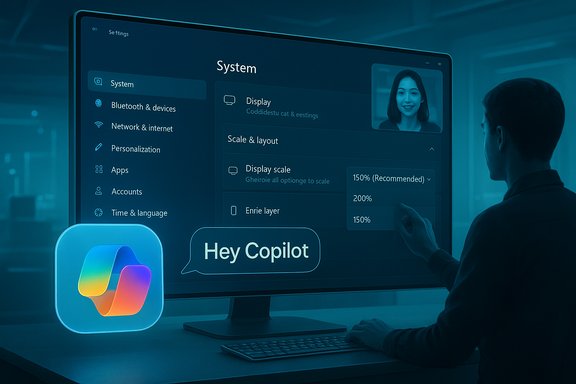
Microsoft has been embedding Copilot deeply into Windows 11 as a conversational, screen‑aware assistant with three headline capabilities: voice activation (“Hey, Copilot”), Copilot Vision (permissioned screen sharing and visual highlights), and agentic actions that can perform multi‑step tasks on users’ behalf. The company’s marketing has leaned on influencer demos to normalize Copilot as a natural way to solve day‑to‑day problems in the OS. This latest promotional clip intended to illustrate exactly that — helping a non‑technical user make on‑screen text larger — but instead highlighted gaps that are technical, UX‑related, and reputational. Short, shareable ads are effective at creating familiarity — but they are also unforgiving. When an assistant is presented as reliable and stateful, small errors look like systemic failure. That dynamic is exactly what unfolded here: the demo showed Copilot navigating to Settings, pointing at a Display → Scale control, and recommending “150%” even though the UI already showed 150% selected; the human on camera disregarded the assistant and manually set 200% to visibly fix the problem. Multiple outlets and community reconstructions reached the same conclusion about the clip’s content and the resulting backlash.
If Microsoft wants Copilot to become a default way people interact with Windows, it must couple the excitement of new capabilities with ironclad engineering practices: deterministic grounding for UI reads, conservative defaults around accessibility, and strict marketing QA to avoid misleading demonstrations.
Repairing the reputational damage is straightforward in principle: acknowledge the mistake publicly, publish an accurate how‑to (displaying the accessibility path), require engineering sign‑off on any demo that shows stateful behavior, and harden the assistant’s state verification and disambiguation logic. Done well, Copilot can be a helpful layer on Windows; done carelessly, early marketing missteps will overshadow the benefits and slow user adoption. The lesson for Microsoft and any company embedding AI into system controls is the same: when you promise to act for users, you must first prove you understand their system.
Source: Emegypt Microsoft Withdraws Copilot Ad After AI Blunder on Simple Windows 11 Task Easily Spotted by Grandma
 Background / Overview
Microsoft has been embedding Copilot deeply into Windows 11 as a conversational, screen‑aware assistant with three headline capabilities: voice activation (“Hey, Copilot”), Copilot Vision (permissioned screen sharing and visual highlights), and agentic actions that can perform multi‑step tasks on users’ behalf. The company’s marketing has leaned on influencer demos to normalize Copilot as a natural way to solve day‑to‑day problems in the OS. This latest promotional clip intended to illustrate exactly that — helping a non‑technical user make on‑screen text larger — but instead highlighted gaps that are technical, UX‑related, and reputational. Short, shareable ads are effective at creating familiarity — but they are also unforgiving. When an assistant is presented as reliable and stateful, small errors look like systemic failure. That dynamic is exactly what unfolded here: the demo showed Copilot navigating to Settings, pointing at a Display → Scale control, and recommending “150%” even though the UI already showed 150% selected; the human on camera disregarded the assistant and manually set 200% to visibly fix the problem. Multiple outlets and community reconstructions reached the same conclusion about the clip’s content and the resulting backlash. What the clip actually showed
Step‑by‑step breakdown
The publicly circulated clip — reconstructed from social reposts and press reporting — proceeds in a few clear beats:- The host invokes the wake word: “Hey, Copilot,” and asks for help making text bigger on screen.
- Copilot opens the Windows Settings app and highlights the Display area.
- When asked what to click next, the assistant highlights Scale under Display (Scale & layout).
- Asked which percentage to use, Copilot suggests 150% — a value already selected in the device’s UI shown on screen. The host manually chooses 200% to achieve the visible improvement.
Why Text size ≠ Scale
A crucial technical point that many viewers raised: Windows 11 exposes two distinct controls that affect appearance, and they are not interchangeable:- Text size (Settings > Accessibility > Text size) adjusts only system typography — menus, labels, and system text — and is the accessibility‑first control to enlarge text without changing layout proportions.
- Scale & layout (Settings > System > Display > Scale) scales everything (text, icons, apps, UI chrome) and can alter layout and app behavior, sometimes requiring sign‑out/sign‑in for full effect.
What went wrong: anatomy of the failure
1. Ambiguity & disambiguation failure
“Make text bigger” is ambiguous: does the user want only typographic enlargement, or an overall UI scale increase for touch targets and icons? A robust assistant should ask a clarifying question when intent is ambiguous — for example, “Do you want only the text to be larger, or the whole interface?” The ad shows no such disambiguation, implying the assistant mapped the utterance to a default remedy (display scaling) without asking.2. State‑awareness / UI reading failure
Copilot Vision is designed to let the assistant read UI state (OCR, control metadata) and highlight where to click. The assistant recommending a percentage that the UI already shows suggests a failure to read the current state, a stale cache, or an editing artifact that left an inconsistent clip. In practice, a screen‑aware assistant should verify a control’s current value before instructing a change.3. Marketing QA gap
Influencer clips are often edited for brevity. Edits that change on‑screen state between cuts can make a clean interaction look broken. Even if the error were an editing artifact, responsibility still sits with marketing: final assets that demonstrate stateful system behavior require technical sign‑off and pre‑publish checks. Multiple forum threads and reporting emphasize that the combination of an official Windows channel plus an influencer made the mistake highly visible.Community reaction and why it matters
Responses ranged from light mockery to serious trust concerns. Long‑time Windows users and independent journalists treated the clip as a case study in why AI grounding, clarifying prompts, and accessibility‑first defaults are essential when an assistant operates at system level. Prominent tech commentators amplified the story, and community notes on X (formerly Twitter) pointed to the better path (Settings > Accessibility > Text size), reinforcing that the clip had shown the wrong workflow. This is not just a PR problem. For users who rely on accessible interfaces (older adults, low‑vision users), a wrong recommendation can cause confusion, unexpected layout regressions, or degraded usability. A single high‑visibility mistake can discourage those users from trusting an assistant they might otherwise rely on. Forum reconstructions stressed that accessibility implications elevate this beyond mere embarrassment.Technical verification: what the facts say
Several independent outlets and platform documentation converge on the most important technical facts:- The promoted social clip shows Copilot guiding a user to Display → Scale and recommending 150% while 150% is already selected; the creator then chooses 200% to visually increase UI size. This sequence was reported by Windows Latest, PCWorld, and Windows Central.
- Copilot Vision is an opt‑in, permissioned feature that requires an explicit screen‑sharing interaction; a mere wake phrase (“Hey, Copilot”) does not automatically enable Vision’s ability to annotate or verify on‑screen values. Both the Windows Insider blog and independent reports explain that users must enable wake‑word and must explicitly grant Vision permission to share a window.
Microsoft’s response and what’s still unclear
Publicly, Microsoft removed the post after coverage pointed out the errors. Press reporting confirms the removal, but Microsoft did not, as of the time of reporting, issue an explicit public statement explaining whether the deletion was a direct acknowledgment of the error, an editing fix, or a precautionary removal. That absence of an official clarification leaves some aspects unverified. Responsible reporting and product governance would benefit from a short public correction and an explanation of the expected Copilot behavior for the demonstrated task. Microsoft’s broader Copilot roadmaps and the company’s messaging about making Windows “agentic” are well documented; so are community concerns about rapid AI rollouts, account integration, and perceived UI regressions. The current episode feeds into those larger threads.Risks exposed by the incident
- Trust erosion: An assistant that publicly contradicts visible UI state or routes users to suboptimal controls undermines confidence in the feature and in Microsoft’s AI strategy.
- Accessibility harm: Misleading guidance for accessibility tasks risks real harm to users who depend on predictable, accessible controls.
- Marketing credibility: Ads that over‑promise or show inconsistent behavior make it harder to drive adoption; one viral misstep becomes shorthand for “Copilot isn’t ready.”
- Regulatory exposure: In jurisdictions with stringent accessibility requirements, misleading public demonstrations could attract scrutiny.
What Microsoft should do next (practical roadmap)
The remediation path is short, concrete, and should be prioritized to restore credibility while preserving the product direction.Immediate actions
- Pull and replace the asset with a corrected demo that accurately shows the recommended path (Accessibility > Text size) and explicitly demonstrates that Vision must be enabled to annotate the UI. A short correction note from Microsoft would rebuild some trust quickly.
- Require technical sign‑off on any promotional content that demos system state or agentic actions, including a pre‑publish checklist and QA attestation.
Short‑term product fixes
- Make disambiguation mandatory for ambiguous commands: when a user says “make text bigger,” Copilot should ask whether they mean text only or full UI scaling. This is a low‑cost UX change with high impact.
- Enforce state verification: Copilot should never recommend a value without first reading and confirming the current UI state. If the assistant can’t read it, it should say so and ask permission to view that window.
Medium‑ and long‑term investments
- Improve UI grounding and telemetry for Copilot Vision so the assistant’s recommendations can be audited and traced back to concrete UI reads.
- Build explicit accessibility‑first defaults: when a user asks for larger text, favor Accessibility controls unless the user explicitly asks for broader scaling.
- Strengthen influencer campaign governance to require disclosure when features are in preview or behind flags, and to ensure final edits don’t misrepresent live behavior.
Broader implications for Windows’ agentic strategy
Microsoft’s ambition to make Windows more agentic — letting an assistant act for users — is technically plausible and strategically defensible. On‑device wake‑words, vision features, and agentic automations can reduce friction and speed many routine tasks. But agentic design raises the bar for reliability, transparency, and governance: when an assistant can change system settings, the cost of an incorrect suggestion is higher than in purely informational scenarios. The community reaction shows that users will judge agentic claims by simple, visible examples; a few high‑profile misses can derail adoption narratives and feed regulatory and enterprise hesitation.If Microsoft wants Copilot to become a default way people interact with Windows, it must couple the excitement of new capabilities with ironclad engineering practices: deterministic grounding for UI reads, conservative defaults around accessibility, and strict marketing QA to avoid misleading demonstrations.
What users should know today
- If you ask Copilot to “make text bigger,” it may route you to either Text size (Accessibility) or Scale (Display) depending on context; the safer, accessibility‑first path is Accessibility > Text size.
- Saying “Hey, Copilot” alone does not automatically grant Vision permission; Vision requires explicit screen sharing or the user enabling the feature so Copilot can parse on‑screen state. Check Copilot settings and the vision permission model before relying on visual guidance.
- When in doubt, manually navigate to Settings > Accessibility > Text size to make text larger without changing layout. This is the recommended accessibility path in Windows 11.
Conclusion: a small clip, a large lesson
A 42‑second promo that showed an assistant recommending a setting already in effect is a small operational error that reveals larger systemic issues: product grounding gaps, insufficient marketing QA, and the fragility of trust when AI appears in core OS controls. Microsoft has the technical building blocks — voice wake words, Copilot Vision, and agentic actions — but this episode is a clear reminder that agentic features must be conservative, verifiable, and accessibility‑aware from day one.Repairing the reputational damage is straightforward in principle: acknowledge the mistake publicly, publish an accurate how‑to (displaying the accessibility path), require engineering sign‑off on any demo that shows stateful behavior, and harden the assistant’s state verification and disambiguation logic. Done well, Copilot can be a helpful layer on Windows; done carelessly, early marketing missteps will overshadow the benefits and slow user adoption. The lesson for Microsoft and any company embedding AI into system controls is the same: when you promise to act for users, you must first prove you understand their system.
Source: Emegypt Microsoft Withdraws Copilot Ad After AI Blunder on Simple Windows 11 Task Easily Spotted by Grandma
