

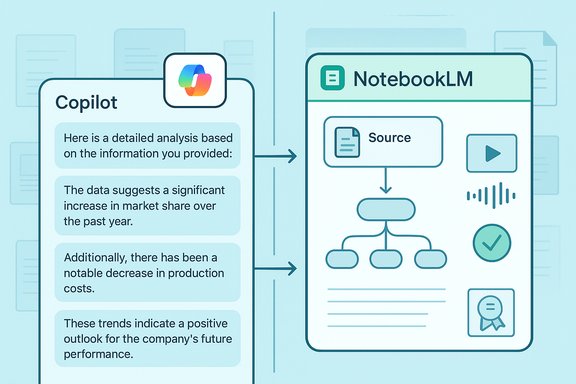
Google’s NotebookLM and Microsoft’s Copilot are not formally married, but when a user manually pipes Copilot’s outputs into a NotebookLM notebook the result is a surprisingly effective hybrid research workflow that blends Copilot’s conversational drafting and cross-account retrieval with NotebookLM’s source‑grounded study tools and multimodal outputs.
Google’s NotebookLM is designed as a notebook-first research companion: it ingests user-supplied documents, web sources, and uploaded files to produce source‑constrained summaries, mind maps, audio and video overviews, quizzes, and other study artifacts. Recent updates have added Video Overviews and a redesigned Studio that consolidates Audio Overviews, Video Overviews, Mind Maps and Reports into a single creative panel. Microsoft’s Copilot, by contrast, is a productivity‑centric assistant that now offers deeper system-level integration in Windows and Microsoft 365. Recent Copilot updates introduce opt‑in Connectors (allowing natural‑language search across OneDrive, Outlook and selected consumer Google services), document export (export chat outputs into .docx/.xlsx/.pptx/.pdf), Groups (shared Copilot sessions), and a set of voice and tutoring enhancements. These features let Copilot find, synthesize and produce ready artifacts across accounts — capabilities that pair well with NotebookLM’s notebooking and study outputs. A recurring, practical pattern has emerged among power users: use Copilot to discover and draft — especially when starting from a blank slate — then paste those Copilot responses into NotebookLM as curated sources to create an auditable, studyable notebook enriched with audio, visual and quiz outputs. This manual bridge turns two siloed tools into a compact learning engine.
This pattern is particularly effective when you:
From a product perspective, the lines between research assistants and productivity assistants are blurring: Copilot’s Connectors and export features close the gap toward NotebookLM‑style notebooks, while NotebookLM’s Studio (Audio/Video Overviews, mind maps) moves Google’s research product closer to finished‑artifact outputs. Expect both vendors to continue enhancing cross‑account retrieval, export features and multimodal outputs — and for third‑party integrators to try to remove manual friction.
Source: Pocket-lint This unlikely Google-Microsoft duo works better than it should
 Background / Overview
Google’s NotebookLM is designed as a notebook-first research companion: it ingests user-supplied documents, web sources, and uploaded files to produce source‑constrained summaries, mind maps, audio and video overviews, quizzes, and other study artifacts. Recent updates have added Video Overviews and a redesigned Studio that consolidates Audio Overviews, Video Overviews, Mind Maps and Reports into a single creative panel. Microsoft’s Copilot, by contrast, is a productivity‑centric assistant that now offers deeper system-level integration in Windows and Microsoft 365. Recent Copilot updates introduce opt‑in Connectors (allowing natural‑language search across OneDrive, Outlook and selected consumer Google services), document export (export chat outputs into .docx/.xlsx/.pptx/.pdf), Groups (shared Copilot sessions), and a set of voice and tutoring enhancements. These features let Copilot find, synthesize and produce ready artifacts across accounts — capabilities that pair well with NotebookLM’s notebooking and study outputs. A recurring, practical pattern has emerged among power users: use Copilot to discover and draft — especially when starting from a blank slate — then paste those Copilot responses into NotebookLM as curated sources to create an auditable, studyable notebook enriched with audio, visual and quiz outputs. This manual bridge turns two siloed tools into a compact learning engine.Why this unlikely pairing works
- Complementary strengths: Copilot shines at quick conversational drafting, cross‑account retrieval and one‑click exports; NotebookLM excels at source‑anchored synthesis, provenance, and study artefacts like flashcards and audio overviews. Put simply: Copilot proposes; NotebookLM organizes and tests.
- Control over provenance: NotebookLM’s notebook model forces users to keep the corpus explicit — every answer is traceable to uploaded sources — which mitigates the common “hallucination” problem of chat assistants when the Notebook is properly curated. When Copilot text is pasted into a Notebook and flagged as a source, your synthesized outputs remain auditable.
- Speed without losing structure: Copilot can quickly draft a beginner’s primer on an unfamiliar topic; NotebookLM turns that primer into mind maps, audio overviews and quizzes in minutes, enabling rapid iterative learning cycles. The workflow is ideal when you have limited time but need structured comprehension.
- Multimodal learning: NotebookLM’s Audio and Video Overviews let you convert Copilot’s text into podcast‑like or narrated slide formats for passive learning, while Copilot can be used to generate concise summaries or explainers fed back into NotebookLM for repetition or deeper dives.
How to recreate the Copilot → NotebookLM workflow (step‑by‑step)
- Prepare your starting prompt in Copilot.
- Example: “Write a detailed analysis of how someone should get started investing in cryptocurrency, including basic concepts, risk profile, and tax considerations.”
- Use Copilot’s connectors if you want it to retrieve and ground suggestions from your own Gmail/Drive or OneDrive files (opt‑in).
- Ask Copilot to produce segmented outputs (recommended).
- Request discrete sections (e.g., “Basics,” “Types of tokens,” “Tax implications,” “Pros/cons,” “Short reading list”) to make pasting and later source attribution easier.
- Copy Copilot’s responses and paste them into NotebookLM as an uploaded source.
- In NotebookLM: choose “Paste text” in Upload sources. Confirm the pasted text becomes part of the notebook’s source corpus.
- Supplement Copilot text with a few curated external sources.
- Add authoritative pages (official tax guidance, standards, or reputable journalism) to reduce beginner‑bias and strengthen provenance.
- Generate NotebookLM artifacts.
- Create a Mind Map to break the topic into digestible nodes.
- Produce an Audio Overview (or Video Overview) for mobile learning.
- Use the quiz/flashcard generator to test retention.
- Iterate: feed NotebookLM’s deeper extracts (e.g., a long explanation of capital‑gains tax) back to Copilot and ask for a short, plain‑English summary for quick reference. This two‑way loop leverages Copilot’s brevity and NotebookLM’s grounding.
Real‑world example: learning cryptocurrency (the Pocket‑lint workflow)
A recent practical write‑up described using Copilot for the initial heavy lifting — drafting primers and pros/cons — then pasting those answers into NotebookLM, adding a handful of Google search results, and using NotebookLM’s Studio to create a Mind Map, Visual Overview, Audio Overview and quizzes to learn more quickly. The user then asked Copilot to summarize long NotebookLM outputs into a succinct explanation for faster consumption. This exact loop — Copilot → NotebookLM → Copilot — amplifies learning speed and retention.This pattern is particularly effective when you:
- Start with little prior knowledge and need a fast, broad primer.
- Want to compress study time using audio/video summaries for commuting or multitasking.
- Need quick self‑assessment via quizzes to confirm understanding.
Technical features to verify before you start
- NotebookLM: confirm your account supports the Studio features (Audio/Video Overviews, Mind Maps, Quiz generator) and check any upload limits for file sizes and counts; Google’s NotebookLM Studio rollout and Video Overviews are documented in the product blog. If a feature is unavailable, it may be region‑gated or in staged rollout.
- Copilot: verify whether Connectors are available in your Copilot surface (Copilot.com, Copilot mobile, or Copilot on Windows) and whether you need to enable Google account connectors via OAuth. Connectors are opt‑in and governed by per‑service consent screens. Also confirm export behavior and whether your Copilot client exposes the easy export affordance for longer replies.
- Data residency and enterprise policy: for corporate accounts, confirm tenant policies and whether the use of connectors or third‑party integrations is permitted under your organization’s governance. Copilot’s connectors and NotebookLM’s Deep Research (where available) can expand the data surface in ways IT must approve.
Strengths and practical benefits
- Time savings: this workflow turns a multi‑hour reading and note‑taking session into a 20–40 minute synthesis and study cycle for an intro‑level topic.
- Multimodal retention: Audio and Video Overviews maximize retention during commutes or exercise.
- Personalized study artifacts: Mind Maps and quizzes adapt content into teachable chunks you can revisit.
- Cross‑ecosystem retrieval: Copilot connectors let you surface personal emails, calendars or Drive files, which you then consolidate in NotebookLM for a single, auditable corpus.
Risks, limitations, and important caveats
- Hallucination and over‑confidence: Copilot and NotebookLM can both produce plausible‑sounding but incorrect statements. Always validate load‑bearing claims — especially legal, tax, medical, or financial guidance — against primary sources or subject‑matter experts. NotebookLM reduces hallucination risk by constraining answers to the provided corpus, but if that corpus includes unvetted Copilot text, you still need to verify. Treat AI outputs as starting points, not verdicts.
- Privacy surface expansion: enabling Copilot connectors to access Gmail, Google Drive, or OneDrive broadens the attack and exposure surface. Copilot’s documentation states connectors are opt‑in and use OAuth and scoped access, but any system that centralizes private communications requires careful configuration and periodic review. Admins should audit OAuth scopes and retention policies.
- Data residency & compliance: NotebookLM and Copilot have different enterprise controls, contractual obligations and data‑use guarantees. For regulated workloads, confirm vendor contracts about non‑training guarantees, residency, and encryption before feeding sensitive documents into either system. If you can’t confirm a non‑training guarantee for a given account, assume inputs could be used in model improvement and act accordingly.
- Manual friction: this integration is currently largely manual — copy/paste or “Paste text” uploads — which can feel clunky for large corpora. Expect to curate and edit rather than rely on automatic ingestion. If you need a fully automated pipeline, consider enterprise connectors or workflow automation tools with stronger governance.
- Versioning and provenance: if you plan to publish or operationalize AI‑generated syntheses, preserve original files, timestamps and the exact Copilot prompts used. NotebookLM’s notebook model helps, but users must maintain a disciplined verification log for any external distribution.
Verification checklist (what to cross‑check before trusting outputs)
- Are all load‑bearing facts backed by at least two independent, authoritative sources?
- Did you capture the original Copilot prompt and the exact text pasted into NotebookLM?
- For any tax, legal, or medical guidance, did you confirm against official guidance (e.g., IRS pages, government sites, statutes)?
- Did you review OAuth scopes requested when enabling Copilot connectors and confirm they match organizational policy?
- Are sensitive files excluded, or have safeguards (sanitization, redaction) been applied before uploading to NotebookLM?
Advanced tips for power users
- Use structured Copilot outputs: ask Copilot to return JSON‑like sections (title, summary, citations) to make NotebookLM ingestion and later traceability easier.
- Keep a staging notebook: paste Copilot drafts into a draft notebook, then supplement with primary sources and move only vetted content into a “final” study notebook.
- Tag sources in NotebookLM: use NotebookLM’s metadata features (where available) to mark whether a source is Copilot text, an official guideline, or a news article.
- Automate small parts: if you routinely run the same loop, use browser automation to speed copy/paste steps — but only on secure machines and with clear audit trails.
- Use Copilot exports when possible: Copilot’s one‑click export to .docx or .pdf can save a step; upload that exported file into NotebookLM instead of raw pasted text to preserve formatting and references.
When NOT to use this duo
- High‑stakes legal, medical or regulated financial analysis without human expert review.
- Sensitive internal IP or PHI unless your enterprise contract explicitly permits such uploads and documents non‑training and residency restrictions.
- Scenarios requiring immutable audit trails enforced by legal or regulatory bodies unless your enterprise configuration provides those guarantees.
The strategic picture: what this says about modern AI tooling
This manual coupling of Google NotebookLM and Microsoft Copilot is emblematic of the current phase in AI tooling: best‑of‑breed components are becoming workflow glue rather than monolithic platforms. Users increasingly stitch assistants together — draft with one, verify and package with another — to create practical productivity pipelines that balance speed, provenance and modality.From a product perspective, the lines between research assistants and productivity assistants are blurring: Copilot’s Connectors and export features close the gap toward NotebookLM‑style notebooks, while NotebookLM’s Studio (Audio/Video Overviews, mind maps) moves Google’s research product closer to finished‑artifact outputs. Expect both vendors to continue enhancing cross‑account retrieval, export features and multimodal outputs — and for third‑party integrators to try to remove manual friction.
Bottom line and practical recommendations
- For learners and busy researchers: this Copilot → NotebookLM loop is a high‑value, low‑risk way to accelerate comprehension — when you pair the speed of Copilot with the provenance and study artifacts of NotebookLM you get both breadth and traceability.
- For organizations: pilot the workflow on non‑sensitive topics, build governance checklists for connector consent and DLP, and require two‑source verification before outputs are used externally.
- For privacy‑conscious users: treat connectors as powerful but sensitive; review OAuth scopes, disable connectors when not in active use, and delete conversation history that contains personal data if you are concerned about persistent storage.
- Always verify: AI is an accelerant, not an oracle. Confirm important claims against primary sources and keep an auditable trail of prompts, sources and verification steps.
Source: Pocket-lint This unlikely Google-Microsoft duo works better than it should
