

Microsoft’s Copilot is no longer content to live in a sidebar — recent Windows 11 Insider builds tuck it into File Explorer and even add a floating “Share with Copilot” affordance to the taskbar, making the assistant a one‑click presence inside the places most users visit daily. The changes are currently rolling through the Insider channels as experiments and inert UI hooks, but the implications are clear: Microsoft is moving Copilot from an optional helper to a system‑level assistant tightly woven into the Windows shell.
Microsoft launched Copilot as a productivity assistant across its ecosystem, and over the last two years the company has steadily expanded entry points: a persistent taskbar button, integration inside dge, the standalone Copilot app, and dedicated hardware keys on Copilot+ PCs. The latest Insider experiments accelerate that push, adding two notable surface points:
Windows Central, PCWorld and ot that the new taskbar affordance is visible in Dev‑channel builds (reported in build 26220.6690 and later test packages), and that Copilot Vision is the feature doing the visual analysis. Reporters noted that the capability appears on non‑Copilot+ PCs as well — the feature surface is broad even if some on‑device model acceleration remains gated t.
Current discovery artifacts are primarily inert and serve as evidence of intent rather than shipped functionality. The strings and invisible hotspots indicate Microsoft is testing the UX, but the behavior is still being validated in the Insider program and may change before it reaches Release Preview or production channels.
If Microsoft succeeds in making Copilot feel indispensable — fast, accurate, and context‑aware — the assistant could become a fundamental productivity layer across Windows. But that success depends not only on technical ability but on Microsoft’s willingness to provide transparent controls and enterprise‑grade governance for organizations and privacy‑conscious users.
For end users: test the features cautiously and use existing settings to hide or block Copilot if you prefer. For IT: treat the arrival of these features as a policy exercise — update DLP rules, test Group Policy/Intune options, and decide whether the convenience is worth the administrative overhead. And for Microsoft: if Copilot is to become a default assistant, the company must continue improving transparency, provide robust admin controls, and make on‑device processing the default where regulatory contexts demand it.
The Copilot era is here — it’s now up to users, administrators, and Microsoft to make sure it’s useful, accountable, and aligned with real world needs.
Source: PCMag Australia Copilot Creeps Into File Explorer and the Taskbar on Windows 11
 Background
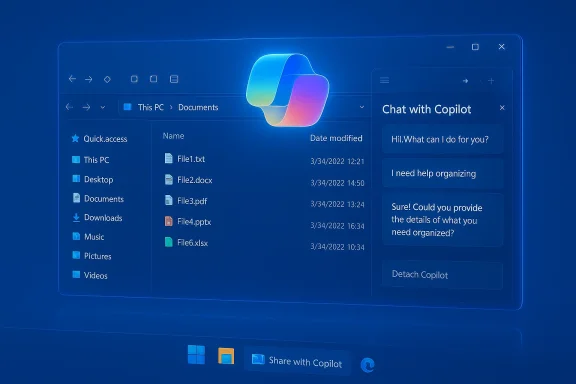
Microsoft launched Copilot as a productivity assistant across its ecosystem, and over the last two years the company has steadily expanded entry points: a persistent taskbar button, integration inside dge, the standalone Copilot app, and dedicated hardware keys on Copilot+ PCs. The latest Insider experiments accelerate that push, adding two notable surface points:- A docked (and detachable) Copilot chat inside File Explorer — found as hidden strings and inert UI hotspots in preview packages and traced to FileExplorer extensions.
- A Share with Copilot button that appears when you hover over an open app’s taskbar thumbnail, designed to hand an app window to Copilot Vision so the assistant can scan and analyze what’s visible.
What’s actually appearing in Insider builds
Taskbar: “Share with Copilot” and Copilot Vision
When you hover an open app on the taskbar and trigger the taskbar preview, a faint new control labeled Share with Copilot can appear. That control initiates a Copilot Vision session scoped to the chosen window: Copilot captures a snapshot of the window contents, analyzes text, images, or UI, and returns contextual suggestions, summaries, or follow‑up actions inside the Copilot chat surface. The experience mirrors how screen sharing works in collaboration apps, except the recipient is an AI agent rather than another person.Windows Central, PCWorld and ot that the new taskbar affordance is visible in Dev‑channel builds (reported in build 26220.6690 and later test packages), and that Copilot Vision is the feature doing the visual analysis. Reporters noted that the capability appears on non‑Copilot+ PCs as well — the feature surface is broad even if some on‑device model acceleration remains gated t.
File Explorer: “Chat with Copilot” and “Detach Copilot”
Inside File Explorer, inspectors found resource strings and hidden UI placeholders referencing a Chat with Copilot trigger and a Detach Copilot affordance. The latter is telling: Detach strongly implies a default, docked Copilot pane that can be popped out into a floating window. In other words, Copilot would be able to live as a first‑class panel in Explorer — able to see selected files, answer file‑centric questions, summarize documents, or run quick multi‑file comparisons without forcing users to open Office apps or a browser.Current discovery artifacts are primarily inert and serve as evidence of intent rather than shipped functionality. The strings and invisible hotspots indicate Microsoft is testing the UX, but the behavior is still being validated in the Insider program and may change before it reaches Release Preview or production channels.
How the features would work in practice
- Share with Copilot (taskbar): hover a taskbar icon → preview appears → click “Share with Copilot” → Copilot Vision captures the visible window content → Copilot returns contextual suggestions or a chat thread tied to that window. Use cases include summarizing a long email in Outlook, extracting insights from an Excel sheet, or getting step‑by‑step help for a dialog in another app.
- Chat with Copilot (Explorer): click a Copilot affordance in the Explorer toolbar or the Details pane → a Copilot chat opens inside Explorer, scoped to selected files or the current folder → users can ask natural language questions about files, request summaries, or ask Copilot to perform file operations (rename patterns, extract content, compare file revisions). The Copilot pane can be detached to float separately if desired.
- Continuity between surfaces: interactions can migrate between surfaces. For example, you might begin a Copilot conversation by handing an Outlook window to Copilot, then open the same Copilot thread from File Explorer to pull related documents into the conversation. Microsoft’s design intent appears to be a multi‑entry, single conversation model that adapts to the surface you use. The evidence for this is the growing web of entry points that funnel into the same Copilot backend.
Why Microsoft is doubling down on system-level Copilot entry points
There are three clear motivations:- Discoverability and adoption. Embedding Copilot into everyday places lowers friction and increases the chance users will try it. A floating Share button or an in‑Explorer chat removes the barrier of opening a separate app or visiting a web page. Microsoft needs those entry points to make AI feel like a natural part of workflows rather than an optional add‑on.
- Contextual usefulness. Copilot’s value rises with context. A spreadsheet or document contains semantic signals that Copilot can exploit to produce better suggestions. Tying the assistant directly to app windows and file metadata improves the practical usefulness of responses.
- Platform lock‑in and ecosystem play. By folding generative AI deeper into Windows, Microsoft strengthens the connection between the OS, Microsoft 365, OneDrive and Edge. This integration positions Copilot not just as a feature but as an OS‑level assistant that amplifies Microsoft’s cloud services.
The clear benefits
- Faster, contextual help. Instead of copying and pasting content into a chat window, users can hand an entire window to Copilot and get targeted assistance. This reduces friction for routine tasks like drafting email replies or summarizing long documents.
- Semantic file management. An Explorer‑embedded Copilot could let non‑technical users find, summarize, and compare files without knowing the right search syntax ops.
- Accessibility improvements. Microsoft has already extended Copilot‑powered image descriptions to Narrator and similar assistive tech. A Copilot that lives in Explorer and the taskbar could offer real gains for users who depend on screen readers or need on‑the‑fly simplification.
- Cross‑surface workflows. Copilot conversations that persist across Explorer, Office apps, and the Copilot app reduce context switching and keep an audit trail of the assistant’s actions and suggestions.
Real and material risks
While the features promise convenience, they raise substantive privacy, security, and UX concerns that organizations and privacy‑minded individuals should weigh carefully.1. Privacy and local content scanning
Handing a window to Copilot Vision means the contents of ttured and analyzed. Depending on your settings and the backend architecture, that data could be processed locally (on Copilot+ machines with NPUs) or sent to cloud services for analysis. Either way, automatic or accidental sharing of sensitive screens — email, finance apps, HR data — becomes a risk vector. The feature’s convenience is the same vector that can leak data if misused.2. Too many entry points, too little control
Microsoft’s strategy of proliferating entry points increases discoverability but also increases the cognitive and administrative surface area. Users can be surprised at new affordances appearing in the taskbar or Explorer. For enterprises, that multiplies the places where DLP (Data Loss Prevention) and governance need to be enforced. Admins must now consider how to extend DLP to Copilot Vision hand‑offs and Copilot’s file operations.3. Telemetry and compliance
If Copilot relies on cloud processing for rendering high‑quality answers, organizations will want clear guarantees about what is logged, how long conversational context is kept, and how data residency and compliance requirements are met. Right now, Microsoft offers different behavior depending on product tiers (free Copilot, M365 Copilot, Copilot+ on‑device processing), and the matrix of policies can be confusing.4. Surface‑level surprises and stability
Windows Shell modifications are sensitive. Each new persistent panel or taskbar control increases potential for regressions, performance hits, or accessibility breakages. Community reports over recent update cycles illustrate how delicate shell changes can be for diverse configurations. Microsoft’s Insider testing is important precisely because these features must be exercised across hardware, localizations, and enterprise setups.Enterprise controls and admin options
Microsoft has responded to administrator pushback by adding controls — though the options are often partial and gated to specific SKUs or Insider builds.- Group Policy / Registry: IT pros can disable Copilot’s main entry points via the Group Policy setting TurnOffWindowsCopilot (or corresponding registry keys). That blocks the Copilot UI in many cases but is not always a complete kill switch for every integration point.
- New remove policy (preview): Insider builds introduced a RemoveMicrosoftCopilotApp Group Policy that permits IT admins to uninstall the consumer Copilot app under several constraints (the device must meet conditions such as not havrecently, and the policy is limited to Pro/Enterprise/Edu SKUs for now). This is a one‑time uninstall mechanism and does not remove all Copilot functionality — Microsoft 365 Copilot and deeper OS hooks may remain. The option is subject to change before broader release.
- Intune / Settings Catalog: Microsoft added settings to Intune to turn off Copilot on managed devices; this is the recommended approach for organizations that need centralized policy control. The Settings Catalog provides a clean way to toggle Copilot visibility and behavior without editing the registry at scale.
- AppLocker and SRP: For environments requiring a hard block, AppLocker or Software Restriction Policies can prevent the Copilot executable from running — this is more intrusive and gives administrators tighter control where necessary.
Accessibility: promise and caveats
Microsoft has signaled benefits for accessibility — Copilot‑generated image descriptions in Narrator and in‑Explorer summarization tools could help visually impaired users and those who need simplified document views. However, quality and reliability are critical: AI descriptions must be accurate and explainable. Mistakes in automated descriptions have outsized consequences when they replace human validation for assistive workflows. Accessibility advocates should push for configurable levels of automation and easy fallbacks to human‑validated content where needed.What users should do right now
If you’re a Windows Insider, treat these features as experiments: test carefully and provide feedback through the Insider channels. If you’re a general user or IT admin, here are concrete steps to manage impact:- Check your Insider channel and build number before assuming the features are present; the taskbar and Explorer hooks have appeared in various 26220‑series builds.
- If you’re concerned about accidental screen sharing to Copilot Vision, educate users about the new Share controls and how to decline or avoid using them.
- For admins: deploy the TurnOffWindowsCopilot Group Policy or Intune setting for managed devices where Copilot is not approved. Use AppLocker or SRP for hard enforcement if required.
- If you must remove the consumer Copilot app, evaluate the RemoveMicrosoftCopilotApp Group Policy (Insider preview) and its constraints; do not assume it will remove every Copilot‑based capability.
A pragm
- Likelihood (near term): High — Microsoft has already placed Copilot entry points into multiple insider builds and is iterating rapidly. Expect continuing expansion barring regulatory or technical pushback.
- Impact (user privacy & enterprise governance): Medium–High — Handing visual contexts to an AI assistant increases the risk surface for accidental exposure of sensitive data, but administrative controls exist and are being refined. The details of cloud vs on‑device processing will materially affect exposure.
- Operational burden (IT): Medium — Organizations will need to update DLP policies, review compliance documentation for Copilot and Microsoft 365 Copilot, and test the interaction between existing endpoint controls and the new OS hooks.
Why this matters beyond convenience
Two paradigm shifts are in play here. First, the desktop OS is being reframed from a passive shell to an agentic workspace — a place where autonomous or long‑running agents can act on behalf of the user, surfaced through the taskbar and panels. Second, the boundary between local content and cloud AI is blurring: features that used to require explicit user action (open an app, upload a file) can now be triggered with a single click from the OS chrome. Both shifts bring productivity gains but also require new governance, visibility, and trust models.If Microsoft succeeds in making Copilot feel indispensable — fast, accurate, and context‑aware — the assistant could become a fundamental productivity layer across Windows. But that success depends not only on technical ability but on Microsoft’s willingness to provide transparent controls and enterprise‑grade governance for organizations and privacy‑conscious users.
Conclusion
The movement of Copilot into File Explorer and the taskbar is no accident. Microsoft is designing the assistant to be where you work, not a separate destination you visit. The Insider evidence — invisible Explorer strings for Chat with Copilot and a hover‑activated Share with Copilot taskbar affordance — shows a deliberate, system‑level strategy to make Copilot omnipresent and low‑friction. That promises real productivity gains, especially for contextual tasks like summarizing documents or extracting insights from visible screens. But it also raises unavoidable questions about privacy, governance, and user control.For end users: test the features cautiously and use existing settings to hide or block Copilot if you prefer. For IT: treat the arrival of these features as a policy exercise — update DLP rules, test Group Policy/Intune options, and decide whether the convenience is worth the administrative overhead. And for Microsoft: if Copilot is to become a default assistant, the company must continue improving transparency, provide robust admin controls, and make on‑device processing the default where regulatory contexts demand it.
The Copilot era is here — it’s now up to users, administrators, and Microsoft to make sure it’s useful, accountable, and aligned with real world needs.
Source: PCMag Australia Copilot Creeps Into File Explorer and the Taskbar on Windows 11
