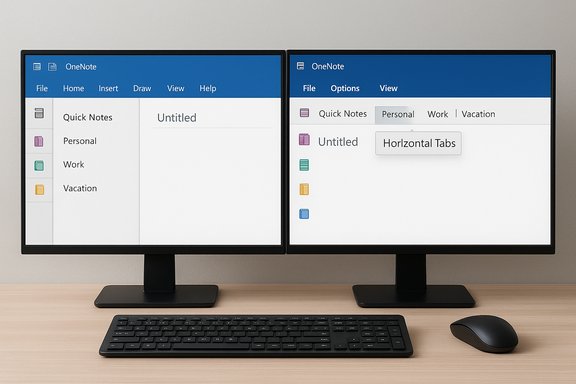
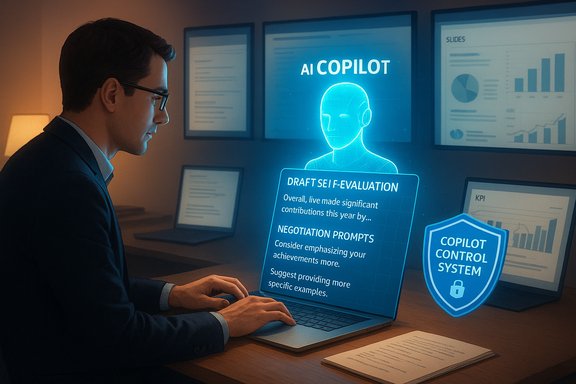
Microsoft’s Copilot is now being pitched as a practical, time‑saving assistant for one of work’s least‑loved rituals: the year‑end performance review. The company’s Microsoft 365 Insider post and follow‑on coverage show Copilot can generate negotiation scripts, assemble polished self‑evaluations from scattered notes and emails, and suggest tactful wording for delicate peer feedback — all by pulling context from your OneNote pages, status reports, presentations, and mail. The goal is straightforward: reduce the drafting burden so employees can focus on the substance of their careers, while organizations accelerate review cycles and (Microsoft hopes) improve review quality and consistency.
The year‑end review guidance is the latest example of an explicitly workplace‑facing scenario Microsoft is baking into Copilot: generate meeting scripts, summarize performance highlights, propose improvement plans, and draft peer feedback — all from the documents and communications employees already create. Microsoft’s messaging emphasizes speed, tone control, and reduced anxiety during reviews.
Key capabilities:
Practical outputs include:
Important operational details:
Mitigation:
Mitigation:
Mitigation:
Mitigation:
Mitigation:
However, performance evaluation hinges on context, nuance, and judgment — areas where human reviewers still outperform AI. A good manager reads tone, reads between the lines, and evaluates behavioral change over time. Copilot can speed preparation, but it cannot replace the conversation, calibration, and managerial responsibility central to performance management.
Yet the technology carries real risks: hallucinations, privacy exposures, bias amplification, and a potential loss of authenticity if organizations or employees over‑rely on AI drafts. The most prudent approach is balanced: adopt Copilot as a drafting and discovery aid while preserving strict governance, clear HR policy, and mandatory human verification. IT should deploy Copilot with Purview and the Copilot Control System configured to the organization’s compliance needs; HR should update policies and train users on how to use AI responsibly; managers should expect polished drafts but ask probing, human questions.
In short: Copilot can help you prepare smarter performance reviews, but it’s a drafting partner — not the substitute for managerial judgment, ethical oversight, or personal ownership of career narratives. Use it to speed the paperwork and sharpen the argument, then bring your own evidence, voice, and judgment to the conversation.
Source: Windows Report Microsoft Copilot now helps you prep smarter year-end performance reviews
 Background
Where this fits in the Copilot story
Copilot for Microsoft 365 has evolved from a productivity add‑on into a broader workplace assistant that’s tightly integrated with Microsoft Graph and the Microsoft 365 app stack. Over the past year Microsoft has expanded the product set — introducing Copilot Actions, a Copilot Control System for governance, and prebuilt agents — positioning Copilot as a contextual collaborator that surfaces and synthesizes information already in a user’s organizational drive and messaging systems.The year‑end review guidance is the latest example of an explicitly workplace‑facing scenario Microsoft is baking into Copilot: generate meeting scripts, summarize performance highlights, propose improvement plans, and draft peer feedback — all from the documents and communications employees already create. Microsoft’s messaging emphasizes speed, tone control, and reduced anxiety during reviews.
Why Microsoft is promoting this now
Performance review season is cyclical and high‑volume: millions of employees and managers prepare self‑assessments, collect evidence, and negotiate compensation decisions in a compressed window. That creates clear demand for automation and standardization. For Microsoft the feature doubles as both a productivity play and a commercial one: making Copilot indispensable during annual review windows helps drive adoption among knowledge workers and IT buyers while demonstrating an obvious business ROI in saved time and more coherent review output.What Microsoft says Copilot can do for your year‑end review
Scripted conversations and negotiation prompts
Copilot provides tailored scripts for sensitive conversations — for example, an employee asking for a raise during a tight budget year. Microsoft’s published examples show Copilot balancing appreciation, responsibilities taken on, and realistic expectations about budget constraints. The assistant can provide multiple tone and length options, from brief talking points to full, ready‑to‑read scripts.Key capabilities:
- Produce negotiation scripts that acknowledge company limits and emphasize demonstrated impact.
- Offer alternative phrasing and escalation paths (e.g., propose a deferred raise, a bonus, or role expansion).
- Suggest questions to ask managers that clarify promotion criteria, timelines, and development steps.
Self‑evaluation drafting from workplace data
One of Copilot’s more visible features is the ability to synthesize a self‑evaluation using content from OneNote, status reports, presentations, and emails. Instead of manually compiling accomplishments across quarterlies, Copilot can extract wins, process improvements, mentoring activities, and cross‑functional contributions into a concise narrative or the exact character count required by HR systems.Practical outputs include:
- Bulleted lists of quarter‑by‑quarter wins.
- A polished narrative tying those wins to business outcomes.
- A closing case for promotion or raise eligibility, including suggested future commitments.
Tactful peer feedback and tone moderation
Providing constructive criticism is tricky. Copilot offers phrasing that aims to be candid without being antagonistic: it can reframe problems as observable behaviors, suggest actionable improvements, and recommend follow‑ups. Microsoft’s materials show examples where the assistant reshapes a blunt complaint into supportive, development‑oriented feedback.How it works — the technical and policy underpinnings
Data sources and grounding
Copilot’s responses in these scenarios are grounded in corporate content surfaced by Microsoft Graph: emails, calendar entries, OneNote pages, Teams chat, SharePoint documents, and other items stored in the tenant. The user prompts can explicitly reference a OneNote page or attach files to instruct Copilot to use specific materials.Important operational details:
- Copilot uses your tenant’s orchestrator instance to retrieve and ground content from Microsoft 365.
- Users can attach or link specific OneNote pages, documents, or status reports to ensure the assistant references the correct materials.
- Some Copilot features include explicit character limits or framing guidance to match HR form requirements.
Governance: Copilot Control System and admin controls
Microsoft’s Copilot Control System is positioned as the management surface for enterprise deployment, giving IT and security teams tools to secure, govern, and measure Copilot usage. Built‑in and optional controls include:- Data access policies and permission checks to prevent oversharing.
- Microsoft Purview integrations to enforce sensitivity labeling and data loss prevention (DLP) for Copilot interactions.
- Audit and eDiscovery capabilities for prompts, responses, and files referenced during Copilot sessions.
- Blocking and exclusion policies for sensitive file processing.
Privacy and training safeguards
Microsoft’s enterprise Copilot messaging states that tenant data accessed for Microsoft 365 Copilot interactions is handled within the organization’s compliance boundaries and — in the Microsoft 365 context — is not used to train the foundation models that power Copilot. Data residency and processing statements vary by product and market, and organizations should validate the specific commitments relevant to their contracts and regulatory jurisdiction.Benefits for employees and managers
- Time savings: Automating the assembly of evidence and the drafting of narratives reduces hours spent hunting for proof points and polishing language.
- Better structure: Copilot produces structured, formatted self‑evaluations and talking points that map directly to common HR templates.
- Tone calibration: The assistant can soften or sharpen language to fit the cultural expectations of the team or company.
- Consistency: Standardized prompts can reduce variance across self‑evaluations, making manager comparisons more straightforward.
- Accessibility: For non‑native speakers, junior staff, or employees less comfortable with self‑promotion, Copilot levels the playing field with professionally phrased outputs.
Real risks and limitations — what HR and IT teams must consider
1. Hallucinations and factual errors
Generative AI can invent details, misattribute contributions, or misread dates and metrics. When a performance narrative is generated from a mix of notes and emails, there’s a non‑zero chance of introduced errors. This is a practical risk: an inaccurate self‑evaluation can derail a compensation discussion or create disputes with managers.Mitigation:
- Always verify facts: cross‑check metrics, dates, and project names against primary records.
- Use Copilot to draft, not to finalize. Human review is mandatory.
2. Privacy and data exposure concerns
Even with governance controls, employees may inadvertently prompt Copilot in ways that surface sensitive information inappropriately. There’s also concern about whether Copilot could assemble a narrative that reveals manager assessments or confidential product plans.Mitigation:
- Train users on acceptable prompts and attachments for review drafting.
- Enforce DLP rules and exclude especially sensitive content from Copilot processing.
- Ensure HR teams retain control over what is stored, shared, or included in personnel files.
3. Reliance and authenticity
If employees rely heavily on Copilot for performance narratives, those documents may become less personal and less reflective of authentic voice and ownership. Managers may struggle to assess intangibles such as leadership presence, judgment, and cultural fit if every self‑evaluation reads like a polished, AI‑assisted brief.Mitigation:
- Encourage personalization: treat Copilot outputs as first drafts that employees must adapt.
- HR should update guidance to require employees to add personal reflections or examples beyond Copilot’s summary.
4. Bias amplification and contextual misunderstandings
AI systems can reinforce biased patterns or offer feedback that’s insensitive to demographics, cultural norms, or role specifics. Responses that “soften” criticism may unintentionally euphemize systemic performance problems or penalize certain groups less bluntly.Mitigation:
- Pair Copilot use with HR oversight for equity reviews of phrasing and outcomes.
- Monitor aggregated Copilot outputs for patterns that may reflect algorithmic bias.
5. Legal and audit implications
Copied or synthesized wording may end up in a formal HR record. The origin of language could be relevant in disputes or litigation. Organizations must decide whether Copilot‑generated content is considered employee‑authored or a form of tool output.Mitigation:
- Define policies on AI‑assisted content and how it’s recorded in personnel files.
- Use auditing trails available through Purview to preserve prompt/response context where necessary.
Practical playbook: How to use Copilot responsibly for performance reviews
- Gather your source material first:
- Consolidate OneNote pages, status reports, presentation slides, and key emails into a single folder or OneNote section.
- Use explicit, constrained prompts:
- Ask Copilot to reference a specific OneNote page or attach the exact files you want included.
- Request multiple options:
- Generate a short talking script, a long narrative self‑evaluation, and a bulleted list of measurable wins.
- Fact‑check line by line:
- Verify metrics (revenue, quota, delivery dates), project names, and attributions against source documents.
- Personalize and own the voice:
- Rewrite portions to reflect your tone, add context only you would know, and confirm development commitments are realistic.
- Run a bias and sensitivity check:
- If providing peer feedback, ensure language is actionable and free of personality judgments.
- Coordinate with HR and your manager:
- Ensure Copilot usage aligns with company policy on self‑evaluations and written records.
- Save drafts and keep an audit trail:
- Retain the final document and, where appropriate, the prompts used. Use built‑in tenant logging if required for compliance.
HR policy checklist for IT and people leaders
- Define a formal policy on AI‑assisted performance materials: allowed sources, storage rules, and ownership of drafts.
- Configure Copilot Control System and Purview to block processing of particularly sensitive file types or folders.
- Train managers to read with an AI‑aware lens: expect polished prose and probe for specificity and real evidence.
- Update legal and records management guidance to account for AI‑produced content and the implications for personnel files and eDiscovery.
- Run a pilot: monitor outputs for accuracy, bias, and user satisfaction before broad rollout.
The human factor: why Copilot can help — and why it won’t replace judgment
Copilot’s core value in reviews is reducing cognitive load: employees often know what they did but write awkwardly or spend too long assembling evidence. A well‑crafted draft can help an employee present a stronger, clearer case in a limited meeting window. Managers also benefit from more consistent, better organized documentation.However, performance evaluation hinges on context, nuance, and judgment — areas where human reviewers still outperform AI. A good manager reads tone, reads between the lines, and evaluates behavioral change over time. Copilot can speed preparation, but it cannot replace the conversation, calibration, and managerial responsibility central to performance management.
Final analysis — pragmatic recommendations
Microsoft’s Copilot additions for year‑end reviews are a logical, high‑value extension of workplace AI: they target a repetitive, high‑stress workflow and offer obvious time savings. For employees they can reduce the friction of self‑promotion and provide a starting point that many will find helpful. For organizations, Copilot can standardize first drafts and make the review cycle more efficient.Yet the technology carries real risks: hallucinations, privacy exposures, bias amplification, and a potential loss of authenticity if organizations or employees over‑rely on AI drafts. The most prudent approach is balanced: adopt Copilot as a drafting and discovery aid while preserving strict governance, clear HR policy, and mandatory human verification. IT should deploy Copilot with Purview and the Copilot Control System configured to the organization’s compliance needs; HR should update policies and train users on how to use AI responsibly; managers should expect polished drafts but ask probing, human questions.
In short: Copilot can help you prepare smarter performance reviews, but it’s a drafting partner — not the substitute for managerial judgment, ethical oversight, or personal ownership of career narratives. Use it to speed the paperwork and sharpen the argument, then bring your own evidence, voice, and judgment to the conversation.
Source: Windows Report Microsoft Copilot now helps you prep smarter year-end performance reviews