

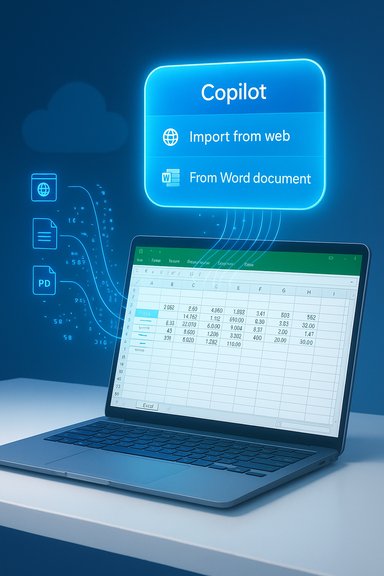
Microsoft has quietly expanded Copilot’s reach inside Excel, and the change that will matter most to power users and data teams is simple but profound: Copilot can now search for and import data from the web and from other file types — including Word, PowerPoint and PDF documents — directly into your spreadsheets, and those capabilities are being readied for Excel for the web as part of a staged roll‑out.
Excel has long been the default tool for ad‑hoc analysis, reporting and spreadsheet-driven workflows. For decades, the friction in those workflows has been the same: collecting, cleaning and consolidating data from a wide variety of sources before any analysis can begin. Microsoft’s Copilot strategy aims to remove much of that friction by letting users speak the data‑collection and transformation steps in plain English rather than building elaborate Power Query flows or manual copy‑pastes. Recent product notes from Microsoft confirm Copilot in Excel can now reference organizational files and public web data when creating tables or extracting facts. This update bundles three practical shifts:
However, this is not a “set it and forget it” upgrade. The technology shifts work from mechanical extraction to human‑in‑the‑loop validation and governance. Teams should pilot, document and enforce verification steps, and admins must be deliberate about tenant settings, audit logging and license management before deploying widely. Microsoft’s own guidance and multiple independent reports strongly recommend caution on accuracy and emphasize the role of human review for high‑stakes outputs.
Source: Neowin https://www.neowin.net/amp/excel-for-web-gets-new-feature-that-ai-ready-users-will-love/
 Background
Excel has long been the default tool for ad‑hoc analysis, reporting and spreadsheet-driven workflows. For decades, the friction in those workflows has been the same: collecting, cleaning and consolidating data from a wide variety of sources before any analysis can begin. Microsoft’s Copilot strategy aims to remove much of that friction by letting users speak the data‑collection and transformation steps in plain English rather than building elaborate Power Query flows or manual copy‑pastes. Recent product notes from Microsoft confirm Copilot in Excel can now reference organizational files and public web data when creating tables or extracting facts. This update bundles three practical shifts:- Copilot becomes a first‑class importer: it can locate tables and facts inside other files (Word, PowerPoint, PDFs) and insert them into Excel.
- Copilot ties into Power Query-style connections so imported tables can be refreshable in many scenarios.
- The same import experience is being phased into Excel for the web, narrowing the feature gap between desktop and online users.
What’s new — the features that change the game
Natural‑language imports and web pulls
Instead of building complex Get Data queries, users can ask Copilot to “get the latest exchange rates” or “import the sales table from our March newsletter” and Copilot will search permitted locations and return structured results. Microsoft documentation describes a Copilot workflow where the assistant scans the web and cloud‑saved files, surfaces matching tables or snippets, and offers an “Import” action to bring data into a new sheet or range.Cross‑file ingestion (Word, PowerPoint, PDF)
Copilot can now locate and extract tabular or list information that lives in Word docs, slide decks and PDF reports stored in SharePoint or OneDrive, and it will present those finds so users can pick what to import. This is particularly valuable for organizations that still distribute reports as PDFs or slide decks — Copilot effectively reduces weeks of manual extraction work to a few conversational prompts.Refreshable links and Power Query integration
Where possible, Copilot’s imported tables are linked back to their source and can be refreshed — much like a Power Query connection — removing the “one‑time copy” limitation that made many imports fragile. Microsoft’s support pages explicitly describe refreshable imports from Excel tables and the intent to expand refresh semantics over time.Faster, contextual Copilot entry points in Excel for web and desktop
Microsoft has added a new Copilot button that appears near the selected cell and in the ribbon, enabling one‑click access to Copilot’s data prompts. This UX change shortens the path from discovery to import and is rolling out across desktop and web clients.Availability, licensing and system requirements (what to check)
- Copilot import features are being phased into Insiders and licensed Copilot customers first; some capabilities are preview-only for Windows and Mac Insider builds while Excel for the web will follow. Microsoft’s “What’s New” and support pages list the feature under Insider or Copilot‑licensed availability and indicate staged roll‑outs to the web and general channels.
- A Microsoft 365 Copilot license or qualifying business subscription is required for imports that access organizational files and for some web search capabilities. Web search can also be gated by tenant settings (for example, administrators can enable or disable web search in Copilot).
- For importing from other Excel workbooks, Copilot currently expects the source data to be formatted as an Excel table and stored in a cloud location (OneDrive or SharePoint) to support refreshable links; local, unsaved files or non‑table ranges may be unsupported in some builds. Microsoft documentation explicitly notes table formatting and cloud storage as prerequisites for refreshable imports.
How the feature works — a typical workflow
- Open the workbook and click the Copilot icon on the Home ribbon or cell context.
- Type a natural‑language prompt such as “Import the quarterly revenue table from the Q2 newsletter” or “Get current USD-to-EUR exchange rates and place them into a table.”
- Copilot scans the permitted sources — the web (if enabled), SharePoint/OneDrive, and other organizational repositories — and returns candidate tables, snippets or facts.
- Review the candidate results; select “Show tables to import” or “Import to a new sheet.”
- If the data supports refresh, a dynamic link (Power Query) will be set up so the table can be refreshed from its original source in the future.
Real‑world use cases where Copilot import pays off
- Financial teams: extract tables from monthly PDF statements and slide‑deck CFO summaries to build consolidated reports without manual copy/paste.
- Operations and HR: pull employee lists or project status items that live in internal Word docs and add them into a single tracking workbook for dashboarding.
- Marketing and sales: ingest lists and metric tables from slide decks or web sources (competitor pricing, market stats) to enrich pipeline models.
- Research and education: compile citation lists or experimental results that were distributed as PDFs into a master spreadsheet for analysis.
What’s actually good about this update — strengths and value
- Time saved: manual extraction from PDFs and slides is one of the most time‑consuming, error‑prone tasks in reporting cycles; Copilot turns hours into minutes.
- Lowered technical barrier: users who don’t know Power Query can still build refreshable connections and import structured data with simple prompts.
- Better consolidation: bringing heterogenous files into Excel without scripting reduces fragmentation and speeds collaboration inside Microsoft 365.
- Integration with Excel’s analysis features: once data is in Excel, users can immediately apply formulas, PivotTables, Copilot‑generated visualizations or Python‑powered analyses (where licensed). Microsoft highlights the combination of Copilot with Excel‑Python as a major productivity axis.
- Desktop + web parity: delivering the feature to Excel for the web closes an important gap for distributed teams who rely on browser‑based editing.
The risks and limits — what to watch out for
Accuracy, hallucinations and numerical precision
AI systems can hallucinate or misinterpret ambiguous content; Copilot’s outputs should be treated as assistance, not authoritative results. Microsoft itself warns against using Copilot outputs for tasks requiring absolute reproducibility or legal/financial precision without human verification. Product coverage and early press coverage emphasize this caution.Data governance and privacy
Copilot’s ability to query organizational files and the web raises important questions:- Which files did Copilot access to produce a table?
- Are sensitive items inadvertently scraped into a shared workbook?
- How are Copilot queries logged for audit and compliance?
Auditability and reproducibility
Even though imported tables may be linked, the transformation steps Copilot performs can be opaque. Organizations with audit requirements should insist on:- Exporting and saving Power Query steps where possible.
- Saving versions of the workbook immediately after an import.
- Having users document prompts and imported source identifiers as part of a report’s metadata. Community write‑ups and previews have already flagged auditability as an open governance issue.
Licensing and cost
Copilot is an additional entitlement in many Microsoft 365 plans. Workflows that require Copilot for routine imports can shift cost profiles for teams previously operating on standard Microsoft 365 licenses. Any plan to automate imports at scale should include a licensing cost review.Not everything is refreshable yet
Some imports depend on the source format (Excel tables stored in OneDrive/SharePoint are the most robust). Copilot may still return one‑off snippets for complex PDFs or slide decks; treat those as initial results and check whether a refresh connection has been created. Microsoft support articles explicitly note table formatting and cloud storage as refresh prerequisites.Practical deployment guidance for IT and data leaders
Admin checklist (quick)
- Confirm which users are licensed for Microsoft 365 Copilot and which tenants have Copilot enabled.
- Review and set tenant policies for Web Search and data access to limit uncontrolled scraping of public internet content.
- Communicate best practices: require checks on numerical formatting, date parsing, and verification steps after any AI import.
- Establish an audit trail process for Copilot imports (prompt storage, source file pointers, version snapshots).
- Pilot with a small, low‑risk team to learn typical error modes before wider rollout.
Prompt hygiene: how to get better results
- Be specific: include file names, date ranges and column names where possible: “Import the sales table from ‘MarchNewsletter.docx’ stored in /Shared/Marketing and include Date, Region, and Revenue columns.”
- Ask for previews: add “Show tables to import” before executing an import.
- Validate types: after import, run quick checks for blank values, date conversion issues and thousand separators.
Example prompts to try
- “Get the exchange rate table for USD to EUR from the web and place it in a refreshable table.”
- “Find the employee list in the HR newsletter (HR_News_May.docx) and import Name, Role and Manager into a new sheet.”
- “Extract the table labeled ‘Q3 Revenue by Product’ from the ‘Q3 Results.pdf’ in our Finance folder.”
How this fits in the broader Excel + AI roadmap
Microsoft’s broader Copilot strategy isn’t limited to one‑off features; it aims to make AI a continuous productivity layer inside Office apps. That includes:- Natural‑language formula generation and the COPILOT formula for in‑cell AI operations.
- Python + Copilot in Excel, enabling advanced analytics that marry conversational inputs with programmatic power.
- Agent Mode for multi‑step automations that plan and execute sequences of spreadsheet work.
Verdict — who should care and what to do next
For analysts, reporting teams and organizations that still rely on PDFs and slide decks for distribution, this is a genuine productivity win. The ability to bring that scattered content into a single Excel workbook with minimal friction will shave hours from recurring reporting cycles and reduce copy‑paste errors.However, this is not a “set it and forget it” upgrade. The technology shifts work from mechanical extraction to human‑in‑the‑loop validation and governance. Teams should pilot, document and enforce verification steps, and admins must be deliberate about tenant settings, audit logging and license management before deploying widely. Microsoft’s own guidance and multiple independent reports strongly recommend caution on accuracy and emphasize the role of human review for high‑stakes outputs.
Conclusion
Excel’s new Copilot‑driven import capabilities reduce one of the oldest pains of spreadsheet work: bringing external tables and facts into a workbook reliably. By enabling natural‑language imports from the web, Word, PowerPoint and PDFs — and by plugging those imports into refreshable data flows where possible — Microsoft is making Excel not just more capable, but more integrated with the documents and systems organizations already use. The upside is real: time saved, fewer mistakes, and faster insight. The downside is equally real: governance, accuracy and cost must be managed. Organizations that approach the feature with a clear rollout plan — pilot, validate, enforce — will reap the benefits while keeping the risks in check. The era where spreadsheets are the final stop for scattered corporate knowledge is ending; the era where Copilot fetches that knowledge for you is beginning, but with human checks still firmly required at the finish line.Source: Neowin https://www.neowin.net/amp/excel-for-web-gets-new-feature-that-ai-ready-users-will-love/
