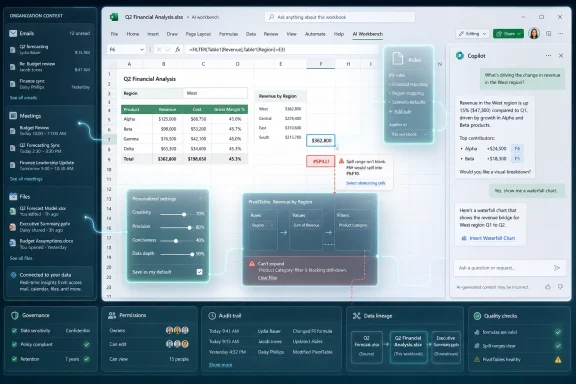
Microsoft has added personalization settings to Copilot in Excel in June 2026, letting users save standing preferences for formats, formulas, tables, charts, PivotTables, and explanations across workbooks and signed-in devices. The change sounds small because it lives inside a settings dialog, not a splashy new AI demo. But for anyone who has spent years correcting Excel’s choices one table, one chart, and one mangled date column at a time, it points to a more consequential shift: Copilot is moving from a prompt box bolted onto Excel toward a configurable assistant that remembers how you want spreadsheets to behave.
That is the right direction for Microsoft’s most durable productivity app. Excel is not merely a grid; it is a workplace culture encoded in cells, colors, number formats, hidden rows, and decades of departmental superstition. If Copilot is going to matter inside Excel, it cannot just answer questions about data. It has to stop making users repeat the same aesthetic and operational instructions every time they ask for help.
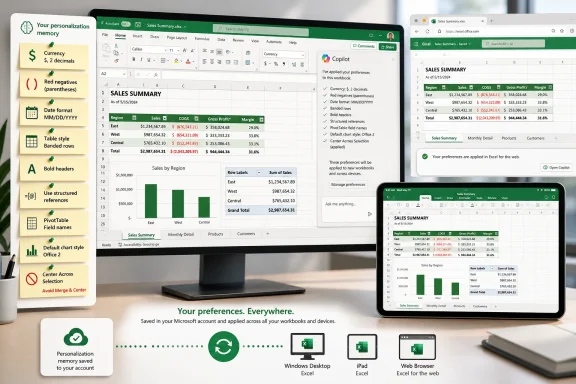
The new personalization feature gives Copilot in Excel a place to store instructions that are not one-off prompts. Microsoft’s own examples are telling: always format currency with a dollar sign and two decimals, show negative numbers in red and parentheses, use a preferred date format, apply banded rows and bold headers, prefer structured references and named ranges, label PivotTable fields with readable names rather than “Sum of,” and default to certain chart styles unless told otherwise.
That list reads less like science fiction and more like the accumulated grievances of anyone who has cleaned up AI-generated office work. Copilot could already help create formulas, summaries, charts, and PivotTables. The frustration was that it often behaved like a capable but forgetful colleague: useful in the moment, irritating over time, and strangely determined to reintroduce formatting habits you had already rejected.
Personalization changes the contract. Instead of teaching Copilot your preferences in every request, you can set a standing layer of instruction once and have it shape future output. In practical terms, that means the prompt “summarize this sales table” can inherit your usual rules for number formatting, chart palette, PivotTable labels, and commentary style without requiring a paragraph of formatting bureaucracy.
That matters because Excel work is full of tiny standards that are not universal. Finance teams may want negatives in parentheses; operations teams may prefer whole-number rounding; regional teams may require day-month-year dates; executives may want charts stripped down to the fewest meaningful categories. These are not decorations. They are the visual grammar by which people decide whether a workbook looks trustworthy.
That failure is not trivial. A spreadsheet that uses the wrong date convention can create confusion across regions. A financial table that formats negative values inconsistently can obscure risk. A PivotTable with generic field labels can make a quick review slower than it needs to be. A chart that uses too many categories can look comprehensive while communicating almost nothing.
Excel users have always solved these problems through templates, local habits, copied workbooks, and the occasional stern email from finance or compliance. Copilot personalization does not replace those governance mechanisms, and it should not be mistaken for enterprise policy control. But it does add a new layer: a user-level preference system for the AI’s output.
That distinction is important. Microsoft says these preferences are saved to the user’s account and apply across workbooks and Excel sessions, but they are not written into the workbook as shared instructions for everyone else. In other words, your Copilot can learn that you hate merged cells without imposing that preference on a colleague who opens the same file. Shared files keep their default settings, while the assistant’s behavior adapts to the individual user.
For collaboration, that is the least disruptive design. The workbook remains the common artifact; personalization affects the assistant sitting beside it. Microsoft is effectively saying that Copilot can have a memory of your working style without turning every spreadsheet into a battleground of personalized defaults.
That sounds like an Excel nerd’s petty preference until you have inherited a workbook where merged cells break sorting, filtering, copying, formulas, accessibility, or automation. “Merge & Center” is one of those features that looks helpful in a clean demo and becomes a structural hazard in real spreadsheets. Many power users have spent years telling colleagues not to use it, only to find it embedded in templates, reports, and AI-generated layouts.
If Copilot can remember “never merge cells” or “use Center Across Selection instead,” the feature becomes more than cosmetic. It becomes a way to encode hard-won spreadsheet hygiene into the assistant’s default behavior. That is the difference between AI as a fast typist and AI as a participant in workflow discipline.
The same logic applies to PivotTable labels. A PivotTable that says “Sum of Revenue” is technically accurate, but in a polished report it often reads like scaffolding left on a finished building. Asking Copilot to use friendlier field names by default helps reduce the cleanup tax after an automated analysis.
These examples show why personalization is more interesting than another formula demo. Excel productivity is rarely blocked by the impossibility of creating a chart. It is blocked by the accumulation of small repairs after the chart appears.
That is still valuable. A preference file is exactly what many AI assistants lack. They behave as if every session starts from zero, even though office work is defined by repetition. The same person writes the same kinds of reports, for the same audiences, with the same formatting expectations, week after week.
The challenge is that Excel is not a blank canvas. It is a mature, highly stateful application with decades of features layered on top of one another. Tables, named ranges, PivotTables, Power Query outputs, charts, cell styles, conditional formatting, formulas, workbook protection, macros, and collaboration features all have their own rules. A Copilot preference that sounds simple in natural language may produce messy results when applied to a real workbook.
Microsoft’s support guidance acknowledges this indirectly by recommending that preferences be short and specific. That is sensible because long, elaborate preference blocks can become a second prompt engineering problem. “Always use blue, gray, and orange in charts” is manageable. “Make reports executive-ready, modern, minimal, accurate, readable, brand-aligned, finance-friendly, and not too busy” is a request for ambiguity dressed up as productivity.
The best use of the feature will likely be boring and precise. That is not a criticism. Boring and precise is where Excel earns its keep.
For casual users, that may be fine. If Copilot creates a chart in the wrong palette, the fix is annoying but not catastrophic. For business users, especially in finance, operations, legal, healthcare, or regulated environments, the difference between “usually follows my preference” and “always enforces policy” is the difference between convenience and control.
This is where administrators should resist the urge to overread the feature. Personalization is not a substitute for templates, data validation, sensitivity labels, document retention policies, protected sheets, or formal review. It is a user-experience improvement, not a compliance framework.
That does not make it unimportant. Many workplace errors begin as small acts of convenience: a copied formula, a manually adjusted date, a merged header, a chart that hides a category, a negative number formatted like a positive one. If Copilot can reduce some of those habits by defaulting to safer preferences, it helps. But the workbook still needs human review, and the organization still needs standards outside the AI prompt box.
Account-level sync makes Copilot feel more like part of the user’s working identity. If your default is day-month-year dates, concise explanations, structured references, and simple clustered column charts, those preferences should not disappear because you opened a workbook on a different device. The assistant should travel with you.
This also reflects Microsoft’s broader bet on Microsoft 365 as an identity-bound productivity environment. The file matters, but the signed-in user increasingly defines the experience around the file. Copilot personalization fits that architecture neatly: the workbook remains shareable, while the AI layer adapts to the user.
There is a trade-off. Personal preferences that do not travel with the workbook may surprise users who expect a team-standard behavior. If two analysts ask Copilot to work on the same file, they may receive differently formatted outputs because their assistants are carrying different standing instructions. That is not necessarily wrong, but it is another reason organizations will need to distinguish personal productivity settings from official workbook standards.
The likely future is a layered model. Individuals will have preferences, teams will have templates, and enterprises will want administrative controls that define acceptable boundaries. Microsoft has started with the least controversial layer because it improves the experience without requiring an IT governance war on day one.
Personalization helps with one kind of context: the user’s preferred output style. It does not automatically solve the deeper context problem of understanding what a workbook means. If a table is poorly structured, if headers are inconsistent, if dates are stored as text, or if business logic lives in undocumented formulas, Copilot still has to infer too much.
That is why the feature is most compelling when paired with clean workbooks. A user who already works with structured tables, named ranges, clear headers, and consistent formatting will get more value from saved preferences because Copilot has a stable surface to operate on. A user whose workbook is a museum of pasted exports and manual fixes may still experience inconsistent results.
There is an uncomfortable lesson here for organizations: AI does not make spreadsheet debt disappear. It can accelerate cleanup, suggest formulas, and produce summaries, but it also exposes the cost of years spent treating Excel as an infinitely forgiving dumping ground. Personalization makes Copilot more pleasant; data discipline makes it more reliable.
That advice is true and exhausting. It turns routine office work into a miniature performance of managerial clarity. Users do not want to brief an assistant on their formatting preferences every time they need a sales summary. They want the assistant to remember.
Copilot personalization is Microsoft conceding that prompt craft should not carry the entire interface. The product needs memory, defaults, and settings, just like every serious productivity tool before it. Nobody expects Excel users to manually explain their regional separators every time they type a number. AI output should move toward the same expectation.
The danger is that Microsoft could still make personalization feel like prompt engineering in disguise. If users must constantly tweak phrasing to get reliable behavior, the feature will become another panel that power users configure and everyone else ignores. The bar is not whether Copilot can store preferences. The bar is whether it follows them often enough that users stop thinking about them.
That bar will be especially high in Excel because formatting errors are visible. A clumsy paragraph in Word can be rewritten. A wrong number format in Excel can quietly change how a reader interprets a report. The assistant’s memory has to be good enough to reduce vigilance, not merely relocate it.
That means support teams will need to ask about saved preferences when troubleshooting Copilot output. If a user complains that Copilot keeps rounding values, choosing a particular chart type, using certain colors, or formatting negatives in a specific way, the answer may live in the personalization dialog rather than the workbook. This is a subtle but real shift in diagnostic thinking.
Training materials should also change. Rather than teaching users only how to write better prompts, organizations should teach them which preferences are safe to save and which should remain task-specific. A standing preference for concise explanations is harmless. A standing preference that always rounds outputs may be dangerous in certain analytical workflows.
There is also a governance conversation waiting in the wings. If Microsoft expands personalization into richer behavioral memory, enterprise administrators will want visibility and controls. They may not need to read every user’s preferences, but they will care about data handling, consistency, auditability, and whether AI-generated changes can be traced and reviewed.
For now, the practical advice is simple: treat Copilot personalization as a user-level convenience, not an organizational standard. Encourage users to save preferences that improve readability and reduce cleanup, but keep formal reporting requirements in templates, documented procedures, and governed workflows.
Some inconsistency is expected in an evolving Copilot feature. Excel itself has different surfaces, build channels, license states, and web-versus-desktop behaviors. Microsoft 365 features often roll out gradually, and users in different tenants or update channels may not see identical behavior at the same time.
Still, Microsoft should be careful here. Personalization is a promise of reduced repetition. If users save a preference and then have to verify it manually in every output, the product has not removed friction; it has made friction more passive-aggressive.
The best version of this feature would include clearer feedback. Copilot should be able to explain which saved preferences it applied to a given result, which ones it could not apply, and why. That would turn personalization from a mysterious influence into an inspectable layer of the workflow.
Without that transparency, users are left guessing whether a bad output reflects a vague preference, a workbook limitation, a temporary model failure, or a feature gap. Excel users are accustomed to auditing formulas. They will eventually want to audit AI behavior, too.
Personalization is a necessary step in that evolution. An assistant that edits documents and workbooks needs something like taste, and in business software taste usually means defaults, rules, and conventions. The assistant must know not only what it can do, but how the user expects it to do it.
The risk is that Microsoft’s AI layer becomes another sprawling settings universe. Office already has decades of options, some beloved, some buried, some inexplicable. If Copilot personalization expands without discipline, it could become a prompt-shaped version of the old Options dialog: powerful, obscure, and unevenly understood.
But the opportunity is larger. If Microsoft can make user preferences portable, understandable, and governable, Copilot could reduce one of the oldest forms of office waste: the endless reformatting of work that was technically correct but stylistically wrong. That is not the futuristic version of AI. It is the useful one.
That is not a flaw. Expert tools often reward explicit preferences. Excel itself has always been more powerful in the hands of users who understand its conventions, shortcuts, and traps.
The difference is that Copilot can now absorb some of those preferences as standing instructions. That lowers the cost of expertise. A user does not need to manually enforce every rule if the assistant can remember part of the rulebook.
The feature may also help newer users learn better habits, provided Microsoft and trainers promote the right examples. “Never merge cells” is a useful preference. “Use readable PivotTable labels” is a useful preference. “Start with a short summary before detailed tables” is a useful preference. These are not just personal quirks; they are patterns that make workbooks easier for other humans to consume.
The more Microsoft frames personalization around clarity, accuracy, and maintainability rather than mere aesthetics, the more valuable it becomes.
That is how productivity software usually improves: not by eliminating work in one leap, but by shaving down repeated annoyances until the tool feels less resistant. Excel’s formatting frustrations are not new, and they are not glamorous. They are just everywhere.
The most concrete implications are straightforward:
That is the right direction for Microsoft’s most durable productivity app. Excel is not merely a grid; it is a workplace culture encoded in cells, colors, number formats, hidden rows, and decades of departmental superstition. If Copilot is going to matter inside Excel, it cannot just answer questions about data. It has to stop making users repeat the same aesthetic and operational instructions every time they ask for help.
 Microsoft Finally Treats Spreadsheet Taste as Product Data
The new personalization feature gives Copilot in Excel a place to store instructions that are not one-off prompts. Microsoft’s own examples are telling: always format currency with a dollar sign and two decimals, show negative numbers in red and parentheses, use a preferred date format, apply banded rows and bold headers, prefer structured references and named ranges, label PivotTable fields with readable names rather than “Sum of,” and default to certain chart styles unless told otherwise.That list reads less like science fiction and more like the accumulated grievances of anyone who has cleaned up AI-generated office work. Copilot could already help create formulas, summaries, charts, and PivotTables. The frustration was that it often behaved like a capable but forgetful colleague: useful in the moment, irritating over time, and strangely determined to reintroduce formatting habits you had already rejected.
Personalization changes the contract. Instead of teaching Copilot your preferences in every request, you can set a standing layer of instruction once and have it shape future output. In practical terms, that means the prompt “summarize this sales table” can inherit your usual rules for number formatting, chart palette, PivotTable labels, and commentary style without requiring a paragraph of formatting bureaucracy.
That matters because Excel work is full of tiny standards that are not universal. Finance teams may want negatives in parentheses; operations teams may prefer whole-number rounding; regional teams may require day-month-year dates; executives may want charts stripped down to the fewest meaningful categories. These are not decorations. They are the visual grammar by which people decide whether a workbook looks trustworthy.
The Real Upgrade Is Not AI Creativity, but AI Compliance
Microsoft’s Copilot story has often leaned on generative capability: create a table, analyze trends, write formulas, build a chart, explain what changed. The personalization update is more modest and more useful because it addresses a less glamorous problem: AI tools are often bad at following house style.That failure is not trivial. A spreadsheet that uses the wrong date convention can create confusion across regions. A financial table that formats negative values inconsistently can obscure risk. A PivotTable with generic field labels can make a quick review slower than it needs to be. A chart that uses too many categories can look comprehensive while communicating almost nothing.
Excel users have always solved these problems through templates, local habits, copied workbooks, and the occasional stern email from finance or compliance. Copilot personalization does not replace those governance mechanisms, and it should not be mistaken for enterprise policy control. But it does add a new layer: a user-level preference system for the AI’s output.
That distinction is important. Microsoft says these preferences are saved to the user’s account and apply across workbooks and Excel sessions, but they are not written into the workbook as shared instructions for everyone else. In other words, your Copilot can learn that you hate merged cells without imposing that preference on a colleague who opens the same file. Shared files keep their default settings, while the assistant’s behavior adapts to the individual user.
For collaboration, that is the least disruptive design. The workbook remains the common artifact; personalization affects the assistant sitting beside it. Microsoft is effectively saying that Copilot can have a memory of your working style without turning every spreadsheet into a battleground of personalized defaults.
“Center Across Selection” Is the Tell
The most revealing example in the Geeky Gadgets write-up is not the currency formatting or chart palette. It is the suggestion that users can steer Copilot away from “Merge & Center” and toward “Center Across Selection.”That sounds like an Excel nerd’s petty preference until you have inherited a workbook where merged cells break sorting, filtering, copying, formulas, accessibility, or automation. “Merge & Center” is one of those features that looks helpful in a clean demo and becomes a structural hazard in real spreadsheets. Many power users have spent years telling colleagues not to use it, only to find it embedded in templates, reports, and AI-generated layouts.
If Copilot can remember “never merge cells” or “use Center Across Selection instead,” the feature becomes more than cosmetic. It becomes a way to encode hard-won spreadsheet hygiene into the assistant’s default behavior. That is the difference between AI as a fast typist and AI as a participant in workflow discipline.
The same logic applies to PivotTable labels. A PivotTable that says “Sum of Revenue” is technically accurate, but in a polished report it often reads like scaffolding left on a finished building. Asking Copilot to use friendlier field names by default helps reduce the cleanup tax after an automated analysis.
These examples show why personalization is more interesting than another formula demo. Excel productivity is rarely blocked by the impossibility of creating a chart. It is blocked by the accumulation of small repairs after the chart appears.
The Spreadsheet Is Still the Boss
There is a temptation to describe this as Excel becoming “adaptive” or “agentic,” but the safer reading is that Microsoft is putting guardrails around a feature that previously needed too much babysitting. Copilot is not gaining magical taste. It is gaining a preference file.That is still valuable. A preference file is exactly what many AI assistants lack. They behave as if every session starts from zero, even though office work is defined by repetition. The same person writes the same kinds of reports, for the same audiences, with the same formatting expectations, week after week.
The challenge is that Excel is not a blank canvas. It is a mature, highly stateful application with decades of features layered on top of one another. Tables, named ranges, PivotTables, Power Query outputs, charts, cell styles, conditional formatting, formulas, workbook protection, macros, and collaboration features all have their own rules. A Copilot preference that sounds simple in natural language may produce messy results when applied to a real workbook.
Microsoft’s support guidance acknowledges this indirectly by recommending that preferences be short and specific. That is sensible because long, elaborate preference blocks can become a second prompt engineering problem. “Always use blue, gray, and orange in charts” is manageable. “Make reports executive-ready, modern, minimal, accurate, readable, brand-aligned, finance-friendly, and not too busy” is a request for ambiguity dressed up as productivity.
The best use of the feature will likely be boring and precise. That is not a criticism. Boring and precise is where Excel earns its keep.
Personalization Solves the Repetition Problem, Not the Trust Problem
The update should reduce repetitive prompting, but it does not eliminate the need to inspect Copilot’s work. Microsoft says specific instructions in a prompt can override personalization settings, and users may need to restate a preference if Copilot does not follow it. That is a polite way of saying the system is advisory, not deterministic.For casual users, that may be fine. If Copilot creates a chart in the wrong palette, the fix is annoying but not catastrophic. For business users, especially in finance, operations, legal, healthcare, or regulated environments, the difference between “usually follows my preference” and “always enforces policy” is the difference between convenience and control.
This is where administrators should resist the urge to overread the feature. Personalization is not a substitute for templates, data validation, sensitivity labels, document retention policies, protected sheets, or formal review. It is a user-experience improvement, not a compliance framework.
That does not make it unimportant. Many workplace errors begin as small acts of convenience: a copied formula, a manually adjusted date, a merged header, a chart that hides a category, a negative number formatted like a positive one. If Copilot can reduce some of those habits by defaulting to safer preferences, it helps. But the workbook still needs human review, and the organization still needs standards outside the AI prompt box.
Cross-Device Sync Makes the Assistant Feel Less Disposable
One of the stronger parts of Microsoft’s design is that personalization follows the signed-in account across devices. That matters because Microsoft 365 work increasingly moves between desktop Excel, Excel for the web, laptops, tablets, and managed corporate environments. A preference that only worked on one machine would quickly become another local setting to forget.Account-level sync makes Copilot feel more like part of the user’s working identity. If your default is day-month-year dates, concise explanations, structured references, and simple clustered column charts, those preferences should not disappear because you opened a workbook on a different device. The assistant should travel with you.
This also reflects Microsoft’s broader bet on Microsoft 365 as an identity-bound productivity environment. The file matters, but the signed-in user increasingly defines the experience around the file. Copilot personalization fits that architecture neatly: the workbook remains shareable, while the AI layer adapts to the user.
There is a trade-off. Personal preferences that do not travel with the workbook may surprise users who expect a team-standard behavior. If two analysts ask Copilot to work on the same file, they may receive differently formatted outputs because their assistants are carrying different standing instructions. That is not necessarily wrong, but it is another reason organizations will need to distinguish personal productivity settings from official workbook standards.
The likely future is a layered model. Individuals will have preferences, teams will have templates, and enterprises will want administrative controls that define acceptable boundaries. Microsoft has started with the least controversial layer because it improves the experience without requiring an IT governance war on day one.
Excel’s AI Problem Has Always Been Context
Copilot in Excel has had a harder job than Copilot in Word or PowerPoint because spreadsheet intent is less visible. A Word document gives the model paragraphs. A slide deck gives it layouts and titles. A spreadsheet gives it cells, and cells can represent raw data, formulas, labels, temporary scratch work, hidden assumptions, or a report meant for the board.Personalization helps with one kind of context: the user’s preferred output style. It does not automatically solve the deeper context problem of understanding what a workbook means. If a table is poorly structured, if headers are inconsistent, if dates are stored as text, or if business logic lives in undocumented formulas, Copilot still has to infer too much.
That is why the feature is most compelling when paired with clean workbooks. A user who already works with structured tables, named ranges, clear headers, and consistent formatting will get more value from saved preferences because Copilot has a stable surface to operate on. A user whose workbook is a museum of pasted exports and manual fixes may still experience inconsistent results.
There is an uncomfortable lesson here for organizations: AI does not make spreadsheet debt disappear. It can accelerate cleanup, suggest formulas, and produce summaries, but it also exposes the cost of years spent treating Excel as an infinitely forgiving dumping ground. Personalization makes Copilot more pleasant; data discipline makes it more reliable.
The Update Also Admits Prompting Has a Ceiling
For the last two years, much of the practical advice around office AI has boiled down to better prompting. Be specific. Provide context. Say what format you want. Ask for the output style. Iterate. Correct the model.That advice is true and exhausting. It turns routine office work into a miniature performance of managerial clarity. Users do not want to brief an assistant on their formatting preferences every time they need a sales summary. They want the assistant to remember.
Copilot personalization is Microsoft conceding that prompt craft should not carry the entire interface. The product needs memory, defaults, and settings, just like every serious productivity tool before it. Nobody expects Excel users to manually explain their regional separators every time they type a number. AI output should move toward the same expectation.
The danger is that Microsoft could still make personalization feel like prompt engineering in disguise. If users must constantly tweak phrasing to get reliable behavior, the feature will become another panel that power users configure and everyone else ignores. The bar is not whether Copilot can store preferences. The bar is whether it follows them often enough that users stop thinking about them.
That bar will be especially high in Excel because formatting errors are visible. A clumsy paragraph in Word can be rewritten. A wrong number format in Excel can quietly change how a reader interprets a report. The assistant’s memory has to be good enough to reduce vigilance, not merely relocate it.
Where IT Should Pay Attention Before the Help Desk Tickets Arrive
For administrators, this update is not a crisis, but it is worth understanding before users start asking why Copilot behaves differently across accounts. Personalization creates a new class of “it works differently for me” reports. The workbook may be identical; the Copilot layer may not be.That means support teams will need to ask about saved preferences when troubleshooting Copilot output. If a user complains that Copilot keeps rounding values, choosing a particular chart type, using certain colors, or formatting negatives in a specific way, the answer may live in the personalization dialog rather than the workbook. This is a subtle but real shift in diagnostic thinking.
Training materials should also change. Rather than teaching users only how to write better prompts, organizations should teach them which preferences are safe to save and which should remain task-specific. A standing preference for concise explanations is harmless. A standing preference that always rounds outputs may be dangerous in certain analytical workflows.
There is also a governance conversation waiting in the wings. If Microsoft expands personalization into richer behavioral memory, enterprise administrators will want visibility and controls. They may not need to read every user’s preferences, but they will care about data handling, consistency, auditability, and whether AI-generated changes can be traced and reviewed.
For now, the practical advice is simple: treat Copilot personalization as a user-level convenience, not an organizational standard. Encourage users to save preferences that improve readability and reduce cleanup, but keep formal reporting requirements in templates, documented procedures, and governed workflows.
The Feature’s Weak Spot Is Consistency
The Geeky Gadgets summary notes user reports of occasional inconsistencies, especially around table formatting across devices or workbooks. That caveat is important because personalization features live or die on predictability. A setting that works nine times out of ten is useful; a setting that works unpredictably becomes a new thing to check.Some inconsistency is expected in an evolving Copilot feature. Excel itself has different surfaces, build channels, license states, and web-versus-desktop behaviors. Microsoft 365 features often roll out gradually, and users in different tenants or update channels may not see identical behavior at the same time.
Still, Microsoft should be careful here. Personalization is a promise of reduced repetition. If users save a preference and then have to verify it manually in every output, the product has not removed friction; it has made friction more passive-aggressive.
The best version of this feature would include clearer feedback. Copilot should be able to explain which saved preferences it applied to a given result, which ones it could not apply, and why. That would turn personalization from a mysterious influence into an inspectable layer of the workflow.
Without that transparency, users are left guessing whether a bad output reflects a vague preference, a workbook limitation, a temporary model failure, or a feature gap. Excel users are accustomed to auditing formulas. They will eventually want to audit AI behavior, too.
Microsoft Is Building Memory One Office App at a Time
The Excel update fits a broader pattern in Microsoft 365: Copilot is becoming less of a chat window and more of an ambient control layer across apps. The company has already been pushing Copilot deeper into editing workflows, not just Q&A. In Excel, that means building and modifying workbooks with tables, charts, formulas, and PivotTables rather than merely explaining what the data might show.Personalization is a necessary step in that evolution. An assistant that edits documents and workbooks needs something like taste, and in business software taste usually means defaults, rules, and conventions. The assistant must know not only what it can do, but how the user expects it to do it.
The risk is that Microsoft’s AI layer becomes another sprawling settings universe. Office already has decades of options, some beloved, some buried, some inexplicable. If Copilot personalization expands without discipline, it could become a prompt-shaped version of the old Options dialog: powerful, obscure, and unevenly understood.
But the opportunity is larger. If Microsoft can make user preferences portable, understandable, and governable, Copilot could reduce one of the oldest forms of office waste: the endless reformatting of work that was technically correct but stylistically wrong. That is not the futuristic version of AI. It is the useful one.
The Excel Users Who Benefit First Will Be the Ones With Strong Opinions
This update is most immediately valuable to users who already know what they want. The analyst who hates merged cells, the accountant who cares about negative-number presentation, the project manager who wants concise summaries before detailed tables, and the consultant who uses a consistent chart palette will all get more from personalization than someone who simply asks Copilot to “make this better.”That is not a flaw. Expert tools often reward explicit preferences. Excel itself has always been more powerful in the hands of users who understand its conventions, shortcuts, and traps.
The difference is that Copilot can now absorb some of those preferences as standing instructions. That lowers the cost of expertise. A user does not need to manually enforce every rule if the assistant can remember part of the rulebook.
The feature may also help newer users learn better habits, provided Microsoft and trainers promote the right examples. “Never merge cells” is a useful preference. “Use readable PivotTable labels” is a useful preference. “Start with a short summary before detailed tables” is a useful preference. These are not just personal quirks; they are patterns that make workbooks easier for other humans to consume.
The more Microsoft frames personalization around clarity, accuracy, and maintainability rather than mere aesthetics, the more valuable it becomes.
The Small Settings That Will Decide Whether This Matters
This is the kind of Excel update that will not look dramatic in a keynote. There is no cinematic moment in which a spreadsheet builds itself from a sentence and the audience applauds. Instead, the payoff comes in the third week, when Copilot stops making the same formatting choice you always corrected.That is how productivity software usually improves: not by eliminating work in one leap, but by shaving down repeated annoyances until the tool feels less resistant. Excel’s formatting frustrations are not new, and they are not glamorous. They are just everywhere.
The most concrete implications are straightforward:
- Copilot in Excel can now save user-level personalization preferences that apply across workbooks and signed-in Excel sessions.
- The feature is best suited to recurring preferences such as date formats, currency formats, negative-number display, table styles, chart defaults, PivotTable labels, formula style, and explanation length.
- Personalization affects Copilot’s output for the individual user rather than changing shared workbook defaults for every collaborator.
- Users should keep saved preferences short and specific because vague instructions are more likely to produce inconsistent results.
- Administrators should treat the feature as a productivity aid rather than a policy mechanism, especially for regulated reports or standardized templates.
- The feature’s long-term value depends on whether Copilot applies preferences predictably enough that users can stop repeating themselves.
References
- Primary source: Geeky Gadgets
Published: Mon, 29 Jun 2026 13:21:38 GMT
Microsoft Copilot for Excel Adds Custom Formatting Rules - Geeky Gadgets
Learn how to customize Copilot in Excel to automatically apply your preferred date formats, table styles, and modern formulas like XLOOKUP.www.geeky-gadgets.com - Official source: support.microsoft.com
Copilot dalam personalisasi Excel | Microsoft Support
Pelajari cara mempersonalisasi Copilot di Excel untuk mengembalikan hasil berdasarkan preferensi Anda.support.microsoft.com - Official source: microsoft.com
Copilot is now included in Microsoft 365 Personal and Family | Microsoft 365 Blog
Get access to Copilot with your Microsoft 365 Personal and Family subscription. Learn more.www.microsoft.com - Official source: learn.microsoft.com
Release Notes for Microsoft 365 Copilot | Microsoft Learn
Lists the features that reach General Availability in each release of Microsoft 365 Copilot.learn.microsoft.com - Related coverage: office-watch.com
Center Across Selection vs Merge & Center in Excel
There are two similar text formatting options in Excel. The well-known Merge & Center and the hidden away Center across selection. Both have their advantoffice-watch.com
- Official source: techcommunity.microsoft.com
Tag:"copilot in excel" | Microsoft Community Hub
Find all posts, articles, and events tagged with "copilot in excel" in Microsoft Community Hub. Stay informed with the latest updates from our community techcommunity.microsoft.com
- Official source: cdn-dynmedia-1.microsoft.com
- Related coverage: amanet.org
</rdf:Alt> </dc:title> <dc:description> <rdf:Alt> <rdf:li xml:lang="x-default"/> </rdf:Alt> </dc:description> <dc:creator> <rdf:Seq> <rdf:li>Naveen
</rdf:Alt> </dc:description> <dc:creator> <rdf:Seq> <rdf:li>Naveen Murarkawww.amanet.org
- Related coverage: aldridge.com
MICROSOFT COPILOT IN EXCEL
</rdf:Alt> </dc:description> <dc:creator> <rdf:Seq> <rdf:li>Mason Conealdridge.com
- Related coverage: blacksheepsupport.co.uk