• Thread Author
Microsoft’s push to embed Copilot deeper into Windows 11 — now reaching File Explorer with right‑click AI actions, contextual summaries, and editing tools — is not just a product update; it’s a strategic bet that Microsoft is doubling down on an AI‑first vision for the operating system. That bet is already producing measurable value for some users, while alienating others who see more risk than reward: performance hits on lower‑end hardware, persistent telemetry and privacy questions, and a distribution model that installs Copilot components by default on many Windows machines. The debate has moved from social media gripes into enterprise operations and policy conversations, and Microsoft’s choices about defaults, governance controls, and transparency will determine whether Copilot becomes a quietly useful assistant or a chronic irritation that costs trust. )

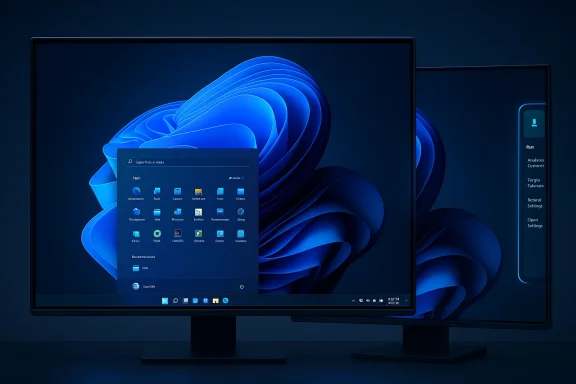
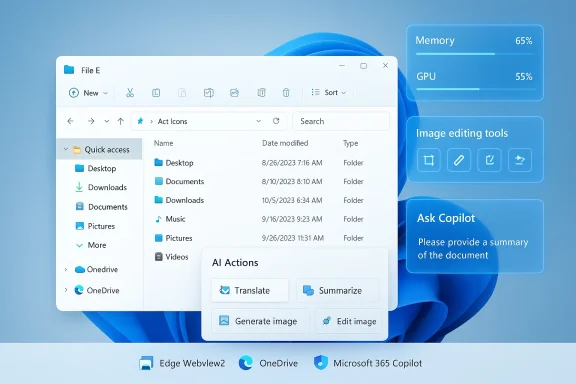
Windows-style desktop with a File Explorer window and floating AI Copilot tools.Background​

Windows has always walked a narrow path between feature richness and predictability. For years, File Explorer represented a place where Microsoft deliberately minimized surprises: fast, deterministic, and familiar. The current wave of AI integrations — branded under the Copilot umbrella — changes that calculus by introducing generative capabilities directly into system surfaces.
  • Microsoft’s platform strategy now bundles Copilot across many layers: taskbar, search, Settings, File Explorer, and Microsoft 365 apps. Microsoft has also produced admin‑level documentuidance for the Microsoft 365 Copilot app and how it is distributed to devices.
  • In parallel, Windows Insider Dev builds (notably Build 26300.7674, announced January 27, 2026) are being used to test and gate these changes before wider rollout. Controlled feature rollouts mean that what Insiders see today may change when features reach Beta and Release channels.
This background explains why we’re seeing both rapid feature expansion and intense user feedback: Microsoft is shipping experiments in preview channels while also creating deployment mechanics that will make Copilot visible on many production devices.

What’s changing: Copilot moves into File Explorer​

AI actions in the context menu​

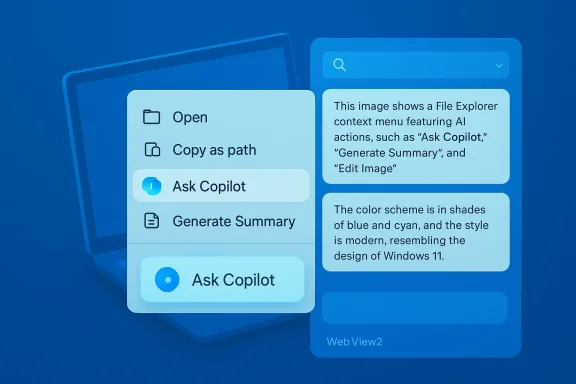
One of the headline changes is the addition of AI actions to File Explorer’s right‑click menu. These actions can:
  • Generate summaries and previews of documents and folders.
  • Offer editing tools for images (background removal, blurring) and content transformation.
  • Surface an “Ask Copilot” option to query document contents in natural language.
Microsoft positions these as time‑savers — imagine right‑clicking a 20‑page report and getting a concise executive summary in seconds. Early hands‑on reviews and the company’s test notes confirm experiments with image‑editing shortcuts and semantic summaries in OneDrive and SharePoint contexts, gated initially by licensing for Microsoft 365 Copilot in commercial tenants.

Why Microsoft thinks this helps​

The company’s public messaging and engineering direction emphasize three productivity gains:
  • Reduced context switching — keep you inside Explorer while extracting insights.
  • Faster information retrieval — natural language queries over local content, not just keyword search.
  • Discoverability — users who never opened a separate Copilot app will now find generative tools in places they already use.
Those advantages are real for many use cases — legal teams scanning contracts, researchers digesting bundles of reports, or designers doing quick image edits — but the consumer experience is uneven and highly dependent on device capability and licensing.

Verified facts and deployment mechanics​

Before we analyze, let’s verify the load‑bearing claims:
  • Microsoft documented that Windows devices with Microsoft 365 desktop apps will automatically install the Microsoft 365 Copilot app (background install) beginning in Fall 2025 for eligible channels, with an EEA exclusion by default and an admin opt‑out path in the Microsoft 365 Apps admin center. That admin opt‑out and deployment guidance is explicitly documented in Microsoft’s deployment FAQ and deployment overview.
  • The Windows Insider release notes confirm the Dev channel jump to the 26300 series and warn Insiders about the switch and enablement packaging used to surface platform changes. The specific Dev build announcement was published January 27, 2026.
  • Independent coverage and IT community write‑ups documented the automatic install timeline, admin blocking steps, and the EEA carve‑out — all consistent with Microsoft’s published guidance ng.
These cross‑references establish the key distribution and rollout mechanics as verifiable facts: automatic instaln opt‑outs are provided for managed tenants, and preview channel builds are actively carrying feature experiments.

User reaction: why the backlash is persistent​

Themes in the complaints​

Community posts, forum threads, and multiple independent write‑ups have converged on a set of recurring grievances:
  • Intrusiveness and UI clutter — Copilot elements are appearing in taskbar, Start, Explorer panes and app toolbars; some users report tmoval.
  • Performance and memory concerns — users and technicians report Copilot and its supporting processes sometimes consuming hundreds of megabytes, with peaks into the gigabytes on some systems; the memory picture varies by Copilot build, workload, and system configuration.
  • Lack of straightforward opt‑out for personal devices — while enterprise tenants can opt out centrally, individual users on unmanaged devices often have to resort to manual uninstall, Group Policy, or registry edits.
  • Accuracy and “AI slop” — when generative outputs are incorrect or superficial, they add friction rather than help. Users have mocked the phenomenon and compared it to an unwanted return of Clippy.
These are notthey are persistent across platforms and manifest both in tech press coverage and community channels. The intensity of reaction is increased because File Explorer has historically been stable and predictable — when that surface becomes a proving ground for generative UI, reactions are amplified.

Memory and performance: the technical reality​

Measured memory use and performance impact are the most tangible, testable claims. The available reports show divergence:
  • Some early tests of newer Copilot builds suggested a smaller footprint when rebuilt with native WinUI/XAML elements.
  • Other tests and wide‑scale user reports show substantial memory and process proliferation, in part because Copilot surfaces still depend on Edge’s WebView2 runtime and background Edge components that can multiply memory consumption across processes.
The reconciliation: “it depends” — on Copilot version, whether features are running locally or via cloud services, whether on‑device NPU/ML offload is available, and individual machine configurations. That variability means simple headline numbers are brittle; administrators should test on representative hardware before enabling Copilot features broadly.

The business and governance angle​

Microsoft’s rationale​

Microsoft is making a platform bet: integrating Copilot widely improves discovery, standardizes AI affordances across productivity apps, and upsells enterprise customers to Copilot licensing tiers with deeper features. The company has also responded to regulatory nuance — notably the EEA carve‑out for automatic installs — and provided admin controls for managed environments. Microsoft’s deployment documentation and admin opt‑out guidance are direct evidence of a considered enterprise rollout approach, even if that approach feels heavy‑handed on consumer devices.

Enterprise controls and reality on the ground​

Administrators have several lever points:
  • Tenant opt‑out in the Microsoft 365 Apps admin center to prevent future automatic installs.
  • App deployment and removal using Intune, Group Policy, AppLocker, or PowerShell for remediation.
  • Policies to limit Copilot’s access to sensitive repositories or to block uploads from managed machines.
Yet practical limitations remain: tenant opt‑outs prevent future installs but do not retroactively remove apps already pushed, and local users without centralized management still face manual remediation. That gap is a real operations problem for mixed environments and underscores why admins are urging staged pilots and clear rollback plans.

Strengths: where Copilot can add real value​

  • Fewer context switches — Summarization and draft generation inside Explorer can speed workflows for knowledge workers who routinely extract information from many files.
  • *Enhanced search semanticsueries and cross‑file context (especially when paired with OneDrive/SharePoint agents) can reduce the time spent hunting for relevant content.
  • Democratizes AI features — putting generative tools where casual users already operate reduces the discovery gap for people who don’t install or seek out new productivity apps.
  • Platform synergy — Copilot’s integration across Windows and Microsoft 365 can enable workflows that cross local files, cloud stores, and productivity apps without manual context juggling.
These are not theoretical benefits. When the tech works, it genuinely reduces friction on repetitive, context‑heavy tasks.

Risks and tradeoffs: what users and IT teams must weigh​

  • Performance cost on constrained hardware. Copilot’s WebView2 dependencies and generative compute can increase memory and GPU usage; on older laptops this can be the difference between a responsive session and a sluggish one. Independent reports and community tests show sustained peaks that admins should plan for.
  • Privacy and telemetry ambiguity. Generative analysis of files raises questions about upload boundaries and local versus cloud processing; Microsoft documents permissions and guidance, but privacy‑sensitive organizations should verify behavior in test deployments.
  • Feature creep and UI clutter. Adding branded AI affordances across surfaces risks diluting the core experience of tools that users expect to be minimal and fast.
  • Regulatory and compliance exposure. Automatic installs and generative processing in regulated industries could trigger compliance reviews; organizations in tightly regulated sectors should treat Copilot as a governance decision, not a default setting.
  • Perception and trust. Even when Copilot is opt‑out capable via admin tools, the perception that Microsoft shipped a default‑on pathway on consumer devices has reputational consequences.
These tradeoffs mean the technology is not a one‑size‑fits‑all win; it demands careful rollout planning and a clear governance posture.

Practical guidance — what users and admins should do now​

For home users and power users​

  • Treat Copilot features as optional experiments. If you value a lean File Explorer, disable or uninstall Microsoft 365 Copilot components on personal machines or use local policy edits to hide Copilot UI elements.
  • If you suspect memory/CPU regressions after an update, use Task Manager to identify Copilot/Edge‑related processes and test disabling the feature set to verify impact.

For IT admins and security teams​

  • Inventory endpoints to identify devices with eligible Microsoft 365 desktop apps.
  • Use the Microsoft 365 Apps admin center to prevent automatic installs for managed tenants if you are not ready. The specific control is under Customization → Device Configuration → Modern App Settings.
  • Pilot on representative hardware. Validate memory and GPU impact across common workloads. Document removal and remediation scripts for devices where the app was pushed.
  • Update governance policies: clarify telemetry boundaries, data residency expectations, and acceptable use for generative tools in collaboration and file management workflows.
  • Communicate changes to users. Clear messaging reduces confusion and helps set expectations when new Copilot surfaces appear in Explorer or the taskbar.
These steps will minimize operational surprises and reduce the risk of user complaints turning into broader productivity or compliance incidents.

What Microsoft could do (and should consider)​

  • Default to opt‑in for consumer devices. Make Copilot features discoverable but not pre‑installed on unmanaged consumer systems, or at minimum make the uninstallation path less burdensome.
  • Provide transparency dashboards. A clear privacy/processing dashboard that shows when a file was processed locally versus sent to a cloud model would reduce uncertainty.
  • Performance profiles and a lightweight mode. Offer an explicit “low resource” Copilot mode that disables heavy previewing and image editing by default on devices without hardware acceleration.
  • Faster and clearer rollback tools. Tenant‑level removal commands and guaranteed removal policies for devices where a tenant later opts out would reduce administrative friction.
These moves would preserve Microsoft’s ability to innovate while addressing the core pain points voiced by users and administrators.

The bigger picture: platform strategy vs. product experience​

Microsoft’s Copilot strategy is consistent with a broader trend: large platform vendors see AI as a fundamental layer that should be embedded everywhere. That strategy makes sense from a product and monetization standpoint: integrated AI sells premium subscriptions, drives cloud usage, and keeps Microsoft central to end‑user workflows.
But the approach carries a user experience risk. Embedding generative features into a core system surface like File Explorer changes expectations about stability, privacy, and control. If the integration produces repeated misfires — hallucinated summaries, slowdowns, or invasive defaults — the result is not adoption but backlash and workarounds.
This friction has already become cultural shorthand in some corners of the web, where users coalesce around nicknames and memes to express broader trust erosion. The social response matters: repeated trust failures are expensive to repair and difficult to fully mitigate with later policy changes.

Final assessment and conclusion​

Microsoft’s decision to push Copilot deeper into Windows 11 — including the File Explorer right‑click AI actions and the automatic installation mechanism for the Microsoft 365 Copilot app — is a deliberate strategic play with clear productivity upside for specific workflows and real operational costs for system administrators and privacy‑sensitive users. The rollout mechanics are documented and verifiable: tenant opt‑outs exist, preview builds carry the experiments, and Microsoft has publicly described the enablement and distribution pathways.
What remains unresolved is how Microsoft will balance the three competing problems it has created for itself: performance on constrained hardware, the perception of forced installs, and the need for clear privacy guarantees. The path to wider acceptance requires Microsoft to give users more explicit choice, better telemetry transparency, and lighter modes for devices that cannot absorb the overhead of constant generative processing. Community reporting and forum analysis show users are not anti‑AI — they are anti‑intrusion. Meeting that halfway is the pragmatic course.
In short: Microsoft can and should continue to innovate with Copilot, but it must also listen and act on the practical feedback from power users and IT administrators. Otherwise, the company risks turning what should be a productivity feature into persistent friction — a classic product design failure dressed up as platform progress.

Source: IOL Microsoft not reading the room as it doubles down by integrating Copilot even more
 

Microsoft appears to be preparing one of the most requested UX course‑corrections for Windows 11: internal reporting out of the Windows beat indicates Microsoft is prototyping the return of a movable and resizable taskbar, a change targeted as part of a broader 2026 effort to address long‑running usability complaints and restore user confidence in the platform.

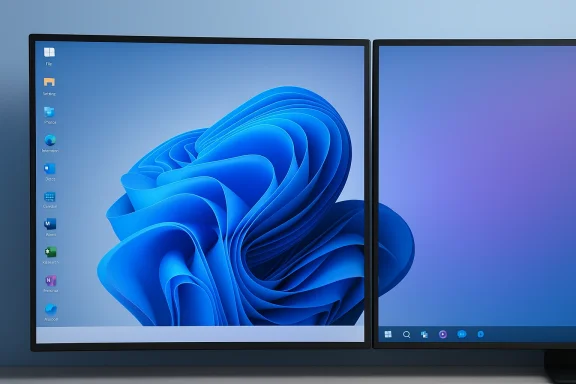
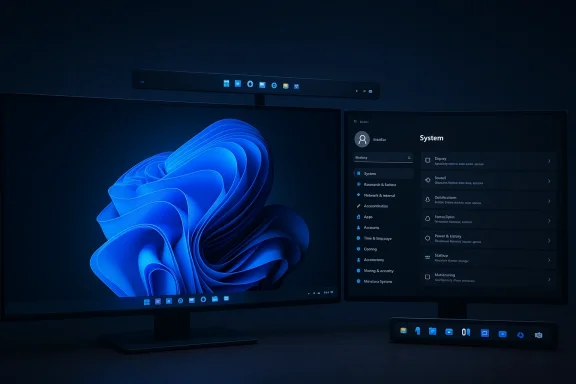
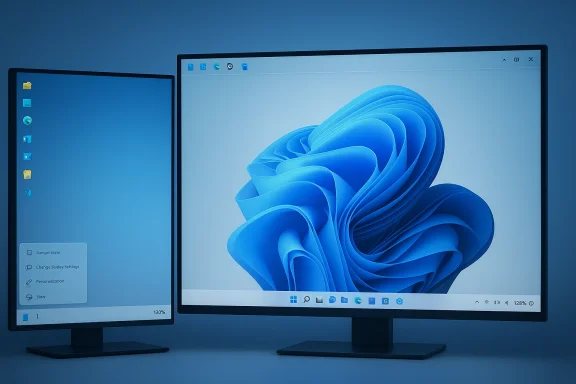
Dual monitors display Windows desktop with a blue, abstract wallpaper.Background / Overview​

Windows users have argued about the taskbar since Windows 11's debut in October 2021. The operating system's rebuilt shell introduced a modernized taskbar that prioritized centered icons, deeper Copilot/Search integration, and a simplified baseline experience — but it also removed decades‑old behaviors: the ability to dock the taskbar on the top, left or right edges of the screen, and fine‑grain control over the bar’s height and multi‑row layouts. That tradeoff created a persistent schism between Microsoft’s design choices and the expectations of power users, enterprise admins, and accessibility advocates.
Over the last four years Microsoft has gradually restored a few missing behaviors — for example, drag‑and‑drop onto taskbar icons returned with the 22H2 Moment builds and Microsoft later reintroduced the option to display seconds in the taskbar clock (a user‑visible toggle surfaced around May 2023). Microsoft has also iterated toward more flexible taskbar icon scaling and new behaviors in Insider builds during 2024–2025. But the ability to reposition and freely resize the taskbar to top/sides remained absent — until the recent reports that place the capability back on Microsoft’s roadmap for 2026.
On February 12, 2026, reporting from established Windows beat outlets stated Microsoft is actively prototyping support to both move the taskbar off the bottom of the screen and expose size controls so users can change its height. Those sources describe the change as part of a tactical push to address the OS’s “pain points” and improve public sentiment. The precise wording used by reporters emphasizes that this is a measured, pragmatic fix — less about reinventing the UI and more about restoring long‑standing user choice.

What the reports say — the concrete claims​

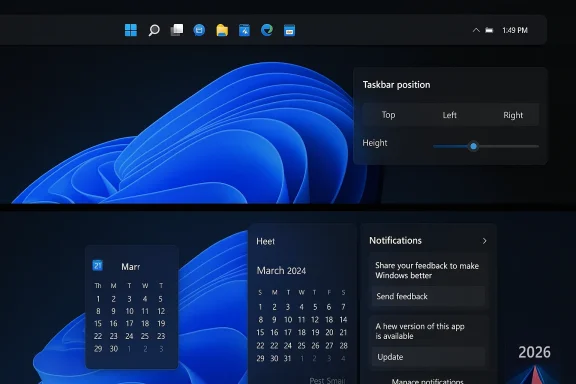
  • Microsoft is prototyping the ability to move the taskbar to the top, left, or right edges of the display, rather than leaving it fixed at the bottom.
  • Microsoft is experimenting with a resizable taskbar option so users can alter the taskbar height beyond the current small/normal choices, with use cases ranging from larger icon rows to multi‑row layouts for heavy multitaskers.
  • The work is framed inside a broader 2026 agenda to prioritize reliability, user feedback, and visible usability wins that address the most persistent criticisms of Windows 11.
  • Reported timelines are cautious: prototypes and internal engineering work are in progress and a public preview could appear in Insider channels before any general‑availability release. Microsoft has not issued an official public commitment or a fixed ship date at the time of reporting.
These claims come from reporting based on sources familiar with Microsoft’s internal plans and are presented as informed leaks rather than corporate announcements. That distinction is important: prototype work can, and often does, change between internal design and public release.

Why this matters — practical, symbolic and strategic reasons​

Restoring a movable and resizable taskbar matters on three levels.

1. Practical productivity and ergonomics​

Many users and organizations depend on vertical taskbars for productivity. Designers, developers, and professionals who use ultrawide monitors or multi‑monitor setups frequently prefer a left‑side taskbar because it mirrors the vertical orientation of code editors, project panels, or system monitors. Making the taskbar resizable addresses the same productivity gap: taller bars make it feasible to pin and eyeball many apps or show labels, reducing window switching friction.

2. Accessibility and user choice​

Taskbar placement and size impact accessibility. Users with reduced motor control, larger‑than‑normal pointer needs, or bespoke screen readers may require a customized taskbar height or edge placement for comfortable interactions. Returning these options signals a commitment to user choice and inclusive design.

3. Reputation and momentum​

Microsoft’s posture toward Windows 11 has been shaped by sentiment cycles: early praise for a modern look was tempered by backlash against missing legacy behaviors. A pragmatic restoration of the taskbar would be a visible, easy‑to‑understand correction — the kind of “symbolic” change that can influence public perception more strongly than back‑end optimizations.

The technical reality: why the taskbar was locked in the first place​

Reintroducing movement and resize support is not merely toggling a UI flag. When Windows 11’s shell was rewritten, the taskbar was re‑architected and tightly coupled with new flyouts, animations, centered layout logic, and Copilot integrations. Historically, moving the taskbar to other edges was handled by a stable system contract: the taskbar told the shell where it lived, and other UI components adapted.
In Windows 11, that plumbing changed. Key technical consequences included:
  • The Start menu, notification flyouts, and system tray were optimized around a bottom‑docked bar with centered elements and new animations.
  • Some legacy assumptions made by apps and shell components about available screen edges and layout flow were no longer valid without additional engineering.
  • Reintroducing movement requires verifying that all related surfaces — Start menu, Copilot, Quick Settings, calendar flyout, notification area, search, and third‑party apps that interact with the taskbar — correctly reflow and remain usable on alternate edges.
The engineering work therefore includes: adapting layout containers to vertical and top docking, revising animation and touch logic, ensuring overflow and icon scaling work in new orientations, and validating compatibility with Copilot and other integrated features. Microsoft’s internal teams have previously stated these are non‑trivial tasks — but the current reporting suggests they are being treated as solvable engineering problems rather than show‑stoppers.

What users can do today — safe workarounds and cautions​

If you can’t wait for Microsoft’s eventual solution, there are established third‑party options and registry tweaks that restore alternate taskbar placements and sizing today. However, they come with tradeoffs.

Popular third‑party tools​

  • ExplorerPatcher: An open‑source tool that restores many legacy classic taskbar behaviors, including side placements. It is actively maintained by the community and often updated to support new Windows 11 builds.
  • StartAllBack / Start11: Commercial utilities that offer a Windows 10‑style taskbar and Start menu behavior on Windows 11, including options to reposition the bar.
  • Community tools and small utilities (various GitHub projects) can reintroduce drag‑and‑drop or tweak icon sizes.
Pros:
  • Immediate solution: restores comfortable layouts now.
  • Granular customization: more options than what Microsoft historically offered.
Cons & risks:
  • System integrity: these tools patch or override shell behavior. After cumulative updates or major Windows feature updates, they can break or leave visual glitches.
  • Supportability: corporate IT teams must treat them as unsupported third‑party software; they can complicate troubleshooting or compliance.
  • Security: always download from reputable sources, verify checksums, and understand the permissions you grant to a tool that manipulates Explorer/Explorer.exe.

Registry tweaks and hidden options​

There are registry values that affect taskbar size (for example, the well‑known TaskbarSi key that toggles small/medium/large icon sizes). These are limited and frequently brittle — Microsoft has hardened or changed registry behavior in some updates. Registry edits are useful for small adjustments but do not provide reliable movement to side/top positions.

Practical advice if you use third‑party tools​

  • Backup: create a system restore point and full backup before installing shell‑modifying utilities.
  • Test on a spare machine: avoid mass deployment without lab validation.
  • Watch updates: pause Windows feature installs until the tool vendor confirms compatibility.
  • Prefer well‑maintained projects: tools with active issue trackers and recent releases reduce risk.

Enterprise, policy, and update management considerations​

If Microsoft ships a movable/resizable taskbar, organizations will need predictable controls. The enterprise considerations include:
  • Group Policy and MDM controls: Administrators will want the ability to lock taskbar position or permit user overrides. Clear policy keys and documentation will be necessary for controlled rollouts.
  • Device‑gating and phased rollout: Microsoft increasingly gates features by device class (hardware capabilities), and it may roll taskbar changes gradually. Enterprises should monitor Insider/Release Preview channels and test before broad deployment.
  • Imaging and management: organizations with standardized images and scripts must update deployment images and management tooling to support or enforce new settings.
  • Accessibility and training: moving the Start menu or taskbar position may require brief training for non‑technical staff; IT support desks should be prepared for calls related to misplaced icons or unfamiliar placements.
Enterprises should treat any early Insider preview as a testing window and avoid enabling experimental UI changes in production environments until Microsoft publishes Group Policy templates and documentation.

Compatibility, edge cases, and integration with Copilot/AI features​

A notable complexity is the growing role of Copilot and AI elements embedded in the taskbar and system surfaces. Copilot, recent Start menu adjustments, and Quick Settings integrations were designed with bottom‑docked experiences in mind. Repositioning the taskbar must preserve discoverability and accessibility of these AI features.
Potential integration challenges:
  • Copilot’s anchor point: if Copilot is bound visually to specific coordinates or to centered alignment, moving the bar could alter its expected position or overlay behavior.
  • Flyout placement: calendar, notifications, and quick settings need predictable flyout behavior so they don’t appear off‑screen or overlap unexpected content.
  • Multi‑monitor setups: placing the bar on different edges across multiple monitors introduces per‑display layout obligations; Microsoft needs to define sane defaults and user controls.
Microsoft’s internal prototyping reportedly accounts for these interactions; still, the complexity argues for careful, staged previews and robust telemetry to detect regressions in user workflows.

Timeline, rollout expectations, and what to watch for​

The reporting emphasizes prototyping and cautious timelines rather than an immediate ship date. Expect the following cadence if Microsoft proceeds:
  • Insider preview: Microsoft typically surfaces major UI experiments in the Windows Insider program (Dev, Beta, or Canary channels). The first public signal will be a build with taskbar repositioning and size settings available to Insiders for testing.
  • Feedback iteration: Microsoft will iterate based on Insiders’ telemetry and qualitative feedback, addressing regressions and edge cases.
  • Release Preview / gradual rollout: once stabilized, a broader Release Preview or staged feature rollout could appear, potentially device‑gated by hardware or Copilot+ readiness.
  • General availability: final rollout as part of a Moment update or a 24H2/25H2 installment, depending on engineering schedules and quality gates.
Important watchpoints:
  • Insider build numbers and release notes: Microsoft will detail device gates, policy keys, and known issues in the release notes.
  • Group Policy/registry keys: look for enumerated admin controls for policy-driven environments.
  • Developer guidance: Microsoft should release guidance for app developers to handle alternate taskbar placements; absence of such guidance would signal a limited or conservative implementation.
Because internal roadmaps are fluid, timelines reported in press stories should be treated as aspirational until Microsoft publishes an official announcement or ships a preview build.

Strengths and potential pitfalls of Microsoft's plan​

Strengths​

  • High impact, low ambiguity: Allowing users to move and resize the taskbar is an unambiguously visible win; it’s the kind of change users immediately notice and appreciate.
  • Signal of listening: Restoring long‑requested features demonstrates responsiveness and can improve Windows 11’s brand perception.
  • Productive payoff: For a modest engineering investment, the usability gains — especially for power users and accessibility needs — are significant.

Risks and pitfalls​

  • Quality regressions: Reintroducing placement flexibility could create regressions in flyouts, Copilot, and third‑party apps unless carefully validated.
  • Partial implementations: Microsoft could ship a conservative variant that supports only simple repositioning or limited resizing, disappointing users who wanted full parity with pre‑Windows 11 behaviors.
  • Device gating and fragmentation: If the feature is selectively enabled, it could create a fragmented experience where some devices can move the taskbar and others cannot.
  • Third‑party conflicts: Existing third‑party solutions may conflict with the official implementation, producing a messy upgrade experience for users relying on those tools.

What success looks like — criteria to judge Microsoft’s work​

When assessing a public preview or final release, these signals will indicate a successful implementation:
  • A reliable, low‑regression preview that supports top/left/right docking with correct reflow of Start, system tray, Copilot, and flyouts.
  • Clear user controls in Settings and accessible keyboard shortcuts for toggling placement and size.
  • Group Policy and MDM keys for administrative control in enterprise settings.
  • Documentation and developer guidance that describe how app developers should handle alternate taskbar positions.
  • Minimal visual or functional breakage in third‑party apps and community tooling after upgrades.
If Microsoft hits those marks, the feature will have delivered both practicality and symbolic reassurance.

Practical next steps for users and admins (concise checklist)​

  • If you’re curious, join the Windows Insider program and follow Dev/Beta channel announcements — that’s where UI experiments will first show up.
  • For production systems, don’t enable experimental UI changes until Microsoft publishes enterprise guidance and Group Policy support.
  • If you need a vertical or resizable taskbar now, evaluate trusted third‑party tools (ExplorerPatcher, StartAllBack) in a lab environment and backup before installing.
  • Track release notes and known‑issues lists on the official Windows update channels to understand device gating and compatibility.
  • Encourage accessibility or power‑user stakeholders in your organization to test presence or behavior in Insider builds; their feedback will shape final UX decisions.

Conclusion​

If Microsoft follows through, restoring a movable and resizable taskbar will be a pragmatic, highly visible fix that addresses a long‑standing sore point of Windows 11. The change would combine immediate, practical benefits for productivity and accessibility with an important public relations win: demonstrating that Microsoft is willing to restore user agency where sensible.
That said, the work is inherently non‑trivial. The taskbar in Windows 11 is integrated with Copilot, flyouts, and a modernized shell; reintroducing movement and resizing without regressions requires careful engineering, staged previews, and clear enterprise controls. The early reporting is encouraging and reflects a tactical shift toward tangible usability wins in 2026, but readers should temper optimism with the typical caveats: internal prototypes can change, timelines can slip, and Microsoft will likely gate the feature for quality.
For power users, the immediate path remains third‑party solutions — useful stopgaps but not a substitute for a supported, polished Microsoft implementation. For administrators, the sensible path is measured testing: evaluate Insider bits in a controlled environment and wait for Microsoft’s official policies before broad deployment.
Whatever the final form, the return of a truly flexible taskbar would close a long chapter of Windows UI debate: preference and productivity restored, for users who have been asking for it for years.

Source: Windows Report https://windowsreport.com/microsoft...-movable-and-resizable-taskbar-in-windows-11/
 

Microsoft's taskbar — anchored to the bottom of the screen for nearly five years in Windows 11 — may finally be getting the freedom users have been asking for: reports now claim Microsoft is working to let you move and resize the taskbar again, with a possible rollout planned for summer 2026.

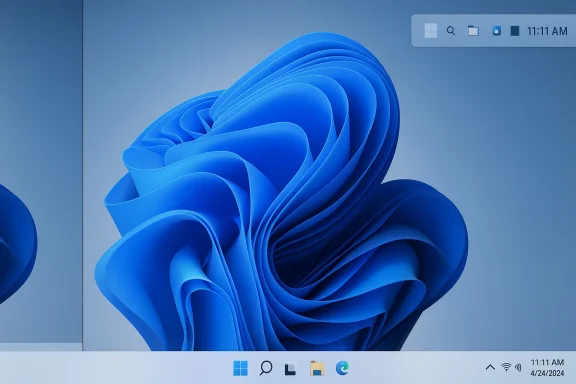
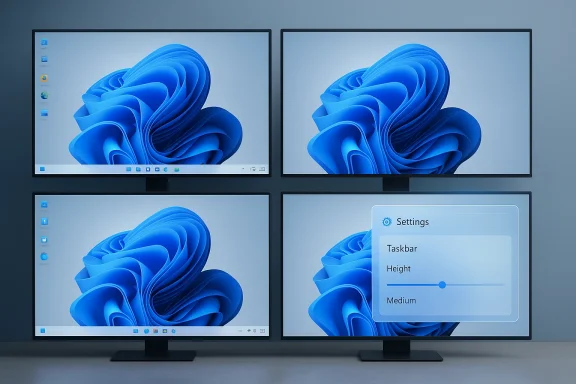
Windows 11 desktop with a blue abstract wallpaper and a visible taskbar.Background: why the taskbar became a battleground​

When Windows 11 launched in October 2021, Microsoft rebuilt core UI surfaces from the ground up. That rebuild brought a cleaner, more centralized look, but it also removed decades-old customizations that many users relied on — most notably the ability to move the taskbar to the left, right, or top of the screen and to alter its height freely.
For power users, developers, and people who use tall (vertical) monitors, that change was more than cosmetic. A vertically placed taskbar can dramatically improve ergonomics and screen real estate on 16:10 or 3:2 displays and in multi-monitor workflows. Restoring this capability has long been a top request in Feedback Hub and on community forums.
Over the last several years Microsoft has made incremental taskbar changes — alignment options, icon density tweaks, and multi-monitor behavior fixes — but moving the entire taskbar surface was left out of the official Windows 11 design. Third-party utilities and registry hacks filled the gap for some users, but those solutions have stability, support, and security trade-offs. The removal of taskbar relocation became a visible symbol of a broader complaint: users felt Microsoft was prioritizing new features and AI experiments over polish, compatibility, and everyday ergonomics.

What’s changed: Microsoft’s stated priorities for 2026​

In late January 2026 Microsoft’s Windows leadership publicly acknowledged the pushback. Pavan Davuluri, President of Windows and Devices, told reporters that the company was listening and would prioritize “improving system performance, reliability, and the overall experience of Windows.” That public pledge set the tone for a year focused on fixing core pain points rather than only adding new, headline-grabbing features.
Against that backdrop, new reporting from Windows-focused outlets in February 2026 claims Microsoft has quietly accelerated development on several longstanding requests — including restoring the ability to move and resize the taskbar. Those reports say the feature is being fast-tracked and may reach consumers by summer 2026 if internal testing goes well.
It’s important to be precise about what is confirmed and what remains speculative: Microsoft’s leadership has publicly promised a year of “fixing pain points.” Independent reporting — based on anonymous sources within Microsoft — suggests a movable and resizable taskbar is on the road map; Microsoft has not posted a formal product announcement with timelines at the time of writing.

The new taskbar plan: what the reports say​

What users could get​

According to recent reporting and prototype leaks circulating in the Windows community, the revived taskbar work would aim to restore several capabilities that existed in Windows versions prior to 11:
  • The ability to move the taskbar surface to the top, left, or right of the display in addition to bottom placement.
  • A resizable taskbar that lets users shrink (reduce height) or expand the bar — addressing requests for a denser, less tall taskbar on desktop PCs.
  • Improved behavior on multi-monitor setups, where taskbar interactions and system-tray availability have been inconsistent in past Windows 11 builds.
Those are concrete, user-facing changes that would reduce the need for third-party workarounds. Reporters who have spoken to Microsoft insiders say the company intends the changes to be supported at a system level (rather than only as a PowerToy or optional add-on), which would mean app and shell components are updated to cope with non-bottom bar placements.

Where the idea came from: the PowerToys experiment​

Microsoft’s PowerToys team — historically a laboratory for UI experiments and productivity features — has been prototyping a “Command Palette Dock” (sometimes described as a top or edge dock) that can be pinned to any screen edge and host small widgets, media controls, and quick-access extensions.
The Command Palette Dock prototype is significant for two reasons:
  • It demonstrates Microsoft engineers are actively thinking about persistent edge surfaces other than the classic bottom taskbar.
  • It offers a route for rapid user testing: PowerToys can ship experimental interfaces to power users and insiders without committing the main Windows shell to the changes.
That prototype differs from a system-level movable taskbar in scope and intent — it's an optional surface for PowerToys extensions — but it signals product intent and provides a preview of how Microsoft might approach re-introducing edge-based UI.

Timeline claims and the “summer 2026” line​

Multiple reports cite anonymous sources saying the feature is being prioritized for a summer 2026 release window. Treat that timetable as a working target, not a firm commitment. Release dates for OS-level work depend on internal testing, compatibility validation with tens of thousands of apps, and stability of shell components that are notoriously fragile to change.

Why moving the taskbar matters — and who benefits​

Productivity and ergonomics​

  • Developers and power users who keep many windows open vertically prefer a side taskbar because it puts app icons and window lists closer to active content.
  • Vertical monitors and ultrawides — increasingly common for productivity — benefit from having commonly used controls at the short edge of the display, allowing more of the longer screen axis for document and code windows.
  • Accessibility: users with reduced pointer precision or specific mobility needs often customize UI placement; restoring taskbar movement can be an accessibility win when combined with high-contrast and screen-reader work.

Multi-monitor workflows​

Historically, Windows 10 supported granular multi-monitor taskbar behavior. When Windows 11 initially shipped, users complained that secondary displays didn’t provide the same system-tray or notification interactions. Restoring edge placement and improved scaling policies could make multi-monitor setups far more natural and consistent.

Cosmetic and user-preference signaling​

Beyond concrete gains, allowing users to control where the taskbar sits is a signal: Microsoft is responding to community feedback and acknowledging that one look doesn’t fit all. That alone can soften the narrative that the company is ignoring experienced users.

Implementation challenges and technical risks​

Bringing a movable, resizable taskbar back into Windows 11 is not just a UI tweak — it hits deep system assumptions.

App compatibility and layout assumptions​

Many applications and shell integrations assume the taskbar is at the bottom of the screen. Moving it requires careful auditing of:
  • Application window positioning logic that anchors to screen edges.
  • Legacy tray applications that interact with specific pixel coordinates.
  • Context menus that open relative to the taskbar; incorrect offsets can make menus partially off-screen.
Microsoft must either preserve old behaviors (to avoid breaking apps) or provide compatibility shims. That process is laborious and error-prone.

Shell component fragility​

Explorer.exe, ShellExperienceHost, and related components coordinate the Start menu, taskbar, tray, and window manager. Past experiments (and PowerToys regressions) have shown that introducing new shell surfaces can cause crashes, freezes, or login failures if integration is incomplete.

Accessibility and assistive tech​

Screen readers, magnifiers, and other assistive technologies rely on consistent UI semantics. Changing the placement and sizing of a core surface requires revisiting accessibility APIs and testing with assistive tools to ensure nothing regresses.

Performance and resource implications​

A resizable taskbar that supports widgets or dynamic content (CPU meters, media controls) could increase background work and render cycles. Microsoft will need to balance richer features with the promised focus on performance and reliability.

Security and driver assumptions​

Some kernel and driver interactions — for example, display driver behaviors and secure boot overlays — assume standard surface geometry. Any edge-case geometry must be validated to avoid rendering artifacts or conflicts during low-level boot or recovery states.

Existing workarounds and their pitfalls​

Because Windows 11 has not supported taskbar relocation officially, several third-party solutions or registry hacks have proliferated:
  • Patching tools and mods (ExplorerPatcher, Start11, Windhawk, and registry edits) restore multi-row and moved taskbars for users willing to accept risk.
  • PowerToys prototypes can offer alternative, optional surfaces, but as experiments they’re not guaranteed to ship to all users or be stable.
These approaches can restore functionality fast, but they carry downsides:
  • Third-party patches may break with Windows updates and are not supported by Microsoft.
  • Registry hacks can lead to inconsistent behavior across system updates and may not adjust system tray geometry reliably.
  • Some PowerToys features have caused stability problems for users in the past; experimental shell integrations have led to explorer crashes for a subset of users.
If Microsoft reintroduces a system-level movable taskbar, it should reduce the need for risky third-party patches — but Microsoft will still need to handle the huge installed base of systems running those third-party hacks.

PowerToys: a preview path or a Canary?​

Microsoft’s PowerToys has repeatedly been the place where ideas are prototyped and validated with enthusiasts before wider adoption. The Command Palette Dock shows how Microsoft can iterate quickly and gather feedback. But using PowerToys as a stopgap for core shell functions raises questions:
  • Will PowerToys-derived UI elements remain separate, or will the shell adopt them natively?
  • Can Microsoft ship experimental dock features to broad Insider channels without breaking the expectation of a stable environment?
  • How do you test accessibility and backward compatibility when prototypes live outside the main shell?
Microsoft has the advantage of controlling both Windows and PowerToys, letting it prototype with fewer formal constraints. The company will have to make a decision: either harden promising prototypes and fold them into the shell, or keep PowerToys as an opt-in sandbox that may never reach general availability.

What users should expect (and what to watch for)​

If you’re a Windows 11 user considering whether to plan around these changes, here’s a practical rundown.
  • Expect incremental rollouts. Microsoft will likely test these changes with Windows Insiders before broader release to ensure compatibility and stability.
  • Don’t uninstall third-party tools immediately. If you rely on mods today, validate that the new Microsoft-provided option reproduces the exact behavior and stability you expect before removing your current solution.
  • Watch Insider feedback. The PowerToys prototypes and early Insider builds will reveal the rough edges: layout bugs, tray anomalies, and accessibility regressions that still need fixing.
  • Keep backups and system restore points handy. UI-level changes that affect explorer or shell behavior can produce edge-case failures that are easiest to recover from with a tested restore plan.

Industry perspective: why this matters beyond aesthetics​

Restoring taskbar flexibility is more than satisfying a nostalgia itch. For Microsoft, it’s a reputational and product strategy lever:
  • It demonstrates responsiveness to enterprise and enthusiast feedback.
  • It reverses an example of design decisions that prioritized a specific vision over user choice.
  • It can help improve adoption sentiment among users who have stayed on Windows 10 or delayed upgrades because of usability regressions.
For the ecosystem, a stable, supported, system-level approach means software vendors can rely on consistent behavior again — better for developers, IT admins, and accessibility tool vendors.

Potential pitfalls Microsoft needs to avoid​

  • Shipping a half-finished change. Restoring the ability to move the taskbar will be a visible, user-facing change; releasing it without full compatibility testing would risk more backlash than the status quo.
  • Ignoring accessibility and internationalization. Edge placement must work for right-to-left languages and assistive technologies.
  • Making the feature too opinionated. If Microsoft constrains movement with overly restrictive defaults or removes prior customization options, it won’t solve the underlying complaint.
  • Overloading the taskbar with features. Users asked for basic flexibility; what they don’t want is a bloated surface full of forced AI components that degrade performance.

What this means for IT admins and enterprises​

IT administrators should pay attention because a system-level taskbar change affects image management, application testing, and support workflows.
  • Test legacy apps against taskbar placements: some in-house tools may expect a bottom taskbar and may need updates.
  • Update deployment documentation and user training if administrators will allow or standardize alternative taskbar placements.
  • Monitor Microsoft’s enterprise release notes carefully; shell changes can have knock-on effects for group policies and management tools.

A note on verification and uncertainty​

Many of the details around timing and exact behavior come from anonymous sources inside Microsoft and from experimental code shared via PowerToys development branches. While those reports come from reputable Windows reporters and are consistent across multiple outlets, they should be treated as informed leaks and prototypes — not final commitments.
  • Microsoft’s public statements (January 2026) do confirm a renewed emphasis on performance, reliability, and addressing user pain points.
  • Independent reporting in February 2026 has added details about taskbar relocation and resizing work being prioritized, but the company had not published an official timeline when those reports appeared.
  • Prototype work in PowerToys demonstrates concept feasibility but does not guarantee the final shell implementation will match the prototype exactly.
Because of these constraints, one should assume the direction (restore flexibility) is credible while specific dates and feature shapes remain subject to change.

Practical recommendations for users today​

  • If you rely on a modified taskbar today (ExplorerPatcher, Start11, Windhawk, registry hacks), keep using them but double-check whether those tools are fully compatible with the latest Windows updates.
  • Participate in Insider previews if you are comfortable testing; your feedback will be visible to Microsoft and can shape final behavior.
  • If you use assistive technologies, test Insiders or prototypes carefully with the tools you rely on and file detailed feedback if you encounter regressions.
  • Backup and snapshot before you experiment with registry hacks or early PowerToys branches.

Conclusion​

The possibility of a movable and resizable taskbar returning to Windows 11 is a positive sign: Microsoft appears to be listening to feedback and prioritizing the fundamentals of user experience. Restoring edge placement and giving users control over taskbar height would fix a tangible, long-standing annoyance for many Windows users and could reduce reliance on third-party hacks.
That said, reintroducing this functionality is technically complicated. Microsoft must avoid rushing a change that could break apps, destabilize the shell, or regress accessibility. The cleanest outcome would be a carefully tested, system-level feature that honors user choice while preserving compatibility — and if Microsoft follows through on that, it will mark a meaningful step toward the company’s stated 2026 goal of improving Windows in ways that are meaningful for people.
For now, expect prototypes, Insider testing, and a period of community feedback. If the reported summer 2026 timeline holds, the next few months will be where Microsoft proves its pledge: not by announcing features, but by shipping changes that actually make everyday Windows better for real users.

Source: PCMag Australia Microsoft Heard Your Complaints, May Let You Move the Taskbar Again
 

Microsoft’s Windows 11 may soon stop forcing users to keep the Taskbar glued to the bottom of the screen: recent reporting indicates Microsoft is actively prototyping native Taskbar repositioning and finer resizing controls, a long-standing request from power users, accessibility advocates, and enterprise customers alike. ([windowscentral.comcentral.com/microsoft/windows-11/windows-11-gaining-movable-taskbar-in-2026)

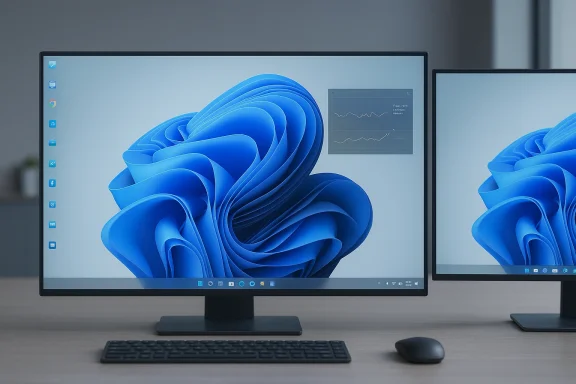
Sleek dual-monitor setup on a desk with keyboard and mouse, displaying a blue abstract wallpaper.Background​

Since its October 2021 debut, Windows 11 has presented a noticeably different Taskbar: centered icons, a redesigned notification area, and a shell rewritten in service of a cleaner, touch-friendly aesthetic. Those changes also removed decades of small, practical customizations — most notably the ability to dock the Taskbar to the top, left, or right edges of the screen. That absence became a persistent complaint in Feedback Hub and opawning a healthy third‑party ecosystem of tools and registry workarounds.
Microsoft’s iterative response over the past few years has been a mixture of limited returns and new features: the reintroduction of "never combine" taskbar behavior and related label options in 2023, taskbar icon scaling experiments, and incremental fixes for multi‑monitor behavior. Those smaller wins proved the company was listening, but they left the more structural problem — Taskbar placement and free resizing — unresolved until the latest reports surfaced.

What the new reporting actually says​

  • The clearest public disclosure so far comes from an exclusive that reports Microsoft is fast‑tracking work to let users move the Taskbar to the top, left, or right edges in addition to the bottom, and to add finer height controls beyond the current limited sizes. That piece frames the change as part of a broader 2026 push to address persistent Windows usability pain points.
  • Multiple community drafts available to reporters echo the same direction: system‑level support, not a PowerToy add‑on; attention to multi‑monitor behavior; and measurement of telemetry and stability during Canary/Dev Insider testing. Those internal descriptions also stress the work remains in prototype form and that Microsoft has not published a formal ship date.
  • Separately, Microsoft’s PowerToys team has prototyped a Command Palette Dock — an optional, pinnable edge surface that can live at screen edges (top included) a or quick actions. That experimental work is relevant because it demonstrates the engineering and UX patterns Microsoft is exploring for persistent edge surfaces. Community previews and developer branches for PowerToys have shown early versions of that domplement a top/side Taskbar.
Taken together, these signals point to a deliberate, staged approach: prototypes in PowerToys and Insider branches, combined with system‑level engineering work inside the Shell, with telemetry gating and iterative user feedback before any wide release.

Why Taskbar position still matters​

For many readers this can feel like a minor cosmetic preference. It isn’t.

Productivity and ergonomics​

  • On ultrawide and 4K displays, a vertical Taskbar (left or right) space for code, documents, timelines, and spreadsheets — the short edge is where tool chrome belongs so the long axis remains for content. This is a real, measurable gain in usable area for power workflows.
  • Top placement reduces pointer travel for commonly used controlfavors screen edges as efficient targets. Users who switch often between keyboard and mouse can shave seconds per interaction, which accumulates across a full workday.

Accessibility and consistency​

  • People with motor limitations or certain assistive device setups may find specific Tier to operate. Restoring native placement options reduces friction for assistive technologies that rely on predictable UI layouts.
  • Many professionals juggle multiple operating systems. Restoring Taskbar mobility can reduce cognitive switching costs for users who work across Linux tiling setups, macOS,nfigurations. That consistency matters in large engineering teams and mixed‑environment shops.

Enterprise real‑world use​

  • Financial trading floors, monitoring centers, call centers, and content production suites often deploy vertical monitors by design. Native system support for an edge Taskbar reduces reliance on brittle third‑party shell tweaks and simplifies standardization across fleets.

The engineering trade‑offs and why Microsoft removed it in the first place​

Reintroducing Taskbar movement is far more than toggling a checkbox.

Deep shell integration​

The Taskbar touches fundamental shell services: window manager metrics, the Start menu, overflow handling, notification toasts, auto‑hide logic, and the system tray. Each of these subsystems assumes a bottom‑anchored Taskbar in many places. Supporting top/side placements means auditing ands across:
  • Notification and toast positioning logic
  • Overflow menus and jump lists
  • Window snapping and maximize/restore calculations
  • Input‑edge gestures and tablet postures
  • High‑DPI scaling, language directionality, and right‑to‑left locales
Those dependencies explain Microsoft’s earlier caution; the work requires careful compatibility shims and extensive app testing.

App compatibility and legacy assumptions​

Some legacy or in‑house applications still assume pixel coordinates or edge behaviors tied to a bottom Taskbar. Microsoft can mitigate this through compatibility layers, but that adds complexity and potential regressions — the very thing Microsoft has attempted to avoid by locking the initial Windows 11 Taskbar. Fixing that safely at scale is slow and deliberate work.

Performance and reliability​

A Taskbar that moves must keep the OS responsive. Shell crashes or Explorer instability would cause immediate backlash. Microsoft’s recent shifts toward prioritizing reliability and performance in 2026 are consistent with the decision to ensure the feature ships only when sufficiently hardened.

How PowerToys and experimental surfaces de‑risk the change​

Microsoft’s PowerToys engineering cadence gives the company a low‑risk sandbox to trial new edge surfaces. The Command Palette Dock prototype demonstrates two useful things:
  • Engineers can validate interaction patterns for top‑ and side‑anchored UI surfaces without altering the system shell immediately. That enables real‑user telemetry from power users willing to run previews.
  • PowerToys’ approachable update model means Microsoft can iterate quickly on issues such as OLED concerns, animation smoothness, and crash scenarios before considering system‑level integration. However, past evidence shows PowerToys experiments have occasionally introduced instability when they interact with Shell components — a cautionary reminder of the integration risks.
PowerToys prototypes do not guarantee the final Taskbar shape, but they illuminate engineering direction and give Microsoft a mechanism to collect targeted feedback from advanced users.

What this means for the third‑party ecosyss like Stardock (Start11) and community projects such as ExplorerPatcher and StartAllBack filled the gap by restoring side Taskbars and classic behaviors. Those projects proved both the demand and feasibility of the UI patterns Microsoft initially removed.​

Native support would reduce dependency on these tools — a net benefit for security and manageability — but it also ups the stakes for Microsoft to match or exceed the flexibility these tools offer without breaking compatibility. Enterprises and ISVs will welcome an official way to move the Taskbar; conversely, a constrained or half‑finished implementation could prolong the ecosystem’s relevance and keep IT teams juggling unsupported workarounds.

Timeline and rollout expectations — read this carefully​

  • T set this conversation in motion named summer 2026 as an early target for a wider rollout if Insider testing and telemetry behave. Treat that date as aspirational: it’s based on reporting from sources familiar with Microsoft’s plans, not a formal company announcement. Microsoft has not posted a public, definitive ship date. ([windowscentral.com](https://www.windowscentral.com/microsoft/windows-11/windows-11-gaining-movable-taskbar-in-20
  • Historically, Microsoft stages major UI changes through the Windows Insider channels (Canary/Dev first) with server‑flagged rollouts and telemetry gating. Expect early builds that are feature flagged and limited to specific test devices or rings, followed by a broader Release Preview and general availability if stability permits.
  • Caveat: some community and Microsoft Q&A messaging as recently as late 2025 still documented that side Taskbar support was not officially available — meaning the conversation is moving from "not supported" to "in prototype," and that change can be reversed or delayed depending on engineering realities. In short: stay hopeful, but don’t lean on a firm commitment sider and Release Preview builds.

Likely limitations in early releases​

If Microsoft follows typical release patterns, the first public builds will probably ship with restrictions and known issues that will be addressed over subsequent updates. Anticipate:
  • Partial feature sets (e.g., movement but limited resizing options)
  • Rough edges around pinned app labels, live badges, and overflow behavior
  • Multi‑monitor inconsistencies (which historically have required multiple fixes)
  • Gated availability on select hardware families or device SKUs while telemetry is gathered
These limitations are typical of UI rollouts and, when openly acknowledged and rapidly iterated on, are preferable to shipping prematurely to all users.

Practical guidance for IT administrators and power userst this as a planning signal, not a mandate.​

  • Inventory and impact analysis.
  • Identify critical line‑of‑business applications that might assume a bottom Taskbar and flag them for compatibility testing.
  • Prepare test images and pilot groups.
  • Use a small fleet of non‑production machines to run Insider builds once the feature appears, and document any regressions against your corporate app suite.
    3.tion.
  • Avoid wide deployment of third‑party Taskbar mods in production while Microsoft finalizes a native implementation; those mods can break with Insider and cumulative updates.
  • Watch for Group Policy and MDM controls.
  • In past shell changes Microsoft has exposed enterprise controls; plan to test and potentially standardize defaults via Group Policy or MDM once those controls appear.
For power users who must run a side Taskbar today, the pragmatic options remain well‑maintained third‑party tools — bns:
  • Use them on test or personal systems (avoid corporate devices unless vendor support is confirmed).
  • Keep full backups and system restore points before applying shell‑level modifications.
  • Monitor vendor compatibiWindows cumulative update.

Security and support considerations​

Third‑party shell mods may be functional but they introduce support, maintenance, and security risk. A native Microsoft implementation reduces this attack surface and should eventually become the recommended path for organizations that need this behavior at scale. That said, Microsoft must also ensure assistive technomanagement tools continue to function — overlooking those integrations would produce the very regressions enterprise customers fear.

What to watch next (concrete signals)​

  • Windows Insider flights (Canary and Dev) with explicit feature flags for Taskbar repositioning. Early test impressions and changelogs will reveal scope and limitations.
  • PowerToys releases and dev branches for the Command Palette Dock. If the dock matures and gains usage, Microsoft may feel more confident folding edge‑surface patterns into the Shell.
  • Microsoft documentation and enterprise release notes for Group Policy/ADMX updates that control Taskbar behavior — these are the hard signals IT shops need before any mass deployment.
  • Independent testing and reproducible reports from Insiders and reputable outlets; expect a mix of praise and bug reports early on.

Balancing optimism with realism​

Restoring Taskbar mobility would be a meaningful, high‑value win for many Windows users. It’s a pragmatic change — not a headline‑grabbing AI feature, but one that removes daily friction. The signals coming from Microsoft’s Insider experiments and PowerToys prototypes are promising, and multiple reporting threads align on the direction. Yet two important cautions remain:
  • Timeline uncertainty: The "summer 2026" window is reported, not confirmed. Microsoft’s internal schedule may slip as compatibility work and telemetry analysis proceed.
  • Implementation quality: A partial or rushed implementation would risk new user friction and compatibility hpriority on reliability in 2026 is therefore the right approach; the company should ship the feature when it meets a high bar for compatibility and accessibility.

Final verdict: why this matters to Windows users​

If Microsoft delivers a system‑level, fully supported Taskbar repositioning and resizing option, the benefits will be tangible:
  • Reduced need for thirnd the maintenance burden they create.
  • Better ergonomic and accessibility outcomes for a sizable cohort of users.
  • Improved multi‑monitor and high‑DPI workflows that match modern hardware setups.
If Microsoft stalls or ships an overly conservative version that fails to meet power users’ needs, the third‑party ecosystem will persist and enterprises will continue to carry the pain of unsupported workarounds. For now, the pragmatic course is to follow Insider channels, plan conservative pilots for IT, and treat the reports as an encouraging sign that Microsoft is listening — but not yet finished.

Microsoft has spent five years rethinking the Taskbar; the conversation about moving it back is as much about technical correctness as it is about respecting long‑standing user workflows. When that work finally reaches stable builds, it will stand as a useful example of product teams reconciling modern design goals with the practical choices people rely on every day.

Source: findarticles.com Microsoft Plans Return Of Movable Taskbar In Windows 11
 

Microsoft’s recent move to prototype a movable and resizable Taskbar for Windows 11 has reopened an old debate about user choice, design priorities, and what counts as progress in a modern operating system—because for many users, this is less a breakthrough than the restoration of long‑standing functionality they never asked to lose.

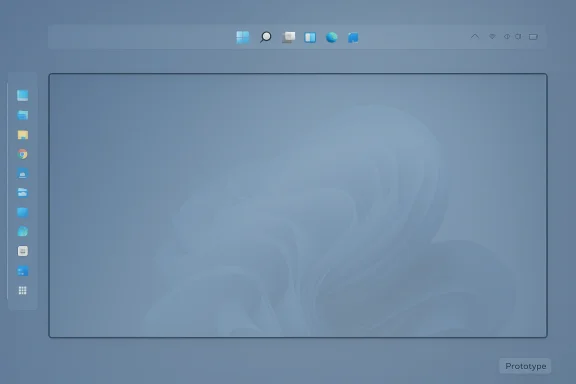
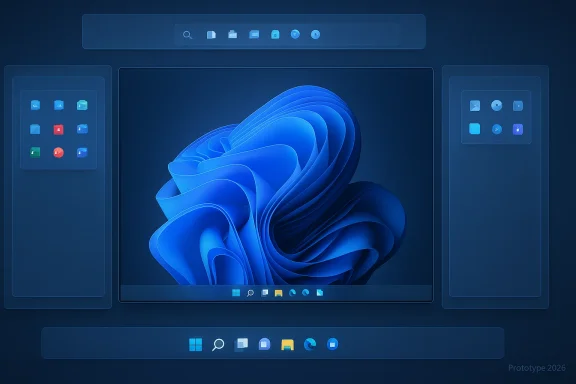
Blue-tinted UI prototype showing a large central display, a vertical left dock, and a top toolbar.Background​

Since Windows 95 the Taskbar has been the most stable, familiar surface of the Windows desktop: a place to pin apps, switch windows, and manage notifications. For decades that surface was flexible — users could dock the bar at the top, bottom, left, or right edge, change its height, and use multi‑row layouts. When Microsoft rebuilt the Windows shell for Windows 11 in 2021 it deliberately simplified and modernized the Taskbar, centralizing icons and locking some behaviors that had been assumed for decades. That decision solved certain design and touch‑friendly goals but produced hard trade‑offs for power users, accessibility‑dependent workflows, and multi‑monitor setups.
Over the last several years Microsoft has restored small bits of functionality — a few drag‑and‑drop behaviors, more icon density controls, even the option to display seconds in the clock — but the ability to move the Taskbar off the bottom of the screen and to change its height freely remained absent. Those omissions became a visible symbol for a broader complaint: Microsoft seemed to be favoring new features and surface redesign over day‑to‑day ergonomics and deep customization.
What changed in early 2026 is tactical: internal reporting indicates Microsoft is prioritizing a year of “fixing pain points,” and that work now includes a prototype to restore Taskbar movement and to expose size controls to users. Sources familiar with the matter describe Microsoft as actively prototyping these features, with a cautious public timeline that places a preview possibility in Insider channels ahead of any general‑availability release. That work is being framed as low‑friction, high‑impact — the kind of visible improvement that can change sentiment among power users without re‑architecting the entire shell.

What Microsoft is Prototyping (and what that actually means)​

The concrete changes on the roadmap​

  • Edge docking: The Taskbar would be able to move to the top, left, or right edges of the display, not just the bottom.
  • Resizable Taskbar: Users would gain a control to change the bar’s height beyond the previous “small/normal” presets, enabling denser icon rows or multi‑row layouts for heavy multitaskers.
  • Better multi‑monitor behavior: Improved consistency across displays and scaling scenarios so secondary displays behave more predictably with non‑bottom Taskbar placements.
Those are the user‑facing claims being reported; Microsoft has not posted an official commitment or ship date. The reporting emphasizes prototyping and internal engineering work rather than a polished consumer feature rollout. Treat the summer 2026 timeline cited in some reports as aspirational rather than contractual.

Why it’s more than just moving pixels​

At a glance, moving a bar sounds trivial. In practice, the Windows 11 Taskbar was rewritten from the ground up to support modern visuals, centered icons, and touch‑first interactions. That rewrite introduced tight couplings between the Taskbar, the Start experience, system tray components (Copilot, widgets, notification areas), and assumptions about bottom placement that ripple through application UI logic and layout behavior.
Engineering teams must therefore:
  • Ensure the Start menu and any anchored UI still open in sensible locations relative to the new bar position.
  • Preserve discoverability and functionality of interactive elements like the system tray, widgets, and Copilot.
  • Maintain consistent behavior under mixed DPI, multi‑monitor, and hybrid GPU driver environments.
Those are non‑trivial engineering and QA problems — and they help explain why Microsoft originally deprioritized re‑introducing movement even though third‑party utilities filled the gap.

User Reaction: The chorus of welcome, sarcasm, and skepticism​

When the prototypes were reported users reacted predictably: a mixture of relief, sarcasm, and questions about priorities. The conversation split across several themes.

“Better late than never” — relief and practical users​

Some users are genuinely pleased. For those who work on tablets, ultrawide monitors, or with dozens of open windows, a resizable Taskbar or a side docking option is a real ergonomics boost. Commenters pointed out that resizing — to allow a double‑height Taskbar or more visible entries without digging through overflow menus — can be far more useful than mere docking. Others simply welcomed native support because they were previously paying for third‑party solutions or relying on hacks to get the same behavior.

“Should we throw a parade?” — sarcasm and frustration​

A large chunk of public commentary framed the announcement as Microsoft presenting the reinstatement of long‑standing features as a triumph. That tone is understandable: to long‑time Windows users, restoring basic functionality is not innovation — it’s restitution. Comments across forums and Reddit tracked that sentiment with quips about balloons and parades for features that were once standard. The subtext is annoyance that Microsoft removed the capability in the first place and only now appears willing to restore it.

“This should’ve been an afternoon’s work” — skepticism about effort and priorities​

A related vein of commentary asked a blunt question: why did it take years and now become a headline item? Critics pointed to the apparent mismatch between Microsoft’s headcount and the time it took to reintroduce an old capability. The counterpoint from engineering is that the modern Taskbar is not the same codebase — and that compatibility and scale make “an afternoon’s work” an unrealistic simplification. Still, the public perception gap remains a genuine PR issue.

“Most people never touched it” — the data point that complicates the narrative​

Microsoft and some analysts highlight that the vast majority of users keep the Taskbar at the bottom: historical telemetry suggested a large majority of sessions use bottom placement, with top and side placements being a small fraction of installations. That data is often cited in arguments that prioritizing other improvements for the larger population is reasonable. But telemetry doesn’t fully capture the needs of power‑user, accessibility, or pro workstation workflows where the minority still represents a vocal, productivity‑sensitive segment.

Why the debate matters: design, inclusion, and the limits of “simplicity”​

This story is about design philosophy as much as it is about taskbar pixels. Microsoft’s Windows 11 team started with a central design intent: reduce visual noise, make touch and hybrid devices friendlier, and create a consistent baseline experience across millions of devices. That baseline deliberately reduces complexity.
But there are trade‑offs:
  • Simplicity for many vs. flexibility for some. Simplifying defaults benefits the majority, but removing choices penalizes users with specialized workflows.
  • Perceived respect for users. Restoring features after years can look like a concession and prompts the question: were user voices ignored or were tradeoffs necessary?
  • Third‑party ecosystem dynamics. The absence of native support created a fertile market for utilities (Start11, StartAllBack, RetroBar, etc.), which filled the gap but introduced fragmentation, support burdens, and potential security/compatibility tradeoffs.
These tensions are fundamental to any long‑lived operating system: the baseline must be stable and easy for the many, while still allowing power users to sculpt their environment. Finding that balance is the core challenge.

The third‑party ecosystem: fixes, risks, and pressure​

When Microsoft removed Taskbar relocation and fine height controls, third‑party utilities surged to meet the demand. Stardock’s Start11 and StartAllBack are two prominent examples that restored vertical docking, multi‑monitor options, and a range of customization choices for those who wanted them. These tools demonstrated that much of the requested functionality could be implemented without catastrophic system instability — and that in turn applied pressure on Microsoft’s product teams.
But relying on third‑party tools has consequences:
  • Support and security: Third‑party shell modifications operate at a layer where OS updates can break functionality or introduce regressions. Users who rely on them accept a maintenance burden.
  • Fragmentation: Different tools implement features in incompatible ways, which complicates help desks and documentation for enterprises.
  • Feature parity expectations: When third‑party vendors deliver what users want, it creates market pressure on platform owners to either integrate those features or accept that enthusiasts will always need add‑ons.
Microsoft’s reported decision to prototype system‑level support reflects an implicit acknowledgement that the third‑party ecosystem alone isn’t an ideal long‑term solution for widely requested behaviors.

Technical realities: what engineers must solve​

Restoring Taskbar movement cleanly requires changes across dozens of dependent systems. Key technical items include:
  • Start and menu placement logic: The Start menu and other popups must open in the correct place relative to a side‑docked Taskbar.
  • Notification area behavior: System tray, accessibility overlays, and interactive widgets have anchoring assumptions that must be reworked.
  • Mixed DPI and multi‑monitor scaling: Ensuring consistent hit targets, icon sizes, and notification behavior across monitors with different scaling factors is complicated and requires careful testing.
  • Compatibility with thousands of apps: Many applications assume bottom docking for context menus or anchor positions. Microsoft must ensure an OS‑level change doesn’t break app layouts unexpectedly.
These are real engineering headaches, and they explain why Microsoft originally chose the simpler path for Windows 11’s initial shell rewrite. The trade‑off was a modern, consistent visual baseline at the cost of long‑standing customizability. Bringing back the features correctly means reconciling modern design with a vast legacy of app behavior.

Risks and caveats for users and IT admins​

If Microsoft ships movable and resizable Taskbar options, expect a phased approach and caveats:
  • Staged rollouts: New Taskbar behaviors will likely appear first in Insider channels and then to broader audiences only after compatibility validation.
  • Compatibility testing: Enterprises and ISVs should test their apps against preview builds if they rely on Taskbar‑anchored behavior or custom shell integrations.
  • Not a silver bullet: Restoring movement won’t fix broader complaints about Windows 11 (e.g., evolving UI inconsistencies, Copilot integration debates, or deep‑system performance concerns), but it is a visible, user‑facing win.
  • Third‑party tool overlap: Users who already paid for Start11/StartAllBack may see the native change as redundant; vendors may pivot to complementary features rather than compete on basic movement.

Practical guidance for Windows users today​

  • If you need vertical docking now: Consider vetted third‑party tools (Start11, StartAllBack) but be prepared to re‑evaluate them when Microsoft releases a native option. Back up settings and document changes before upgrades.
  • If you’re in IT: Begin early compatibility testing with Insider preview channels when Microsoft announces previews. Flag any Taskbar‑anchored app behaviors that rely on bottom placement and plan mitigations.
  • If you’re an accessibility user: Keep an eye on how native changes affect assistive technologies. Native support is preferable to third‑party hacks for accessibility compliance, but validation will be essential.
  • If you’re a casual user: The bottom Taskbar will remain the default and the majority experience is unlikely to change. If you’re indifferent, the practical impact will be minimal.

What this means for Microsoft’s product strategy​

Restoring classic Taskbar behaviors signals a subtle but meaningful shift: Microsoft is acknowledging that perceived product quality and user choice matter, and that visible, user‑facing corrections can buttress sentiment. The company’s broader 2026 agenda — described in reporting as a year focused on reliability and “fixing pain points” — frames this work as tactical damage control and a recalibration of priorities. Whether this marks a sustained change in how Microsoft balances design experimentation and legacy expectations remains to be seen.
Two strategic outcomes to watch:
  • If Microsoft follows through with system‑level support: That will reduce the role of third‑party shell mods and could improve accessibility and stability for users who previously relied on hacks.
  • If the change stalls or is limited: The conversation about user choice vs. simplified defaults will keep surfacing in forums, and third‑party ecosystems will continue to thrive.

Final analysis: progress, not perfection​

Restoring a movable and resizable Taskbar is, in one sense, a straightforward correction of a long‑running grievance. In another, it’s a complex engineering and product judgment problem that touches app compatibility, accessibility, and the tension between a polished default experience and deep user choice.
  • Strengths of the move: It directly addresses a tangible pain point for power users, supports diverse workflows (vertical monitors, ultrawides, tablets), and signals Microsoft is responsive to feedback. A native implementation should be more robust and secure than third‑party hacks.
  • Potential risks: The public relations optics of “bringing back what used to exist” are awkward; execution must be careful to avoid regressions, and timelines are uncertain. Compatibility and mixed‑DPI complexities remain real engineering constraints.
For Microsoft the pragmatic choice is clear: deliver the feature in a way that minimizes breakage and maximizes user control. For users, the right posture is patient optimism — this is a welcome direction, but it’s not a cure‑all for every Windows 11 grievance.
If Microsoft ships a clean, system‑level solution that supports multi‑monitor scaling and preserves accessibility features, it will be a concrete usability win. If the rollout is rushed or incomplete, the same debates that launched this conversation will continue.
The bottom line: restoring classic Taskbar features is meaningful to the subset of users who rely on them, and it matters because it signals that platform owners still listen — even if they sometimes listen more slowly than the community would like.

Conclusion
The Taskbar debate is a microcosm of a larger question about how modern platforms balance consistency and customization. Microsoft’s move toward restoring movement and resizing in Windows 11 is a corrective step that rewards long‑standing requests from power users, but it also highlights the costs of earlier design decisions. Expect continued scrutiny as prototype news becomes Insider previews and, eventually, public releases. In the meantime, third‑party solutions remain a practical stopgap for anyone who can’t wait — and the conversation about design trade‑offs is far from settled.

Source: Windows Central Windows 11 brings back classic taskbar features and users have thoughts
 

Microsoft appears to be preparing one of the clearest user‑facing course corrections for Windows 11 in years: internal reporting and experiments suggest the long‑requested ability to move and resize the taskbar could return to the OS, and Microsoft’s PowerToys team is prototyping a separate “Command Palette Dock” that hints at broader edge‑surface experimentation. The story matters because the taskbar is one of the single most visible elements in Windows, and restoring placement and height controls would be a practical win for productivity users, accessibility advocates, and IT teams—if Microsoft can deliver it without destabilizing the shell. m]

Dual-monitor setup displaying Windows 11 with a blue abstract wallpaper and an app grid.Background / Overview​

When Windows 11 launched in October 2021, Microsoft rebuilt the shell and taskbar with a modernized design and a new architecture. That rewrite deliberately removed a handful of longstanding customization options—most notably the ability to dock the taskbar to the left, right, or top edges of the screen and fine‑grain height control that many power users relied on. The change produced a cleaner, more touch‑friendly baseline, but it also created a persistent sore point for users who prefer vertical taskbars or denser ltrawide and multi‑monitor workflows.
By early 2026 Microsoft publicly acknowledged an internal shift in priorities: leadership said the company would focus this year on improving “system performance, reliability, and the overall experience of Windows.” That pledge—made by Pavan Davuluri, Microsoft’s president of Windows and Devices—sets the context for a tactical push to fix everyday pain points rather than only shipping new headline features. Multiple outlets have reported that taskbar repositioning and a sizing control are part of that push, though Microsoft has not posted a formal product announcement.

What’s being reported (the claims)​

The headline items journalists and insiders are circulating​

  • Native support to move the Wm the bottom to the top, left, or right sides of the display.
  • A resizable taskbar control allowing users to shrink or expand the bar beyond the current limited presets (e.g., denser single‑row or multi‑row layouts).
  • Work scoped for improved multi‑monitor behaviour and scaling so edge‑docked taskbars are predictable across mixed‑DPI setups.
  • Microsoft PowerToys experimenting with a Command Palette Dock—an opt‑in, pinnable edge surface that can sit at any screen edge and host quick actions, mini widgets, and PowerToys extensions. The dock is currently a prototype available for advanced testing in development branches. ([theverge.com](Microsoft is experimenting with a top menu bar for Windows 11 items come from insider reporting and prototype branches, and while the direction seems credible (and has been widely corroborated by reputable Windows beat reporters), the timeline and exact feature shape remain provisional. Several reports place early previews or a public unveiling in the summer of 2026—an aspirational target not confirmed by Microsoft. Treat the date as a working target, not a guarantee.

Why restoring taskbar movement it looks​

At first glance, letting the taskbar live on the left, right, or top might seem like a cosmetic reversal. In practice, it touches deep integration points across the Windows shell:
  • Start menu and flyout anchoring. Many ext menus are positioned with bottom‑dock assumptions. Changing the bar’s edge changes popup anchors and animation logic.
  • System tray and interactive elements. Copilot, Widgets, the notification area, and quick settings currently expect a bottom dock in many scenariomust remain discoverable and functional when the bar moves.
  • Mixed‑DPI / multi‑monitor scaling. Vertical taskbars create new constraints for layout and hit targets, especially when secondary displays use different scale factors. Developers must ensure consistent icon sizing, hit areas, an across displays.
  • App compatibility. Thousands of apps behave as if the taskbar is bottom‑docked—context menu anchors, custom shell integrations, or window placement heuristics can break if the bar’s location changes unpredictably. Microsoft must preserve app compatibility or provide migration guidance.
Put simply: the Windows 11 taskbar was not a drop‑in carryover from Windows 10. Restoring placement requires re‑engineering numerous dependent systems while keeping stability intact.

PowerToys, prototypes, and why Microsoft’s lab matters​

Microsoft’s PowerToys project has long served as a laboratory for UI experiments and power user features. The newly discussed Command Palette Dock is a case in point: an optional dockable bar that can pin to any screen edge, host live extension tiles (CPU, RAM, media controls), and be tuned for glanceability. Because PowerToys is opt‑in and developed in public repos, it’s an ideal way for Microsoft to test edge‑surface ergonomics and developer extension models without changing the core shell.
That prototype is important for two reasons:
  • It shows Microsoft engineers are actively experimenting with alternative edge surfaces and placement logic, which increases the plausibility of a system‑level taskbar return.
  • It provides a rapid feedback loop: PowerToys users (power users and Insiders) can try the dock and file focused feedback, reducing the risk of regressing accessibility or compatibility when similar concepts move upstream. (windowsforum.com)
Caveat: PowerToys experiments don’t guarantee mainline shell features will match the prototype. The PowerToys dock is modular and extension‑driven by design; a system taskbar musmpatibility and management requirements for enterprise and accessibility.

What this would mean for users (practical gains)​

If Microsoft delivers a robust, system‑level implementation, urete benefits:
  • Restored ergonomics for vertical and ultrawide displays. Vertical taskbars free up vertical real estate for documents and code, which matters on 16t‑oriented monitors.
  • Native support beats brittle hacks. Third‑party tools and registry workarounds have been the stopgap—native support reduces the reliance on brittle, unsupported modifications.
  • Accessibility gains. Assistive tech and mobility‑dependent workflows often benefit from predictable, configurable UI placement managed at the OS level rather than by external utilities.
  • Less friction for multi‑monitor setups. Official multi‑display behavior would make docked taskbars less hit‑or‑miss across external displays and scaling mgible, everyday improvements that demonstrably affect productivity and user satisfaction—precisely the category Microsoft said it would prioritize this year.

Risks, trade‑offs, and why admins should be cautious​

Restoring movement is a low‑risk, high‑visibility win only if Microsoft avoids common pitfalls. The main risks:
  • **rushed or half‑tested implementation could break shell behavior, causing more helpdesk tickets than applause. System tray, Copilot, and startup registration are delicate.
  • Fragmentation. If Miture to certain SKUs, devices, or channels, the resulting inconsistent experience could complicate support and documentation across an enterprise fleet.
  • Third‑party conflicts. Vendors of existing shell modification tools (Start11, ExplorerPatcher, StartAllBack) might face compatibility issues; users who installed those tools could experience transitional breakage during upgrades.
  • Accessibility regressions. Any change to the taskbar must preserve keyboard navigation, screen‑reader semantics, and contrast/hit targets; otherwise an accessibility win becomes a liability.
For IT administrators, the right posture is conservative testing: pilot Insider builds in a controlled environment, identify apps that assume bottom ediation or communication before production rollouts.

Third‑party vendors: competition, opportunity, or both?​

Third‑party tools like Start11 and ExplorerPatcher filled this gap for users who needed vertely. Those utilities have shipped polished experiences and even Start11 betas that provide side docking and integrated Start menus. If Microsoft ships a robust native option, third‑party vendors will likely pivot—either focusing on advanced customization beyond the OS default or offering migration paths and enterprise features.
That ecosystem dynamic has two practical implications:
  • User third‑party tools should back up their configurations; migration may require uninstalling or reconfiguring the third‑party product.ntinue to provide value through niche customizations, theming, and legacy compatibility that Microsoft may not prioritize.

ake this succeed (a checklist)​

A successful, low‑regression return of taskbar placement should include:
  • A staged rollout tha Dev/Beta rings** and clearly communicates limitations and known issues.
  • Group Policy / MDM controls so enterprise administrators c how users can move or resize the taskbar.
  • Developer guidance and shell API documentation explaining how app popups should anchor relative to non‑bottom taskbars.
  • Thorough accessibility testing with screen readers, high contrast modes, magnifiers, and keyboard traversal scenarios.
  • Compatibility tests for mixed‑DPI and hybrid GPU setups, ensuring stable behavior across the broad device matrix Windows supports.
If Microsoft hits those marks, the feature will be both practical and durable. If it skips one or more, users and admins will feel the consequences quickly.

Verification: how we confirmed the story​

The core claims—taskbar repositioning and resizing being prototyped, and PowerToys experimenting with a Command Palette Dock—are reported by major Windows beat outlets and visible in development branches and community repositories. Windows Central’s exclusive reporting describes Microsoft prioritizing taskbar repositioning as part of a broader 2026 effort to fix pain points.
The Verge (and outlets republishing The Verge’s reporting) captured the broader context and the quote from Pavan Davuluri committing to focus on “system performance, reliability, and the overall experience of Windows,” which frames why Microsoft is prioritizing these changes.
PowerToys’ Command Palette Dock is documented ient branches and reported by multiple outlets as an experimental top/edge dock that can be pinned to any display edge; reporters and community threads note the prototype is available for advanced testing via GitHub branches. That prototype is distinct from a system taskbar but is relevant because it demonstrates Microsoft exploring edge surfaces and developer extension models.
Finally, the PCMag summary (the article that prompted this feature) captured the same set of clai Central reporting and PowerToys notes—making the narrative consistent across outlets and prototypes.
Caveat: most reporting relies on anonymous sources inside Microsoft or publicly visible PowerToys prototype branches. Microsoft has not puoduct roadmap with firm GA dates for a movable, resizable taskbar, so timelines remain speculative. Treat prototype leaks and insider timelines as probable but not final.

Recommendationins should do now​

  • If you need a vertical taskbar today, continue using vetted third‑party solutions (Start11, ExplorerPatcher) in test environments, but document and export your settings in case migratioIf you’re an IT admin, prepare a controlled test matrix: run preview builds in an isolated pilot, test critical in‑house apps for assumptions about bottom docking, and wait for Microsoft’s enterprise guidance before mass deployment.
  • If you’re an accessibility stakeholder, request early access to Insider previews and validate assistive tech workflows; file targeted Feedback Hub reports if you encounter regressions.
  • If you’re a casual user, wait for the mainstream release. The bottom taskbar will remain the default experience for most users, and the practical need to move the bar is limited for non‑power workflows.

Final analysis — progress, not perfection​

Restoring a movable, resizable taskbar would be a meaningful and visible correction to a five‑year UX tension. It is precisely the sort of user‑facing fix that can improve sentiment: practical, immediately noticeable, and helpful to real workflows. That’s why Microsoft, after publicly committing to focus on core quality issues in 2026, appears to have placed this work on a higher priority list.
But the work is inherently delicate. The Windows shell is a deeply interconnected surface; moving a high‑visibility element carries real engineering risk. The right outcome will be incremental and cautious: well‑tested Insider previews, clear enterprise controls, solid accessibility validation, and careful app compatibility guidance.
If Microsoft executes on those principles, the return of a flexible taskbar will be bothnt and a symbolic signal: that the company is listening to longstanding community feedback and is willing to restore user choice where it matters. If the rollout is rushed or limited in scope, the conversation about design trade‑offs and compatibility will continue—and third‑party vendors will still have a role to play.
For readers who want to follow this closely: watch Microsoft’s Insider channels, follow the PowerToys repository for Command Palette Dock updates, and look to reputable Windows beat outlets for preview coverage as prototypes reach public testing. The summer 2026 window being circulated is plausible but not guaranteed; the quality of execution will matter far more than the exact ship date.

In the end, the taskbar debate is a microcosm of a larger design question: how should platform owners balance a simplified default for new users with the configurability that long‑time Windows professionals expect? Microsoft’s current prototypes and public statements suggest the company is leaning back toward user choice. Whether that becomes a durable, polished reality for the billions of Windows users remains the critical test in the months ahead.

Source: PCMag Microsoft Heard Your Complaints, May Let You Move the Taskbar Again
 

Microsoft’s latest push to weave Copilot into the fabric of Windows 11 — now surfacing in File Explorer as right‑click AI actions, summaries, and image editing shortcuts — is less an incremental feature release than a strategic doubling‑down on an AI‑first operating system. That bet promises productivity wins for some users, but it’s reopening old wounds about performance, telemetry, defaults, and who gets to decide what runs on your PC. Early preview evidence, company documentation, and broad community pushback show a platform that’s being reshaped by AI while many users ask for clarity, choice, and restraint.

3D UI showing a File Explorer menu with AI actions like Ask Copilot and Generate Summary.Background​

How Copilot moved from add‑on to platform centerpiece​

What began as an optional assistant in individual Microsoft apps has been elevated to a cross‑platform, cross‑surface strategy under the Copilot brand. Microsoft has layered Copilot capabilities across Microsoft 365, Edge, Windows taskbar experiences, and now core system surfaces like File Explorer. The move reflects a company‑level decision to treat generative AI as a platform advantage and a differentiator between Microsoft’s productivity stack and competitorse both in feature previews and in the mechanisms Microsoft uses to distribute Copilot components.
Microsoft’s Windows Insider program has been the staging ground for these experiments: Dev channel builds (notably Build 26300.7674 announced January 27, 2026) carry enablement packages and controlled rollouts so the company can test UI placements, new interactions, and underlying plumbing before a broader release. Those previews also document the reality that features shown to Insiders may change, be gated, or never ship.

The automatic‑install controversy (Fall 2025)​

A parallel piece of the story is distribution. Microsoft documented that Windows devices with Microsoft 365 desktop apps would receive the Microsoft 365 Copilot app via background installation beginning in Fall 2025. That installation is tenant‑controlled (admins can opt out in the Microsoft 365 Apps admin center), and Microsoft explicitly excluded devices in the European Economic Area from automatic installs by default. The practical effect: enterprises have governance levers, but many consumer and unmanaged devices saw Copilot components appear with minimal notice — a move that intensified user frustration.

What’s new in File Explorer: features and mechanics​

Right‑click AI actions and the “Ask Copilot” affordance​

Recent Dev builds and hands‑on reporting reveal new AI actions in File Explorer’s context menu. Right‑clicking files or folders can surface options to:
  • Generate summaries and preview document contents,
  • Perform image edits (background removal, blurring, simple object edits),
  • Trigger “Ask Copilot” with selected files preloaded for conversational prompts.
Microsoft positions these as time savers: imagine right‑clicking a 20‑page report and getting a concise executive summary without opening multiple apps. Early reporting confirms Microsoft is experimenting with both local (on‑device) and cloud‑assisted flows, and some features are initially gated behind Microsoft 365 Copilot licensing for commercial tenants.

Toward an embedded Copilot pane​

Beyond a single menu item, file references in preview builds indicate Microsoft may move from launching a separate Copilot window to embedding Copilot within Explorer (sidebar or details pane behavior). The intent is obvious: decrease context switching by letting users interact with content-related AI without leaving Explorer. The implementation remains experimental and will likely be controlled as a staged rollout.

Why some users are loudly unhappy​

The UX and cultural backlash​

For many long‑time Windows users, File Explorer represents stability, speed, and predictability. Injecting generative AI into this core surface is experienced by some as a violation of that bargain — a form of feature creep that replaces simple, reliable tools with branded AI overlays. The online reaction has ranged from snarky comparisons to Clippy to sustained campaigns urging Microsoft to slow down and prioritize polish over PR. Community threads and social posts show a broad pattern: users dislike intrusive defaults, opaque telemetry, and the perception of forced upsell.

Opt‑out pain points and distribution mechanics​

Microsoft’s documentation offers admin opt‑outs for managed tenants, but individual consumers often find the experience messy. The automatic installation model for devices with Microsoft 365 desktop apps means Copilot can appear on machines without an explicit opt‑in; removing or disabling it on unmanaged devices can require registry edits, Group Policy changes, or manual uninstallation — steps beyond the comfort zone of everyday users. That default‑on posture has become a focal point of criticism.

The technical reality: performance, memory, and WebView2​

WebView2 and the hidden cost of "web‑by‑default"​

A recurring technical theme is Microsoft’s use of WebView2 — the Edge‑based web host — to render many modern Windows surfaces. WebView2 makes it fast and efficient for Microsoft to iterate UI changes, but it brings the memory and process model of a browser to the OS. Independent analyses and hands‑on tests show that WebView2 components can wake multiple processes (GPU, renderer, utility), producing memory spikes when features are used. Some experiments show quick suspension after use; others and many user reports point to sessions where multiple Copilot/WebView2 processes collectively consume hundreds of megabytes, and in extreme cases, gigabytes. The upshot: it depends — on build version, what Copilot features are active, whether on‑device acceleration is available, and the device’s RAM and storage characteristics.

Varied test results — don’t trust a single number​

Microsoft and some early testers have claimed smaller footprints for later Copilot builds rewritten with native UI elements (WinUI/XAML), but other tests and real‑world telemetry tell a more complex story because of lingering WebView2 dependencies and background Edge components. Administrators and power users should therefore treat single headline figures with caution and validate on representative hardware before enabling broad deployments.

Privacy, telemetry and compliance: real questions, partial answers​

What data is analyzed, and where?​

Copilot features that summarize local files or analyze images prompt immediate privacy questions: does the content leave the device, is it stored, and how is telemetry used? Microsoft’s deployment documentation and support pages outline permissions, telemetry behavior, and etill, the generative model’s boundary between local on‑device processing and cloud assistance is a critical variable that must be tested in each deployment scenario — especially in regulated industries. The documented EEA carve‑out for automatic installs highlights the regulatory sensitivity of rolling out such features by default.

Governance levers for IT​

Enterprises have practical tools: tenant‑level opt‑outs in the Microsoft 365 Apps admin center, Intune and Group Policy controls, AppLocker, and PowerShell for targeted removals or blocking. Those controls are meanings, but they are not a perfect cure: tenant opt‑outs prevent future automatic installs but do not necessarily remove apps already pushed to devices. For mixed environments the path to remediation can be operationally heavyweight.

Security risks: agents, hallucinations, and attack surface​

Agentic behavior increases attack vectors​

As Microsoft expands Copilot into agent‑like flows (automated tasks, file manipulations, and on‑device agents), the security model needs to broaden. Generative models can hallucinate, produce incorrect outputs, or be coaxed by malicious inputs to perform unintended actions. Microsoft has flagged these classes of risk in guidance and engineering notes; mitigations include conservative agent permissions, isolated execution contexts, and enterprise policy gating. But real risk persists when agents are granted broad access to local data or when attackers craft prompts that exploit agent logic.

Practical attack surface: more processes, more privilege boundaries​

Each new Copilot entry point — taskbar, Explorer pane, file context menu — is another place where inputs from local files or the web can cross software boundaries. Combined with WebView2’s multi‑process model, that expansion increases the practical footprint for defenders: more processes to monitor, more IPC channels to manage, and more opportunities for misconfiguration to cause data leaks or privilege escalation. The right operational approach is risk assessment, least‑privilege defaults, and staged pilots with clear rollback plans.

Practical guidance: what users and admins can do now​

If you’re a consumer or power user​

  • Hide or remove Ask Copilot: If the context‑menu option bothers you, community guides and registry tweaks can remove or hide the entry; do this only if you understand registry edits and back up before changing settings. Ghacks and WindowsLatest document practical removal steps.
  • Uninstall Copilot if unwanted: On unmanaged machines you can uninstall the Microsoft 365 Copilot app via Settings > Apps, or use PowerShell for targeted removal. Note that future updates may reintroduce components unless you block automatic installation.
  • Monitor resource usage: Use Task Manager and resource monitors to see WebView2 and Copilot processes. If you’re on older hardware, consider limiting background AI tooling and disable unneeded startup entries.

If you manage devices or an enterprise​

  • Plan staged pilots. Validate Copilot features on representative hardware and workloads before fleetwide enablement.
  • Use tenant opt‑out when appropriate. Prevent automatic installs from hitting managed endpoints by clearing the Enable automatic installation of Microsoft 365 Copilot app checkbox in the Microsoft 365 Apps admin center. This prevents future installs but does not always remove existing ones.
  • Review telemetry and DLP controls. Confirm where file analysis happens (on‑device vs cloud) and ensure Data Loss Prevention policies accommodate generative workflows.
  • Prepare rollback and remediation playbooks. Document how to uninstall, block, or isolate Copilot components and test those steps under incident conditions.

Strengths of Microsoft’s approach — where Copilot genuinely helps​

  • Reduced context switching. Embedding AI within Explorer or the taskbar can save real user time by keeping workflows unified instead of forcing users to open multiple apps. This is a real productivity win for scenarios like contract review, rapid summarization, or image touchups.
  • Discoverability for casual users. Bringing AI to surfaces users already frequent increases the chance that generative tools will be discovered and adopted by non‑expert users.
  • Enterprise governance exists. Microsoft provides a set of admin controls — opt‑outs, deployment guides, and enterprise policy hooks — that make Copilot rollouts manageable for organizations that take the time to plan.

Risks and blind spots — why “doubling‑down” could backfire​

  • Performance and hardware cost. The WebView2 and background process model imposes a measurable runtime cost on machines with limited RAM. On older or low‑end devices this can be the difference between a responsive experience and outright frustration, eroding trust in the OS.
  • Default‑on distribution erodes choice. Automatic installs on consumer machines create resentment when users feel features were forced upon them. Even where opt‑outs exist for enterprises, personal users can be left to handle inconvenient uninstallation steps.
  • Fragmentation and support complexity. Controlled feature rollouts, enablement packages, and differing platform branches (26H1 vs 26H2 style splits) increase servicing complexident software/hardware vendors. That fragmentation raises the risk of driver or tool incompatibilities if not managed carefully.
  • Trust and accuracy issues. Generative outputs are useful only when accurate. When Copilot produces “AI slop” — shallow, incorrect, or misleading answers — the assistant becomes friction, not assistance, especially in professional contexts where errors can be costly. That problem is amplified when feature exposure is broad but quality varies.

How Microsoft could (and should) respond​

  • Make opt‑outs clearer and broader. A consumer‑friendly “off” toggle in Settings would defuse much resentment and reduce the number of registry hacks and uninstall guides circulating online. Enterprise opt‑outs are valuable but insufficient as a default policy.
  • Publish transparent telemetry and data‑flow guarantees. Clear, accessible documentation on exactly what leaves the device, what’s stored, and for how long would address many privacy concerns for both consumers and regulated organizations.
  • Prioritize native, lightweight UX where possible. Where WebView2 is unnecessary, building native WinUI experiences would reduce memory pressure and ameliorate many performance complaints. Microsoft’s own engineering notes suggest some movement in this direction; accelerating it would help.
  • Focus on reliability before ubiquity. Make a stronger commitment to accuracy, guardrails, and rollback mechanisms before baking Copilot into every system surface. A measured cadence that privileges stability would avoid the “Microslop” moment many users fear.

Conclusion​

Microsoft’s decision to press forward with Copilot across Windows — embedding AI in File Explorer, the taskbar, and system surfaces — is an unmistakable strategic choice: turn an OS into an AI‑aware platform and make generative assistance a core feature. The potential upside is real: faster summaries, fewer context switches, and new productivity ceilings for knowledge work. But that upside is balanced by tangible downsides: memory and performance costs driven by WebView2 and background processes, the friction of default installs on unmanaged machines, privacy and governance questions, and a user experience that risks alienating the very people Microsoft needs to win over.
At a minimum, Microsoft should meet the response it’s received with clearer defaults, simpler consumer opt‑outs, transparent data‑handling guarantees, and a renewed focus on minimizing the runtime footprint of AI surfaces. For IT leaders and power users, the immediate path is practical and pro‑active: test on representative hardware, apply tenant controls where needed, and maintain rollback playbooks. For casual users, the simplest defense is awareness — know how to hide or remove the context menu entry and monitor resource usage until the company and the code show they have learned to balance ambition with restraint.
The conversation isn’t only technical. It’s about who decides what the OS should do by default. Microsoft has the engineering and licensing muscle to make Copilot ubiquitous; whether that ubiquity becomes useful rather than intrusive depends on policy choices, engineering optimizations, and the company’s willingness to give users meaningful control. Until then, expect the debate — and the registry tweaks — to continue.

Source: pretorianews.co.za Microsoft not reading the room as it doubles down by integrating Copilot even more
 

Microsoft appears to be listening: sources reporting to the Windows beat say Windows 11 may soon restore the long‑missing ability to move and resize the taskbar — a capability that many users have treated as a baseline expectation since Windows 95. If the rumor holds, Windows 11 will let you dock the taskbar at the top, left, or right of the screen and give you controls to change its thickness — work that insiders say is being prioritized for a reveal later this year as part of Microsoft’s broader effort to repair the OS’s public perception. (windowscentral.com)

A dual-monitor Windows desktop with a blue abstract wallpaper and a sleek control bar.Background​

Windows 10 shipped with a taskbar you could place on any screen edge; Windows 11 rebuilt the shell and, at launch in 2021, locked the taskbar to the bottom. That change eliminated decades of customization and provoked persistent user complaints on Feedback Hub and community forums. Many power users and vertical‑monitor setups have treated a movable taskbar as essential for ergonomics and workflow optimization, and third‑party tools stepped in to fill the void.
Microsoft’s recent product cadence in 2026 — including an early 26H1 branch for new ARM hardware and a more widely distributed 26H2 feature update later in the year — gives the company a clear release window to reintroduce user‑driven desktop customizations if it chooses to. But the organizational decision to restore a classic capability is more than nostalgia: it’s a tactical signal that Microsoft wants to address the “pain points” critics say have eroded trust in Windows 11.

What the rumor says — concrete claims​

The core features reportedly in development​

  • Move the taskbar to the top, left, or right edges of the primary display, restoring the directional choices long available in previous Windows versions. (windowscentral.com)
  • Resize the taskbar, allowing users to increase or reduce height (or width for vertical placements) beyond the current limited size presets. (windowscentral.com)
  • Ensure that taskbar flyouts and system tray elements work correctly in alternate orientations — a nontrivial engineering requirement that Microsoft’s Windows team is said to be addressing. (windowscentral.com)
Windows Central’s reporting frames this work as high‑priority within the Windows organization, with sources saying development is underway and that Microsoft hopes to unveil the changes by mid‑year as part of a wider effort to restore polish and user choice to the OS. Tech outlets that aggregate reporting about Windows 11’s roadmap have echoed the claim and noted Microsoft’s recent PowerToys experiments — which themselves surface flexible, dockable UI elements — as parallel work to improve customizability. (windowscentral.com)

What Microsoft has (not) said​

To date, Microsoft has not publicly confirmed a timeline or an official plan to reintroduce taskbar relocation and free resizing for all users. Windows Central reported that the company did not respond to requests for comment, and Microsoft’s support channels continue to show the taskbar as fixed on most shipping versions of Windows 11. That makes the current reports best treated as credible industry rumor supported by anonymous insider sources, not an official feature announcement. (windowscentral.com)

Why this matters — practical implications for users​

The ability to move and resize the taskbar affects daily ergonomics, workflows, and screen real estate management. Consider these concrete scenarios:
  • Vertical or portrait monitors: Docking a taskbar to the left or right can conserve vertical space and make app switching more natural for tall displays. Power users who run coding windows, documentation, or chat clients stacked vertically often prefer a vertical taskbar.
  • Multi‑monitor and mixed DPI setups: A movable taskbar that adapts to each monitor’s resolution and scaling can improve consistency in multi‑display workstations. Recent Windows 11 fixes targeted secondary monitor flyouts, which shows Microsoft understands the multi‑monitor pain points.
  • Accessibility and reach: For users who rely on keyboard or reach‑based workflows, placing the taskbar where it’s easiest to access can meaningfully reduce friction. A resizable bar also helps users with low vision by enabling larger icons and clearer hit targets.
Restoring placement and size control is therefore not just a cosmetic tweak — it’s an accessibility and productivity win if implemented cleanly.

The technical lift — why Microsoft removed the feature and why bringing it back is hard​

When Windows 11 debuted, Microsoft rebuilt the taskbar and shell architecture to support new visuals, gestures, and modern windowing behavior. That rebuild simplified certain paths but also removed older customization hooks that many apps and workflows depended on. Restoring arbitrary placement and resizing is more than a UI toggle; it requires revisiting core assumptions across multiple subsystems:
  • Flyouts and notifications: Notification toasts, the calendar flyout, and the system tray assume predictable on‑screen anchor points. Moving the taskbar forces the engineering team to recalc positions and edge detection logic for every flyout. (windowscentral.com)
  • Window management math: Maximize/restore behavior, snap layouts, and edge gestures are tuned around a bottom‑anchored taskbar in many code paths. Changing taskbar geometry affects how windows are sized and positioned system‑wide.
  • Compatibility with legacy apps: Some older or proprietary applications still make crude assumptions about screen metrics and may rely on the taskbar’s historical default position. Microsoft has to mitigate compatibility regressions through testing and compatibility layers.
  • Multi‑display consistency and scaling: Per‑monitor DPI, variable refresh rates, and mixed aspect ratios complicate layout calculations for a relocated taskbar; Microsoft must ensure the bar behaves sensibly across configurations.
That degree of cross‑cutting change explains why the functionality was omitted at launch and why reintroducing it involves a coordinated engineering effort, not a quick toggle in Settings. Windows Central’s reporting that Microsoft is treating the work as a high priority suggests the company is committing the resources necessary to tackle these dependencies. (windowscentral.com)

The timeline question — when (and for whom) might this land?​

Rumors anchor two timing signals:
  • Summer reveal: Windows Central’s sources say the taskbar work should be revealed over the summer if plans don’t change, which implies early previews or insider flighting in mid‑2026. But a reveal is not the same as broad availability. (windowscentral.com)
  • 26H2 window: Industry coverage places larger consumer‑facing changes in the typical fall H2 feature update cadence (26H2 for 2026). Microsoft’s 26H1 branch for some Arm devices complicates the picture: 26H1 is a special spring release for next‑gen hardware and will not automatically receive 26H2, which means any feature shipped in 26H2 may not reach every device type simultaneously.
Put bluntly: if Microsoft keeps to the rumor’s timetable, we could see an insider preview in summer and an official consumer rollout in the 26H2 window later in the year — but hardware‑specific branches and internal test results could delay, limit, or re‑scope the feature before general availability. Treat any schedules as provisional until Microsoft posts official release notes. (windowscentral.com)

Alternatives and stopgaps today​

Because Windows 11 currently restricts built‑in movement of the taskbar, many users rely on alternatives:
  • Third‑party shell tweaks: Tools such as StartAllBack, ExplorerPatcher, and similar utilities restore classic behavior, including top/side docking and more granular sizing. These tools inject into or override shell behavior and can break after major Windows updates. They also carry support and security trade‑offs that IT teams must consider.
  • PowerToys experiments: Microsoft’s PowerToys team is exploring an optional Command Palette dock that can sit at the top or sides of the screen, providing some of the convenience of a movable bar without modifying core shell behavior. TechRadar’s coverage positions this as a complementary PowerToys approach, not a full replacement for an OS‑level taskbar. If PowerToys ships a robust dock, it may satisfy many users who simply want a launcher and monitors for system readouts. (techradar.com)
  • Registry tweaks and hacks: Historically, registry edits could nudge the taskbar position, but Microsoft has hardened or removed many of those hooks in Windows 11. Current documentation and support threads show registry workarounds are brittle and often fail with recent updates.
For organizations and managed environments, third‑party options are typically unsupported and may raise compliance concerns; the safest path remains waiting for an official, supported Microsoft rollout.

Risks, caveats, and what to watch​

Even if Microsoft ships taskbar relocation and resizing, several risks and caveats matter:
  • Compatibility regressions: Restoring movement will require exhaustive compatibility testing across thousands of applications. Expect Microsoft to ship additional compatibility fixes and possibly an opt‑in rollout strategy to limit exposure.
  • Partial availability by device: Due to the 26H1 / 26H2 split and Microsoft’s project segmentation for Arm devices, not all PCs may receive the change at the same time — or at all until platforms converge. Users on specialized ARM hardware could be on a different update track.
  • Feature creep vs. polish: Microsoft’s engineering teams are juggling broader goals — AI features, Copilot integrations, and performance fixes. Bringing a long‑requested UI choice back risks creating edge cases that detract from system stability if rushed. Windows Central’s reporting that Microsoft is reprioritizing “basics” suggests the company recognizes this trade‑off, but execution matters. (windowscentral.com)
  • Third‑party breakage during transition: Users relying on third‑party taskbar utilities should prepare for conflicts when an official implementation arrives; vendors will need to update their software to remain compatible. Conversely, an official implementation could reduce the need for third‑party utilities, but it could also invalidate customizations those tools enabled.
Because the story is still rumor‑level, readers should keep a cautious posture: the plan is plausible and technically feasible, but the shape of the final feature — and who gets it when — remains uncertain until Microsoft publishes official release notes and flighted builds reach Insiders.

How Microsoft could (and should) do this well — a checklist​

If Microsoft wants to restore the taskbar position and sizing controls without trading away reliability, it should aim for a staged, tested rollout that covers these areas:
  • Insider flighting first: Early previews in Dev/Beta channels with clear feature flags to gather telemetry and compatibility data.
  • Per‑monitor behavior: Ensure independent placement and consistent behavior on each monitor, respecting DPI and scaling.
  • Compatibility shims: Add compatibility layers that preserve expected behavior for legacy apps while allowing modern apps to leverage dynamic positions.
  • Granular settings: Offer presets and fine‑grain controls — e.g., locked vs. floating modes, icon scaling, and automatic auto‑hide thresholds.
  • Clear migration path: Communicate how the new controls interact with third‑party utilities and provide guidance for IT admins.
  • Accessibility parity: Guarantee screen‑reader semantics, keyboard navigation, and high‑contrast themes for relocated bars.
These steps would mitigate many of the technical and user‑experience pitfalls that caused Microsoft to initially avoid reintroducing the capability. The evidence that Microsoft is prioritizing the work suggests a route similar to this is likely. (windowscentral.com)

What this does — and doesn’t — fix in Windows 11​

A movable, resizable taskbar is a concrete concession to user preference, but it is not a cure for all of Windows 11’s issues. Restoring placement removes a visible grievance and demonstrates responsiveness. However, broader concerns — system performance, File Explorer stability, and how Microsoft integrates AI features like Copilot without reducing predictability — will still require separate, systemic work. Windows Central’s reporting positions the taskbar change as one element of a package of fixes intended to rebuild confidence; that context matters because the perception of quality is shaped by both cosmetics and fundamentals. (windowscentral.com)

Practical advice for readers today​

  • If you rely on a movable taskbar now, continue to use trusted third‑party tools (StartAllBack, ExplorerPatcher) but exercise caution: keep backups, verify vendor trustworthiness, and test updates in isolated systems before deploying widely.
  • Join the Windows Insider Program if you want early access to any previewed taskbar work; Microsoft typically tests UI changes with Insiders before broad rollouts.
  • Use PowerToys’ experimental tools as a low‑risk way to prototype alternate launcher/dock behavior without changing core shell behavior, but understand those are add‑ons and not replacements for system features. (techradar.com)

Final assessment — cautious optimism​

The rumor that Microsoft will restore moveable and resizable taskbar controls to Windows 11 is plausible, technically justified, and strategically sensible. It addresses an enduring UX gripe and signals Microsoft’s intent to rebalance attention between flashy AI integrations and the platform’s everyday usability. That said, the feature is still reported as in development — not released — and Microsoft’s complex 2026 update cadence (including an ARM‑specific 26H1) complicates rollout expectations. Users and admins should welcome the potential change while preparing for a phased, compatibility‑heavy deployment process.
If Microsoft executes carefully — rolling the capability out as an opt‑in preview, validating app behavior, and documenting compatibility implications — restoring taskbar mobility would be a straightforward win for the Windows community. But if the change is rushed or lacks compatibility safeguards, it risks creating the very instability Microsoft is trying to fix. For now, treat the story as a major, credible rumor worth watching closely through Insider builds and official release notes. (windowscentral.com)
Conclusion: the taskbar’s return would be a welcome correction to a long‑standing omission, but the devil is in the engineering and the rollout. Watch the Insider channels this summer and Microsoft’s 26H2 communications later in 2026 for the first concrete signs that the rumor is becoming reality. (windowscentral.com)

Source: TechRadar https://www.techradar.com/computing...t-gets-serious-about-winning-over-the-haters/
 

Microsoft’s plans to restore the long‑missing ability to move and resize the Windows 11 Taskbar mark a rare public course‑correction: after five years of a locked, bottom‑anchored Taskbar, engineering work is reportedly underway to give users back the placement and sizing controls they once took for granted. ([windowscentral.comentral.com/microsoft/windows-11/windows-11-gaining-movable-taskbar-in-2026)

Quad monitor setup showing Windows 11 desktops, with a Settings panel on the bottom-right screen.Background / Overview​

When Windows 11 arrived in October 2021 Microsoft rebuilt core shell surfaces — including the Taskbar — from the ground up. That rewrite prioritized a cleaner, touch‑friendly baseline with centered icons, tighter visual controls, and a new set of assumptions about how UI surfaces interact. The trade‑off was immediate and visible: decades of Taskbar customizations — docking to the left, right or top edges, multi‑row layouts and broad height control — disappeared overnight. Power users, enterprise admins and accessibility advocates raised the alarm; community feedback on Microsoft’s Feedback Hub consistently ranked a movable Taskbar near the top of feature requests.
In early 2026 reporting from the Windows beat indhifted priorities for the year and is actively prototyping functionality to restore Taskbar placement and size options. The current reporting places a public preview or wider rollout as a working target for summer 2026, though Microsoft has not issued a formal public commitment and the timeline remains aspirational pending testing and compatibility validation.

What the reports actually say​

The promised changes (user‑visible)​

  • Repositioning: Users would be able to place the Taskbar at the top, left, right, or keep it at the bottom — restoring parity with pre‑Windows 11 behavior.
  • Resizing: Controls to change Taskbar height (and potentially enable multi‑row layouts or denser icon spacing) would return, giving users more control over vertical screen real estate.
  • Multi‑monitor consistency: Improved behavior when multiple displat system tray, flyouts and app interactions remain consistent regardless of Taskbar placement.
These user‑facing items are the things power users want and the things Microsoft’s sources say are being prototyped. Reporters emphasize the work is intended to be supported at a system level — meaning the shell, Start menu, flyouts and app reflow logic would be updated rather than shipping the change as an unsupported hack or only as a PowerToys experiment. ([windowscentral.com](A long‑requested Windows 11 feature is finally coming in 2026 priority
Multiple outlets covering the Windows beat describe the Taskbar restoration as a high‑priority, fast‑tracked effort inside Microsoft for 2026, with an internal target window around summer 2026 for public previews or initial rollouts. That said, coverage uniformly notes the schedule is conditional: shell‑level changes must pass compatibility tests against thousands of applications and be vetted for regressions in stability and accessibility before any general release. Treat the summer 2026 date as a target, not a firm ship date.

Why this matters: productivity, ergonomics and perception​

Productivity and ergonomics​

For many workflows the Taskbar is not a cosmetic surface — it’s an ergonomic tool. Users with vertical monitors, ultrawide displays or multi‑monitor setups often prefer a side Taskbar to keep frequently used icons and pinned apps closer to the active work area. Developers, designers and data professionals who keep long vertical panels open benefit from vertical Taskbars that preserve horizontal screen width. Restoring Taskbar placement and height control fixes genuine friction for these users.

Accessibility and inclusion​

Taskbar placement and size affect pointer travel distance, discoverability and motor control. Users with mobility limitations or specific screen‑reader workflows may rely on alternate placements and larger targets to operate comfortably. Returning these settings demonstrates attention to user choice, not forced conformity.

Reputation and product trust​

Beyond raw usability, this is a reputational play. Microsoft’s reported 2026 pivot — prioritizing reliability, user feedback and core OS polish over headline features — frames the Taskbar change as a visible, low‑risk way to regain trust among long‑standing Windows users and enterprises that delayed upgrades from Windows 10. A well‑executed restoration could be a high‑impact signal that Microsoft hears its users; a buggy, half‑baked roll‑out could make things worse.

Community reaction and the evidence of demand​

The Feedback Hub request to reintroduce Taskbar movement has collected tens of thousands of votes in recent years, commonly reported around the mid‑20,000 range depending on when and where it was measured (examples range from approximately 24,046 to 24,351 upvotes in various reports). These figures differ by outlet and by the snapshot time, but they consistently show the request is among the top‑voted items. That volume of feedback — plus the active ecosystem of third‑party tools that sprang up to fill the gap — is a strong signal Microsoft’s product teams could not easily ignore.
Notably, the Feedback Hub count varies across reports and over time; if you need an exact, time‑stamped figure reference the Feedback Hub post directly from inside Windows (Windows key + F) because numbers continue to change as users upvote. The reporting treats the vote counts as a proxy for community momentum rather than an absolute measure.

The engineering reality: why “moving a bar” isn’t trivial​

At first blush, allowing the Taskbar to move sounds like a minor change. The reality is more complex:
  • Windows 11’s Taskbar was rewritten using newer UI frameworks with assumptions baked in about bottom placement, animation timing, flyout positions, and Start menu behavior.
  • System components like Copilot, notification flyouts, system tray icons and app‑level layout logic make assumptions about the Taskbar anchor. Each of those must reflow correctly when the bar is elsewhere.
  • Thousands of third‑party applications may assume bottom placement; some UI frameworks and in‑app overlays behave differently if the Taskbar is non‑bottom.
  • Enterprises expect Group Policy/MDM controls, predictable migration behavior and clear guidance; Microsoft typically gates major shell changes behind explicit controls to avoid deployment surprises.
Because of these factors, Microsoft must do more than flip a setting — it must update reflow logic across shell components, test broad compatibility, and provide management controls. That’s why timelines are cautious and why internal prototyping may take months of careful validation.

What Microsoft risks (and what could go wrong)​

  • Compatibility regressions: Unexpected behavior in thousands of applications — from broken context menus to misplaced flyouts — could erode trust if the change ships prematurely.
  • Fragmentation: If the feature is gated by device or SKU (e.g., some machines get it, others don’t), the Windows experience will fragment and complicate support for ISVs and IT teams.
  • Third‑party conflicts: Tools like StartAllBack, ExplorerPatcher and other shell extenders have filled the gap. A native rollout could break those tools, causing headaches for users who rely on them until vendors update.
  • Perception risk: If Microsoft announces and delays, or mismanages the feature such that it’s buggy or limited (e.g., only a top placement, no side placements, or no resizable option), the change could be read as lip service rather than a meaningful win.
  • Security and reliability tradeoffs: Allowing deep shell customizations increases the surface area for regressions and potentially for privilege‑escalation bugs if not carefully implemented.
These risks argue for Microsoft to use staged Insider previews, clear enterprise documentation, and developer guidance — exactly the path reporting suggests the company is taking, but the devil is in the execution.

Where PowerToys, third‑party tools and enterprise admins fit in​

  • Microsoft’s PowerToys is often a laboratory for UI experiments and could surface friendly previews (for example, a Command Palette Dock) that preview alternate edge surfaces without changing the system shell. PowerToys experiments can indicate product intent and allow rapid iteration among power users. But a PowerToys dock is not the same as system‑level Taskbar movement: it’s optional, can be disabled, and does not require app‑level changes.
  • Third‑party tools (StartAllBack, ExplorerPatcher, Start11, etc.) remain the practical route for users who need vertical Taskbars now. If you use these tools in production, plan for upgrade testing: remove or disable those tools in controlled environments before applying preview bits to see how conflicts resolve.
  • Enterprise admins should demand clear Group Policy / MDM controls. Microsoft historically exposes management toggles for major shell features and will likely do so here — but don’t assume that until it’s documented. Wait for official guidance before broad deployment.

k checklist for power users and IT)​

  • Join the Windows Insider Program if you want early access to UI experiments — Dev/Canary channels will be where prototypes appear first.
  • If you rely on third‑party Taskbar customization tools, maintain a backup/restore plan and test upgrades in a VM or pilot devices before deploying system updates.
  • For IT: require Insider bits only in pilot labs; do not enable experimental shell changes on mission‑critical devices without Microsoft’s enterprise guidance and Group Policy settings.
  • Track Microsoft’s official release notes and Windows Update ring announcements for gating information and device requirements.
  • Prepare to give feedback: if a preview appears, test key workflows (app overlays, remote desktop, screen readers, kiosk modes) and report regressions via Insider channels and Feedback Hub to help shape the final implementation.

The strategic context: AI, UX and a year of “fixing pain points”​

Reporting frames the Taskbar restoration inside a broader 2026 push inside Microsoft to prioritize reliability, performance and user feedback after a period of fast innovation and heavy AI integration. While Microsoft continues to integrate Copilot and agentic features into Windows and the Taskbar, the company appears intent on balancing new innovations with foundational ergonomics and polish. That balancing act is central to the public narrative: restore basic user agency where it matters while continuing to evolve the OS for a new generation of AI‑assisted computing.

What to watch next (milestone checklist)​

  • Insider previews that demonstrate the Taskbar moving to top/side and resizing without breaking Start, flyouts, or the system tray.
  • Microsoft documentation describing management toggles (Group Policy/MDM keys) and developer guidance for handling alternate Taskbar placements.
  • Compatibility reports from major ISVs and updates to popular third‑party shell tools (how vendors adapt their code).
  • Dates for staged rollout (Insider → Release Preview → general availability) to validate whether the summer 2026 target holds.
If Microsoft follows the conservative path laid out in current reporting — staged Insider previews coupled with enterprise controls and developer guidance — the risk profile falls dramatically. If it hurries to ship a partially supported feature, the fallout could be significant for both users and IT.

Final analysis: why this matters beyond aesthetics​

Rsizable Taskbar would be small as a single feature but large as a symbol. It would signal Microsoft’s willingness to reconcile modern design goals with the diversity of user workflows built up over decades. For power users and organizations forced to adapt to Windows 11’s locked Taskbar over five years, this change is a practical win — one that can remove the need for fragile third‑party workarounds and reduce upgrade friction from Windosupport ended in 2025 for many editions).
But the success of the effort hinges on the engineering discipline to ship a polished, compatible experience with clear management controls. Reported timelines — summer 2026 previews and a high‑priority internal push — are encouraging, yet they remain conditional. Users and IT teams should watch Insider channels closely, test cautiously, and treat early reports as signals rather than commitments. If Microsoft does this well, the company will restore a critical user freedom and earn a meaningful goodwill dividend; if it rushes, the fix may create more problems than it solves.

Practical closing note​

If you care about Taskbar placement: back up your configuration, join the Windows Insider program if you want to test early bits, and be ready to validate critical workflows (remote session behavior, screen readers, kiosk scenarios) once previews appear. The road to a good experience is conservative engineering plus clear enterprise controls — and the early reporting suggests Microsoft understands that.
The Taskbar is small. The decision to give users the control to place it where they work best would be, in its way, a reaffirmation of what made Windows enduringly useful: choice.

Source: WinBuzzer Microsoft to Restore Movable Taskbar on Windows 11 in 2026
 

Dark desktop with a floating Taskbar position panel and calendar widgets.
Microsoft appears to be listening: after years of complaints about a locked‑down interface, Windows 11 may finally get the ability to move the taskbar to the top, left, or right of the screen — and to resize it — as part of a broader, company‑wide effort in 2026 to address performance, reliability, and usability pain points.

Background and overview​

When Microsoft rebuilt the Windows shell for Windows 11, one of the clearest trade‑offs was a dramatic simplification of the taskbar. The new design favored a modern, centered layout and introduced new system integration points, but it also removed long‑standing customizations: users could no longer dock the taskbar to the top or sides of the screen, nor freely change its height the way they could in Windows 10 and earlier releases. That omission has been a frequent and visible complaint from enthusiasts, IT pros, and accessibility advocates ever since.
In early 2026 Microsoft publicly acknowledged a course correction: leadership said the company would focus on “improving system performance, reliability, and the overall experience of Windows.” Against that backdrop, reporting from major Windows‑centric outlets indicates the Windows team is prototyping taskbar repositioning and resizable taskbar controls, and treating the work as a high‑priority element of this year’s roadmap. Insiders say Microsoft hopes to show these changes to testers by mid‑year, though timelines remain tentative and subject to internal validation.
This article summarizes the reporting, verifies the key technical claims against independent sources, explains why restoring taskbar flexibility is harder than it sounds, evaluates real‑world benefits and risks, and offers practical guidance for users, enterprise administrators, and developers preparing for the change.

Why the taskbar matters (again)​

Small UI change, big system implications​

The taskbar is one of those UI elements that feels trivial until it’s gone. Historically, its position and size have had outsized impact on:
  • Ergonomics and efficiency for power users (vertical monitors and tall layouts).
  • Multi‑monitor workflows where users want different behaviors on each display.
  • Accessibility: vertical or larger taskbars can make targets easier to hit for users with motor impairments.
  • App and shell integration: menu anchors, flyouts, notifications, and context menus rely on predictable geometry.
Because those integrations are deep, moving the taskbar is not just a cosmetic toggle. Animations, flyout anchor logic, snap‑layout math, notification placement, and even window‑maximization rules often assume a bottom‑anchored taskbar. Reintroducing movement and scaling requires coordinated work across shell components, APIs, app behavior, mixed‑DPI handling, and accessibility testing.

A long history of user requests​

Community feedback channels, forum threads, and countless op‑eds made the request clear: users wanted the Windows 10 behaviors back. Third‑party vendors filled the gap with utilities such as Start11, ExplorerPatcher, and Windhawk, but those are workarounds that carry compatibility and support trade‑offs. The absence of a native option became a focal point for broader criticism: that Microsoft prioritized experimental features and tight design control over day‑to‑day customization needs.

What the reports actually say — and how reliable they are​

Core claims from the reporting​

  • Microsoft is prototyping the ability to move the taskbar to the top, left, or right edges of the screen.
  • Microsoft is working on resizable taskbar options so users can change its height (and width for vertical placements).
  • The engineering team is ensuring that menus and flyouts (calendar, notifications, quick settings) work correctly in alternate taskbar orientations.
  • This work is being positioned as a high‑priority item inside the Windows organization, and some outlets have reported an aspirational public preview or announcement as soon as summer 2026.
  • PowerToys experimentation — a dockable “Command Palette” prototype — is running in parallel and signals concept feasibility and user testing channels.

How we verified those claims​

I cross‑checked the reporting lines across multiple, independent outlets that cover Windows engineering and product roadmaps. Major Windows‑focused publications with sources inside Microsoft have described active prototyping of taskbar movement and resizing as part of a broader 2026 push to fix core regressions and usability issues. Microsoft executives have publicly stated the company will prioritize system performance and reliability this year, which gives strategic context to the claim.
It’s important to be precise: the current reporting is based on anonymous internal sources and prototypes, not an official public shipping announcement from Microsoft. The features are plausibly on the roadmap — and the company’s public shift in priorities makes that roadmap credible — but dates and final shapes can change during testing and validation.
Flag for readers: treat the summer 2026 timing as aspirational unless Microsoft publishes a formal schedule. Prototype work often changes substantially before general delivery.

The technical challenges Microsoft must solve​

Restoring placement and resizing for the taskbar may sound simple, but the changes ripple through many systems:

1) Flyouts, menus, and anchoring logic​

  • Start menu, notification toasts, calendar, quick settings, tooltip popups, and other flyouts are normally anchored relative to a bottom taskbar.
  • Moving the bar requires recalculating anchor points, reworking animation vectors, and ensuring flyouts remain discoverable and usable from alternate edges.
  • Ensure consistent behavior when multiple apps summon flyouts simultaneously or when system modal UI (for example, UAC or recovery prompts) interacts with non‑bottom placements.

2) Window management and Snap layouts​

  • Maximize and restore math currently assumes the bottom bar occupies a strip of screen estate.
  • Vertical taskbars change how maximized windows should behave (height vs. width), and break assumptions used by snap layouts and edge‑gesture behaviors.
  • Multi‑display and mixed‑DPI setups make the math especially finicky: different displays can have different scale factors and aspect ratios.

3) Mixed‑DPI and scaling​

  • Icons, input hit targets, and spacing must remain consistent across monitors with different scale settings (125% vs. 150% vs. 100%).
  • Vertical bars require careful layout to avoid cramped icons or oversized glyphs on displays with unusual pixel densities.

4) Backwards compatibility for applications​

  • Legacy apps — and some enterprise or custom software — may compute available screen area or assume a bottom taskbar when positioning their own UI.
  • Microsoft must either retain compatibility layers or provide guidance and APIs so app authors can adapt.

5) Accessibility testing​

  • Screen readers, keyboard navigation, high contrast modes, and magnifiers must be validated against alternative taskbar locations.
  • Voice and assistive tool behaviors may depend on predictable focus and traversal order.

6) Enterprise policy and manageability​

  • Administrators will want Group Policy / MDM controls to lock taskbar position or size in managed environments.
  • Microsoft must add administrative controls and documentation to avoid surprise behavior in large deployments.
Each of these areas multiplies testing permutations and explains why Microsoft originally omitted the feature: it’s not merely a UI toggle but cross‑cutting shell engineering.

Benefits if Microsoft does it right​

Real user gains​

  • Vertical productivity: users with portrait or tall displays will gain more usable space in the primary content area and faster app switching.
  • Customization parity: returning basic personalization options demonstrates Microsoft is responsive to long‑standing user feedback.
  • Accessibility wins: larger touch/target areas and different placements help users with motor or visual impairments.
  • Reduced third‑party dependency: validated, system‑level implementations reduce the need to run unsupported shell hacks that risk instability or security issues.

Ecosystem and perception benefits​

  • A visible fix addressing a concrete complaint — taskbar flexibility — is a low‑risk, high‑impact signal that Microsoft is prioritizing quality and responsiveness.
  • Shipping well‑integrated controls reduces support calls and fragmentation from multiple third‑party tools offering competing solutions.

Risks and downsides to watch for​

1) Regression risk​

  • Changing core shell behavior can produce regressions across millions of devices. If rushed, reintroducing taskbar movement could bring back the very instincts Microsoft says it wants to avoid: periodic update breakages that harm user trust.

2) Fragmentation and inconsistent UX​

  • If Microsoft releases movement/resizing but fails to maintain consistent behavior across all builds and device branches, users will see inconsistent experiences (for example, only some OEM builds supporting the feature fully).

3) Developer burden​

  • Applications that rely on old geometry assumptions might behave poorly. Microsoft should ship robust guidance and tooling, and provide a compatibility layer to reduce app breakage.

4) Enterprise complexity​

  • Without clear administrative controls, managed environments could face chaos: helpdesks will be asked to support many permutations of taskbar configurations across fleets.

5) Performance and telemetry​

  • Extra animation math and additional state handling could create small performance regressions on lower‑end devices if not optimized. Microsoft needs to quantify telemetry and gating to prevent degraded experience.

6) User expectations and timing​

  • Once Microsoft signals the feature is coming, users will expect timelines. Missing ship dates or partial implementations will magnify disappointment and undermine the goodwill the change aims to generate.

What this means for specific user groups​

Power users and multi‑monitor setups​

If done well, this change is a genuine productivity win. Vertical taskbars, denser icon rows, and per‑display behavior (if supported) will make ultrawide and portrait setups far more usable. Power users should:
  1. Evaluate Insider builds once available.
  2. Test with productivity workflows (window snapping, virtual desktops).
  3. Report edge cases to Feedback Hub or Insider channels.

Enterprise and IT administrators​

Enterprises should prepare for a staged rollout and demand granular control:
  • Advocate for GPO/MDM policies that pin or restrict taskbar behavior in managed images.
  • Test the feature on pilot hardware and ensure any line‑of‑business apps don’t rely on hardcoded screen metrics.
  • Update internal support documentation and train helpdesk staff accordingly.

Accessibility practitioners​

Accessibility teams must make this a testing priority. Microsoft must validate screen reader ordering, keyboard focus traversal, and contrast/hit‑target behavior in alternate placements before broad deployment.

Developers and ISVs​

  • Update and test apps against non‑bottom taskbars.
  • Follow Microsoft guidance on anchor points, popups, and accessible semantics.
  • Avoid assumptions about system chrome and use sanctioned APIs for measuring available screen work areas.

Practical recommendations for users today​

  • If you rely on third‑party utilities (Start11, ExplorerPatcher, Windhawk), continue to use them but keep an eye on compatibility notes. These tools fill a real gap but introduce maintenance burdens when Windows updates arrive.
  • Join the Windows Insider Program if you’re comfortable testing early builds; your feedback matters and will shape the final experience.
  • Before trying experimental registry tweaks or unsupported hacks, snapshot or back up your system. Replacing the shell or forcing edge behavior can leave you in a broken state.
  • If you use an OLED display and worry about burn‑in, Microsoft’s reintroduction of per‑display taskbar controls (if they ship) would be ideal. If it’s not available, continue using cautious auto‑hide patterns or third‑party solutions that offer per‑display behavior — but weigh the long‑term stability tradeoffs.

How Microsoft should do this (and what success looks like)​

A successful, trustworthy return of taskbar movement and resizing should include:
  • System‑level implementation with full backward compatibility for flyouts and menus.
  • Per‑display controls (so users can hide the taskbar on an OLED panel to reduce burn‑in risk while keeping it on their primary monitor).
  • Enterprise controls delivered through Group Policy and MDM with clear documentation.
  • Robust accessibility validation with published accessibility conformance results.
  • A public preview through the Insider channel with explicit feedback checkpoints and telemetry‑driven gating.
  • A post‑release compatibility kit and developer guidance to minimize app regressions.
Delivering these elements — not just the visual option to move the bar — is what will restore credibility and usefulness.

Broader implications for Microsoft’s 2026 strategy​

Restoring lost pieces of Windows’ customization story is symbolic: it signals that Microsoft is willing to temper feature ambition with polish and responsiveness. If the taskbar work is part of the company’s larger “fix the fundamentals” push — with measurable reductions in regressions, clearer communication, and improved gating — then even incremental changes like this one can contribute to rebuilding trust.
But the opposite is also true: if Microsoft touts movability and resizing as marquee wins while underlying quality problems persist, the goodwill effect will be short‑lived. Users and IT pros will judge the company on whether it sustained engineering discipline, improved pre‑release coverage, and reduced the frequency of emergency patches.

Conclusion​

The potential return of a movable, resizable taskbar is a meaningful and pragmatic correction to a persistent user grievance. It’s the sort of visible, high‑impact change that can shift conversations from “what Microsoft added” to “what Microsoft fixed.” That said, success hinges on execution: the engineering effort required to reintroduce the feature without regressions is substantial, and timelines reported by industry insiders should be treated as provisional.
For users, the immediate takeaway is simple: prepare to test and provide feedback if you want this feature to land in a usable form. For administrators and developers, start planning review cycles and compatibility tests now. And for Microsoft, the taskbar update is a clear opportunity to demonstrate that a renewed focus on reliability and meaningful improvements can coexist with innovation — if the company backs its words with measurable delivery and transparent communication.

Source: Pocket-lint You might soon be able to move and resize the taskbar in Windows 11
 

Microsoft appears to be listening: after years of user complaints, Windows 11 is reportedly being prototyped to allow the long-missed ability to move and resize the Taskbar — a change that, if it ships, would restore one of Windows’ most basic customization freedoms and address a top request in Feedback Hub and across the Windows community.

Two monitors form a dual-display setup, showing Windows with a blue swirl wallpaper.Background​

Since Windows 11 launched in 2021, the Taskbar has been locked to the bottom of the screen in mainstream releases. That decision followed a ground-up rewrite of the shell and Taskbar code, and Microsoft prioritized a modernized, touch-friendly, and visually consistent design over some legacy options that had existed since Windows 95. The outcome was a cleaner UI but a loss of several long-standing behaviors: multi-row taskbars, arbitrary docking to the top/left/right edges, and fine-grained height control. Many power users, especially those using portrait or tall displays, quickly called this change out as a regression.
Over the past few years, users have turned to third‑party tools and brittle registry hacks to fill the gap. Utilities such as Start11, ExplorerPatcher, and community-driven mods became the de facto solution for users who refused to sacrifice vertical screen real estate or the ergonomics of a vertical taskbar. At the same time, Microsoft incrementally restored a few conveniences — icon alignment options and denser icon modes, for example — but did not reintroduce full repositioning or arbitrary resizing system-wide.

What’s changing now: the reported plan​

Multiple Windows-focused outlets report that Microsoft is actively prototyping two features for Windows 11: (1) the ability to move the Taskbar to the top, left, or right edges of the display, and (2) a resizable Taskbar control that goes beyond the current limited presets. Those reports describe the work as prototyping — internal engineering activity rather than a finished, committed feature — and place an aspirational timeline of a public preview by mid‑2026, with broader release subject to Microsoft’s testing and scheduling.
Key points being reported:
  • Move the Taskbar: Users would be able to dock the Taskbar to the top, left, or right edges of the primary display — restoring parity with long-standing Windows behavior.
  • Resize the Taskbar: A user-facing control would let people increase or decrease the Taskbar’s height (or width when vertical), enabling denser icon rows or multi-row layouts for heavy multitaskers.
  • Multi‑monitor behavior: Microsoft is said to be iterating on consistent behavior across displays, DPI scaling, and flyout anchoring to avoid regressions when the Taskbar moves.
It’s important to be precise: these are credible reports from industry beat reporters with sources close to Microsoft, but they are not official Microsoft announcements. The company has not published a feature blog post explicitly committing to these Taskbar changes, so timelines and exact functionality remain subject to change.

Why Microsoft removed movement in the first place — and why undoing it is nontrivial​

On the surface, letting a bar live on a different screen edge seems trivial. In practice, it touches many deep subsystems of the Windows shell that were intentionally simplified for Windows 11:
  • Flyout anchoring and animation: The Start menu, calendar, Quick Settings, notification center, and other flyouts assume bottom-edge geometry. Moving the Taskbar requires recalculating anchor points and animation paths so flyouts remain discoverable and visually correct.
  • Window management and maximize math: Window sizing, Snap layouts, and maximize/restore logic assume a bottom dock in many places. A relocated Taskbar affects how windows snap and resize across the screen.
  • Accessibility semantics: Screen readers, keyboard navigation, and touch gestures must preserve predictable tab order, focus cages, and hit targets when the Taskbar orientation changes. Reintroducing movement must not regress accessibility.
  • Mixed DPI / multi‑monitor scaling: Ensuring sensible behavior when primary and secondary displays have different scale factors or aspect ratios adds complexity; the Taskbar must render correctly and preserve spacing and hit areas across configurations.
These technical interdependencies explain why Microsoft originally removed the capability: rebuilding the Taskbar delivered a modern, consistent baseline, but it cost some configurability. Restoring that configurability without reintroducing fragility requires careful, cross-cutting engineering work — which is why reports emphasize prototyping and thorough compatibility testing rather than a simple settings flip.

Timeline, release channels, and branching complexities​

Industry reporting frames the work as a mid‑2026 preview target, with broad consumer availability potentially falling into the traditional H2 feature update cadence (for example, a 26H2 window). But there are important caveats:
  • Microsoft’s 26H1 branch was reported to be a special, ARM‑focused release for certain next‑gen hardware; branch differences can cause features to land for some device classes earlier or later than others. That means a Taskbar change could appear in Insider builds long before it’s available on all shipping machines, or it could be staged by hardware or SKU.
  • Prototyping in internal builds or the Insider channels is common; not every Insider preview feature ships to everyone. Expect an opt‑in, staged rollout that begins with Beta or Canary ring availability before a general release.
  • Microsoft has been cautious in recent years about major shell changes and compatibility; that increases the chance of a conservative rollout and feature gating for enterprise picks.
In short: treat summer 2026 as an aspirational reveal window for previews, not a guaranteed ship date for all devices.

What this means for regular users and power users​

If Microsoft ships a stable, supported Taskbar movement and resizing option, the practical gains are immediate:
  • Better ergonomics for vertical/portrait monitors: Docking to the left or right preserves vertical space for coding, document editing, and long feeds. Power users who run tall stacks of windows will see improved workflow ergonomics.
  • Customization parity with older Windows: Users who prefer a top‑docked Taskbar (a layout popular with many long-time Windows users) regain a familiar mental model and muscle memory without resorting to hacks.
  • Reduced dependence on third‑party patches: Official support would obviate many ExplorerPatcher/Start11-style hacks that can break with updates, improving stability and security for those workflows.
But expectations must be tempered: a movable Taskbar improves ergonomics, not the deeper systemic issues some users care about (File Explorer stability, kernel performance, or the overall integration of AI features). Microsoft seems to be positioning this change as part of a broader effort to polish the OS rather than a cure‑all.

Risks and compatibility concerns​

Reintroducing movement and resizing carries a set of real risks and trade-offs that Microsoft will need to manage carefully:
  • Legacy application assumptions: Some older or poorly authored apps assume the Taskbar is at the bottom and may miscalculate available client area, leading to clipped content or off-screen controls. Microsoft will need mitigation strategies for legacy app stripes.
  • Third‑party tool conflicts: Many users currently run ExplorerPatcher or Start11. An official implementation could conflict with those tools, producing inconsistent behavior until vendors update. Administrators should plan for compatibility testing before upgrading fleet images.
  • Rollout fragmentation: Branching differences like ARM‑only 26H1 releases and staggered 26H2 timelines increase the likelihood that not every user will see the change simultaneously. Enterprises must plan for mixed environments and potential policy toggles.
  • Security surface area: While moving the Taskbar is a UI change, any time the shell’s anchoring and input routes change, Microsoft must revalidate elevation flows, UAC positioning, and secure desktop transitions to ensure no attack surface is unintentionally exposed. This is likely one reason Microsoft is cautious with shell changes.

The current options: how users have handled the lack of movement so far​

Until an official option arrives, users have relied on three main paths:
  • Registry hacks — Historic, fragile, and often broken by updates. Early Windows 11 builds allowed registry edits to nudge the Taskbar to the top, but later releases hardened or removed those hooks. Guides from Tom’s Hardware and How‑To Geek document these hacks but also warn they’re brittle.
  • Third‑party tools — ExplorerPatcher, Start11, and other shell modifiers restore a lot of the missing behaviors. These tools are popular among enthusiasts and enterprise admins who need specific layouts, but they are unofficial and may break with major Windows updates. Vendors typically update quickly, but there’s always a window of instability.
  • Adapt and wait — Many users shifted icon alignment to the left (a supported option) or purchased different monitors to reduce vertical strain. Others simply logged their requests in Microsoft’s Feedback Hub and waited for Microsoft to prioritize a system‑level fix.
For most enterprise environments, the safest approach remains to avoid registry or unsupported third‑party shell patches, and to wait for Microsoft’s supported implementation before changing fleet images.

Accessibility and productivity: winners and questions​

A movable Taskbar can be a productivity multiplier for many users, but it also introduces accessibility considerations that Microsoft must get right:
  • Screen readers and keyboard navigation: These assistive technologies must detect orientation changes and present predictable tab sequences and focus order. Microsoft has strong accessibility engineering teams, but orientation-specific regressions will need thorough testing.
  • Touch and pen modes: On tablets and 2‑in‑1 devices, a vertical bar changes swipe edges and gesture targets. The UX must preserve discoverability and avoid accidental triggers.
  • Muscle memory and training: Enterprises supporting diverse user populations should plan short communications and training to explain new behaviors (e.g., where to expect system flyouts) if Taskbar placement changes arrive in their environment.
If Microsoft makes these features configurable at the user level (with clear defaults and accessibility-safe fallbacks), the move will help rather than hinder inclusive computing.

Enterprise guidance: how IT should prepare​

Enterprises should take a conservative, test-first approach:
  • Inventory dependencies: Identify legacy line‑of‑business applications that assume bottom-anchored screen metrics. Prioritize testing with sample builds from Insider/Beta channels if Microsoft exposes early previews.
  • Block unsupported shell mods: If your security or compliance posture prohibits third‑party shell tools, enforce policy to prevent ExplorerPatcher/Start11 from being used in managed images. That reduces mixed‑behavior support burdens.
  • Pilot with representatives: Run small pilot groups across job functions that rely heavily on vertical space (developers, traders, designers) to validate ergonomics and app behavior.
  • Plan communications: If Microsoft ships this as an opt‑in or a toggle, prepare user guidance covering the differences, benefits, and how to revert to the default layout.
  • Track branch availability: Monitor Microsoft’s Insider and official release notes carefully to understand which SKUs and hardware branches will receive the change and when. Hardware‑specific rollouts are a real possibility.

Trust but verify: what to watch for in the coming months​

Because the story is rooted in prototyping rather than a published Microsoft commitment, readers should monitor a few signals to separate rumor from imminent reality:
  • Insider Blog posts and changelogs: Microsoft tends to announce shell changes via the Windows Insider Blog and release notes. A formal post or an entry in Beta/Dev release notes is a strong signal.
  • Insider builds with toggles: When Microsoft promotes a Taskbar toggle into Dev/Beta, that indicates the company is confident enough in stability to let testers try it. Expect feedback to shape timelines.
  • Vendor reactions: Third‑party shell mod vendors and major enterprise management vendors will publish compatibility notes rapidly if an official option is introduced. Watch their guidance for realistic upgrade paths.

A practical checklist for users who want a vertical or top Taskbar now​

If you need Taskbar relocation today, here are pragmatic steps that balance convenience and safety:
  • Option A — Use a trusted third‑party tool: Choose well-known, actively maintained tools (Start11, ExplorerPatcher). Test on an isolated machine before applying to your primary workstation. Keep backups and be prepared to uninstall or roll back after major Windows updates.
  • Option B — Avoid hacks: Do not rely on registry edits except for experimentation on disposable test systems. They break more often than they work and can destabilize explorer.exe.
  • Option C — Wait for the supported implementation: If you prioritize long‑term stability, patience will be rewarded: an official Microsoft feature will be supported, updated, and compat-tested across Windows servicing branches.

Editorial analysis: why this matters beyond aesthetics​

This potential reversal — restoring movement and resizing — is meaningful for three reasons:
  • Signals a change in prioritization: Microsoft’s reported shift toward fixing “pain points” rather than only adding marquee new features suggests a willingness to attend to the daily ergonomics of the OS. That’s good governance for platform maintainers and a positive for long-term user trust.
  • Reconciles modern design with established expectations: A modernized shell that can also be flexible acknowledges the diversity of Windows users: casual users, creators, enterprise desks, and power professionals. Shipping flexible UI without sacrificing reliability would be an engineering win.
  • Reduces the market for risky third‑party patches: Official support lowers the incentive for users to modify shell behavior with unsupported tools — improving security and reducing update or breakage headaches.
At the same time, reintroducing movement is not a cure for Windows’ deeper structural concerns: performance, long-term stability, and a predictable upgrade path for enterprises remain the bigger ongoing work. The Taskbar fix is a visible, pragmatic win — but it must be accompanied by a continued focus on the underlying engineering quality that users expect.

Conclusion: should you upgrade to Windows 11 “without hesitation”?​

If your question is purely about whether to upgrade because Microsoft will soon restore Taskbar movement: not all upgrade decisions should hinge on a single, unannounced feature. However, here’s a practical take:
  • If you need Taskbar movement today: Use vetted third‑party tools or maintain a test rig. Don’t rely on registry hacks on production machines.
  • If you value stability and official support: Waiting for a Microsoft‑released, supported implementation is the safest path. Expect Insider previews first and a cautious, staged rollout to general users.
  • If you’re on the fence about upgrading at all: Evaluate the full feature set, security updates, and hardware compatibility for Windows 11. The Taskbar change is welcome, but it’s one piece in a broader platform story about performance, compatibility, and long‑term platform direction.
Microsoft’s reported prototyping of a movable and resizable Taskbar is good news for users who lost deeply useful customization during the 2021 redesign. It suggests the company hears its community and is willing to restore useful flexibility — but that restoration is an engineering project with real compatibility and accessibility work to complete. Expect previews in Insider builds first, cautious rollouts by device class, and continued third‑party tooling in the interim. For users and IT teams, the practical posture is clear: prepare, test, and prefer supported paths — but be ready to welcome a long‑overdue piece of customization back to Windows 11.

Source: PhoneArena Cell Phone News
 

Microsoft appears to be quietly reversing one of Windows 11’s most controversial design decisions: multiple Windows‑focused outlets report that Microsoft is prototyping a movable and resizable taskbar — restoring the ability to dock the taskbar to the top, left, or right of the screen and to adjust its height — with prototypes and Insider previews reportedly targeted for mid‑2026 as part of a broader push to prioritize stability, usability, and user feedback.

A futuristic blue UI prototype with a central monitor and floating panels around a Windows-style desktop.Background / Overview​

When Windows 11 launched in October 2021 Microsoft rebuilt key shell surfaces, favoring a cleaner, centered, touch‑friendly taskbar and a simplified baseline experience. That redesign also removed decades‑old behaviors: the ability to dock the taskbar to the top, left or right edges, multi‑row layouts, and fine‑grain height control. For many longtime Windows users—developers, designers, accessibility advocates and multi‑monitor professionals—those removals were not cosmetic but functional. The community reaction has been consistent: the Feedback Hub, enthusiast forums, and third‑party developer communities kept taskbar repositioning and sizing near the top of feature requests for years.
Over the last few Windows releases Microsoft has restored some missing behaviors (drag‑and‑drop onto taskbar icons, options for showing seconds, denser icon modes), but the system‑level ability to reposition and freely resize the main taskbar remained absent — until the recent reporting that places this capability on Microsoft’s internal roadmap for 2026. The reporting frames the work as a pragmatic course‑correction: not a redesign, but a restoration of user choice.

What the reports say: concrete features being prototyped​

Multiple independent reports converge on a similar shortlist of user‑visible changes Microsoft is prototyping:
  • Taskbar repositioning: native support to dock the taskbar at the top, left, or right of the display in addition to the bottom, restoring parity with pre‑Windows 11 behavior.
  • Resizable taskbar: a user‑facing control to change the taskbar’s thickness — enabling taller rows, denser icon rows, or multi‑row layouts preferred by heavy multitaskers.
  • Multi‑monitor consistency: engineering work to ensure tray, flyouts, and app interactions behave predictably regardless of where the taskbar lives, and across mixed‑DPI setups.
  • System‑level implementation: sources emphasize this is being prototyped as a shell‑level capability (not merely as a PowerToys experiment), meaning the Start menu, flyouts, and core shell components would be updated to support non‑bottom placements.
Those are the load‑bearing claims; they’re sourced to reporting from the Windows beat that describes internal prototypes and engineering work rather than an outward, formal Microsoft feature announcement. The timeline that keeps appearing in coverage is an aspirational public preview in mid‑2026 (often described as “summer 2026”), but every article stresses this is provisional and subject to extensive compatibility testing.

Why moving and resizing the taskbar isn’t trivial: technical realities​

At first glance the idea of moving the taskbar looks simple: “let the bar sit on the left.” In practice, Windows 11’s shell rewrite introduced tight coupling and new assumptions that make reintroducing alternate placements a substantial engineering effort.

Key dependencies and technical friction​

  • Tight shell coupling: the modern Start menu, centered icons, Copilot/Search integration, flyouts and animation plumbing were optimized for a bottom‑docked bar. Reorienting the bar requires rethinking where and how these elements anchor and animate.
  • Flyouts and hit targets: calendar, Quick Settings, notification center and the system tray assume bottom anchoring. Those flyouts must be updated to anchor correctly to top/side edges without overlapping content or breaking discoverability.
  • Accessibility and input modes: vertical placement changes keyboard focus flow, screen‑reader semantics, pointer travel distances and touch/pen gestures. Preserving accessibility parity across orientations is non‑negotiable and imposes further work.
  • Multi‑monitor and mixed‑DPI edge cases: modern desktops often run displays with different scalings and orientations. Ensuring per‑display placements and consistent behavior across hybrid GPU/driver stacks raises the testing matrix exponentially.
These are solvable engineering problems, but not a flip‑the‑flag patch. The historical reason Microsoft locked the taskbar to the bottom in Windows 11 was precisely to reduce complexity and avoid regressions in stability and accessibility; restoring configurability requires rigorous re‑engineering and compatibility validation.

The ecosystem context: PowerToys, Stardock, and third‑party workarounds​

While Microsoft debated trade‑offs internally, third‑party tools filled some gaps.
  • Utilities like Start11, ExplorerPatcher, and other shell mods allowed power users to restore vertical taskbars and classic behaviors — at the cost of introducing unsupported system hooks and potential compatibility or security trade‑offs. Start11’s recent updates are frequently cited as proof that vertical taskbars remain technically feasible and in demand.
  • PowerToys has become Microsoft’s public laboratory for UI experiments. Prototypes such as an edge “Command Palette Dock” and other docking experiments have been used to test concepts with power users without modifying the core shell, and those prototypes have informed engineering approaches. Reporters point to PowerToys experiments as parallel work that lowers the risk profile for system‑level changes.
Third‑party solutions prove demand and show practical implementations, but they do not substitute for system‑level support: shell mods can break after updates, complicate enterprise management, and leave accessibility and security responsibilities with the end user. Native support would reduce reliance on those brittle workarounds.

What this means for users, power users and IT admins​

If Microsoft ships a robust movable and resizable taskbar, the practical benefits will be immediate and concrete.
  • Productivity gains for vertical‑monitor workflows: portrait or tall monitors gain usable vertical space, making vertical docks attractive for developers, designers and editors.
  • Accessibility improvements: adjustable height and placement can reduce pointer travel and increase target sizes for users with reduced motor control when implemented with accessibility in mind.
  • Reduced reliance on hacks: enterprises and admins can avoid approving third‑party shell mods, lowering maintenance and support costs if Microsoft provides a supported, backward‑compatible implementation.
At the same time, administrators should prepare for a phased rollout and compatibility validation. Shell‑level changes can surface regressions in certain applications, especially long‑running proprietary or graphics‑heavy software that makes assumptions about the available screen edges. IT teams should:
  • Inventory mission‑critical apps and test them in Insider builds once the prototype appears.
  • Plan rollback and imaging strategies for device fleets if regressions appear.
  • Update user guidance and accessibility documentation to reflect any new options.

Credibility, timeline and caveats​

The reporting that sparked this wave of coverage is based on sources inside or close to Microsoft and on prototype artifacts; outlets emphasize the word prototyping. That matters: prototypes are not final features, and timelines are aspirational. Coverage repeatedly notes Microsoft has not made a public, committed announcement and that the feature must pass quality and compatibility gates before general release. Treat “summer 2026” as a target window rather than a ship date.
One particular item to flag: a recent XDA piece describes comments from a former Microsoft lead who said he “fought hard” internally to save a vertical taskbar during the Windows 11 redesign. I reviewed the uploaded reports and related coverage and could not corroborate the exact quotation across the broader Windows‑beat reporting I examined; the claim is presented as a personal recollection in XDA’s reporting and therefore should be interpreted as one participant’s account of internal debates rather than as an independent proof point of product intent. That kind of first‑hand perspective is valuable for context, but it is not a substitute for official timelines or engineering confirmation. Treat such recollections as color and corroborate them with prototype evidence or Microsoft statements as those appear.

Risks and potential downsides​

Restoring a movable/resizable taskbar is broadly positive for user choice, but it carries risks if executed or rolled out poorly.
  • Compatibility regressions: poorly implemented placement changes could break app UI layouts, leave flyouts unreachable, or create visual artifacts on certain GPU/driver combos. The risk is real enough that reporters repeatedly emphasize Microsoft will validate against thousands of apps.
  • Fragmentation and user confusion: if Microsoft ships placement controls inconsistently across Windows versions or OEM images, support costs could rise and documentation could lag. Coordinated UX guidance and migration paths are needed.
  • Third‑party friction: restoring the built‑in capability could reduce demand for existing paid utilities, creating short‑term ecosystem tension. Conversely, those utilities proved utility and might evolve to complement the built‑in features.
  • Execution vs. expectation: this is as much a reputational play as a technical fix. If Microsoft markets a “taskbar return” and the rollout lands with bugs, the reputational damage could be larger than the original omission. Reporters warn that shipping an unstable fix would be worse than not shipping at all.

Practical guidance: what to do now (for enthusiasts, power users, and admins)​

  • Enthusiasts and power users: watch Insider channels. If you rely on vertical workflows today, continue using trusted third‑party tools (Start11, ExplorerPatcher) but be mindful of the support and security trade‑offs. When an official preview appears, test it in a VM or on a non‑critical machine before adopting it for daily work.
  • Administrators and IT pros: start preparing testing plans keyed to the most‑used apps in your organization. Build compatibility test plans for shell and windowing behaviors and schedule validation runs for mid‑2026 Insider releases. Plan communication and training material for users if the feature ships broadly.
  • Developers and ISVs: ensure apps don’t assume bottom‑anchored UI edges; test layout and notification anchoring under vertical docked scenarios once Insider builds surface the prototypes. Report regressions early so the Windows engineering teams can triage them.

How to judge the rollout when it arrives​

When Microsoft surfaces the prototype or a public preview, evaluate it against these criteria:
  • Completeness: Does the placement option include robust flyout anchoring, Start menu reflow, and system tray behavior? Is multi‑monitor behavior consistent?
  • Accessibility parity: Are screen readers, keyboard nav, and touch flows equivalent across placements? Accessibility regressions are a critical failure mode.
  • Compatibility: How many exceptions or documented incompatibilities are present for common enterprise and creative apps?
  • Rollout model: Is Microsoft shipping the capability as opt‑in Insider preview, staged opt‑in release, or wide flip? The safer route is opt‑in preview followed by staged rollout.
If Microsoft executes carefully and communicates transparently, this change will be a clear usability win. If rushed, it could introduce the very regressions the company is trying to fix.

Critical analysis: strengths, motivations, and risks​

Notable strengths​

  • User‑centered correction: restoring placement and sizing directly answers a persistent, widely‑reported user grievance and demonstrates that user feedback can influence product direction.
  • High visible impact: this is a tangible change that users immediately notice; a successful rollout would have outsized reputational value relative to engineering cost.
  • Ecosystem consolidation: native support would reduce dependency on third‑party hacks, simplifying support for enterprises and improving baseline security and accessibility.

Potential weaknesses and risks​

  • Engineering surface area: the taskbar touches dozens of shell subsystems — the scope of testing and validation is large and could delay shipping.
  • Perception vs. reality: if Microsoft frames the change as a quick fix and the initial builds are rough, the PR benefit could invert into a new source of frustration.
  • Fragmentation risk: partial or OEM‑specific rollouts can create a confusing landscape for users and support staff.

Conclusion​

The potential return of a movable and resizable taskbar to Windows 11 is one of the clearest signals yet that Microsoft is prioritizing user choice and core polish in 2026. Reported prototypes aim to restore functionality that many power users consider essential — docking to top/left/right, adjustable height, and consistent multi‑monitor behavior — and the early timeline points to public previews in the middle of the year if testing goes well. That said, the work is complex, the evidence so far is based on insider reporting rather than a formal Microsoft feature announcement, and execution matters more than intent.
Watch the Insider channels closely: when prototypes arrive, they will offer the first, concrete test of whether Microsoft can restore this small but meaningful freedom without reintroducing the regressions that originally motivated the redesign. In the meantime, power users have stable third‑party options to fill the gap, and administrators should prepare compatibility plans so they can validate and adopt the capability safely when — and if — Microsoft ships it.

Source: Windows Latest Windows 11 may finally let you move and resize the taskbar in 2026 as Microsoft responds to user feedback
Source: XDA Ex-Microsoft lead says he "fought hard" to save the vertical taskbar on Windows 11
 

Back
Top