

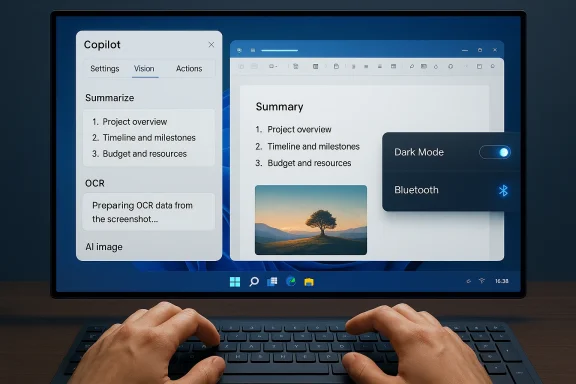
Microsoft’s Copilot is no longer just a chat window — it’s quietly woven into Windows as a pocket-sized system administrator, document editor, image creator, and on-screen troubleshooter, and most users are still treating it like a search box. What looks like a conversational assistant on the surface actually exposes a surprising number of system-level and productivity shortcuts: toggling settings with plain text, summarizing long documents and threads, understanding what’s on your screen, rewriting text in place, generating images, and even running contained, auditable “actions” that operate on local files. These capabilities are real, they’re increasingly baked into Windows and Microsoft apps, and they can dramatically shorten common workflows — but they’re also gated by permissions, hardware differences, and staged rollouts, so the experience you get depends on your Windows build, Copilot app version, and whether you’re on a Copilot+ PC or in an Insider ring. c
Microsoft positioned Copilot as an assistant across Microsoft 365 apps before bringing it into Windows itself. Over a series of updates Copilot evolved from a sidebar chat into a system component integrated with the taskbar, File Explorer, Edge, and a native Copilot app. The goal: make AI-powered assistance a first-class part of desktop workflows — not an optional web toy. That integration includes three broad families of featuresres:
Start by enabling a few simple flows (summaries, rewrites, and one Vision session), confirm how your device processes data (local vs cloud), and then expand into actions or connectors once you’re comfortable with the privacy and accuracy trade-offs. Microsoft’s official docs and the Insider blog provide step‑by‑step guidance and the most up‑to‑date compatibility notes if you need to confirm the precise behavior for your build or device.
Copilot is no longer optional window dressing — with a few permissions and a little experimentation it can become the fastest way to change settings, digest documents, and solve on‑screen problems. But its true value comes when you pair its conversational strengths with a cautious approach to privacy and validation: treat Copilot as a powerful assistant that speeds the work, not as an unquestioned authority that replaces due diligence.
Source: thewincentral.com Top Hidden Copilot Features in Windows
 Background / Overview
Microsoft positioned Copilot as an assistant across Microsoft 365 apps before bringing it into Windows itself. Over a series of updates Copilot evolved from a sidebar chat into a system component integrated with the taskbar, File Explorer, Edge, and a native Copilot app. The goal: make AI-powered assistance a first-class part of desktop workflows — not an optional web toy. That integration includes three broad families of featuresres:- Conversational help: typed or spoken queries, rapid summaries, and rewriting content.
- Visual and contextual understanding: Copilot Vision that reads selected windows or screenshots and Copilot Actions that can operate on files inside a contained workspace.
- **System control and on-device access for settings, task automation, and enhanced local performance on Copilot+ PCs with high‑power NPUs.
What you probably didn’t realize Copilot could do
1) Change Windows settings with natural language
You don’t always need to open the Settings app anymore. Copilot can find and navigate to specific Settings pages and — in many cases — toggle options directly.- Typical prompts that work: “Turn on Dark Mode,” “Enable Bluetooth,” “Open Display settings,” or “Set Night light to 30%.”
- How it behaves: on some builds Copilot will perform the to a permission confirmation); on others it will highlight the control or walk you through the click sequence. This difference depends on build, permission model, and whether agentic features are enabled.
2) Summarize long documents, websites, and email threads instantly
Copilot can ingest PDFs, Word files, long web pages, and email threads and return concise summaries or bullet points.- Use cases: a 20‑page PDF to five meeting bullets, lengthy legal or technical prose simplified into an executive summary, or condensed email thread highlights with action items.
- Supported formats: Word (.docx), Excel (.xlsx), PowerPoint (.pptx), PDF, images (OCR), and plain text. Adding a file or sharing a window increases Copilot’s accuracy.
3) Explain and simplify complex files and content
When confronted with technical instructions, dense reports, or confusing legalese, Copilot can translate content into plain language, rewrite at different reading levels, or highlight the most important lines.- Exin this document in plain English,” “Rewrite this email to be more professional,” or “Summarize the technical steps and flag risky actions.”
- Strength: saves time and lowers the barrier for non‑specialists to act on technical content.
4) Understand what’s on your screen — Copilot Vision
A standout capability: Copilot Vision can “see” selected windows or screen regions and answer questions about them.- Capabilities: OCR and table extraction (turn screenshots or scanned PDFs into editable content), UI highlights (shows where to click), and contextual explanations (explain a chart or error message).
- Session model: Vision is explicitly opt‑in and session‑bound; it only analyzes what you select and will provide visual cues when active. Microsoft’s documentation emphasizes consent and short retention for images.
5) Rewrite or edit text without opening another app
Copilot can rewrite text,grammar, or compress long paragraphs in place — without requiring Word or Edge.- Practical workflow: select text (or paste content into Copilot), ask for a tone change (e.g., “Make this sound more formal”), and paste the improved draft back into your editor.
- Benefit: fewer context switches and faster iteration on emails, comments, and drafts.
6) Generate and edit images natively
Copilot integrates Microsoft’s image-generation tools so you can create illustrations, thumbnails, concept images, or make generative edits (erase/fill) without Photoshop.- On Copilot+ PCs some generation can run locally for lower latency; otherwise image generation is cloud-powered. Be aware of IP and trademark issues when using brand assets. ([tomshardware.com](Copilot+ PCs: All we know about the AI-ready laptops and exclusive Windows features Windows problems faster
Instead of hunting through support forums, paste an error or share a screen capture and ask Copilot for plain‑English diagnostics and prioritized remediation steps (SFC, DISM, driver checks, rollback guidance). - Caveat: Copilot synthesizes guidance from patterns and documentation; verify critical remediation (registry edits, driver downgrades) with vendor support before ap productivity boosts: drafts, notes, to‑dos
Smaller features collectively save time: quick replies, meeting summaries, to‑do lists, extracting action items, and converting notes into structured agendas. - Example: after a Teams meeting, ask Copilot to “Summarize the meeting and list decisions and action items.” Copilot will return concise notes and suggested owners if context is available.
How these features are delivered and why availability varies
The permission-first, staged-rollout model
Microsoft deploys Copilot features across multiple channels: the Copilot app, the taskbar integration (Ask Copilot pill), File Explorer context actions, Edge sidebar, and via Copilot Vision sessions. Many advanced features are initially released to Windows Insiders and then gradually rolled out to broader audiences. Some capabilities (notably agentic Copilot Actions) run in an Agent Workspace — an isolated desktop instance that provides runtime isolation and per‑agent auditing. Microsoft makes this explicit to balance automation with safety controls.Hardware differences: Copilot+ PCs and on‑device acceleration
A meaningful fraction of Copilot’s “local” performance and privacy advantage depends on Copilot+ hardware. Microsoft’s Copilot+ PC spec requires an NPU capable of at least 40 TOPS, along with minimum RAM and storage. On Copilot+ machines, latency‑sensitive tasks and some image/vision workloads can run locally for speed and reduced cloud dependency. However, many Copilot features still function without a Copilot+ NPU — they just route heavier inference to Microsoft’s cloud.Policy and admin control
Enterprises can control Copilot via Group Policy, AppLocker, and other MDM tools. For organizations that prefer to limit Copilot’s presence, Microsoft has added explicit knobs to restrict or remove the Copilot app on supported editions. Administrators should review the new policy settings before rolling Copilot into managware.Practical step‑by‑step tips to start using hidden Copilot features today
- Open Copilot quickly:
- Click the Copilot icon on the taskbar or press the Copilot hardware key on Copilot+ keyboards. Note: keyboard shortcuts like Win+C have changed between builds; check your Windows version if Win+C does nothing.
- Change a setting:
- Type or say: “Turn on Dark Mode” or “Open Bluetooth settings.” If Copilot needs permission to change the setting it will show the change and ask for confirmation. Verify before approving on managed devices.
- Summarize a document:
- Attach a PDF, Word file, or drag a screenshot into Copilot and ask: “Summarize this into five bullets and list three action items.”
- Use Vision for a screenshot:
- Click the glasses icon (Vision), select a window or region, then ask: “Extract the table and convert to Excel” or “Explain the error message shown.”
- Rewrite text in place:
- Paste the email or paragraph into Copilot and ask: “Rewrite this in a professional tone, 3 sentences.”
- Generate an image:
- Open the Copilot composer, select “Generate image,” provide the prompt, and iterate. For higher speed and privacy, check if your device is Copilot+ for local acceleration.
What’ be careful
Strengths and practical advantages
- Time saved: summarization, rewriting, and screen-aware help eliminate repetitive steps and reduce context switching.
- Lower friction: natural-language control of settings and the ability to act on files creates a conversational desktop.
- Multimodal workflows: Vision plus file ingestion means you can move from screenshot to spreadsheet with a few instructions.
- Admin controls and containment: agentic Actions run in an Agent Workspace with auditable logs and scoped permissions, which improves safety for automation.
Risks, limitations, and privacy trade-offs
- Rollout fragmentation: behavior varies by Windows build, Copilot app version, region, and whether you’re an Insider or on a Copilot+ PC.
- Permission creep and data sharing: connectors to Gmail, Google Drive, or Outlook enable powerful context-aware answers — but they expand attack surface and require careful account management.
- Accuracy and hallucination risk: automated troubleshooting and complex extractions are prone to errors — always validate critical instructions like driver changes, registry edits, or legal/medical content.
- Privacy nuance: vision sessions are session-bound and Microsoft indicates images aren’t stored for training, but transcripts or metadata used for safety monitoring may persist; users should audit Copilot privacy settings (model training, memory) if they handle sensitive content.
- Hardware gating: some lower-latency, on-device experiences require a 40+ TOPS NPU and Copilot+ hardware. If you don’t have one, you’ll still get cloud-powered capabilities, but with different performance and privacy characteristics.
Verification of key technical claims (what’s confirmed and what we couldn’t n read and summarize PDFs, Word docs, and web pages: confirmed by Microsoft documentation and multiple hands‑on reports.
- Copilot Vision can analyze selected windows and perform OCR/table extraction: confirmed by Microsoft support pages and Windows Insider announcements.
- Copilot Actions and the Agent Workspace run as isolated sessions with scoped permissions and require explicit opt‑in: confirmed by Microsoft Insider blog posts and official Copilot announcements.
- Copilot+ PC requirement of 40+ TOPS NPU: confirmed on Microsoft’s Copilot+ guidance and developer docs; independent outlets corroborate the spec and explain its effect on local/offline capabilities.
- Keyboard shortcut behavior (Win+C) is inconsistent across builds: multiple reports and Microsoft docs indicate the shortcut’s status changed over time and can be remapped or retired in some builds — verify on your device. This is a build-level, time‑sensitive detail and is subject to change.
- Broad statements about “most users” only scratching the surface are observational and not directly measurable from public data. Treat such claims as editorial framing rather than quantifiable fact.
Security and privacy checklist before you hand Copilot your files
- Verify whether a feature runs locally (Copilot+ NPU) or routes to the cloud. On-device inference reduces exposure for sensitive data.
- Review Copilot privacy settings: Model training on text/voice and Personalization/Memory can be toggled in the Copilot app. Turning these off excludes your conversations from Microsoft training pipelines.
- Limit connectors: only authorize Gmail, Google Drive, or other accounts if the productivity gains outweigh the data access risk.
- Use Copilot Actions and Vision only on trusted devices and avoid sharing DRM‑protected or classified content.
- For managed devices, coordinate with IT to confirm group policy and AppLocker settings that control Copilot behavior.
The practical bottom line for power users and IT pros
Copilot has matured beyond novelty: when used deliberately it becomes a control center for Windows that saves clicks, automates repetitive tasks, and turns screenshots into structured data. The tool’s real power is the combination of natural language, visual context, and file-aware actions — yet that power is gated by build, permissions, and hardware. For everyday users, the low-risk wins are summarization, rewriting, and asking Copilot to explain on‑screen content. For power users and admins, agentic Actions and system-level toggles unlock automation at scale — but they require governance.Start by enabling a few simple flows (summaries, rewrites, and one Vision session), confirm how your device processes data (local vs cloud), and then expand into actions or connectors once you’re comfortable with the privacy and accuracy trade-offs. Microsoft’s official docs and the Insider blog provide step‑by‑step guidance and the most up‑to‑date compatibility notes if you need to confirm the precise behavior for your build or device.
Copilot is no longer optional window dressing — with a few permissions and a little experimentation it can become the fastest way to change settings, digest documents, and solve on‑screen problems. But its true value comes when you pair its conversational strengths with a cautious approach to privacy and validation: treat Copilot as a powerful assistant that speeds the work, not as an unquestioned authority that replaces due diligence.
Source: thewincentral.com Top Hidden Copilot Features in Windows
