Microsoft’s “Copilot+ PC” push is no longer marketing fluff — it surfaces tangible, productivity‑first features that many Windows 11 users can try right now, and three in particular deserve immediate attention on Copilot+ hardware: Click to Do, Live Captions with translation, and Studio Effects. These features showcase the practical wins of on‑device AI and the Windows 11 Copilot integration while also illustrating the governance and hardware trade‑offs IT teams must manage.
Microsoft has recast Copilot as a system‑level assistant built around three core pillars: Copilot Voice (wake‑word, conversational voice), Copilot Vision (permissioned, screen‑aware assistance), and Copilot Actions (bounded agentic automations). The company also introduced a certified hardware tier — Copilot+ PCs — that pairs Windows 11 with a dedicated Neural Processing Unit (NPU) to accelerate local inference and reduce latency for the most interactive experiences. Microsoft’s guidance cites a practical NPU baseline of roughly 40+ TOPS (trillions of operations per second) for many Copilot+ capabilities, although OEM qualification and exact performance vary by vendor.
Why this matters now: Microsoft timed the AI push to coincide with Windows 10’s end of mainstream support, accelerating a shift toward Windows 11 and Copilot‑first machines for users and enterprises that want lower latency, on‑device privacy options, and richer multimodal workflows. The rollout is staged — many features are previewed through Windows Insider channels and will reach production machines gradually.
Click to Do removes the friction of copy/paste and the repetitive work of extracting data from screens. For knowledge workers and anyone who scrapes or summarizes on‑screen content, Click to Do converts micro‑tasks into a single flow: select, ask, export. On Copilot+ hardware, the reduced latency and on‑device parsing make interactive tasks (translate → export → summarize) feel immediate rather than modal.
Practical constraints
Some of the richest behaviors (table export, certain translations, and advanced actions) are gated by Copilot+ hardware, Microsoft 365 subscription status, and regional availability. Organizations should expect a mix of user toggles, license checks, and OEM certification when planning rollout.
Copilot+ NPUs enable lower latency and better on‑device model handling for live audio, which improves caption accuracy and reduces the dependency on cloud processing. Microsoft’s previews suggest Live Captions with translation can handle dozens of languages (the product messaging has referenced up to ~40 languages in previews), but actual availability and supported language sets depend on the release channel and device.
Caveats and privacy notes
Real‑time translation and captioning can run locally on Copilot+ hardware, which reduces cloud exposure. However, if the system escalates to cloud models (for language pairs not supported on device or higher‑level reasoning), audio will be processed in Microsoft’s cloud. IT teams should check tenant and data protection settings and consider DLP policies for meeting recordings and speech data.
For professionals and creators, Studio Effects straightens a persistent pain point: poor webcam framing and lighting. Because Copilot+ NPUs handle the heavy lifting locally, adjustments are smoother and produce less jitter or lag than cloud‑based filters. This improves both perceived professionalism and meeting accessibility by keeping visual focus stable.
Practical notes
Studio Effects and some camera features may depend on camera hardware, drivers, and the OEM’s Copilot+ certification. Users should update camera drivers and verify OEM feature support. In enterprise fleets, admins should test these features for CPU/GPU/thermal impacts on managed laptops.
Important caveat: when a vendor advertises an NPU with “XX TOPS,” that figure is often raw peak compute and does not automatically translate to superior Copilot experience; system‑level integration, power management, and model availability matter more in day‑to‑day use. Treat Microsoft’s 40+ TOPS baseline as the practical bar for richer on‑device features — not a binary guarantee of experience parity across devices.
Some company statements about internal telemetry (e.g., “voice sessions drive substantially higher engagement”) or exact model placements are inherently company‑reported and difficult to verify externally. Treat usage and performance claims as directional until independent audits or third‑party benchmarks corroborate them. Microsoft’s technical baseline (e.g., 40+ TOPS) is documented guidance from the company, but it remains subject to OEM variance and real‑world testing. Explicitly test any claim that matters to procurement or compliance before committing at scale.
For users on modern Windows 11 hardware, the three features Microsoft highlights — Click to Do, Live Captions with translation, and Studio Effects — are immediate quality‑of‑life wins worth testing. For IT teams, the right path is measured: pilot on Copilot+ hardware where latency and privacy matter, lock down high‑risk capabilities until auditability is confirmed, and prepare users with clear consent and deletion workflows. When paired with robust governance, these features can truly accelerate productivity; without controls, they increase organizational risk.
Source: Microsoft https://www.microsoft.com/en-us/windows/learning-center/three-must-try-copilot-plus-pc-features/
 Background
Microsoft has recast Copilot as a system‑level assistant built around three core pillars: Copilot Voice (wake‑word, conversational voice), Copilot Vision (permissioned, screen‑aware assistance), and Copilot Actions (bounded agentic automations). The company also introduced a certified hardware tier — Copilot+ PCs — that pairs Windows 11 with a dedicated Neural Processing Unit (NPU) to accelerate local inference and reduce latency for the most interactive experiences. Microsoft’s guidance cites a practical NPU baseline of roughly 40+ TOPS (trillions of operations per second) for many Copilot+ capabilities, although OEM qualification and exact performance vary by vendor.Why this matters now: Microsoft timed the AI push to coincide with Windows 10’s end of mainstream support, accelerating a shift toward Windows 11 and Copilot‑first machines for users and enterprises that want lower latency, on‑device privacy options, and richer multimodal workflows. The rollout is staged — many features are previewed through Windows Insider channels and will reach production machines gradually.
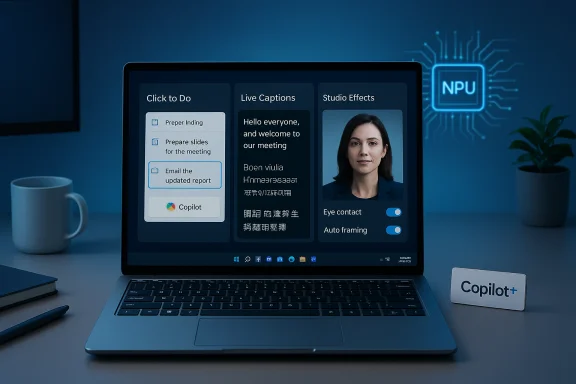
The three must‑try Copilot+ PC features (what they are and why they matter)
1. Click to Do — turn anything on your screen into an action
Click to Do is the feature Microsoft highlights as the practical bridge between “what’s on my screen” and “what I want to do with it.” On Copilot+ PCs this becomes much more powerful because the device can perform more of the recognition and inference locally, meaning faster results and reduced cloud round‑trips. Key capabilities include:- Freeform, Rectangle, and Ctrl+Click selection modes to gather images, snippets of text, and table fragments in one action.
- On‑screen translation that pipes translated text into Copilot for follow‑up actions.
- Unit conversions triggered by hovering over values (length, area, volume, temperature, speed).
- Table detection and Excel export — recognized tables can be converted directly into an Excel table or copied for analysis.
- A streamlined prompt box so the selected content feeds immediately into Copilot’s typed prompt, making follow‑up requests feel immediate.
- Touch gestures: a two‑finger press‑and‑hold on compatible touchscreens launches Click to Do and selects the entity under the fingers.
Click to Do removes the friction of copy/paste and the repetitive work of extracting data from screens. For knowledge workers and anyone who scrapes or summarizes on‑screen content, Click to Do converts micro‑tasks into a single flow: select, ask, export. On Copilot+ hardware, the reduced latency and on‑device parsing make interactive tasks (translate → export → summarize) feel immediate rather than modal.
Practical constraints
Some of the richest behaviors (table export, certain translations, and advanced actions) are gated by Copilot+ hardware, Microsoft 365 subscription status, and regional availability. Organizations should expect a mix of user toggles, license checks, and OEM certification when planning rollout.
2. Live Captions (with real‑time translation) — accessibility that doubles as productivity
Live Captions on Copilot+ PCs doesn’t just produce captions — it can translate spoken audio into English (and other languages) in real time, turning any audio stream, meeting, or video into searchable, readable text. The feature is especially useful for:- Multi‑language meetings or webinars where instant comprehension is required.
- Accessibility needs (hearing impairments, noisy environments).
- Quick transcription and follow‑up of spoken content without switching to a second app.
Copilot+ NPUs enable lower latency and better on‑device model handling for live audio, which improves caption accuracy and reduces the dependency on cloud processing. Microsoft’s previews suggest Live Captions with translation can handle dozens of languages (the product messaging has referenced up to ~40 languages in previews), but actual availability and supported language sets depend on the release channel and device.
Caveats and privacy notes
Real‑time translation and captioning can run locally on Copilot+ hardware, which reduces cloud exposure. However, if the system escalates to cloud models (for language pairs not supported on device or higher‑level reasoning), audio will be processed in Microsoft’s cloud. IT teams should check tenant and data protection settings and consider DLP policies for meeting recordings and speech data.
3. Studio Effects — pro‑grade video‑call polish powered by on‑device AI
Studio Effects bundles a set of real‑time camera enhancements that were once reserved for specialist software. On Copilot+ PCs these include:- Eye contact correction that subtly adjusts gaze to simulate direct eye contact.
- Auto‑framing to keep a speaker centered, even while moving.
- Real‑time lighting and background adjustments for cleaner meeting feeds.
- Integration with Quick Settings so effect toggles are reachable during calls.
For professionals and creators, Studio Effects straightens a persistent pain point: poor webcam framing and lighting. Because Copilot+ NPUs handle the heavy lifting locally, adjustments are smoother and produce less jitter or lag than cloud‑based filters. This improves both perceived professionalism and meeting accessibility by keeping visual focus stable.
Practical notes
Studio Effects and some camera features may depend on camera hardware, drivers, and the OEM’s Copilot+ certification. Users should update camera drivers and verify OEM feature support. In enterprise fleets, admins should test these features for CPU/GPU/thermal impacts on managed laptops.
The Copilot+ hardware story (what “40+ TOPS” really means)
Microsoft differentiates Copilot capabilities through a two‑tier model: cloud‑backed Copilot features are available broadly to Windows 11 devices, while Copilot+ PCs are marketed as the reference platform for the fastest, lowest‑latency, privacy‑sensitive experiences. Microsoft’s messaging and developer guidance have repeatedly used 40+ TOPS as a practical NPU baseline for Copilot+ certification, but that number is a guideline rather than an immutable requirement — OEM integration, memory bandwidth, and driver support all affect real‑world performance. Independent outlets and hardware analysts confirm the 40+ TOPS baseline in public materials, but OEMs must still meet Microsoft’s integration and performance checks to carry the Copilot+ label. Enterprises should therefore treat hardware specs as one input among many during procurement.Important caveat: when a vendor advertises an NPU with “XX TOPS,” that figure is often raw peak compute and does not automatically translate to superior Copilot experience; system‑level integration, power management, and model availability matter more in day‑to‑day use. Treat Microsoft’s 40+ TOPS baseline as the practical bar for richer on‑device features — not a binary guarantee of experience parity across devices.
Security, privacy and governance: what to check before enabling these features
The practical benefits of Copilot+ features must be balanced against real governance obligations. The most important control points:- Opt‑in model: Many Copilot features are off by default and require explicit user consent to enable voice, Vision, or Actions. Use this default as a rollout control in enterprise pilot plans.
- Session‑bound Vision: Copilot Vision requires explicit selection of windows/regions; it’s not a persistent system camera that monitors all activity. Still, the ability to capture and analyze screen content raises DLP and compliance questions.
- Agent logs and auditability: Copilot Actions run in a sandboxed workspace and show step‑by‑step logs in preview builds, but enterprises should insist on immutable audit trails and exportable logs before deploying agentic automations broadly.
- Memory and personalization: Copilot’s memory features and persistent personalization are powerful but increase the data surface. Admins should review memory retention, deletion, and oversight controls in tenant settings.
- Regional availability and legal restrictions: Microsoft has acknowledged region‑based exclusions for certain Copilot behaviors; enterprises operating across jurisdictions should verify which features are permitted in which markets.
Some company statements about internal telemetry (e.g., “voice sessions drive substantially higher engagement”) or exact model placements are inherently company‑reported and difficult to verify externally. Treat usage and performance claims as directional until independent audits or third‑party benchmarks corroborate them. Microsoft’s technical baseline (e.g., 40+ TOPS) is documented guidance from the company, but it remains subject to OEM variance and real‑world testing. Explicitly test any claim that matters to procurement or compliance before committing at scale.
How to try these features safely today — step‑by‑step
- Update and verify your Copilot app and Windows Update status. Features are staged and may appear only after a Controlled Feature Release.
- Try Click to Do: use the selection tool (Win+Shift+S for the Snipping Tool) and experiment with Freeform or Rectangle selection. Check the prompt box and try a translate → export flow (some export actions require Excel with Microsoft 365).
- Enable Live Captions: Settings > Accessibility > Captions (toggle Live Captions). Test with a meeting or local video and compare latency on Copilot+ vs. non‑Copilot+ hardware.
- Test Studio Effects: open Quick Settings during a video call or use the camera app’s Studio Effects controls. Validate eye contact and auto‑framing on your hardware in normal meeting conditions.
- For administrators: pilot with a small user group, measure battery and performance impacts, confirm DLP and retention policies, and create clear de‑activation steps for users. Use tenant controls and Intune/Group Policy for rollout.
Enterprise checklist — questions IT should answer before wide deployment
- Which endpoints in the fleet qualify as Copilot+ by Microsoft/OEM criteria?
- Which features must remain disabled by default until policy and logs are in place (Vision, Actions, Recall)?
- Are DLP and audit trails configured for speech transcripts, screen captures, and agent action logs?
- What license entitlements (Microsoft 365/Copilot plans) are required for file exports and premium actions?
- How will the organization support device churn, firmware updates, and driver validation for Copilot+ hardware?
Strengths, weaknesses and a clear verdict
Strengths- Highly practical features: Click to Do, Live Captions, and Studio Effects deliver immediate productivity and accessibility improvements — not just flashy demos.
- Integrated experience: Native Copilot integration reduces context switching and unlocks workflows across File Explorer, Snipping Tool, and Office.
- On‑device privacy options: Copilot+ NPUs enable more local processing, which can reduce cloud exposure for sensitive tasks.
- Two‑tier experience complexity: The Copilot+ divide risks creating different user experiences across a fleet and can complicate procurement and support.
- Governance overhead: Memory, Vision and agentic Actions expand the attack and compliance surface; enterprises must invest in policies, training, and logging.
- Vendor and regional variance: Feature availability, language support, and performance depend on OEMs, drivers, and regional rules; treat public specs as starting points, not guarantees.
For users on modern Windows 11 hardware, the three features Microsoft highlights — Click to Do, Live Captions with translation, and Studio Effects — are immediate quality‑of‑life wins worth testing. For IT teams, the right path is measured: pilot on Copilot+ hardware where latency and privacy matter, lock down high‑risk capabilities until auditability is confirmed, and prepare users with clear consent and deletion workflows. When paired with robust governance, these features can truly accelerate productivity; without controls, they increase organizational risk.
Final takeaways for Windows fans and admins
- Try Click to Do for rapid extraction and export of on‑screen tables and translations; it’s the feature that removes the most friction from everyday information‑workflows.
- Use Live Captions to improve accessibility and multilingual meeting comprehension — test language pairs and latency before committing enterprise‑wide.
- Enable Studio Effects for better camera presence in hybrid work; verify camera driver support and thermal impacts on laptops.
- Treat Copilot+ certification as a performance and experience guideline (40+ TOPS), not an absolute guarantee of identical behavior across devices. Validate in‑house.
- Roll out incrementally: pilot with a small user group, configure DLP and audit logging, and use Intune/Group Policy for staged enablement.
Source: Microsoft https://www.microsoft.com/en-us/windows/learning-center/three-must-try-copilot-plus-pc-features/