

Microsoft is bringing Microsoft 365 Copilot’s meeting‑scheduling and meeting‑preparation smarts into Classic Outlook for Windows, adding a Copilot chat sidebar, “Schedule with Copilot” drafting tools, and attachment summarization so users of the long‑standing Win32 client can create invites, agendas, and meeting briefs without switching to the web or the New Outlook experience.
Microsoft’s Copilot strategy has steadily broadened from web‑first and new‑client experiences into legacy surfaces, and Classic Outlook for Windows is the latest major desktop target for that expansion. The features landing in Classic Outlook are not Frankenstein add‑ons — they are the same functional themes Microsoft has been rolling out across Outlook for web, New Outlook, and mobile: conversational scheduling, pre‑meeting briefs, and attachment summarization driven by Microsoft Graph and tenant policies. Microsoft documentation explicitly describes a Copilot sidebar experience and a “Schedule with Copilot” action that analyzes email threads to generate a meeting invite, agenda, and attendee list. At a product and operations level, this move reflects two priorities:
Conclusion
The arrival of Copilot’s scheduling and meeting‑prep features in Classic Outlook is a notable milestone in Microsoft’s multi‑surface AI strategy. It delivers immediate productivity benefits while placing new responsibilities on IT and compliance teams to govern usage, license appropriately, and train users. Organizations that plan and pilot carefully will maximize the upside — and avoid the common pitfalls — of embedding generative AI directly into their calendar and inbox workflows.
Source: Windows Report https://windowsreport.com/microsoft...to-classic-outlook-to-schedule-your-meetings/
 Background / Overview
Microsoft’s Copilot strategy has steadily broadened from web‑first and new‑client experiences into legacy surfaces, and Classic Outlook for Windows is the latest major desktop target for that expansion. The features landing in Classic Outlook are not Frankenstein add‑ons — they are the same functional themes Microsoft has been rolling out across Outlook for web, New Outlook, and mobile: conversational scheduling, pre‑meeting briefs, and attachment summarization driven by Microsoft Graph and tenant policies. Microsoft documentation explicitly describes a Copilot sidebar experience and a “Schedule with Copilot” action that analyzes email threads to generate a meeting invite, agenda, and attendee list. At a product and operations level, this move reflects two priorities:- Keep enterprise customers on supported, familiar desktop clients while delivering parity with web and mobile AI features.
- Surface agentic, multi‑turn interactions (Copilot Chat / Agent Mode) directly in the mail and calendar workflow, reducing context switching and repetitive scheduling tasks.
What’s actually arriving in Classic Outlook
The Copilot sidebar and chat experience
Classic Outlook will get a Copilot chat sidebar so the assistant runs beside your inbox and calendar. The sidebar supports multi‑turn prompts: you can start a conversation like “Schedule a 30‑minute Teams meeting with Jenna and Rahul next week” and Copilot will propose times, draft the invite, and let you review before sending. This is consistent with the chat interactions already present in New Outlook and Outlook on the web. Key user actions exposed in the sidebar:- Ask Copilot to scan an email thread and draft a meeting invite with title and agenda.
- Query availability across attendees and receive mutually convenient time suggestions.
- Iteratively refine meeting duration, location, or required attendees within the chat flow.
“Schedule with Copilot” — email → meeting friction removed
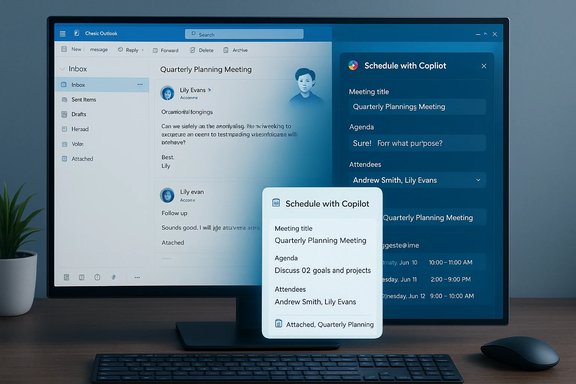
A dedicated Schedule with Copilot action appears in message toolbars (or under More actions). When invoked, Copilot analyzes the email thread, suggests a meeting title and agenda, includes the thread as an attachment, and pre‑populates attendees — saving multiple manual steps. You can edit the draft before sending. Microsoft’s help pages make clear that this feature depends on a Copilot license in some scenarios and is exposed through toolbar actions in New Outlook and the web; Classic Outlook receives a comparable experience via the sidebar and mail actions.Meeting preparation and attachment summarization
Copilot will generate pre‑meeting summaries that collect agenda items, linked documents, and prior discussion points. It can summarize common attachment formats (PDF, Word, PowerPoint) so attendees see concise takeaways without opening files. These meeting briefs appear in invites and in the Copilot chat associated with a meeting event. Microsoft warns that summaries are only as good as available related content; meetings without contextual content may return minimal or generic summaries.Mobile parity and a cross‑client experience
While Classic Outlook is receiving the sidebar and summarization features, Microsoft’s roadmap emphasizes parity: the same meeting‑prep and scheduling flows are available in New Outlook, Outlook on the web, and on mobile platforms. Mobile users will see “Prepare with Copilot” options inside invites and will get summaries and quick prep materials on the go. The goal is one consistent Copilot behavior across Microsoft 365 surfaces.Rollout timing and where to trust the dates
Microsoft’s official communication shows a staged rollout: some Copilot scheduling and sidebar features rolled to targeted channels in mid‑2025 and broader rollouts continued into July 2025. Community reporting and internal notes sometimes referenced earlier windows (April 2025) for related Copilot features, which reflects the staggered nature of previews, channel differences (Insider / Current Channel / Semi‑Annual), and Microsoft message center posts. In short: exact availability depends on your tenant, update channel, and admin configuration. Always verify with your Microsoft 365 Admin center and the Message Center for tenant‑specific dates. Practical timing takeaways:- Expect general availability of core Outlook Copilot chat scheduling features in various update channels during mid‑2025 to July 2025.
- Previews and early access may have started earlier in special channels; consumer previews for free Copilot enhancements were signposted into late 2025 / early 2026 in some external reporting.
Licensing, admin controls, and compliance — what IT needs to know
Licensing basics
Not all Copilot features are free. Microsoft’s support notes and product pages call out that certain meeting‑prep and agenda drafting capabilities require a Microsoft 365 Copilot (Work) license, or that similar features may be rolled into consumer Copilot tiers with usage limits. Enterprises must confirm which Copilot SKU their tenant has and which features are included. Key licensing points:- Some Schedule with Copilot behaviors require Copilot licensing at the tenant or user level.
- Microsoft occasionally differentiates between free Copilot Chat capabilities and paid tenant‑grounded Copilot features; the line between them has shifted during 2024–2025 as Microsoft adjusted offerings.
Admin controls and opt‑outs
Admins keep the keys. The Microsoft 365 admin surfaces and Intune policy controls enable:- Turning Copilot Chat on/off in Outlook, Teams, and the Copilot app.
- Pinning or unpinning Copilot UI elements in Teams and Outlook user interfaces.
- Configuring whether Copilot may perform web grounding (calls to external web search) or remain tenant‑grounded only.
Audit, logs, and governance
Copilot interactions generate telemetry and may write to tenant logs, but the fidelity of audit trails for prompts, outputs, and downstream actions depends on tenant configuration and Microsoft telemetry policies. Organizations with strict compliance regimes must:- Confirm what is logged, for how long, and whether prompts or generated content is retained in logs.
- Evaluate data residency and whether Copilot outputs can reference enterprise‑sensitive content.
- Use Entra and Intune controls to govern agent identity and lifecycle for the more advanced Agent Mode and Office Agent flows.
Security and privacy: risks and mitigations
Data exposure vectors
Copilot accesses context through Microsoft Graph and may use email content, calendar items, and linked files to produce summaries and invites. That power creates risk vectors that organizations must consider:- Unintended disclosure: Copilot might surface content from a shared thread or document that contains sensitive or classified information.
- Prompt leakage: If prompts or generated artifacts are retained in logs, they may become discoverable in e‑discovery or audit reviews.
- External grounding: If web grounding is enabled, Copilot calls external web search, which may introduce additional data flow pathways.
Practical mitigations
- Use tenant controls to restrict Copilot features where sensitive data is ubiquitous.
- Validate Meeting Insights and Copilot settings in a staging tenant before full rollout.
- Configure DLP and classification labels so Copilot ignores content flagged as confidential.
- Train users on Copilot limits: always verify automatically generated agendas and summaries before sending or relying on them.
- Work with legal and compliance teams to determine what audit log retention is required for your industry and ensure Microsoft’s retention policy aligns with that requirement.
When Copilot might underperform
Microsoft’s own support documentation warns that meeting summaries will be less useful if related emails, chats, or documents are sparse, or if content is classified as confidential or contains harmful content. Treat Copilot outputs as assistive not authoritative; the human reviewer remains essential.User experience: what changes for everyday scheduling
Faster meeting creation
Instead of manually cross‑checking calendars, drafting an agenda, saving attachments, and adding invitees, you can:- Select an email thread.
- Click “Schedule with Copilot” or ask Copilot in the sidebar to schedule.
- Review a pre‑filled invite with title, agenda, attachments, and attendees; edit and Send.
Smarter pre‑meeting prep
Attendees get a short, focused meeting brief in the invite or in the Copilot pane: summary points, action items, and links to documents. The assistant can generate attendee‑aware suggestions based on what each participant can access via Microsoft Graph, so everyone arrives with the same baseline context. This reduces pre‑meeting catch‑ups and clarifies expectations.Edge cases to watch
- Meetings with minimal prior content will not receive rich briefs.
- Confidential or sensitive threads may be intentionally excluded.
- Availability suggestions may be conservative if user preferences (e.g., focus time, working hours) are enforced.
For IT: a short rollout checklist
- Confirm which Copilot SKU your organization has and which features are included.
- Review Message Center posts and roadmap items for tenant‑specific rollout dates.
- Pilot in a controlled user group to validate UI behavior, licensing gating, and logging.
- Configure DLP, sensitivity labels, and the Meeting Insights setting to align with policy.
- Prepare user guidance and training that emphasizes verification of Copilot outputs and safe usage patterns.
- Establish retention and audit policies for Copilot‑related telemetry consistent with legal needs.
Strengths, productivity gains, and competitive context
- Tangible time savings: Automating scheduling and agenda drafting removes repetitive steps that collectively consume hours each week for knowledge workers.
- Reduced context switching: Meeting prep that consolidates emails, attachments, and previous notes into a single brief lets participants arrive better prepared.
- Parity across clients: Extending Copilot to Classic Outlook respects enterprise inertia — organizations can keep their desktop workflows while adopting modern automation.
Risks, open questions, and areas requiring vigilance
- License complexity and cost: The Copilot lineup has evolved rapidly; IT procurement must verify the precise capabilities tied to each SKU before budgeting a broad deployment.
- Auditability gaps: The degree to which prompts and AI outputs are stored and discoverable can vary; organizations should verify audit trails before adopting Copilot for regulated workflows.
- Overreliance: There's a user behavior risk where generated agendas are accepted uncritically — human review must remain part of the workflow.
- Misalignment of rollout dates: Community and internal notes sometimes cite earlier or different release windows than Microsoft’s public docs; tenant admins must rely on the Message Center for authoritative timing.
Final assessment and practical recommendation
Microsoft’s extension of Copilot scheduling and meeting‑prep features into Classic Outlook for Windows closes a meaningful capability gap for enterprise desktop users. For organizations that rely on the Win32 client, this reduces friction and brings modern, conversational scheduling into established workflows. The power to generate invites, agendas, and attendee‑aware briefs from email threads is a concrete productivity win — provided that licensing, governance, and human review are managed correctly. Recommended next steps for IT leaders:- Audit Copilot licensing and plan a staged pilot that includes compliance and legal stakeholders.
- Configure DLP, Meeting Insights, and admin controls before broad rollout.
- Communicate clearly with users about the assistant’s capabilities and limits; emphasize the necessity of verifying generated content.
Conclusion
The arrival of Copilot’s scheduling and meeting‑prep features in Classic Outlook is a notable milestone in Microsoft’s multi‑surface AI strategy. It delivers immediate productivity benefits while placing new responsibilities on IT and compliance teams to govern usage, license appropriately, and train users. Organizations that plan and pilot carefully will maximize the upside — and avoid the common pitfalls — of embedding generative AI directly into their calendar and inbox workflows.
Source: Windows Report https://windowsreport.com/microsoft...to-classic-outlook-to-schedule-your-meetings/
