

Copilot in Windows 11 can now turn a line of text into a finished image in seconds — whether you call it from the standalone Copilot app, summon it inside Microsoft Word, or use the Designer/Photos/ Paint flows — and the process is fast, iterative, and surprisingly polished for quick presentations, slide hero images, concept sketches, or social visuals. The basic workflow is simple: tell Copilot “Create an image…” (or choose the Designer filter in Word), wait a few seconds while it generates multiple variants, then pick, refine, and download. Practical guidance and a short walkthrough are useful, but if you plan to adopt this for work or classroom use you should also understand the underlying models, on-device/offline options, AI credit limits, and legal/privacy tradeoffs. The short how‑to created by gadgetbridge captures the everyday steps, prompt tips, and quick edits you’ll use most often. / Overview
Microsoft has integrated generative image tools into Windows 11 through the Copilot and Designer stacks so you can generate images without leaving the OS or opening a browser. That integration exposes image generation in three common places:
Under the hood, Michave historically relied on the DALL·E family (DALL·E 3 was prominent in earlier Designer/Image Creator surfaces), but Microsoft has been evolving its model lineup and rolling out in‑house models such as MAI‑Image‑1. That means the specific image model Copilot uses can change over time and may differ between Designer, Bing Image Creator, and Copilot surfaces. Expect the experience to improve while the backend continues to shift.
Finally, availability can vary by account type and subscription: some Word image features require a qualifying Microsoft 365 subscription or a work/school account, and image generation quotas or “AI credits” apply in Microsoft Designer/Copilot workflows — another practical constraint for heavy users.
Example: “Hyperrealistic portrait of an elderly carpenter in his workshop, warm rim light, shallow depth of field, 50mm lens, film grain, contemplative mood.”
If you want a short checklist to get started right now:
Source: gadgetbridge.com How to generate AI images using Copilot on Windows 11
Microsoft has integrated generative image tools into Windows 11 through the Copilot and Designer stacks so you can generate images without leaving the OS or opening a browser. That integration exposes image generation in three common places:
- The Copilot app (the conversational chat UI available from the taskbar).
- Office apps such as Microsoft Word (Copilot pane → Designer filter).
- Built-in apps that surface Designer features (Photos, Paint/Cocreator, and Designer web/Edge surfaces).
Under the hood, Michave historically relied on the DALL·E family (DALL·E 3 was prominent in earlier Designer/Image Creator surfaces), but Microsoft has been evolving its model lineup and rolling out in‑house models such as MAI‑Image‑1. That means the specific image model Copilot uses can change over time and may differ between Designer, Bing Image Creator, and Copilot surfaces. Expect the experience to improve while the backend continues to shift.
Finally, availability can vary by account type and subscription: some Word image features require a qualifying Microsoft 365 subscription or a work/school account, and image generation quotas or “AI credits” apply in Microsoft Designer/Copilot workflows — another practical constraint for heavy users.
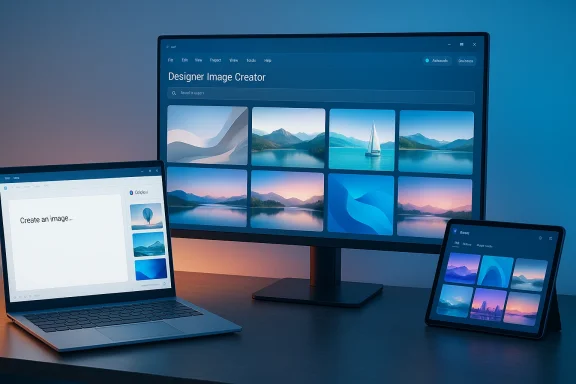 How Copilot generates images on Windows 11 (technical overview)
What happens when you ask Copilot to “Create an image…”
- Copilot routes image requests to the Designer/Image Creator backend and returns a small set of generated variants (commonly four thumbnails) you can preview.
- Variant images are produced by a cloud-hosted or, on eligible hardware, on‑device model; Microsoft uses a hybrid approach that mixes local inference on NPU‑equipped Copilot+ machines and cloud processing for non‑Copilot+ devices.
- You can ask Copilot follow‑up refinement prompts (conversational edits), and the tool will produce new variants or edit the chosen image accordingly.
- Generated images may include embedded metadata or content credentials to indicate AI provenance when Microsoft surfaces that feature.
Models and the shifting landscape
- Historically, Designer/Image Creator surfaced DALL·E 3 as an available model; Microsoft documentation has explicitly referenced that. However, Microsoft has been moving toward first‑party MAI models (MAI‑Image‑1) as part of a broader strategy to diversify its model stack. That means the underlying model powering your Copilot image request might be DALL·E 3, MAI‑Image‑1, or another Microsoft‑managed model depending on the surface, your region, or a phased rollout. Treat claims about a single model as time‑sensitive and subject to change.
Step‑by‑step: Generate AI images using the Copilot app (quick walkthrough)
- Open the Copilot app on your Windows 11 PC (taskbar or Start menu).
- In the Copilot text box, type a descriptive prompt prefixed with an action, for example: “Create an image of a serenerise, hyperrealistic, wide angle.” Starting prompts with “Create an image…” helps Copilot pick the right generator pathway.
- Press Enter / Send. Copilot will generate a short set of variants in a few seconds.
- Click a thumbnail to expand it. Use a follow‑up prompt in the same conversation to refine the image (for example, “Add a small wooden pier in the foreground and warmer color grading”).
- When satisfied, click the downloave the image to your PC, or use the plus icon where available to insert it into a document or canvas.
- If a variant misses the mark, don’t regenerate the same prompt; instead give a focused refinement that specifies what to change.
- Expect fast turnarounds (seconds) for thumbnails, but full edits or large resolution exports may take slightly longer.
Step‑by‑step: Generate AI images using Copilot in Microsoft Word
- Open Microsoft Word and place the cursor where you want the image.
- Select the Copilot icon on the Word ribbon to open the Copilot pane on the right.
- Click the filter icon beneath Copilot’s prompt box and choose Designer (this routes your prompt into the image generation flow).
- Enter your prompt (be descriptive) and press Enter. Copilot will return generated images as thumbnails.
- Hover the generated image and click the + icon to insert it directly into the document. Right‑click the inserted image to resize or apply Word formatting.
- Microsoft’s Word image generation uses Designer’s Image Creator and Microsoft documentation explicitly confirms that it has been powered by advanced models (previously DALL·E 3) while being surfaced via Copilot. Availability may depend on your account/subscription.
- Some Word image features are gated to work/school accounts with qualifying Microsoft 365 plans — home Microsoft accounts may see different behavior. Always check the Copilot pane prompts if a feature does not appear.
Writing prompts that produce better images — practical prompt templates
The image quality you get from Copilot is driven almost entirely by the prompt. Below are tested techniques and practical templates to make the Copilot image generator produce more useful outputs.Core prompt components
- Subject: Who or what is the main focus? (Be specific: “elderly carpenter” vs “person”.)
- Action / Pose: What is the subject doing? (“standing at a window, three‑quarter profile, smiling”).
- Environment / Context: Where is the scene? (“foggy harbor, wooden deck, dusk”).
- Style / Medium: What aesthetic? (“hyperrealistic photograph”, “oil painting”, “flat vector”).
- Camera / Lighting: Add photographic or cinematographic cues (“50mm lens, shallow depth of field, golden hour rim light”).
- Mood / Color Palette: Emotional tone and palette (“contemplative, warm tones, low contrast”).
Prompt formula you can copy:
adjective + subject + action + environment + camera/style + moodExample: “Hyperrealistic portrait of an elderly carpenter in his workshop, warm rim light, shallow depth of field, 50mm lens, film grain, contemplative mood.”
Advanced tips
- Use concrete references for composition: “rule of thirds composition with subject on the left, negatt.”
- If you need text in an image (posters, infographics), state “legible sans-serif heading, 48pt, centered” — but be aware text rendering in image models can still be imperfect.
- For branded or consistent characters use repeated descriptors (e.g., “same character: Asian woman, black bob haircut, green jacket — use across images 1–4”).
- Use constraints for practical use: specify aspect ratio or resolution when you need a slide hero: “16:9, 3840×2160” (note: some surfaces offer an explicit crop/size control after generation).
Voice control: enable “Hey, Copilot” and use spoken prompts
Windows 11’s Copilot supports a wake‑word, “Hey, Copilot,” that can begin a voice session once you enable it in the Copilot app’s settings. This is opt‑in; it uses an on‑device wake‑word spotter so the wake‑word detection itself does not send audio to the cloud until you actually start a voice conversation. Steps to enable:- Open the Copilot app, open the sidebar, click your profile icon, and go to Settings.
- Scroll to Voice mode and toggle Listen for ‘Hey, Copilot’ on.
- With the feature enabled, say “Hey, Copilot” to start a session, then speak your image prompt: “Hey, Copilot — create an image of a retro travel poster of Tokyo at night, neon lights, warm palette.”
- Voice is convenient for quick, high‑level descriptors and iterative edits. For dense, detailed prompts you may still prefer typing to control punctuation and exact attribute lists.
- Microsoft’s documentation clarifies that the on‑device spotter indicates the microphone is active in the system tray when enabled and that full audio processing occurs only after activation.
Licensing, AI credits, on‑device generation, and provenance — what you must know
AI credits and generation limits
- Microsoft Designer/Image Creator historically offered free daily generation boosts but has moved to an AI credit model in many regions: free accounts often receive a baseline of credits (e.g., ~15 per month or per period), Microsoft 365 subscribers receive larger allowances, and Copilot Pro or higher tiers increase limits. Heavy usage can quickly exhaust free credits. Community reports and Microsoft Q&A threads confirm users seeing 15 free boosts and 60‑credit tiers for subscriptions. If your workflow requires bulk generation, plan a subscription or Copilot Pro entitlement.
On‑device (NPU) generation vs cloud
- Copilot+ PCs that include an NPU (Neural Processing Unit) can run certain generative features locally, reducing latency and potentially avoiding cloud credit use. Microsoft documents Copilot+ PC hardware and NPU programming guidance; the capability is hardware‑dependent and still expanding across device silicon. When running locally, Microsoft still applies cloud‑based safety checks in some flows. If local processing matters for privacy or offline use, verify you have a Copilot+ certified device.
Ownership, copyright, and provenance
- Legal status of AI‑generated images varies by jurisdiction. Microsoft surfaces content credentials and watermarks to indicate AI provenance in some products; this is part of an industry push toward transparent AI‑authorship metadata. However, copyright ownership of purely AI‑authored works remains legally unsettled in many places, and commercial reuse may trigger additional restrictions. When you generate images for clients or marketing, treat these assets with caution until you confirm licensing and corporate policy.
Limitations, artifacts, and typical failure modes
- Expect occasional model artifacts — hands with the wrong number of fingers, awkward text, minor object distortions, or strange fabrics. These are the most common imperfections in generative image outputs and may require further edits or manual touch‑ups in an image editor.
- Safety filters and moderation can block requests that attempt to generate disallowed content; Microsoft applies content moderation layers to prevent abusive or unsafe outputs.
- Text legibility inside generated images is improving across modern image models, but if you require precise typesetting, it’s typically safer to add text in Word, PowerPoint, or Photoshop after generation.
- Model behavior and quality differ across models and updates; if precise fidelity is required (for print or large posters), plan for a human in the loop for final polish. These practical caveats are reflected across Copilot guidance and community testing.
Alternatives and when to use them
If Copilot’s results don’t meet your needs, consider other image generators that focus on high‑fidelity outputs or offer different editorial workflows:- OpenAI / DALL·E family and ChatGPT image features — strong instruction following and tight integration if you already use OpenAI tooling.
- Midjourney — artists and designers often prefer Midjourney’s distinctive stylized outputs for creative work.
- Stable Diffusion / local open models — if you need local control, custom models, or the ability to fine‑tune outputs for brand consistency.
- Google Gemini image models (Nano Banana / Nano Banana Pro) — Google’s Nano Banana family is purpose‑built for studio‑quality edits and text‑legible imagery; it’s now a mainstream alternative for enterprise image editing.
Practical workflows and examples
Fast slide hero from idea to finished slide (6 minutes)
- Open Word or PowerPoint, place the cursor on the title slide.
- Open Copilot → Designer filter. Prompt: “Create an image: minimalist isometric cityscape, soft blue/coral palette, centered skyscraper, daylight, 16:9, vector style.”
- Insert the best variant, crop to slide, add overlay headline in Word/PowerPoint and export. If color balance needs tweaking, tell Copilot: “Make palette slightly warmer and add stronger shadows on the left.”
Rapid concept art for a storyboard (iterative)
- In Copilot app: “Create an image of a neon cyberpunk alley at night, rain, wet reflections, cinematic lighting, wide angle, character in a red coat on the left.”
- Choose variant #2, then follow up: “Zoom in on the character, show facial expression, add a flying drone in the background.” Repeat until you have a sequence of frames with consistent character motifs; export to folder and assemble in a timeline tool.
Security, privacy, and governance checklist for teams
- Verify subscription and account requirements for business use (Microsoft 365 entitlements may be necessary for Word integration).
- Track AI credit consumption and set budgets for frequent generation tasks to avoid unexpected limits.
- For Copilot+ devices, confirm NPU hardware and on‑device generation policies if data must remain local.
- Establish brand safeguards: require human review for logos, trademarks, or anything that touches legal/compliance boundaries.
- Archive generation prompts and outputs when working on client projects to maintain an audit trail and to support provenance claims.
Final thoughts: where Copilot fits in your creative toolkit
Copilot’s image generator in Windows 11 is not a replacement for dedicated art direction or professional retouching, but it is a highly useful tool for accelerating creative ideation, producing quick visuals for slides and documents, and iterating visual concepts inside Microsoft 365 workflows.- Use Copilot when you need fast mockups, slide imagery, or to prototype visual directions directly inside Word or the Copilot app.
- Use specialized tools (Midjourney, Stable Diffusion variants, Google’s Nano Banana family, or professional design suites) when you require absolute control, custom models, or production‑grade images for commercial print.
If you want a short checklist to get started right now:
- Sign in with your Microsoft account and open the Copilot app or Word.
- Start prompts with “Create an image…” and include subject, context, style, and camera cues.
- Use follow‑ups for iterative edits rather than regenerating from scratch.
- Monitor AI credits if you generate many images.
- Consider Copilot+ hardware if you need on‑device, low‑latency generation.
Source: gadgetbridge.com How to generate AI images using Copilot on Windows 11
