

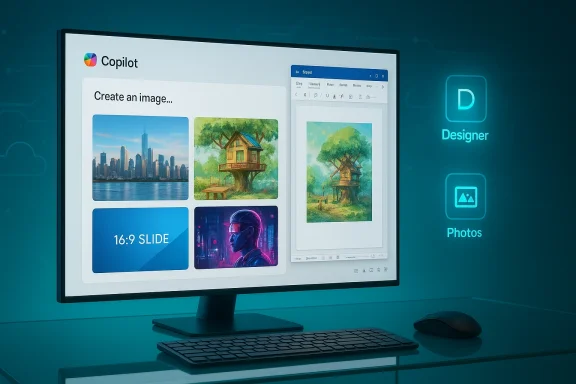
Windows 11’s Copilot now makes it trivial to turn a text idea into a ready-to-use image — whether you want a photorealistic slide illustration, a stylized cover for a report, or a quick concept sketch — and you can do it from the dedicated Copilot app, inside Microsoft Word, or from other Designer-enabled apps on the OS. rview
Microsoft has progressively woven generative image tools into Windows 11 through Copilot and the Designer/Images stack, exposing the capability both in a standalone Copilot app and inside Office workflows such as Word and the Photos/Designer flow. The integration lets you type a descriptive prompt (often prefixed with “Create an image…”), receive multiple generated variants in seconds, iterate with follow‑ups, and download the result for insertion into documents or export. (microsoft.com)
These features mirror — and in some places reuse — the same image-generation technology Microsoft surface‑partners ship as Image Creator and Designer. The practical upshot for Windows users is lower friction: you don’t need to leave your document or drill down to a web tool to create visuals. The tradeoffs are familiar: model artifacts (especially with hands or complex textures), moderation filters, subscription/credits for heavy usage, and the need to write good prompts to get predictable results.
How Copilot Generates Images on Windows 11
Where the capability appears
- Copilot app: The primary conversational interface where you can say “Create an image…” anmultiple options you can preview and download.
- Microsoft Word (Copilot pane / Designer): From Word’s Copilot pane you can choose the Designer type and request images directly at the insertion point in your document. This removes copy‑ up document production.
- Photos → Designer, Paint, and other apps: Windows’ Photos app edit flow, Paint (including Cocreator/Generative features), and the Designer web surfaces also call the same backend image tools, enabling contextual editing (remove, replace, stylize) bon.
Under the hood Microsoft’s Designer/Image Creator stack has been powered by advanced diffusion and multimodal models (including DALL·E family derivatives in earlier releases), and the Copilot UI offers iteration and conversational refinement that many stand‑alone image creators lack. Expect four variant thumbnails per conversational request in Copilot, quick retouches via follow‑up prompts, and a download button to save your chosen image.
The Essentials: How to Generate an AI Image with Copilot (Step‑by‑Step)
Below are short, practical walkthroughs for the two most common paths: the Copilot app and Copilot in Microsoft Word.A. From the Copilot app
- Launch the Copilot app in e taskbar or Start menu).
- Type a prompt into the chat box. Begin with an explicit action phrase such as “Create an image of…” or “Generate a [style] illustration of…” — this makes iel.
- Hit Send and wait a few seconds while Copilot generates options. You’ll typically see multiple variants to pick frerated image to expand it. Use follow‑up prompts to refine: e.g., “Make the lighting warmer,” “Change the subject’s pose,” or “Remove the background.”
- When satisfarrow to save the image to your PC or click the plus icon (where available) to insert the image into a document.
B. From Microsoft Word (Copilot pen Microsoft Word and place your cursor where you want the image.
- Select Copilot from the Word toolbar to open the Copilot pane on the right.
- In the Copilot pane, tap the filter icon under the textgner** (this routes your request to the image generation pathway).
- Type your image prompt and hit Enter. Copilot will generate variants. Click t the chosen image into your document.
Prompt Crafting: Tips that Make Copilot Produce Better Images
The quality of generated images y of your prompt. Short, vague prompts yield hit‑or‑miss results; structured, visualized prompts produce reliable outputs.- Focus on the subject: specify who or what, pose, orientation, and action. Example: “A young woman standing at a window, three‑quarter profile, smiling, holding a steaming mug.”
- Add context: describe background, weather, time of day, and purpose (e.g., “on a wooden deck with foggy harbor in the ba).
- Layer in small but precise details: clothing, materials, color palettes, camera lens style (50mm, wide angle), and depth of field. These micrhe model avoid generic outcomes.
- Pick a style/aesthetic: “hyperrealistic photo,” “oil painting,” “line art,” “cyberpunk neon,” or “flat vector illustration for slide deck.” Style tags often deteruage and texture.
Voice Control and Quick Invocation
Windows 11’s Copilot supports a wake‑word: “Hey, Copilot.” This must be explicitly enabled inside the Copilot app’s Settings under Voice Mode, and Windows will indicate microphone use when the wake‑word listener or a voice session is active. The wake‑word is opt‑in and runs an on‑device wake‑word spotter; actual voice audio is processed only once the Copilot UI launches and you begin speaking.Voice can be faster than typing when you need quick iterations like “Hey Copilot, make the sky more dramatic and add a flock of birds,” but note that for meticulous prompt details you’ll still often revert to typed prompts for precise punctuation and attribute lists.
Practical Examples and Mini Workflows
Example 1 — Slide hero image for a budget presentation
- “Create an image: a minimalist isometric cityscape, soft blue and coral palette, centered skyscraper, daylight, high contrast shadows, clean vector look.”
- Ask Copilot for a cropped 16:9 version sized for slides.
- Download and drop into Word or PowerPoint; add overlay text.
Example 2 — Concept art for a classroom assignment
- “Create an image: a whimsical watercolor of a treehouse classroom, children reading, lanterns hanging, dusk glow, loose brush strokes.”
- Refine: “Make the lanterns warmer and reduce color saturation in the background.”
- Insert into document or print for handouts.
Licensing, Ownership, and Legal Cons most important questions for creators is who owns generated images and can they be used commercially. Microsoft’s public guidance and community Q&A indicate that users have rights to images they generate and that Microsoft offers a Copilot Copyright Commitment covering certain IP claims for commercial customers who follow the product’s content rules. However, the legal landscape around AI‑created works is evolving, and statutory copyright regimes in some jurisdictions still treat wholly AI‑generated works differently. Treat these statements as product guidance, not iron‑clad legal guarantees.
Practical checklist:- If you plan commercial usage (marketing, products, logos), review Microsoft’s terms and any commercial licensing addenda tied to your Microsoft account or organization.
- Avoid directly instructing the model to reproyrighted logos or photographic likenesses of public figures without clearance. Filters may block these prompts, but they’re also potential legal landmines if allowed.
- When in doubt on commercial deployment, consult legal counsel or use clearly original, stylized content that doesn’t reference identifiable trademarks or protected artwork.
Privacy, On‑Device Generation, and AI Credits
Microsoft’s Copilot architecture is hybrid: some image generation and edit operations run in the cloud and consume monthly AI credits, while select operations can run locally on Copilot+ certified hardware (devices with NPUs), limiting cloud exposure and often improving speed. Free Microsoft accounts historically received a modest monthly credit allocation for image tasks, while Microsoft 365 subscriptions and Copilot Pro tiers provide larger allowances. These mechanics are important to understand if you plan heavy, batch image production.For the wake‑word and voice privacy: the on‑device wake‑word spotter does minimal local buffering and only sends audio to cloud services after the wake phrase is detected; Microsoft documents this behavior in its Copilot support guidance.
What to check before you generate:
- Are you signed into a Microsoft account? (Requion and credit tracking.)
- Do you have enough monthly AI credits for the planned work? (Check your Microsoft ac Are you on a Copilot+ PC if you want local generation? If yes, some operations may not consume cloud credits.
Quality, Limitations, and Safety Controls
Copilot’s image outputs are impressive for many everyday uses but expect limitations:- Artifacts: small errors in anatomy, hands, repeatex text rendering can appear. Iteration and careful prompt workarounds are often required.
- Moderation and filters: Microsoft enforces safety filters that may block requests the models deem disallowed; this protects users but can occasionally be oveers may see blocked outputs when prompts touch on sensitive topics.
- Consistency across multiple images: generating a consistent character or brand across dozens of images remains a challenge compared to asset libraries or custom model fine‑tuning. Plan for et management when brand consistency matters.
Alternatives and When to Use Them
The Copilot/Designer stack is ideal for quick edits and in‑document creation, but other models and services remain valuable:- Google’s Nano Banana Pro (Gemini 3 Pro Image) — a high‑quality image model oriented toward detailed compositions, accurate text rendering inside images, and advanced editing controls. Use it when you need ultra‑high‑resolution output or better in‑image typography. Note: rollout began in late 2025 and the model has faced scrutiny over biased outputs in some prompts; weigh pros and cons for sensitive content.
- Midjourney — favoured for highly stylized artistic renders and community prompt craft; choose it when you want a distinctive art‑directed aesthetic and are comfortable with its licensing terms.
- Standalone DALL·E / open models — can be useful for custom pipelines, reproducibility, or when you want local deployment of a model variant.
Risk Assessment and Enterprise Considerations
For IT, security, and procurement teams evaluating Copilot image generation, these are the key issues to weigh:- Data governance: Copilot’s cloud steps ated images may transit Microsoft services. Ensure acceptable use policies govern sensitive inputs (no patient records, private customer images, or unreleased IP in prompts).
- Compliance and provenance: Microsoft increasingly embeds content credentials (C2PA and similar metadata) into generated assets in some toolchains, but tool coverage and standards adherence vary by surface and region. Track provenance if your workflows require auditable origins.
- Costs and quotas: Heavy creative tea credit quotas or buy Copilot Pro / Microsoft 365 tiers that package more credits to avoid productivity interruptions.
- Bias and safety: Models replicate training data biases. Test prompts in staging and implement review workflows for customer‑facing outputs. Recent external reporting on other models highlights how image AIs can reproduce harmful stereotypes; treat this as a non‑trivial operational risk.
Final Thoughts: How to Make Copilot Work for You — and What to Watch
Copilot’s image generation is a genuine productivity multiplier when you need fast visuals embedded directly into documents or quick creative mockups. Use Copilot for:- Rapid slide or report images where photorealism isn’t mission‑critical.
- Iterative ideation and concept visualization.
- Quick in‑place edits (remove background, change mood) without leaving Word or Photos.
- Treat outputs as starting points, not finished master assets for brand or legal‑sensitive deliverables.
- Verify license and terms for commercial uses and keep a record of prompts and credit consumption if auditability is required.
Copilot has made AI image generation accessible to the average Windows user — and that convenience opens real creative possibilities along with non‑trivial operational, legal, and ethical questions. Use the workflows above to get started, follow the prompt tips to improve outputs, and apply governance where business or risk exposure exists. If you need a copyable checklist or a prompt template pack to use in Copilot or Word, save this article and refer to the step‑by‑step sections when you start creating — the fastest route to useful images is a practiced prompt and a short, iterative refinement loop.
Source: gadgetbridge.com How to generate AI images using Copilot on Windows 11
