Copy & Search: One-Click Clipboard Lookup in Windows 11 Insider

  • Thread Author
Microsoft’s latest Insider preview brings a deceptively small but immediately useful convenience to the Windows 11 taskbar: a one‑click way to search text you’ve just copied, delivered in cumulative update KB5067109 as part of paired Insider builds for the Dev and Beta channels.

Blue Windows-style UI showing an error message: code 0xC00005.Background / Overview​

The October Insider checkpoint that includes KB5067109 is being distributed as Build 26220.6982 for the Dev Channel (25H2) and Build 26120.6982 for the Beta Channel (24H2). These builds follow Microsoft’s enablement-style update pattern where a single servicing package can contain experimental features that are activated selectively via server-side feature gates and an Insider setting that allows users to “get the latest updates as they’re available.” One headline experiment in this flight is Copy & Search, a lightweight integration between the system clipboard and the taskbar Search box designed to remove a small, repetitive step from common lookup workflows.
This article explains what Copy & Search is, how it behaves, why Microsoft is delivering it this way, the practical benefits and risks for everyday users and IT, and what power users and administrators should test before enabling it broadly in managed environments. The details in this feature piece are cross‑checked against the update’s release materials and multiple independent reports and community trackers to ensure technical accuracy; any claim that could not be independently confirmed is explicitly flagged.

What Copy & Search is — the feature explained​

The user flow, in plain terms​

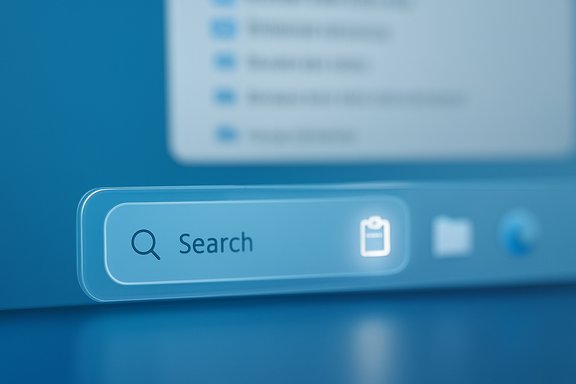
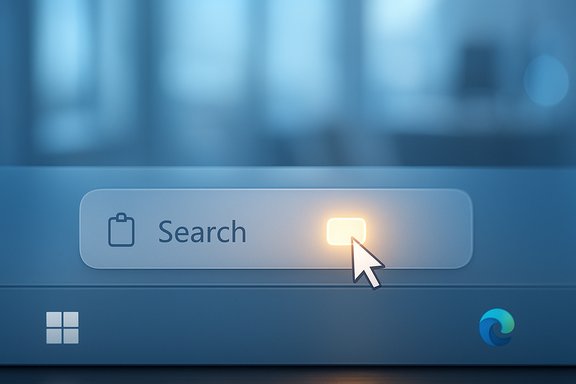
Copy & Search is intentionally minimal: when you copy text anywhere in Windows — a web page, a document, a chat window, or even an error dialog — a small visual affordance (described as a paste gleam) appears inside the taskbar Search box. Clicking that gleam pastes the clipboard contents into the Search field immediately and fires the query, eliminating the need to open Search, paste, and press Enter.
The interaction is designed to be discoverable and low-friction. It does not replace the existing Search experience; it simply provides a shortcut for scenarios where the user’s immediate next step is to query the copied text.

Visual cue and discoverability​

  • A subtle icon or glow (the “paste gleam”) appears in the Search box after copy operations.
  • The affordance is transient: it is shown only after a copy action and disappears after a short period or when Search is activated in another way.
  • The control is click-driven (mouse/touch/pen) and relies on the familiar Search surface — nothing is added to the right‑click paste menu or to other system menus.
The objective here is to reduce “micro‑friction” — the tiny repeated steps that slow workflows when you frequently convert snippets into searches.

How Microsoft is rolling this out​

Channel and build details​

  • Dev Channel build: 26220.6982 (enablement package, tied to Windows 11 25H2)
  • Beta Channel build: 26120.6982 (parallel enablement for 24H2)
The update is being staged: Insiders who have the toggle to “get the latest updates as they’re available” turned on are more likely to receive the experimental features early. Microsoft uses server‑side flags to progressively enable experiences to subsets of devices for telemetry and feedback before a broader ramp.

Why an enablement package?​

Delivering features via an enablement-style cumulative update keeps the servicing footprint small while allowing Microsoft to flip features on or off without requiring a full OS rebase. The tradeoff is visible: multiple machines with the same KB installed might behave differently depending on feature flags, hardware profile, account type, or geographic/entitlement gating.

Practical value: who benefits and when​

Best-fit scenarios​

  • Developers and engineers copying error codes or logs who need a fast lookup.
  • Students and researchers moving quotes and references from documents to web searches.
  • IT support staff who often copy diagnostic strings or GUIDs for quick lookups.
  • Anyone who frequently shifts between document windows and web searches and wants to shave off repeated small steps.

Benefits​

  • Speed: Eliminates the paste step — copy, click, done.
  • Discoverability: Ties clipboard actions to the Search surface in a way most users will quickly recognize.
  • Low friction: Minimal UI changes, low chance of cognitive load or learning curve.
  • Consistency: Reuses the existing Search box rather than creating a separate clipboard UI.

Limits of the convenience​

  • This is a convenience path, not a replacement for richer clipboard managers or workflow automation tools.
  • The affordance is only as good as the clipboard contents; long strings, multiline content, or data with sensitive tokens require user caution.

Privacy, security, and enterprise concerns​

Clipboard sensitivity — a real consideration​

The clipboard can contain sensitive information: passwords, API keys, health data, financial identifiers, or personally identifiable information. Any feature that automatically surfaces clipboard contents to a search entry point raises valid operational questions for privacy‑conscious users and organizations.
Key points administrators and users should evaluate:
  • The new flow pastes into the local Search field (it’s a UI paste), but whether or how telemetry or search backends are used depends on Search settings and the configured search provider.
  • Enterprises with strict DLP (data loss prevention) policies should assume the clipboard is in play and validate whether this affordance risks accidental leakage (for example, when users unintentionally paste sensitive snippets into web search queries).
  • Devices in environments with managed search or local-only search settings may behave differently; similar feature gates can be configured by Microsoft and controlled through enterprise policy as the feature matures.

What to test in enterprise pilots​

  • Confirm clipboard DLP controls behave as expected with the new paste affordance.
  • Validate that the clipboard contents are not automatically transmitted by the feature beyond normal Search behavior.
  • Test on device configurations with BitLocker, Secure Boot, and other protection layers to ensure the Proactive Memory Diagnostics and other paired features don’t conflict with management tooling.
  • Document rollback procedures if the enablement package is installed and the feature needs to be disabled.

Proactive Memory Diagnostics — related caution​

The flight pairs Copy & Search with a new Proactive Memory Diagnostics capability that offers to schedule a quick memory diagnostic scan after a system bugcheck (blue screen). While useful for troubleshooting, admins should verify scan triggers and avoid noisy false positives that could create unnecessary reboots or support churn.

Technical verification and notable caveats​

What has been confirmed​

  • The presence of Copy & Search in the KB5067109 build manifest and the described behavior of the paste affordance in the taskbar Search box are confirmed.
  • The builds for Dev and Beta channels are named explicitly as Build 26220.6982 (Dev, 25H2) and Build 26120.6982 (Beta, 24H2) and are being staged via the Insider toggle and server-side flags.
  • Companion improvements in the same flight include configurable voice‑typing wait time for Copilot+ devices and Proactive Memory Diagnostics.

What requires caution or remains approximate​

  • Hardware gating and Copilot+ requirements: reporting around Copilot+ device capability often references an NPU performance band (for example, a 40+ TOPS figure) as guidance for on‑device AI capabilities. Treat such numeric thresholds as indicative tooling guidance rather than a formal certification guarantee; actual feature availability depends on a combination of silicon performance, driver maturity, firmware, and Microsoft’s entitlement checks.
  • Telemetry and data flow specifics for Copy & Search: the user-facing description implies a local paste‑to‑Search action, but the exact telemetry that accompanies Search queries and whether any additional diagnostic signals are collected is not entirely documented in the preview notes. Organizations should verify telemetry behavior against their compliance requirements.
If anything in your environment requires zero‑transmission behavior for clipboard content, treat claims that data “never leaves the device” as unverified until explicit and formal privacy documentation is published.

How to try it today (Insider checklist)​

  • Enroll a test device in the Windows Insider Program if it isn’t already enrolled.
  • Choose the Dev or Beta channel appropriate for your testing goals (Dev receives the 25H2 enablement cuts; Beta receives the 24H2 sibling).
  • Turn on Settings > Windows Update > “Get the latest updates as they’re available” to maximize the likelihood of receiving toggle‑gated features.
  • Check for updates and install the cumulative update in the KB5067109 family when it appears.
  • After the update installs, copy text from any app — browser, document, or chat — and watch the taskbar Search box for the paste gleam.
  • Click the gleam to paste the copied text into Search and run the query.
Note: the feature is staged and may not appear immediately even after installing the update; server-side feature flags and account/hardware entitlements govern rollout.

Design and UX analysis — why this small change matters​

Small, well-executed UX changes can have outsized productivity dividends. Copy & Search exemplifies a focused “micro‑improvement”:
  • It reduces repeated cognitive overhead in common tasks: opening search, switching focus, pasting, and pressing Enter.
  • It lowers the barrier for users to search snippets from images, PDFs, or temporary dialogs without the overhead of switching contexts.
  • Because it reuses an existing surface (the taskbar Search box), it does not introduce new mental models or heavy discoverability costs for most users.
From a product strategy perspective, this kind of incremental ergonomics work signals Microsoft’s continuing focus on accelerating common flows without making sweeping UI changes. It is low-risk by design, but the enterprise risks around clipboard sensitivity must be respected.

Risks and downsides — what to watch for​

  • Feature fragmentation: enablement packages and server-side gating mean users with identical OS builds may have divergent experiences. This complicates help‑desk procedures and support documents.
  • Clipboard leaks: accidental pastes into the web by users who assume the clipboard is private could increase support incidents or compliance violations in regulated environments.
  • Noisy diagnostics: the Proactive Memory Diagnostics recommendation flow is valuable, but if the trigger sensitivity is too broad it could generate excessive scans and false alarms.
  • Hardware gating complexity: Copilot+ features that depend on on‑device AI hardware will create a split in capabilities across devices, complicating rollout planning for IT teams that must support mixed fleets.

Recommendations for IT admins and power users​

  • Pilot first: enable the Insider toggle and test KB5067109-based builds on a small pilot ring before wider deployment.
  • Review DLP rules: validate that clipboard controls, endpoint DLP policies, and managed search settings interact safely with the paste affordance.
  • Train helpdesk staff: ensure frontline support knows that behavior may vary across machines, and capture clear steps to reproduce or disable the feature for troubleshooting.
  • Monitor telemetry and user feedback: small features can drive surprising behavioral changes; watch for increased accidental search queries, unusual crash patterns, or help tickets tied to clipboard leaks.
  • Verify rollback paths: be prepared to uninstall the enablement update or turn off staged features via policy if an operational problem emerges.

Forward view — what this signals for Windows​

Copy & Search is modest in scope, but it reveals a consistent strategy: ship small, pragmatic productivity improvements quickly through staged enablement, and pair them with selective AI and diagnostics experiments gated by hardware and entitlement. Expect more of the same pattern: incremental ergonomics, tighter clipboard‑to‑search integrations, and expanding Copilot experiences that will continue to be trialed via the Insider program.
Two broader implications to watch:
  • A continued push toward surface-level productivity wins — features that remove micro‑friction across the OS will keep arriving frequently and through staged rollouts.
  • A gradual maturation of on‑device AI and diagnostics as Copilot+ hardware rolls into the channel, with Microsoft leaning on hardware entitlements to manage privacy, latency, and capability tradeoffs.

Final verdict​

Copy & Search is precisely the kind of small, thoughtful tweak that power users notice and appreciate: it removes a repetitive step and makes quick lookups faster without forcing a change in habits. The implementation is low‑cost and elegantly simple from a UX standpoint.
However, the change is not without consequences for organizations that manage sensitive data. The clipboard is a vector for accidental leakage, and any automation that surfaces clipboard contents should be evaluated carefully in enterprise contexts. Admins should pilot, test DLP interactions, and be ready to apply policy controls if needed.
For enthusiasts and Insiders: it’s worth trying on a test machine for the productivity gain alone. For enterprise IT: proceed with controlled pilots and careful validation of data protection and diagnostic workflows.
The feature proves a simple truth about modern product design: small reductions in friction, delivered thoughtfully, compound into meaningful efficiency gains — provided they’re implemented with an eye to privacy and manageability.

Source: Windows Report Windows 11 Taskbar Gets ‘Copy & Search’ With KB5067109 Preview
 

Microsoft is quietly testing a small but practical productivity tweak in Windows 11 Insiders that lets you search text you just copied with a single click from the taskbar search box — a one‑click “Copy & Search” flow that surfaces a tiny “paste gleam” when the clipboard contains text, pastes it into Search and immediately runs the query.

Close-up of a glossy blue search bar with a magnifying glass icon on a digital UI.Background​

Microsoft rolled the Copy & Search experiment into the latest Insider preview cumulative update (KB5067109), delivered to both the Dev and Beta channels as paired builds: Build 26220.6982 for the Dev (25H2) stream and Build 26120.6982 for the Beta (24H2) stream. The feature is being staged via Microsoft’s controlled feature rollout model — it’s part of an enablement-style update and may be turned on selectively for Insiders who enable the “Get the latest updates as they’re available” toggle. This release also includes other small experiments and quality-of-life changes (voice-typing wait-time controls and Proactive Memory Diagnostics among them), but Copy & Search is the most visible convenience adjustment for everyday workflows. The change is deliberately lightweight: it reduces a common three-step copy‑then‑search sequence to a two-click flow that can shave seconds off many routine lookups.

How Copy & Search works​

The interaction, step by step​

  • Copy text from any app, webpage, document, or dialog (Ctrl+C, context menu, or any system copy action).
  • Look at the taskbar Search box; a transient visual cue (described by Microsoft as a paste gleam) appears.
  • Click the paste gleam. The clipboard contents are pasted into the Search field and the query runs instantly.

What the feature does (and what it doesn’t)​

  • It is a user-interface shortcut: it pastes what’s already on your clipboard into the Search box and runs the query; it does not introduce a new clipboard API or editing surface.
  • The Search results surface can return both local and web results (depending on your system search settings), so the pasted text may be used for local indexed file and settings lookups or for web suggestions and web results.
  • The affordance is transient and click-driven: it appears only after copy actions and disappears after a short time or when Search is activated another way.

Which machines and Insiders will see it​

  • Available in the current KB5067109 Insider preview for users in the Dev and Beta channels, subject to Microsoft’s controlled feature rollout (CFR). Not every Insider will see the feature immediately even after installing the update because server-side flags and entitlements determine exposure.
  • The rollout is tied to the enablement/servicing model Microsoft has used recently: the same servicing package can contain code for multiple features that are turned on selectively. Insiders who turn on Settings > Windows Update > Get the latest updates as they’re available increase their chances of receiving toggle‑gated experiments sooner.

Why Microsoft is doing this: micro‑friction matters​

The Copy & Search feature addresses a common pattern: users copy text (an error code, tracking number, short quote, or a snippet) and then open Search or a browser, paste, and run a lookup. Reducing that to a single click removes a repetitive step and reduces context switching.
  • For developers and support staff repeatedly translating error messages or log snippets into searches, the time savings are real — not because each search used to take long, but because friction accumulates across dozens of lookups a day.
  • For students, researchers, and casual users who shuttle short phrases between apps and web lookup, Copy & Search improves discoverability and keeps the flow focused.
The feature falls into a broader trend at Microsoft of trimming “micro‑friction” in common workflows rather than shipping sweeping interface overhauls. It’s intentionally minimalist and additive rather than invasive.

Practical examples and real‑world use cases​

  • Developers: Copy an exception message or stack trace fragment, click the paste gleam, and surface relevant documentation or forum posts without switching windows.
  • Support and operations: Copy diagnostic IDs, event log text, or error strings and run focused searches quickly during troubleshooting.
  • Research and writing: Select a quotation or reference, paste to Search to verify sources or find citation context without breaking composition flow.
  • Quick lookups: Address or tracking numbers, short instructions, or small snippets that need a fast web or local lookup.
In each use case, the time saved is the elimination of an intermediary paste step — small per action, but meaningful at scale.

Privacy, security and enterprise risk assessment​

Any feature that bridges the clipboard and a system search surface must be evaluated from a privacy and data‑loss perspective.

Key concerns​

  • Clipboard sensitivity: The system clipboard commonly contains sensitive material — snippets of passwords, API keys, patient data, or PII. Exposing clipboard content to an integrated search affordance increases the surface where accidental disclosure can occur. Organizations that already restrict clipboard sharing or use DLP rules should treat Copy & Search as relevant to those policies.
  • Telemetry and cloud exposure: Microsoft’s public notes describe the feature as pasting into the Search box; the official announcement does not explicitly state that clipboard contents are transmitted off‑device as part of the feature. Until Microsoft publishes more granular telemetry and processing details, administrators should assume an abundance of caution and evaluate whether the pasted content could be included in cloud search suggestions or web queries.
  • Staged rollout and policy control: Because the feature is delivered via a serviced update and a server-gated enablement, administrators in managed environments must confirm how to control or restrict exposure (see guidance below).

Practical mitigations for organizations​

  • Test in a pilot ring: Validate behavior on representative hardware and account types (personal MSA vs. Work/School Entra ID). Monitor telemetry and user reports.
  • Verify DLP coverage: Confirm that endpoint DLP or third‑party controls cover clipboard operations and the Search surface; update rules to block or redact certain clipboard patterns if necessary.
  • Use update controls: Keep production devices on conservative update rings and disable the “Get the latest updates as they’re available” toggle for endpoints that must not receive experimental features.

What IT administrators and power users should test​

  • Functional check: copy varied sample text (plain text, long strings, Unicode, and text with special characters) and confirm how the paste gleam behaves and whether pasted content is truncated or modified.
  • Local vs. web handling: confirm whether the Search flyout treats the pasted text as a local search query only, or if it immediately queries web suggestions / Bing; document the exact flow you see on your hardware and account.
  • Clipboard persistence: test whether the clipboard contents are retained in any searchable history that could be surfaced later, and whether that history is exposed in Search.
  • DLP and telemetry checks: ensure Data Loss Prevention rules intercept or log the clipboard events you consider sensitive. If possible, coordinate with vendor support for endpoint DLP solutions to identify any gaps.
  • Policy controls: verify group policy or MDM options that can limit feature exposure or toggle off the “Get the latest updates” path for managed devices. If a policy cannot prevent the enablement, consider blocking the update KB or controlling it through your servicing pipeline until a definitive management control exists.

Accessibility and UX considerations​

Copy & Search is click-driven and designed to be simple and discoverable. A few UX aspects are worth noting:
  • Discoverability is intentional: the paste gleam is subtle by design to avoid distracting users, but subtlety can also mean it remains unnoticed by users who would benefit. Consider a short internal tips campaign for pilot testers if you deploy widely.
  • Input modalities: the flow supports mouse, touch, and pen interactions via the taskbar Search box, but keyboard-only users who prefer Ctrl+V remain unaffected — the feature is additive, not mandatory.
  • Edge cases: copying very large blocks of text, binary or formatted content (rich text, images) may not map cleanly into the single-line Search box; test those scenarios to ensure the behavior is acceptable for your users.

Comparison: browser context-menu search vs. system-wide Copy & Search​

Modern browsers offer a “Search for selection” right‑click menu that runs a web search on highlighted text. Copy & Search is similar in intent but different in scope:
  • Browser context-menu search is limited to content inside the browser and typically opens results in a new tab. Copy & Search is system-wide: it works from any app or window and can trigger both local and web search results via the Windows Search surface.
  • The browser flow often preserves selection context (opening a new tab), whereas Copy & Search integrates with the taskbar Search flyout and the existing Windows Search experience, which may be preferable for local searches and system-level lookups.

Known limitations and operational caveats​

  • Staged availability: not all Insiders will see the feature immediately because Microsoft gates enablement by account, region, hardware profile (Copilot+ entitlements may affect other features), and other telemetric flags. Don’t assume universal availability.
  • Hardware and account differences: other experimental features in the same build (Copilot+ hardware gating for semantic search or Windows Studio Effects) remain hardware-gated; Copy & Search itself is UI-level and broadly applicable, but adjacent features may not be.
  • Unclear telemetry details: Microsoft’s blog post describes the user flow but does not publish granular telemetry or cloud-processing details for this specific affordance; treat any claim that clipboard contents are never transmitted off-device as unverified until Microsoft publishes explicit documentation. Administrators should plan accordingly.

Recommended rollout checklist for IT teams​

  • Install KB5067109 in a controlled pilot ring and confirm whether Copy & Search appears for pilot users.
  • Run the functional and privacy tests described above on your standard hardware and with the types of accounts you manage (MSA vs. Entra ID).
  • Validate DLP coverage for clipboard events and update rules to block known sensitive patterns if needed.
  • Decide on user education: if the feature will be allowed, prepare a short how‑to and a warning about copying sensitive data.
  • Use your update management pipeline to control the wider deployment if policy controls are insufficient to prevent server‑gated enablement.

Editorial analysis: does this matter?​

Copy & Search is not a headline-grabbing change, but it matters in the everyday grind of productivity. Small curiosity-saving affordances — the “one less click” optimizations — have outsized impact when they compound across repeated daily actions.
  • Strengths: It’s low risk, incrementally valuable, and aligned with users’ real workflows. The UI is unobtrusive and requires no learning curve; the benefits are immediate for people who frequently paste text into searches.
  • Limitations: The productivity benefit is marginal for casual users who rarely copy/search. The real friction point for many organizations is not the feature itself but the policy and privacy implications of broad clipboard exposure. Until Microsoft clarifies telemetry and cloud-handling details, administrators must treat the change as something that needs governance.

Quick guide: how to try Copy & Search (Insider steps)​

  • Join the Windows Insider Program and set your PC to the Dev or Beta channel.
  • Enable Settings > Windows Update > Get the latest updates as they’re available to increase your likelihood of receiving toggle‑gated experiments.
  • Install the KB5067109 cumulative preview (Build 26220.6982 for Dev / 26120.6982 for Beta).
  • Copy a short piece of text from any app or webpage. Watch the taskbar Search box for the paste gleam.
  • Click the paste gleam — the text will be pasted into Search and the lookup will run.

Final verdict and practical recommendation​

Copy & Search is a tidy, thoughtfully scoped convenience that improves a narrow but frequent workflow. For enthusiasts and knowledge workers who do a lot of quick lookups, it’s a genuine small win. For IT and security teams, it’s a feature to validate and govern: treat the arrival of any clipboard-surface integration as an operational change that touches privacy and DLP controls.
  • Short recommendation for consumers: try it if you’re an Insider and enjoy productivity incrementalism; if you copy/lookup frequently, it will save micro-seconds that add up.
  • Short recommendation for IT: pilot first, verify DLP coverage, and control deployment via update rings until telemetry and policy controls are fully understood.
Copy & Search exemplifies a design philosophy that values small, iterative wins — the kind of polish that rarely makes headlines but, over time, improves how people work with their PCs. The feature’s success will hinge not on novelty but on how well Microsoft documents telemetry, respects enterprise controls, and lets organizations manage exposure across heterogeneous fleets.
Conclusion
The addition of Copy & Search to the Windows 11 Insider builds is a pragmatic move: simple to understand, easy to adopt, and potentially useful for many daily workflows. The technical specifics — build and KB numbers — are confirmed in Microsoft’s Insider announcement and by independent reporting on this flight. Administrators should treat the feature as an operational change and test accordingly; users who live in quick lookups will likely welcome the one‑click shortcut.
Source: BetaNews Microsoft trials new Copy & Search feature in latest Windows 11 builds
 

Microsoft is quietly testing a tiny but useful shortcut that turns a copied snippet into a one‑click search: the new Copy & Search affordance adds a subtle “paste gleam” to Windows 11’s taskbar Search box after you copy text, and clicking it instantly drops your clipboard contents into Search so you can run a query without manual pasting.

A cursor clicks the glowing “Search” button on a blue UI.Background​

Microsoft added Copy & Search as part of a recent Insider Preview update delivered via the KB5067109 cumulative package. The capability is appearing in parallel Insider builds — Dev channel build 26220.6982 (tied to 25H2) and Beta channel build 26120.6982 (tied to 24H2) — and Microsoft describes it as a gradual, server‑gated rollout for Insiders who have enabled the “Get the latest updates as they’re available” toggle. This is explicitly framed as a small, low‑friction productivity tweak: copy any text in Windows — from documents, web pages, chats, or even error dialogs — and a transient visual cue appears inside the taskbar Search box. Clicking that cue pastes the clipboard contents into the Search field so you can review, edit, and submit the query. Nothing runs automatically until you act.

Why this matters: micro‑friction, speed, and search that pays attention​

Modern desktop use is a constant loop of copy, switch, paste and look up. For power users and knowledge workers, those repeated micro‑steps add up to measurable time and attention loss. Copy & Search targets that micro‑friction directly.
  • It shortens the common workflow: copy → click paste gleam → edit/press Enter.
  • It reduces context switching between app and Search by keeping the action anchored in the familiar Search surface.
  • The UX is intentionally unobtrusive — the paste gleam is transient and only appears after a copy operation.
Practically speaking, this change is most useful for:
  • Developers copying error codes or stack traces and needing a quick search.
  • Support personnel checking diagnostic strings or KB article IDs.
  • Students and researchers checking references or definitions while reading.
  • Anyone who frequently looks up addresses, tracking numbers, or short instructions.
The promise is simple: one click replaces the manual paste step, helping users stay “in flow” and shave seconds off many common tasks. Independent reporting and community writeups confirm Microsoft’s stated design goals and describe the affordance as intentionally lightweight.

What it actually does — behavior and user flow​

The user flow, step by step​

  • Copy text anywhere in Windows (Ctrl+C, context menu, OCR copy from an image, etc..
  • A subtle “paste gleam” appears inside the Search box on the taskbar.
  • Click the paste gleam. The copied text populates the Search field.
  • Review or edit the text, then press Enter (or click Search) to run the query.

Key user-facing properties​

  • No automatic queries: The system does not run a search until you click the paste gleam and explicitly submit the query. That is, the visual prompt is suggestive, not executive.
  • Transient UI: The paste gleam appears only after a copy action and fades after a short period or if Search is activated in another way.
  • Applies broadly: Microsoft’s announcement describes copying “from a document, webpage, or app,” indicating the trigger is platform‑wide rather than browser‑only. Community reports echo that behavior.
These behavioral points matter because they define the balance between convenience and control: you see the clipboard‑aware cue, but you still decide whether the content becomes a query.

Technical specifics and rollout details​

  • Update package: KB5067109 is the cumulative package deploying the enablement.
  • Dev channel build: 26220.6982 (Windows 11 25H2 experimental enablement).
  • Beta channel build: 26120.6982 (Windows 11 24H2 enablement).
  • Rollout: staged and server‑gated — Insiders who have the “get the latest updates as they’re available” toggle enabled are more likely to see the feature early. Microsoft uses phased enablement for telemetry and feedback before a broader ramp.
This staged approach is consistent with Microsoft’s modern flighting model: the code lands in cumulative updates but feature activation is often controlled by server flags and device sampling to reduce risk while collecting feedback.

Privacy, security, and enterprise considerations​

Any UI that surfaces clipboard contents near a search input must be evaluated through a privacy and DLP (data loss prevention) lens. The clipboard often contains sensitive material: passwords, API keys, personally identifiable information, financial data, or confidential passages. Making clipboard contents more visible or easier to paste into a search box raises the following concerns.
  • Clipboard sensitivity: The clipboard is a de facto shared surface. Pasting sensitive text into a web search or cloud search provider is a real risk if users act without thinking. Microsoft’s documentation emphasizes that the feature pastes into the local Search field and does not run anything automatically, but it does not provide highly granular telemetry disclosures about every component of the Search backend. Until Microsoft publishes deeper telemetry detail, administrators should adopt a conservative posture when deploying the flight.
  • Telemetry and cloud exposure: The action of pasting content into Search is a local UI paste, but whether query terms are stored or transmitted to cloud services depends on existing Search settings (web vs. local search) and the configured search provider. If devices are configured to perform web searches by default, a mistakenly pasted secret could be transmitted as a web query. Microsoft’s announcement does not explicitly state new telemetry behaviors for Copy & Search beyond the UI affordance.
  • Enterprise controls: Windows already exposes clipboard history and sync controls via Settings, and administrators can disable clipboard history via Group Policy or registry in managed environments. However, Microsoft has not published a dedicated Group Policy specifically named for Copy & Search in the initial flight documentation, so IT teams should validate behavior in pilot groups and confirm DLP and search‑filtering policies block or scrub sensitive clipboard content as needed.
Key steps for enterprise pilots
  • Test Copy & Search behavior with current DLP and content‑filtering policies enabled.
  • Confirm clipboard contents are not implicitly transmitted beyond normal Search behavior.
  • Validate how cloud search and local search configurations affect the risk surface.
  • Define rollback and mitigation steps should any leakage or user‑induced incidents occur.

Usability analysis: design strengths and potential pitfalls​

Strengths​

  • Low cognitive cost: The paste gleam is a minimal, discoverable cue that doesn’t force interaction. Because it’s transient and click‑driven, it improves speed while staying out of the way.
  • Broad applicability: The affordance works across apps — not tied to a single browser — which increases utility for mixed workflows where users copy from many sources.
  • Edit before run: Pasted content appears in the Search field first, allowing users to tweak it — this prevents accidental search submissions with raw clipboard text.

Potential pitfalls​

  • Accidental exposure: The ease of pasting into Search increases the chance sensitive content is sent to a web search engine, especially for users who click quickly without inspecting the pasted snippet. This risk is amplified in environments where clipboard sync or web search is enabled by default.
  • Discoverability vs. distraction: While the design goal is subtlety, any new visual cue in the taskbar carries a discoverability vs. distraction tradeoff. For some users the gleam could be interpreted as intrusive; for others it will be a welcome accelerator.
  • Policy ambiguity: The initial flight lacks a clearly documented, feature‑specific enterprise policy; IT teams must test and, if necessary, rely on existing clipboard and DLP controls while Microsoft clarifies governance.

How to try it and what to test​

For readers enrolled in the Windows Insider Program who want to explore Copy & Search:
  • Enroll your test device in the Dev or Beta channel as appropriate.
  • Install cumulative update KB5067109 (Dev build 26220.6982 or Beta build 26120.6982).
  • Ensure “Get the latest updates as they’re available” is turned on in Settings > Windows Update (this enables server‑guided feature sampling).
  • Copy a short, non‑sensitive text snippet and watch for the paste gleam in the taskbar Search box; click it to paste and run a query.
Suggested test checklist for IT and power users
  • Verify the paste gleam appears after copying text in multiple apps (Edge, Chrome, Word, Notepad, Slack, etc..
  • Confirm no search executes until you manually submit the query.
  • Test with clipboard sync off vs. on and observe any differences in behavior.
  • Exercise existing DLP rules and confirm they block or sanitize clipboard content where required.
  • Validate how the feature behaves on domain‑joined and Intune‑managed devices.

Broader context: clipboard features and Microsoft’s incremental UX play​

Copy & Search is one more example of Microsoft layering small productivity improvements over time rather than shipping large, disruptive redesigns. In recent Windows 11 flights Microsoft has steadily improved things like Search, Voice Typing options (introducing a “wait time before acting” setting), Proactive Memory Diagnostics, and the tailored Copilot+ experiences. These incremental experiments are typical of Microsoft’s Insider program pattern: add an enablement package, expose UX changes to a subset of Insiders, collect telemetry and feedback, then scale based on results. This approach has two advantages:
  • It reduces blast radius by enabling features server‑side and in small cohorts before broad distribution.
  • It lets Microsoft iterate on discoverability and behavior quickly in response to real user data.
At the same time, it puts more onus on IT administrators and privacy teams to vet each flight before broad deployment.

Risk‑mitigation and practical recommendations​

For IT teams, security officers, and privacy leads preparing for a wider release, consider the following actionable recommendations:
  • Treat Copy & Search as a clipboard extension in risk assessments. The clipboard is already a DLP concern; this feature changes the path from device to web query in an easily actionable way.
  • Verify existing clipboard policies: test AllowClipboardHistory and clipboard sync controls in Group Policy and Intune and confirm their effectiveness with Copy & Search active.
  • Educate users in pilot groups: short tip sheets or a banner explaining that the paste gleam appears after copy and that they should review text before searching can reduce accidental leakage.
  • Use sandboxed pilot devices: roll the feature out in a controlled group before enabling it across managed endpoints. Confirm how managed search configurations (local vs. web) affect behavior.
  • Monitor telemetry and support queues for increased incidents of accidental data disclosure following the flight’s rollout. If incidents rise, consider disabling the feature via policy until Microsoft publishes stronger controls.

What Microsoft has said — and what remains unclear​

Microsoft’s official announcement clearly describes the user flow, the builds, and the staged deployment model. It emphasizes that the feature is click‑driven and that nothing runs unless the user clicks the paste gleam. Unclear or unverifiable points at publication:
  • Microsoft has not (yet) published a feature‑specific enterprise policy name or administrative template dedicated solely to Copy & Search, so the precise management knobs IT will have once the feature reaches broader release are not detailed in the initial flight notes. Administrators should therefore rely on existing clipboard, sync, and DLP controls while Microsoft matures the feature. This gap is flagged as a caution for managed deployments.
  • Telemetry specifics: the initial flight documentation does not enumerate all telemetry categories or whether the paste affordance triggers any new off‑device processing events beyond the existing Search behavior. This should be validated before a large‑scale rollout in privacy‑sensitive contexts. Flagged as unverifiable pending Microsoft telemetry detail.

Verdict — small change, real practical value, but test before you trust it​

Copy & Search is the kind of pragmatic UX change that often goes underappreciated: it reduces a repetitive step and can save real time when the flow is common. The design is appropriately cautious — transient, click‑driven, and explicit about pasting into the Search field first — and Microsoft is using a staged Insider flight to validate the concept. That said, the convenience comes with legitimate privacy and enterprise considerations. The clipboard is an ingress point for sensitive data, and adding more ways to surface clipboard content near a web search input increases the chance of accidental disclosure. Until Microsoft publishes feature‑specific administrative controls and telemetry disclosures, organizations should pilot the update in controlled environments, verify DLP behavior, and educate users.

Closing thoughts​

The Copy & Search paste gleam exemplifies a class of modern OS updates that seek to shave seconds off repetitive tasks while keeping control in the user’s hands. It’s a sensible productivity hack: subtle, reversible, and (so far) clearly framed as a suggestion rather than a background automation. For Insiders, it’s worth testing; for IT and privacy teams, it’s worth treating with the same cautious curiosity reserved for any new clipboard integration.
If the initial feedback is positive — fewer paste keystrokes, cleaner workflows, and no surprising telemetry issues — this small affordance could quietly become one of those background refinements that collectively make Windows smoother to use. For those managing fleets, the next practical step is to validate DLP, probe telemetry behavior, and prepare clear guidance for end users so the feature delivers convenience without unintended risk.
Source: Digital Trends Windows 11’s Search box gets Copy & Search, saving you time and clicks
 

Back
Top