

Installing Windows 11 on a custom partition and squeezing the best possible performance from your drive starts with planning, not luck — the difference between a clean, fast system and a frustrating reinstall later often comes down to partition layout, firmware settings, and a handful of post-install optimizations that many guides skip. The Vietnamese how‑to this piece expands on — and the broader community documentation it echoes — lays out a practical, repeatable workflow for creating a tailored Windows 11 partition layout, protecting recovery options, and tuning storage for NVMe/SSD responsiveness, while warning about pitfalls like EFI space shortages and unsupported hardware workarounds.
Windows 11 is opinionated about the environment it runs in: it expects UEFI firmware, Secure Boot, TPM 2.0, and a device with at least 64 GB of total storage. These are not optional suggestions for a reliable experience — they are formal system requirements published by Microsoft. Community guides and deployment threads repeat the same core steps for a custom partition install: create UEFI‑compatible installation media, boot to the Windows installer, choose the Custom: Install Windows only (advanced) path, and create or target a prepared partition layout rather than letting Setup randomly create partitions on a crowded disk. That practical approach reduces surprises, keeps recovery partitions usable, and avoids accidental data loss.
This article synthesizes those practical steps, verifies key technical commands against Microsoft documentation, and adds proven optimization measures for modern SSDs and NVMe drives. Where the community offers multiple conflicting tips (EFI size, alignment, bypassing requirements), those trade‑offs are called out explicitly and cross‑checked against official guidance and independent coverage.
Source: baonghean.vn https://baonghean.vn/en/cai-dat-windows-11-tren-phan-vung-tuy-chinh-toi-uu-hoa-o-cung-10310624.html
 Background / Overview
Windows 11 is opinionated about the environment it runs in: it expects UEFI firmware, Secure Boot, TPM 2.0, and a device with at least 64 GB of total storage. These are not optional suggestions for a reliable experience — they are formal system requirements published by Microsoft. Community guides and deployment threads repeat the same core steps for a custom partition install: create UEFI‑compatible installation media, boot to the Windows installer, choose the Custom: Install Windows only (advanced) path, and create or target a prepared partition layout rather than letting Setup randomly create partitions on a crowded disk. That practical approach reduces surprises, keeps recovery partitions usable, and avoids accidental data loss.This article synthesizes those practical steps, verifies key technical commands against Microsoft documentation, and adds proven optimization measures for modern SSDs and NVMe drives. Where the community offers multiple conflicting tips (EFI size, alignment, bypassing requirements), those trade‑offs are called out explicitly and cross‑checked against official guidance and independent coverage.
Why custom partitions matter (short and practical)
- Control over boot volumes: A controlled GPT layout (ESP, MSR, Windows, Recovery) avoids installers creating tiny, under‑sized ESPs that later block upgrades.
- Predictable recovery strategy: A dedicated WinRE/Recovery partition ensures offline repairs if the system fails to boot.
- Performance and longevity for SSDs/NVMe: Correct partition alignment, using NVMe drivers, and ensuring TRIM support maintain peak I/O and drive endurance.
Requirements checklist before you touch DiskPart or the installer
- Confirm the PC meets Windows 11 requirements (UEFI, Secure Boot capable, TPM 2.0, 64 GB storage). Use Microsoft’s system requirements page or PC Health Check.
- Backup everything (file‑level and a full disk image if you can). Mistakes during partitioning are destructive and irreversible.
- Prepare installation media from the official Windows 11 ISO or Media Creation Tool; Rufus is useful for advanced partitioning but exercise caution with options that bypass hardware checks.
- Download vendor chipset, NVMe, and network drivers and place them on a second USB stick for post‑install installation.
Recommended GPT partition layout (best practice)
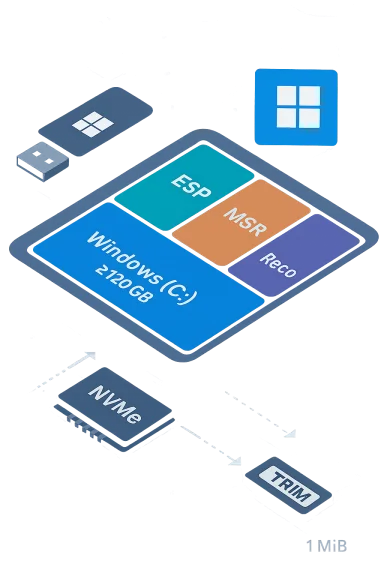
Because Windows uses GPT/UEFI on modern systems, plan for at least these partitions (left to right on the disk):- EFI System Partition (ESP): 260–500 MB recommended (100 MB minimum). Recent upgrade issues show 100 MB sometimes blocks feature updates; 260 MB or larger reduces that risk and leaves room for vendor utilities.
- Microsoft Reserved Partition (MSR): 16 MB (Windows/GPT convention). Created with DiskPart via create partition msr.
- Windows OS partition (C
 : Allocate at least 120 GB for practical use — Windows 11 requires 64 GB of storage for the device, but that leaves little room for apps, updates, or pagefile. Allocate more if you plan to store games or large apps.
 - Recovery / WinRE partition: 300–500 MB to hold WinRE and future update payloads. Microsoft guidance notes recovery tools and winre.wim sizes that benefit from this headroom.
Step‑by‑step: create the custom partition layout using DiskPart (pre‑install)
These steps assume you’re booted from Windows 11 installation USB and have opened the installer’s command prompt (Shift+F10). Use DiskPart carefully — the wrong disk selection will wipe the wrong drive.- Start DiskPart:
diskpart - Identify the disk:
list disk
select disk X (replace X with the target disk number; verify size) - Clean and prepare GPT:
clean
convert gpt - Create the EFI System Partition (recommended 300 MB example):
create partition efi size=300 - Create MSR:
create partition msr size=16 - Create the Windows partition (example 150 GB):
create partition primary size=153600
format fs=ntfs quick label=Windows - Create Recovery partition (example 450 MB):
create partition primary size=450
format fs=ntfs quick label=Recovery - Exit DiskPart:
exit
Step‑by‑step: clean install using the installer UI (quick checklist)
- Boot the PC from the USB installer (UEFI mode).
- Choose language/time, then Install Now. If asked for a key, choose “I don’t have a product key” if you’ll activate later.
- Select Custom: Install Windows only (advanced) and pick the prepared NTFS partition.
- Let Windows copy files and reboot as prompted. Complete OOBE (Out of Box Experience), create accounts, or use the offline account path if you want a local account.
Rebuilding or repairing the bootloader (common post‑partition task)
If you moved partitions or rebuilt the ESP, use bcdboot to reconstruct the UEFI boot files. In the Windows Recovery Environment (WinRE) Command Prompt:- Identify the Windows volume letter (it may not be C: in WinRE).
- Run: bcdboot C:\Windows /s Z: /f UEFI (replace Z: with the mounted EFI partition letter). Community documentation and recovery walkthroughs routinely recommend bcdboot as the reliable way to recreate UEFI boot entries when bootrec fails on UEFI systems.
SSD and NVMe optimization (post‑install tuning)
Modern flash storage needs different care than spinning disks. These steps are practical, safe, and reversible.- Enable TRIM (Windows does this by default). Verify with: fsutil behavior query DisableDeleteNotify — a value of 0 means TRIM is enabled. If disabled, re‑enable with fsutil behavior set DisableDeleteNotify 0. TRIM is critical for maintaining sustained SSD performance and is on by default in Windows 11.
- Ensure proper alignment: modern Windows installers and tools normally align partitions to 1 MiB boundaries, which is broadly compatible with most SSDs and 4K sector drives. If you create partitions manually with DiskPart or imaging tools, ensure they start at a 1 MiB boundary (sector 2048) to avoid alignment penalties. Vendor reimaging guides and best‑practice notes from system builders support the 1 MiB default alignment strategy.
- Use the vendor NVMe driver for top performance: the OS default driver works, but vendor drivers (Samsung/Intel) can add performance and stability improvements for their controllers. Keep the driver on a USB stick for immediate post‑install install.
- Keep TRIM scheduled and use Optimize Drives (Defrag) to run TRIM where supported: Windows schedules this automatically, but verifying the schedule or manually running “Optimize Drives” helps on freshly imaged systems.
- Avoid disabling the pagefile entirely on SSDs; let Windows manage it. If you intend to tune or move the pagefile (e.g., to a secondary drive), do so with measured testing — removing or misplacing pagefile can trigger app compatibility problems and dumps during crashes.
- Consider Storage Sense and OneDrive for offloading user content: with limited OS partitions, use OneDrive or external libraries to keep the C: volume lean and ensure reasonable headroom for Windows updates.
EFI size, upgrades, and the painful lessons many organizations learned
A recurring thread in upgrade diagnostics is the EFI System Partition running out of free space and blocking feature upgrades. While the installer historically creates a 100 MB ESP, several organizations and Microsoft Q&A threads show devices with 100 MB ESPs failing to receive some Windows updates. Upgrading the ESP to 260–500 MB is a practical insurance policy for long‑term manageability, vendor utilities, and multi‑boot scenarios. If you inherit a system with a 100 MB ESP and the Windows Update offer is missing, this is a known troubleshooting path to investigate. If disk space in the ESP is the issue, tidy vendor files under the mounted EFI volume (mountvol Y: /s, inspect Y:\EFI) before resizing partitions as a last resort. Microsoft community answers document safe cleanup steps for fonts and vendor images that reclaim ESP space without risky resizing.Unsupported installs and bypasses — the risk profile
The community has documented multiple workarounds that remove TPM, Secure Boot, or CPU checks during Windows 11 installation (registry hacks and Rufus’ extended installer options). These can permit installation on older hardware, but they carry tangible risks: Microsoft classifies out‑of‑spec installs as unsupported, which can result in blocked feature updates, reduced support entitlement, and security exposure. Use bypass methods only for lab/test machines and never for production or business endpoints unless the implications have been fully accepted and mitigations are in place. Independent reporting and community threads outline how these bypasses work and highlight Microsoft’s stated stance on unsupported devices.Troubleshooting checklist (most common issues)
- Installer won’t boot in UEFI mode: confirm UEFI/Legacy setting and that the USB was created for UEFI (Media Creation Tool or Rufus with GPT/UEFI settings).
- Windows doesn’t appear after install: boot to WinRE, run DiskPart to check partitions, recreate ESP and run bcdboot to restore UEFI boot files. Community repairs use diskpart, mount the EFI partition, then bcdboot C:\Windows /s Z: /f UEFI.
- Windows Update won’t offer upgrade: check EFI free space; a too‑small ESP (100 MB) has been reported to block upgrade offers on some devices. Expand or clean the ESP if necessary.
- Activation woes after hardware change: sign into the Microsoft account linked to your digital license and run Activation Troubleshooter; OEM keys embedded in firmware usually re‑activate automatically once online.
Advanced: imaging, cloning, and multi‑disk scenarios
- If cloning from an old disk, use reputable tools (Macrium Reflect, Acronis, Clonezilla) that preserve GPT and the ESP. After cloning, validate with WinRE that the boot files are correct and run bcdboot if necessary. Community recommendations and vendor documentation favor Macrium Reflect for reliable bootable clones.
- For multi‑OS or multi‑disk setups, install the primary desktop OS first, then add others. Windows writes boot entries predictably when done in that order; if you rearrange disks later, rebuild the ESP and BCD as needed.
What to watch out for — risks and trade‑offs
- Data loss by mistake: DiskPart clean/format steps are destructive; double‑check disk numbers. Backups first, always.
- Unsupported hardware: Workarounds to bypass TPM or CPU checks can leave your device stuck on feature updates or unsupported security patches. Microsoft’s guidance and community reporting should make this a conscious risk decision.
- ESP sizing mistakes: A 100 MB ESP still works for many installs, but it can impede future upgrades on systems with vendor utilities that populate the ESP; err to larger ESP sizes for devices you plan to keep long term.
- Over‑tuning SSDs: Disabling pagefile, turning off system protection, or radical debloating can break app compatibility and diagnostics. Remove cruft conservatively and keep a tested recovery image.
Quick pro checklist — the 10‑point runbook
- Back up the entire disk (image + file backup).
- Confirm UEFI, Secure Boot, and TPM 2.0 (or plan for supported hardware).
- Make official Windows 11 USB (Media Creation Tool) or a carefully configured Rufus image.
- Create partitions with DiskPart: ESP (260–500 MB), MSR (16 MB), Windows (≥120 GB recommended), Recovery (≥300 MB).
- Install to the prepared NTFS partition via Custom install.
- Install chipset and NVMe drivers before other optional drivers.
- Verify TRIM and optimize drives (fsutil behavior query DisableDeleteNotify).
- Enable BitLocker only after confirming recovery key backups and proper ESP size if you plan to reimage often.
- Create a recovery USB and a full image of the fresh install for rollback.
- Test Windows Update / feature upgrades within a short pilot window before heavy customization.
Conclusion
Installing Windows 11 on a custom partition is a straightforward power‑user task if approached methodically: validate hardware, back up everything, prepare a robust GPT layout (generous ESP and a recovery area), install with a clean OS partition, and apply SSD/NVMe optimizations like TRIM and correct alignment. The community guidance and Microsoft documentation align on the critical pieces — the nuance resides in EFI size, driver ordering, and post‑install tuning. When executed carefully, a custom partition install yields a cleaner, faster, and more resilient Windows 11 system; when rushed or performed without backups, it leads to the most common and avoidable headaches. Caution: some community workarounds to bypass Windows 11 hardware checks exist and can be tempting for older machines, but those choices carry support and update risks that must be accepted openly and tested thoroughly on non‑critical hardware. Follow the steps above, keep vendor drivers and recovery images ready, and you will have a tailored Windows 11 install that balances performance, updateability, and recoverability.Source: baonghean.vn https://baonghean.vn/en/cai-dat-windows-11-tren-phan-vung-tuy-chinh-toi-uu-hoa-o-cung-10310624.html
