

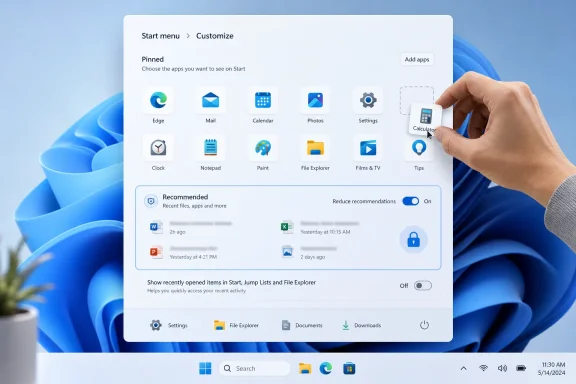
Microsoft’s Windows 11 Start menu can be customized today through Settings > Personalization > Start, where users can change the layout, reduce recommendations, show or hide recent items, add quick-access folders, and rearrange pinned apps. That sounds like a modest how-to tip, but it also points to a larger Windows story. The Start menu remains the most politically sensitive square of real estate in Microsoft’s operating system, and every new toggle is really a negotiation over who controls the PC. Windows 11 has improved, but the argument over Start is not over.
The Start menu is not just an app launcher. It is the front door of Windows, the place where Microsoft’s priorities collide with the user’s muscle memory. That is why Windows 11’s original Start menu felt so jarring to many longtime users: it was cleaner, centered, and more modern, but also less obviously theirs.
The old Windows 10 Start menu was messy, but it was permissive. It allowed tiles, groups, weird personal arrangements, and a degree of spatial familiarity that rewarded years of habit. Windows 11 replaced that with something calmer and more phone-like: pinned apps at the top, recommendations below, and a simplified All apps list tucked behind another click.
That design made sense from Microsoft’s perspective. Windows had to look less like a legacy control panel for everything and more like a contemporary operating system that could compete aesthetically with macOS, ChromeOS, iPadOS, and the web apps that increasingly define daily work. But in doing so, Microsoft underestimated how deeply personal the Start menu had become.
The customization options now available in Windows 11 are Microsoft’s partial retreat from that overcorrection. The company has not restored the Windows 10 Start menu. It has not conceded the whole field to power users. But it has admitted, toggle by toggle, that the original Windows 11 Start experience was too rigid for the audience Windows still serves.
If you think of Start as a launcher, you want more pins. If you think of Start as a discovery surface, you may tolerate recommendations. If you think of Start as a recent-document hub, the default arrangement is defensible. Microsoft is trying to serve all three mental models with one interface, which is why the menu still feels slightly unsatisfying to each camp.
For many WindowsForum readers, “More pins” will be the setting that matters. It turns Start back toward user intent rather than system suggestion. A pinned app is a decision the user made; a recommendation is a decision Windows made on the user’s behalf.
That distinction matters. Recommendations can be useful when they surface the spreadsheet you opened ten minutes ago or the app you installed yesterday. They become irritating when they feel like filler, promotion, or an attempt to train the user into Microsoft’s preferred workflow.
Windows 11’s Start menu is better when it behaves less like a feed and more like a control surface. The more a PC is used for work, administration, development, or troubleshooting, the less patience users have for a launcher that seems to be guessing.
This is especially sensitive on shared, managed, or work-adjacent machines. Recent-file surfaces can reveal more than users expect. A document name, a project folder, or a recently used application can be enough to expose work patterns, clients, or personal habits. Even when nothing improper is shown, many people prefer a cleaner boundary between “things I chose to place here” and “things Windows decided to display.”
The available toggles help. Users can turn off recently added apps, most-used apps, recently opened items, and account-related notifications. That does not necessarily make the Recommended area disappear in every configuration, but it does reduce the sense that Start is narrating your activity back to you.
For administrators and privacy-minded users, these settings are less about cosmetics than information hygiene. A Start menu that exposes recent activity is convenient on a single-user laptop and awkward on a conference-room PC, help-desk machine, classroom system, or any environment where screens are routinely visible to other people.
Microsoft has spent years trying to make Windows feel more proactive. The problem is that proactivity and trust are inversely related when the user cannot predict what will appear. A launcher should never surprise its owner in front of an audience.
This is not glamorous design. It is better than glamorous design. It restores utility.
The absence of obvious folder shortcuts was one of the reasons early Windows 11 felt oddly sparse. Microsoft cleaned up the menu but removed some of the little affordances that made Windows feel fast. The Folders option brings back a degree of old-school practicality without reopening the entire Windows 10 tile debate.
For technical users, Settings and File Explorer are the obvious first choices. For home users, Documents and Downloads may matter more. For support scenarios, surfacing Settings can reduce friction when walking someone through a fix over the phone.
The broader point is that not every meaningful customization has to be expressive. Sometimes customization is simply about reducing the number of clicks between intent and action. In that sense, Start menu folders are a small design concession with an outsized daily payoff.
This is the area where users should spend the most time if they want Start to feel less like Microsoft’s menu and more like their own. The trick is not to pin everything. The trick is to pin the handful of apps that should be reachable without thought.
A good Start menu is not a catalog. It is a map of repeated behavior. Browser, terminal, password manager, mail client, notes app, remote desktop tool, package manager, settings, and a few line-of-business apps can do more for productivity than four pages of icons arranged by vague category.
Windows 11’s design is still more constrained than some users would like, but spatial ordering matters. If your first row always contains the same handful of tools, the Start menu regains the muscle memory Microsoft disrupted when it moved and simplified the interface.
That is also why the centered Start button remains divisive. Microsoft allows the taskbar alignment to be moved back to the left, and many longtime users should do exactly that. Center alignment may look balanced on a marketing screenshot, but left alignment remains faster for users whose hands and eyes spent decades expecting Start in the corner.
Windows 11 supports managed Start layouts, and Microsoft has continued to evolve how organizations can deploy or constrain Start configurations. This is where the debate becomes more serious than whether someone likes centered icons. A Start menu in an enterprise is part onboarding tool, part compliance surface, part productivity shortcut, and part political battleground between IT standardization and user autonomy.
A locked-down Start menu can be useful in kiosks, classrooms, frontline environments, and heavily regulated workplaces. It can also become a source of resentment when it prevents users from arranging the tools they actually need. The best enterprise Start strategy is usually not total control but guided control: pin the essential apps, remove obvious clutter, and leave enough room for users to adapt the machine to their work.
Microsoft’s own direction increasingly reflects this compromise. Windows has to satisfy endpoint management teams without making every employee feel like they are borrowing a machine from a bureaucracy. The more hybrid work turns the corporate laptop into the primary workplace, the more personal the managed desktop becomes.
For IT pros, the lesson is simple: do not treat the Start menu as decoration. Treat it as workflow infrastructure. If users immediately unpin half the corporate defaults, the layout is not standardized; it is ignored.
That strategy changes how users interpret even ordinary UI decisions. A recommendation is no longer just a recommendation. A notification is no longer just a notification. A Start menu suggestion can feel like one more sign that Windows is becoming less of a neutral operating system and more of a Microsoft-controlled attention layer.
This does not mean every AI feature is bad, or that every user objection is technically precise. It means Microsoft is operating in a trust-constrained environment. When users already suspect that the company wants to steer them toward Microsoft accounts, OneDrive, Edge, Bing, Copilot, subscriptions, or Store apps, even small intrusions feel larger than they are.
That is why Start menu customization matters beyond aesthetics. It gives users a way to say no, or at least “not here.” A mature Windows should let Microsoft build ambitious services without turning every core shell surface into a campaign for those services.
The Start menu is a bad place to test the limits of user patience. It is too central, too frequently used, and too symbolically loaded. If Microsoft wants Windows users to accept more intelligence in the OS, it first has to prove that the basics remain under user control.
That is not automatically a failure. Operating systems need coherent defaults, and unlimited customization often produces support nightmares. The question is whether Microsoft has found the right boundary between coherence and control.
For casual users, the current answer is probably yes. The Start menu is cleaner than Windows 10’s tile field, easier to understand, and good enough once a few settings are adjusted. For power users, the answer is more grudging. Windows 11 Start can be made tolerable, even efficient, but it still feels like a negotiated settlement rather than a victory.
Third-party Start menu replacements remain popular precisely because they address a demand Microsoft refuses to fully satisfy. Some users want classic cascading menus. Some want denser app lists. Some want no recommendations at all. Some want the Windows 10 model back. The existence of those tools is a standing referendum on Microsoft’s shell decisions.
Still, the average user should exhaust the built-in settings before installing another shell utility. The native controls are safer, more stable across feature updates, and less likely to break during major Windows servicing events. The goal should not be nostalgia for its own sake; it should be a Start menu that gets out of the way.
Source: Guiding Tech Don’t Like the Windows 11 Start Menu? Here’s How to Customize It
 Microsoft’s Smallest Menu Still Carries the Biggest Windows Argument
The Start menu is not just an app launcher. It is the front door of Windows, the place where Microsoft’s priorities collide with the user’s muscle memory. That is why Windows 11’s original Start menu felt so jarring to many longtime users: it was cleaner, centered, and more modern, but also less obviously theirs.The old Windows 10 Start menu was messy, but it was permissive. It allowed tiles, groups, weird personal arrangements, and a degree of spatial familiarity that rewarded years of habit. Windows 11 replaced that with something calmer and more phone-like: pinned apps at the top, recommendations below, and a simplified All apps list tucked behind another click.
That design made sense from Microsoft’s perspective. Windows had to look less like a legacy control panel for everything and more like a contemporary operating system that could compete aesthetically with macOS, ChromeOS, iPadOS, and the web apps that increasingly define daily work. But in doing so, Microsoft underestimated how deeply personal the Start menu had become.
The customization options now available in Windows 11 are Microsoft’s partial retreat from that overcorrection. The company has not restored the Windows 10 Start menu. It has not conceded the whole field to power users. But it has admitted, toggle by toggle, that the original Windows 11 Start experience was too rigid for the audience Windows still serves.
The New Controls Are Useful Because the Default Is Still a Compromise
The most important Start menu setting is the simplest: layout. Windows 11 lets users choose among a balanced default, a layout with more pinned apps, or a layout with more recommendations. That one choice captures the operating system’s central tension.If you think of Start as a launcher, you want more pins. If you think of Start as a discovery surface, you may tolerate recommendations. If you think of Start as a recent-document hub, the default arrangement is defensible. Microsoft is trying to serve all three mental models with one interface, which is why the menu still feels slightly unsatisfying to each camp.
For many WindowsForum readers, “More pins” will be the setting that matters. It turns Start back toward user intent rather than system suggestion. A pinned app is a decision the user made; a recommendation is a decision Windows made on the user’s behalf.
That distinction matters. Recommendations can be useful when they surface the spreadsheet you opened ten minutes ago or the app you installed yesterday. They become irritating when they feel like filler, promotion, or an attempt to train the user into Microsoft’s preferred workflow.
Windows 11’s Start menu is better when it behaves less like a feed and more like a control surface. The more a PC is used for work, administration, development, or troubleshooting, the less patience users have for a launcher that seems to be guessing.
The Recommended Section Is Where Trust Goes to Be Tested
The Recommended section has always been the most controversial part of the Windows 11 Start menu because it occupies prime territory without always delivering prime value. Microsoft’s argument is obvious enough: recent files, recently installed apps, and contextual suggestions can save time. The counterargument is just as obvious: many users do not want their Start menu to become another place where the operating system interprets their behavior.This is especially sensitive on shared, managed, or work-adjacent machines. Recent-file surfaces can reveal more than users expect. A document name, a project folder, or a recently used application can be enough to expose work patterns, clients, or personal habits. Even when nothing improper is shown, many people prefer a cleaner boundary between “things I chose to place here” and “things Windows decided to display.”
The available toggles help. Users can turn off recently added apps, most-used apps, recently opened items, and account-related notifications. That does not necessarily make the Recommended area disappear in every configuration, but it does reduce the sense that Start is narrating your activity back to you.
For administrators and privacy-minded users, these settings are less about cosmetics than information hygiene. A Start menu that exposes recent activity is convenient on a single-user laptop and awkward on a conference-room PC, help-desk machine, classroom system, or any environment where screens are routinely visible to other people.
Microsoft has spent years trying to make Windows feel more proactive. The problem is that proactivity and trust are inversely related when the user cannot predict what will appear. A launcher should never surprise its owner in front of an audience.
Quick-Access Folders Are the Most Underrated Repair
One of the best Windows 11 Start menu customizations is also one of the least dramatic: adding folders next to the power button. Settings, File Explorer, Documents, Downloads, Pictures, Music, Videos, Network, and the personal folder can be surfaced in that lower strip, depending on the available options in a given build.This is not glamorous design. It is better than glamorous design. It restores utility.
The absence of obvious folder shortcuts was one of the reasons early Windows 11 felt oddly sparse. Microsoft cleaned up the menu but removed some of the little affordances that made Windows feel fast. The Folders option brings back a degree of old-school practicality without reopening the entire Windows 10 tile debate.
For technical users, Settings and File Explorer are the obvious first choices. For home users, Documents and Downloads may matter more. For support scenarios, surfacing Settings can reduce friction when walking someone through a fix over the phone.
The broader point is that not every meaningful customization has to be expressive. Sometimes customization is simply about reducing the number of clicks between intent and action. In that sense, Start menu folders are a small design concession with an outsized daily payoff.
Rearranging Pins Is Where the Start Menu Becomes Yours Again
Pinned apps are the part of the Start menu that most clearly belongs to the user. You can pin apps, unpin apps, drag icons into a preferred order, and use the context menu to move an app to the top. Windows 11 also supports app folders in Start, allowing related apps to be grouped together.This is the area where users should spend the most time if they want Start to feel less like Microsoft’s menu and more like their own. The trick is not to pin everything. The trick is to pin the handful of apps that should be reachable without thought.
A good Start menu is not a catalog. It is a map of repeated behavior. Browser, terminal, password manager, mail client, notes app, remote desktop tool, package manager, settings, and a few line-of-business apps can do more for productivity than four pages of icons arranged by vague category.
Windows 11’s design is still more constrained than some users would like, but spatial ordering matters. If your first row always contains the same handful of tools, the Start menu regains the muscle memory Microsoft disrupted when it moved and simplified the interface.
That is also why the centered Start button remains divisive. Microsoft allows the taskbar alignment to be moved back to the left, and many longtime users should do exactly that. Center alignment may look balanced on a marketing screenshot, but left alignment remains faster for users whose hands and eyes spent decades expecting Start in the corner.
The Enterprise Story Is Less About Taste Than Control
Consumer guides often frame Start menu customization as a matter of preference. In business environments, it is more accurately a matter of policy. Administrators care about what users see, what they can change, and how predictable the desktop remains across fleets of devices.Windows 11 supports managed Start layouts, and Microsoft has continued to evolve how organizations can deploy or constrain Start configurations. This is where the debate becomes more serious than whether someone likes centered icons. A Start menu in an enterprise is part onboarding tool, part compliance surface, part productivity shortcut, and part political battleground between IT standardization and user autonomy.
A locked-down Start menu can be useful in kiosks, classrooms, frontline environments, and heavily regulated workplaces. It can also become a source of resentment when it prevents users from arranging the tools they actually need. The best enterprise Start strategy is usually not total control but guided control: pin the essential apps, remove obvious clutter, and leave enough room for users to adapt the machine to their work.
Microsoft’s own direction increasingly reflects this compromise. Windows has to satisfy endpoint management teams without making every employee feel like they are borrowing a machine from a bureaucracy. The more hybrid work turns the corporate laptop into the primary workplace, the more personal the managed desktop becomes.
For IT pros, the lesson is simple: do not treat the Start menu as decoration. Treat it as workflow infrastructure. If users immediately unpin half the corporate defaults, the layout is not standardized; it is ignored.
AI Raises the Stakes for Every Surface Microsoft Touches
The Guiding Tech piece places Start menu customization in the context of user backlash and Microsoft’s broad push to improve Windows 11. That framing is fair, but incomplete unless we mention AI. Over the past few years, Microsoft has been aggressively threading Copilot and AI-adjacent features through Windows, Edge, Office, search, and system experiences.That strategy changes how users interpret even ordinary UI decisions. A recommendation is no longer just a recommendation. A notification is no longer just a notification. A Start menu suggestion can feel like one more sign that Windows is becoming less of a neutral operating system and more of a Microsoft-controlled attention layer.
This does not mean every AI feature is bad, or that every user objection is technically precise. It means Microsoft is operating in a trust-constrained environment. When users already suspect that the company wants to steer them toward Microsoft accounts, OneDrive, Edge, Bing, Copilot, subscriptions, or Store apps, even small intrusions feel larger than they are.
That is why Start menu customization matters beyond aesthetics. It gives users a way to say no, or at least “not here.” A mature Windows should let Microsoft build ambitious services without turning every core shell surface into a campaign for those services.
The Start menu is a bad place to test the limits of user patience. It is too central, too frequently used, and too symbolically loaded. If Microsoft wants Windows users to accept more intelligence in the OS, it first has to prove that the basics remain under user control.
The Better Start Menu Is Still Not the Same as the Best Start Menu
The Windows 11 Start menu has improved, but it remains bounded by Microsoft’s design philosophy. Users can tune it, but not fully reshape it. They can reduce recommendations, but the menu’s conceptual structure remains Microsoft’s. They can pin and group apps, but they cannot return to the full flexibility of older Start paradigms without third-party tools.That is not automatically a failure. Operating systems need coherent defaults, and unlimited customization often produces support nightmares. The question is whether Microsoft has found the right boundary between coherence and control.
For casual users, the current answer is probably yes. The Start menu is cleaner than Windows 10’s tile field, easier to understand, and good enough once a few settings are adjusted. For power users, the answer is more grudging. Windows 11 Start can be made tolerable, even efficient, but it still feels like a negotiated settlement rather than a victory.
Third-party Start menu replacements remain popular precisely because they address a demand Microsoft refuses to fully satisfy. Some users want classic cascading menus. Some want denser app lists. Some want no recommendations at all. Some want the Windows 10 model back. The existence of those tools is a standing referendum on Microsoft’s shell decisions.
Still, the average user should exhaust the built-in settings before installing another shell utility. The native controls are safer, more stable across feature updates, and less likely to break during major Windows servicing events. The goal should not be nostalgia for its own sake; it should be a Start menu that gets out of the way.
The Sensible Windows 11 Start Menu Is Built, Not Accepted
The practical answer is not to accept Microsoft’s default Start menu as a finished product. It is to spend five minutes turning it into something less noisy and more deliberate. That small investment pays off every time the Windows key becomes a shortcut instead of a shrug.- Choose “More pins” if you primarily use Start as an app launcher rather than a recent-file dashboard.
- Turn off recent and most-used item suggestions if privacy, cleanliness, or predictability matters more than contextual convenience.
- Add quick-access folders such as Settings, File Explorer, Documents, or Downloads to reduce unnecessary navigation.
- Unpin apps you do not use, because every unwanted icon weakens the value of the icons you actually need.
- Arrange pinned apps by muscle memory, not by category, so the first few positions become automatic over time.
- Consider left-aligning the taskbar if years of Windows usage make the centered Start button feel slower rather than fresher.
Source: Guiding Tech Don’t Like the Windows 11 Start Menu? Here’s How to Customize It
