

Windows 11’s cursor customization story is a small feature with an outsized payoff. A tweak that takes only a minute or two can make the desktop feel more personal, more modern, and—if you choose carefully—much easier to see and use day to day. Microsoft has also made the path to that tweak much less awkward than it used to be, moving the key controls into the Settings app instead of burying them in the old Control Panel.
For years, mouse pointer changes on Windows lived in a kind of UI limbo. The operating system had the tools, but they were tucked away in older system dialogs that many mainstream users never visited, which made cursor personalization feel like a power-user habit rather than a normal desktop adjustment. That matters because the pointer is one of the few interface elements you see constantly, often every few seconds, whether you are browsing, gaming, coding, or just opening files.
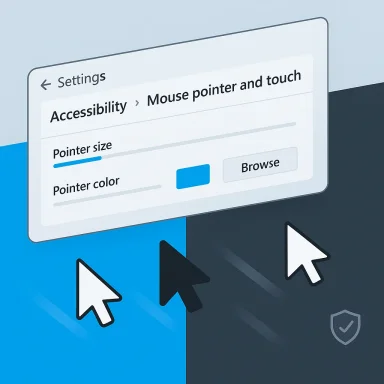
Microsoft’s current guidance shows that Windows 11 now gives users a more direct route through Settings > Accessibility > Mouse pointer and touch for changing pointer size, style, and color, while still preserving the deeper legacy pointer-scheme controls under additional mouse settings. In practical terms, the company has turned cursor customization into something that feels aligned with the rest of Windows 11’s design language rather than an inherited relic. That shift may sound cosmetic, but the feel of the interface is often what people remember most.
The appeal of cursor packs is easy to understand. A subtle, well-designed pointer can make an aging PC feel cleaner and more intentional, while a bold or colorful one can improve visibility on high-resolution displays, bright backgrounds, and multi-monitor setups. Microsoft’s own accessibility guidance emphasizes pointer size and color changes for visibility, which reinforces the idea that this feature is not just about aesthetics but about comfort and usability too.
There is also a broader cultural angle here. macOS, iPadOS, Android, and even browser-based interfaces have increasingly treated the pointer as part of a polished visual system, not just a leftover from the desktop era. Windows 11 still has a default cursor that works well enough, but for many users it does not feel especially fresh, and that is exactly why a simple redesign can produce an immediate sense of improvement.
A cursor also carries a kind of ambient emotional weight. If the pointer feels outdated, the whole desktop can feel slightly stale, even when the machine is fast and the apps are modern. If it feels clean and distinctive, the rest of the interface often seems newer by association. That is why a small pointer change can deliver a bigger psychological boost than people expect.
That is why users notice pointer styling far more than they notice many other customization choices. A wallpaper is visible only when you can see the desktop. A cursor is visible almost all the time.
That contrast can make the desktop feel slightly disconnected. A fresh pointer scheme does not rewrite the OS, but it closes a visual gap that many users may not realize was bothering them until it is gone. In other words, this is a classic small change, big impression upgrade.
The modern Settings route is the easiest starting point. Under Accessibility > Mouse pointer and touch, you can make the pointer bigger or adjust its style and color. For users who want more, the legacy pointer scheme controls still exist under Bluetooth & devices > Mouse > Additional mouse settings, where you can customize specific pointer roles one by one.
Microsoft’s support pages also note that pointer trails are still available in the older mouse settings area, which may be useful for visibility on some setups. That matters because many users think pointer customization is limited to a simple size slider, when in reality Windows still supports a layered set of appearance options.
That tradeoff is the key decision point. If your goal is a cleaner and more visible cursor, built-in controls may be enough. If your goal is a dramatic visual makeover, third-party cursor files offer far more room to experiment.
Still, compatibility does not guarantee quality. A poorly made cursor can feel too large, blur on high-DPI displays, or clash with the rest of the system’s appearance. That is why the best cursor packs tend to be the ones that balance visual style with usability.
That move is bigger than it looks. Windows has long been criticized for splitting important system options between modern and legacy interfaces, which creates confusion and makes simple tasks feel unnecessarily technical. By surfacing pointer customization in Accessibility, Microsoft is effectively saying that pointer visibility belongs in the same category as other ease-of-use features.
There is a subtle design philosophy at work here. If a feature affects how people perceive and control the system, it should be discoverable in the same place they go for other comfort settings. That principle helps explain why the pointer move feels so natural in Windows 11, even though the underlying mechanics are rooted in decades-old desktop behavior.
This transition also matters for onboarding. A user who would never have explored the old pointer-scheme dialog may now stumble across the feature simply by browsing Accessibility. That broader discoverability is part of why small Windows 11 tweaks can go viral so easily on consumer sites.
That helps Windows 11 compete on perceived polish. People may not compare pointer settings during a spec sheet debate, but they do compare how quickly and cleanly an operating system reveals its best small features.
This is especially true on large monitors and ultrawide displays. A default pointer that felt fine on a 1080p laptop years ago can feel plain or undersized on a modern high-DPI setup. A custom set can add visual weight, contrast, or personality without changing any of your actual workflows.
The best cursor makeovers tend to be quietly dramatic. They do not call attention to themselves in a gimmicky way, but they make the desktop feel more cohesive. That can be enough to give an entire workstation the sense of being intentionally curated rather than factory standard.
It is also why many users prefer a full pointer set rather than changing only the standard arrow. Matching the rest of the system’s cursor states—text select, link select, busy, resize, and more—creates a consistent design language that feels more premium.
This is where the visual argument and the accessibility argument overlap. The best customization is often the one you barely think about because it simply removes friction. That is why a cursor pack can feel luxurious even when it is technically just a collection of small images.
That is important because cursor changes are not only for aesthetics-minded users. People with low vision, visual fatigue, or high-density displays may benefit significantly from a larger or more visible pointer. A control that looks like a cosmetic flourish can end up being one of the most practical interface improvements on the system.
Windows 11’s accessibility positioning also helps normalize personalization. If pointer controls are presented as part of comfort and visibility, then changing them no longer feels like an odd customization project. It becomes a basic adjustment, similar to changing text size or enabling contrast-related features.
Microsoft’s documentation specifically notes bright recommended styles and custom colors, which supports that use case directly. The guidance makes it clear that pointer visibility is part of the broader accessibility toolkit, not a side note.
That ecosystem view matters because it shows why Microsoft has shifted so many controls into Accessibility. The goal is not just to make Windows prettier; it is to make the interface easier to control across very different users and devices.
Microsoft’s support docs confirm the basic customization workflow: go to Settings > Accessibility > Mouse pointer and touch, then use the browse controls to swap individual pointer images, or use the legacy mouse properties window for more comprehensive scheme changes. That means you do not need special software for the core workflow, only the right files.
The safest practice is to treat cursor packs like any other downloadable desktop customization. Read community feedback, prefer reputable creators, and avoid anything that looks repackaged, badly mirrored, or suspiciously overcomplicated. A good cursor set should be lightweight, transparent about what it includes, and easy to revert if you change your mind.
For enterprises, the story is more practical. A bigger or more visible cursor can help with accessibility and reduce friction for employees who work across many displays, presentations, or remote sessions. Even when IT departments lock down broader customization, accessibility-aware pointer settings can still be a useful low-risk win.
The difference between those markets is revealing. Consumers care about visual identity; enterprises care about consistency, supportability, and usability. Windows 11’s pointer controls serve both camps, but they matter for different reasons.
In a business setting, the emphasis is usually on not breaking muscle memory. That means corporate IT teams may prefer to standardize on default or high-visibility pointer schemes rather than artistic packs. Even so, the improved discoverability in Settings still helps because employees can more easily adjust visibility without hunting through legacy menus.
It also helps training materials. Accessibility settings are easier to document, and the modern Settings app is more consistent with other Windows 11 administration workflows. That makes the cursor story part of a larger usability cleanup across the OS.
The next step is obvious: make these low-level personalization tools even easier to discover, better integrated, and more visually consistent across the system. If Microsoft continues to treat pointer visibility, size, color, and scheme management as first-class settings, then the desktop will keep feeling less like a legacy shell and more like a tuned-up modern workspace. That is the kind of refinement users notice every hour, even if they never sit down and think about it.
Source: Pocket-lint My Windows 11 PC feels like the future thanks to this one basic tweak
 Overview
For years, mouse pointer changes on Windows lived in a kind of UI limbo. The operating system had the tools, but they were tucked away in older system dialogs that many mainstream users never visited, which made cursor personalization feel like a power-user habit rather than a normal desktop adjustment. That matters because the pointer is one of the few interface elements you see constantly, often every few seconds, whether you are browsing, gaming, coding, or just opening files.Microsoft’s current guidance shows that Windows 11 now gives users a more direct route through Settings > Accessibility > Mouse pointer and touch for changing pointer size, style, and color, while still preserving the deeper legacy pointer-scheme controls under additional mouse settings. In practical terms, the company has turned cursor customization into something that feels aligned with the rest of Windows 11’s design language rather than an inherited relic. That shift may sound cosmetic, but the feel of the interface is often what people remember most.
The appeal of cursor packs is easy to understand. A subtle, well-designed pointer can make an aging PC feel cleaner and more intentional, while a bold or colorful one can improve visibility on high-resolution displays, bright backgrounds, and multi-monitor setups. Microsoft’s own accessibility guidance emphasizes pointer size and color changes for visibility, which reinforces the idea that this feature is not just about aesthetics but about comfort and usability too.
There is also a broader cultural angle here. macOS, iPadOS, Android, and even browser-based interfaces have increasingly treated the pointer as part of a polished visual system, not just a leftover from the desktop era. Windows 11 still has a default cursor that works well enough, but for many users it does not feel especially fresh, and that is exactly why a simple redesign can produce an immediate sense of improvement.
Why the Cursor Still Matters
The mouse cursor is one of the most overworked graphics in computing. It has to remain visible across wildly different backgrounds, convey state changes instantly, and do all of that without becoming distracting. That makes it a surprisingly important part of the operating system’s visual identity, even if most people never think about it consciously.A cursor also carries a kind of ambient emotional weight. If the pointer feels outdated, the whole desktop can feel slightly stale, even when the machine is fast and the apps are modern. If it feels clean and distinctive, the rest of the interface often seems newer by association. That is why a small pointer change can deliver a bigger psychological boost than people expect.
A tiny detail with daily impact
The pointer is often the first thing your eyes land on after the desktop appears. It is also the thing you use to make every other interaction happen, from selecting text to resizing windows. In that sense, it functions like a visual handshake between you and the operating system.That is why users notice pointer styling far more than they notice many other customization choices. A wallpaper is visible only when you can see the desktop. A cursor is visible almost all the time.
- It is one of the most frequently seen UI elements.
- It has to stay legible at all times.
- It shapes the perceived age of the desktop.
- It can improve comfort on bright or busy backgrounds.
- It often becomes part of a user’s personal workflow identity.
Why defaults can feel tired
Default cursors are designed for universality, not flair. That means they need to be safe, readable, and compatible across countless display conditions, but they rarely aim to excite. As Windows 11 has evolved, the rest of the UI has received modern flourishes, while the pointer has remained comparatively conservative.That contrast can make the desktop feel slightly disconnected. A fresh pointer scheme does not rewrite the OS, but it closes a visual gap that many users may not realize was bothering them until it is gone. In other words, this is a classic small change, big impression upgrade.
What Windows 11 Actually Lets You Change
Windows 11 gives users several ways to personalize the pointer, and the range is broader than many people assume. Microsoft documents size adjustment, style changes, color choices, pointer trails, and deeper customization for individual cursor roles through the mouse properties dialog. The result is that one small tweak can become a full visual refresh if you want it to.The modern Settings route is the easiest starting point. Under Accessibility > Mouse pointer and touch, you can make the pointer bigger or adjust its style and color. For users who want more, the legacy pointer scheme controls still exist under Bluetooth & devices > Mouse > Additional mouse settings, where you can customize specific pointer roles one by one.
Microsoft’s support pages also note that pointer trails are still available in the older mouse settings area, which may be useful for visibility on some setups. That matters because many users think pointer customization is limited to a simple size slider, when in reality Windows still supports a layered set of appearance options.
Built-in changes versus custom packs
Windows 11’s built-in options are the safest and most frictionless route. They are system-supported, easy to reverse, and unlikely to break after an update. By contrast, downloading a custom cursor pack can provide much more personality, but it introduces questions about file quality, style consistency, and trustworthiness.That tradeoff is the key decision point. If your goal is a cleaner and more visible cursor, built-in controls may be enough. If your goal is a dramatic visual makeover, third-party cursor files offer far more room to experiment.
Cursor formats and compatibility
Custom cursors commonly use .cur and .ani files, which are standard Windows pointer formats. Microsoft’s support documentation and related references acknowledge these file types in the Windows ecosystem, and that compatibility is what makes cursor packs so easy to distribute and install.Still, compatibility does not guarantee quality. A poorly made cursor can feel too large, blur on high-DPI displays, or clash with the rest of the system’s appearance. That is why the best cursor packs tend to be the ones that balance visual style with usability.
- .cur files are typically static pointer images.
- .ani files are animated pointers.
- Both are widely associated with Windows cursor customization.
- Good packs usually ship multiple role-specific files.
- Bad packs can feel mismatched or visually noisy.
How Microsoft Moved the Feature Forward
One of the quiet wins in Windows 11 is that Microsoft finally put core pointer appearance settings where ordinary users are most likely to find them. The Settings app now serves as the main place to adjust mouse pointer size, style, and color, which makes the feature feel far less hidden than it did in older Windows versions.That move is bigger than it looks. Windows has long been criticized for splitting important system options between modern and legacy interfaces, which creates confusion and makes simple tasks feel unnecessarily technical. By surfacing pointer customization in Accessibility, Microsoft is effectively saying that pointer visibility belongs in the same category as other ease-of-use features.
There is a subtle design philosophy at work here. If a feature affects how people perceive and control the system, it should be discoverable in the same place they go for other comfort settings. That principle helps explain why the pointer move feels so natural in Windows 11, even though the underlying mechanics are rooted in decades-old desktop behavior.
Settings versus Control Panel
The old Control Panel route still exists for deeper customization, but Microsoft is clearly steering users toward the modern app. The support documentation now points to the Accessibility page first and treats the legacy mouse properties window as an advanced option. That is a notable change in tone as much as in function.This transition also matters for onboarding. A user who would never have explored the old pointer-scheme dialog may now stumble across the feature simply by browsing Accessibility. That broader discoverability is part of why small Windows 11 tweaks can go viral so easily on consumer sites.
Why this matters for adoption
Features tend to get used when they are visible, not merely when they exist. Microsoft can advertise modernization all day, but if a setting is hidden, it behaves like a niche power-user trick. Putting cursor options in the main Settings flow makes personalization feel like a standard part of setup.That helps Windows 11 compete on perceived polish. People may not compare pointer settings during a spec sheet debate, but they do compare how quickly and cleanly an operating system reveals its best small features.
The Aesthetic Argument
There is a reason articles about mouse cursors resonate with readers. The pointer is one of those tiny interface elements that can make a whole computer feel either tired or current. If you use a tasteful custom set, the change may be subtle enough to blend in—but noticeable enough that you feel the difference every time you move the mouse.This is especially true on large monitors and ultrawide displays. A default pointer that felt fine on a 1080p laptop years ago can feel plain or undersized on a modern high-DPI setup. A custom set can add visual weight, contrast, or personality without changing any of your actual workflows.
The best cursor makeovers tend to be quietly dramatic. They do not call attention to themselves in a gimmicky way, but they make the desktop feel more cohesive. That can be enough to give an entire workstation the sense of being intentionally curated rather than factory standard.
Modern design versus legacy familiarity
Windows users often value continuity, so a drastic cursor change can backfire if it is too stylized. The sweet spot is a pointer that looks modern while still behaving like a normal Windows cursor. That balance is what makes the feature feel like a “future” tweak instead of a novelty.It is also why many users prefer a full pointer set rather than changing only the standard arrow. Matching the rest of the system’s cursor states—text select, link select, busy, resize, and more—creates a consistent design language that feels more premium.
- A cohesive set looks more polished than a single changed cursor.
- Subtle redesigns usually age better than flashy novelty packs.
- High-contrast pointers help on busy backgrounds.
- Animated cursors can be fun, but they are not always the most practical choice.
- Consistency across pointer states matters more than one standout icon.
When aesthetics becomes usability
A prettier cursor is nice, but readability is better. Many users do not realize that an upgraded cursor can help reduce eye strain during long sessions. If the pointer is easier to track, the whole desktop feels less fatiguing.This is where the visual argument and the accessibility argument overlap. The best customization is often the one you barely think about because it simply removes friction. That is why a cursor pack can feel luxurious even when it is technically just a collection of small images.
Accessibility and Everyday Comfort
Microsoft has been increasingly explicit that pointer customization is part of making Windows easier to use. The company’s support pages point users to Accessibility > Mouse pointer and touch for changing pointer size and style, and they also note options for pointer trails and touch indicators elsewhere in the mouse settings ecosystem.That is important because cursor changes are not only for aesthetics-minded users. People with low vision, visual fatigue, or high-density displays may benefit significantly from a larger or more visible pointer. A control that looks like a cosmetic flourish can end up being one of the most practical interface improvements on the system.
Windows 11’s accessibility positioning also helps normalize personalization. If pointer controls are presented as part of comfort and visibility, then changing them no longer feels like an odd customization project. It becomes a basic adjustment, similar to changing text size or enabling contrast-related features.
Visibility is the real feature
A cursor that is easier to see is easier to use. That is especially true for users who work on bright displays, OLED panels, or multi-screen setups where cursor visibility can vary from one app to the next. Small changes in pointer color can have a surprisingly large impact on how quickly your eyes find the target.Microsoft’s documentation specifically notes bright recommended styles and custom colors, which supports that use case directly. The guidance makes it clear that pointer visibility is part of the broader accessibility toolkit, not a side note.
Beyond the pointer itself
Cursor customization also pairs well with other visibility tools. Pointer trails can make motion easier to follow, while Magnifier can track the mouse pointer or keyboard focus depending on how you work. In effect, the pointer becomes part of a larger strategy for making the screen easier to navigate.That ecosystem view matters because it shows why Microsoft has shifted so many controls into Accessibility. The goal is not just to make Windows prettier; it is to make the interface easier to control across very different users and devices.
How to Install a Custom Cursor Safely
The actual installation process is straightforward, but safety still matters. Third-party cursor packs are available across the web, including on communities like DeviantArt and GitHub, but users should be selective about where they download from and what they trust. A cursor file is small, but that does not automatically make every source harmless or every pack high quality.Microsoft’s support docs confirm the basic customization workflow: go to Settings > Accessibility > Mouse pointer and touch, then use the browse controls to swap individual pointer images, or use the legacy mouse properties window for more comprehensive scheme changes. That means you do not need special software for the core workflow, only the right files.
The safest practice is to treat cursor packs like any other downloadable desktop customization. Read community feedback, prefer reputable creators, and avoid anything that looks repackaged, badly mirrored, or suspiciously overcomplicated. A good cursor set should be lightweight, transparent about what it includes, and easy to revert if you change your mind.
A simple workflow to follow
- Find a trusted cursor pack from a reputable creator or source.
- Confirm the files are in Windows-supported cursor formats.
- Open Settings and go to Accessibility > Mouse pointer and touch.
- Use Browse to assign the custom pointer image you want.
- Repeat for other cursor roles if you want a full set.
- Use Reset to revert if the result does not feel right.
What to look for in a good pack
A strong cursor pack should be cohesive, readable, and sized well for modern screens. It should also include consistent replacements across the common pointer states so the experience feels complete. If a pack only looks good in the normal pointer state, it may create visual awkwardness elsewhere.- Clear contrast on light and dark backgrounds.
- Consistent style across every pointer state.
- Clean edges on high-resolution displays.
- No unnecessary bloat or overly gimmicky animation.
- Easy rollback to the default Windows scheme.
Enterprise and Consumer Impact
For consumers, cursor customization is mostly about personality and comfort. It is one of those features that lets a PC feel more like your machine rather than a generic product out of the box. That has real value, especially for people who spend hours in front of a screen every day and want small signs that the desktop is built around them.For enterprises, the story is more practical. A bigger or more visible cursor can help with accessibility and reduce friction for employees who work across many displays, presentations, or remote sessions. Even when IT departments lock down broader customization, accessibility-aware pointer settings can still be a useful low-risk win.
The difference between those markets is revealing. Consumers care about visual identity; enterprises care about consistency, supportability, and usability. Windows 11’s pointer controls serve both camps, but they matter for different reasons.
Consumer delight versus corporate standardization
In a consumer setting, a custom pointer can become part of a broader desktop theme. That makes the PC feel more expressive, especially for users who already change wallpapers, icons, taskbar layouts, and dark mode settings.In a business setting, the emphasis is usually on not breaking muscle memory. That means corporate IT teams may prefer to standardize on default or high-visibility pointer schemes rather than artistic packs. Even so, the improved discoverability in Settings still helps because employees can more easily adjust visibility without hunting through legacy menus.
Support and training implications
A more visible path to pointer controls can also reduce support noise. If users know where to find the setting, they are less likely to file vague complaints about cursor visibility or pointer size. That is a small operational benefit, but those are the kinds of efficiencies that matter at scale.It also helps training materials. Accessibility settings are easier to document, and the modern Settings app is more consistent with other Windows 11 administration workflows. That makes the cursor story part of a larger usability cleanup across the OS.
Strengths and Opportunities
The most compelling thing about Windows 11 cursor customization is how little effort it takes to extract a visible reward. Microsoft has put the controls in a much better place, and users now have more ways to make the pointer suit their workflow, their screen, and their taste. The opportunity here is not just decoration; it is reducing friction in one of the most frequently used parts of the desktop.- Fast payoff with almost no setup time.
- Better discoverability through the modern Settings app.
- Accessibility benefits for users who need a more visible pointer.
- More personality for people who want a distinctive desktop.
- Low-risk customization because it is easy to reset.
- Compatibility with legacy schemes for deeper pointer changes.
- Useful on modern displays where pointer contrast can vary.
- A simple way to refresh an otherwise familiar Windows 11 desktop.
Risks and Concerns
The downside of easy customization is that not every customization is good. Cursor packs can be visually inconsistent, poorly scaled, or just distracting, and third-party downloads always carry some degree of trust risk. There is also the possibility that users chase novelty and end up with a pointer that looks cooler in screenshots than it feels in daily work.- Untrusted downloads may come from questionable sources.
- Poorly designed cursors can reduce visibility rather than improve it.
- Animated packs may be fun but less practical.
- Inconsistent pointer states can make the desktop feel sloppy.
- High-DPI mismatch can blur or distort some custom files.
- Over-customization can hurt productivity if the cursor becomes distracting.
- Enterprise environments may prefer standardized, controlled options.
Looking Ahead
Cursor customization may never be the headline feature that sells a version of Windows, but it is exactly the kind of quality-of-life improvement that shapes long-term perception. The more Microsoft can keep elevating small but meaningful settings into the modern UI, the more coherent Windows 11 will feel overall. That coherence matters because users tend to judge a system by how polished it feels in the tiny moments, not only by what it can do on paper.The next step is obvious: make these low-level personalization tools even easier to discover, better integrated, and more visually consistent across the system. If Microsoft continues to treat pointer visibility, size, color, and scheme management as first-class settings, then the desktop will keep feeling less like a legacy shell and more like a tuned-up modern workspace. That is the kind of refinement users notice every hour, even if they never sit down and think about it.
- Make pointer customization more visible during first-run setup.
- Keep consolidating legacy controls into modern Settings pages.
- Improve guidance for safe third-party cursor downloads.
- Expand accessibility-first recommendations for different display types.
- Maintain rollback paths so users can experiment without fear.
Source: Pocket-lint My Windows 11 PC feels like the future thanks to this one basic tweak
Last edited:
