

Microsoft’s decision to test a Gamepad Cursor inside Xbox mode for Windows handhelds is a small-looking UI tweak with outsized strategic implications. It signals that the company is no longer treating handheld PC gaming as a side project; instead, it is building a more coherent controller-first Windows experience that can compete with the custom shells shipping from Asus, Lenovo, and other device makers. The move also addresses one of the most persistent friction points in handheld PC gaming: the awkward handoff between gamepad navigation and classic mouse-and-keyboard interaction.
For years, Windows handhelds have lived in a strange middle ground. They are PCs, which means they inherit the power and flexibility of Windows, but they also inherit the friction: tiny buttons, dense menus, and apps that assume a mouse is always nearby. Microsoft has spent the last two years steadily sanding down those rough edges, especially through Game Bar, Compact Mode, and the broader Xbox app experience on PC. Xbox Wire first introduced Compact Mode in 2024 as a simplified interface for small screens, controllers, and Windows handhelds, making the case that handheld users needed a more intuitive layer on top of the desktop OS.
That work matters because handheld gaming on Windows has become a real category rather than a novelty. Devices such as the ASUS ROG Ally line, Lenovo Legion Go, and newer Xbox-branded handheld efforts have exposed the same tension again and again: gamepad-friendly navigation is essential, but sooner or later users must interact with a launcher, login form, browser overlay, or settings dialog that does not respect controller focus. Microsoft has already been iterating on ways to make Game Bar more useful in these moments, including quick settings, virtual keyboard access, and more compact navigation surfaces.
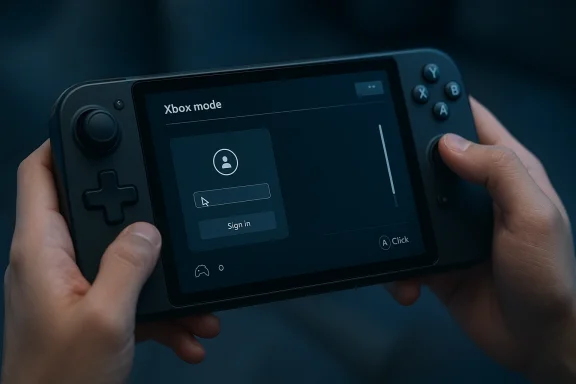
The new Gamepad Cursor appears to be the next step in that evolution. According to the Verge report, it turns the left stick into a virtual mouse pointer and the right stick into scrolling, with the A button acting as click. That makes the feature especially relevant in the places where controller-only navigation falls apart: account sign-ins, web-based launchers, and awkward app panels that were never designed for handheld use. Microsoft’s earlier work on Game Bar already emphasized controller-first navigation; this new cursor adds precision without forcing users to leave the Xbox layer and wrestle with Armory Crate or the underlying Windows desktop.
The timing is also important. Microsoft has been deepening its handheld strategy through Xbox Insider previews, new Game Bar features, and the broader push toward a more seamless Xbox-on-Windows identity. In 2025, Xbox Wire described handheld optimizations as part of the path toward the ROG Xbox Ally and ROG Xbox Ally X, and by 2026 Microsoft was expanding Xbox features further across Windows 11 devices. The company is clearly trying to establish that Xbox mode on Windows is not just an app launcher, but an operating layer for portable gaming.
It also reflects a broader design philosophy. Microsoft is increasingly treating Windows handhelds as a first-class gaming surface, not a compromised laptop substitute. That shift helps explain why features like Compact Mode, Game Bar enhancements, and game-centric overlays are arriving in waves rather than as one-off fixes.
This is especially useful for apps that were designed for desktop Windows first. Many game launchers, account portals, and overlays still assume a mouse exists somewhere nearby. Microsoft’s Gamepad Cursor gives handheld users a native escape hatch when controller focus lands in the wrong place or when a form field refuses to behave.
In practical terms, this means Microsoft is trying to own the interaction layer, not just the launcher. If it succeeds, the Xbox experience could become the most frictionless way to use Windows handhelds, even when the user is outside a game. That is a much bigger ambition than “we added a cursor.”
That is why a virtual mouse can feel less like a gimmick and more like a survival tool. It bridges the gap between controller navigation and the long tail of Windows applications that still do not fully respect controller input. In other words, it acknowledges that a handheld PC is only as good as its worst interaction moment.
The most obvious pain points include:
This layered approach is smart because no single feature solves handheld friction. A compact interface helps with browse-and-launch tasks, but not every app respects controller focus. A virtual keyboard helps with text entry, but not with menu precision. A virtual mouse helps with precision, but not with the need for a simplified environment. Microsoft is effectively building a toolkit, not a one-button answer.
That matters because Game Bar lives at the intersection of the OS and the gaming experience. It can be present without being intrusive, and it can be activated quickly with a controller shortcut. If Microsoft can make Game Bar the default utility layer for handhelds, it strengthens the whole Xbox-on-Windows proposition.
If Microsoft can make its own Xbox mode sufficiently polished, it reduces the need for third-party front ends to carry so much weight. That does not eliminate OEM software, but it does weaken one of its core selling points: the promise of a more console-like experience than Windows can provide on its own.
There are several possible outcomes:
The enterprise story is subtler but still relevant. Windows has always had to balance gaming identity with broader productivity use, and any enhancement to cursor handling, accessibility, or input flexibility can spill over into non-gaming workflows. A better controller-to-pointer bridge can also help in kiosk-style, accessibility, and touch-adjacent scenarios, even if Microsoft is clearly optimizing first for gaming.
That said, Microsoft is clearly not positioning Gamepad Cursor as a general productivity breakthrough. The enterprise relevance is indirect, not primary. Still, any feature that makes Windows more adaptable across input modes strengthens the platform’s broader design story.
Even if this feature was not designed primarily as an accessibility tool, it behaves like one in practice. It reduces the need for fine motor precision in some situations, and it gives users another way to complete tasks when touch, keyboard, or mouse access is awkward or unavailable.
This philosophy also helps explain why Microsoft has been investing in virtual keyboard navigation, quick settings, and tighter Game Bar integration. Each feature reduces the chance that a user gets stuck because the interface only expects one kind of input. That is a more humane design principle than many PC users realize.
The Xbox Insider approach also lets Microsoft compare behavior across devices instead of optimizing for one vendor’s implementation. That matters because the handheld ecosystem is fragmented, and a solution that works beautifully on one device could feel off on another with different stick curves or button layouts.
The likely test questions are straightforward:
The strategic value is that Microsoft can now tell a more convincing story to handheld buyers. Instead of saying, “Here is Windows, and here is a separate vendor shell,” it can say, “Here is a Microsoft-controlled gaming environment that smooths over the roughest edges.” That message is especially compelling for consumers who want PC flexibility without constant configuration hassle.
The Gamepad Cursor helps because it solves a class of problems that breaks immersion. Users do not want to feel like they have abandoned the game and fallen back into a generic desktop just to move through one more menu. If Microsoft can keep those moments inside Xbox mode, it strengthens the illusion of a single, coherent system.
The next stage will likely depend on refinement and integration. If Microsoft can make the cursor feel intuitive, keep the activation path simple, and expose it at exactly the right moments, the feature could become one of those small interface wins that reshapes perception over time. It may never be the headline feature of a launch event, but it could still be one of the details that makes Windows handhelds feel finally finished.
Source: The Verge Microsoft’s new Xbox Gamepad Cursor adds a virtual mouse to handhelds
 Background
For years, Windows handhelds have lived in a strange middle ground. They are PCs, which means they inherit the power and flexibility of Windows, but they also inherit the friction: tiny buttons, dense menus, and apps that assume a mouse is always nearby. Microsoft has spent the last two years steadily sanding down those rough edges, especially through Game Bar, Compact Mode, and the broader Xbox app experience on PC. Xbox Wire first introduced Compact Mode in 2024 as a simplified interface for small screens, controllers, and Windows handhelds, making the case that handheld users needed a more intuitive layer on top of the desktop OS.That work matters because handheld gaming on Windows has become a real category rather than a novelty. Devices such as the ASUS ROG Ally line, Lenovo Legion Go, and newer Xbox-branded handheld efforts have exposed the same tension again and again: gamepad-friendly navigation is essential, but sooner or later users must interact with a launcher, login form, browser overlay, or settings dialog that does not respect controller focus. Microsoft has already been iterating on ways to make Game Bar more useful in these moments, including quick settings, virtual keyboard access, and more compact navigation surfaces.
The new Gamepad Cursor appears to be the next step in that evolution. According to the Verge report, it turns the left stick into a virtual mouse pointer and the right stick into scrolling, with the A button acting as click. That makes the feature especially relevant in the places where controller-only navigation falls apart: account sign-ins, web-based launchers, and awkward app panels that were never designed for handheld use. Microsoft’s earlier work on Game Bar already emphasized controller-first navigation; this new cursor adds precision without forcing users to leave the Xbox layer and wrestle with Armory Crate or the underlying Windows desktop.
The timing is also important. Microsoft has been deepening its handheld strategy through Xbox Insider previews, new Game Bar features, and the broader push toward a more seamless Xbox-on-Windows identity. In 2025, Xbox Wire described handheld optimizations as part of the path toward the ROG Xbox Ally and ROG Xbox Ally X, and by 2026 Microsoft was expanding Xbox features further across Windows 11 devices. The company is clearly trying to establish that Xbox mode on Windows is not just an app launcher, but an operating layer for portable gaming.
Why this feature matters now
This is not simply about convenience. It is about reducing context switching on devices where every extra tap or mode change feels expensive. Handheld users often alternate between launching games, entering credentials, browsing stores, and tweaking settings in rapid succession. A built-in virtual mouse gives Microsoft a way to keep those tasks inside its own ecosystem rather than outsourcing them to third-party utility layers.It also reflects a broader design philosophy. Microsoft is increasingly treating Windows handhelds as a first-class gaming surface, not a compromised laptop substitute. That shift helps explain why features like Compact Mode, Game Bar enhancements, and game-centric overlays are arriving in waves rather than as one-off fixes.
- Controller-first navigation is becoming the default assumption.
- Mouse simulation is the missing bridge for non-game UI.
- Handheld polish now matters as much as raw hardware specs.
- Xbox mode is evolving into a real software differentiator.
- Third-party skins are being challenged by Microsoft’s own layer.
What Microsoft Is Testing
The heart of the new feature is simple: it lets users move a cursor with the left stick, scroll with the right stick, and click with the A button. That sounds modest, but on a handheld it can completely change how the interface feels. Instead of fighting focus-based navigation or trying to pinch a tiny touchscreen element, players can make small, precise movements that feel closer to a trackpad or mouse.This is especially useful for apps that were designed for desktop Windows first. Many game launchers, account portals, and overlays still assume a mouse exists somewhere nearby. Microsoft’s Gamepad Cursor gives handheld users a native escape hatch when controller focus lands in the wrong place or when a form field refuses to behave.
How it differs from existing options
Many handhelds already include vendor-specific cursor tools. Asus, for example, has its own pointer and input helpers inside Armory Crate, and that gives device makers a strong reason to keep their software stack front and center. Microsoft’s answer is to put the function inside Xbox mode and make it accessible from Game Bar, which keeps the experience more consistent across devices. That is a meaningful distinction because it avoids locking the feature to one brand’s utility suite.In practical terms, this means Microsoft is trying to own the interaction layer, not just the launcher. If it succeeds, the Xbox experience could become the most frictionless way to use Windows handhelds, even when the user is outside a game. That is a much bigger ambition than “we added a cursor.”
- Left stick = cursor movement
- Right stick = scrolling
- A button = click/confirm
- Game Bar = activation path
- Xbox mode = the home for handheld control logic
Why Handheld PCs Need This
Handheld Windows devices are wonderfully flexible, but they expose every UI assumption baked into PC software. A desktop PC expects a large display, precise pointer input, and plentiful screen real estate. A handheld, by contrast, is often used one-handed, at odd angles, on a couch, or in a scenario where the user does not want to dock a mouse just to confirm a login box.That is why a virtual mouse can feel less like a gimmick and more like a survival tool. It bridges the gap between controller navigation and the long tail of Windows applications that still do not fully respect controller input. In other words, it acknowledges that a handheld PC is only as good as its worst interaction moment.
The pain points it addresses
Microsoft’s own Game Bar and Xbox app improvements already show how often handheld experiences break down at the edges. Game Hubs, Compact Mode, and quicker navigation all exist because users kept running into awkward transitions between play and setup. The cursor is a similar fix, but one aimed at more precise tasks rather than broad navigation.The most obvious pain points include:
- Login fields that reject controller focus
- In-game overlays that require mouse confirmation
- Web-based account pages
- Storefront pop-ups with tiny buttons
- Game launchers with nested menus
- Settings panels that assume pixel precision
Microsoft’s Broader Handheld Strategy
Seen in isolation, Gamepad Cursor looks like a usability patch. Seen in context, it is part of a much larger push to make Xbox and Windows handhelds feel like a single ecosystem. Microsoft has been steadily building layers: Compact Mode for simplified navigation, Game Bar enhancements for quick access, gaming-specific widgets like Copilot, and now a native cursor mode for precision interaction.This layered approach is smart because no single feature solves handheld friction. A compact interface helps with browse-and-launch tasks, but not every app respects controller focus. A virtual keyboard helps with text entry, but not with menu precision. A virtual mouse helps with precision, but not with the need for a simplified environment. Microsoft is effectively building a toolkit, not a one-button answer.
The role of Game Bar
Game Bar is becoming much more important than it once was. It is no longer just an overlay for screenshots and performance widgets; it is turning into a handheld control center. Microsoft has used it to surface compact navigation, quick settings, and gaming assistance, and now it appears to be extending it into pointer control as well.That matters because Game Bar lives at the intersection of the OS and the gaming experience. It can be present without being intrusive, and it can be activated quickly with a controller shortcut. If Microsoft can make Game Bar the default utility layer for handhelds, it strengthens the whole Xbox-on-Windows proposition.
- Game Bar becomes the command center
- Compact Mode provides the shell
- Gamepad Cursor fills the precision gap
- Virtual keyboard handles text
- Gaming Copilot adds assistance
- Together, they form a cohesive handheld stack
Competitive Pressure on Asus, Lenovo, and Others
The handheld PC market has been shaped by a tug-of-war between Microsoft’s general-purpose OS and device makers’ custom launchers. Asus has Armory Crate, Lenovo has its own Legion software stack, and others have built interfaces meant to hide some of Windows’ complexity. Microsoft’s Gamepad Cursor is a direct response to the argument that OEM layers are necessary because Windows alone is too awkward on handhelds.If Microsoft can make its own Xbox mode sufficiently polished, it reduces the need for third-party front ends to carry so much weight. That does not eliminate OEM software, but it does weaken one of its core selling points: the promise of a more console-like experience than Windows can provide on its own.
What this means for OEM software
For OEMs, this is a mixed development. On one hand, they still control the machine, the cooling design, and the custom controls. On the other hand, Microsoft is moving closer to the user experience, and that can erode the importance of bespoke launchers over time.There are several possible outcomes:
- OEMs double down on differentiating features like profiles, macros, and power management.
- Microsoft’s Xbox mode becomes the main layer, with OEM tools relegated to the background.
- Users mix both systems, choosing whichever is fastest for a given task.
- The best devices integrate Microsoft’s layer cleanly instead of competing with it.
Enterprise and Consumer Impact
The consumer story is obvious: easier navigation, fewer frustrations, and smoother account management on portable devices. For gamers, that translates into less time wrestling with the operating system and more time actually using the handheld as intended. For buyers considering an Xbox-branded Windows handheld, it is another sign that Microsoft is trying to remove the rough edges that traditionally made Windows handhelds feel unfinished.The enterprise story is subtler but still relevant. Windows has always had to balance gaming identity with broader productivity use, and any enhancement to cursor handling, accessibility, or input flexibility can spill over into non-gaming workflows. A better controller-to-pointer bridge can also help in kiosk-style, accessibility, and touch-adjacent scenarios, even if Microsoft is clearly optimizing first for gaming.
Consumer benefits
For consumers, the benefits are immediate and practical. A handheld PC becomes less dependent on accessories and less frustrating when interacting with software that was never handheld-aware. That improves the perceived quality of the whole device, not just the Xbox layer.- Faster login and sign-in flows
- Better compatibility with desktop apps
- Fewer dead ends in controller navigation
- More confidence using handhelds on the go
- Less dependence on touch or external peripherals
- A more console-like feel in Windows
Enterprise spillover
Enterprise users may never touch Game Bar in a gaming context, but they still benefit when Microsoft improves hybrid input behavior. Windows has long needed better handling for environments where a device may be used as a tablet, a portable PC, or a controller-driven endpoint.That said, Microsoft is clearly not positioning Gamepad Cursor as a general productivity breakthrough. The enterprise relevance is indirect, not primary. Still, any feature that makes Windows more adaptable across input modes strengthens the platform’s broader design story.
Accessibility and Input Philosophy
One of the most interesting angles here is accessibility. A virtual cursor controlled by a gamepad is not just a convenience feature; it also broadens how people can interact with the device. Microsoft has long marketed accessibility as a core principle, and handheld navigation is another domain where flexible input methods can remove barriers.Even if this feature was not designed primarily as an accessibility tool, it behaves like one in practice. It reduces the need for fine motor precision in some situations, and it gives users another way to complete tasks when touch, keyboard, or mouse access is awkward or unavailable.
A more flexible interaction model
The broader implication is that Microsoft is leaning into multi-input resilience. Instead of insisting that every task be solved with one perfect method, it is acknowledging that good systems should let users switch fluidly between controller, touch, keyboard, and pointer input. That is especially important on devices with small screens and mixed-use scenarios.This philosophy also helps explain why Microsoft has been investing in virtual keyboard navigation, quick settings, and tighter Game Bar integration. Each feature reduces the chance that a user gets stuck because the interface only expects one kind of input. That is a more humane design principle than many PC users realize.
- More inclusive for varied motor abilities
- Less reliance on external peripherals
- Better fit for couch and travel use
- Smoother transitions between app types
- Reduced friction in mixed-input environments
- Stronger alignment with accessibility goals
The Insider Strategy and Why It Matters
Microsoft is testing the Gamepad Cursor with Xbox Insiders, which is exactly the right way to validate a feature like this. Handheld users are a demanding audience, and their feedback tends to be brutally practical. They will quickly find out whether the cursor feels too slow, too twitchy, too buried in menus, or simply too awkward for real use.The Xbox Insider approach also lets Microsoft compare behavior across devices instead of optimizing for one vendor’s implementation. That matters because the handheld ecosystem is fragmented, and a solution that works beautifully on one device could feel off on another with different stick curves or button layouts.
Why staged rollout is smart
Staged rollout gives Microsoft room to refine the experience before it becomes a mainstream Windows feature. It also creates a feedback loop with the people most likely to notice whether a pointer is genuinely useful or just superficially neat. Microsoft has used this model repeatedly for Game Bar and Compact Mode, so the pattern is familiar.The likely test questions are straightforward:
- Does cursor speed feel natural?
- Is click behavior easy to remember?
- Does scrolling feel precise enough?
- Is activation simple and fast?
- Does it interfere with other Game Bar functions?
- Does it work consistently across handheld hardware?
What It Signals for Xbox on Windows
This feature reinforces a larger truth: Xbox on Windows is becoming a platform, not just an app collection. Microsoft is assembling a coherent stack that spans launcher, overlay, input model, cloud features, handheld optimizations, and gaming assistance. The Gamepad Cursor belongs in that stack because it addresses a real problem inside the user journey.The strategic value is that Microsoft can now tell a more convincing story to handheld buyers. Instead of saying, “Here is Windows, and here is a separate vendor shell,” it can say, “Here is a Microsoft-controlled gaming environment that smooths over the roughest edges.” That message is especially compelling for consumers who want PC flexibility without constant configuration hassle.
The console-likeness question
A lot of the handheld discussion ultimately revolves around how close Windows can get to the feel of a console. Microsoft does not need Windows handhelds to become literal Xbox consoles. It just needs them to feel predictable, fast, and low-friction in the moments that matter most.The Gamepad Cursor helps because it solves a class of problems that breaks immersion. Users do not want to feel like they have abandoned the game and fallen back into a generic desktop just to move through one more menu. If Microsoft can keep those moments inside Xbox mode, it strengthens the illusion of a single, coherent system.
- Less desktop escape
- More in-context control
- Better flow between game and utility
- Stronger Xbox identity
- Cleaner onboarding for new users
- More confidence for handheld-first buyers
Strengths and Opportunities
Microsoft’s approach has several clear strengths. It addresses a real usability issue, fits neatly into existing Xbox and Game Bar flows, and strengthens the handheld story without requiring new hardware. It also has the potential to become a quiet but essential feature that users rely on daily once they discover it.- Reduces friction when controller navigation breaks down
- Fits existing workflows inside Game Bar and Xbox mode
- Improves handheld usability without extra peripherals
- Challenges OEM lock-in by offering a Microsoft-native alternative
- Strengthens accessibility through alternate input paths
- Supports the handheld-first vision for Windows gaming
- Builds on prior investments in Compact Mode and quick settings
Risks and Concerns
The biggest risk is that Microsoft adds another feature that sounds helpful but remains hidden, inconsistent, or under-tuned. A virtual cursor is only valuable if it feels good in real use, and handheld users are quick to abandon tools that appear clever but behave clumsily. Microsoft also has to be careful not to overcomplicate Game Bar with too many small utilities competing for attention.- Discoverability risk if users never find the feature
- Input tuning problems if cursor speed feels wrong
- Fragmentation risk across different handheld hardware
- Overlap with OEM utilities that may confuse users
- Feature bloat if Game Bar becomes too crowded
- Limited value if apps still ignore controller conventions
- Expectation risk if users want a full desktop replacement
Looking Ahead
The most important question is whether Microsoft keeps tightening the handheld experience around Xbox mode, or whether Gamepad Cursor ends up as one more preview feature that never quite becomes habit-forming. Given the company’s recent pattern, the former seems more likely. Microsoft has been building steadily from Compact Mode to quick settings to gaming assistance, and the cursor fits that trajectory too well to be accidental.The next stage will likely depend on refinement and integration. If Microsoft can make the cursor feel intuitive, keep the activation path simple, and expose it at exactly the right moments, the feature could become one of those small interface wins that reshapes perception over time. It may never be the headline feature of a launch event, but it could still be one of the details that makes Windows handhelds feel finally finished.
- Wider rollout beyond Insiders
- Better integration with Game Bar shortcuts
- Smoother tuning across device makers
- Possible expansion to other Windows input contexts
- More handheld-specific Xbox features in future updates
Source: The Verge Microsoft’s new Xbox Gamepad Cursor adds a virtual mouse to handhelds
Last edited:
