

Xbox Full Screen Experience (XFSE) is finally moving beyond the Ally family and into a broader wave of Windows handhelds — and for owners of devices like the ROG Ally, MSI Claw, Lenovo Legion series and similar machines this changes how a handheld boots, runs games, and manages background services. XFSE presents the Xbox PC app as a controller-first, console-style home launcher while trimming many desktop subsystems to free memory and reduce background noise; Microsoft staged the rollout through Windows Insider and OEM-gated updates and made the user-facing toggle available under Settings → Gaming → Full screen experience.
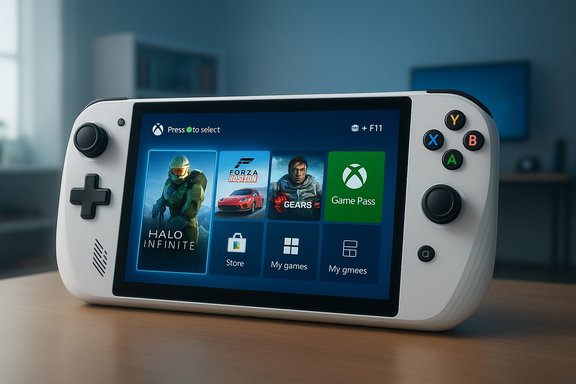
The Xbox Full Screen Experience is a session posture and layered shell that sits on top of Windows 11 rather than a new operating system. In practice, enabling XFSE tells Windows to treat a chosen gaming app (commonly the Xbox PC app) as the device’s home surface and to delay or suppress many Explorer/desktop startup tasks, notifications, and non-essential background services until the user explicitly leaves the full-screen launcher. That design improves controller-first navigation, consolidates games across storefronts, and aims to deliver steadier frame pacing and battery life on thermally constrained handheld APUs.
Microsoft’s rollout strategy has been deliberately staged. The feature was preinstalled on ASUS’s ROG Xbox Ally family, then folded into Windows 11’s 25H2 preview stream via Insider builds (notably builds in the 26220.xxxx family such as Build 26220.7051 / KB5067115), with OEMs gating visibility via server-side entitlements and firmware checks. That means the XFSE plumbing can be present in your Windows build but the Settings toggle might not appear until your OEM enables it for your specific model.
Why this route is risky: these tools edit system-level keys, spoof device form-factor metadata, and sometimes require temporarily bypassing SmartScreen or changing execution policies. The major dangers include interrupted boot/login flows, broken vendor utilities or thermal controls, impaired update paths, anti-cheat or DRM incompatibilities, and potential voiding of OEM support while the system is in a modified state. Community toolmakers commonly advise creating complete system images and having a Windows recovery USB on hand before attempting unlocks.
Caveats: When using non-Microsoft launchers as home apps, some Xbox-first features (Game Pass-focused discovery, cloud-play integration) may be less prominent; also be mindful of input and overlay behavior that OEM firmware and Game Bar expect when XFSE is enabled.
Conclusion: XFSE is a welcome, practical evolution in Windows handheld UX. It gives players a console-style front door to Game Pass and PC games while letting Windows remain Windows underneath — a smart compromise that will likely shape handheld expectations and OEM strategies for the next generation of portable PC gaming.
Source: Windows Central https://www.windowscentral.com/hard...-full-screen-experience-on-windows-handhelds/
 Background / Overview
The Xbox Full Screen Experience is a session posture and layered shell that sits on top of Windows 11 rather than a new operating system. In practice, enabling XFSE tells Windows to treat a chosen gaming app (commonly the Xbox PC app) as the device’s home surface and to delay or suppress many Explorer/desktop startup tasks, notifications, and non-essential background services until the user explicitly leaves the full-screen launcher. That design improves controller-first navigation, consolidates games across storefronts, and aims to deliver steadier frame pacing and battery life on thermally constrained handheld APUs.Microsoft’s rollout strategy has been deliberately staged. The feature was preinstalled on ASUS’s ROG Xbox Ally family, then folded into Windows 11’s 25H2 preview stream via Insider builds (notably builds in the 26220.xxxx family such as Build 26220.7051 / KB5067115), with OEMs gating visibility via server-side entitlements and firmware checks. That means the XFSE plumbing can be present in your Windows build but the Settings toggle might not appear until your OEM enables it for your specific model.
What XFSE changes — the user-facing and technical impact
The user-facing differences
- A full-screen, tile-based home launcher (the Xbox PC app by default) that aggregates Game Pass, Xbox purchases and many installed games into a single, controller-navigable grid.
- Controller-first navigation with larger focus targets, an on-screen controller keyboard, and input flows that prioritize thumbsticks and bumpers over mouse/keyboard interactions.
- Quick entry/exit via Game Bar, Task View, or the Win + F11 toggle, and an option to enter XFSE on startup so a handheld can boot straight into a console-like hub.
The technical posture XFSE adopts
- XFSE does not change the kernel, driver model, or anti-cheat/DRM systems. Instead it changes which userland components load at session start: Explorer initialization is deferred, many desktop ornaments are skipped, and certain scheduled maintenance/background tasks are muted while the full-screen session is active.
- These adjustments reduce idle CPU wakeups and reclaim RAM that desktop subsystems would otherwise consume — independent tests and hands-on reporting commonly cite directional memory savings often on the order of 1–2 GB on tuned handhelds, though results vary widely by device, installed services, drivers and OEM software. Treat such numbers as indicative, not guaranteed.
The official, supported setup path (step-by-step)
If your handheld has been enabled by your OEM or you’re on the appropriate Insider preview channel, enable XFSE through Windows Settings — this is the safest and supported route.- Update Windows to the required build (XFSE plumbing appeared in 25H2 Insider preview builds such as Build 26220.7051 / KB5067115).
- Update the Xbox PC app and Game Bar via Microsoft Store so handheld UI components are up to date.
- Open Settings → Gaming → Full screen experience.
- In the “Set your home app” dropdown choose Xbox (or another compatible launcher if listed).
- Optionally toggle Enter full screen experience on startup to boot directly into XFSE.
- Restart the machine to confirm the change and test entering/exiting XFSE via Task View, Game Bar (Win + G) or Win + F11.
Trying XFSE now on devices that haven’t been enabled: community alternatives and risks
For enthusiasts who don’t want to wait, community tooling has emerged to expose XFSE on unsupported devices. Two common community approaches are:- A packaged GUI installer (distributed via GitHub) that automates the registry tweaks and feature-flag toggles needed to surface the compact handheld UI.
- Manual use of ViVeTool to flip internal feature flags combined with a registry edit marking the device as a handheld (DeviceForm tweak), followed by reboots and store updates.
- Download ViVeTool and extract it.
- Run an elevated Command Prompt in the ViVeTool folder and enable suggested feature IDs used by hands-on guides (examples that appear frequently in community reporting include IDs used to surface the compact handheld UI).
- Edit the registry at HKEY_LOCAL_MACHINE\SOFTWARE\Microsoft\Windows NT\CurrentVersion\OEM and create or edit a DWORD named DeviceForm, setting it to 0x2E (hex) or 46 (decimal).
- Reboot and look for Settings → Gaming → Full screen experience; if present, choose Xbox and enable on-startup.
Why this route is risky: these tools edit system-level keys, spoof device form-factor metadata, and sometimes require temporarily bypassing SmartScreen or changing execution policies. The major dangers include interrupted boot/login flows, broken vendor utilities or thermal controls, impaired update paths, anti-cheat or DRM incompatibilities, and potential voiding of OEM support while the system is in a modified state. Community toolmakers commonly advise creating complete system images and having a Windows recovery USB on hand before attempting unlocks.
How to mimic XFSE with a different launcher (Playnite and other front-ends)
Some users prefer a different console-style front end and want that to be the default home app instead of Xbox. The short path is:- Install your chosen launcher (for example, Playnite).
- Configure the launcher to start in full-screen mode.
- Use the Settings → Gaming → Full screen experience control to select your launcher as the home app (when available), or use community tools to map that launcher to XFSE’s home-app control on devices where the toggle is hidden.
Caveats: When using non-Microsoft launchers as home apps, some Xbox-first features (Game Pass-focused discovery, cloud-play integration) may be less prominent; also be mindful of input and overlay behavior that OEM firmware and Game Bar expect when XFSE is enabled.
Exiting XFSE and recovery best practices
XFSE is designed to be reversible and to allow access to the regular desktop. Common exit paths:- While inside XFSE, use your finger to swipe up from the bottom and tap Windows desktop → Continue to return to the desktop.
- Use Task View (Win + Tab) or Game Bar (Win + G) overlays to switch sessions.
- Press Win + F11 to toggle in/out of full-screen experience on many devices.
- Create a full system image and a Windows recovery USB.
- Ensure you can boot to Safe Mode or use Windows installation media to restore system images or run a repair.
- If you use ViVeTool or a community package, document the exact steps so you can reverse them; reputable community tools include a Disable & Restore option.
Measured benefits and the real-world picture
Independent hands-on tests and outlet reporting show meaningful but variable gains from XFSE:- Many tests report reclaimed memory on the order of ~1–2 GB when the desktop/explorer subsystems are skipped at session start; that freed memory is particularly valuable on handhelds with 8–16 GB of RAM.
- Some benchmarks and real-world runs show better frame pacing or modest FPS uplifts in thermal/power-constrained scenarios because reduced background activity decreases CPU wakeups that can interrupt game threads.
OEM strategies and market implications
Microsoft’s choice to implement XFSE as a layered shell instead of a replacement OS preserves Windows openness while offering OEMs a standardized controller-first UX to ship on handhelds. That has several consequences:- OEMs can market devices as “handheld-first” with built-in console-like startup behavior; ASUS shipped the ROG Xbox Ally family with XFSE preinstalled. MSI’s Claw series and other partners have been added to preview waves, and some vendors have publicly signaled later timelines for select models (for example, Lenovo mentioned spring 2026 windows for some Legion hardware).
- A standardized XFSE reduces the need for OEMs to create bespoke shells, but it also concentrates discovery and Game Pass exposure through Xbox-branded surfaces — a strategic benefit for Microsoft and a shift OEMs must weigh when differentiating their devices.
Troubleshooting: common problems and fixes
- XFSE toggle missing: confirm Windows build (25H2 preview family), update Xbox PC app/Game Bar, and check for OEM firmware updates. If still missing, the device may be waiting for a server-side OEM enablement.
- Games or overlays misbehaving: update GPU drivers and OEM utilities (Armoury Crate, Control Center, etc.. If an overlay or anti-cheat fails only in XFSE, test the game from desktop mode to narrow the cause.
- Controller not recognized at boot into XFSE: confirm controller drivers and Xbox Accessories app are up to date; for wireless controllers check pairing and battery. If locked out after an unsupported mod, use recovery USB or restore image.
Safety checklist before attempting XFSE (official or community route)
- Create a full disk image or system restore point.
- Have Windows installation media / recovery USB at hand.
- Update all drivers (GPU, controllers) and OEM utilities.
- Read community tool documentation and verify release checksums where available.
- Be prepared to revert Insider builds or perform a clean install if you rely on the device for daily work.
Verdict — who should enable XFSE and when
XFSE is a pragmatic, well-targeted improvement for handheld Windows gaming: it reduces friction, improves controller-first navigation, and can reclaim system resources on constrained hardware. Owners of handhelds that have XFSE enabled by the OEM should try the mode and measure the effects on their most-played titles. Enthusiasts willing to test preview builds or carefully use community unlockers can get early access, but they should be prepared with backups and recovery plans. Casual users or those dependent on guaranteed OEM support should wait for official enablement to avoid unnecessary risk.Final thoughts and practical recommendations
- If your handheld already shows the XFSE toggle: update everything (Windows, Xbox app, Game Bar), enable XFSE via Settings → Gaming → Full screen experience, and test launch times, memory usage and frame stability across a few favorite games to judge real benefits for your hardware.
- If your handheld does not yet have XFSE: be patient for OEM updates, or only proceed with community unlocks after creating a full backup and understanding reversal steps. Community tools can be handy for enthusiasts but are not a substitute for official support.
- If you prefer a third-party launcher, use Playnite or another front end and pair it with XFSE or a community method to have your custom full-screen library at boot — but recognize some Microsoft-first features (Game Pass cloud access, Xbox discovery) will be more prominent if you keep the Xbox app as the home app.
Conclusion: XFSE is a welcome, practical evolution in Windows handheld UX. It gives players a console-style front door to Game Pass and PC games while letting Windows remain Windows underneath — a smart compromise that will likely shape handheld expectations and OEM strategies for the next generation of portable PC gaming.
Source: Windows Central https://www.windowscentral.com/hard...-full-screen-experience-on-windows-handhelds/
