• Thread Author
Microsoft’s Xbox Full Screen Experience (FSE) will change how Windows handhelds behave: starting November 21, 2025 Microsoft is rolling out a controller‑first, console‑style shell that can boot directly into the Xbox PC app, trim desktop overhead, and present a thumb-friendly launcher on compatible Windows 11 handheld devices. This is not a fork of Windows but a session posture layered over the OS that aims to reduce idle CPU wakeups, reclaim system memory, and provide a seamless Game Pass, cloud gaming and local‑library front end — all navigable with a gamepad. Early adopters and OEM partners such as ASUS (ROG Xbox Ally family) and MSI (Claw preview) have been central to testing and refinement, and Microsoft is using staged Insider and OEM enablement to expand availability while it collects telemetry and fixes edge cases.

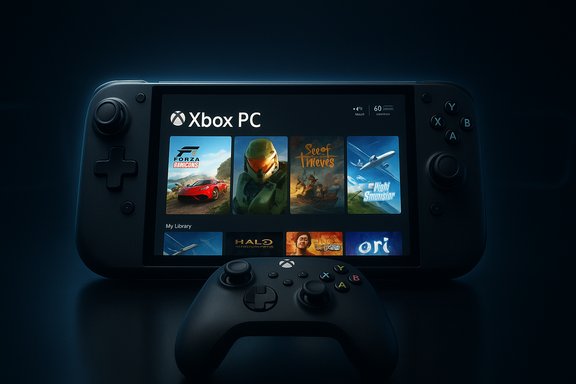
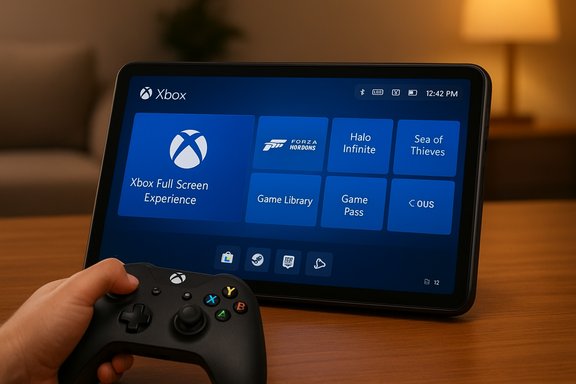
A handheld game console displaying the Xbox home screen.Overview​

Microsoft’s Full Screen Experience is designed to make Windows handhelds behave more like a dedicated console: large tiles, controller-first navigation, and fewer intrusive desktop services. Under the hood Windows remains intact — drivers, kernel and anti‑cheat frameworks continue to run — but when FSE is enabled the system intentionally defers or suppresses non‑essential desktop components and background startup tasks so more resources remain available for games and cloud streaming. That approach preserves Windows’ openness (Steam, Epic, GOG, Battle.net remain usable) while reducing friction for on‑the‑go gaming. The capability was shipped preinstalled on the ASUS ROG Xbox Ally and ROG Xbox Ally X and has been widened through Windows Insider Preview channels for select OEMs.

Background: why Microsoft built FSE​

Windows has long been optimized for keyboard/mouse productivity, not thumb‑friendly handhelds. Small displays, tight thermal envelopes, and the need for instant, controller‑based navigation produce friction on pocketable Windows PCs. Handheld users face tiny UI elements, notifications that interrupt play, and a full desktop stack that can steal memory and produce micro‑stutters.
FSE addresses those pain points by offering:
  • A full‑screen, controller‑optimized launcher (the Xbox PC app by default) that aggregates Game Pass, Microsoft Store purchases and discovered titles from other launchers.
  • Controller‑first system navigation (Game Bar, Task View, on‑screen controller keyboard, Xbox‑button integrations).
  • Session policies that defer many desktop services and startup apps while the full‑screen posture is active, reclaiming RAM and reducing background CPU activity.
This is a pragmatic engineering trade: not a replacement OS, but a lean session that gives handheld hardware the best chance of steady framerates and better battery life without breaking access to the broader PC game ecosystem.

What shipped and what’s launching on November 21, 2025​

Microsoft has moved the FSE components into Windows 11’s 25H2 preview stream and is gating visibility with OEM entitlements and staged feature‑flagging. The Windows Insider Preview Build most closely associated with this capability is Build 26220.7051 (KB5067115), which surfaced FSE expansion, Ask Copilot taskbar integration, and a Shared Audio preview. ASUS’ ROG Xbox Ally family shipped with FSE preinstalled; MSI Claw models entered preview rolls via the Insider channels. On November 21, 2025 Microsoft is scheduled to make the Xbox Full Screen Experience broadly available for compatible Windows handhelds (those running Windows 11 version 25H2 or later that meet OEM/hardware prerequisites). Key confirmed release facts:
  • Official rollout date: November 21, 2025.
  • Insider preview: Build 26220.7051 (KB5067115) contains FSE plumbing and Settings controls.
  • Initial OEMs: ASUS (ROG Xbox Ally & Ally X shipped with FSE), MSI Claw entered preview; further OEM enablement forthcoming.

Technical underpinnings: how FSE works (concise)​

FSE is a layered shell — a session posture implemented with existing Windows 11 components and policy controls. It does not alter the kernel or replace drivers, but it changes what the session loads and how certain subsystems behave.
What FSE changes at boot and runtime:
  • Sets a chosen “home app” (Xbox PC app by default) as the full‑screen launcher.
  • Defers loading of some Explorer ornamentation and non‑essential desktop services until the user switches out of FSE.
  • Pauses or delays some background maintenance and notifications to avoid interruptions while gaming.
  • Adapts Game Bar, Task View and input flows for controller navigation and integrates Xbox‑button mappings where available.
Measured, realistic impacts:
  • Independent previews and Microsoft materials cite reclaimed RAM on tuned handhelds in the range of roughly 1–2 GB in favorable scenarios; this is a directional engineering benefit, not a universal guarantee. Results vary by device, driver maturity, installed software and runtime profile.
Caveat on performance claims: some early pieces and company messaging suggested improvements to battery life and thermal behavior. These improvements are plausible because reducing background processes reduces idle CPU wakeups, but the exact percentage gain depends heavily on hardware, firmware, and the workloads run. Any single percentage (for example, “20% battery improvement”) should be treated as an optimistic estimate until validated on the specific hardware configuration. This claim remains variable and user reports differ.

How to enable the Full Screen Experience (official, supported method)​

Microsoft and OEMs gate the rollout; the safest way to enable FSE is to follow official steps. The sequence below reflects Microsoft’s published guidance in the Insider release and the Settings path exposed on supported hardware.
  • Confirm device eligibility: device shipped with or is explicitly enabled by OEM for FSE (ROG Xbox Ally family, preview MSI Claw models, others as enabled).
  • Update Windows: install Windows 11 version 25H2 or a Windows Insider Preview build that includes the FSE plumbing (Build 26220.7051 / KB5067115 where applicable).
  • Open Settings → Gaming → Full screen experience.
  • Choose a home app (Xbox PC app is listed by default) and toggle “Enter full screen experience on startup” if desired.
  • Enter/exit FSE via Task View, Game Bar (Win + G), or the Xbox button mapping on devices that include it.
Advanced: community tools and registry edits exist (ViVeTool flags and other tweaks) and have been widely shared, but they bypass vendor testing and can create unstable or unsupported states. Use such methods only with full backups and recovery media.

Real‑world behavior: early hands‑on reports and community feedback​

Hands‑on coverage and community testing show clear UX wins — larger UI targets, less “launcher hopping,” and a more immediate, console‑like experience for casual sessions. Early reviewers praise the reduction in desktop noise and the convenience of booting directly to a controller‑first launcher on devices built with that intent. Retail ROG Xbox Ally units shipped with the mode active and delivered the expected seamless experience in many cases. At the same time, public community threads and Insider testers report variability:
  • Some users find the navigation smooth and the library aggregation helpful; others report laggy menus or controller mapping quirks on non‑tuned devices.
  • Compatibility with third‑party launchers and anti‑cheat systems can be spotty until drivers and vendor firmware mature.
  • Community unlocks (ViVeTool registry hacks and GitHub one‑click tools) have allowed many to test FSE on unsupported hardware — but these paths can break overlays, disturb input mapping, or create recovery scenarios that require reinstalling Windows.
These early signals align with Microsoft’s staged rollout approach: the binaries live in the 25H2 builds but OEM enablement, telemetry and firmware tuning are essential parts of delivering consistent quality.

Strategic implications: Game Pass, OEM partnerships and the competition​

Microsoft’s FSE rollout is a strategic effort to position Windows handhelds as console‑like endpoints in the Xbox ecosystem. Key implications:
  • Game Pass adoption: a flatter, controller‑first interface that surfaces Game Pass titles and cloud gaming reduces friction for subscription discovery and day‑one play. Making the Xbox PC app the home app is a strategic nudge toward Xbox services. This could increase Game Pass engagement on handhelds where the UX was previously a barrier.
  • OEM partnerships: ASUS’ ROG Xbox Ally franchise served as the early reference device and a real‑world testbed. Microsoft’s ability to deliver the same shell across multiple OEMs (ASUS, MSI, Lenovo in planning) without fragmenting the Windows ecosystem is the key to scaling the experience. OEM firmware and driver tuning will determine whether the experience is consistently good.
  • Competitive pressure: Valve’s Steam Deck and SteamOS have pushed the handheld format forward with a Linux‑centric approach optimized for controllers and offline play. Microsoft’s advantage is Windows’ compatibility and Xbox services. By layering a console‑style shell on Windows, Microsoft seeks to combine the openness of PC gaming with the plug‑and‑play simplicity of a console. That duality is Microsoft’s primary strategic bet.

Strengths and opportunities​

  • Console‑like UX without losing Windows openness: FSE delivers a familiar, controller‑first launcher while allowing users to return to a full Windows desktop for productivity and third‑party clients. This is a major UX win for handheld form factors.
  • Measurable runtime gains: Deferring desktop services has a practical, testable effect on memory and idle CPU behavior; on tuned devices this can translate into steadier frame pacing and modest battery benefits. Independent reports and Microsoft’s preview notes converge on reclamation figures in the 1–2 GB range for favorable configurations, which matters on systems with constrained RAM budgets.
  • Ecosystem leverage for Game Pass and cloud gaming: surfacing subscription and cloud titles directly in a full‑screen home reduces friction for trial and retention.

Risks, limits and unanswered questions​

  • Variability by hardware and drivers: the mode’s benefits depend heavily on OEM firmware, GPU drivers, and anti‑cheat integration. Early community reports show some titles and launchers behaving inconsistently until vendors push tuned updates. This variability is the chief operational risk.
  • Anti‑cheat and DRM: FSE does not change the underlying anti‑cheat or DRM requirements. Some competitive titles with strict anti‑cheat might behave differently when booted from alternate launchers or when components are deferred. This remains an area for cautious validation, especially for competitive gamers.
  • Community unlocks and warranty/support exposure: registry and ViVeTool methods proliferated quickly; while they let enthusiasts experiment, they also create states that OEM support may not cover. Microsoft and OEMs recommend using official Insider and vendor paths.
  • Monetization and platform control questions: surfacing Game Pass and Xbox services more prominently will drive subscription engagement, but it may also raise questions among rival storefronts and developers about discoverability, platform economics and parity of experience across storefronts. The aggregated library behavior involves orchestration and sometimes handing off to native clients for DRM/anti‑cheat — this hybrid behavior needs clear developer guidance.

Practical guidance for owners and buyers​

  • If buying a handheld primarily for an out‑of‑the‑box console‑like experience, prefer OEM‑enabled devices that ship with FSE (ROG Xbox Ally family is the clearest example at launch). These will get the best firmware tuning and support.
  • If using a current handheld you depend on daily, prefer the official Insider/OEM path for FSE previews. Avoid community unlocks unless comfortable with full system backups and recovery USBs.
  • For competitive or anti‑cheat sensitive play, validate each game on your device and wait for vendor‑validated images if reliability matters. Test multiplayer titles on the supported path before assuming parity.
  • Keep firmware/drivers updated via OEM channels. Much of the experience quality comes from device‑specific tuning of power and GPU drivers.

Developer and platform considerations​

Microsoft has published guidance and a Handheld Compatibility Program to help developers optimize UI and text legibility for small screens, and to mark titles as Handheld Optimized or Mostly Compatible. Developers should prioritize:
  • Controller mapping and input handling testing in low‑resource, handheld thermal envelopes.
  • Clear compatibility metadata so users understand expected behavior before install or purchase.
  • Testing with the Xbox aggregated library flow and native client handoffs to ensure DRM and anti‑cheat launch paths do not break.
The developer and OEM ecosystems will decide how quickly the experience stabilizes across models.

Where this leaves the market​

Microsoft’s Full Screen Experience is the clearest, most coordinated attempt yet to make Windows handhelds genuinely usable in a controller‑first world without sacrificing the breadth of the Windows gaming ecosystem. For consumers it promises a simpler, more immediate path to gaming on pocketable PCs; for Microsoft it’s a strategic lever to increase Game Pass engagement and to make Windows the default handheld platform.
Expect a period of iteration: staged rollouts, firmware updates, and developer updates will be required to bring parity between the best, shipped experience on devices designed for FSE (ROG Xbox Ally) and broader adoption across diverse Windows handheld hardware. The next several months will show whether the engineering tradeoffs produce the consistent, low‑friction experience Microsoft intends, or whether fragmentation in drivers and anti‑cheat will keep handheld Windows a hobbyist space for longer.

Final assessment​

The Xbox Full Screen Experience is a pragmatic, well‑scoped engineering solution that addresses a familiar pain point: Windows’ desktop legacy is a poor fit for pocketable, controller‑driven gaming. By inserting a full‑screen, Xbox‑centric shell that conserves resources and prioritizes controller navigation, Microsoft has created a product pathway that can unify handheld UX while preserving PC openness. The strategy’s success will hinge on three practical factors: OEM firmware and driver maturity, clear anti‑cheat and DRM behavior, and Microsoft’s ability to scale the experience across OEM partners without fracturing the Windows platform.
For early adopters with supported hardware, FSE offers a clear and immediate benefit. For the broader market, it is a promising step that requires careful validation and time. The official rollout on November 21, 2025 is the start of that larger test.
Microsoft, OEMs, and developers will continue iterating: expect firmware and Windows updates, clearer compatibility tags, and new developer tools targeted at handheld optimization in the weeks and months ahead.

Source: WebProNews Microsoft Launches Xbox Full Screen for Windows Handhelds on Nov 21, 2025
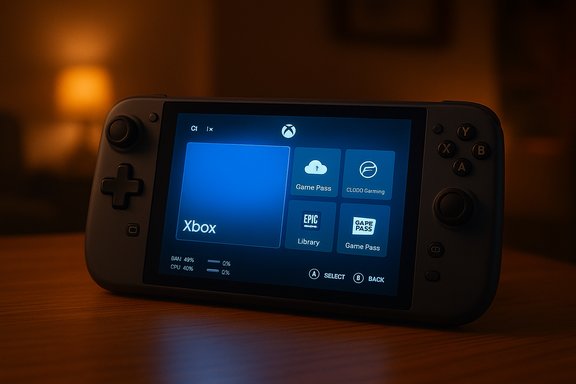
 

Microsoft’s Xbox Full Screen Experience (FSE) is rolling out beyond the ROG Xbox Ally family and into a broad, staged release for Windows 11 handhelds — a deliberate attempt to make Windows handhelds behave more like consoles by booting directly into a full-screen Xbox home, trimming desktop overhead, and prioritizing game performance and controller-first navigation.

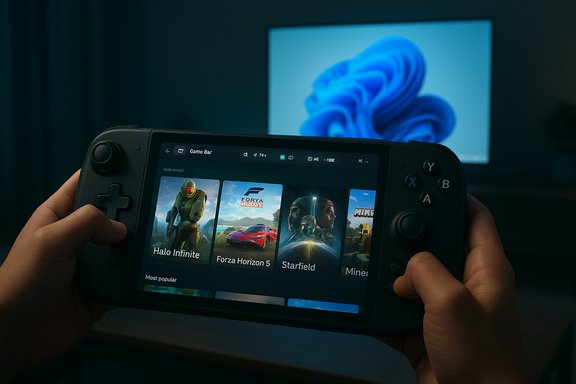
A handheld gaming device displaying the Xbox PC game library.Background / Overview​

Microsoft first shipped the Full Screen Experience as a defining, preinstalled feature on the ASUS ROG Xbox Ally lineup, positioning it as the console‑style front end that would reduce friction on small, controller-driven devices. Over recent months the company moved the FSE plumbing into Windows Insider preview builds and then signaled a consumer-facing expansion that began November 21, when Microsoft opened FSE to all supported Windows handhelds and to wider preview access through Xbox and Windows Insider channels. At a high level, FSE is a session posture layered on top of Windows 11 rather than a replacement operating system. When enabled for a sign‑in session, Windows will launch a designated “home app” (the Xbox PC app is the default) as a full-screen shell, intentionally deferring or suppressing many of the usual Explorer desktop elements and background processes to free resources for games and provide a controller-first UI. That makes the feature particularly relevant for handheld PCs with tight thermal and memory envelopes.

What the Full Screen Experience actually does​

A shell, not a new OS​

FSE is implemented as an alternate session shell: it changes which user‑land components start at login and which UI is presented, but it does not alter the kernel, drivers, anti‑cheat systems, or other low‑level platform services. The system still runs on the same Windows 11 kernel and driver stack; the difference is what appears to the user and which startup services are deferred while in the FSE session.

What gets suppressed or deferred​

  • The traditional Explorer shell (desktop wallpaper, taskbar ornaments) is not the active foreground shell during an FSE session.
  • Many non‑essential background apps and startup processes are delayed until the user returns to the desktop.
  • Notifications and desktop‑centric interruptions are muted to reduce in‑game distractions.
    These changes are intended to reduce idle CPU wakeups and reclaim memory that would normally be consumed by desktop artifacts.

What’s elevated​

  • The Xbox PC app becomes the home launcher with a tiled, controller‑friendly library that aggregates Game Pass, Microsoft Store titles, and discovered installed games from third‑party storefronts such as Steam and Battle.net.
  • Game Bar receives tighter integration and a redesigned overlay for quick switching, captures, and performance controls.
  • A new Task Switcher optimized for handheld navigation enables fast switching between running games and returning to the desktop without a full reboot.

Devices, rollout mechanics, and system requirements​

Who gets it first​

The most visible early adopters were ASUS’ ROG Xbox Ally and Ally X, which shipped with FSE preinstalled. Microsoft widened preview access to MSI Claw models and signaled additional OEMs (including mainstream handheld manufacturers and specialist vendors) would be enabled through staged updates and OEM gating. The public-facing phase began November 21, when Microsoft and its Insider channels made the feature available more broadly to compatible handhelds.

Windows build and app prerequisites​

Microsoft’s support documentation lists FSE compatibility with Windows 11 version 24H2 and 25H2 builds; the feature depends on the Xbox PC app from the Microsoft Store and recent Insider preview plumbing for broader device support. OEMs can gate the experience per device, so availability may vary by model until vendors ship validated firmware and driver updates.

How Microsoft is rolling it out​

  • Stage 1: Preinstalled on partner devices (ROG Ally family).
  • Stage 2: Controlled preview via Windows Insider on select non‑Ally handhelds (MSI Claw and others).
  • Stage 3: General availability for “all Windows handhelds currently in market,” gated by OEM entitlements and feature‑flagging; wider PC form factors get preview access through Xbox and Windows Insider programs.

Verifying the headline claims: performance, memory, and UX​

Microsoft and third‑party outlets describe FSE as a performance‑focused session posture. Several independent outlets and hands‑on reports have documented material, but variable, benefits:
  • Memory reclamation: Multiple outlets quote roughly a 2 GB memory saving on some devices when the FSE shell skips Explorer and defers background services. This figure is treated as an empirical observation rather than a universal guarantee — it depends on the device, installed apps, and what services were active before enabling FSE.
  • Reduced background contention: The mode reduces desktop noise — fewer idle processes and less compositor overhead — which can translate into fewer frame drops and a steadier frame‑time profile on thermally constrained APUs. Independent reviews and community testing show measurable minimum‑FPS improvements in some titles, but outcomes vary widely by game engine, driver maturity, and thermal limits.
  • UX and time‑to‑game: Booting straight into the Xbox app shortens the path from power‑on to play for casual sessions and provides a controller‑first discovery surface that mirrors console flows more closely than a desktop. Several outlets reported that task switching and navigation feel faster on small screens thanks to larger targets and an Xbox‑button guided Task Switcher.
Caveat: Microsoft’s official documentation describes the optimization behavior but does not publish a universal “2 GB saved” guarantee. That number originates in early hands‑on testing and press reporting; treat it as a typical observed outcome on specific devices rather than an immutable specification.

How to enable, exit, or replace FSE (practical how‑to)​

Microsoft surfaced the controls directly in Settings to simplify adoption:
  • Open Settings → Gaming → Full screen experience.
  • Under “Set your home app” choose Xbox (or another supported launcher) to make that app the FSE home.
  • Optionally enable “Enter full screen experience on startup” to boot directly into the Xbox home on login.
You can also enter and exit FSE via Task View, Game Bar, or the Windows + F11 hotkey. Exiting the mode returns you to the full Windows desktop without rebooting. Microsoft’s support documentation lays out these exact controls and the recommended startup behavior. If you prefer an alternative launcher, community tools and guides explain how to disable FSE or set a different full‑screen home app (Playnite, Steam Big Picture, LaunchBox, etc.. Some third‑party utilities offer a one‑click enable/disable for the hidden FSE plumbing on builds where the Settings toggle isn’t present, but community tools carry risks — use them only if you understand how to restore system state and have backups.

Strengths: why this matters for Windows handhelds​

  • Better out‑of‑box console‑like UX: For casual play and Game Pass subscribers, the unified home and large‑tile navigation tighten the experience and make handhelds approachable for non‑PC enthusiasts.
  • Measurable runtime gains on constrained hardware: On devices with limited RAM and conservative thermal budgets, deferring desktop services can free memory and reduce background CPU wakeups, improving minimum FPS stability in some real‑world scenarios.
  • Preserves compatibility: Because FSE is a shell layer, Windows’ openness and compatibility with Steam, Epic, Battle.net, and PC DRM/anti‑cheat remain intact. Users can exit to the desktop whenever needed for installs, driver updates, or productivity tasks.
  • Faster time‑to‑play and focused sessions: Booting straight to Xbox and muting desktop noise reduces friction for short play sessions, which is precisely what handheld gamers expect.

Risks, limitations, and unanswered questions​

  • Variable performance gains: Reported memory savings and FPS improvements are device dependent. SteamOS/Steam Deck and other Linux solutions still lead in some sustained‑performance scenarios because those platforms can be optimized at the OS level; FSE is a pragmatic, user‑space optimization and not a wholesale OS rewrite. Treat headline performance numbers as indicative, not guaranteed.
  • OEM‑gated availability and fragmentation: Microsoft is gating FSE per OEM and using staged feature flags. That means not every handheld will get FSE immediately; timing depends on vendor testing cycles and validated driver packages. Buyers should expect a staggered, model‑by‑model availability rather than a simultaneous universal flip.
  • Third‑party tools and community hacks: Enthusiasts built utilities that exposed hidden FSE plumbing before broad official rollout. Those tools can be useful for experimentation but increase the risk of instability, driver mismatches, or update friction — especially on non‑validated devices. Prefer official OEM updates when possible.
  • Edge cases with apps and services: Some background services or enterprise management agents may expect desktop startup behavior and could behave unexpectedly if deferred by FSE. Systems used for both gaming and enterprise workloads should be validated before enabling auto‑startup into FSE. Microsoft’s support guidance emphasizes that FSE is optional and reversible.
  • Anti‑cheat and mitigations: Microsoft keeps kernel and driver stacks intact, but unusual session postures can expose new compatibility edges for anti‑cheat drivers or overlays. Vendors and game publishers will need to confirm compatibility on a title‑by‑title basis; users should watch for driver and game updates.

Community reaction and the ecosystem of tools​

The reaction has been mixed but constructive. Enthusiasts welcomed the official toggle and the UX improvements, noting that many had already used registry edits or community tools to approximate the same experience. Critics highlighted that a polished, consistent experience requires OEMs and Microsoft to coordinate on drivers, firmware, and validated updates, otherwise the fragmented nature of Windows handhelds will lead to varied results. Community projects — including one‑click GUI utilities on GitHub and utilities like AnyFSE discussed in community guides — helped prove demand and served as lab tests for Microsoft. While such projects accelerated discovery and feedback, Microsoft’s staged, OEM‑gated rollout is the safer path for mainstream users.

How FSE compares to alternative approaches​

  • Versus Steam Big Picture / SteamOS: SteamOS is an OS-level approach optimized for games; it can outperform a trimmed Windows session in thermally constrained scenarios because it controls the whole stack. FSE’s strength is that it preserves the Windows ecosystem (compatibility, Game Pass, Windows-native titles) while improving the session experience for handhelds. The choice between SteamOS and Windows+FSE remains one of tradeoffs: pure performance vs. software breadth and convenience.
  • Versus OEM skins: Many OEM launcher skins attempt to provide a console-like front end; FSE has the advantage of being a Microsoft‑maintained, integrated session posture with official support channels and Settings toggles. That should make it easier for developers, publishers, and OEMs to produce consistent experiences.

Practical advice for users and power users​

  • Wait for OEM‑validated updates: If you own a mainstream handheld (Lenovo Legion Go lineage, MSI Claw, AYANEO, etc., watch your OEM support channels for validated updates that package FSE with tested drivers and firmware. Early adopters who rely on community tools should maintain a tested recovery plan.
  • Test with the games you play: Gains are title‑dependent. Try your most demanding or latency‑sensitive games in FSE and compare performance, frame‑time stability, and battery life to the standard desktop session before committing to boot‑to‑FSE on startup.
  • Manage startup apps deliberately: When “Enter full screen experience on startup” is enabled, Windows defers many startup apps — use Settings → Apps → Startup to set critical services to “Start at log in” if they must run during FSE sessions. Microsoft documents this exact management path.
  • Use official channels for feedback: Microsoft and Insiders want telemetry and Feedback Hub reports — use these official channels rather than third‑party workarounds for wider impact and better OEM tracking.

Strategic view: what FSE means for Windows handheld gaming​

FSE is a pragmatic engineering compromise: rather than fragmenting Windows into a separate console OS, Microsoft created a configurable, reversible session posture that delivers many of the UX and runtime benefits console users expect. That positions Windows handhelds to be more competitive with purpose‑built gaming systems by reducing the friction that previously made Windows feel unwieldy on small, battery‑limited devices. For Microsoft, the move tightens the relationship between the Xbox PC app and Windows as a gaming platform — a strategic shift that makes Game Pass and the Xbox ecosystem a central discovery surface for PC gaming on handhelds. For OEMs, it creates a common baseline feature to build around and market; for developers and publishers, it reduces a class of performance and input complaints that previously arose from desktop noise on handhelds. However, the long‑term success of FSE will depend on consistent OEM implementations, timely driver and firmware updates, and continued attention to game compatibility and anti‑cheat behavior. If Microsoft and partners keep iterating, FSE can meaningfully improve Windows’ handheld story; if the rollout remains fragmented, the benefits will be limited to early‑adopter models and enthusiast communities.

Conclusion​

The Xbox Full Screen Experience is a significant, sensible step to make Windows handhelds feel more like consoles without abandoning Windows’ strengths. It rethinks the session layer rather than the kernel, providing a controller‑first launcher, tighter Game Bar and Task Switcher integration, and tangible runtime optimizations that can benefit memory‑ and thermally‑constrained handheld devices. Early reports of roughly 2 GB of reclaimed memory and improved minimum frame rates are promising, but those gains are device‑ and configuration‑dependent — users should validate results on their own hardware and prefer OEM‑sanctioned updates. In short, FSE modernizes the entry point to games on Windows handhelds and brings Microsoft closer to the console UX that many players expect, while preserving the openness and compatibility that make Windows attractive to PC gamers. The rollout that began on November 21 is the start of a broader push; whether FSE becomes the de facto way to play on Windows handhelds depends on consistent OEM adoption, driver maturity, and how publishers respond to this session‑first model.
Source: TechJuice Microsoft Introduces Xbox Full Screen Mode to Boost Gaming Speeds on Windows Devices
 

Microsoft is rolling its Xbox Full Screen Experience (FSE) out to a broader set of Windows 11 PCs via the latest Insider Preview, bringing a console‑style, controller‑first shell to desktops, laptops, and tablets running Build 26220.7271 (KB5070307). The feature — which first appeared on Microsoft’s Xbox‑branded handhelds and was introduced more widely for Windows handheld devices — is now available in preview to Windows Insiders on the Dev and Beta channels who also opt into the Xbox Insiders Program. The mode is designed to replace the desktop with a simplified, tile‑based hub for games, prioritize runtime resources for gaming, and provide a single, controller‑navigable place to browse Xbox titles, Game Pass, Xbox Play Anywhere content, and installed games from other storefronts.

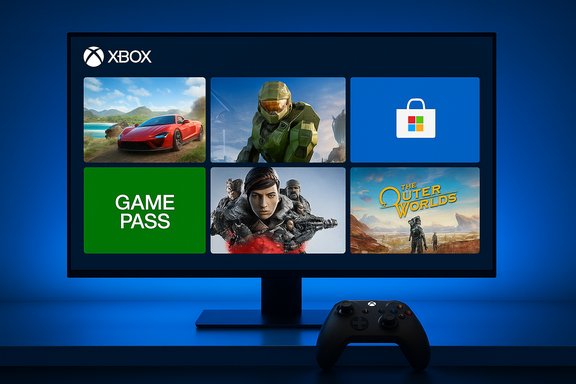
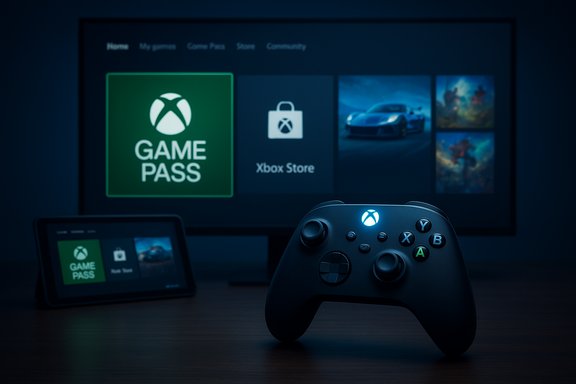
Xbox home screen with tiles for Forza, Halo, Store, Game Pass, a female action hero, and The Outer Worlds.Background and overview​

Microsoft first shipped the Xbox Full Screen Experience on the Xbox Ally family of handhelds as part of a broader push to make Windows handheld gaming feel more like a console. The company later extended that work to other Windows handhelds and has now begun previewing an adapted FSE for more traditional Windows 11 form factors. The rollout to Windows Insiders began with Windows 11 Insider Preview Build 26220.7271 (KB5070307) and is available in both the Dev and Beta channels for Insiders who are also Xbox Insiders. FSE is explicitly controller‑first and distraction‑free: it hides standard desktop chrome and notifications, offers a full‑screen tile layout optimized for game navigation, and exposes quick app/game switching controls. Entry points include Task View, the Xbox Game Bar, and a keyboard shortcut (Win + F11). The experience can also be toggled to start on boot if users choose to make it their primary session.

What the Xbox Full Screen Experience looks and feels like​

Console‑style UI and controller navigation​

FSE places a simplified, tile‑based home screen on the entire display, with a layout designed for large labels, thumbnails, and controller navigation. The interface emphasizes:
  • Controller navigation as a primary input model (long‑pressing the Xbox button or using an attached controller switches between games and apps).
  • Large, scannable tiles for installed titles, Game Pass recommendations, and cross‑store access.
  • Fast task switching optimized for game sessions and for returning to a desktop when needed.
Microsoft’s messaging for FSE on PC emphasizes that some typical Windows shortcuts and behaviors are intentionally altered to preserve the gaming posture; for instance, certain Windows shortcuts behave differently while in FSE to reduce accidental interruptions. Exiting back to the normal desktop is still quick and can be done via the Windows key, Task View, or the Game Bar.

Entry points and controls​

There are several ways to enter or toggle FSE on a compatible system:
  • Hover over the Task View icon and choose Xbox full screen experience.
  • Open Game Bar > Settings and enable the FSE toggle.
  • Use the Win + F11 shortcut to toggle FSE on and off.
  • Optionally set Enter full screen experience on startup so the device boots directly into the Xbox app.

How to get FSE on your PC (Insider and Xbox steps)​

If you want to try FSE on a Windows 11 PC right now, the general prereqs and steps are:
  • Be enrolled in the Windows Insider Program and set your device to the Dev or Beta channel.
  • Be registered with the Xbox Insiders Program and opt into the PC Gaming preview inside the Xbox Insiders Hub.
  • Install or update the Xbox app from the Microsoft Store (FSE requires the Store version of the Xbox app).
  • Install the Windows 11 Insider Preview Build 26220.7271 (KB5070307) when it appears for your device.
  • Enable Full Screen Experience via Settings > Gaming > Full screen experience, or use Task View/Game Bar/Win + F11 as entry points.
Microsoft is performing a phased rollout, so not every Insider will see the option immediately. Joining the Xbox Insiders Program and the PC Gaming preview improves your chance of being included early.

What FSE actually does under the hood​

Desktop suppression and resource trimming​

A central technical idea behind FSE is that it limits the amount of desktop shell and background subsystems loaded for a gaming session. On handhelds, Microsoft and multiple reviewers have reported that FSE avoids loading the full Explorer shell and defers or cancels many routine background tasks, which can free memory and reduce background CPU activity. Some early tests and company materials cite figures in the neighborhood of one to two gigabytes of reclaimed RAM on certain handheld configurations; however, those numbers are workload‑ and configuration‑dependent and should be treated as directional rather than guaranteed. Key runtime changes include:
  • Not loading the full Windows desktop shell and some startup agents when FSE is active.
  • Pausing routine maintenance jobs and muting notifications to avoid interruptions.
  • Prioritizing foreground game processes by reducing competing background wakeups where feasible.

Compatibility with third‑party launchers and stores​

FSE exposes installed games from multiple storefronts — Xbox, Game Pass, and games installed via other clients (Steam, Battle.net, Epic, etc.. In practice, third‑party launchers may still spin up their own processes or helper services when a game is launched through them, which can reduce or negate some of the resource advantages of FSE depending on how those launchers behave. Early community testing highlights that games launched directly from the Xbox app or Microsoft Store may show different memory footprints versus games that require an additional launcher process.

Early testing and independent impressions​

Several mainstream outlets and hands‑on testers have been experimenting with FSE on handhelds and early PC previews. Independent coverage converges on a few consistent themes:
  • Perceived responsiveness improves on low‑memory, handheld devices because FSE reduces background noise and streamlines the running environment.
  • Memory savings have been observed, but the magnitude varies broadly: some reports see ~2GB reclaimed, while others measure smaller or highly variable gains depending on launchers and background services.
  • Frame‑time and FPS improvements can be present on certain titles — particularly GPU‑bound games on constrained hardware — but are not universal and depend heavily on power profiles, drivers, and OEM tuning.
  • Usability trade‑offs include reduced visibility of desktop notifications, altered keyboard shortcuts, and an environment tailored more to couch/controller use than to multi‑window desktop workflows.
Community testing has also produced useful caveats: when a game requires another launcher (for DRM or launcher‑only titles), that launcher’s overhead may negate memory savings, and some community workarounds to replicate FSE behavior outside the official feature can produce unstable results. Treat hands‑on numbers as test‑case specific, not universal guarantees.

Strengths — where FSE can really help​

  • Cleaner, controller‑first experience: For players who prefer a console‑like interface on PC, FSE delivers a focused, navigable environment that reduces menu friction and speeds access to games.
  • Potential performance and battery improvements on constrained hardware: By trimming desktop overhead and deferring background jobs, FSE can free memory and reduce background CPU activity on handhelds or low‑power laptops, which may translate to higher sustained performance or better battery life for some titles.
  • Unified game hub: Bringing Game Pass, Xbox titles, and installed games from multiple storefronts into one tile view simplifies discovery and can reduce the need to juggle multiple launcher apps — at least in the browsing flow.
  • Fast session switching: Built‑in task switcher behavior (long‑press Xbox button, Task View integration) is designed to make moving between games and applications fast without leaving the FSE context.
  • Optional startup mode: Users who prefer a dedicated gaming device can configure FSE to start automatically, turning a tablet or laptop into a single‑purpose gaming environment at boot.

Risks, limitations, and practical concerns​

  • Variable performance gains: Claims that FSE universally frees “~2 GB” of RAM or yields a fixed percentage improvement are overgeneralizations. The amount of memory reclaimed or performance uplift depends on installed software, running services, drivers, and OEM tuning. Independent testing shows high variance. Readers should view headline figures as indicative, not guaranteed.
  • Launcher overhead and fragmentation: Games that require a second launcher (Steam, Epic, Battle.net) will still bring their own memory and process costs when launched. In some test cases, launching through a third‑party client reduced or eliminated FSE memory advantages.
  • Loss of desktop functionality during FSE sessions: Because FSE hides standard desktop chrome and alters shortcuts, those who frequently multitask or rely on desktop utilities may find the experience limiting. Exiting to desktop is possible but this interrupts the gaming posture the feature is designed to enforce.
  • Compatibility and stability risks in preview builds: The current availability is an Insider preview; expect bugs, compatibility issues with specific hardware/drivers, and incomplete integration with enterprise device management and security tooling.
  • Accessibility and input concerns: FSE’s controller‑first design can be excellent for controller users but may add friction for people relying on keyboard/mouse or assistive technologies until the UX is fully refined and tested across diverse accessibility scenarios.
  • Enterprise and managed devices: Organizations that manage Windows desktops will need to consider how a shell‑like mode that pauses certain background processes and maintenance tasks interacts with security policies, endpoint agents, backups, and update schedules. FSE is primarily consumer‑focused and may not fit managed environments without additional controls.

Practical guidance: who should try FSE and how to evaluate it​

If you are considering testing the Xbox Full Screen Experience on your PC, follow these practical steps and safeguards:
  • Ensure your device is enrolled in the Windows Insider Program (Dev or Beta channel) and that you’ve opted into the Xbox Insiders Program’s PC Gaming preview via the Xbox Insiders Hub.
  • Install the Xbox app from the Microsoft Store and update to the latest Xbox/Windows preview builds.
  • Before enabling FSE, create a restore point and ensure important files are backed up — Insider builds and new shell experiences can sometimes trigger regressions on specific hardware.
  • Test using the games and launchers you use day‑to‑day. Measure available RAM and background process counts before and after enabling FSE to understand your device’s behavior.
  • If you rely on background utilities (sync clients, monitoring tools, overlay software), verify their compatibility while FSE is active; some utilities may be blocked or behave differently.
  • Report issues through Feedback Hub (WIN + F) under Gaming > Xbox Full Screen Experience so Microsoft can triage and prioritize fixes.

Developer, OEM, and platform implications​

FSE represents a tactical shift in how Microsoft is thinking about gaming on Windows: rather than expecting every device to run the full desktop by default, Microsoft is offering a specialized, game‑first posture that can be selected per user. For hardware vendors and developers, the implications include:
  • OEM optimization opportunities: Vendors can tune firmware, power limits, and drivers for FSE to maximize battery life and performance in the gaming posture. Handheld makers are likely to ship OEM firmware and driver stacks that better exploit the FSE model.
  • Game launcher behavior matters: Third‑party launchers that minimize background services and integrate tightly with FSE (or provide native full‑screen launch paths) will deliver better user experiences. Launcher authors should test and optimize for the FSE posture.
  • App lifecycle and background tasks: Developers need to test how their apps behave when FSE pauses maintenance tasks or reduces background scheduling. Well‑behaved apps will respect lifecycle events and gracefully free resources.
  • Security and manageability: Enterprises and security vendors must evaluate how FSE interacts with endpoint protection, update agents, and audit tooling. Further platform APIs or policy controls may be required to manage FSE on fleet devices.
  • Opportunity for new experiences: The FSE model opens doors for developers to create game‑centric shells, store integrations, and overlays designed specifically for controller navigation and simplified flows.

What to watch next​

  • Wider rollout: Microsoft is expanding FSE gradually across Insiders and intends to widen availability to more users over time. Monitor Windows Update and Xbox Insider Hub announcements for broader availability.
  • Performance verification: Expect a stream of community benchmarks and vendor‑tuned analyses as more devices receive the preview. Look for head‑to‑head comparisons that measure memory, FPS, power draw, and game startup times across different launchers.
  • Third‑party integration: Watch how Steam, Epic, and other launcher developers respond. Better native integration (or optimizations to avoid launcher‑spawned overhead) will materially affect FSE’s real‑world benefit.
  • Policy and enterprise features: Microsoft may expand controls and Group Policy/MDM options for FSE if enterprises express demand for manageability and compliance features.
  • Accessibility improvements: As FSE matures, expect incremental updates focused on keyboard navigation, assistive technologies, and finer control over notifications and maintenance activities while preserving the gaming posture.

Final analysis — a measured take​

The Xbox Full Screen Experience is an important experiment in reshaping how Windows supports gaming across form factors. It acknowledges that the desktop paradigm — with its many background services, notifications, and multi‑window management — is not always ideal for dedicated gaming sessions, especially on constrained handheld devices.
The strengths are obvious: a cleaner UI for controller users, potential resource savings on low‑RAM hardware, and a centralized hub for game discovery. However, the upside is not uniform. Performance gains vary by device and launcher behavior; some games and workflows will see measurable improvements while others will not. The preview status means feature polish, compatibility, and accessibility still need work.
For enthusiasts with handhelds or battery‑sensitive gaming laptops, FSE is worth testing to see whether the simplified shell improves real‑world results. For mainstream desktop users, FSE is an interesting option but less likely to provide dramatic benefits unless your workflow matches the controller‑first, gaming‑focused scenario.
Ultimately, FSE is part of a broader shift: Microsoft is treating gaming sessions as a distinct, selectable mode of operation on Windows. That flexibility is welcome, but successful adoption will hinge on robust third‑party launcher integration, careful OEM tuning, and clear management controls for those who need them.
The rollout via Windows 11 Insider Preview Build 26220.7271 (KB5070307) is the next chapter in that experiment — it’s available now for Insiders in Dev and Beta who also join Xbox Insiders, and Microsoft will expand access as the preview stabilizes. Try it under controlled conditions, measure results on your hardware, and report feedback so the experience can be refined ahead of any broader public release.
Source: xiaomitoday.com Microsoft Brings Xbox Full Screen Experience to Windows 11 PCs in New Insider Update
 

Microsoft’s console-like Xbox Full Screen Experience (FSE) has quietly left its initial exclusive status on the ROG Xbox Ally family and is now rolling out far more broadly — to all Windows 11 handhelds already on the market and into testing for traditional PCs via the Windows Insider program. What began as a handheld-focused shell that boots directly into the Xbox app and trims background Windows components has become a mainstream option for gamers who want a console-first interface on Windows 11. The rollout is phased, requires the Xbox app from the Microsoft Store, and is available to Windows Insiders in the Dev and Beta channels via the latest Insider build offered on November 21, 2025. At the same time, some reporting and early tests suggest meaningful performance and memory benefits — claims that deserve careful scrutiny before being accepted as gospel.

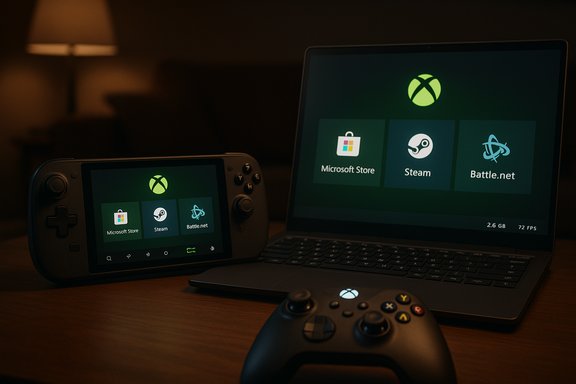
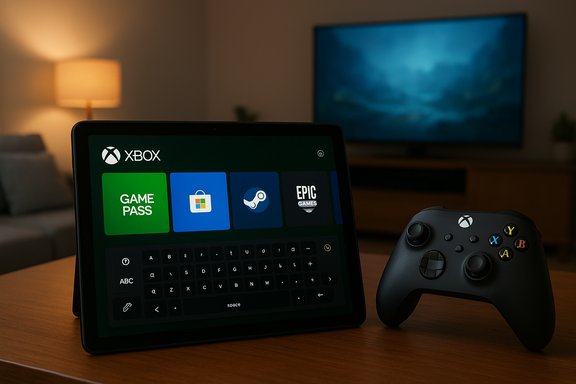
Xbox gaming setup with a Switch handheld, laptop, and controller showing Microsoft Store, Steam, Battle.net.Background / Overview​

The Xbox Full Screen Experience is a gaming-oriented UI mode that replaces the default Windows desktop shell with a simplified, controller-first environment centered on the Xbox app. It was first released as part of Microsoft’s work with the Asus ROG Xbox Ally line and the ROG Xbox Ally X, where the tailored shell provides a dedicated gaming home screen, integrated libraries for multiple storefronts, and navigation designed for gamepads and small touch displays.
Microsoft has expanded FSE beyond the Ally family. The company announced a broader availability for all Windows handheld devices already in circulation and has begun preview testing of a PC-focused implementation through the Windows Insider program. The official preview for Windows 11 PCs was included in the Windows Insider Preview build made available on November 21, 2025, and Insiders in the Dev and Beta channels are now seeing FSE appear as an optional mode on laptops, desktops, and tablets.
This is not a new operating system: FSE is a specialized shell layered on Windows 11 that can be toggled on or off, entered from multiple UI triggers, and exited without a full reboot. Its design goal is clear: make handheld Windows devices and controller-first PCs behave more like standalone gaming consoles while preserving the power and flexibility of a full Windows installation when needed.

What’s included in the Full Screen Experience​

The Full Screen Experience is intended to simplify gaming on Windows while offering performance-minded optimizations. Key components and behaviors include:
  • Console-style home screen that centers on the Xbox app and aggregates installed games from the Microsoft Store, Steam, Battle.net, and other storefronts.
  • Controller-first navigation, including easier switching between games and apps with long-press actions on the Xbox button.
  • Task View integration, where FSE appears alongside virtual desktops as a selectable option (Task View or Win + Tab).
  • Multiple entry and exit points: Game Bar settings, Task View, and a dedicated keyboard toggle (Win + F11) make switching seamless.
  • Startup optimization options that allow the system to boot directly into the FSE shell and, if selected, skip loading certain desktop startup background processes for performance gains.
  • Settings control accessible at Settings > Gaming > Full screen experience, including the ability to set a “home app” and to disable the experience entirely.
  • Feedback path: users can submit feedback directly via the Feedback Hub (Win + F) under the Full Screen Experience category while testing.
These features are built to be non-destructive: you can switch back to the Windows desktop at any time (by pressing the Windows key, using Task View, or through Game Bar options) and return to a normal desktop environment without permanently changing system files.

How to enable, enter and exit FSE (practical steps)​

  • Ensure you have the Xbox app installed from the Microsoft Store and that your device is on a supported Windows 11 release.
  • If you are a Windows Insider and want to test the PC-targeted preview, join the Dev or Beta channel and update to the latest Insider Preview build offered on November 21, 2025.
  • Open Settings > Gaming > Full screen experience and use the dropdown to set your chosen Gaming Home App (select Xbox to use the Xbox Full Screen Experience).
  • Optionally enable Enter full screen experience on startup if you want the device to boot straight into FSE. You will be prompted to restart to apply some of the launch-time optimizations.
Entering and exiting:
  • Enter via Task View (press Win + Tab and choose the Xbox full screen experience), Game Bar > Settings, or press Win + F11.
  • Exit by pressing the Windows key, using Task View to choose the desktop, or toggling Win + F11 again.
  • To send feedback while running FSE, press Win + F to open the Feedback Hub and select the Full Screen Experience category.
These steps are short and reversible, making FSE easy to try out even on day-to-day devices.

Where it’s available and which builds matter​

The rollout is layered:
  • FSE shipped initially as a custom experience preloaded on the ROG Xbox Ally and ROG Xbox Ally X devices.
  • Microsoft has formally announced general availability for all Windows-based handhelds in market.
  • For traditional PCs (laptops, desktops, tablets), Microsoft added FSE to the Windows Insider Preview builds and is rolling it out to Insiders in Dev and Beta channels. The specific Insider Preview build used for the PC-form-factor preview was published on November 21, 2025 (the Windows Insider blog and official Windows updates list the exact build number used for this staged rollout). Availability is phased; not every Insider will get it immediately.
  • FSE requires the Xbox app from the Microsoft Store; the app must be present and up-to-date for the FSE home experience to function.
It’s also important to note that the official support documentation shows the Full Screen Experience applies to Windows 11 versions including 24H2 and 25H2, and that OEMs can decide when and how to enable the experience for devices they ship.

What the early performance claims say — and what is verified​

Multiple outlets and hands-on reports have emphasized that FSE reduces the number of desktop background processes and can give games more immediately-available RAM and fewer idle tasks — a design point Microsoft also highlights in its product materials. Early coverage and independent testing suggest:
  • Booting into FSE avoids loading the normal Explorer shell and some startup processes, which some tests have translated into roughly 1–2 GB of RAM freed compared to a full desktop session.
  • Some scene tests and battery/thermal profiles on certain handhelds show higher sustained frame rates and improved battery life when launching games from the optimized shell versus the full desktop mode.
However, two important caveats apply:
  • Microsoft’s official documentation describes startup optimization and reduced background apps but does not publish a single global “RAM saved” number that applies across all hardware. The quoted “~2 GB saved” number is an industry-reported observation and can vary significantly by device, installed apps, drivers, and OEM configurations.
  • Performance gains measured by reviewers can depend heavily on test conditions: whether the device restarts after enabling FSE’s startup optimizations, what background services are installed, thermal profiles, and whether the game is CPU or GPU bound. Some third-party comparisons have still shown that certain Linux-based OSes optimized for handhelds (like SteamOS variants) can outperform a Windows FSE setup on the same hardware for specific titles.
In short: FSE can deliver meaningful memory and background-process relief on many systems, but the magnitude of the benefit will vary. Independent testing is the best way to determine how much FSE helps a given device and game.

Strengths: Why FSE matters for handheld and console-style PC gaming​

  • Cleaner, controller-first interface: For handheld users or living-room setups, a console-like UI makes launching games and managing libraries faster and less fiddly than navigating the full Windows desktop with a controller.
  • Performance-minded by design: FSE’s ability to avoid loading unnecessary Explorer shell components and startup processes can free resources for games and may improve battery life and thermal behavior on handheld systems.
  • Lower friction to play: Boot-to-game pipelines (entering FSE on startup) reduce the time and cognitive load between powering on a device and starting a session.
  • Preserves Windows functionality: Unlike switching to a separate OS, FSE is an optional shell — the full Windows desktop remains available without uninstalling or dual-booting.
  • OEM and developer flexibility: Microsoft’s approach allows OEMs to pre-enable FSE on devices they ship while letting other manufacturers opt-in later, keeping hardware ecosystems open.
For users who want a hybrid: console convenience without losing access to Windows tools and apps, FSE is a sensible middle ground.

Risks, limitations and practical concerns​

  • Inconsistent gains across hardware: The performance and memory benefits are hardware- and configuration-dependent. Users should not expect the same uplift on all devices.
  • Startup confusion: The “Enter FSE on startup” option can surprise users who expect a normal Windows desktop on boot. The system may prompt for a restart to apply optimizations, which could be misinterpreted as an error if not explained.
  • Driver and compatibility edge cases: Some games or anti-cheat systems behave differently depending on how the OS shell initializes. While Microsoft has designed FSE to be compatible, edge-case issues could appear with older drivers or niche anti-cheat middleware.
  • Fragmentation risk: Because OEMs can implement FSE differently on their devices, the experience may vary (different home apps, custom button mappings, or additional OEM overlays), creating inconsistency across the handheld market.
  • Not a full OS replacement: For users seeking maximum performance and longevity from handheld hardware, Linux-based options (and specialized OS images) may still offer better raw performance in certain workloads — at the cost of compatibility for some games and online services.
  • Privacy and telemetry questions: Any new UI layer that aggregates accounts and services will prompt questions about telemetry, sync, or data sharing settings. Users should review privacy and Xbox/Microsoft account settings when enabling FSE.
  • Update and maintenance overhead: Introducing a new shell expands the surface area for software updates; OEMs and Microsoft will have to coordinate to keep the experience stable across monthly and feature updates.
These limitations don’t negate the value of FSE but should be weighed by purchasers and testers.

How FSE compares with alternatives (Steam Big Picture, SteamOS, custom shells)​

  • FSE is a Windows-native shell designed as an optional mode; it aims to be more familiar to Windows users and tightly integrated with Microsoft services.
  • Steam’s Big Picture Mode (and SteamOS) have been doing controller-first UIs for years and are mature, polished experiences with deep Steam integration.
  • Linux-based OSes optimized for handhelds (SteamOS variants, Bazzite, and other community-driven images) often show stronger raw performance in certain cases but suffer from compatibility gaps (anti-cheat, some DRM, or specific Windows-only title dependencies).
  • FSE keeps the Windows app and game compatibility advantage while offering controller-first access — the middle path between full Windows and a purpose-built gaming OS.
For many consumers the choice will come down to priorities: compatibility and convenience (FSE on Windows) versus raw open-source-optimized performance (Linux-based alternatives).

OEM rollout and the ROG Ally X factor​

ROG Xbox Ally X devices served as the initial showcase for FSE and highlighted how OEMs can tightly integrate the feature with hardware-specific power profiles and thermal tuning. The ROG Ally X’s trunk of ergonomics, battery life, and preconfigured FSE demonstrated the concept’s promise and gave OEM partners a working template.
Now that FSE is broadly available to other handheld OEMs and is entering PC form factors via the Windows Insider pipeline, expect a diverse ecosystem:
  • Some OEMs will pre-enable FSE and tune drivers for better battery/performance trade-offs.
  • Others may leave FSE as an opt-in, letting enthusiasts decide whether to enable it.
  • Because FSE depends on OEM drivers and thermal tuning for maximum benefit, the out-of-the-box experience will differ between manufacturers.
The ROG Ally X remains a flagship example of what the combination of optimized Windows, tuned drivers, and FSE looks like on a handheld designed primarily for gaming.

Practical tips and troubleshooting​

  • If a device enters FSE but performance is lackluster, confirm you restarted after enabling Enter FSE on startup so the optimized startup path takes effect.
  • If a specific game fails or exhibits anti-cheat errors, try launching it from the Windows desktop rather than within FSE and check for driver updates or specific anti-cheat patches.
  • To revert, go to Settings > Gaming > Full screen experience and choose None as the home app — then reboot to return fully to the conventional desktop-start behavior.
  • Keep the Xbox app updated from the Microsoft Store; FSE depends on the app as the “home” shell in many configurations.
  • Use the Feedback Hub (Win + F) to report bugs and usability issues so Microsoft and OEMs can iterate; include device model, driver versions, and a short repro of any problem.

The takeaway: a pragmatic console experience inside Windows​

The Xbox Full Screen Experience is a notable evolution of Windows for gaming: it acknowledges that many gamers want a simplified, console-like flow on handhelds and living-room PCs while preserving the flexibility that made Windows the backbone of PC gaming.
Strengths include a low-friction, controller-first UI, real-world performance optimizations, and broad compatibility with existing Windows apps and storefronts. The risks are mostly practical: variability of gains across hardware, possible compatibility edge-cases, and the usual fragmentation that comes when OEMs customize experiences.
For most users, the sensible approach is pragmatic testing: try FSE on your device, measure the performance and battery behavior in your most-played titles, and keep a quick path back to the desktop if something doesn’t work. Power users who require the ultimate performance per watt will still want to compare FSE to alternative OS setups and tuned driver stacks, but for the majority of handheld gamers and those seeking a console-style Windows layout, FSE is a welcome, reversible option that finally gives Windows a polished, dedicated gaming shell.

Conclusion
Microsoft’s Full Screen Experience moves Windows closer to a flexible “choose your UI” future for gaming: boot-to-game simplicity when you want it; full Windows power when you need it. The feature’s rollout beyond the ROG Ally family and into the Windows Insider program puts it within reach of most gamers who want console-like ergonomics without abandoning Windows. The early performance signaling is promising, but the exact benefits will depend on device specifics, driver quality, and how OEMs tune Windows for handhelds. The most responsible stance for enthusiasts is to test FSE on their hardware, monitor results, and report issues so the ecosystem can mature — because when the shell is optional, reversible, and getting broader testing, everyone benefits from faster iteration and clearer expectations.

Source: DLCompare.com Xbox Full Screen mode testing moves beyond Insiders to all Windows 11 users
 

Microsoft has quietly begun testing the Xbox Full Screen Experience (FSE) on mainstream Windows 11 gaming PCs, moving the console-style dashboard that debuted on specialized handheld hardware into a preview for laptops, desktops, and tablets — and with it, a new way to think about Windows as a gaming platform.

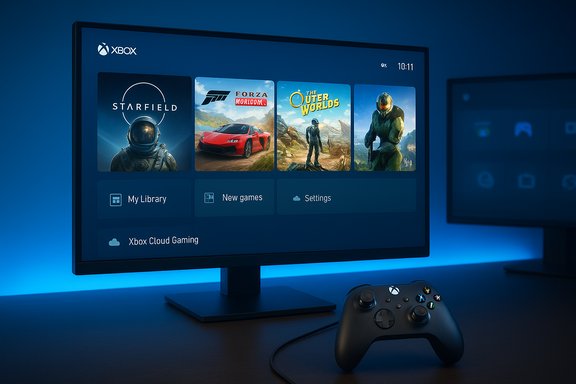
Xbox home screen with game tiles (Starfield, Forza, The Outer Worlds) and a controller on the desk.Background / Overview​

The Xbox Full Screen Experience started life as a purpose-built shell for handheld gaming hardware that sought to offer a console-like flow on Windows devices. Originally launched as a differentiator on select handhelds, FSE replaces much of the standard desktop shell with a controller-first, full-screen Xbox UI that centers games, the user's library, and fast switching between apps and titles.
This feature has now entered preview for a broader range of Windows 11 PC form factors through the Windows Insider program. The preview is rolling out in the Dev and Beta channels under a release identified by build 26220.7271. Access to the preview requires enrollment in both the Windows Insider and Xbox Insider programs and installation of the Xbox app distributed through the Microsoft Store. Users who join the preview will be able to boot into the Xbox shell, navigate with a controller, and access a Task Switcher designed for quick movement between games and running apps.
The initial public testing phase is intentionally limited and phased; not every Insider device receives the update immediately. Early testers have reported missing features and quirky behavior, but the core concept — a gaming-first environment on Windows 11 — is now being validated on standard gaming PCs, not just handhelds.

What the Full Screen Experience actually is​

A controller-first, full-screen shell​

FSE is a full-screen shell that overlays (and can effectively replace) the traditional desktop experience while active. It is built around:
  • A console-style home screen that aggregates games from multiple sources into a single library view.
  • Controller-first navigation and an on-screen interface optimized for gamepad input.
  • A Task Switcher optimized for fast app/game switching with controller shortcuts.
  • Options to boot directly into the Xbox environment on supported devices.
The goal is to hide or minimize the conventional multi-purpose Windows desktop during gaming sessions, reducing friction and simplifying the path from power-on to play.

How users enter and exit FSE​

During the preview, users can enter FSE via multiple entry points:
  • Task View
  • Game Bar settings
  • A keyboard shortcut (Win + F11)
Exiting the experience returns the user to the regular desktop without requiring a reboot. The Windows Settings > Gaming > Full screen experience panel also offers management controls, including the ability to disable the experience entirely.

How to join the preview and practical setup steps​

  • Join the Xbox Insider Program and opt into the PC Gaming Preview.
  • Join the Windows Insider Program and set the device to the Beta or Dev channel.
  • Update Windows to the Insider build that carries the FSE preview (builds in the 26220.xxxx series).
  • Ensure the Xbox app downloaded from the Microsoft Store is installed and up to date.
  • Use Task View, the Game Bar, or Win + F11 to enter the Full Screen Experience.
These steps are required to receive and enable the preview. Participation in both Insider programs is mandatory for PC form-factor testing during this phased rollout.

Why this matters: strategic implications for Windows gaming​

A long-awaited gaming shell for Windows​

Windows has historically been a multi-purpose operating system: developer tools, productivity suites, and gaming all coexist under the same desktop. For years, enthusiasts and critics alike have pointed to the lack of a first-class, console-like game shell for Windows that makes the gaming experience seamless for non-technical users.
FSE aims to close that gap by offering a simplified, controller-optimized environment. For mainstream gamers who prefer the frictionless experience of consoles, FSE can make Windows feel more like a dedicated gaming device. That positioning has strategic importance:
  • It helps Microsoft narrow the UX gap between Windows PCs and consoles for living-room or handheld play.
  • It creates a unified front for Xbox services (Game Pass, Xbox app features) across more Windows hardware.
  • It makes certain classes of PCs — handhelds, living-room mini-PCs, or couch-oriented laptops — more attractive to a console-minded audience.

A direct response to competing approaches​

The Full Screen Experience calls to mind several established alternatives and competitors:
  • Valve’s Big Picture Mode and SteamOS were designed for living-room, controller-first use and have long provided a console-like layer for PC games.
  • The Steam Deck and its SteamOS partner devices offer a native, Linux-based route that reduces Windows overhead and simplifies updates and patches.
  • Other vendors have experimented with kiosk-mode shells or third-party launchers to provide a focused gaming interface.
FSE is Microsoft’s attempt to bring that same concept into the Windows ecosystem without requiring a forked OS. That model retains access to the broad Windows software ecosystem while attempting to deliver a more curated gaming flow.

Early testing: functional strengths​

Unified library and controller navigation​

One of FSE’s most tangible strengths is its aggregation of games across storefronts into a single, controller-navigable library. For players with titles across multiple launchers, that consolidation is a genuine convenience.

Faster, friction-reduced start-to-play flow​

On supported handhelds, FSE can boot straight into the Xbox UI, reducing the time and steps required to reach a game. On other PCs, launching FSE hides much of the desktop complexity and gives the user a direct pathway to games, which is especially valuable for less technical players or for shared family devices.

Task Switcher and game/app management​

The built-in Task Switcher in FSE is optimized for quick switching between titles and apps using the controller, allowing a smoother workflow when moving between a game, streaming app, or utility.

OEM flexibility​

Because FSE runs on top of Windows, OEMs can ship devices pre-configured to boot directly into the Xbox environment, offering curated, gaming-first hardware experiences without changing the underlying OS.

Early testing: technical issues and missing features​

Despite the promise, the preview stage has exposed real limitations and rough edges:
  • The current FSE preview lacks a consistent on-screen keyboard for pure gamepad users on systems that have no touch input — a significant omission for any interface where text entry is needed.
  • Some third-party apps and launchers misbehave in FSE or don’t integrate smoothly with its Task Switcher, producing inconsistent results for popular non-Store clients.
  • There are reports of certain keyboard shortcuts intentionally being remapped or behaving differently while in FSE to preserve the console-like focus; this can confuse power users.
  • The rollout is phased; not all Insider users receive the preview immediately, and hardware-specific differences exist between devices.
  • The promise of performance wins is currently qualitative: while optimizations are promoted for handhelds (reduced background processes and faster boot into Xbox), measurable performance delta figures are not publicly documented in the preview.
These early issues reflect a typical preview maturity curve, but they also highlight the complexity in overlaying a gaming shell on a general-purpose OS.

Security, privacy, and maintenance considerations​

System updates and patching complexity​

Moving to a full-screen shell does not remove the need for drivers, firmware updates, Microsoft Store updates, or vendor utilities. Devices will still require routine maintenance, and OEM software or drivers can still introduce complexity. Users should not assume FSE magically eliminates maintenance chores; it only alters the user-facing shell.

Telemetry and privacy​

Because the Xbox app and associated services integrate telemetry and cloud features, users will want to review privacy and telemetry settings. Shipping FSE on devices will likely increase the number of devices that default to Microsoft’s ecosystem settings; transparency and configurable controls remain essential.

Booting behavior and disk encryption​

Boot-to-Xbox or automatic booting into FSE must be carefully implemented alongside features like BitLocker or other disk encryption and secure boot policies. OEMs and IT administrators should verify that enterprise or security policies remain compatible.

Compatibility and ecosystem effects​

Third-party storefronts and integration complexity​

One of FSE’s selling points is that it surfaces games from multiple store fronts. However, comprehensive parity depends on deep integration points with third-party clients, some of which have idiosyncratic launch flows or DRM. Expect a mixed experience initially: popular titles will work smoothly, but niche apps or custom launcher workflows may require tweaks from either the app vendors or Microsoft.

Controller support and input modes​

FSE is clearly optimized for gamepads, but many PC gamers use keyboard-and-mouse. Microsoft’s approach intentionally remaps or modifies some keyboard shortcuts while inside FSE, which can be an advantage for console-like use but a drawback for desktop-first players. Hybrid input scenarios — keyboard + controller or touch-enabled devices — will need thoughtful UX decisions.

Enterprise and multi-user devices​

FSE’s strong leaning toward a simplified, single-purpose UX could clash with enterprise-managed or shared-family devices where multiple user roles and applications coexist. Administrative tools and group policy controls must be available to manage the FSE state in corporate or public settings.

Competitive landscape and market strategy​

Pros: Windows as a more accessible gaming platform​

If refined, FSE could:
  • Make Windows more accessible to casual and console-first gamers.
  • Increase adoption of Xbox services (Game Pass) on more hardware.
  • Encourage OEMs to build more devices with a gaming-first posture.
Those wins would help Microsoft influence where casual gaming traffic goes and could be material for device differentiation.

Cons: potential fragmentation and customer confusion​

A secondary risk is increased fragmentation within Windows itself: toggling between traditional desktop mode and a console-like shell could confuse consumers and technicians alike. Support channels will see new call types, and community troubleshooting will need to adapt around the FSE state.
There’s also a potential competitive backlash or market confusion among vendors that already provide their own launchers or shells. Harmonizing experiences and expectations across OEMs, launcher vendors, and Microsoft will be a long-term coordination challenge.

Practical advice for players and testers​

  • Before joining the preview, back up profiles and configurations; FSE is still in testing and can change system behavior.
  • Join both Insider programs and remain on Beta or Dev channels to access the PC preview of FSE.
  • If you rely on keyboard-and-mouse workflows or need complex third-party utilities, test FSE on a secondary device or partition first.
  • Provide feedback through formal channels so issues (missing on-screen keyboard, app compatibility) are tracked and prioritized.
  • Be mindful of privacy settings and review telemetry options after enabling the Xbox app and FSE.

What remains uncertain or unverifiable today​

  • Precise performance gains: Claims that FSE improves frame rates or reduces latency by specific percentages on non-handheld PCs are currently anecdotal. No independent benchmarks with controlled conditions have yet published reproducible numbers for mainstream desktop or laptop hardware.
  • Long-term OEM policies: It’s not yet clear how broadly OEMs will adopt boot-to-Xbox defaults or whether significant partners will ship consumer devices that boot to FSE out of the box beyond the initial handheld wave.
  • Full storefront parity: While Microsoft intends to surface games from popular storefronts, the depth of integration for every major launcher and DRM scheme remains variable and will require ongoing validation.
  • Release timeline for a stable, non-Insider release: The phased Insider preview gives no firm public date for a stable, wide release beyond "rolling out over time."
These points should be treated as in-progress; they will require follow-up once Microsoft publishes formal timelines and independent testing results become available.

Long-term outlook: will FSE change how people view Windows?​

FSE represents a strategic push: it reframes Windows as something that can be purpose-built for play without abandoning the broader Windows ecosystem. If Microsoft executes well, the Full Screen Experience could:
  • Reduce friction for mainstream gamers, making PCs feel more like consoles.
  • Strengthen the Xbox brand across more devices, leading to broader Game Pass reach.
  • Encourage OEM innovation around handhelds and living-room PCs.
However, execution is key. The preview’s rough edges — compatibility quirks, missing on-screen keyboard, and the need to coordinate with third-party launchers — illustrate how complex the transition will be. Microsoft must balance the simplified console-like UX with the openness and flexibility that has traditionally defined Windows.
If the company succeeds, FSE could become the default way many non-technical gamers interact with Windows machines. If it falters, FSE risks becoming another optional shell that a subset of users adopt while the majority stick with the traditional desktop.

Final assessment: strengths, risks, and what to watch next​

  • Strengths
  • Delivers a true controller-first, console-like UX on Windows 11.
  • Aggregates games and simplifies the pathway from power-on to play.
  • Offers OEMs a flexible way to ship gaming-first devices without changing the OS.
  • Risks
  • Fragmentation of the Windows experience and a steeper support burden.
  • Compatibility problems with third-party launchers and apps during early rollout.
  • Unclear, unquantified performance improvements for non-handheld PCs.
  • Privacy/telemetry concerns and interaction with OS-level security and enterprise policies.
  • What to watch next
  • Progression from Insider preview to a stable release and whether Microsoft publishes measurable performance numbers.
  • OEM adoption patterns — how many vendors ship devices that boot to FSE by default.
  • Third-party launcher and DRM vendor responses and integrations.
  • Independent benchmarks measuring boot times, background-process reductions, and frame-rate/latency impacts in FSE vs. standard desktop gaming.
The Xbox Full Screen Experience is a notable step toward a more cohesive gaming environment on Windows 11. Early testing shows the potential for meaningful UX improvements, especially on handhelds and couch‑oriented machines. The preview also exposes the operational and technical hurdles that must be resolved before FSE can be adopted widely. For players and device makers alike, the coming months of testing and feedback will determine whether this console-like shell becomes a mainstream gaming layer on Windows — or a niche option for a subset of devices.

Source: Пепелац Ньюс https://pepelac.news/en/posts/id12397-xbox-full-screen-experience-lands-on-windows-11-gaming-pcs/
 

Microsoft has flipped the switch on a console-style, controller-first interface for Windows gaming hardware: the Xbox Full Screen Experience (FSE) is now generally available on Windows 11 handhelds and is rolling out in preview to other PC form factors through the Insider programs, bringing a streamlined path from power-on to play while trimming Windows overhead for better gaming-focused performance.

A handheld Xbox device displays a blue tile-based UI with game icons, while a controller rests in a hand.Background​

Microsoft introduced the Xbox Full Screen Experience earlier in 2025 as part of a broader push to make Windows feel more like a gaming console on handhelds. The FSE debuted on the ROG Xbox Ally family and the ROG Xbox Ally X and has since been expanded to other handheld models. The company’s objective is straightforward: give gamers a simpler, more consistent interface for launching and switching between games on Windows 11 devices while avoiding the full Windows desktop environment when it isn’t needed.
This move follows long-standing demand for a Big Picture–style mode on Windows handhelds—one that lets users treat a portable PC like a console. Valve’s Steam Big Picture and SteamOS set the early template; Microsoft's FSE is its answer, but implemented atop Windows 11 rather than as a separate OS. The result is a hybrid: console-like navigation and reduced background system load, with the application and compatibility surface of Windows intact.

Overview: what FSE is and what it does​

At its core, the Xbox Full Screen Experience (FSE) is a mode in Windows 11 that:
  • Boots the device into a full-screen Xbox PC app environment instead of the traditional Windows desktop.
  • Reduces background Windows subsystems (notably bypassing the Explorer shell) to free RAM and reduce background activity.
  • Presents a controller-first UI for browsing libraries, launching games, and switching between apps.
  • Integrates the Game Bar and an optimized Task Switcher for quick context switches between games and apps.
  • Allows users to return to the full Windows desktop as needed — FSE is optional and reversible.
The operating model is intentionally conservative: Microsoft does not replace Windows, it suppresses parts of it while running FSE. Users retain access to the full desktop and all Windows apps; FSE simply provides an alternate entry point and runtime behavior optimized for gaming.

Key characteristics​

  • Controller-first interface: menus, Task Switcher, and navigation are designed for gamepad sticks, d-pads, and shoulder buttons.
  • Memory and process optimizations: by not loading Explorer and other non-essential processes, FSE frees system resources for games.
  • Unified game access: the Xbox app running in FSE surfaces titles from multiple storefronts — Microsoft Store, Steam, Battle.net, Epic, and more — in a unified place.
  • Task switching: a handheld-friendly Task Switcher lets players swap between active games and apps without needing to leave the full-screen environment.
  • Configurable startup: Windows Settings > Gaming > Full screen experience lets you set a gaming home app and choose whether FSE starts on boot.

Devices and availability​

The headline: FSE is generally available on Windows 11 handhelds currently in market and is available in preview for other Windows 11 PCs (laptops, desktops, tablets) via the Xbox Insider and Windows Insider Programs.
Which devices are affected or supported?
  • Initially available on the ASUS ROG Xbox Ally and ROG Xbox Ally X at launch.
  • Expanded to other handhelds such as MSI Claw, Lenovo Legion Go variants, and AYANEO devices as OEMs enable the feature.
  • Microsoft explicitly stated the feature is being made available to handhelds in market and in preview for other PC form factors. OEM participation, firmware, and driver readiness can determine exact timing for individual models.
System requirements and Windows versions:
  • FSE is a Windows 11 capability and is documented for Windows 11 versions 24H2 and 25H2; some FSE features and integrations may require the latest updates or Insider Preview builds for PC preview participants.
  • The preview for non-handheld PCs is being delivered via the Xbox Insider Hub and the Windows Insider Beta/Dev channels.
Note: OEM cooperation matters. While Microsoft provides the FSE functionality in Windows, device makers may need to validate drivers, button mappings, thermal profiles, and preloads to ensure FSE works seamlessly on their hardware.

How to get it: joining the preview and enabling FSE​

Getting into the PC preview requires participation in two Microsoft programs. Follow these steps to join the PC preview and enable FSE on compatible systems:
  • Join the Xbox Insider Program:
  • Install the Xbox Insider Hub app on your Windows 11 PC.
  • Open Xbox Insider Hub → Previews → PC Gaming Preview → Join.
  • Join the Windows Insider Program:
  • Enroll your PC in the Windows Insider program and choose either the Beta or Dev channel per Microsoft guidance.
  • Ensure Windows updates are installed; some preview features require specific Insider builds.
  • Enable FSE on your device:
  • Go to Windows Settings → Gaming → Full screen experience.
  • Under Set your home app, choose the gaming home app (for example, Xbox).
  • Optionally enable Enter full screen experience on startup to boot directly into FSE.
  • If prompted to restart to apply optimizations, do so to allow Windows to optimize startup behavior and background process suppression.
Practical notes:
  • You can enter or exit FSE at any time via Game Bar (Win + G or the Xbox button), Task View (Win + Tab), or a direct shortcut (Win + F11).
  • The FSE dropdown lists installed gaming home apps; selecting None disables FSE.
  • When FSE is enabled at startup, Windows may defer launching nonessential startup apps until you switch to the desktop — this behavior is configurable in Settings → Apps → Startup.

User experience: the interface and navigation​

FSE is purpose-built for handheld, gamepad-driven navigation while keeping PC compatibility.

Controller-first UI​

Menus, library browsing, and the Task Switcher are navigable with the left stick, d-pad, shoulder buttons, and face buttons. The goal is to reduce reliance on touch, mouse, or keyboard when the device is used like a handheld console.

Task Switcher and multitasking​

A redesigned Task Switcher exposes running apps and games in a compact, handheld-friendly layout. Controls:
  • Open Task View via the Game Bar, Win + Tab, or dedicated gestures.
  • Use the left stick or shoulder buttons to move between apps.
  • Press A (confirm) to bring an app forward, or X to close it.
  • If you need the full desktop, Task View or Game Bar serves as the escape hatch.

Game Bar integration​

FSE keeps the Game Bar as a core navigation and overlay tool for capturing gameplay, checking system stats, and accessing the home app’s library. The Game Bar’s Home and Library buttons provide quick access to installed launchers and collections.

Desktop access and input modes​

The desktop is always available. If you need to use productivity apps, a browser, or launcher configurators, you can switch back to the Windows desktop. That said, Microsoft recommends touch, mouse, or keyboard input for some desktop workflows; FSE is optimized for gamepad interactions and hides some desktop-centric UI elements by default.

Performance impact: what to expect​

One of FSE’s biggest selling points is resource savings. By not loading the Explorer shell and certain nonessential background processes, FSE frees memory and reduces background interruptions.
  • Memory savings: early documentation and hands-on reporting indicate FSE can free roughly 2 GB of RAM on supported handhelds by suppressing Explorer and other background elements.
  • Real-world gaming impact: benchmarks and reviews show variable results. Some games have seen double-digit percentage improvements in frame rates (10%+ in selected tests), while others show marginal or no change. Results depend heavily on the title, GPU driver, memory pressure, and system thermal behavior.
Important caveat: performance gains are not uniform. Titles that are CPU- or disk-bound, or that don’t contend for system memory, may see little to no improvement. Gains are most likely on devices where integrated GPU memory allocation is sensitive to system RAM availability — a common scenario on handhelds with shared memory architectures.
Battery life, thermals, and update behavior:
  • Because fewer background processes run while in FSE, battery consumption can improve slightly, but actual battery life also depends on GPU workload, display brightness, and power profiles.
  • Enabling FSE may prompt a restart to apply the optimized startup behavior; this is required to delay nonessential app startups and maximize resource availability for games.

Library and storefront support​

One of the FSE goals is to consolidate access to games from multiple storefronts in a single launcher environment. In practice:
  • The Xbox app in FSE surfaces games from the Microsoft Store and Xbox Game Pass directly.
  • Third-party storefronts and launchers — Steam, Epic Games Store, Battle.net, etc. — can be launched from the FSE environment where those launchers are installed. Some features may require each launcher to support being invoked and controlled from the Xbox app or Game Bar.
  • Not every storefront feature will be integrated identically — for example, storefront-specific overlays, third-party launchers’ in-client storefront search, or DRM behaviors remain under the control of those apps.
This aggregation model gives players a single place to launch games while preserving the ability to use native launchers for features like friends lists, updates, and launcher-specific overlays.

Developer and OEM implications​

The FSE rollout is more than a UI change — it’s a collaboration between Microsoft, OEMs, and (to some extent) third-party launcher teams.
  • OEMs: device makers must validate drivers, input mappings, and thermal/power profiles to ensure a smooth experience. Some OEMs shipped FSE-enabled configurations on new hardware; others will add support through updates.
  • Game developers: FSE runs games as full-screen apps under Windows. From a compatibility perspective, most PC games should behave as they normally do; developers should ensure their games handle focus changes, Alt+Tab behavior, and controller input gracefully.
  • Launcher developers: integration varies. Microsoft provides Game Bar and Xbox app hooks, but third-party launchers decide how deeply they integrate into the FSE environment.
The broader implication is that Microsoft is positioning Windows as a more flexible platform for console-like handhelds — one that can deliver consistent UI without forcing users to abandon Windows’ ecosystem.

Risks, caveats, and edge cases​

FSE is a welcome convenience for many, but there are several potential drawbacks and risks users and IT pros should weigh.
  • Compatibility quirks: Not every app or launcher is guaranteed to work perfectly in FSE. Some legacy utilities, anti-cheat systems, or overlay features may behave differently when Explorer and other services are suppressed.
  • Inconsistent performance gains: The 2 GB RAM savings can help in memory-constrained scenarios, but it won’t magically speed up CPU- or GPU-bound workloads. Expect variable results across titles.
  • Input expectations: Because the environment is optimized for controllers, some desktop-oriented dialogs or installer UIs may be difficult to use without switching to a keyboard and mouse.
  • Update and recovery: FSE is reversible, but enabling startup optimizations can change how background apps initialize. If you rely on specific apps starting at logon, double-check Settings → Apps → Startup after enabling FSE.
  • OEM-dependence and fragmentation: Different OEMs may enable different features, button mappings, or preloads, which can fragment the experience across devices.
  • Security and privacy: FSE suppresses nonessential services while running, but users should still follow standard Windows security practices. There’s no indication FSE exposes new telemetry beyond usual Windows and Xbox app behaviors, but users should remain vigilant and check privacy settings.
  • Unverified claims and early reports: Some early performance claims, percentage gains, and user experiences are from pre-release reviews and community testing. These are useful reference points but should be considered provisional.
Where claims are inconsistent or anecdotal, treat them as early indicators rather than guarantees. Users with mission-critical workflows should test FSE on their hardware before committing to a boot-into-Xbox setup.

Practical tips: getting the most out of FSE​

  • Try before you commit: enable FSE but don’t set it to start on boot until you’ve verified the behavior you want. Use the toggle in Settings → Gaming → Full screen experience.
  • Revisit Startup apps: after enabling FSE “on startup,” check Settings → Apps → Startup to control which apps run when you switch to the desktop; this helps avoid surprises.
  • Install and update launchers: ensure Steam, Epic, Battle.net, and other launchers are installed and updated so FSE can surface and launch those platforms reliably.
  • Test input mappings: verify controller button mappings in both FSE and individual game settings; some games or overlays might need manual adjustments.
  • Use Game Bar for quick desktop access: Game Bar and Task View are your escape hatches — learn the shortcuts (Win + G, Win + Tab, Win + F11) to move between environments.
  • Keep drivers current: GPU drivers and firmware updates from OEMs often include optimizations for handheld performance and stability; install them before relying on FSE for extended sessions.
  • If you’re an Insider participant: keep an eye on release notes in the Xbox Insider Hub and the Windows Insider channels for known issues and fixes.

Where FSE fits in the handheld gaming landscape​

FSE is Microsoft’s pragmatic approach to bringing a console-like experience to Windows: it preserves Windows compatibility while offering a fast, controller-friendly path to play. Compared to alternatives:
  • SteamOS / Big Picture: Valve’s solution is an OS and ecosystem designed around Steam. It often delivers superior efficiency for Valve-first workflows, but lacks native Windows-only compatibility for certain titles and tools.
  • Windows + FSE: retains the entire Windows software ecosystem (emulators, third-party tools, PC-only launchers) while delivering a simplified front-end for play sessions.
For players who want both the openness of Windows and the ease of a console UI, FSE is a strong compromise. For those who prioritize the most efficient, Linux-based handheld experience, SteamOS still has clear advantages in some scenarios.

What to watch next​

  • Wider PC rollout: Microsoft is testing FSE on laptops, desktops, and tablets through preview channels. Watch for official availability and the extent to which Microsoft adapts FSE for non-handheld workflows.
  • OEM adoption cadence: manufacturers will roll FSE to their installed bases at different rates; check your device maker for updates and validated builds.
  • Third-party launcher integrations: deeper integration from Steam, Epic, and others would improve the unified experience; look for updates from those platforms and Microsoft.
  • Real-world performance studies: expect more comprehensive benchmarking as more devices adopt FSE. Early results show wins in memory-limited situations, but broader data is needed to generalize benefits across titles and hardware.

Conclusion​

The Xbox Full Screen Experience is a significant step toward making Windows 11 more approachable for handheld gamers. It brings a tidy, controller-first interface that boots directly into the Xbox PC app, frees resources by suppressing the Explorer shell, and consolidates access to multiple storefronts — all while keeping the full Windows desktop available when needed.
For handheld owners, FSE is an obvious quality-of-life upgrade: faster access to games, a familiar console-like flow, and measurable resource savings in memory-constrained scenarios. For PC users on laptops and desktops, the preview opens the door to a fresh way of using Windows for dedicated play sessions. The caveats are real — compatibility and performance vary by title and hardware, and OEM implementation will shape the day-to-day experience — but as a bridge between Windows openness and console convenience, FSE is a practical and notable addition to the Windows gaming toolkit.
If you plan to try FSE, join the Xbox Insider and Windows Insider programs, test it conservatively on your hardware, and keep backups or restore points handy while preview features land. The era of Windows handhelds that boot and behave like consoles has arrived — and it’s asking users and OEMs to help decide how far that integration should go.

Source: GAM3S.GG Xbox Full Screen Experience Now Live | GAM3S.GG
 

Microsoft has started rolling the Xbox Full Screen Experience (FSE) beyond the ASUS ROG Xbox Ally family — making the console‑style, controller‑first shell available to all supported Windows 11 handhelds and launching a staged preview for laptops, desktops and tablets via the Windows Insider and Xbox Insider programs.

A person holds a handheld gaming console showing a library with Halo Infinite, Forza Horizon 5 and Starfield.Background / Overview​

The Xbox Full Screen Experience is a session‑level shell layered on top of Windows 11 that turns a chosen “home app” — typically the Xbox PC app — into a full‑screen launcher and intentionally defers many desktop ornaments and non‑essential background processes for the duration of that session. That design goal is to deliver a console‑like, controller‑first flow on Windows devices without replacing Windows itself: graphics drivers, kernel subsystems, DRM and anti‑cheat stacks remain intact while the visible user surface and session policies are adjusted. Microsoft first introduced FSE as a defining feature of the ROG Xbox Ally family, where it shipped as the default out‑of‑box experience for a handheld hardware posture. In late November 2025, Microsoft confirmed that FSE is now generally available on “Windows 11 handhelds currently in market” and is present in Windows Insider Preview builds (notably Build 26220.7271) for Dev and Beta channel testers who also join the Xbox Insider program. The rollout is phased: not every Insider or OEM device will see the toggle immediately because Microsoft and OEM partners gate visibility while telemetry, compatibility and OEM‑specific tuning are validated.

What FSE actually is — technical anatomy​

A session posture, not a new OS​

At a technical level, FSE is a user‑space session configuration. When enabled, Windows launches the selected home app as the active shell and suppresses or delays Explorer ornamentation, desktop wallpaper, and many non‑essential startup applications. The goal is to reduce runtime overhead in userland — freeing memory and lowering background CPU activity — while leaving low‑level platform behavior unchanged. That keeps compatibility with PC storefronts and games that rely on kernel‑level anti‑cheat and DRM.

Key behaviors and UI changes​

  • The Xbox PC app becomes the full‑screen home UI with large, controller‑navigable tiles and aggregated game discovery.
  • Task View (Win + Tab) surfaces an option to enter the Xbox Full Screen Experience and switching between desktop and FSE is designed to be quick.
  • Game Bar integrates entry points for FSE and provides overlays, captures and performance toggles that are controller‑friendly.
  • Keyboard shortcuts and some desktop behaviors are intentionally modified during an FSE session to preserve the gaming posture; for example, some shortcuts behave differently or are suppressed to avoid accidental interruptions.

Entry and exit methods​

Microsoft exposes multiple entry points so FSE fits into everyday workflows:
  • Settings → Gaming → Full screen experience — pick a home app and opt to enter on startup.
  • Task View (Win + Tab) — hover to choose “Xbox full screen experience”.
  • Game Bar (Win + G) settings toggle.
  • Keyboard hotkey — Win + F11 toggles the experience.
  • Controller long‑press of the Xbox button (on supported devices) for a quick switch between FSE and the desktop.

Availability and how to try it now​

Microsoft’s official rollout notes and Xbox Insider guidance list the following gating and requirements:
  • FSE is generally available on Windows 11 handhelds that are currently in market as of the announcement date. For other form factors (laptops, desktops, tablets), FSE has been added to Windows Insider Preview Build 26220.7271 and is available to Insiders in the Dev and Beta channels on a staged rollout.
  • The Xbox PC app (from the Microsoft Store) is required to use FSE as the “home app” in the default flows.
  • To be among the first testers for the PC preview you must join both the Windows Insider Program (Dev or Beta channel) and the Xbox Insider Program, then opt into the “PC Gaming preview” in the Xbox Insider Hub. Microsoft provides opt‑in steps in its Xbox Wire announcement and Windows Insider post.
How to enable (supported path):
  • Join Windows Insider (Dev/Beta) and Xbox Insiders (PC Gaming preview).
  • Update to an Insider build that includes the FSE plumbing (26220.x family).
  • Install or update the Xbox PC app from the Microsoft Store.
  • Open Settings → Gaming → Full screen experience and select Xbox (or another supported home app).
  • Optionally enable “Enter full screen experience on startup” to boot directly into FSE.
Note: the official support documentation for Windows FSE lists compatible Windows 11 versions and specific behaviors; OEMs may gate the feature on some devices, so the supported path remains the most reliable route.

Why Microsoft built this: practical motivations​

Small-screen ergonomics and controller navigation​

Windows 11’s desktop UI was designed primarily for keyboard, mouse and large displays. Handheld hardware — with smaller screens, thumbsticks and controller‑first interaction — is a poor fit for the default desktop. FSE addresses this by presenting large, scannable tiles and an Xbox‑style guide that works naturally with gamepads and thumb navigation. The UX aim is simple: reduce friction between power‑on and play.

Runtime resource tradeoffs​

FSE’s session posture intentionally defers many non‑essential user processes at sign‑in. On memory‑constrained handhelds or systems with heavy desktop startup overhead, this can free practical RAM and lower idle CPU wakeups, enabling smoother gaming sessions and sometimes better thermals or battery life. Early hands‑on reporting and reviews have measured tangible gains in favorable scenarios; some outlets report roughly 1–2 GB of reclaimed RAM in specific test setups, though results vary widely by device, installed software, and drivers. Those numbers come from independent reviews rather than Microsoft’s official specification and should be treated as observed examples rather than guaranteed outcomes.

Strategic positioning​

FSE brings the Xbox PC app — and by extension Game Pass discovery and Microsoft services — closer to the center of the gaming experience on Windows hardware. That provides a more unified, cross‑store discovery surface and helps Microsoft standardize a controller‑first entry point across OEMs that want a PlayStation/Xbox‑style front end for PC gaming. It also helps OEMs differentiate handheld products that otherwise run the same Windows 11 base.

Cross‑checking the key claims (verification)​

  • Build and rollout: Microsoft’s Windows Insider Blog explicitly names Windows Insider Preview Build 26220.7271 and confirms the Dev and Beta channel preview expansion for laptops, desktops and tablets. The same rollout timing — and the general availability for handhelds — is corroborated by Microsoft’s Xbox Wire announcement. These are primary company communications and establish the official position.
  • Requirement of the Xbox app and the Settings location: Microsoft Support’s FSE documentation lists Settings → Gaming → Full screen experience as the control location and states that the Xbox app from the Microsoft Store is required as a home app option. This official support article aligns with the Insider blog.
  • Memory/performance claims: Independent outlets and hands‑on reviews (The Verge, Tom’s Hardware, Windows Central and others) report observed memory savings and smoother behavior on handhelds running FSE, with specific numbers appearing in reviews (for example, roughly 1–2 GB of reclaimed RAM in some scenarios). These figures are reviewer observations and will vary by system; Microsoft’s posts describe “performance optimizations” but do not publish a single guaranteed metric, so treat the specific GB numbers as exemplars reported by press rather than formal Microsoft guarantees.
  • Compatibility and anti‑cheat: Microsoft’s support documentation clarifies that FSE does not change kernel behaviors, GPU driver models, or kernel‑mode anti‑cheat and DRM subsystems. This helps preserve compatibility with many PC titles that rely on those protections. Independent reporting and community testing also emphasize that FSE’s benefits come from userland trimming rather than low‑level driver changes.
Where claims could not be independently verified:
  • OEM‑specific enablement timelines and OEM firmware tuning are controlled by manufacturers. Public articles and the Insider post state that OEMs gate availability; however, precise per‑device dates are not centrally published and must be checked with the device maker. Treat any press‑reported specific vendor timelines as provisional until confirmed by the OEM.

Strengths: what FSE does well​

  • Faster, distraction‑free startup into games: For handhelds and controller‑first sessions, FSE reduces the friction of the desktop and makes “turn on and play” more realistic.
  • Practical resource reclamation: By deferring many desktop user processes, some systems can reclaim a meaningful chunk of RAM and reduce background CPU activity — directly useful for thermally constrained handheld APUs.
  • Unified, controller‑first discovery: Aggregating Game Pass, Microsoft Store, Xbox Play Anywhere and discovered installs from other storefronts simplifies library navigation and discovery for users who primarily use a controller.
  • Reversible and optional: FSE is an alternate session posture; desktop functionality remains fully accessible and users can opt in/out, making it low‑risk for those who want to test it.

Risks, downsides and open questions​

  • Performance claims vary by device: The reported 1–2 GB memory reclamation and framerate improvements are device‑dependent. Gamers on desktops or high‑end laptops are unlikely to see the same gains as handheld users with constrained memory and thermals. Press numbers should be treated as illustrative, not guaranteed.
  • Discovery and platform power: Centering the Xbox app as the default home app increases Microsoft’s role in discovery. For users who prefer other launchers, this raises questions about neutrality and how well FSE surfaces games from third‑party stores; initial behavior suggests discovery is aggregated, but the prominence of Xbox/Game Pass listings is a strategic win for Microsoft and may shift how players discover PC titles.
  • OEM gating and fragmentation: Because OEMs control enablement and tuning for their hardware, the rollout will be uneven. Community workarounds and registry hacks may appear to unlock FSE on unsupported devices, but those paths are experimental and risky. Users should prefer official update channels to avoid driver or stability issues.
  • Altered shortcut behavior and accessibility tradeoffs: FSE intentionally modifies some keyboard shortcuts to minimize accidental interruptions. That benefits controller sessions but can frustrate power users who rely on global shortcuts. Accessibility and discoverability of modified behaviors must be monitored carefully.
  • Potential telemetry and privacy concerns: Any session posture that changes how apps launch and what services run will also change telemetry patterns. Microsoft’s existing telemetry frameworks remain in place; users with strict privacy needs should audit what’s running in FSE sessions and use Feedback Hub or privacy controls to understand any differences. This is a general caution rather than a documented privacy incident.

Practical advice for enthusiasts, OEMs and enterprise admins​

For hobbyist testers and handheld owners​

  • Use the official path: Join Windows Insider (Dev or Beta) and Xbox Insiders, update to the specified build, and enable FSE via Settings to avoid unsupported hacks.
  • Backup and rollback plan: Insider builds and staged rollouts can surface hardware or driver issues. Create a system backup and be ready to roll back if you depend on the device for critical work.
  • Test with your key games: Run your most important titles in both desktop and FSE modes to measure real‑world memory, framerate, and responsiveness changes.

For OEMs​

  • Validate firmware and driver interactions: FSE changes the session startup path and can expose driver or firmware assumptions not encountered in normal desktop sessions.
  • Tune power and thermal profiles: Handhelds benefit most when power and thermal management align with FSE’s session posture to deliver sustained performance.
  • Communicate per‑device support windows: Offer clear guidance to customers about when FSE will appear on specific models and whether it will be preinstalled or offered as an update.

For enterprise and IT admins​

  • FSE is not targeted at corporate workloads: It’s an optional gaming posture. Enterprises concerned about telemetry, security policies and software inventory should assess whether FSE will be surfaced on managed devices and plan Group Policy or device configuration policies accordingly.

How this changes the Windows gaming landscape​

FSE is Microsoft’s pragmatic answer to a growing market tension: Windows is a powerful, open platform, but it was never designed primarily for controller‑first handheld play. By layering a console‑style shell over Windows instead of shipping a separate OS, Microsoft preserves compatibility with the wider PC ecosystem while offering a friendlier entry point for players who want a living‑room or handheld console feel.
That tradeoff — console UX + Windows compatibility — is the core innovation here. It positions Microsoft to compete more meaningfully with Valve’s controller‑first approaches while giving OEMs a way to deliver a turnkey handheld experience without forcing customers off Windows. Yet success depends on execution: balanced discovery (not over‑favoring Microsoft properties), careful OEM tuning, and transparent documentation about what FSE changes at the session and telemetry levels.

Conclusion and final takeaways​

The Xbox Full Screen Experience is a well‑scoped feature that fixes a clear UX problem for controller‑first, small‑screen Windows devices by offering a fast, console‑like entry into games while keeping the full Windows platform intact. Microsoft’s staged rollout — generally available on current handhelds and previewed on additional Windows 11 form factors via Build 26220.7271 — is deliberate and cautious, reflecting the need to coordinate with OEMs and protect user systems during early evaluations. Users should expect meaningful usability improvements on handhelds and modest resource gains in favorable configurations, but they should also temper expectations: exact performance wins vary by device and are not universally guaranteed. For those who value a turn‑on‑and‑play handheld experience, FSE is a welcome, supported option; for desktop gamers, FSE is an interesting experiment that likely offers limited benefits outside handheld and controller‑first scenarios. When enabling the mode, follow official guidance, join the Insiders programs for preview access, and measure outcomes on your hardware before making it your default session posture. The Windows gaming ecosystem just added a new, officially supported front door — one that keeps Windows open while offering players the simplicity of consoles. The next phase will be telling: whether OEMs embrace the experience tightly, whether discovery remains balanced across storefronts, and how Microsoft continues to tune FSE for performance, accessibility and privacy as it scales beyond handhelds into the broader Windows PC family.

Source: PC Guide Microsoft officially announces Xbox Full Screen Experience for all Windows 11 devices, not just handhelds
 

Microsoft has begun previewing the Xbox Full Screen Experience (FSE) on traditional Windows 11 desktops, laptops, and tablets, expanding a console-style, controller-first shell that previously lived mainly on sub‑10‑inch handhelds to a wider range of PCs for the first time.

Xbox console setup with a controller and a screen showing Game Pass and Store tiles.Background​

Microsoft introduced the Full Screen Experience as a gaming-first interface that can act as an alternate shell to the standard Windows desktop. The feature first surfaced on Windows handhelds that boot straight into a simplified Xbox home app and has been used by OEMs such as ASUS for the ROG Xbox Ally line. The company’s Xbox and Windows teams have worked in tandem to offer a controller-navigable, full‑screen mode that makes accessing Game Pass, Xbox Store, and installed titles more seamless on small-form devices — and now on mainstream Windows 11 PCs. Microsoft rolled the PC preview into the Windows Insider channel with the Windows 11 preview build 26220.7271 (Dev and Beta channels), and the rollout is phased — Insiders and Xbox Insiders will see the option over time as Microsoft expands access. The company has said the feature requires the Xbox app from the Microsoft Store and explicit enablement in Windows Settings.

What the Xbox Full Screen Experience actually is​

A different shell for a gaming-first session​

The Xbox FSE is not a separate operating system — it’s a full‑screen, console‑like shell that runs on top of Windows 11 and can be selected as the “gaming home app” in Settings > Gaming > Full screen experience. When activated, FSE provides a simplified launcher and task view optimized for controllers and touch on handhelds, and for gamepads on laptops and desktops. It intentionally modifies some keyboard shortcuts and session behaviors to keep the environment focused on gameplay.

Primary entry points and controls​

  • Access via Task View by hovering the Task View icon or pressing Win + Tab.
  • Toggle directly using the Win + F11 hotkey.
  • Available from Game Bar settings (Win + G) or the Xbox app when FSE is enabled.
These entry points are configurable in Settings under Gaming > Full screen experience so users or IT admins can disable the feature entirely if desired.

How Microsoft optimizes Windows for FSE sessions​

Background processes, startup apps, and session behavior​

One of FSE’s explicit design goals is to reduce non‑essential Windows overhead during a gaming session. Microsoft documents that, when “Enter full screen experience on startup” is enabled, Windows will defer or not load background processes that aren’t required for the gaming session — and startup apps are only launched when you switch back to the Windows desktop. That behavior is intended to improve performance, reduce idle power consumption, and shorten startup times for gaming.

Notifications, maintenance, and consistent frame delivery​

Microsoft has designed FSE to be a distraction‑reduced environment: notifications are muted and some background maintenance activities are paused to prioritise consistent frame delivery and uninterrupted gameplay. The Windows documentation and Xbox posts emphasize the console‑like experience — fewer interruptions, more predictable resource availability — which is particularly relevant for battery‑sensitive handhelds and lower‑powered systems.

Memory and resource claims — what’s verified and what’s not​

Multiple outlets and OEM briefings have reported that running FSE instead of the standard Windows Explorer shell can “free up” memory, with figures commonly stated as “up to around 2GB” in certain configurations and on certain handheld devices. Independent reviews and user tests vary: some report gains approaching that number in specific contexts, while others see smaller real‑world differences depending on startup apps, store launchers used (Steam, Epic, Battle.net), and the particular build/configuration of Windows. Microsoft’s official support article explains the deferral of background apps and services but does not attach a fixed universal RAM savings number. Treat the “~2GB” figure as a situational, best‑case claim rather than an absolute.

Who can try it now — enrollment and prerequisites​

Microsoft requires both Windows Insider Program enrollment (Dev or Beta channels) and participation in the Xbox Insider Program for early access to the PC preview, at least during the initial rollout phase. The company expects to widen availability to more Insiders and ultimately all Windows 11 users over time. The official steps are straightforward:
  • Join the Xbox Insider Program and install the Xbox Insider Hub app. In the app, go to Previews > PC Gaming Preview and select Join.
  • Join the Windows Insider Program and opt into either the Dev or Beta channel to receive build 26220.7271 or later.
  • Ensure the Xbox app is installed from the Microsoft Store, enable Full Screen Experience in Settings > Gaming, then invoke FSE via Task View, Game Bar, or Win + F11.
Microsoft’s Xbox Wire and Windows Insider posts include step‑by‑step guidance and feedback channels; users are encouraged to send reports through Feedback Hub under Gaming and Xbox > Gaming Full Screen Experience.

UX and user experience: console-style navigation and app switching​

Controller-first navigation​

FSE prioritizes controller input: the Xbox button, thumbsticks, and shoulder buttons become primary navigation tools for switching between games and apps. The interface is modelled after console dashboards, with emphasis on browse-and-launch workflows rather than the multi-window multitasking model of the desktop. It intentionally changes the behavior of certain keyboard shortcuts to keep the session focused on play.

Task switching and returning to desktop​

Switching between open apps and games inside FSE uses a Task Switcher optimized for controller navigation. A long press on the Xbox button brings up the switcher, and hitting the Windows key or selecting the desktop tile in Task View returns you to the regular Windows desktop with no reboot required. This design keeps the desktop available as a fallback while still preserving the fast, immersive game launcher flow.

Performance and battery: what reviewers and early testers are seeing​

Independent reviews and hands‑on tests show mixed but encouraging results depending on device class and configuration. On low‑power handhelds and systems with many startup agents, disabling the Explorer shell and reducing background services can yield measurable improvements in available RAM, frame stability, and battery life. Some reviewers report improved FPS and an extra hour of battery life in handheld scenarios when startup apps are disabled or deferred. On larger, more powerful desktops the gains are less dramatic but the streamlined UI and controller workflow remain the core value propositions. Important nuance: the memory and performance boost depends heavily on how many background tasks would otherwise be launched by the desktop environment and which game launchers you use. Because FSE keeps an Xbox‑style launcher resident in memory, launching games via secondary launchers (e.g., Steam or Epic) can shift memory usage and reduce the net advantage compared with games launched directly from the Xbox/Store front end. That means real‑world gains will vary by title, launcher chain, and user config. Community testing shows numbers ranging from a few hundred megabytes to figures approaching the oft‑quoted ~2GB in ideal scenarios.

Compatibility, limitations, and potential risks​

Application and OEM compatibility​

Because FSE changes session startup behavior and defers some system components, some legacy desktop apps, OEM utilities, and software that rely on Explorer shell integrations may exhibit unexpected behavior. Administrators and power users should validate critical tools and device management utilities on systems where FSE will be used. Microsoft’s documentation cautions that startup apps are only started the first time you switch to desktop, which can change how background helpers or licensing agents initialize.

Third‑party hacks and unsupported activation​

Community tools and registry tweaks that force early activation of FSE on unsupported systems exist. These provide early access but bypass OEM and Microsoft validation; they can lead to driver, firmware, or stability problems and are not recommended for production machines. The preview itself is intended for Insiders; using third‑party enabling tools trades convenience for risk.

Security and management considerations​

In enterprise or managed environments, alternative shells and different startup behaviors complicate management and monitoring. Endpoint protection, remote management agents, and enterprise single‑sign‑on flows should be tested in a controlled pilot before any broad deployment. Because FSE can defer background services, important security agents may not initialize the same way they would in desktop mode; administrators must confirm that device protection remains effective while in FSE sessions.

How to safely test FSE (recommended checklist)​

  • Use a secondary or non‑critical test device enrolled in Insider channels.
  • Back up system images or create a restore point before enabling Enter full screen experience on startup.
  • Document pre‑ and post‑enablement performance (task manager snapshots, RAM usage, FPS metrics) to evaluate real gains.
  • Test critical business and security agents in FSE sessions to verify they continue to run or reinitialize correctly.
  • Report issues via Feedback Hub under Gaming and Xbox > Gaming Full Screen Experience to help Microsoft and OEMs prioritize fixes.

How FSE compares to Valve’s SteamOS / Steam Deck approach​

FSE is conceptually similar to Valve’s “gaming mode” on Steam Deck, where a full‑screen, controller‑centric UI is paired with a switchable desktop mode. The key differences are:
  • FSE is entirely built on Windows 11 and aims to preserve access to the full Windows ecosystem — apps, stores, and device drivers — while offering a console‑like face.
  • Valve’s SteamOS is a Linux‑based platform with a distinct desktop mode; its separation of modes is deeper at the OS level. Steam Deck’s approach is designed as a Linux-first gaming experience with Proton compatibility for many Windows games. FSE instead leverages Windows’ broad application compatibility and aims to reduce desktop overhead while staying within the Windows stack.
For users who prefer a single OS across work and play or rely on Windows‑only software, FSE presents a less disruptive path to a console‑style experience without leaving Windows entirely.

OEM strategy and the future: where this could go​

Major OEMs shipping handheld Windows devices (ASUS, MSI, others) have already adopted FSE as the default home UI for certain models, and Microsoft’s documentation and messaging suggest the Full Screen Experience could be a building block for future “Xbox PC” class products. The preview on mainstream PCs signals Microsoft’s intention to broaden the gaming‑first UI beyond niche handhelds and to experiment with deeper Xbox integration across Windows. A full consumer rollout is expected to follow the Insider preview cadence; coverage from multiple outlets indicates Microsoft and partners expect wider availability in the coming year.

Critical analysis — strengths, user value, and cautionary notes​

Notable strengths​

  • Cleaner, controller‑first interface: For couch or handheld play, FSE removes friction between plugging in a controller and launching a game. The UX is intentionally minimal and predictable.
  • Measurable resource improvements on constrained devices: On low‑power handhelds and heavily agented installs, FSE’s deferrals can free memory and improve battery life and thermal headroom, which matters on sub‑10‑inch hardware. The gains are less dramatic on high‑end desktops but still relevant for optimizing consistent frame delivery.
  • Fast transitions and integrated Game Pass access: Users who live in Game Pass or the Xbox ecosystem benefit from a unified home that surfaces those libraries first.

Potential downsides and risks​

  • Inconsistent gains across configurations: The commonly reported “up to 2GB” figure is situational and depends on which processes and launchers would otherwise be active. Users should temper expectations and test with their own game library and launchers. This claim should be treated with caution; Microsoft’s official support explains the behavior but does not promise a universal memory figure.
  • Compatibility and management complexity: For IT admins and power users, FSE changes session semantics; endpoint, security, and OEM utilities may need adjustments. Broad adoption in managed fleets requires validation and clear rollout plans.
  • Ecosystem lock-in concerns for some users: While FSE is optional, surfacing Xbox and Game Pass content as the primary home raises debate about platform consolidation and discoverability versus user choice. Microsoft has left the feature off by default, but making it easy to boot straight into an Xbox home app on OEM devices will shape user behavior.

Practical verdict for Windows gamers and power users​

For handheld owners and players who frequently use controllers or Game Pass, the Full Screen Experience represents a genuine usability and battery/performance optimization. For desktop users who value multitasking and desktop productivity, the benefit is primarily navigation and aesthetics rather than raw performance gains. Early testing should focus on your specific game library and launchers: games launched from the Xbox front end will typically see the most benefit; titles launched through additional runtime layers or separate launchers may reduce headroom.
If you value repeatable, controller‑first flows and want to evaluate whether FSE materially improves gameplay on your hardware, enroll an expendable test device in the Windows and Xbox Insider programs and follow the safe testing checklist above. If you manage fleets or rely on Desktop‑centric workflows, hold off for production rollouts and vendor guidance until Microsoft broadens availability and clarifies enterprise behavior.

Quick how‑to (Insider preview)​

  • Install the Xbox Insider Hub and opt into PC Gaming Preview via Previews > PC Gaming Preview.
  • Join Windows Insider Program (Dev or Beta channel) and ensure you’re running preview build 26220.7271 or later.
  • Open Settings > Gaming > Full screen experience and set your home app to Xbox (or choose None to disable).
  • Launch FSE via Task View, the Game Bar, or Win + F11. Test performance, battery, and app behavior; file feedback in Feedback Hub.

Conclusion​

The Xbox Full Screen Experience marks a pragmatic evolution in Microsoft’s approach to PC gaming: a controller‑centric, full‑screen shell that preserves Windows compatibility while trimming the desktop overhead that matters most on handheld and constrained hardware. The preview expansion to conventional laptops and desktops signals Microsoft’s intent to normalize console‑like flows on Windows, but the real value will vary by device, launch path, and user workflow. Early testers should proceed with measured expectations: FSE can offer tangible gains in certain setups, yet the oft‑quoted “up to 2GB” memory win is not a universal guarantee and depends on specific system configurations and launcher chains. As Microsoft extends the rollout beyond Insiders and OEMs further integrate FSE into new hardware, the next year will be decisive in proving whether a Windows gaming shell can meaningfully shift how people play on PC.
Source: KitGuru Microsoft rolls out Xbox Full Screen Experience preview for Windows 11 PCs - KitGuru
 

Microsoft has quietly added a console-style front door to Windows 11: the Xbox Full Screen Experience (FSE) — a controller-first, full‑screen shell that lets compatible PCs and handhelds boot directly into the Xbox PC app for a living‑room‑style gaming session.

Tablet displays Xbox Game Pass UI with a wireless controller on a wooden table.Background / Overview​

Microsoft first introduced the Full Screen Experience as the out‑of‑box shell on select handhelds (notably the ASUS ROG Xbox Ally family) to provide a streamlined, controller‑driven interface optimized for small screens and constrained hardware. The feature is not a new operating system or kernel change; it’s a session posture that runs on top of Windows 11 and makes a chosen “home app” — typically the Xbox PC app — act as the full‑screen shell while deferring certain desktop services and Explorer ornamentation.
Microsoft has broadened the rollout. FSE is now generally available on supported, in‑market Windows handhelds and is being previewed for other Windows 11 form factors — laptops, desktops, and tablets — through the Windows Insider and Xbox Insider preview channels. The PC preview was surfaced in Insider preview builds in the 26220.x family (Build 26220.7271 is one early build referenced in reporting), with staged, OEM‑gated availability.

What FSE Is — And What It Isn’t​

A session shell, not a kernel rewrite​

FSE changes only the user session shell and some session-level policies. GPU drivers, kernel scheduling, DRM frameworks, and kernel‑mode anti‑cheat systems remain unchanged. That means games keep their existing driver and anti‑cheat behavior — FSE simply alters which userland components and background apps are active at sign‑in.

A console‑like launcher​

When FSE is active, Windows launches the selected home app full screen and hides or suppresses desktop chrome (wallpaper, some taskbar/start UI) so the interface looks and behaves more like a console launcher: large tiles, controller hints, an on‑screen controller keyboard where relevant, and Xbox‑button driven task switching. The Xbox PC app aggregates Game Pass, Microsoft Store purchases, and discovered installs from mainstream storefronts like Steam, Epic, and Battle.net to provide a single discovery surface.

Multiple entry and exit points​

Microsoft provides several ways to enter and leave FSE without a full reboot: Task View (Win + Tab), the Game Bar (Win + G), and a keyboard hotkey (Win + F11). On controllers, long‑pressing the Xbox button can trigger task switching behaviors on supported OEM devices. You can also opt to boot directly into FSE at startup so the device starts in the console‑like launcher.

How to Try FSE on a Windows 11 PC (Practical Steps)​

These steps reflect the preview workflow Microsoft has used for the PC rollout. The preview is gated and requires both Windows Insider and Xbox Insider enrollment for most PCs during the staged rollout.
  • Join the Windows Insider Program (Dev or Beta channel) and update to a preview build that contains FSE plumbing (Insider builds in the 26220.x family have been cited in reporting).
  • Install and update the Xbox PC app from the Microsoft Store; FSE expects the Xbox app to be the primary “home app” for the experience.
  • Join the Xbox Insider Program and the Xbox Insider Hub. Inside the Xbox Insider Hub go to “Previews,” find “PC Gaming Preview,” and select Join to opt into the PC preview ring.
  • Open Settings → Gaming → Full screen experience and choose your home app (select Xbox to use the Xbox FSE). Optionally enable “Enter full screen experience on startup” and restart to apply optimizations.
These steps are reversible: you can exit FSE via the Windows key, Task View, Game Bar, or Win + F11 and return to a regular desktop session without permanent system changes.

Key Features and UX Details​

  • Controller‑first navigation: Larger tiles, controller UI hints, and an on‑screen controller keyboard for text entry without a physical keyboard.
  • Aggregated library: Xbox app surfaces Game Pass, Microsoft Store, and discovered installs from Steam, Epic, Battle.net, etc., creating a unified launch surface.
  • Boot‑to‑console option: Devices can be set to boot directly into the Xbox home to minimize time to play.
  • Game Bar and Task View integration: Game Bar gains prominence as a controller‑friendly overlay; Task View includes FSE as a selectable session.
  • Startup trimming: When configured to boot into FSE, Windows defers certain non‑essential startup apps and services to reclaim memory and reduce idle CPU wakeups. This is particularly beneficial on thermally‑and‑battery‑constrained handheld hardware.

Verifiable Technical Claims — Cross‑Checked​

  • Microsoft’s documentation and Insider notes describe FSE as a session‑level shell and explicitly state that low‑level components such as kernel, drivers, and anti‑cheat are unchanged. Multiple preview writeups and the Windows Insider messaging confirm this architecture.
  • Reporting and Insider build tracking place the PC preview in the Windows 11 Insider Preview 26220.x family (Build 26220.7271 is repeatedly referenced in hands‑on coverage). This build family is the carrier for the FSE preview bits in Dev and Beta channels.
  • The user‑visible controls for entering and exiting FSE — Task View, Game Bar, Win + F11, and Xbox‑button long‑press (on supported devices) — are documented in Microsoft’s preview messaging and independently reproduced in review coverage.
These claims are corroborated by multiple independent outlets and the Windows Insider notes included in preview posts. When a claim is reported by outlets but not directly enumerated in Microsoft’s support post, that distinction is called out in coverage and should be verified against Microsoft’s official Insider announcements before being treated as a firm release commitment.

Early Performance and Resource Claims — Read This Carefully​

Several hands‑on reports and journalists’ writeups describe meaningful performance and memory gains when Windows boots into FSE (for example, freed RAM and reduced idle CPU wakeups). Those observations align with the documented behavior that Windows defers non‑essential startup apps in FSE sessions. However, the magnitude of those gains varies by configuration, installed software, and hardware.
  • On thermally constrained handhelds, trimming background services and not loading Explorer ornamentation can plausibly yield better frame stability and battery life — but reported numbers are often anecdotal or device‑specific. Treat early performance figures as indicative rather than definitive.
  • There are no formal, Microsoft‑published benchmarks that guarantee a specific FPS uplift or RAM recovery across all devices. Independent testing on your hardware and with your installed software remains essential before relying on FSE for performance gains.
In short: FSE’s design is performance‑minded and can reduce session overhead, but the real‑world benefit depends on many variables. Validate with measured tests on any mission‑critical system.

Compatibility, OEM Gating, and Availability​

Microsoft has taken a staged approach. The FSE binaries are present in Windows 11 preview builds, but visibility is gated by OEM entitlements, server‑side flags, and device readiness checks. That means even Insiders on supported builds may not immediately see the toggle unless their OEM has enabled the capability.
OEMs like ASUS (ROG Xbox Ally), MSI (Claw), Lenovo (Legion Go), and others have been called out in coverage for enabling FSE on handheld product lines; broader adoption across laptops and desktops will depend on OEM decisions and telemetry gathered during the preview.
Practical compatibility points:
  • The Xbox PC app (Microsoft Store) is required to get the Xbox‑centered home experience.
  • Third‑party storefront discovery (Steam, Epic, Battle.net) is supported for aggregated library surfacing, but launcher‑to‑game behavior still relies on those third‑party apps and how they register with the Xbox app’s discovery features.
  • OEM hardware with dedicated Xbox or gaming buttons may expose additional controller mappings for faster entry/exit behavior.

Risks, Edge Cases, and IT Considerations​

  • Telemetry & Privacy: FSE is being rolled out through Insider channels with staged telemetry. Users should review privacy settings and Feedback/Diagnostics options if they’re concerned about diagnostic data while in preview. Telemetry is how Microsoft and OEMs tune the feature, but preview telemetry should not be conflated with general‑availability operation.
  • Compatibility with background‑required apps: Some workflows depend on background services and startup apps (cloud sync, VPN clients, enterprise management agents). When FSE defers startup processes, those apps may not be available until the desktop session is restored. Users should test important background apps and consider whitelisting crucial services if available.
  • Anti‑cheat and DRM nuance: Microsoft states FSE does not alter kernel‑level anti‑cheat and DRM components, but because the session behavior changes which user‑mode components are loaded, edge cases could surface with poorly written anti‑cheat or overlay software. Test competitive multiplayer titles and anti‑cheat scenarios before using FSE in live play.
  • Enterprise deployment: FSE is a consumer‑centric, gaming‑first session posture. Enterprises and IT pros should treat FSE as a user opt‑in configuration and plan policies accordingly — standard endpoint management may be unaffected, but user experience differences could confuse non‑gaming users. Enterprise admins may wish to disable the feature via policy until it reaches broad GA and is validated for managed fleets.
  • Staged availability frustration: Because OEM gating and server‑side flags control visibility, some users on compatible hardware and Insider builds will not immediately see the FSE settings. That’s intentional, but it creates uneven access during preview and may complicate user support.

Recommended Test Plan for Enthusiasts and Reviewers​

  • Join Windows Insider (Dev/Beta) and Xbox Insider only on a test device — do not use primary work machines for preview experiments.
  • Record baseline performance (FPS, RAM usage, boot times) in your test titles on the regular desktop session.
  • Opt into the Xbox PC app and the FSE preview, enable FSE on startup if desired, and re‑record the same metrics.
  • Verify background apps, overlays (Discord, Steam overlay), and anti‑cheat behavior in competitive titles.
  • Decide which startup apps to whitelist (if options exist) to avoid breaking essential background functionality.
  • Use Feedback Hub to report issues directly to Microsoft under the Full Screen Experience category.
This approach produces repeatable data and protects your main system from preview‑induced instability.

What This Means for the Windows Gaming Ecosystem​

FSE represents a pragmatic evolution in how Microsoft and OEMs are thinking about play modes on Windows. By offering a console‑like, controller‑first shell that still lives on top of Windows 11, Microsoft is aiming to:
  • Lower friction and time‑to‑play for handheld and controller‑first users.
  • Preserve Windows openness (allowing Steam, Epic, Battle.net, etc. while simplifying discovery and launch flows.
  • Provide OEMs with a differentiator for handhelds and potential new workflows for laptop gaming experiences.
If the preview delivers consistent, low‑risk benefits, FSE could become a mainstream option for gamers who prefer a console‑like interface without abandoning the power and flexibility of a full Windows machine.

Conclusion​

The Xbox Full Screen Experience is a thoughtfully designed, session‑level option that gives Windows 11 devices a console‑style front end without changing Windows itself. It’s now generally available on supported handhelds and rolling out in preview to laptops, desktops, and tablets through staged Insider channels and OEM gating. Early hands‑on coverage and Microsoft’s preview notes confirm the core mechanics: a controller‑first, full‑screen Xbox home, multiple entry/exit paths, and deferred startup processes to reduce overhead while gaming.
Enthusiasts should test FSE on non‑critical hardware and validate performance gains and compatibility for their specific games and background workflows. Enterprises and power users should treat FSE as an opt‑in session posture and delay widescale deployment until the feature reaches general availability and has been validated across the software-and‑hardware configurations they care about.
For readers who want to try it today: ensure your PC is enrolled in the relevant Insider programs, install the Xbox PC app, opt into the PC Gaming preview via the Xbox Insider Hub’s Previews → PC Gaming Preview, and enable Settings → Gaming → Full screen experience to boot into the Xbox home and evaluate the new console‑style flow.
The Full Screen Experience is not a radical rewrite of Windows — it’s Microsoft’s answer to a growing demand for simpler, controller‑friendly gaming on Windows hardware. Its success will depend on OEM support, the maturity of the preview, and how well it balances productivity and background‑service needs with the promise of a distraction‑free, faster path to play.

Source: extremetech.com Jump Straight Into Xbox on Your Windows 11 PC With the Full Screen Experience
 

Back
Top