

Microsoft has quietly layered a console-style front door onto Windows 11: the Xbox Full Screen Experience (FSE) offers a controller-first, full‑screen shell that can boot to the Xbox PC app, trim desktop overhead, and change how you start, browse and switch games on devices from handhelds to desktops.
The Xbox Full Screen Experience is not a new operating system — it’s a session-level shell that runs on top of Windows 11 and changes which user-mode components start when you sign in. Rather than rewriting kernels, GPU driver models, or anti‑cheat systems, FSE simply changes the entry point into Windows: the Xbox PC app becomes the full‑screen home launcher, desktop chrome is reduced, and some non‑essential background tasks are deferred for the duration of the session. This design preserves Windows’ underlying compatibility while offering a console-like, controller-oriented UX.
FSE originated as the primary UX on Windows-based handhelds such as the ASUS ROG Xbox Ally family, where Microsoft and OEMs built a tailored, controller-centric posture for small-screen and thermally constrained devices. Microsoft has now started previewing the same concept more broadly through the Windows Insider program, allowing laptops, desktops and tablets to opt into the mode in supported Insider Preview builds. The rollout is staged and gated by Microsoft and OEM entitlements, so availability varies by device.
For OEMs, FSE is a differentiator for handhelds and potentially a selling point for thin-and-light gaming laptops that want to offer a console-like experience. For third‑party storefronts and launchers, the centralization of discovery raises questions about discoverability and integration, though Microsoft’s current approach is designed to include discovered installs from other clients rather than exclude them outright.
Source: Windows Report How to Enable the New Xbox Full Screen Experience in Windows 11
 Background and overview
The Xbox Full Screen Experience is not a new operating system — it’s a session-level shell that runs on top of Windows 11 and changes which user-mode components start when you sign in. Rather than rewriting kernels, GPU driver models, or anti‑cheat systems, FSE simply changes the entry point into Windows: the Xbox PC app becomes the full‑screen home launcher, desktop chrome is reduced, and some non‑essential background tasks are deferred for the duration of the session. This design preserves Windows’ underlying compatibility while offering a console-like, controller-oriented UX.FSE originated as the primary UX on Windows-based handhelds such as the ASUS ROG Xbox Ally family, where Microsoft and OEMs built a tailored, controller-centric posture for small-screen and thermally constrained devices. Microsoft has now started previewing the same concept more broadly through the Windows Insider program, allowing laptops, desktops and tablets to opt into the mode in supported Insider Preview builds. The rollout is staged and gated by Microsoft and OEM entitlements, so availability varies by device.
What the Xbox Full Screen Experience actually does
A console-style home, layered on Windows
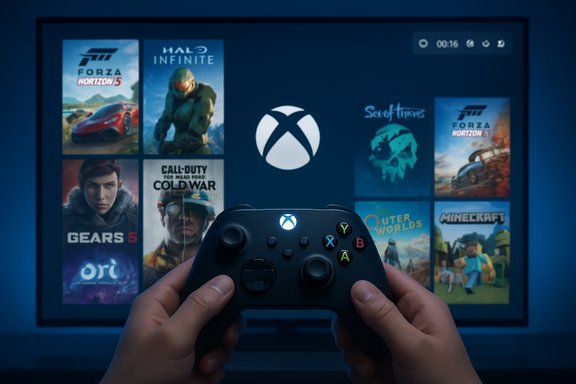
When FSE is enabled and selected, Windows launches a chosen “home app” (the Xbox PC app by default) in full screen and intentionally suppresses or delays parts of the normal desktop experience — wallpaper, some Explorer services, and certain startup agents — to reduce visual clutter and free runtime resources for games. The effect is a simplified, tile-based launcher optimized for gamepads with large thumbnails and controller navigation cues.Controller-first navigation and task switching
FSE adapts several input and switching behaviors to favor controllers: long-press actions on the Xbox button provide quick task switching, the Game Bar is refocused as a persistent overlay for captures and performance toggles, and on supported devices an on‑screen controller keyboard appears to reduce dependence on touch or a physical keyboard. Keyboard and mouse still work, but the interface is deliberately tuned for thumb sticks and bumpers.Resource trimming — what to expect
Multiple hands‑on reports and Microsoft messaging indicate that FSE can reduce desktop memory and background CPU/I/O activity by deferring Explorer and non-essential background processes. Several outlets and early testers have cited a frequently observed savings in the neighborhood of 1–2 GB of RAM on favorable configurations, though Microsoft’s official wording is cautious and frames the benefit as “more system resources” rather than committing to a fixed number. Treat the 1–2 GB figures as directional and hardware-dependent; real‑world gains will vary by device, installed apps, and running services.How to enable the Xbox Full Screen Experience in Windows 11
Enabling FSE on a PC involves two broad prerequisites and a few simple toggles. The mode is available to Insiders in the Dev and Beta channels (and on supported handheld shipping builds), and you must also be enrolled in the Xbox Insider Program for the PC Gaming preview to maximize the chance of getting the feature in preview.Step 1 — Join the Windows Insider Program
- Open Settings → Windows Update → Windows Insider Program.
- Choose the Dev or Beta channel (the FSE plumbing is present in the 25H2 preview stream used for Insider builds).
- Restart when prompted.
If your device doesn’t immediately show the FSE option after updating, the rollout may be phased or OEM‑gated.
Step 2 — Join the Xbox Insider Program and opt into PC Gaming Preview
- Install and open the Xbox Insider Hub from the Microsoft Store, go to Previews, and join PC Gaming Preview. This enrollment increases your chance of receiving FSE-related Xbox app bits and entitlements.
Step 3 — Install or update the Xbox PC app
- Ensure the Xbox app installed from the Microsoft Store is present and updated to the latest Insider/beta version if available. FSE uses the Store-delivered Xbox app as the default home app.
Step 4 — Turn on Full Screen Experience and choose a home app
- Open Settings → Gaming → Full screen experience.
- Use the drop-down to set Xbox (or another supported home app) as your home app.
- Optionally enable Enter full screen experience on startup if you want the device to boot directly into FSE. You may be asked to restart to apply optimization.
Quick entry and exit methods
Microsoft exposed multiple entry points so FSE fits different workflows and input preferences.- Task View: Hover over the Task View icon on the taskbar (or press Win + Tab) and choose Xbox Full Screen Experience.
- Xbox Game Bar: Press Win + G, open Game Bar Settings and toggle Full screen experience; Win + F11 is a convenient keyboard toggle for entering/exiting the mode.
- Controller: Long‑press the Xbox button on a paired Xbox controller to quickly switch between the FSE session and the desktop (behavior can vary by OEM and device).
A practical, step‑by‑step enable guide (concise)
- Join Windows Insider Program (Dev or Beta).
- Install Xbox Insider Hub → Join PC Gaming Preview.
- Update Windows to the Insider Preview build that carries the FSE components (Insider builds in the 26220.x family have been associated with the preview). Note: build numbering cited in announcements has varied; check Windows Update for the exact build available to your device.
- Install or update the Xbox PC app from the Microsoft Store.
- Open Settings → Gaming → Full screen experience → select Xbox and enable Enter full screen experience on startup if desired.
- Use Task View (Win + Tab), Game Bar (Win + G), or Win + F11 to enter and exit the experience.
Compatibility, availability and build notes
- The preview rollout for non‑handheld PCs has been linked to Windows Insider Preview builds in the 26220.x family, with one commonly cited public build number being 26220.7271 (some posts noted internal inconsistencies in exact numbering, so verify via Windows Update). If you’re on the right Insider channel but don’t see FSE, the rollout could be phased, server‑gated, or restricted by OEM entitlements.
- FSE was shipped preinstalled on handhelds like the ASUS ROG Xbox Ally and Ally X and has been extended to additional handhelds (MSI Claw and others) before broader PC previews. OEMs may still decide how and when to enable the experience on specific models.
- The Xbox app from the Microsoft Store is a required component for the Xbox home app scenario; local store builds and UWP packaging matter for correct operation.
Hands‑on benefits and measurable changes (what reviewers reported)
Early testers and press coverage show several consistent advantages when FSE is active on supported devices:- Cleaner, console-like navigation that simplifies game discovery and reduces input friction on controllers.
- Aggregated game library across Game Pass, Microsoft Store, and detected installs from Steam, Epic, Battle.net and others — making it a single jumping‑off point for installed titles.
- Noticeable reductions in idle memory/foreground competition on constrained devices; multiple outlets reported reclaiming roughly 1–2 GB of RAM when the desktop shell is suppressed, which can improve texture budgets and reduce stuttering on low‑RAM handhelds. Treat these numbers as approximate and configuration-dependent.
Risks, caveats and things to watch
FSE is a promising step toward a console-like Windows experience, but several real risks and trade-offs deserve attention.- Not a magic performance bullet: FSE trims user‑space overhead; it does not change kernel scheduling, GPU driver models, or anti‑cheat and DRM subsystems. Games that rely on kernel‑level anti‑cheat still require the same drivers and runtimes, and FSE won’t bypass those requirements. Don’t expect it to fix driver problems or replace necessary anti‑cheat updates.
- Phased, OEM-gated rollout: installing the preview build does not guarantee immediate access. Microsoft and device manufacturers may gate the feature, which can be confusing for testers who follow instructions but still don’t see the toggle. Be prepared for a staged rollout and possible OEM-specific opt-ins or firmware updates.
- Background tasks and maintenance pause: by deferring routine background activity and muting notifications, FSE reduces interruptions at the cost of delaying maintenance tasks (updates, antivirus scans, backups). That may be desirable for gaming sessions, but users should remember that some system housekeeping will be postponed until they return to the desktop. This behavior is intentional and part of the design, but it can affect update schedules, backup windows and background scans.
- Potential app/launcher quirks: while FSE aggregates discovered games, not every third‑party launcher or store may integrate perfectly during the preview. Be prepared for occasional missing titles in the Xbox home view or mismatched launch paths until discovery and integrations mature. Early testers reported quirks that are expected to be resolved through updates and feedback.
- Telemetry and entitlements: the feature’s staged rollout and server‑side entitlements imply telemetry and entitlement checks that could be a concern for privacy-focused users. Microsoft has used staged rollouts before to gate features; this model requires backend checks that determine whether your device is allowed to see the toggle. This is a standard practice but worth noting for those tracking telemetry behavior.
- Build numbering inconsistencies: official communications about the preview have contained occasional inconsistencies in the exact build numbers cited. If precise build tracking matters for your testing, verify the exact build shown in Windows Update on your device.
Troubleshooting: common issues and fixes
- I don’t see Full Screen Experience in Settings: Confirm Windows Insider channel is Dev or Beta and the device has received the preview build; ensure the Xbox app is installed from the Microsoft Store and you’re enrolled in the Xbox Insiders PC Gaming preview. If all that’s true, the availability is likely phased or OEM‑gated; check the Feedback Hub and Insider forums for rollout notes.
- FSE starts but games won’t launch correctly: verify the game’s anti‑cheat requirements and ensure drivers are up to date; FSE doesn’t change driver or anti‑cheat behavior. If a specific game fails, capture the behavior and file a report via Feedback Hub under Gaming → Xbox Full Screen Experience.
- My background tasks or updates were paused: remember FSE defers some maintenance; return to the desktop to let Windows resume updates, antivirus scans and backups. Consider scheduling heavy maintenance outside your gaming sessions.
- Controller behavior inconsistent: controllers may behave differently depending on OEM firmware and which Xbox controller model or receiver is used. Update controller firmware through the Accessories app and ensure Bluetooth/USB drivers are current. Long‑press Xbox button behavior can vary.
Strategic perspective: why this matters for Windows gaming
FSE is a clear signal that Microsoft wants Windows to behave more like a console when users want it to, without losing the platform’s openness and compatibility. By offering a controller-first shell that aggregates Game Pass and installed titles from multiple storefronts, Microsoft is pushing a more unified front-end for gaming that could reduce friction for mainstream consumers used to turn‑on-and-play consoles. This move aligns Windows more closely with living‑room and handheld expectations and narrows the UX gap with competing solutions like Steam Deck front ends.For OEMs, FSE is a differentiator for handhelds and potentially a selling point for thin-and-light gaming laptops that want to offer a console-like experience. For third‑party storefronts and launchers, the centralization of discovery raises questions about discoverability and integration, though Microsoft’s current approach is designed to include discovered installs from other clients rather than exclude them outright.
Final verdict — who should try FSE
- Handheld and controller-first users: If you own a Windows handheld or use an Xbox controller as your primary input, FSE delivers the biggest and most immediate user‑experience improvements. The controller-first UI, Task View integration and resource trimming are tailored for this group.
- Insiders and testers: Sign up for Windows and Xbox Insider programs if you want early access and are comfortable reporting bugs and quirks. The preview is intentionally staged; testers are encouraged to file reproducible feedback.
- Cautious productivity users: If your workflow depends on uninterrupted background maintenance or immediate notifications, plan around FSE’s behavior or use it only during dedicated gaming sessions to avoid postponed updates or scans.
Conclusion
The Xbox Full Screen Experience is a pragmatic, incremental reimagining of how Windows can present itself when the goal is pure play. It offers a clean, controller-first launcher, practical resource savings on constrained hardware, and multiple convenient entry points — Task View, Game Bar, Win + F11, and controller shortcuts. The feature preserves Windows’ underlying compatibility by implementing session-level changes rather than kernel or driver rewrites, and it’s rolling out in a phased preview for Insiders and selected handheld devices. Early hands‑on reports suggest tangible benefits, especially on handhelds, but those gains are variable and the rollout remains gated by Microsoft and OEM entitlements. For gamers who value a console-style start-to-play experience on Windows, FSE is worth trying; for others, it’s a promising option to keep an eye on as the preview moves toward broader availability.Source: Windows Report How to Enable the New Xbox Full Screen Experience in Windows 11
