Windows 11 Xbox Full Screen Experience: Console-Style Gaming on PC

  • Thread Author
Microsoft has quietly given Windows 11 a console-like persona: the new Xbox Full Screen Experience (FSE) transforms supported PCs into a controller-first, distraction-free gaming shell that boots straight into the Xbox app and trims desktop overhead to free memory and simplify navigation. This feature, first demonstrated on handhelds such as the ROG Xbox Ally, is now rolling out more broadly via the Xbox Insider and Windows Insider programs, and can be previewed on many laptops, desktops, and tablets running recent Windows 11 Insider builds.

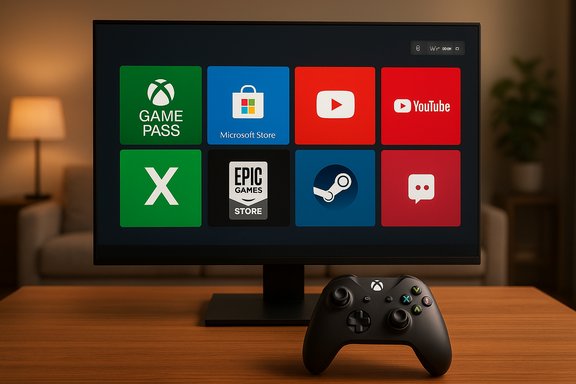
Cozy gaming setup with a large monitor showing Xbox UI, a secondary display, and a controller on a wooden table.Background​

Windows has long tried to be everything to everyone — productivity platform by day, gaming platform by night — but the result can feel cluttered when all you want is to play. Microsoft’s response is Full Screen Experience (FSE): a mode that effectively changes the Windows session posture, prioritizes the Xbox app as the home interface, and defers or disables nonessential desktop components so gaming takes center stage. The design goal is simple: boot fast, reduce interruptions, make controller navigation natural, and reclaim system resources for games. FSE first appeared in OEM previews with handheld partners (notably the ROG Xbox Ally family) and now is expanding into a preview for a wider range of Windows 11 PCs through phased Insider rollouts. Microsoft positions the feature as an option — not a replacement for the standard desktop — and provides multiple entry points to toggle it.

What FSE Actually Is​

A different Windows “session posture”​

FSE is not a separate operating system; it is a session-level experience that loads the Xbox app as the primary home UI and deliberately avoids loading several desktop subsystems and background services that aren’t critical to gaming. That means the Windows Explorer shell, many startup apps, and nonessential background tasks can be deferred while FSE is active, giving the game more unobstructed system headroom and reducing desktop clutter.

Controller-first navigation​

The interface is designed to be navigated with a gamepad. Large targets, an Xbox-style home, and a Task Switcher optimized for controller input replace the tiny click targets and windowed navigation that are awkward on handheld screens and living-room PCs. FSE includes Game Bar integrations and a tailored Task View that prioritizes games and launchers.

Boot-to-game option​

A key convenience is the toggle to “Enter full screen experience on startup,” enabling a device to boot directly into the Xbox app without presenting the usual desktop first. This turns a PC into a console-style appliance for players who want a one-thing-to-do experience. Microsoft documents the startup option and the means to enter and exit FSE through Game Bar, Task View, and keyboard shortcuts.

How to Enable FSE (Practical Setup)​

Enabling FSE for early access typically requires Insider builds and the Xbox Insider program while Microsoft phases the rollout. The process can vary slightly depending on whether your device already received the update via Windows Update or a vendor-provided firmware/software package.
  • Install or update the Xbox app from the Microsoft Store and install Xbox Insider Hub if you don’t already have it.
  • Join the Xbox Insider Program and opt into the PC Gaming preview in the Xbox Insider Hub.
  • Join the Windows Insider Program and enroll in either the Beta or Dev channel (the rollout has targeted these channels during preview). Ensure Windows 11 is updated to the build that contains the FSE bits.
  • Open Settings → Gaming → Full screen experience to configure the mode. You can set Xbox as the home app and enable Enter full screen experience on startup if you want the device to boot into FSE. You can also use Game Bar → Settings or press Win + F11 or enter the Task View menu to toggle the mode in many builds.
Notes: The feature rollouts are phased. Not every Insider will see it immediately, and some OEMs may ship versions of FSE pre-configured on their handheld models. If you join the Dev channel be aware of the usual Insider caveats: builds can be less stable and leaving certain channels may require system recovery or a clean install. Community reports highlight that some users needed to switch channels or perform recoveries to get access.

Key Features and Benefits​

  • Console-style home and unified launcher: The Xbox app becomes the centralized home for browsing and launching titles from Game Pass, Microsoft Store, Steam (via Steam’s Big Picture integrations), and other installed launchers. This reduces context switching and makes the experience feel more like a console front end.
  • Controller-first UX and quick task switching: Long-press Xbox button switching, a controller-friendly Task View, and Game Bar improvements mean you can move between running games and apps without a keyboard and mouse. This is important for living-room setups and handhelds.
  • Resource optimization: By avoiding loading Explorer and deferring background services, FSE can reclaim memory and reduce background CPU wakeups. Independent reporting consistently observes directionally meaningful savings — typically in the order of approximately 1–2 GB of RAM on tuned handhelds and systems with heavier desktop loads, which translates to steadier sustained performance on thermal- and memory-constrained devices. Treat the number as directional rather than universal.
  • Fewer interruptions: Notifications and non-gaming overlays are minimized, reducing the chance of interruptions during play. This helps maintain immersion and avoids unexpected overlays that can stutter or pull focus.
  • Boot-to-game convenience: For users who want a turn-on-and-play device for a living room PC or handheld, the startup option crops the usual desktop walk-through and drops the user straight into the Xbox home.

Performance Analysis: What to Expect​

Memory savings and the “~2 GB” figure​

Multiple reviews and hands-on tests report roughly 1–2 GB of reclaimed RAM on devices when FSE defers Windows Explorer and many background services. The figure appears repeatedly in coverage, but Microsoft’s official Windows Insider blog describes minimizing background processes without publishing a definitive universal number; therefore the 2 GB figure should be treated as an empirical estimate gleaned from hands-on tests, not an absolute guarantee. Actual savings will vary by system configuration, installed apps, and which services are normally running on your device.

Low-end and integrated GPU systems benefit most​

Systems where RAM and integrated GPU memory bandwidth are the limiting factors — such as handheld PCs, older laptops, or devices with 8–16 GB RAM — show the most noticeable improvements. By reclaiming headroom, minimum frame rates can become more stable, and memory-heavy textures or background services are less likely to compete with the game. Reviewers of handheld devices observed smoother sustained frame delivery and, in some cases, modest battery improvements when background services were reduced.

Diminishing returns on high-end hardware​

On modern gaming desktops with fast discrete GPUs, abundant RAM, and well-tuned drivers, FSE’s tangible performance uplift is small to negligible. These systems already have enough resource headroom that deferring Explorer and background utilities won’t move average FPS significantly. The feature remains useful for the UX improvements and for creating a living-room-style experience, but don’t expect dramatic FPS jumps on high-end rigs.

Variable real-world gains​

Benchmarks show variability. Some titles and scenarios — especially those sensitive to memory fragmentation, background indexing, or frequent I/O from desktop utilities — may benefit more than others. Other bottlenecks such as thermal throttling, driver limitations, and anti-cheat/kernel-mode components determine the ceiling for performance; FSE cannot change raw CPU/GPU throughput.

Ideal Use Cases​

  • Handheld Windows PCs (ROG Xbox Ally, Ally X, Lenovo Legion Go, AYANEO-style devices): These devices benefit most from FSE because they are thermally constrained and need every bit of resource optimization and controller-friendly UI to make the experience comfortable. OEMs shipping FSE-enabled builds will emphasize this scenario.
  • Living-room PCs and Steam Machines: For machines paired with TVs and controllers, FSE’s boot-to-game and simplified navigation create an appliance-like experience that mirrors consoles. It reduces friction for couch gaming.
  • Older or low-memory systems: PCs with limited RAM or integrated GPUs see the clearest benefit; freeing memory improves stability and reduces stutters in memory-heavy titles.
  • Kiosk / demo setups: Machines used to demo games at events can use FSE for a locked-down, intuitive front-end that reduces accidental context switching and desktop exposure.

Limitations, Risks, and Compatibility Concerns​

Customization is limited today​

FSE uses the Xbox app as the home experience by design, which constrains users who want different launchers or deeper UI customization. Power users who prefer complex multi-window workflows or heavily customized desktops will find FSE restrictive. Microsoft indicates expanded customization could come later, but the current emphasis is simplicity and a console-like flow.

Not a silver bullet for performance​

FSE trims overhead but doesn’t alter GPU drivers, firmware power management, or thermal envelope. If a game is GPU-limited or the device is thermally throttling, shell-level optimizations will have limited effect. Expect gains only where desktop background activity materially competes with the game.

Launchers, anti-cheat, and DRM interplay​

Because FSE is still a Windows session, anti-cheat kernels and platform DRM remain supported in most cases — an advantage over alternative OS-based front ends that struggle with anti-cheat compatibility. However, some third-party launchers and overlays add their own background services that FSE won’t automatically remove, and specific titles may require additional services that reduce the net benefit. Testing required per-game.

Insider program and stability considerations​

Preview availability through Windows Insider and Xbox Insider means early adopters could encounter bugs. The Dev channel can be particularly volatile; community feedback indicates switching Insider channels or recovering from preview builds sometimes involves extra steps. Users who rely on stability should wait for the general rollout or for manufacturer-supplied firmware that integrates FSE.

OEM fragmentation and varying implementations​

OEMs may implement or expose FSE differently. Some handhelds may ship with a tuned FSE build, while others still require Insider enrollment. Expect variance in polish, driver integration, and the richness of store/launcher aggregations across devices.

How FSE Compares to Other “Console-like” PC Modes​

  • Steam’s Big Picture / Steam Deck mode: Steam’s Big Picture and Deck UI focus on Steam library access and are tightly integrated with the Steam ecosystem. FSE is broader in that it centers the Xbox app as a unifying home for Game Pass and aggregates installed titles from multiple storefronts through the Xbox app’s library integrations. FSE emphasizes boot-to-Xbox and system-level background trimming, while Steam’s approach focuses on storefront and controller navigation inside Steam’s own environment.
  • OEM “game mode” skins: Some OEMs provide launcher overlays or hardware modes, but FSE is an OS-level posture that explicitly defers Explorer and other desktop services — a distinction that can yield measurable memory savings on constrained hardware. OEM skins that simply launch a normal desktop app do not achieve the same systemic trimming.

Privacy, Security, and Enterprise Considerations​

FSE itself is a user session configuration and does not change core Windows security boundaries or telemetry policies. Because it defers common desktop services, it may affect how enterprise agents or device management tools launch at boot; administrators should test managed devices before deploying FSE widely in enterprise gaming labs or kiosk scenarios. Also, since FSE relies on the Xbox app and potential cloud features (Game Pass, cloud streaming), users should verify account- and privacy-related settings for the Xbox and Microsoft services used within the mode.

Practical Tips and Troubleshooting​

  • If FSE doesn’t appear after joining Insider programs, make sure both the Xbox app and Xbox Insider Hub are installed and updated. Check Settings → Gaming after updating Windows. OEMs may push FSE via their own update packages, so confirm with your device vendor.
  • For a reversible test: enable FSE but avoid setting it to “Enter full screen experience on startup” so you can switch back to the desktop quickly if you need to run legacy apps. You can always exit FSE via Task View or by pressing the Windows key.
  • Expect variance by game: test titles individually, especially those with complex launchers or anti-cheat systems, to confirm no regressions in functionality or multiplayer access while in FSE.
  • Insider channel caution: switching channels (particularly into Dev) can complicate rollbacks. If you prefer stability, wait for vendor firmware that ships FSE as a supported and validated feature. Community threads document users who needed full restores to fully exit certain Insider states.

Looking Ahead: What Microsoft Might Improve​

Microsoft has signaled that FSE will evolve with broader customization, better third-party store integration, and more convenient toggles — the early focus is on a polished, controller-first home experience and systemic trimming. Future enhancements could include:
  • Granular customization of the FSE home and preferred launchers.
  • More fine-grained control over which background services are deferred per-title.
  • Better OEM tooling so manufacturers can ship tuned FSE experiences with drivers and power profiles already aligned.
    These improvements would broaden FSE’s appeal beyond handhelds and living-room PCs into mainstream desktops where users demand choice and customization.

Conclusion​

The Xbox Full Screen Experience is Microsoft’s clearest attempt yet to deliver a true, console-like gaming posture on Windows 11. For handhelds, living-room PCs, and older systems with limited memory and integrated graphics, FSE delivers meaningful usability and resource benefits: simplified navigation, controller-first flows, and measurable reductions in desktop overhead that can free up roughly 1–2 GB of RAM in favorable cases. For high-end gaming desktops the performance payback is modest, but the UX gains for couch play and boot-to-game convenience remain valuable.
Practical adoption depends on patience: early access requires Insider enrollment and vendor rollouts are uneven, so testers should expect variance. The 2 GB figure is a useful directional benchmark gleaned from hands-on reviews and tests, but it is not a Microsoft-guaranteed metric — actual gains will vary by device, installed software, and drivers. For anyone building a living-room PC, buying a handheld Windows device, or trying to squeeze extra steadiness from an older laptop, FSE is a worthwhile feature to try when it arrives on your system.
Source: Geeky Gadgets Console-Style Windows 11 : New Xbox Full-Screen Mode Arrives
 

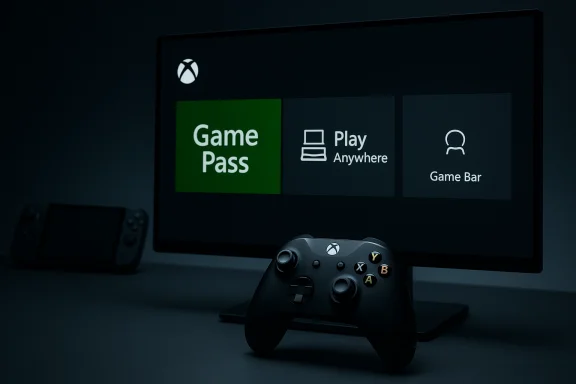
Xbox dashboard shows Game Pass tile, Play Anywhere, and Game Bar, with a controller in the foreground.
Microsoft’s latest push to blur the line between PC and console gaming arrives in earnest: Windows 11 now offers an Xbox full-screen experience that can turn a PC into a console-like gaming environment, navigable primarily with a controller and optimized for portable form factors. Released to Windows and Xbox Insiders in November 2025 as part of the Windows 11 Insider Preview (build 26220.7271, KB5070307), this mode is already rolling out to handhelds and is available in preview for laptops, desktops, and tablets. The change is more than a new skin — it’s a different operational mode that skips the traditional Windows Explorer shell, reduces background activity, and places the Xbox app front and center as a unified launcher for games from multiple storefronts.

Background​

The Xbox full-screen experience (often abbreviated FSE) first surfaced as a tailored environment for Xbox-branded handhelds and select OEM partners. Microsoft designed it to provide a controller-first, distraction-free UI aimed at getting players into games faster while reclaiming system resources on devices where memory and power are at a premium. Over the last year, Microsoft and partners shipped handhelds that boot directly into that environment; the recent Insider Preview expands the feature beyond those devices so a broader set of Windows 11 PCs can try it.
This move follows a broader Microsoft strategy to strengthen the Xbox and Windows synergy: leverage the Xbox app and Game Pass ecosystem on Windows, create a consistent gaming entry point across devices, and position Windows as an attractive alternative to purpose-built consoles — especially in the fast-growing handheld PC category.

What the Xbox full-screen experience actually is​

A console-like shell for Windows 11​

At its core, the Xbox FSE is a full-screen, controller-optimized shell that replaces the typical desktop experience with a simplified launcher. The interface centers on the Xbox app as the “home” experience and exposes a unified game library view that aggregates titles from Game Pass, Xbox Play Anywhere, and installed games from third-party stores. Navigation is designed for gamepads: the Xbox button opens a Game Bar–style overlay, long-press behavior offers a quick Task Switcher, and the UI uses large, touch/controller-friendly targets.

How it differs from regular Windows​

  • Explorer shell suppression: When FSE is active the traditional Explorer desktop, wallpaper, and taskbar are suppressed to reduce background processes.
  • Controller-first navigation: Primary UX flows assume a controller is the input device, although keyboard and mouse still work.
  • Dedicated Task View: FSE includes its own task-switching UX that’s tuned for swapping between games and a small set of apps quickly.
  • Startup boot option: On supported devices, you can configure the system to boot directly into FSE so the device behaves more like a console at power-on.
These differences are intended to streamline the user experience for players and to reduce the resource overhead of running the standard Windows desktop during gaming sessions.

Availability and how to access it​

Insider preview rollout and build requirements​

The FSE expansion arrived in the Windows 11 Insider Preview builds distributed to Dev and Beta channels under Build 26220.7271 (KB5070307). Microsoft has taken a phased approach to the rollout, so not every Insider will see the option immediately; the feature requires the Xbox app from the Microsoft Store and participation in the Xbox Insider Program for the PC Gaming Preview for the broadest preview access.

Entry points into Full Screen Experience​

There are multiple ways to enter or toggle FSE once the feature is present on your PC:
  • Hover over the Task View icon on the taskbar and select Xbox full screen experience.
  • Use Win + Tab to open Task View and select the Xbox full-screen option.
  • Toggle it from Game Bar > Settings.
  • Use the keyboard shortcut Win + F11 to switch in and out of the mode.
  • Configure the experience to start on boot via Settings > Gaming > Full screen experience.
If the option does not appear for a user on an Insider build, several community guides demonstrate a workaround using feature-flag tooling; however, that approach requires caution (see below).

What Microsoft and early reviewers report for performance​

Microsoft positions FSE as a pragmatic optimization for gaming on constrained hardware. The company and multiple outlets report that, by avoiding loading the full Explorer shell and deferring non-essential background tasks, devices can reclaim system memory and reduce idle background activity. Early coverage and statements by Microsoft engineers suggest that on certain handheld hardware this trimming can free around 2 GB of RAM, delivering measurable improvements in frame-rate stability and load times for memory-sensitive titles.
Key practical effects reported by testers and early media coverage:
  • Reduced memory footprint: Skipping Explorer and related desktop services can free a significant chunk of RAM on lower-memory systems.
  • Lower background CPU and I/O: Deferring nonessential services reduces background contention, which can cut micro-stutters in some games.
  • Improved idle power draw: On handhelds, Microsoft has highlighted better standby/idle efficiency when the device is managed under FSE.
  • Faster, more immediate game launch: The unified launcher and minimized background interruptions mean users can get into games faster.
Caveat: the exact benefits will vary dramatically depending on device hardware, installed software, and which background services are actually running. The often-quoted “2 GB” figure is useful as a ballpark but should not be read as a guaranteed, device-agnostic specification.

Practical steps and community workarounds​

Official route (recommended)​

  1. Join the Windows Insider Program (Dev or Beta channel recommended when the build is being distributed).
  2. Join the Xbox Insider Program and opt into the PC Gaming Preview through the Xbox Insider Hub.
  3. Update to the preview build (for Insiders, build 26220.7271 / KB5070307 or later).
  4. Install the Xbox app from the Microsoft Store if it isn’t present.
  5. Enable Full screen experience from Settings > Gaming, or access it from Task View/Game Bar/Win+F11.

Community methods (use with extreme caution)​

Some community guides demonstrate enabling FSE using ViVeTool — a command-line tool used to toggle Windows Insider feature flags — and minor registry edits that emulate a handheld form factor. Typical steps cited in these guides include:
  1. Download ViVeTool official release from its repository.
  2. Run an elevated command prompt and execute a command such as:
    vivetool /enable /id:59765208
  3. Optionally set an OEM DeviceForm registry entry to emulate a handheld.
  4. Restart and toggle FSE in Settings > Gaming.
Warning: these methods use undocumented feature IDs that can change between Insider builds, and registry edits that affect OEM/device identification. They carry non-trivial risk and may lead to stability issues, driver misbehavior, or even boot problems on some systems. They are intended for experienced users who understand how to recover a system and are willing to accept potential downtime.

Compatibility and ecosystem considerations​

Third-party storefronts and app behavior​

Microsoft intends for the FSE to show installed games from major storefronts, but integration is progressive. Early preview notes indicate that FSE surfaces titles from Game Pass, Xbox Play Anywhere, and many installed games across popular stores, yet integration with third-party launchers and utilities can remain inconsistent. Users can expect a more unified library over time, but shortcuts, overlay behavior, anti-cheat interactions, or specialized launcher features may not be fully seamless on day one.

Game and app compatibility​

Because FSE operates by suppressing parts of the Windows desktop environment, certain applications that assume a conventional Explorer shell or rely on standard Windows shell behaviors may behave differently or exhibit issues while FSE is active. Early user reports and community threads cite instances where:
  • Some launcher overlays behave unexpectedly.
  • Utilities that inject into Explorer may not load.
  • Rare driver or input behaviors can change depending on whether the system boots into FSE.
Microsoft plans regular updates through the Insider feedback channel, but users should treat FSE as a preview feature on non-handheld PCs until mainstream support lands.

Risks, stability, and security notes​

Stability and recovery​

  • Because FSE can change which system components are loaded, it can affect startup sequences and device enumeration. If you rely on specialized drivers (audio dongles, game capture hardware, controller remappers), test them before making FSE your default environment.
  • Community workarounds that flip internal feature flags or change the DeviceForm registry value can create unexpected side-effects. These are not supported by Microsoft and may complicate warranty and support interactions with OEMs.

Security and privacy​

  • The Xbox app and Game Bar overlay continue to expose features such as cloud saves and social tools. Users should review privacy settings and account linkages before enabling the environment broadly.
  • Any time system behavior is altered (for example, by bypassing Explorer), audit installed security and backup procedures. The new Point-in-time Restore and improved recovery options included in the same preview builds are welcome, but users should still maintain backups and ensure restore points are available.

Performance expectations​

  • FSE is not a substitute for hardware limits: it does not change GPU driver scheduling, core frequencies, or CPU microarchitecture. The gains come from trimming OS-level overhead; they are meaningful for constrained devices but incremental for well-provisioned desktops with ample RAM and robust thermal budgets.
  • Some users may see negligible differences on high-end hardware; others on low-memory handhelds will see a noticeable uplift.

OEM partnerships and device landscape​

Microsoft launched FSE alongside device partnerships that helped shape the feature’s trajectory. Key device stories include:
  • ASUS ROG Xbox Ally and ROG Xbox Ally X: These devices were co-developed with Microsoft and shipped with the Xbox full-screen experience as the default boot target on handheld launch units.
  • Other handheld vendors: MSI, Lenovo, and other handheld makers have been working with Microsoft to deliver FSE-enabled devices or updates. The Lenovo Legion Go line showed early interest and is part of the broader handheld roadmap.
  • General PC hardware: The feature is now in preview for a broader set of laptops, desktops, and tablets via the Insider channels, enabling a wide range of OEMs to test and adapt their drivers and utilities for FSE.
For OEMs, FSE provides an opportunity to ship a more console-like experience that differentiates their handhelds from standard Windows laptops. For Microsoft, the tighter integration across hardware partners helps make Windows competitive with dedicated gaming consoles in the portability segment.

Strategic and market implications​

For Microsoft and Xbox​

  • Deeper platform integration: FSE tightens the Xbox–Windows integration and positions Microsoft to capture more time spent in the Xbox ecosystem on PCs, especially where Game Pass is a primary value driver.
  • Competitive posture: With a console-like entry point, Microsoft can better compete with native platforms (and Valve’s handheld efforts) by offering Windows flexibility with the simplicity of an Xbox dashboard.
  • Ecosystem leverage: A unified launcher and controller-first UX could encourage more users to prefer Game Pass and Xbox social features on Windows devices, strengthening subscription-based revenue streams.

For PC gamers and developers​

  • Opportunity: Developers get another controlled, console-like channel to surface games on Windows — useful for titles that benefit from gamepad-first interaction.
  • Challenge: Developers and middleware teams must ensure anti-cheat, overlays, and third-party launchers behave well when Explorer is suppressed and input focus flows differently.

For OEMs​

  • Differentiation: OEMs building handheld PCs can use FSE to offer a distinct, ready-to-play experience that rivals dedicated portable consoles.
  • Support overhead: OEMs must validate and support device drivers and third-party utilities in both FSE and standard desktop modes, increasing QA scope.

Hands-on user guidance and best practices​

  • Join the Insider programs only if you are comfortable with preview software and have reasonable recovery options available.
  • If you rely on capture cards, remapping tools, or proprietary drivers, test them in FSE before making it your permanent environment.
  • Keep a verified backup and understand how to disable FSE (Settings > Gaming > Full screen experience or Win + F11) and how to boot back to standard Windows if needed.
  • Avoid community hacks unless you have an image backup and a recovery plan; undocumented feature flags and registry changes are inherently risky.
  • Provide feedback through the Feedback Hub and Xbox Insider channels; Microsoft is explicitly shaping this feature via community input.

Critical analysis: strengths, unanswered questions, and risks​

Strengths​

  • User experience simplification: For gamers who prefer a console-like UX, FSE removes friction and clutter, making gaming sessions more immediate.
  • Performance pragmatism: On low-RAM handhelds the memory and process reductions will likely translate into noticeable performance and battery benefits.
  • Ecosystem unification: The Xbox app acting as a single launcher simplifies library management across storefronts and services.

Unanswered questions and limitations​

  • Storefront parity: The degree to which third-party storefronts and game managers will be fully integrated remains in flux; some quirks are expected in early previews.
  • Uniformity of performance gains: While many testers report memory savings, the magnitude of benefits will vary by system; the commonly cited “~2 GB” is a useful heuristic but not a guaranteed metric across the board.
  • Long-term fragmentation risk: If OEMs implement divergent behaviors around FSE boot modes or add proprietary overlays, the user experience could fragment, complicating support and app interoperability.

Risks and consumer caution​

  • Stability and driver regressions: Suppressing the Explorer shell changes how some drivers and shell-integrated utilities initialize. Users could see regressions in audio routing, capture devices, or input mapping.
  • Supportability: Community hacks to force-enable FSE can void warranties in practice by stepping outside recommended procedures; they may also create support headaches for OEMs and Microsoft.
  • Expectation mismatch: Casual users may expect FSE to magically transform performance on any device. In reality, FSE’s advantages are contextual and most meaningful on constrained hardware.

Where this leaves PC gaming​

The Xbox full-screen experience is a pragmatic evolution: it recognizes that many gamers want the immediacy and simplicity of a console dashboard without sacrificing the openness of Windows. For handheld hardware and users who prize portability, it’s a notable advancement that addresses longstanding UX and resource overhead concerns on Windows handhelds.
However, it’s not a universal cure. Developers, OEMs, and Microsoft will need to iterate on integration, compatibility, and support scenarios to make FSE a comfortable choice for mainstream PC users. The phased Insider rollout is appropriate: it lets Microsoft iterate on real-world feedback before wider distribution.

Conclusion​

Microsoft’s Xbox full-screen experience is a calculated step toward converging console and PC worlds: a controller-first, full-screen mode that simplifies game discovery, improves performance on constrained devices, and offers a more console-like flow on Windows 11. Early reports from Microsoft and the press indicate measurable resource savings and smoother, distraction-free gaming on handhelds and other devices. Yet the feature comes with caveats — compatibility wrinkles, dependence on Insider previews for wide availability, and community workarounds that carry real risk.
For enthusiasts and mobile gamers, FSE is a compelling option worth testing cautiously. For mainstream desktop users, it is an interesting preview of where Windows gaming UX can go, but it does not replace the standard desktop for productivity-focused workflows. The next months of Insider feedback and OEM refinements will determine whether FSE becomes a mainstream way to play on Windows 11 — or remains a useful, but specialized, mode for handhelds and portable gaming rigs.

Source: appel-aura-ecologie.fr Windows 11’s New Xbox Mode Transforms PCs into Gaming Consoles - Appel Aura Ecologie
 

Microsoft has folded a console‑style front door into Windows 11: the Xbox Full Screen Experience (FSE) delivers a controller‑first, full‑screen gaming shell that can boot as your session’s launcher and trim desktop overhead to prioritize play.

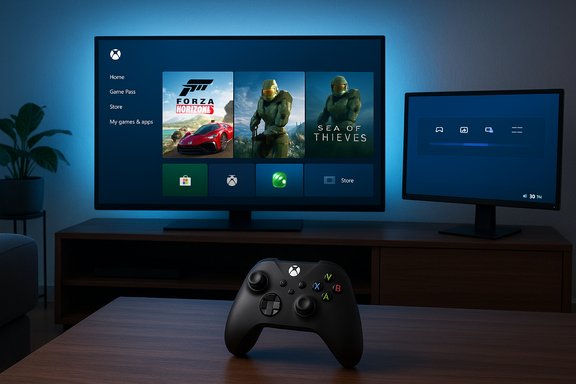
Monitor on a wooden desk displaying Xbox Game Pass and apps, with a game controller.Background​

Microsoft introduced the Full Screen Experience initially as the out‑of‑box shell for handheld Windows devices such as the ASUS ROG Xbox Ally family. It’s now being rolled out more broadly via the Windows Insider and Xbox Insider preview channels so laptops, desktops, and tablets can test a console‑like session posture layered on top of Windows 11. At a technical level FSE is not a new operating system or a kernel rewrite. It is a session‑level shell: when active, Windows launches a chosen “home app” (the Xbox PC app by default) as a full‑screen launcher and intentionally delays or suppresses many Explorer/desktop startup items so runtime resources are more available to games. That design preserves drivers, DRM, and anti‑cheat stacks while changing which userland components run at sign‑in.

What the Full Screen Experience actually is​

Core concept​

  • A controller‑optimized full‑screen shell that centers on a chosen home app (typically the Xbox PC app).
  • A session posture that defers non‑essential desktop components and reduces background noise while you play.
  • Multiple entry and exit points (Task View, Game Bar, Win + F11) so it behaves like a reversible launcher rather than a disruptive system change.

Key user‑facing features​

  • Large, tile‑based home screen that aggregates Game Pass, Microsoft Store, and discovered installs from third‑party storefronts (Steam, Epic, Battle.net).
  • Controller‑first navigation with Xbox‑button behaviors (long‑press for task switching) and an on‑screen controller keyboard where applicable.
  • Boot‑to‑console option: you can configure Windows to enter FSE at startup so the device behaves like a console at power‑on.
  • Integration with the Game Bar for captures and quick performance toggles, and an FSE‑tuned Task View for switching between games and apps.

How to get and enable the Xbox Full Screen Experience​

The official rollout is staged; Insiders and Xbox Insiders see the feature earlier. These are the verified, supported steps to enable FSE on a Windows 11 PC.
  • Join the Windows Insider Program and select the Dev or Beta channel so your system receives the Insider Preview builds that carry FSE plumbing (the preview family around Build 26220.x has been associated with this rollout).
  • Install the Xbox Insider Hub from the Microsoft Store and enroll in the PC Gaming Preview via Previews → PC Gaming. This increases the likelihood of receiving Xbox app bits and entitlements during the staged rollout.
  • Ensure the Xbox PC app from the Microsoft Store is installed and up to date; FSE uses it as the default home app unless you choose another.
  • Open Settings → Gaming → Full screen experience, choose your home app and optionally enable Enter full screen experience on startup. A restart may be recommended to apply launch‑time optimizations.
Quick entry methods once enabled:
  • Hover Task View (or press Win + Tab) → select Xbox full‑screen experience.
  • Open Game Bar (Win + G) → set Full screen experience.
  • Toggle directly with Win + F11.
If the toggle isn’t visible after you update, the rollout may be phased or gated by OEM entitlements — that’s expected for this preview.

Practical walk‑through: enabling FSE right now (concise)​

  • Step 1: Settings → Windows Update → Windows Insider Program → join Dev/Beta. Restart.
  • Step 2: Microsoft Store → install Xbox Insider Hub → open → Previews → PC Gaming → Join.
  • Step 3: Update Xbox PC app; Settings → Gaming → Full screen experience → set “Xbox” as home app → toggle “Enter full screen experience on startup” if desired → restart when prompted.

UX, controls and behavior details​

Controller as first citizen​

FSE is tuned for thumbsticks, bumpers, and the Xbox button. Many flows — launching games, browsing libraries, switching tasks — are mapped to controller inputs to recreate a living‑room console experience. Keyboard and mouse remain supported, but the UI is intentionally optimized for a gamepad.

Task switching and app management​

A long‑press of the Xbox button or a controller‑driven Task View enables quick switching between games and a limited set of apps without loading the full Explorer shell. If you pick “Enter full screen experience on startup,” Windows will delay launching non‑essential background apps until you switch to the desktop, reducing idle processes and I/O.

Notifications and background activity​

FSE mutes or down‑prioritizes many desktop notifications and some maintenance tasks to minimize interruptions during play. The trade‑off is that desktop‑oriented background processes may not run until you exit to the regular desktop.

Performance claims — what’s verified and what to treat cautiously​

Multiple hands‑on reports and early testing consistently show FSE can free measurable system resources compared with a default desktop session, especially on thermally constrained handhelds. Reviewers often cite memory savings in the range of ~1–2 GB in favorable scenarios when Explorer and numerous startup agents are deferred. However, this is a situational figure that depends heavily on installed software, startup items, and OEM configuration, and Microsoft’s official guidance frames the benefit in conservative terms as “more system resources.” Treat headline numbers as directional, not guaranteed. Why resource savings vary:
  • If your system has many heavy startup programs (Steam client, launchers, anti‑virus, synchronizers), the savings can be larger because FSE prevents those from starting until you switch to the desktop.
  • Systems already optimized or with light startup footprints will show smaller gains.
Performance note: FSE does not alter GPU driver models, kernel scheduling, DRM, or anti‑cheat subsystems. Any observed stability or frame‑rate improvements stem from user‑space trimming (fewer background tasks), not from low‑level driver or scheduler changes.

Compatibility, limitations and gating​

Insider preview & OEM entitlements​

The PC expansion is a staged preview delivered through Windows Insider builds (Build 26220.x family, referenced in many early posts). Visibility is gated by Microsoft server‑side entitlements and sometimes OEM readiness checks, which means identical builds can show different feature availability across devices. If you don’t see the toggle after joining Insiders and Xbox Insiders, wait — the rollout is phased.

Store compatibility​

FSE aggregates titles from Game Pass, Microsoft Store, and discovered installs from third‑party storefronts. It does not prevent launching games from Steam, Epic, or others, but some third‑party overlays or launchers may behave differently if they expect the full desktop shell to be present from startup. Test specific titles and launchers you rely on before making FSE your default session.

Anti‑cheat and DRM​

Anti‑cheat kernels and DRM modules remain enforced. Games that require kernel‑mode anti‑cheat (e.g., certain titles using modern anti‑cheat drivers) will still demand the necessary drivers and runtimes; FSE’s session posture does not bypass these protections. Expect the same compatibility caveats you already face on Windows, and report any regressions to Feedback Hub.

Community hacks and the risk of manual enablement​

Because Microsoft gates the rollout, community tools and scripts have surfaced that attempt to forcibly enable FSE on unsupported or un‑entitled devices. Those methods can involve registry edits, ViVeTool flags, or third‑party utilities that flip server‑side checks. Independent reporting and community threads show that while those hacks sometimes succeed, they also produce instability: control‑mapping glitches, app compatibility issues, and unexpected behavior when OEM tuning is absent. Proceeding outside the supported path carries risk; the safe path is the official Insider + Xbox Insider flow.

Security, privacy and enterprise considerations​

  • Security posture unchanged: FSE does not disable Windows security features, kernel protections, or anti‑cheat mechanisms. The underlying Windows platform remains intact.
  • Privacy surface: FSE’s launcher aggregates content across storefronts. Users should be mindful of account sign‑ins and cross‑store discovery; the Xbox app and store integrations follow existing Microsoft account sign‑in flows.
  • Enterprise desks and Kiosk scenarios: FSE is consumer‑centric and designed for gaming posture. Enterprises and IT administrators should treat it as a user opt‑in feature; device management and group policies can disable or prevent the experience if required in managed environments. The reversible, session‑level nature means it should not persistently alter device compliance, but IT teams should validate behavior on managed devices before broad exposure.

Practical tips and best practices​

  • If you’re testing FSE on a daily‑driver PC, create a restore point and ensure critical workspaces (cloud sync, background backups) run before you set FSE to start at boot. Some background jobs are deferred until you switch back to the desktop.
  • Keep the Xbox app, Game Bar, and Windows updated; FSE behavior is tied to Store‑delivered app bits and Insider build changes.
  • If you need certain desktop apps to run during FSE sessions, look for per‑app whitelist or startup exceptions (Windows may offer controls to maintain required background agents). If no interface exists yet, file feedback via Feedback Hub under Gaming > Full Screen Experience.
  • Test your most‑played games and any launchers (Steam, Epic, Battle.net) before making FSE your default. Confirm save syncing, overlays, and controller input behave as expected.

Critical analysis — strengths, trade‑offs and risks​

Notable strengths​

  • Cleaner, faster path to play: For handhelds and controller‑first setups, FSE reduces friction between power‑on and play with a console‑style launcher. Early hands‑on reports and Microsoft’s guidance both confirm the improved pick‑up‑and‑play flow.
  • Tangible resource wins on constrained devices: On thermally or memory constrained handhelds, deferring Explorer and startup items can yield meaningful free RAM and fewer idle CPU wakeups—valuable for frame stability and battery life in handheld scenarios.
  • Unified library experience: Aggregating Game Pass, Microsoft Store, and discovered installs simplifies discovery and reduces context switching between storefronts.

Trade‑offs and risks​

  • Inconsistent benefits on desktops: On high‑end desktops with minimal startup bloat, the practical gains are smaller. The CPU/GPU bottleneck for many PC games lies in raw hardware, not desktop background processes. Claims of “2 GB saved” should be treated as best case, not universal.
  • Early preview instability: As with any phased preview, expect bugs: control mapping glitches, launcher incompatibilities, and OEM tuning gaps. Community forced enablement increases the chance of such issues.
  • Potential edge cases with overlays and launchers: Certain overlays or third‑party launchers may assume the desktop shell is present at session start and can misbehave until they’re manually launched or whitelisted. Test workflows before committing to boot‑to‑FSE.

Where Microsoft needs to be careful​

  • Clear documentation about which apps and services are deferred (and how to whitelist them) is essential for adoption beyond handhelds. Microsoft’s support article and the Insider blog are a good start, but end‑user control and enterprise guidance will be critical as the feature widens.
  • Messaging around performance gains should remain measured; exaggerated claims risk disappointment on systems that don’t match review conditions. The company’s cautious framing of gains as “more system resources” is appropriate.

Troubleshooting quick checklist​

  • Toggle not visible: confirm you’re on a Windows Insider Dev/Beta build that contains FSE binaries and enrolled in the Xbox Insider PC Gaming preview; if still missing, wait — the rollout is staged.
  • Games don’t appear in FSE library: ensure their launchers are installed and the Xbox app has permission to discover local installs; some storefronts require you to sign in inside the storefront app first.
  • Controller mapping strange: update controller firmware, test in Game Bar, and report reproducible issues via Feedback Hub under Gaming > Full Screen Experience.

Conclusion​

The Xbox Full Screen Experience is Microsoft’s clearest move yet to blend the console‑like simplicity of a dedicated launcher with the openness and compatibility of Windows 11. For handhelds and controller‑centric setups it offers obvious UX and resource advantages; for desktops and laptops the benefits are more situational. The official, staged preview path (Windows Insider + Xbox Insider) is the recommended route for testing; community hacks can unlock FSE on unsupported machines but carry visible stability and compatibility risks. Test games and launchers you rely on, keep expectations measured about performance gains, and use Feedback Hub to report issues so the experience can mature before broad adoption. The Full Screen Experience gives Windows 11 a legitimate console‑style front door — a useful option for players who want to turn on and play without leaving the Windows ecosystem.

Source: Guiding Tech Using Windows 11 Xbox Fullscreen Experience
 

Back
Top